iLIFE & iWORK FOR THE
CLASSROOM
DR. TRACY ZANG
POWERBOOST LEARNING PRESENTS:
2
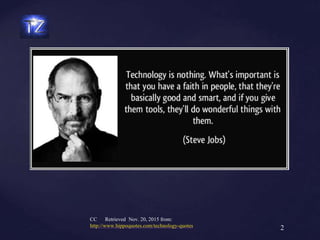
CC Retrieved Nov. 20, 2015 from:
http://www.hippoquotes.com/technology-quotes
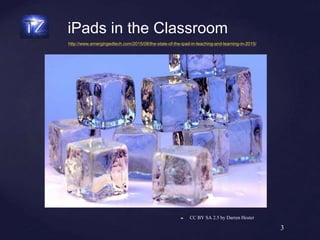
❧ CC BY SA 2.5 by Darren Hester
3
http://www.emergingedtech.com/2015/08/the-state-of-the-ipad-in-teaching-and-learning-in-2015/
iPads in the Classroom
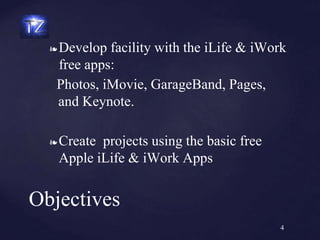
❧ Develop facility with the iLife & iWork
free apps:
Photos, iMovie, GarageBand, Pages,
and Keynote.
❧ Create projects using the basic free
Apple iLife & iWork Apps
Objectives
4
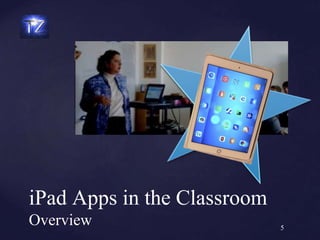
iPad Apps in the Classroom
Overview 5
❧ Read, discuss and compare pre-reading reference
material to own technology integration practice on a
class blog.
❧ Identify ISTE, 21st Century & Common Core
Technology standards
❧ Discuss pedagogical integration of iLife and iWork
technology into content area
❧ Evaluate a lesson plan you brought from home
Objectives
6
❧ Design and develop digital age learning experiences and
assessments: Design or adapt relevant learning experiences that
incorporate digital tools and resources to promote student learning
and creativity
❧ Model digital age work and learning: Demonstrate fluency in
technology systems and the transfer of current knowledge to new
technologies and situations.
National Educational
Technology Standards (ISTE)
7
❧Digital Literacy & 21st Century skills
❧Common Core technology requirements
Why Integrate?
8
❧Will Tech enhance your goals and
objectives?
❧Technology Lesson Plan (TIP)
Evaluation Tool
❧ by M.D. Roblyer (2015).
TIP Tool
9
TIP Model
❧ Phase 1: What is your technological pedagogical
content knowledge?
❧ Phase 2: Why should I use a technology-based
method?
❧ Phase 3: How will I know students have learned?
❧ Phase 4: What teaching strategies and activities will
work best?
❧ Phase 5: Are essential conditions in place to support
technology integration?
❧ Phase 6: What worked well? What could be
improved?
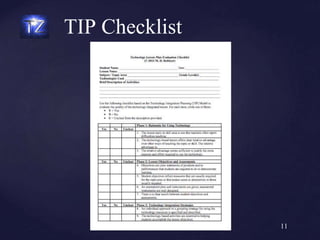
TIP Checklist
11
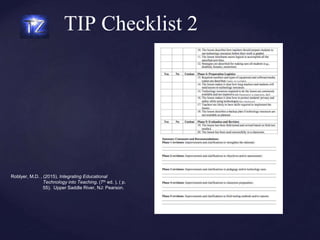
TIP Checklist 2
Roblyer, M.D. , (2015). Integrating Educational
Technology into Teaching. (7th ed. ), ( p.
55). Upper Saddle River, NJ: Pearson.
Creating with iLife:
Photos 13
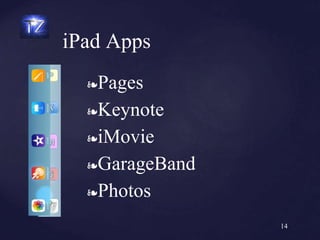
❧Pages
❧Keynote
❧iMovie
❧GarageBand
❧Photos
iPad Apps
14
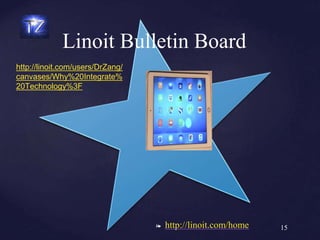
❧ http://linoit.com/home
Linoit Bulletin Board
15
http://linoit.com/users/DrZang/
canvases/Why%20Integrate%
20Technology%3F
16
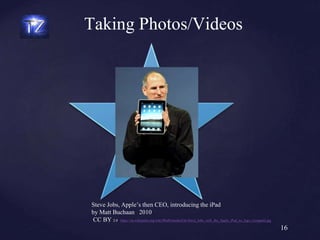
Steve Jobs, Apple’s then CEO, introducing the iPad
by Matt Buchaan 2010
CC BY 2.0 https://en.wikipedia.org/wiki/IPad#/media/File:Steve_Jobs_with_the_Apple_iPad_no_logo_(cropped).jpg
Taking Photos/Videos
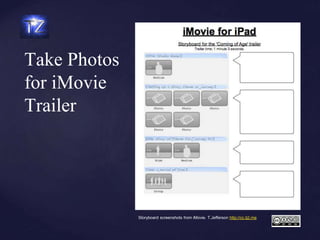
Take Photos
for iMovie
Trailer
Storyboard screenshots from iMovie. T.Jefferson http://cc.tj2.me
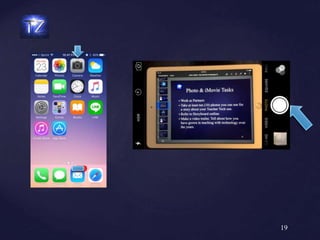
❧Tap camera icon
❧Select photo or video
❧Tap round large button
Taking iPad Photos & Videos
18
19
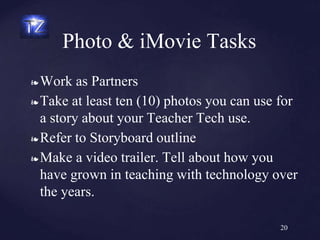
❧ Work as Partners
❧ Take at least ten (10) photos you can use for
a story about your Teacher Tech use.
❧ Refer to Storyboard outline
❧ Make a video trailer. Tell about how you
have grown in teaching with technology over
the years.
Photo & iMovie Tasks
20
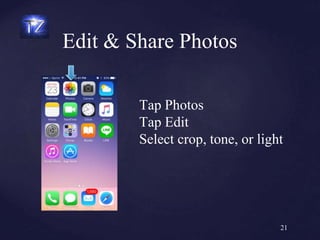
Edit & Share Photos
21
Tap Photos
Tap Edit
Select crop, tone, or light
❧ Screen Mirror Demo
iPhoto Editing
22
❧ Create virtual tour
❧ Take a picture – students then write about it
❧ Create green screen image that makes it look like students are in
different places.
❧ Make postcards
❧ Create a book
❧ Create weekly newsletter
❧ Take pictures of staff members
❧ Make a map of the school
❧ Take pictures of local officials for civics classes
❧ Use photos for seating chart
❧ Create digital photo album for each student for the year
iPhoto Uses in the Classroom
23
Creating with iLife:
iMovie 24
❧ Plan/storyboard a video project
❧ Demonstrate opening iMovie
❧ Create an iMovie video file
❧ Import photos and video files to iMovie
❧ Edit a video file
❧ Add voice-overs and music to a video file
❧ Add titles and credits to a video file
❧ Finalize and save/share an iMovie video file
Objectives
25
❧
Create engaging presentations
❧Create how-to videos for students
❧Create video reports
❧Use iMovie for classroom projects
❧
Digital storytelling
❧Create book trailers or reports
iMovie Enhances Learning
26
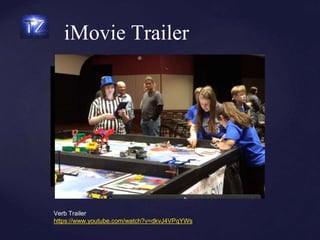
iMovie Trailer
Verb Trailer
https://www.youtube.com/watch?v=dkvJ4VPqYWs
Storyboard FIRST
28
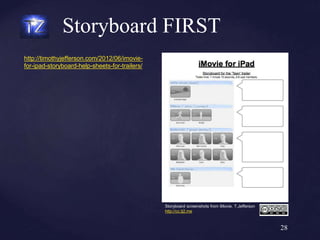
http://timothyjefferson.com/2012/06/imovie-
for-ipad-storyboard-help-sheets-for-trailers/
Storyboard screenshots from iMovie. T.Jefferson
http://cc.tj2.me
Steps to Making an iMovie
Demo
❧ Storyboard/Plan iMovie
❧ Open iMovie by tapping icon
❧ Select ‘Projects button at top of iPad screen
❧ Select either a project you have already begun,
or tap the PLUS sign (Create) to create a new
project.
❧ Select Trailer or Video (Select trailer now)
❧ Select type of trailer you prefer
❧ Add photos and small amounts of text
Modify Trailer
❧ Insert & Edit video clips, photos, or music
❧ Add Voiceover
❧ Add titles & credits
❧ Modify Ken Burns effects
Making an iMovie Video
31
Screen mirror demo
Edit, import photos, music, and
voiceover.
Share
❧iMovie saves project to device
❧Tap Share button and select
❧Write about problems and how
your group was able to solve
them.
iMovie Blog Reflection
33
Inspiration with
GarageBand 34
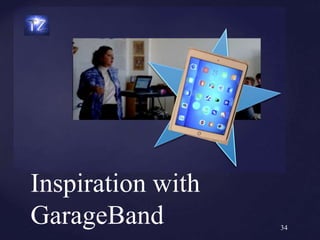
❧ Demonstrate smart music, audio recording
and effects
❧ Demonstrate sharing
❧ Create a Teacher Tech rap in GarageBand
Objectives
35
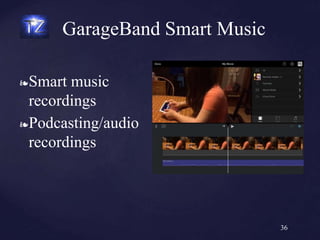
❧Smart music
recordings
❧Podcasting/audio
recordings
GarageBand Smart Music
36
❧Create a fun Teacher Tech Rap using
GarageBand smart music and audio
voiceovers.
Teacher Tech Rap
37
❧Share your Teacher Tech Rap on our class
VoiceThread Board.
❧https://voicethread.com/myvoice/#thread/2237388/
11896553
Post to VoiceThread
38
Creating with iWork
Pages 39
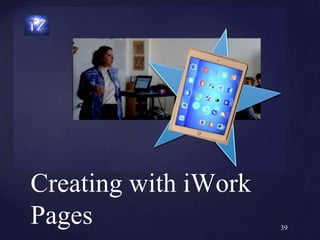
❧ Demonstrate the following basic document
functions with Pages:
❧ Explore templates in Pages
❧ Import media
❧ Edit documents in Pages
❧ Create a Pages document
Objective
40
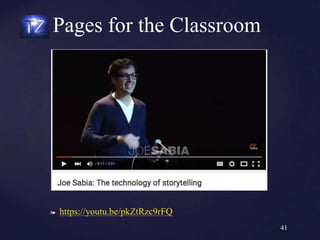
❧ https://youtu.be/pkZtRzc9rFQ
Pages for the Classroom
41
<iframe width="560" height="315"
src="https://www.youtube.com/embed/pkZtRzc9rFQ"
frameborder="0" allowfullscreen></iframe>
❧ Demo
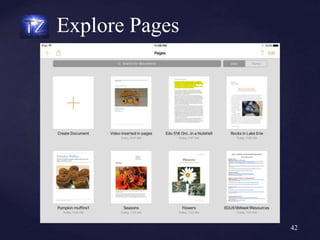
Explore Pages
42
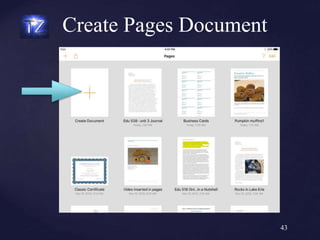
Create Pages Document
43
Creating with iWork
Keynote 44
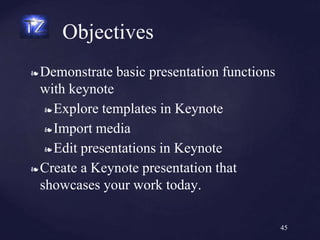
❧ Demonstrate basic presentation functions
with keynote
❧ Explore templates in Keynote
❧ Import media
❧ Edit presentations in Keynote
❧ Create a Keynote presentation that
showcases your work today.
Objectives
45
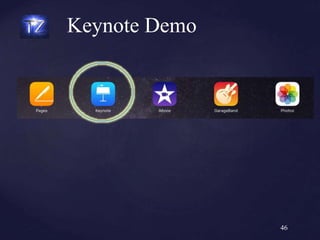
Keynote Demo
46
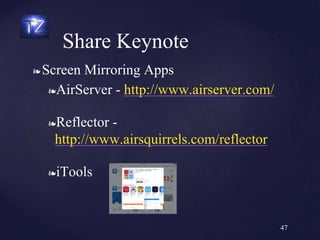
❧ Screen Mirroring Apps
❧AirServer - http://www.airserver.com/
❧Reflector -
http://www.airsquirrels.com/reflector
❧iTools
Share Keynote
47
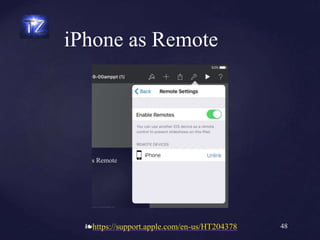
❧https://support.apple.com/en-us/HT204378
iPhone as Remote
48
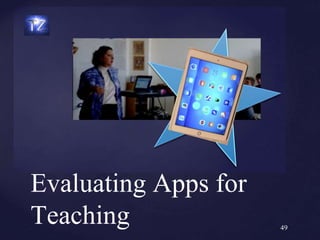
Evaluating Apps for
Teaching 49
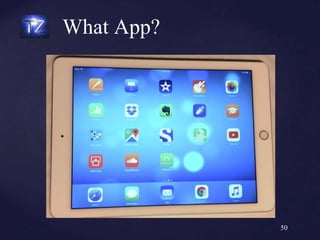
What App?
50
❧ Create a technology rubric checklist
collaboratively
❧ Discuss SAMR and TPACK
❧ Discuss App evaluation rubrics
Objectives
51
❧ Small Group Discussion
❧ Create a list of features you believe should
be on an APP evaluation rubric
Evaluate Apps
52
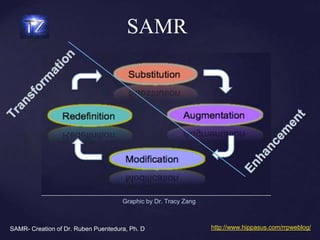
SAMR
SAMR- Creation of Dr. Ruben Puentedura, Ph. D http://www.hippasus.com/rrpweblog/
Graphic by Dr. Tracy Zang
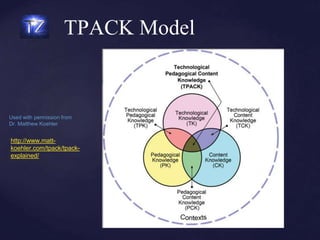
TPACK Model
http://www.matt-
koehler.com/tpack/tpack-
explained/
Used with permission from
Dr. Matthew Koehler
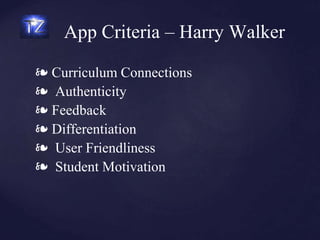
❧ Curriculum Connections
❧ Authenticity
❧ Feedback
❧ Differentiation
❧ User Friendliness
❧ Student Motivation
App Criteria – Harry Walker
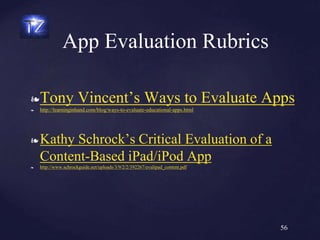
❧Tony Vincent’s Ways to Evaluate Apps
❧ http://learninginhand.com/blog/ways-to-evaluate-educational-apps.html
❧ Kathy Schrock’s Critical Evaluation of a
Content-Based iPad/iPod App
❧ http://www.schrockguide.net/uploads/3/9/2/2/392267/evalipad_content.pdf
App Evaluation Rubrics
56
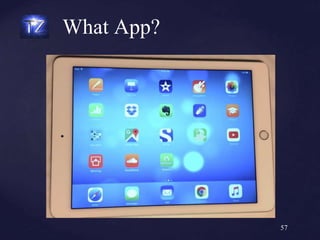
What App?
57
References
Carr, Brittany. @flip4barron Twitter Account. What a great visual of #tpack #SBU-ITL5633. Posted November 18,
2015. Visual TPACK with explanations.
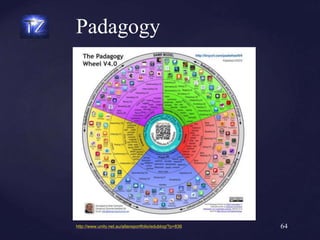
Carrington, Allan. (May, 2015). Padagogy Wheel 4.0. This Wheel is chock full of hyperlinked apps categorized by
both the SAMR and Blooms Taxonomy. Copyright- CC By . Retrieved Nov. 28, 2015 from:
http://www.unity.net.au/padwheel/padwheelposterV3.pdf
Keohler, M. (2012). TPACK Explained. Retrieved Nov. 28, 2015 from:
http://www.matt-koehler.com/tpack/tpack-explained/
Puentedura, R. (2015) . Ruben P. Puentedura’s Weblog: Ongoing thoughts about technology. Retrieved Nov. 28,
2015 from: http://www.hippasus.com/rrpweblog/archives/2014_12.html
Puentedura, R. (2015) . SAMR & TPCK: A Hands-on Approach to Classroom Practice. Ruben P. Puentedura’s
Weblog. Retrieved Nov. 28, 2015 from:
http://www.hippasus.com/rrpweblog/archives/2014/12/11/SAMRandTPCK_HandsOnApproachClassroomPractice.pdf
Schrock, K. (2015). iPads4Teaching. Retrieved Nov. 28, 2015 from:
http://www.ipads4teaching.net/
Vincent, T. , (2015). Learning in Hand. Retrieved Nov. 28, 2015 from: http://learninginhand.com/blog/
Walker H. (2010). Evaluating the Effectiveness of Apps for Mobile Devices. Journal of Special Education
Technology,. 26(4), 59-63. Retrieved Nov. 28, 2015 from:
https://teacheroftech.wikispaces.com/file/view/Research_article_How_to_Evaluate_Apps.pdf
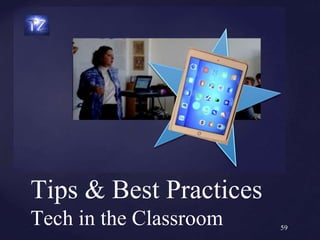
Tips & Best Practices
Tech in the Classroom 59
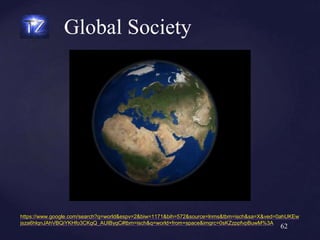
❧ Explain how globalization makes technology integration
imperative
❧ Discuss classroom management needed with technology
integration
❧ Discuss best pedagogical strategies for integrating
technology into curricula
❧ Share your best practices pedagogy collaboratively
❧ Reflect upon what you have learned and how you plan to
integrate the tools you have learned into your content area
Objectives
60
❧ Post a problem you have had when using
technology in the classroom
Linoit Bulletin Board
61
Global Society
62
https://www.google.com/search?q=world&espv=2&biw=1171&bih=572&source=lnms&tbm=isch&sa=X&ved=0ahUKEw
jsza6hlqnJAhVBQiYKHfo3CKgQ_AUIBygC#tbm=isch&q=world+from+space&imgrc=0sKZzppfvpBuwM%3A
❧Post integration issues you have
experienced to our Linoit Bulletin Board
❧ https://youtu.be/xiisteObuhk
Integration Issues?
63
Padagogy
64http://www.unity.net.au/allansportfolio/edublog/?p=836
❧ https://youtu.be/FBcYJ6KbPXQ
❧ API Tools to take role, disable social networking, text chats, etc.
❧ Teacher controls network policies.
Future Classroom
65
❧Mac: Quicktime, iMovie, GarageBand,
various apps
❧PC
❧Screencast-o-matic
❧Audacity
Screencasting/Podcasting
66
Tips & Best Practices
67
Tips?
Considerations before
deploying iPads and iPods
https://socratechseminars.wordpress.com/2011/02
/03/ipaddeployment/
❧Post your video and presentation links
to the Schoology course website
Reflection/Sharing
68
Food for Thought....
http://www.patcatans.com/teacher-resourcesPat Catan’s Sale
References
Carr, Brittany. @flip4barron Twitter Account. What a great visual of #tpack #SBU-ITL5633. Posted November 18,
2015. Visual TPACK with explanations.
Carrington, Allan. (May, 2015). Padagogy Wheel 4.0. This Wheel is chock full of hyperlinked apps categorized by
both the SAMR and Blooms Taxonomy. Copyright- CC By . Retrieved Nov. 28, 2015 from:
http://www.unity.net.au/padwheel/padwheelposterV3.pdf
Keohler, M. (2012). TPACK Explained. Retrieved Nov. 28, 2015 from:
http://www.matt-koehler.com/tpack/tpack-explained/
Puentedura, R. (2015) . Ruben P. Puentedura’s Weblog: Ongoing thoughts about technology. Retrieved Nov. 28,
2015 from: http://www.hippasus.com/rrpweblog/archives/2014_12.html
Puentedura, R. (2015) . SAMR & TPCK: A Hands-on Approach to Classroom Practice. Ruben P. Puentedura’s
Weblog. Retrieved Nov. 28, 2015 from:
http://www.hippasus.com/rrpweblog/archives/2014/12/11/SAMRandTPCK_HandsOnApproachClassroomPractice.pdf
Roblyer, M.D. , (2015). Integrating Educational Technology into Teaching. (7th ed. . ), (p. 55) . Upper Saddle
River, NJ: Pearson.
Schrock, K. (2015). iPads4Teaching. Retrieved Nov. 28, 2015 from:
http://www.ipads4teaching.net/
Vincent, T. , (2015). Learning in Hand. Retrieved Nov. 28, 2015 from: http://learninginhand.com/blog/
Walker H. (2010). Evaluating the Effectiveness of Apps for Mobile Devices. Journal of Special Education
Technology,. 26(4), 59-63. Retrieved Nov. 28, 2015 from:
https://teacheroftech.wikispaces.com/file/view/Research_article_How_to_Evaluate_Apps.pdf
❧ Atmosphere 2015 Tech Keynote Demo 2: Classroom of the Future.
❧ https://www.youtube.com/watch?v=FBcYJ6KbPXQ
❧ McCord, Angela. Best Practice Instructional Strategies. Scoop-it!.
❧ http://www.scoop.it/t/best-practice-instructional-strategies?page=2
❧ All photos taken by Tracy Zang © unless noted with hyperlink.
References
71

iLife & iWork PowerBoost Presentation

  • 1.
    iLIFE & iWORKFOR THE CLASSROOM DR. TRACY ZANG POWERBOOST LEARNING PRESENTS:
  • 2.
    2 CC Retrieved Nov.20, 2015 from: http://www.hippoquotes.com/technology-quotes
  • 3.
    ❧ CC BYSA 2.5 by Darren Hester 3 http://www.emergingedtech.com/2015/08/the-state-of-the-ipad-in-teaching-and-learning-in-2015/ iPads in the Classroom
  • 4.
    ❧ Develop facilitywith the iLife & iWork free apps: Photos, iMovie, GarageBand, Pages, and Keynote. ❧ Create projects using the basic free Apple iLife & iWork Apps Objectives 4
  • 5.
    iPad Apps inthe Classroom Overview 5
  • 6.
    ❧ Read, discussand compare pre-reading reference material to own technology integration practice on a class blog. ❧ Identify ISTE, 21st Century & Common Core Technology standards ❧ Discuss pedagogical integration of iLife and iWork technology into content area ❧ Evaluate a lesson plan you brought from home Objectives 6
  • 7.
    ❧ Design anddevelop digital age learning experiences and assessments: Design or adapt relevant learning experiences that incorporate digital tools and resources to promote student learning and creativity ❧ Model digital age work and learning: Demonstrate fluency in technology systems and the transfer of current knowledge to new technologies and situations. National Educational Technology Standards (ISTE) 7
  • 8.
    ❧Digital Literacy &21st Century skills ❧Common Core technology requirements Why Integrate? 8
  • 9.
    ❧Will Tech enhanceyour goals and objectives? ❧Technology Lesson Plan (TIP) Evaluation Tool ❧ by M.D. Roblyer (2015). TIP Tool 9
  • 10.
    TIP Model ❧ Phase1: What is your technological pedagogical content knowledge? ❧ Phase 2: Why should I use a technology-based method? ❧ Phase 3: How will I know students have learned? ❧ Phase 4: What teaching strategies and activities will work best? ❧ Phase 5: Are essential conditions in place to support technology integration? ❧ Phase 6: What worked well? What could be improved?
  • 11.
  • 12.
    TIP Checklist 2 Roblyer,M.D. , (2015). Integrating Educational Technology into Teaching. (7th ed. ), ( p. 55). Upper Saddle River, NJ: Pearson.
  • 13.
  • 14.
  • 15.
    ❧ http://linoit.com/home Linoit BulletinBoard 15 http://linoit.com/users/DrZang/ canvases/Why%20Integrate% 20Technology%3F
  • 16.
    16 Steve Jobs, Apple’sthen CEO, introducing the iPad by Matt Buchaan 2010 CC BY 2.0 https://en.wikipedia.org/wiki/IPad#/media/File:Steve_Jobs_with_the_Apple_iPad_no_logo_(cropped).jpg Taking Photos/Videos
  • 17.
    Take Photos for iMovie Trailer Storyboardscreenshots from iMovie. T.Jefferson http://cc.tj2.me
  • 18.
    ❧Tap camera icon ❧Selectphoto or video ❧Tap round large button Taking iPad Photos & Videos 18
  • 19.
  • 20.
    ❧ Work asPartners ❧ Take at least ten (10) photos you can use for a story about your Teacher Tech use. ❧ Refer to Storyboard outline ❧ Make a video trailer. Tell about how you have grown in teaching with technology over the years. Photo & iMovie Tasks 20
  • 21.
    Edit & SharePhotos 21 Tap Photos Tap Edit Select crop, tone, or light
  • 22.
    ❧ Screen MirrorDemo iPhoto Editing 22
  • 23.
    ❧ Create virtualtour ❧ Take a picture – students then write about it ❧ Create green screen image that makes it look like students are in different places. ❧ Make postcards ❧ Create a book ❧ Create weekly newsletter ❧ Take pictures of staff members ❧ Make a map of the school ❧ Take pictures of local officials for civics classes ❧ Use photos for seating chart ❧ Create digital photo album for each student for the year iPhoto Uses in the Classroom 23
  • 24.
  • 25.
    ❧ Plan/storyboard avideo project ❧ Demonstrate opening iMovie ❧ Create an iMovie video file ❧ Import photos and video files to iMovie ❧ Edit a video file ❧ Add voice-overs and music to a video file ❧ Add titles and credits to a video file ❧ Finalize and save/share an iMovie video file Objectives 25
  • 26.
    ❧ Create engaging presentations ❧Createhow-to videos for students ❧Create video reports ❧Use iMovie for classroom projects ❧ Digital storytelling ❧Create book trailers or reports iMovie Enhances Learning 26
  • 27.
  • 28.
  • 29.
    Steps to Makingan iMovie Demo ❧ Storyboard/Plan iMovie ❧ Open iMovie by tapping icon ❧ Select ‘Projects button at top of iPad screen ❧ Select either a project you have already begun, or tap the PLUS sign (Create) to create a new project. ❧ Select Trailer or Video (Select trailer now) ❧ Select type of trailer you prefer ❧ Add photos and small amounts of text
  • 30.
    Modify Trailer ❧ Insert& Edit video clips, photos, or music ❧ Add Voiceover ❧ Add titles & credits ❧ Modify Ken Burns effects
  • 31.
    Making an iMovieVideo 31 Screen mirror demo Edit, import photos, music, and voiceover.
  • 32.
    Share ❧iMovie saves projectto device ❧Tap Share button and select
  • 33.
    ❧Write about problemsand how your group was able to solve them. iMovie Blog Reflection 33
  • 34.
  • 35.
    ❧ Demonstrate smartmusic, audio recording and effects ❧ Demonstrate sharing ❧ Create a Teacher Tech rap in GarageBand Objectives 35
  • 36.
  • 37.
    ❧Create a funTeacher Tech Rap using GarageBand smart music and audio voiceovers. Teacher Tech Rap 37
  • 38.
    ❧Share your TeacherTech Rap on our class VoiceThread Board. ❧https://voicethread.com/myvoice/#thread/2237388/ ❧https://voicethread.com/myvoice/#thread/2237388/ 11896553 Post to VoiceThread 38
  • 39.
  • 40.
    ❧ Demonstrate thefollowing basic document functions with Pages: ❧ Explore templates in Pages ❧ Import media ❧ Edit documents in Pages ❧ Create a Pages document Objective 40
  • 41.
    ❧ https://youtu.be/pkZtRzc9rFQ Pages forthe Classroom 41 <iframe width="560" height="315" src="https://www.youtube.com/embed/pkZtRzc9rFQ" frameborder="0" allowfullscreen></iframe>
  • 42.
  • 43.
  • 44.
  • 45.
    ❧ Demonstrate basicpresentation functions with keynote ❧ Explore templates in Keynote ❧ Import media ❧ Edit presentations in Keynote ❧ Create a Keynote presentation that showcases your work today. Objectives 45
  • 46.
  • 47.
    ❧ Screen MirroringApps ❧AirServer - http://www.airserver.com/ ❧Reflector - http://www.airsquirrels.com/reflector ❧iTools Share Keynote 47
  • 48.
  • 49.
  • 50.
  • 51.
    ❧ Create atechnology rubric checklist collaboratively ❧ Discuss SAMR and TPACK ❧ Discuss App evaluation rubrics Objectives 51
  • 52.
    ❧ Small GroupDiscussion ❧ Create a list of features you believe should be on an APP evaluation rubric Evaluate Apps 52
  • 53.
    SAMR SAMR- Creation ofDr. Ruben Puentedura, Ph. D http://www.hippasus.com/rrpweblog/ Graphic by Dr. Tracy Zang
  • 54.
  • 55.
    ❧ Curriculum Connections ❧Authenticity ❧ Feedback ❧ Differentiation ❧ User Friendliness ❧ Student Motivation App Criteria – Harry Walker
  • 56.
    ❧Tony Vincent’s Waysto Evaluate Apps ❧ http://learninginhand.com/blog/ways-to-evaluate-educational-apps.html ❧ Kathy Schrock’s Critical Evaluation of a Content-Based iPad/iPod App ❧ http://www.schrockguide.net/uploads/3/9/2/2/392267/evalipad_content.pdf App Evaluation Rubrics 56
  • 57.
  • 58.
    References Carr, Brittany. @flip4barronTwitter Account. What a great visual of #tpack #SBU-ITL5633. Posted November 18, 2015. Visual TPACK with explanations. Carrington, Allan. (May, 2015). Padagogy Wheel 4.0. This Wheel is chock full of hyperlinked apps categorized by both the SAMR and Blooms Taxonomy. Copyright- CC By . Retrieved Nov. 28, 2015 from: http://www.unity.net.au/padwheel/padwheelposterV3.pdf Keohler, M. (2012). TPACK Explained. Retrieved Nov. 28, 2015 from: http://www.matt-koehler.com/tpack/tpack-explained/ Puentedura, R. (2015) . Ruben P. Puentedura’s Weblog: Ongoing thoughts about technology. Retrieved Nov. 28, 2015 from: http://www.hippasus.com/rrpweblog/archives/2014_12.html Puentedura, R. (2015) . SAMR & TPCK: A Hands-on Approach to Classroom Practice. Ruben P. Puentedura’s Weblog. Retrieved Nov. 28, 2015 from: http://www.hippasus.com/rrpweblog/archives/2014/12/11/SAMRandTPCK_HandsOnApproachClassroomPractice.pdf Schrock, K. (2015). iPads4Teaching. Retrieved Nov. 28, 2015 from: http://www.ipads4teaching.net/ Vincent, T. , (2015). Learning in Hand. Retrieved Nov. 28, 2015 from: http://learninginhand.com/blog/ Walker H. (2010). Evaluating the Effectiveness of Apps for Mobile Devices. Journal of Special Education Technology,. 26(4), 59-63. Retrieved Nov. 28, 2015 from: https://teacheroftech.wikispaces.com/file/view/Research_article_How_to_Evaluate_Apps.pdf
  • 59.
    Tips & BestPractices Tech in the Classroom 59
  • 60.
    ❧ Explain howglobalization makes technology integration imperative ❧ Discuss classroom management needed with technology integration ❧ Discuss best pedagogical strategies for integrating technology into curricula ❧ Share your best practices pedagogy collaboratively ❧ Reflect upon what you have learned and how you plan to integrate the tools you have learned into your content area Objectives 60
  • 61.
    ❧ Post aproblem you have had when using technology in the classroom Linoit Bulletin Board 61
  • 62.
  • 63.
    ❧Post integration issuesyou have experienced to our Linoit Bulletin Board ❧ https://youtu.be/xiisteObuhk Integration Issues? 63
  • 64.
  • 65.
    ❧ https://youtu.be/FBcYJ6KbPXQ ❧ APITools to take role, disable social networking, text chats, etc. ❧ Teacher controls network policies. Future Classroom 65
  • 66.
    ❧Mac: Quicktime, iMovie,GarageBand, various apps ❧PC ❧Screencast-o-matic ❧Audacity Screencasting/Podcasting 66
  • 67.
    Tips & BestPractices 67 Tips? Considerations before deploying iPads and iPods https://socratechseminars.wordpress.com/2011/02 /03/ipaddeployment/
  • 68.
    ❧Post your videoand presentation links to the Schoology course website Reflection/Sharing 68
  • 69.
  • 70.
    References Carr, Brittany. @flip4barronTwitter Account. What a great visual of #tpack #SBU-ITL5633. Posted November 18, 2015. Visual TPACK with explanations. Carrington, Allan. (May, 2015). Padagogy Wheel 4.0. This Wheel is chock full of hyperlinked apps categorized by both the SAMR and Blooms Taxonomy. Copyright- CC By . Retrieved Nov. 28, 2015 from: http://www.unity.net.au/padwheel/padwheelposterV3.pdf Keohler, M. (2012). TPACK Explained. Retrieved Nov. 28, 2015 from: http://www.matt-koehler.com/tpack/tpack-explained/ Puentedura, R. (2015) . Ruben P. Puentedura’s Weblog: Ongoing thoughts about technology. Retrieved Nov. 28, 2015 from: http://www.hippasus.com/rrpweblog/archives/2014_12.html Puentedura, R. (2015) . SAMR & TPCK: A Hands-on Approach to Classroom Practice. Ruben P. Puentedura’s Weblog. Retrieved Nov. 28, 2015 from: http://www.hippasus.com/rrpweblog/archives/2014/12/11/SAMRandTPCK_HandsOnApproachClassroomPractice.pdf Roblyer, M.D. , (2015). Integrating Educational Technology into Teaching. (7th ed. . ), (p. 55) . Upper Saddle River, NJ: Pearson. Schrock, K. (2015). iPads4Teaching. Retrieved Nov. 28, 2015 from: http://www.ipads4teaching.net/ Vincent, T. , (2015). Learning in Hand. Retrieved Nov. 28, 2015 from: http://learninginhand.com/blog/ Walker H. (2010). Evaluating the Effectiveness of Apps for Mobile Devices. Journal of Special Education Technology,. 26(4), 59-63. Retrieved Nov. 28, 2015 from: https://teacheroftech.wikispaces.com/file/view/Research_article_How_to_Evaluate_Apps.pdf
  • 71.
    ❧ Atmosphere 2015Tech Keynote Demo 2: Classroom of the Future. ❧ https://www.youtube.com/watch?v=FBcYJ6KbPXQ ❧ McCord, Angela. Best Practice Instructional Strategies. Scoop-it!. ❧ http://www.scoop.it/t/best-practice-instructional-strategies?page=2 ❧ All photos taken by Tracy Zang © unless noted with hyperlink. References 71

Editor's Notes

  • #2 Introduce speaker and experience with technology.
  • #3 Explain passion for technology what wonderful things can you and your students do?
  • #4 Select one of the ice-breakers below for teacher professionals. 3-7 minutes What If?: Have participants introduce themselves to one another. Next, pose a tricky scenario to participants and have them work together create solutions for dealing with it. Try these three possible scenarios. · Some of your students make it clear that they are not interested in what you are teaching. What is your goal? What do you do? · You have a class with a very short attention span. They become restless and bored. What is your goal? What do you do? · You have a class of students who are not achieving as well as they could be. What is your goal? What do you do? Ten Years Ago/Ten Years in the Future: Ask participants to take a walk down memory lane to generate a list of words or phrases to describe the way schools were ten years ago. Then, ask them to work together to predict the changes that will happen in schools in the next ten years. After groups share with the whole group, workshop leaders can use these predictions to talk about how teachers can prepare for the changes ahead of them
  • #5 Discuss workshop goals/objectives. Solicit which teachers in the audience work in districts that have / utilize iPads. Mention the hundreds of education apps out there and ask them why not use the apps that come with the iPad for free?
  • #6 Talk about how the iLife and iWork apps are part of the students digital native tool set. iLife – iMovie & GarageBand have awesome creative possibilities. Like Steve Jobs said, “Give them the tools and they will do wonderful things with them.”
  • #7 Discuss pre-reading reference material. Read a few entries as examples of technology experience. Discuss 21st Century learning skills and the need to integrate technology into curriculum, not just as a separate technology class. Discuss all objectives. Today we are going to teach the basics of the iLife and iWork productivity suite.
  • #8 Discuss the history of the National education standards or (ISTE). Can they think of any jobs out in the world that do not involve some interaction with technology.
  • #9 discuss digital literacy and 21st century skills and relationship to job prospects.
  • #10 Pass out the technology Integration lesson plan. Emphasize that tech must add quality to the lesson.
  • #14 I expect most students will know how to take pictures and videos with cell phones. iPads are fairly similar to iPhone Photos tools. We’re going to be taking some pictures and making videos in partner groups. You will be with the same partner during the workshop and creating some awesome projects together. First I’d like you to think about ways that you could integrate photos /pictures into your content areas.
  • #15 State a brief overview of these 5 iPad apps.
  • #16 Once you have several ideas of how to integrate photos into content areas, discuss your ideas with your partners, and then navigate to this link and post your ideas on our Linoit Bulletin board stickies.
  • #19 Do a quick review of taking photos and videos with the iPad. Take poll of how many students already know this.
  • #20 Demonstrate taking photos with iPhoto.
  • #24 While students are taking photos (during slide 15), review the Linoit bulletin board and add ideas to this slide and/or create a new one of how to integrate photos into content areas using class ideas. Add any of these not mentions.
  • #25 Discuss with class how many of them have used iMove before. How many make videos on a regular basis?
  • #26 Today we will create an iMovie video trailer. This is an incredibly simple way for students to share their ideas and work. Review each of the objectives.
  • #27 Integrating with iMovie Just afew of the ideas about how to integrate iMove into the classroom.
  • #28 Show the class this sample iMovie trailer. This was made while waiting at the doctor’s office with my elderly mother on my iPhone. The iPhone and iMovie tools are extremely similar. Notice the premade sections and music Apple already added. This is a great quick way to showcase student work.
  • #29 The most important part of any class is planning. Make trailers to demonstrate learning, explain vocabulary words, document experiments, preview novels or textbook chapters, summarize historical events and promote school activities. The most important part of creating a video is planning. There are a number of storyboarding tools available online. This is a great one that I found. This storyboard tool is made to go with iMovie. Each trailer template is slightly different, and the author has created a template storyboard to go with most of the iPad templates. There are more tools and templates on the Mac computer list, however, these are not templated. Each of you has a copy of the basic template paper. Spend a few minutes reviewing the template with your partner and discussing the ideas, then fill out your storyboards.
  • #30 You have just completed your first step to make your own iMovie. We will go through each of these steps together, and you can follow along.
  • #31 Demonstrate each of these functions in iMovie
  • #32 Demonstrate making an iMovie video.
  • #33 Demonstrate sharing an iMovie project.
  • #34 Post to the class blog an problems you and your partner had withmaking your own iMovie or witht he trailer.
  • #35 Who has made songs before using GarageBand? A great way to motivate children is by having them write an authentic song? Solicit other ways to integrate songs into the curriculum. Songs are a great way show mastery of content, to reinforce and help students remember information.
  • #36 Review all of the objectives .
  • #37 Show class the smart music tools with several of the instruments. Demonstrate how to podcast or do a voiceover on music created with the podcast.
  • #38 Explain the Teacher Tech rap concept. Students will create this in groups of two.
  • #39 Tell the class that they will be posting their Teacher Tech rap to VoiceThread. Demonstrate how to post.
  • #40 Discuss with the class the document editor Pages.
  • #42 Show the class the video here of Joe Sable reading a story made using Pages.
  • #43 Let’s explore Pages together. Show how the tools are similar to iMovie in some ways. Show them the basic tools.
  • #44 Create a Pages document using Pages. Demonstrate the functions of most of the tools.
  • #45 Just as Pages give s you tools to make wonderful projects, so too does Keynote make for optimal presentations. There are also some very cool tools.
  • #46 Review the objectives with students.
  • #47 Demonstrate Keynote features to the class. Then students will create a quick presentation, importing video and photos.
  • #48 Keynote has some amazing features for such a simple app. You can use other apps with it to mirror your screen to the students and to set up your phone as a remote. It provides some amazing graphics.
  • #50 Discuss how students evaluate the apps they select for teaching currently.
  • #51 Think pair share on the apps students use for teaching now.
  • #52 Discuss all of the objectives
  • #53 Tell the students to mix up the groups. Have them create a list of features they think should be in the tech evaluation rubrics. Which are most important?
  • #54 Discuss the SAMR model, created by Dr. Ruben Puentedura, Ph.D. This model is one of the ways that we evaluate technology use in the classroom. He proposes that technology allows us to think differently and perform tasks that were never part of school before. Tech integration has several phases. We can use the SAMR model to help us integrate technology more effectively. Essentially, it is a paradigm shift in our way of thinking about the purposes of technology and how we use it. SAMR begins with Substitution in which a technology tool acts as a direct substitute with no functional change. In many cases, a functional change is not necessary as with many writing tasks. One uses substitution when you have students type an essay on a laptop instead of writing it by hand. Augmentation is the phase in which tech acts as a direct tool substitute, but with functional improvement. In our essay example, you could have the student write the essay using Google Docs that add a layer of technology such as collaboration and commenting. Modification is more than keeping the task the same like substitution and augmentation are. It involves changing the task. In our essay example, a teacher could have the student develop a Wordpress blog, and in addition to writing text, post pictures, videos and more to the blog. More authentic audience, and people from all over the world can comment on blog.This is a significant task redesign. Redefinition is the completion of transformation in which technology allows for the creation of new tasks, that were previously inconceivable. A more typical task in the redefinition section would be assigning the student to create and publish a digital storytelling project includes photos, videos, music, animations. Here the heart of the assignment is the same, but the task is redefined and is a more involved task. At the transformative levels,,students are more engaged and more significant learning takes place. When evaluating apps, we use SAMR to help us evaluate the levels of SAMR that an app helps us to reach with students for more effective learning.
  • #56 Curriculum connections- Does the app correlate to a targeted skill or concept from the curriculum? Authenticity – How well does the embed authentic learning experiences. Feedback – What is the quality of feedback? is it an effective branching that is based on student responses? Does the feedback connect to data for the teacher for assessment purposes? Differentiation – Can you set levels of difficulty for students to allow for accomodations? User Friendliness- Is it user friendly? Can the child work the app independently? Student Motivation – Novelty, the level of success experienced by the student, and quality of interface can all affect student motivation and how often they interact with the app.
  • #58 Think pair share on the apps students use for teaching now.
  • #60 Wrapping it all up: Discuss some of the tips and good practices.
  • #61 review all objections with the class.
  • #62 Tell students to post
  • #63 Go Global Discuss how the job markets have changed and continue changing. Students will need to be prepared for jobs that haven’t been invented yet.
  • #64 Tell group to post problems with integration problems. Review the big concerns with integration.
  • #65 Discuss the best practices with integration.
  • #67 Share tools that can help them make the iPad more effective as an integration tool.
  • #68 Review the biggest issues that should be in place before a 1:1 program is set in place.
  • #69 Walk students through how to post their videos on the Schoology course site. Share some.