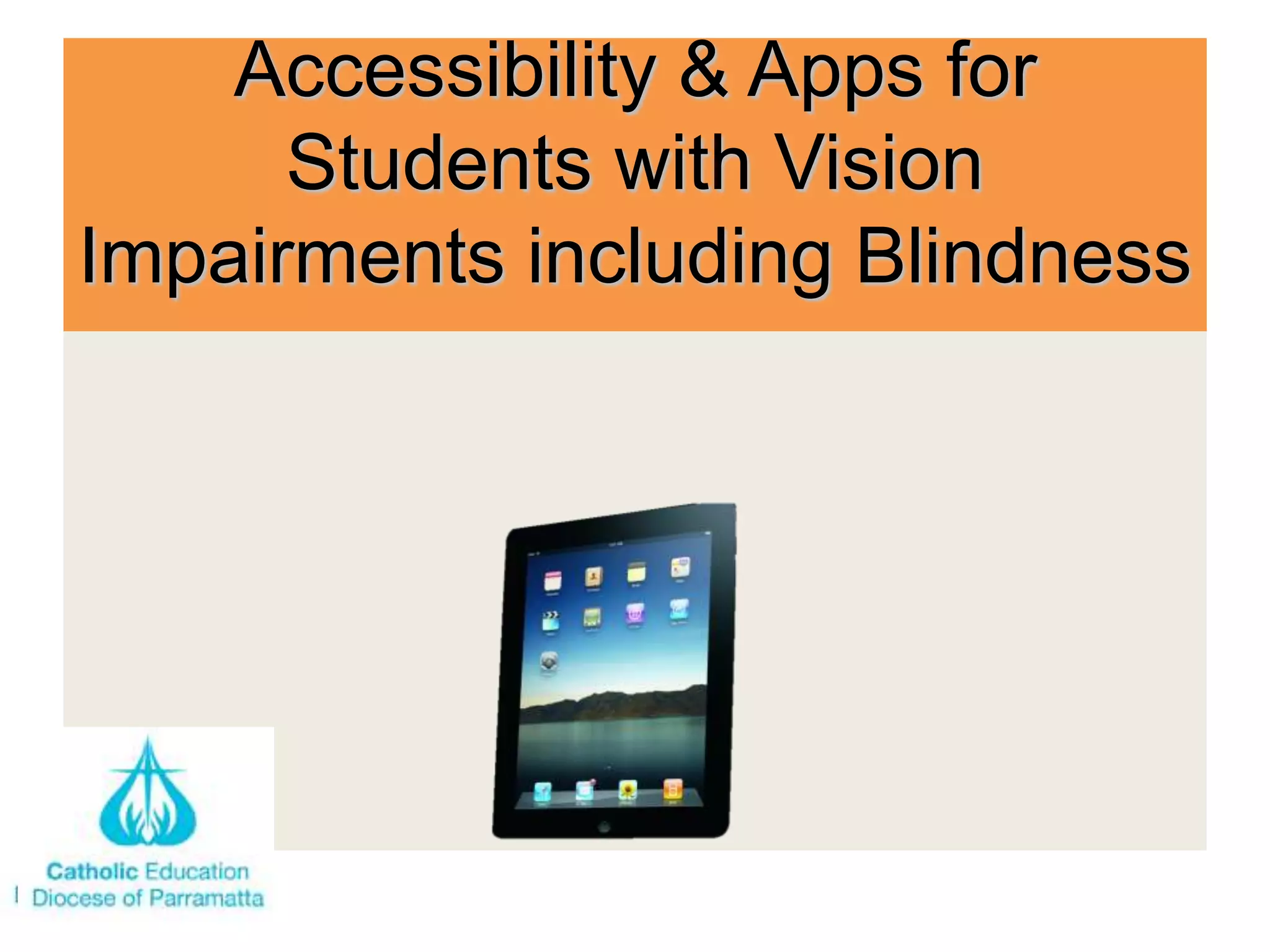
Accessibility & Apps for
      Students with Vision
Impairments including Blindness
Accessibility &
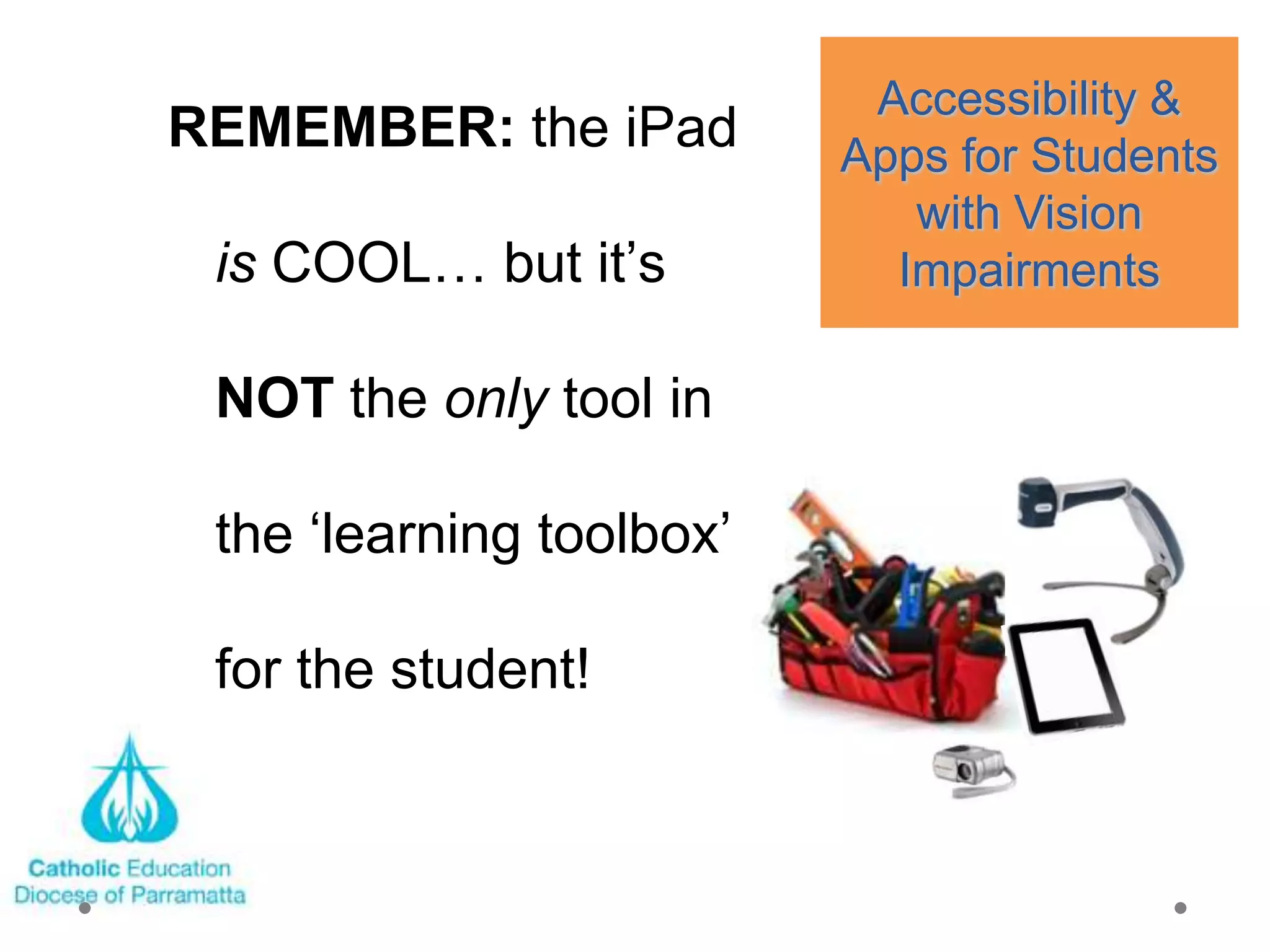
REMEMBER: the iPad        Apps for Students
                             with Vision
 is COOL… but it‘s          Impairments

 NOT the only tool in

 the ‗learning toolbox‘

 for the student!
How many Apps?

• As of the Apple announcement of the
  iPad 3 on March 7 (2012)…
    • over 585,000 apps!

    • over 25 billion downloads!
Accessibility &
• Hard to be an ―expert‖ on            Apps for Students
  apps…                                   with Vision
• At times, too many to choose           Impairments
  from
• New ones always added
• Existing ones updated / improved
• Non-popular ones removed             The Evolving
• Easier to be an ―expert‖ on          World of Apps
  the built-in features                 for the iPad
• Better yet, share ―expertise‖ in a
  community of learners                 and iPhone
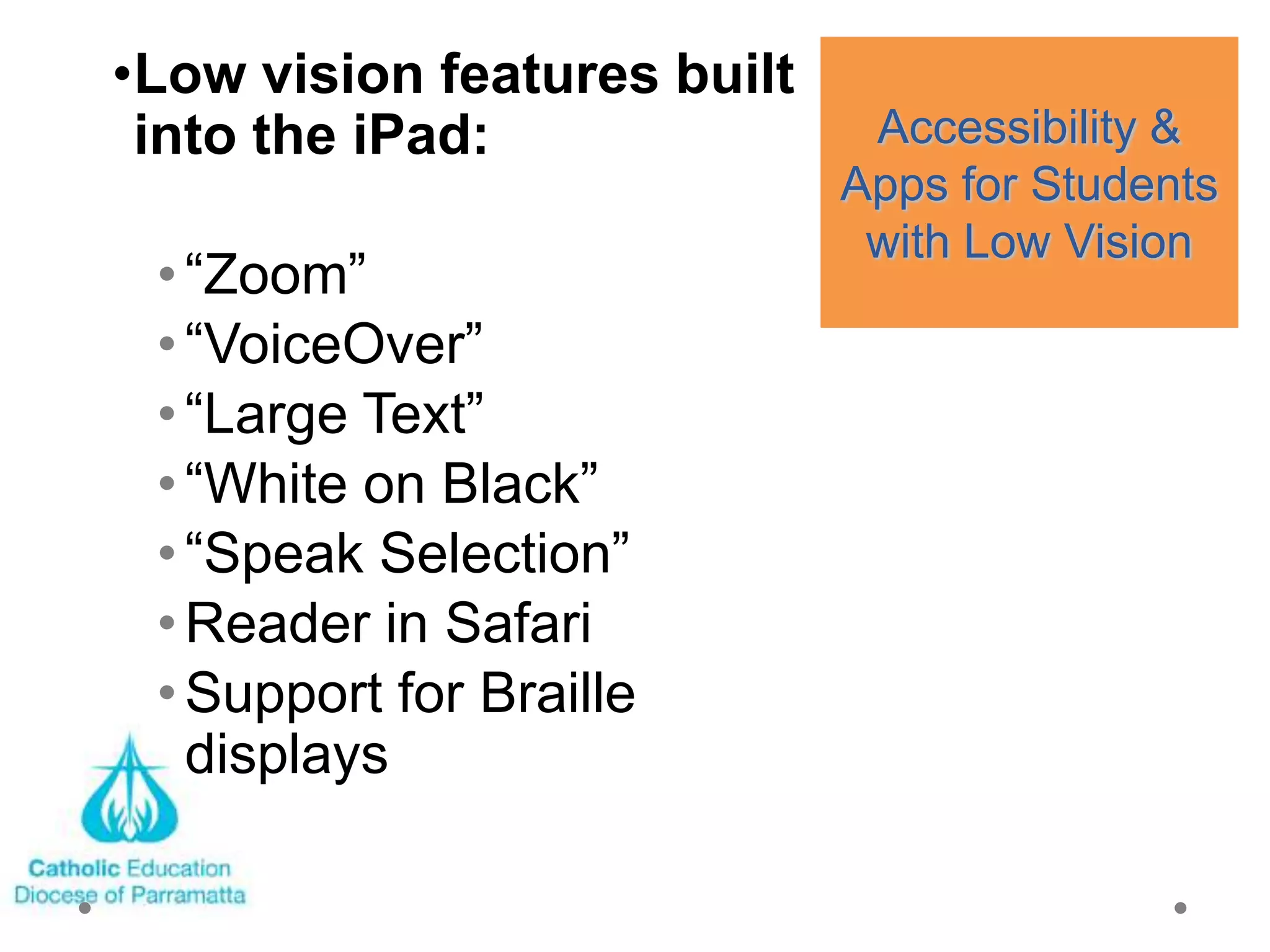
•Low vision features built
 into the iPad:               Accessibility &
                             Apps for Students
                              with Low Vision
 • ―Zoom‖
 • ―VoiceOver‖
 • ―Large Text‖
 • ―White on Black‖
 • ―Speak Selection‖
 • Reader in Safari
 • Support for Braille
   displays
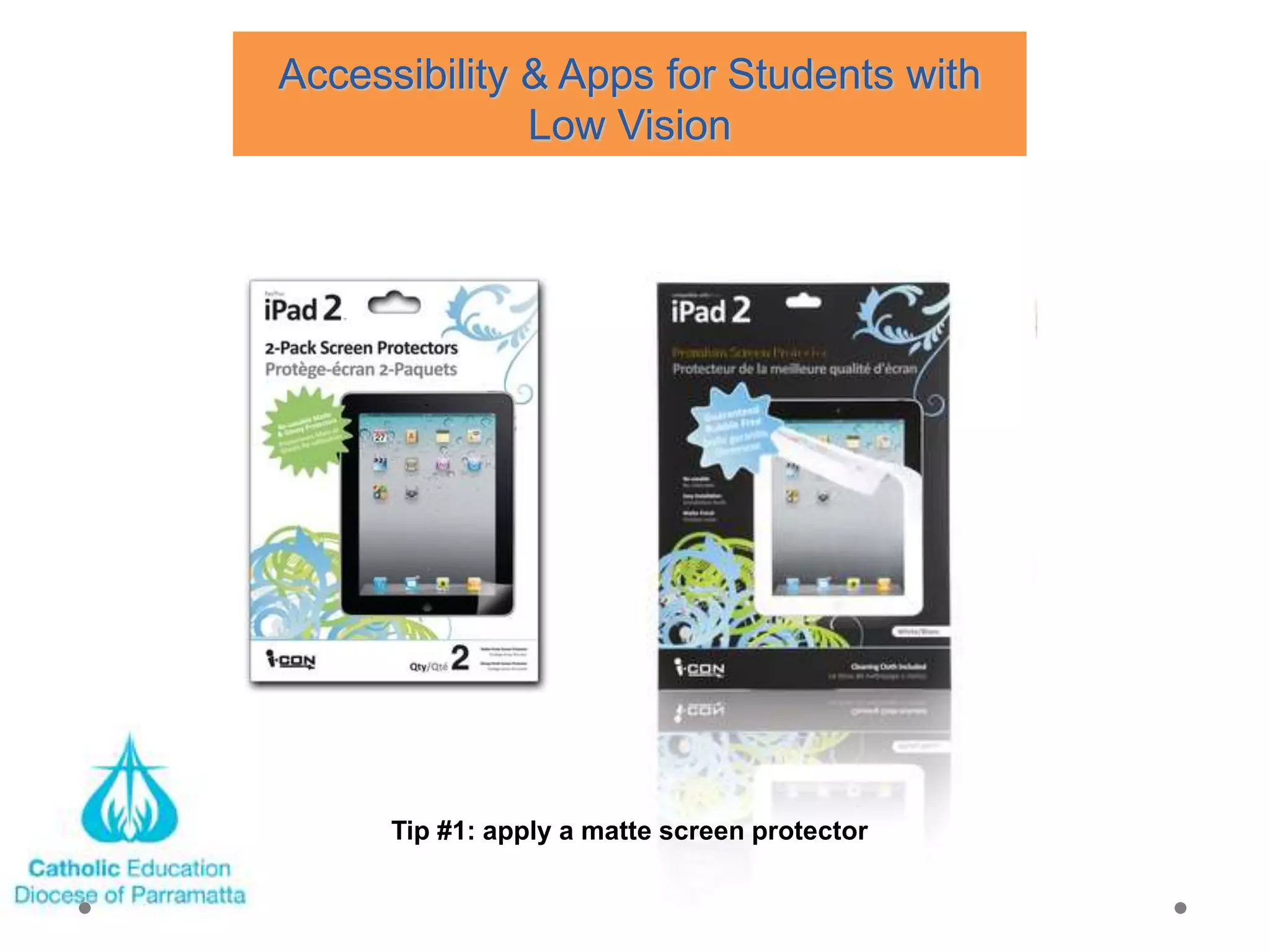
Accessibility & Apps for Students with
              Low Vision


      Tip #1: apply a matte screen protector
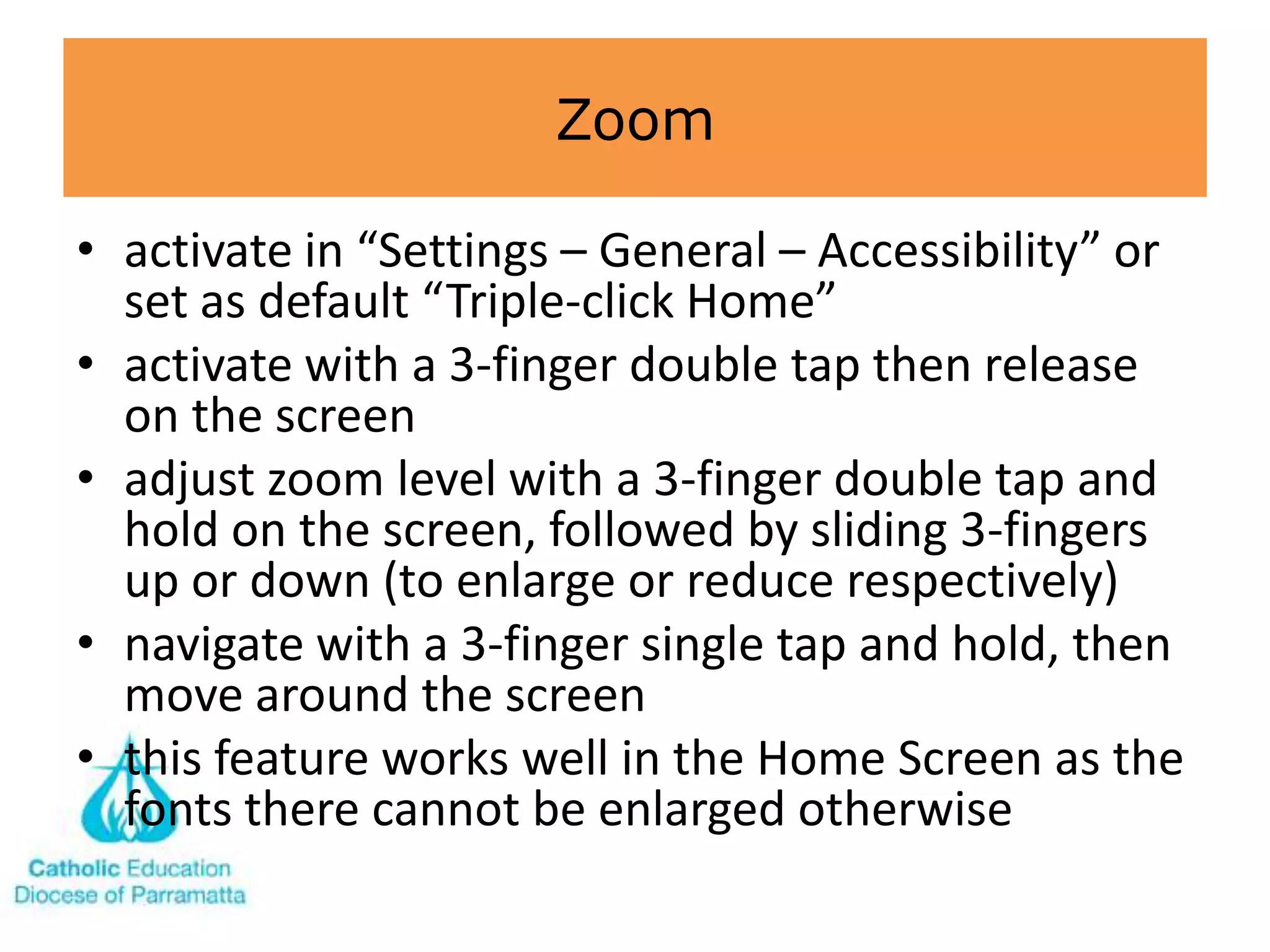
Zoom

• activate in “Settings – General – Accessibility” or
  set as default “Triple-click Home”
• activate with a 3-finger double tap then release
  on the screen
• adjust zoom level with a 3-finger double tap and
  hold on the screen, followed by sliding 3-fingers
  up or down (to enlarge or reduce respectively)
• navigate with a 3-finger single tap and hold, then
  move around the screen
• this feature works well in the Home Screen as the
  fonts there cannot be enlarged otherwise
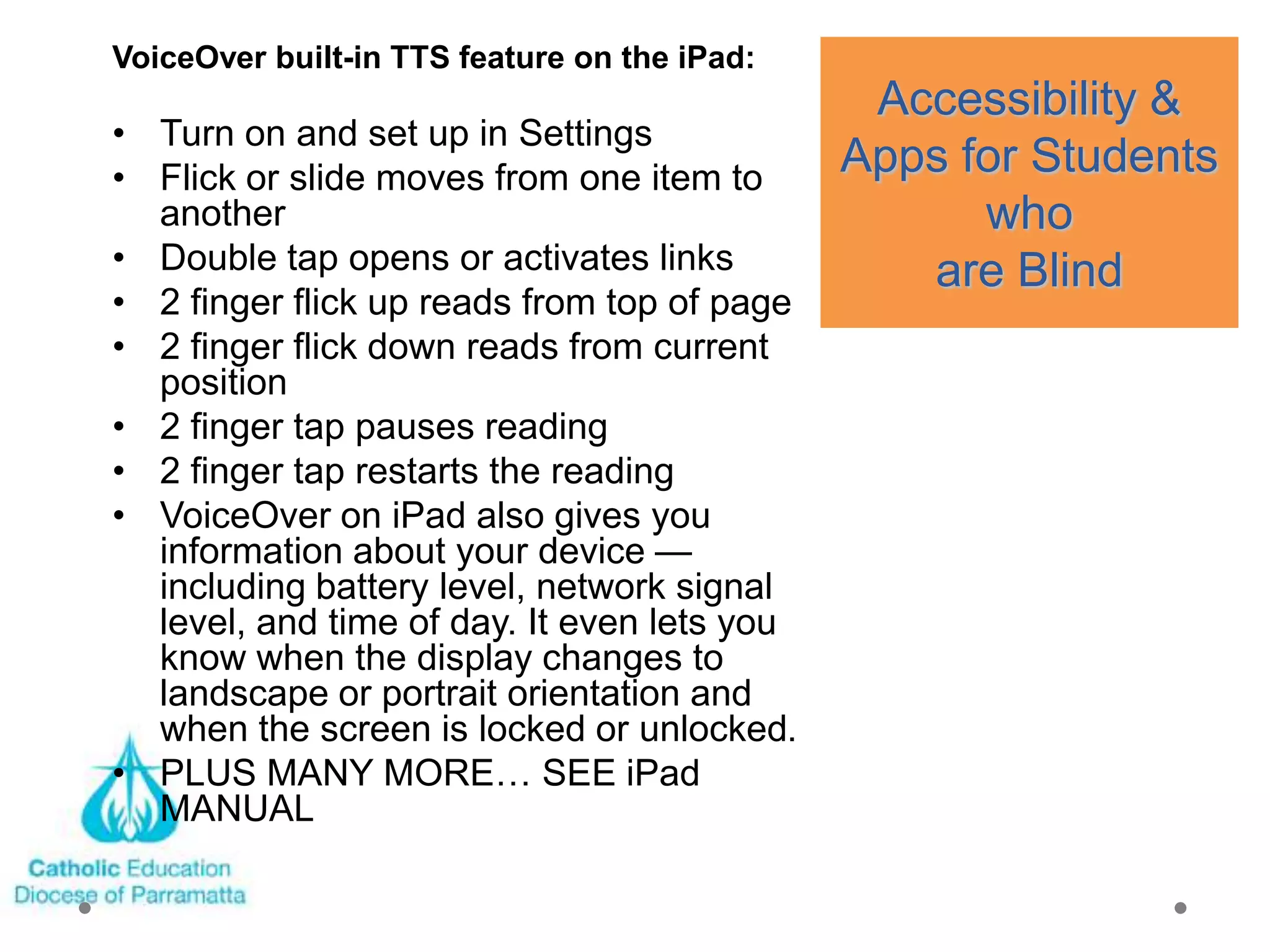
VoiceOver built-in TTS feature on the iPad:
                                               Accessibility &
• Turn on and set up in Settings
• Flick or slide moves from one item to       Apps for Students
  another                                           who
• Double tap opens or activates links            are Blind
• 2 finger flick up reads from top of page
• 2 finger flick down reads from current
  position
• 2 finger tap pauses reading
• 2 finger tap restarts the reading
• VoiceOver on iPad also gives you
  information about your device —
  including battery level, network signal
  level, and time of day. It even lets you
  know when the display changes to
  landscape or portrait orientation and
  when the screen is locked or unlocked.
• PLUS MANY MORE… SEE iPad
  MANUAL
“Large Text”
• maximum size is 56 point
• only works on some built-in apps (such as
  Notes, Calendar, etc.)


             ―White on Black‖
• not actually black and white contract, but
  rather a reversal of all colours
“Speak Selection”
• Text highlighted in most apps can be read
  aloud (e.g. Safari)
                 “Safari Reader”
• When you navigate to an article, "Reader”
  appears in the address bar. Tap it, and an e-
  reader-style interface will appear, giving a
  simplified version of the text with no ads and
  no distracting links and the option to adjust
  the font size.
ALL THE BUILT-IN ACCESSIBILITY FEATURES CAN BE ACTIVATED IN
“SETTINGS – GENERAL – ACCESSIBILITY
Accessibility &
Rotors & Keyboarding                       Apps for Students
• Typing with VoiceOver enabled and              who
  the on-screen keyboard, the default is      are Blind
  a double-tap on each letter

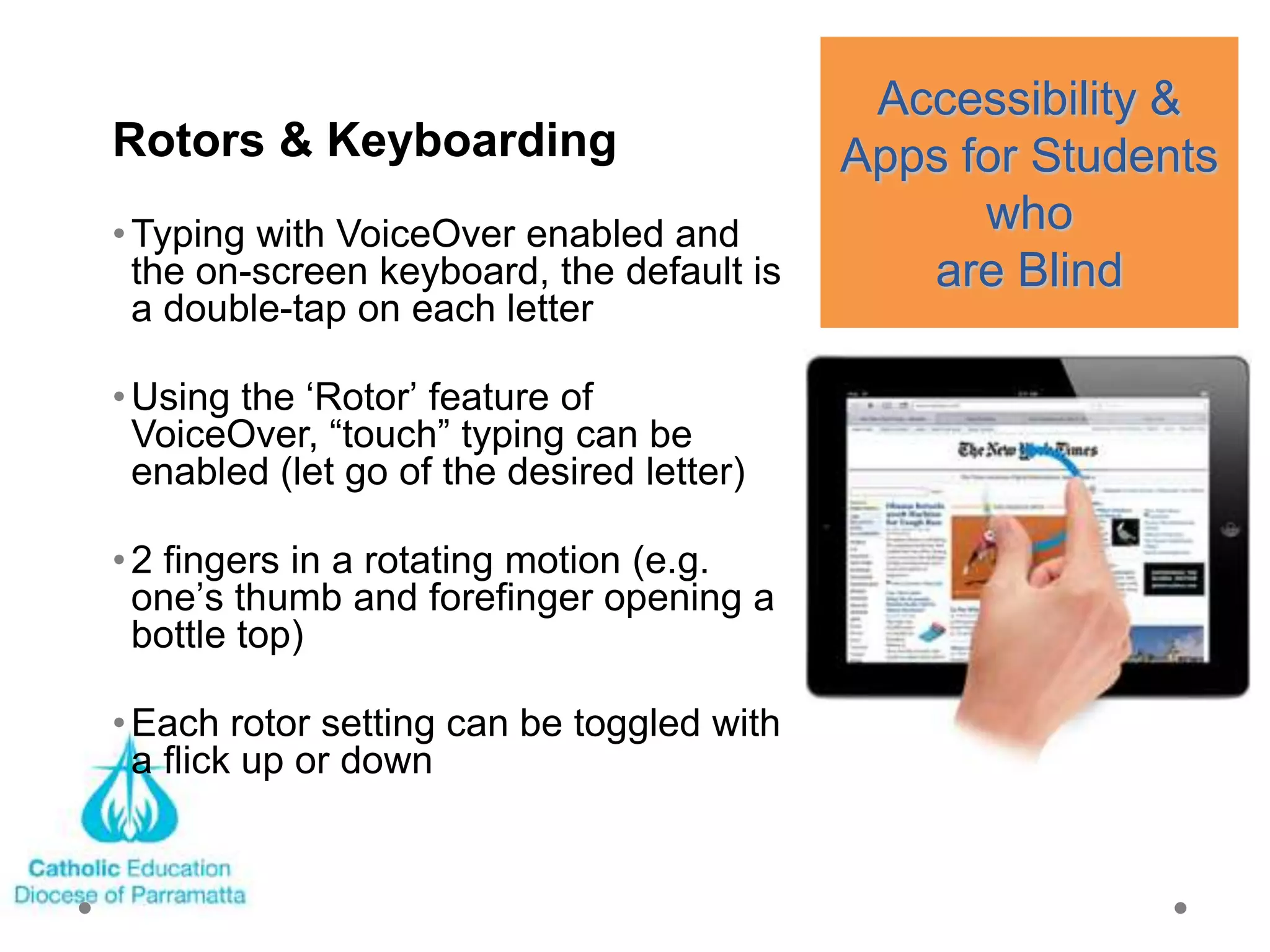
• Using the ‗Rotor‘ feature of
  VoiceOver, ―touch‖ typing can be
  enabled (let go of the desired letter)

• 2 fingers in a rotating motion (e.g.
  one‘s thumb and forefinger opening a
  bottle top)

• Each rotor setting can be toggled with
  a flick up or down
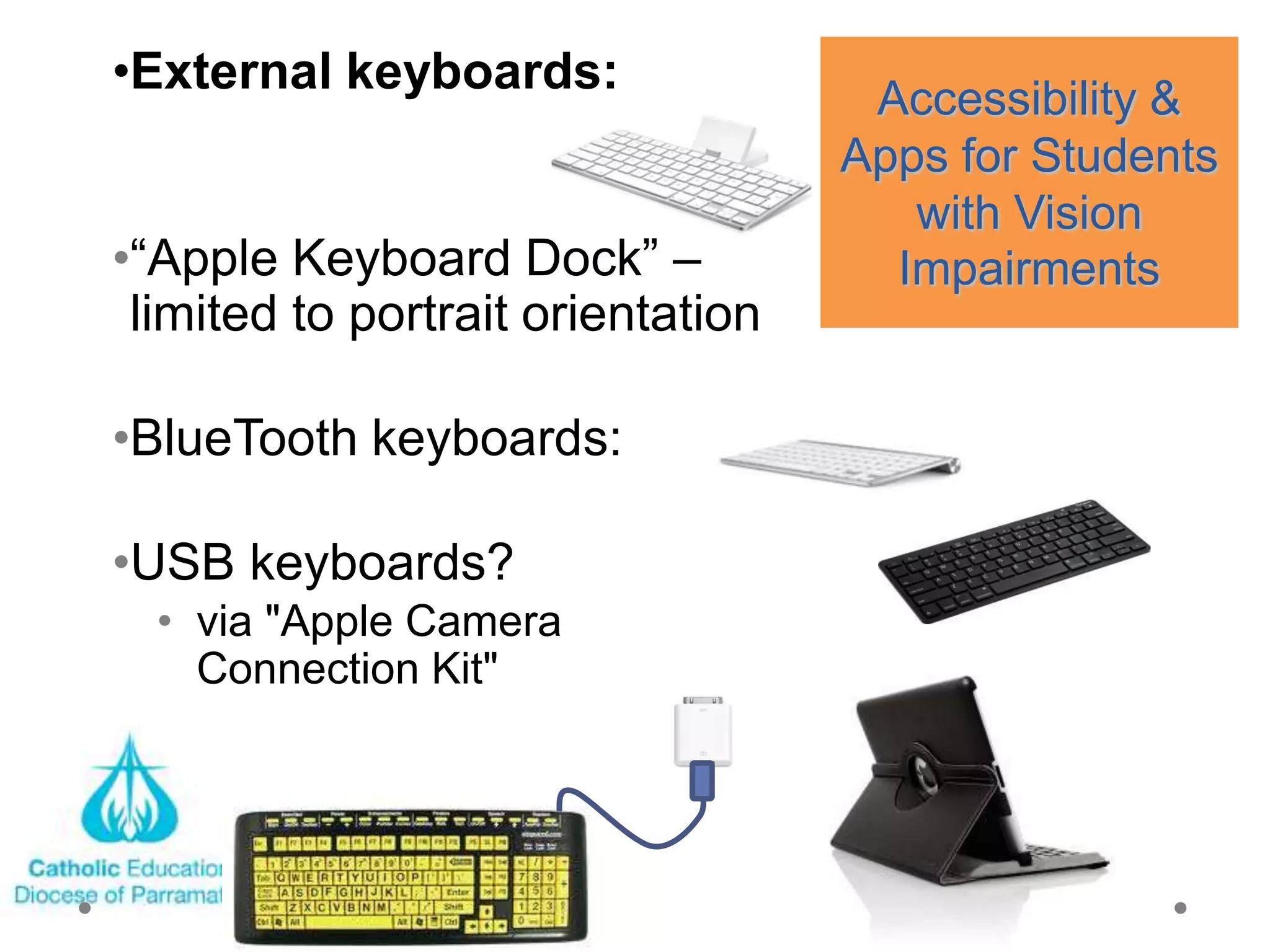
•External keyboards:
                                    Accessibility &
                                   Apps for Students
                                      with Vision
•―Apple Keyboard Dock‖ –             Impairments
 limited to portrait orientation

•BlueTooth keyboards:

•USB keyboards?
  • via "Apple Camera
    Connection Kit"
Accessibility &
Apps for Students
 with Low Vision


•External
 keyboards:

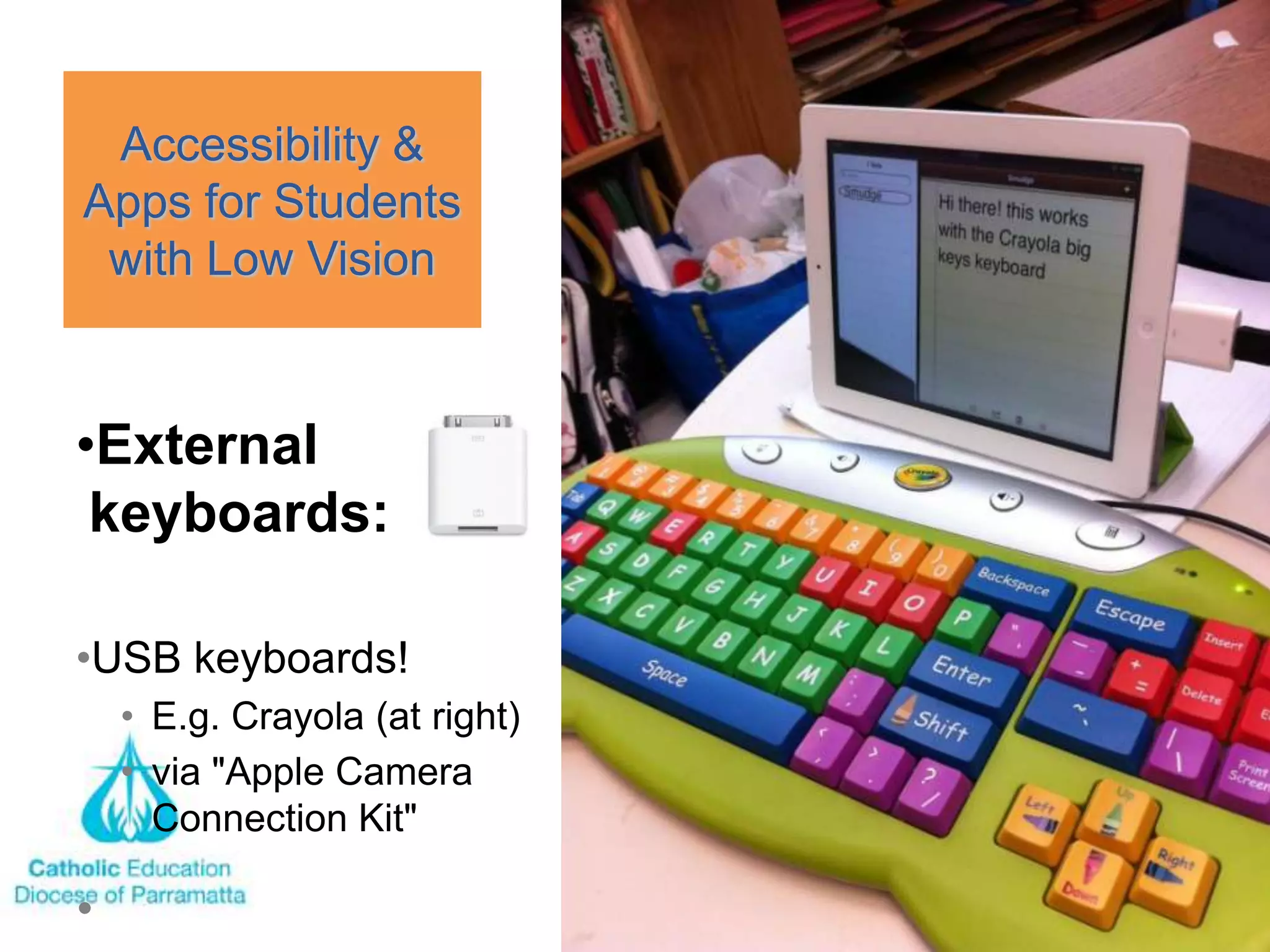
•USB keyboards!
  • E.g. Crayola (at right)
  • via "Apple Camera
    Connection Kit"
BRAILLE DISPLAYS
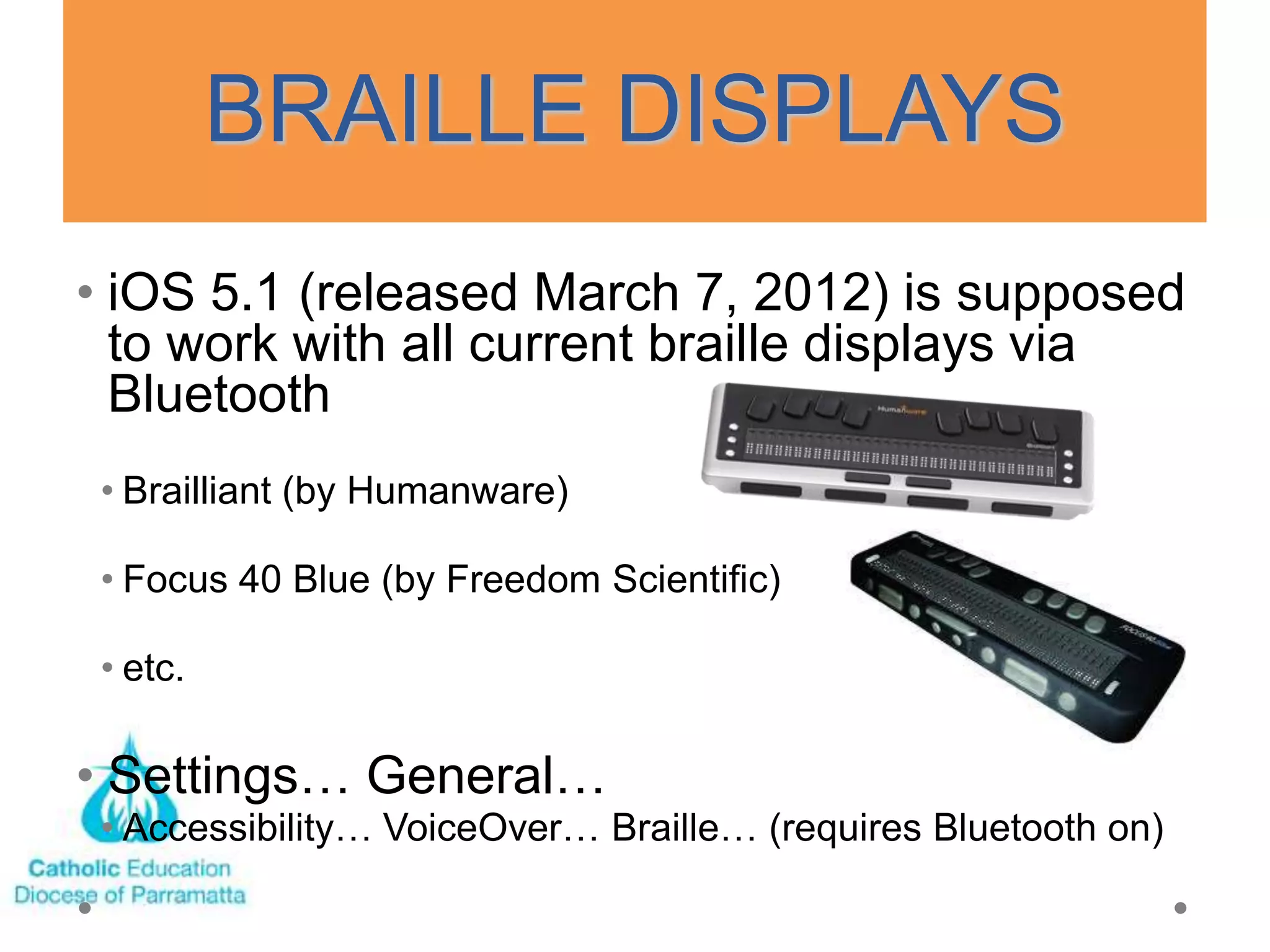
• iOS 5.1 (released March 7, 2012) is supposed
  to work with all current braille displays via
  Bluetooth
 • Brailliant (by Humanware)

 • Focus 40 Blue (by Freedom Scientific)

 • etc.

• Settings… General…
 • Accessibility… VoiceOver… Braille… (requires Bluetooth on)
Accessibility & Apps
for Students who are Vision
         Impaired

  • Third-party iTunes APPS
GAMES using VoiceOver
• Papa Sangre… Text Twirl!... Bop It!™ for iPad… Zany
  Touch… Arcade Hoops Basketball… Stem Stumper…

Additional ones from AppleVis website:
• Blindshoot
  http://itunes.apple.com/us/app/blindshoot/id498792267?m
  t=8
• Moxie, and Moxie 2 (word games)
  http://itunes.apple.com/ca/app/moxie-free-
  edition/id309662269?mt=8
• King of Dragon Pass http://itunes.apple.com/ca/app/king-
  of-dragon-pass/id335545504?mt=8
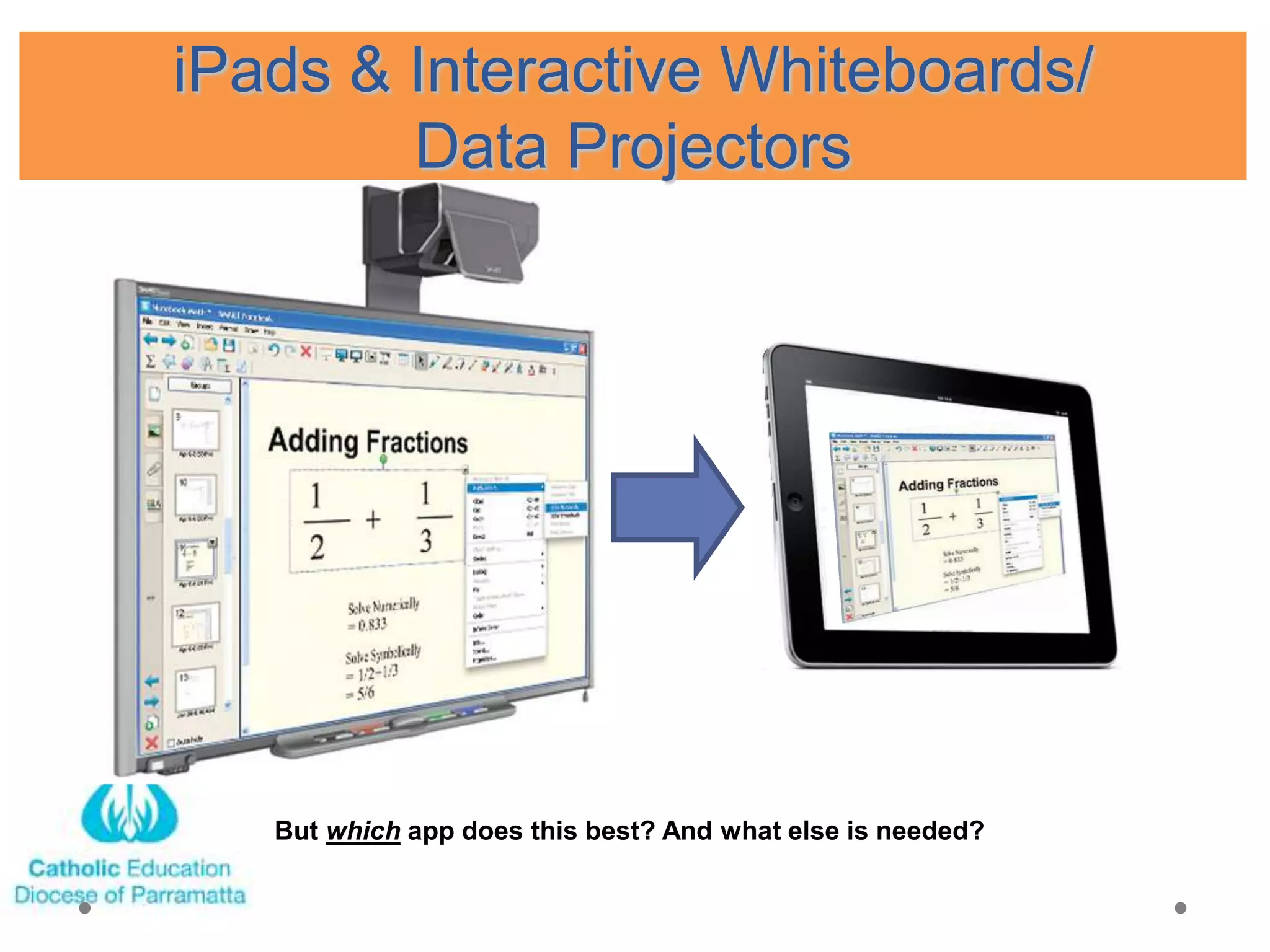
iPads & Interactive Whiteboards/
        Data Projectors


   But which app does this best? And what else is needed?
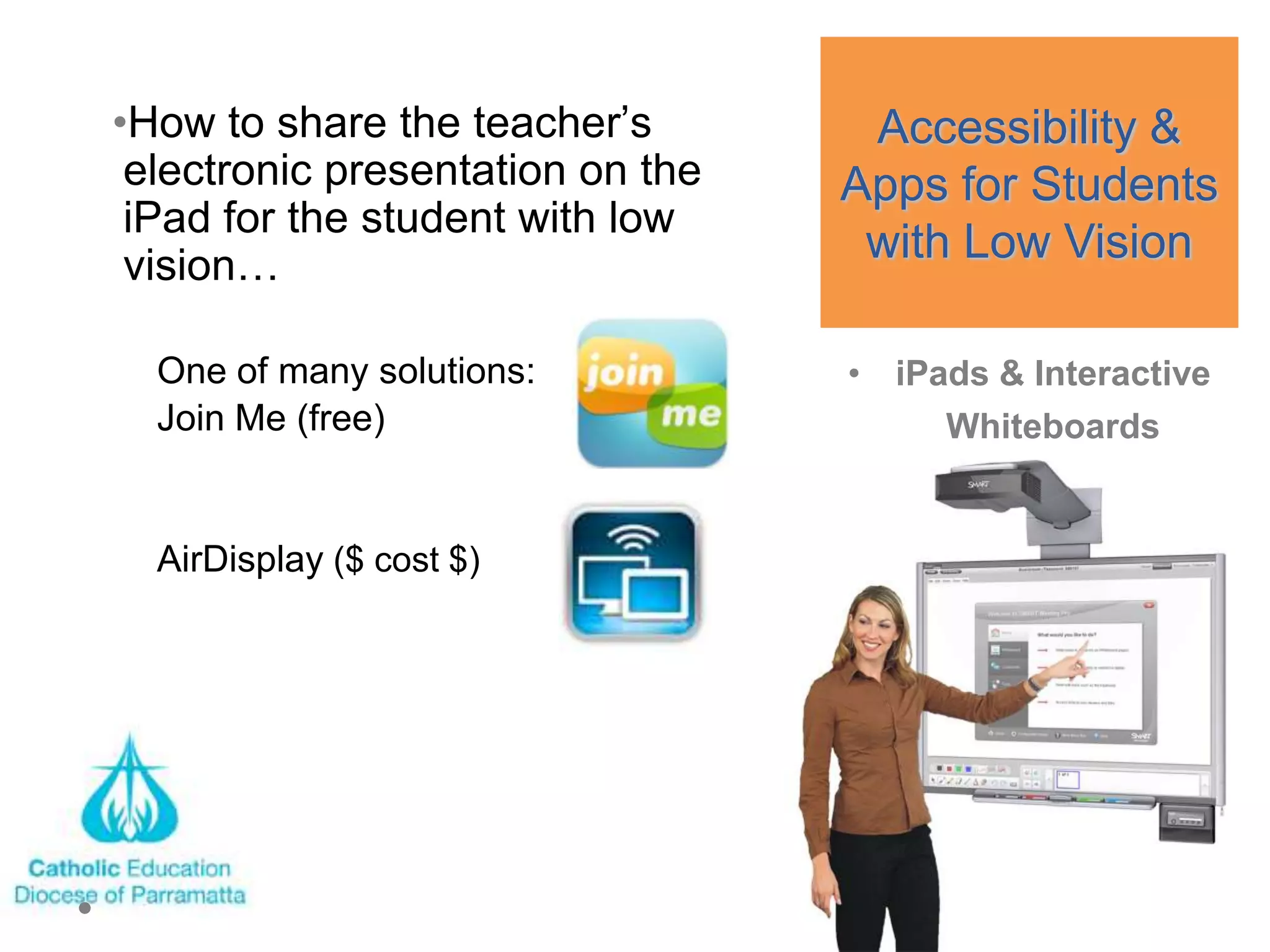
•How to share the teacher‘s        Accessibility &
 electronic presentation on the   Apps for Students
 iPad for the student with low
 vision…
                                   with Low Vision

  One of many solutions:          • iPads & Interactive
  Join Me (free)                       Whiteboards


  AirDisplay ($ cost $)
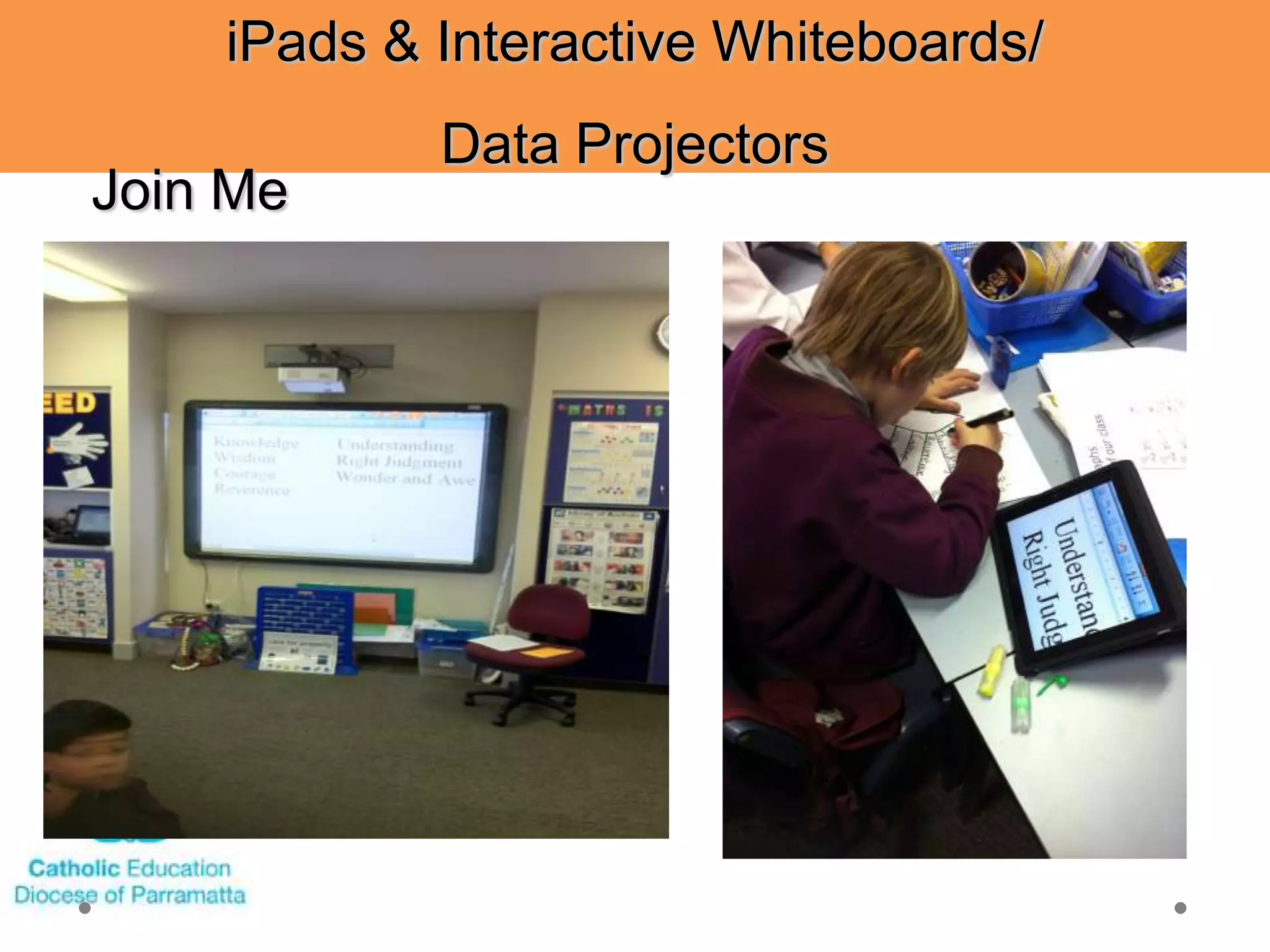
iPads & Interactive Whiteboards/
            Data Projectors
Join Me
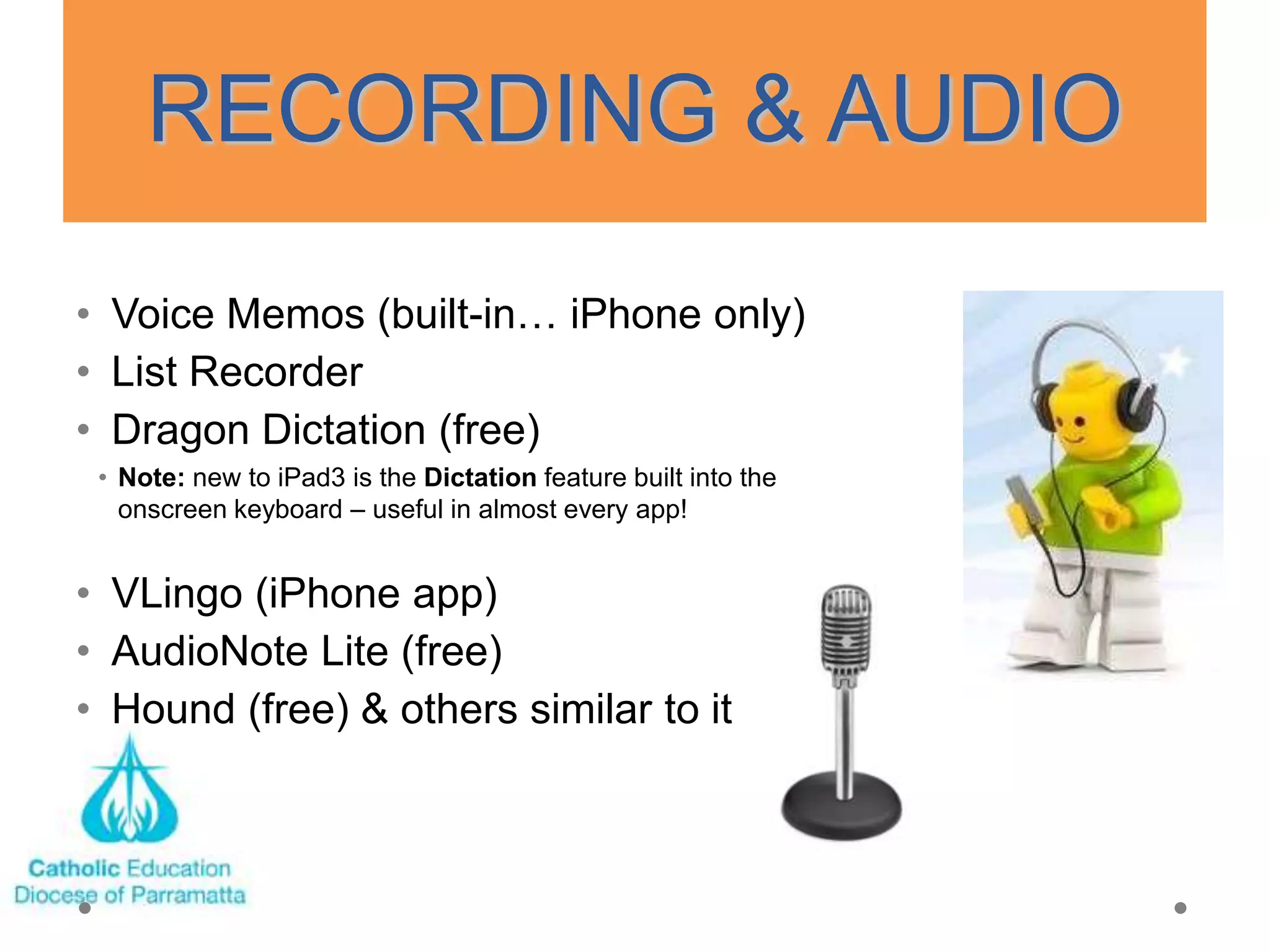
RECORDING & AUDIO
• Voice Memos (built-in… iPhone only)
• List Recorder
• Dragon Dictation (free)
 • Note: new to iPad3 is the Dictation feature built into the
   onscreen keyboard – useful in almost every app!


• VLingo (iPhone app)
• AudioNote Lite (free)
• Hound (free) & others similar to it
WORD PROCESSING
• Notes (built in)

• PlainText (free)

• Pages ($9.99)

• Quickoffice® Pro HD ($14.99)

• EverNote (free)
BOOK APPS
• Print book readers:
• iBooks
• available as a free download
• download, organize, and read ebooks.
• fully compatible with VoiceOver.
•   books read aloud in any of 33 languages.
•   iBooks can be tailored to suit the way you read.
•   portrait or landscape orientation.
•   larger font sizes or different fonts.
•   It also works with the white-on-black text setting
•   Use VO to browse iBookstore

    • Kindle: VO friendly
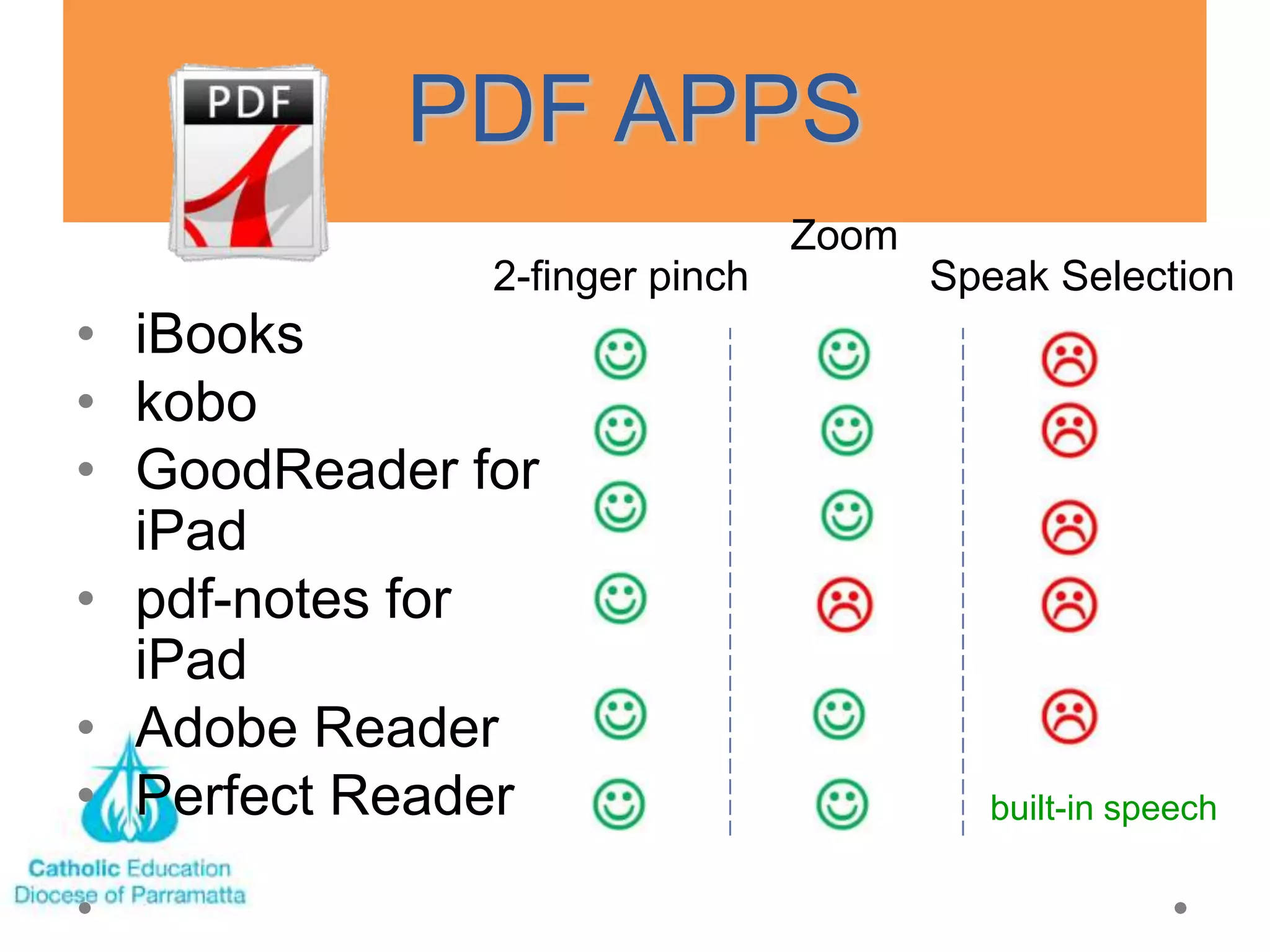
PDF APPS
                               Zoom
              2-finger pinch          Speak Selection
• iBooks
• kobo
• GoodReader for
  iPad
• pdf-notes for
  iPad
• Adobe Reader
• Perfect Reader                        built-in speech
PDF APPS cont‘d
• VoiceOver friendly:
 •   iBooks (free)


• NOT VoiceOver friendly:
 •   Kobo
 •   GoodReader for iPad
 •   pdf-notes for iPad
 •   Adobe Reader
 •   Perfect Reader
DAISY APPS
•         VOD Lite ―voice of DAISY‖ (free; full version is
    $25.99)


• DaisyWorm (99¢)

• inDAISY ($19.99)
    •   Possibly the very 1st DAISY app…


• Read2Go ($19.99) – for BookShare books
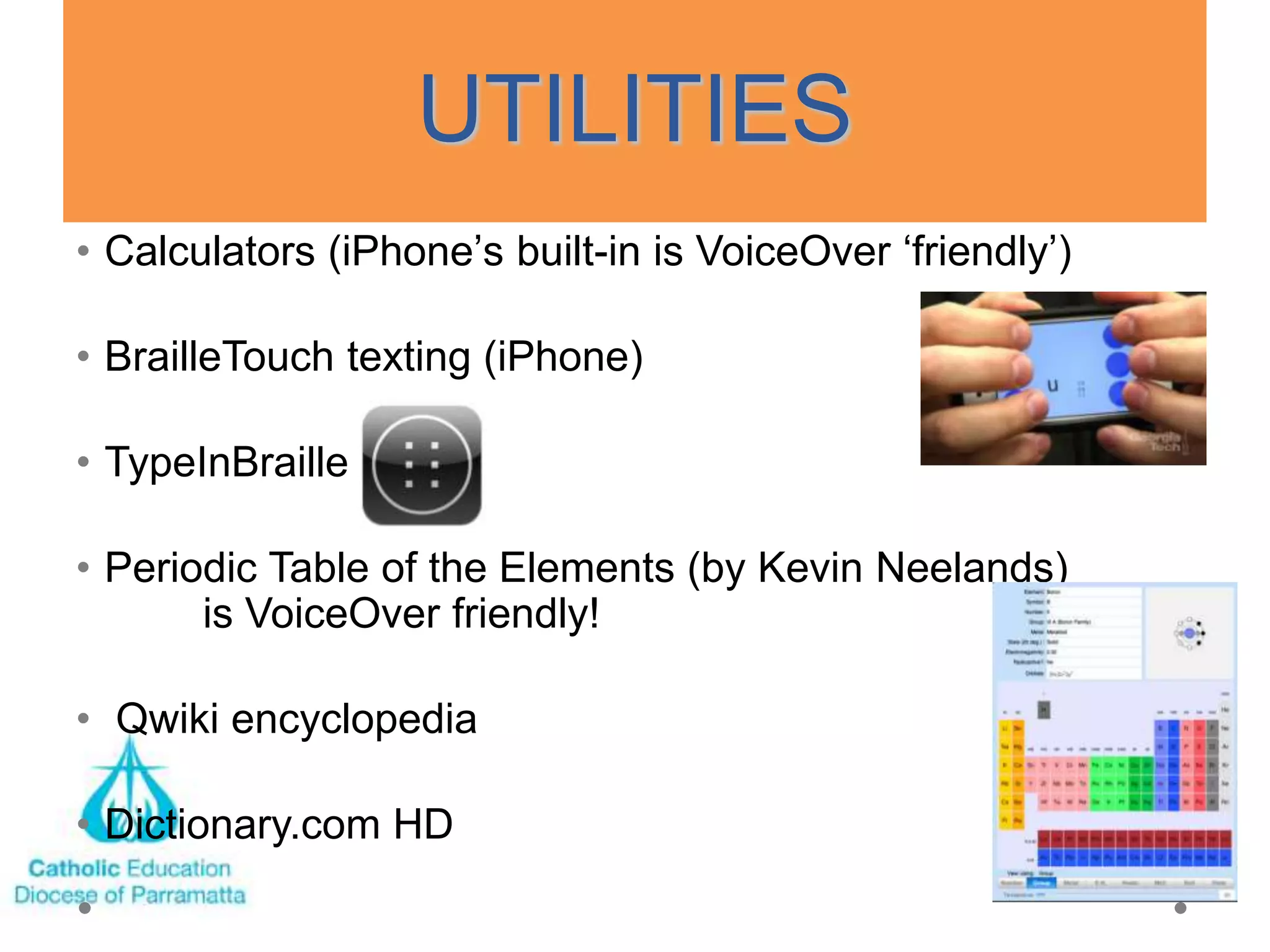
UTILITIES
• Calculators (iPhone‘s built-in is VoiceOver ‗friendly‘)

• BrailleTouch texting (iPhone)

• TypeInBraille

• Periodic Table of the Elements (by Kevin Neelands)
       is VoiceOver friendly!

• Qwiki encyclopedia

• Dictionary.com HD
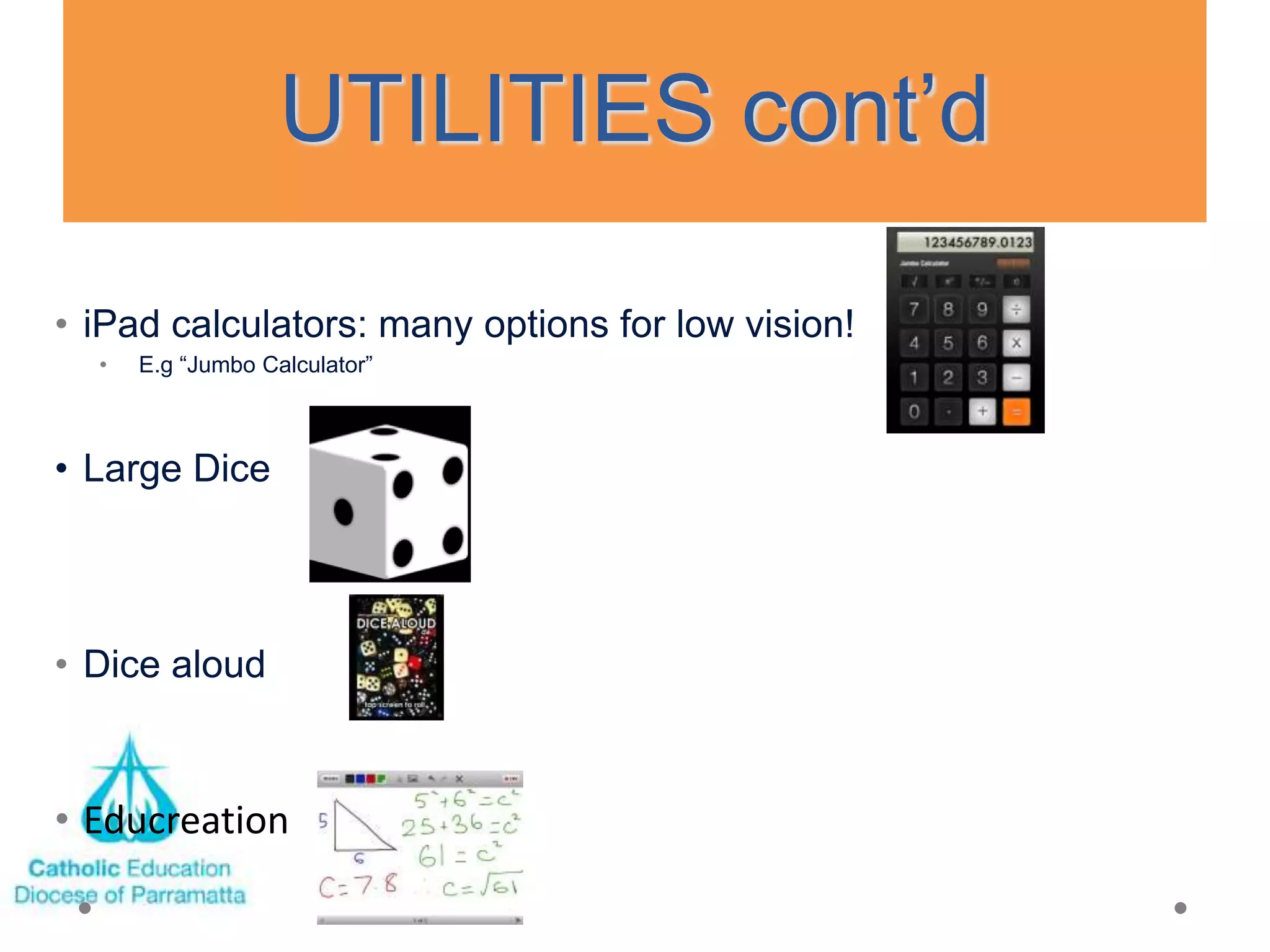
UTILITIES cont‘d

• iPad calculators: many options for low vision!
  •   E.g ―Jumbo Calculator‖


• Large Dice


• Dice aloud


• Educreation
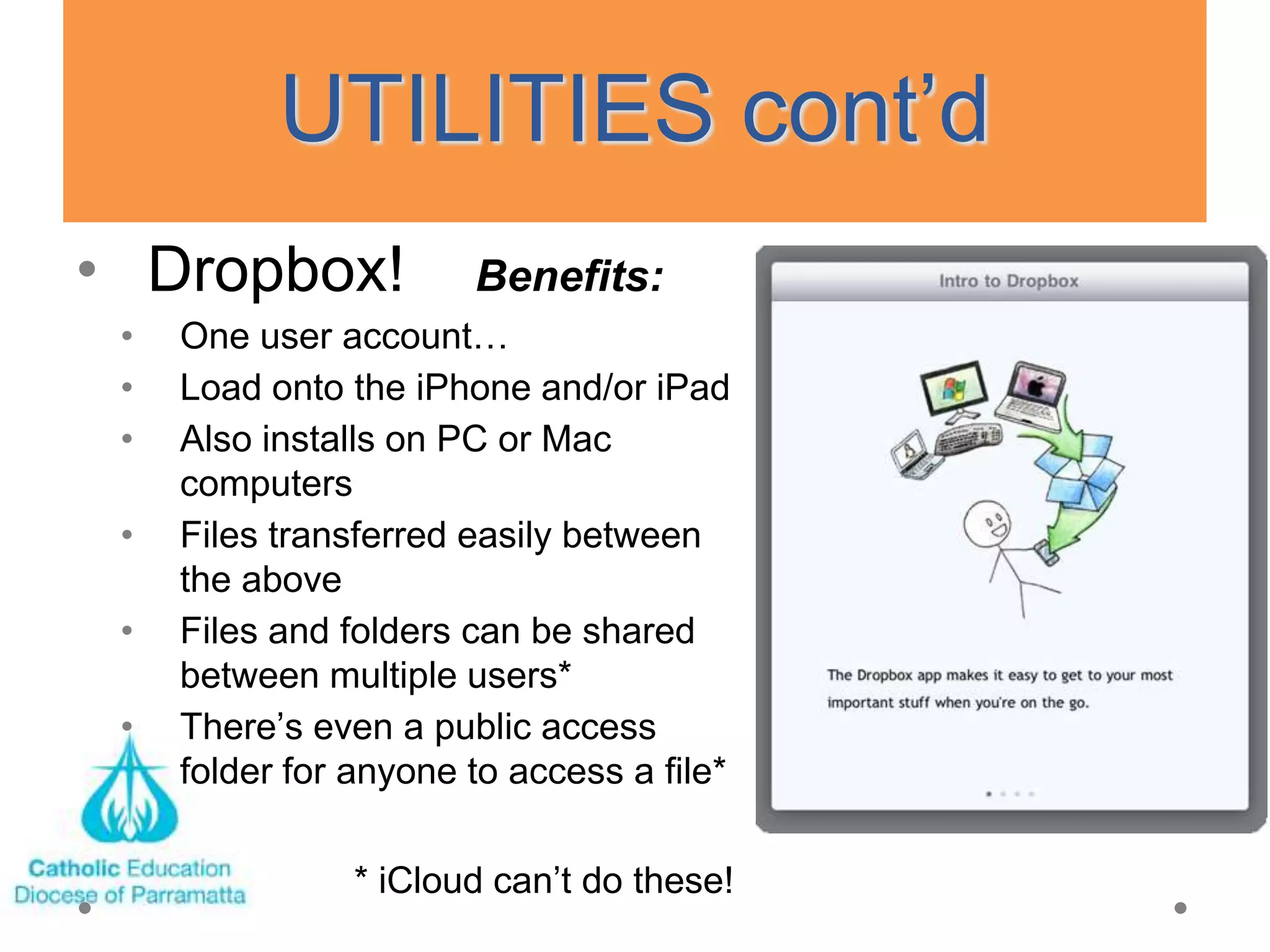
UTILITIES cont‘d
• Dropbox!             Benefits:
 •   One user account…
 •   Load onto the iPhone and/or iPad
 •   Also installs on PC or Mac
     computers
 •   Files transferred easily between
     the above
 •   Files and folders can be shared
     between multiple users*
 •   There‘s even a public access
     folder for anyone to access a file*

                * iCloud can‘t do these!
WEB RESOURCES
Feeling disconnected?            • iPad & iPhone user guides:
                                   http://manuals.info.apple.com

                                 • Accessibility:
                                   http://www.apple.com/accessibility/ip
                                   ad/vision.html

                                 • Accessible apps, guides &
                                   discussion for blind and vision-
                                   impaired users: www.applevis.com

                                 • Accessible fun apps:
                                 http://appadvice.com/applists/show/fun
                                 -apps-for-blind-and-visually-impaired


         Acknowledgement: This Presentation has been put together from
         several sources including- http://www.vision.alberta.ca/

iPads accessibility_vision

  • 1.
    Accessibility & Appsfor Students with Vision Impairments including Blindness
  • 2.
    Accessibility & REMEMBER: theiPad Apps for Students with Vision is COOL… but it‘s Impairments NOT the only tool in the ‗learning toolbox‘ for the student!
  • 3.
    How many Apps? •As of the Apple announcement of the iPad 3 on March 7 (2012)… • over 585,000 apps! • over 25 billion downloads!
  • 4.
    Accessibility & • Hardto be an ―expert‖ on Apps for Students apps… with Vision • At times, too many to choose Impairments from • New ones always added • Existing ones updated / improved • Non-popular ones removed The Evolving • Easier to be an ―expert‖ on World of Apps the built-in features for the iPad • Better yet, share ―expertise‖ in a community of learners and iPhone
  • 5.
    •Low vision featuresbuilt into the iPad: Accessibility & Apps for Students with Low Vision • ―Zoom‖ • ―VoiceOver‖ • ―Large Text‖ • ―White on Black‖ • ―Speak Selection‖ • Reader in Safari • Support for Braille displays
  • 6.
    Accessibility & Appsfor Students with Low Vision Tip #1: apply a matte screen protector
  • 7.
    Zoom • activate in“Settings – General – Accessibility” or set as default “Triple-click Home” • activate with a 3-finger double tap then release on the screen • adjust zoom level with a 3-finger double tap and hold on the screen, followed by sliding 3-fingers up or down (to enlarge or reduce respectively) • navigate with a 3-finger single tap and hold, then move around the screen • this feature works well in the Home Screen as the fonts there cannot be enlarged otherwise
  • 8.
    VoiceOver built-in TTSfeature on the iPad: Accessibility & • Turn on and set up in Settings • Flick or slide moves from one item to Apps for Students another who • Double tap opens or activates links are Blind • 2 finger flick up reads from top of page • 2 finger flick down reads from current position • 2 finger tap pauses reading • 2 finger tap restarts the reading • VoiceOver on iPad also gives you information about your device — including battery level, network signal level, and time of day. It even lets you know when the display changes to landscape or portrait orientation and when the screen is locked or unlocked. • PLUS MANY MORE… SEE iPad MANUAL
  • 9.
    “Large Text” • maximumsize is 56 point • only works on some built-in apps (such as Notes, Calendar, etc.) ―White on Black‖ • not actually black and white contract, but rather a reversal of all colours
  • 10.
    “Speak Selection” • Texthighlighted in most apps can be read aloud (e.g. Safari) “Safari Reader” • When you navigate to an article, "Reader” appears in the address bar. Tap it, and an e- reader-style interface will appear, giving a simplified version of the text with no ads and no distracting links and the option to adjust the font size. ALL THE BUILT-IN ACCESSIBILITY FEATURES CAN BE ACTIVATED IN “SETTINGS – GENERAL – ACCESSIBILITY
  • 11.
    Accessibility & Rotors &Keyboarding Apps for Students • Typing with VoiceOver enabled and who the on-screen keyboard, the default is are Blind a double-tap on each letter • Using the ‗Rotor‘ feature of VoiceOver, ―touch‖ typing can be enabled (let go of the desired letter) • 2 fingers in a rotating motion (e.g. one‘s thumb and forefinger opening a bottle top) • Each rotor setting can be toggled with a flick up or down
  • 12.
    •External keyboards: Accessibility & Apps for Students with Vision •―Apple Keyboard Dock‖ – Impairments limited to portrait orientation •BlueTooth keyboards: •USB keyboards? • via "Apple Camera Connection Kit"
  • 13.
    Accessibility & Apps forStudents with Low Vision •External keyboards: •USB keyboards! • E.g. Crayola (at right) • via "Apple Camera Connection Kit"
  • 14.
    BRAILLE DISPLAYS • iOS5.1 (released March 7, 2012) is supposed to work with all current braille displays via Bluetooth • Brailliant (by Humanware) • Focus 40 Blue (by Freedom Scientific) • etc. • Settings… General… • Accessibility… VoiceOver… Braille… (requires Bluetooth on)
  • 15.
    Accessibility & Apps forStudents who are Vision Impaired • Third-party iTunes APPS
  • 16.
    GAMES using VoiceOver •Papa Sangre… Text Twirl!... Bop It!™ for iPad… Zany Touch… Arcade Hoops Basketball… Stem Stumper… Additional ones from AppleVis website: • Blindshoot http://itunes.apple.com/us/app/blindshoot/id498792267?m t=8 • Moxie, and Moxie 2 (word games) http://itunes.apple.com/ca/app/moxie-free- edition/id309662269?mt=8 • King of Dragon Pass http://itunes.apple.com/ca/app/king- of-dragon-pass/id335545504?mt=8
  • 17.
    iPads & InteractiveWhiteboards/ Data Projectors But which app does this best? And what else is needed?
  • 18.
    •How to sharethe teacher‘s Accessibility & electronic presentation on the Apps for Students iPad for the student with low vision… with Low Vision One of many solutions: • iPads & Interactive Join Me (free) Whiteboards AirDisplay ($ cost $)
  • 19.
    iPads & InteractiveWhiteboards/ Data Projectors Join Me
  • 20.
    RECORDING & AUDIO •Voice Memos (built-in… iPhone only) • List Recorder • Dragon Dictation (free) • Note: new to iPad3 is the Dictation feature built into the onscreen keyboard – useful in almost every app! • VLingo (iPhone app) • AudioNote Lite (free) • Hound (free) & others similar to it
  • 21.
    WORD PROCESSING • Notes(built in) • PlainText (free) • Pages ($9.99) • Quickoffice® Pro HD ($14.99) • EverNote (free)
  • 22.
    BOOK APPS • Printbook readers: • iBooks • available as a free download • download, organize, and read ebooks. • fully compatible with VoiceOver. • books read aloud in any of 33 languages. • iBooks can be tailored to suit the way you read. • portrait or landscape orientation. • larger font sizes or different fonts. • It also works with the white-on-black text setting • Use VO to browse iBookstore • Kindle: VO friendly
  • 23.
    PDF APPS Zoom 2-finger pinch Speak Selection • iBooks • kobo • GoodReader for iPad • pdf-notes for iPad • Adobe Reader • Perfect Reader built-in speech
  • 24.
    PDF APPS cont‘d •VoiceOver friendly: • iBooks (free) • NOT VoiceOver friendly: • Kobo • GoodReader for iPad • pdf-notes for iPad • Adobe Reader • Perfect Reader
  • 25.
    DAISY APPS • VOD Lite ―voice of DAISY‖ (free; full version is $25.99) • DaisyWorm (99¢) • inDAISY ($19.99) • Possibly the very 1st DAISY app… • Read2Go ($19.99) – for BookShare books
  • 26.
    UTILITIES • Calculators (iPhone‘sbuilt-in is VoiceOver ‗friendly‘) • BrailleTouch texting (iPhone) • TypeInBraille • Periodic Table of the Elements (by Kevin Neelands) is VoiceOver friendly! • Qwiki encyclopedia • Dictionary.com HD
  • 27.
    UTILITIES cont‘d • iPadcalculators: many options for low vision! • E.g ―Jumbo Calculator‖ • Large Dice • Dice aloud • Educreation
  • 28.
    UTILITIES cont‘d • Dropbox! Benefits: • One user account… • Load onto the iPhone and/or iPad • Also installs on PC or Mac computers • Files transferred easily between the above • Files and folders can be shared between multiple users* • There‘s even a public access folder for anyone to access a file* * iCloud can‘t do these!
  • 29.
    WEB RESOURCES Feeling disconnected? • iPad & iPhone user guides: http://manuals.info.apple.com • Accessibility: http://www.apple.com/accessibility/ip ad/vision.html • Accessible apps, guides & discussion for blind and vision- impaired users: www.applevis.com • Accessible fun apps: http://appadvice.com/applists/show/fun -apps-for-blind-and-visually-impaired Acknowledgement: This Presentation has been put together from several sources including- http://www.vision.alberta.ca/