Hewlett Packard Software Prompts
Hewlett Packard software prompts given when printing with refilled cartridges can only be disabled
when installing the printer’s software by installing the print driver only. Refilled cartridges can be used
without issues when all software options are installed but more prompts are given. Selecting the default
on all prompts will allow printing with a refilled cartridge.
Customer education is important to limit returns. Let your customers know that they will see extra
prompts that they would not normally see when installing a new OEM cartridge and that the ink level
prompt will always show empty. Some customers may choose to reinstall their printer’s software using
the driver only option outlined below.
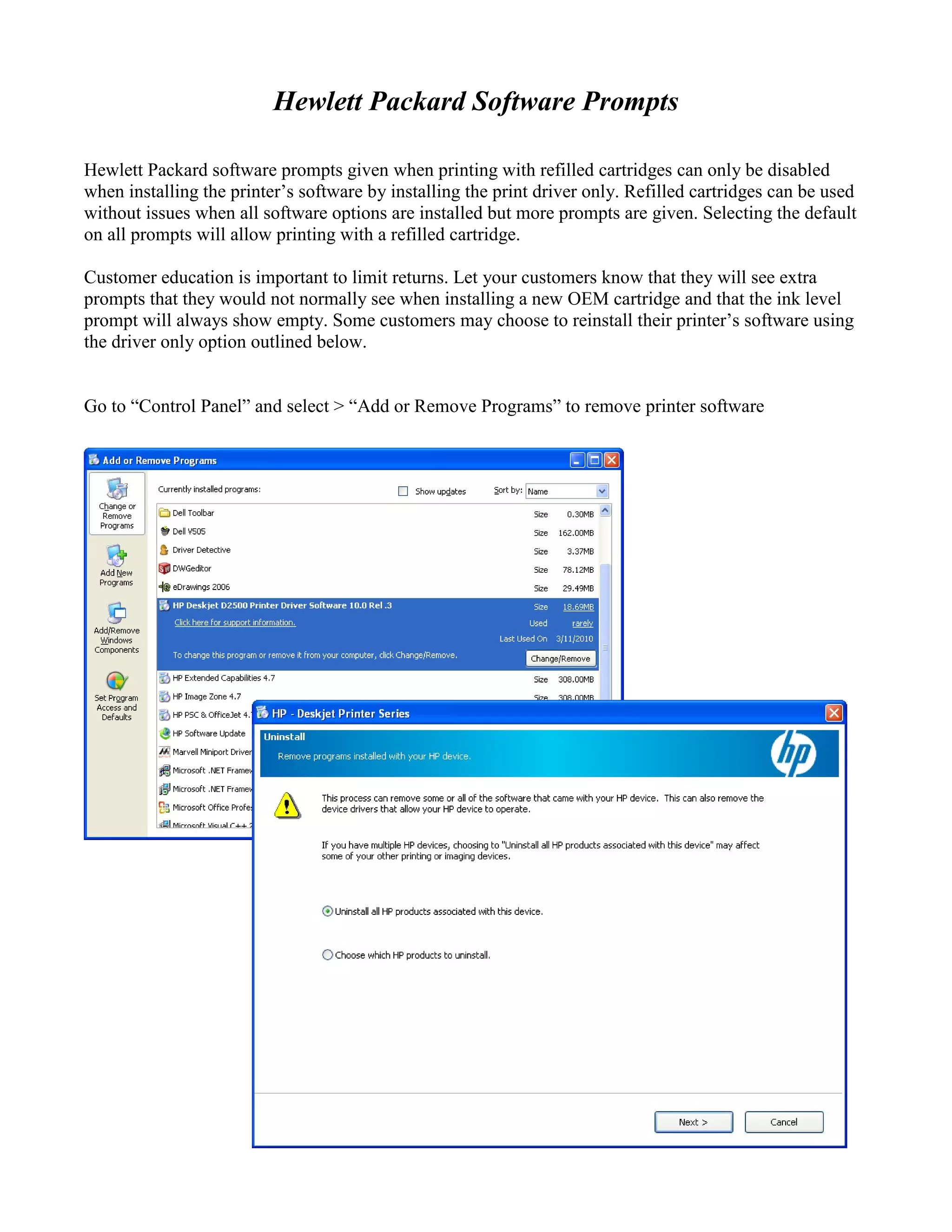
Go to “Control Panel” and select > “Add or Remove Programs” to remove printer software
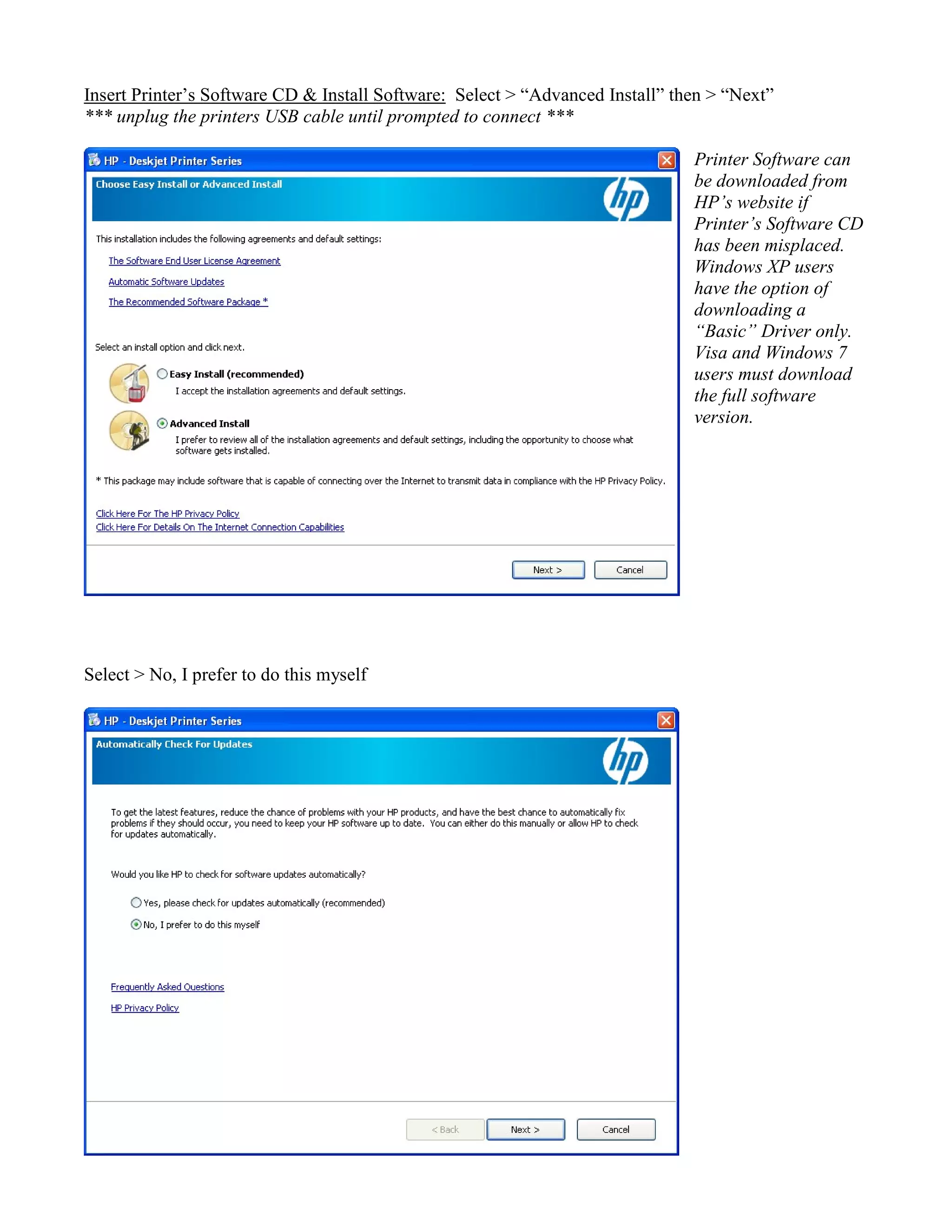
Insert Printer’s Software CD & Install Software: Select > “Advanced Install” then > “Next”
*** unplug the printers USB cable until prompted to connect ***
Printer Software can
be downloaded from
HP’s website if
Printer’s Software CD
has been misplaced.
Windows XP users
have the option of
downloading a
“Basic” Driver only.
Visa and Windows 7
users must download
the full software
version.
Select > No, I prefer to do this myself
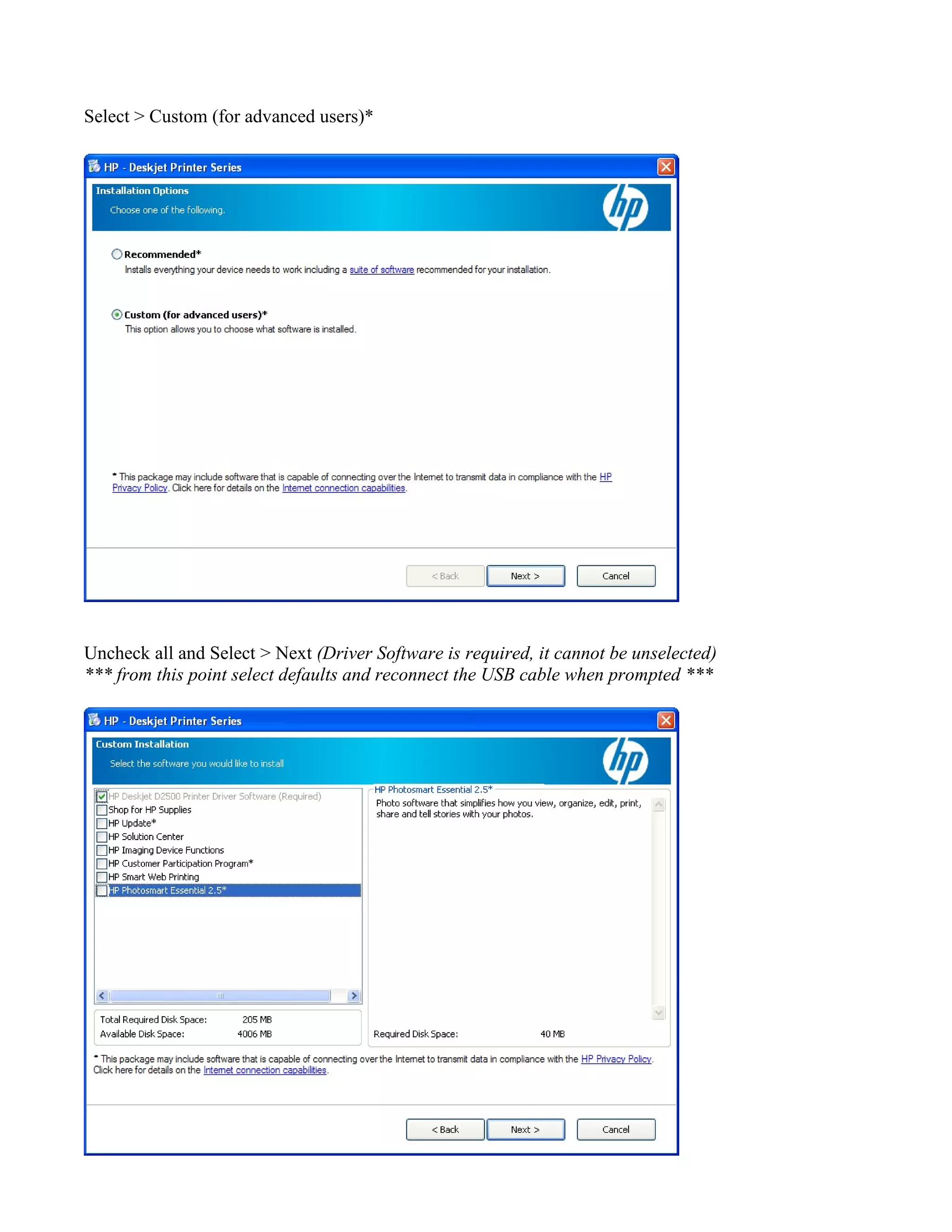
Select > Custom (for advanced users)*
Uncheck all and Select > Next (Driver Software is required, it cannot be unselected)
*** from this point select defaults and reconnect the USB cable when prompted ***
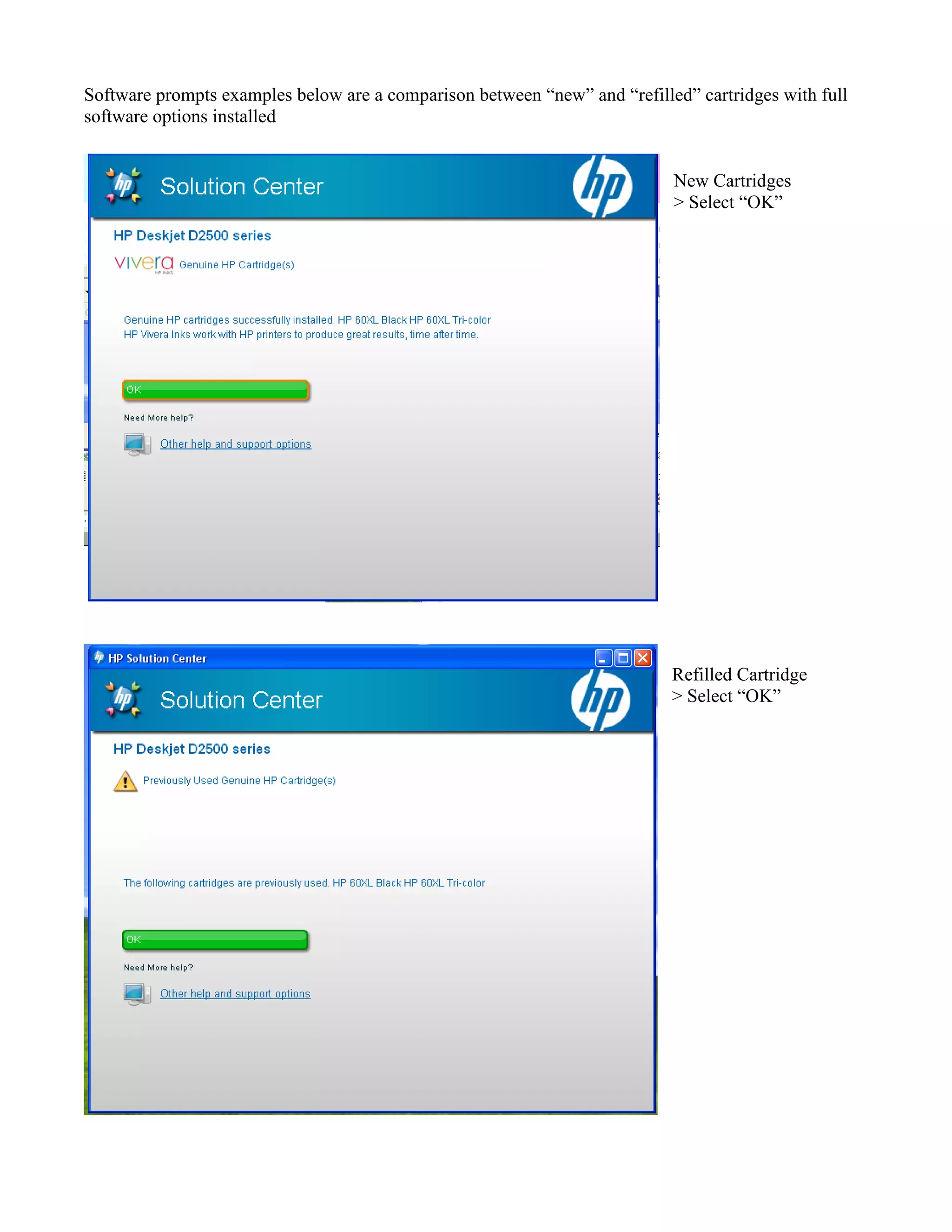
Software prompts examples below are a comparison between “new” and “refilled” cartridges with full
software options installed
New Cartridges
> Select “OK”
Refilled Cartridge
> Select “OK”
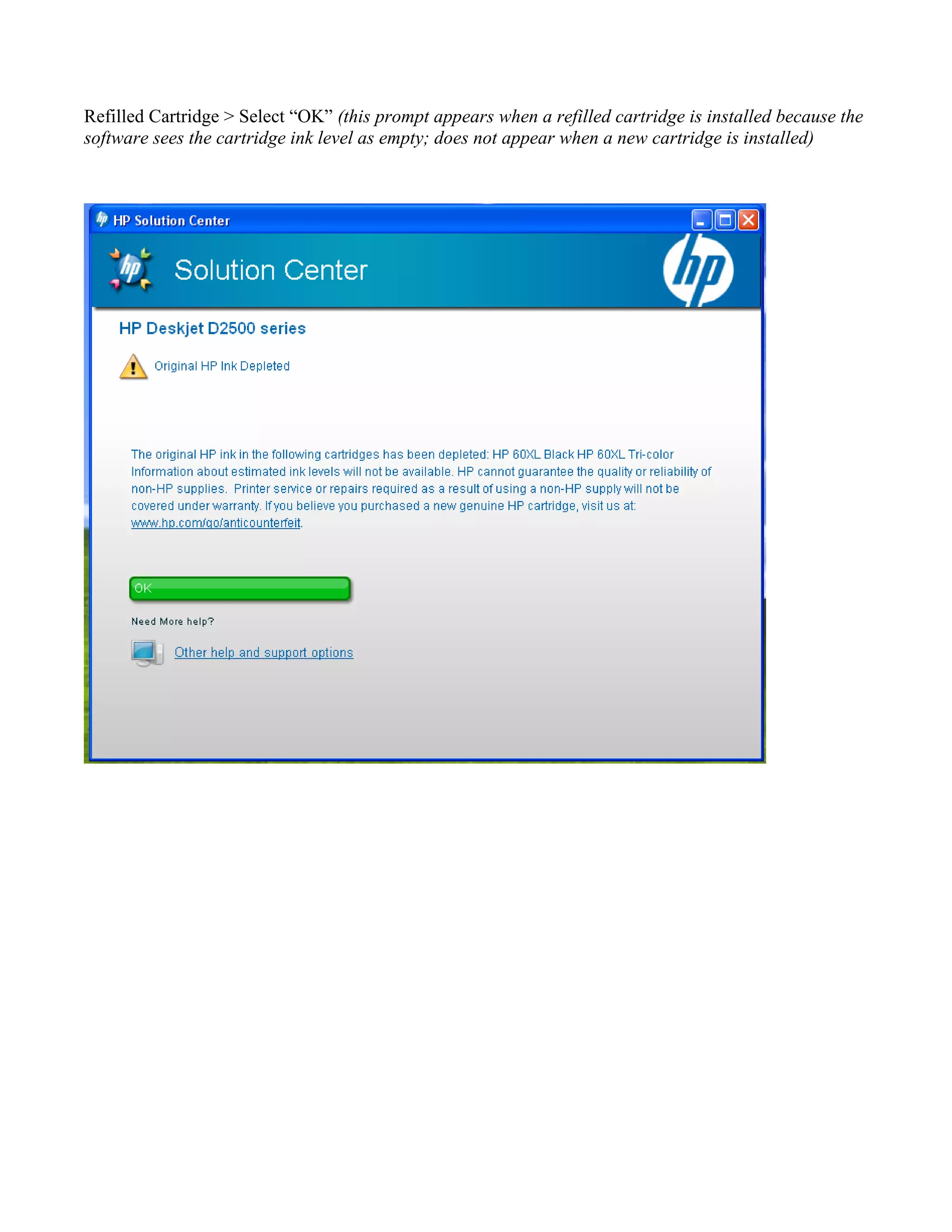
Refilled Cartridge > Select “OK” (this prompt appears when a refilled cartridge is installed because the
software sees the cartridge ink level as empty; does not appear when a new cartridge is installed)
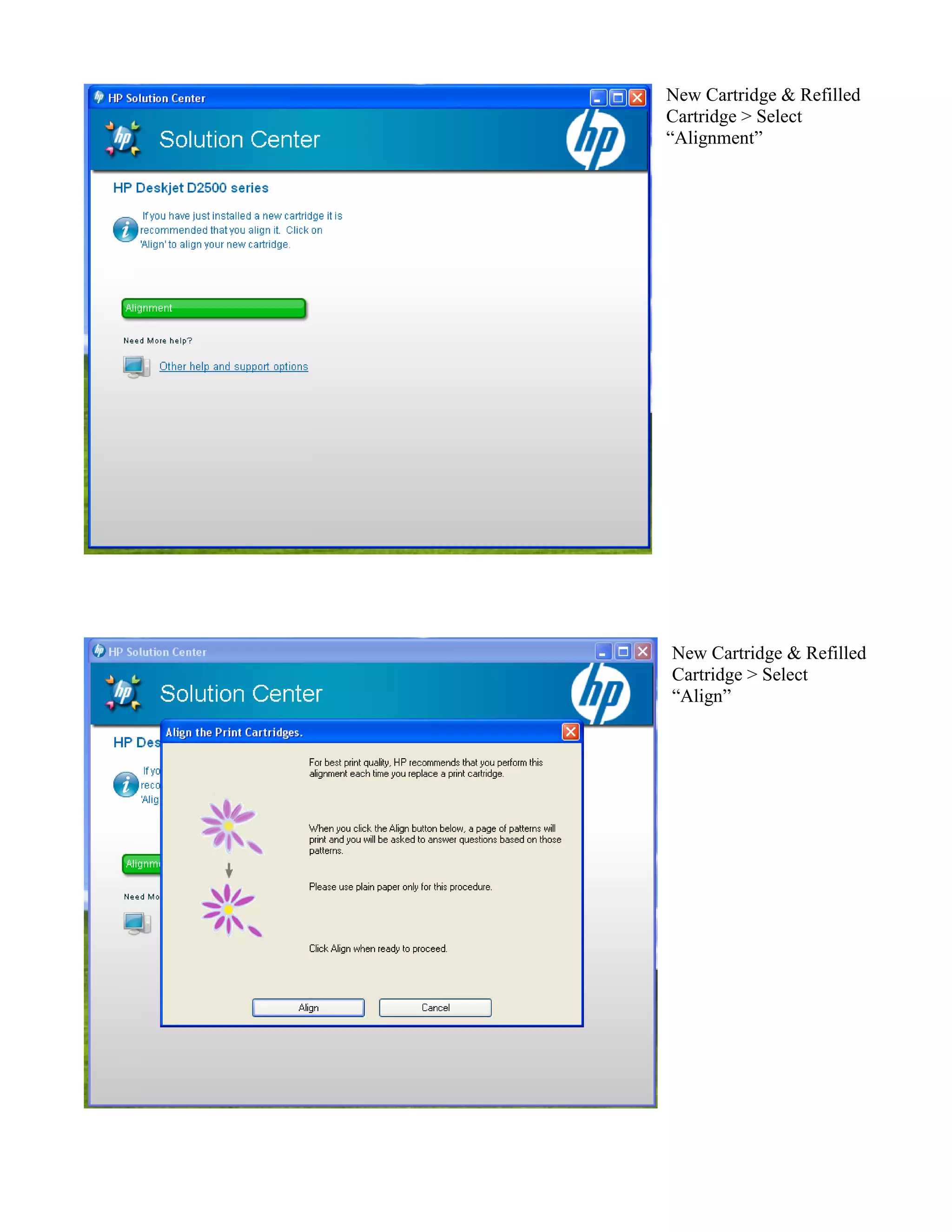
New Cartridge & Refilled
Cartridge > Select
“Alignment”
New Cartridge & Refilled
Cartridge > Select
“Align”
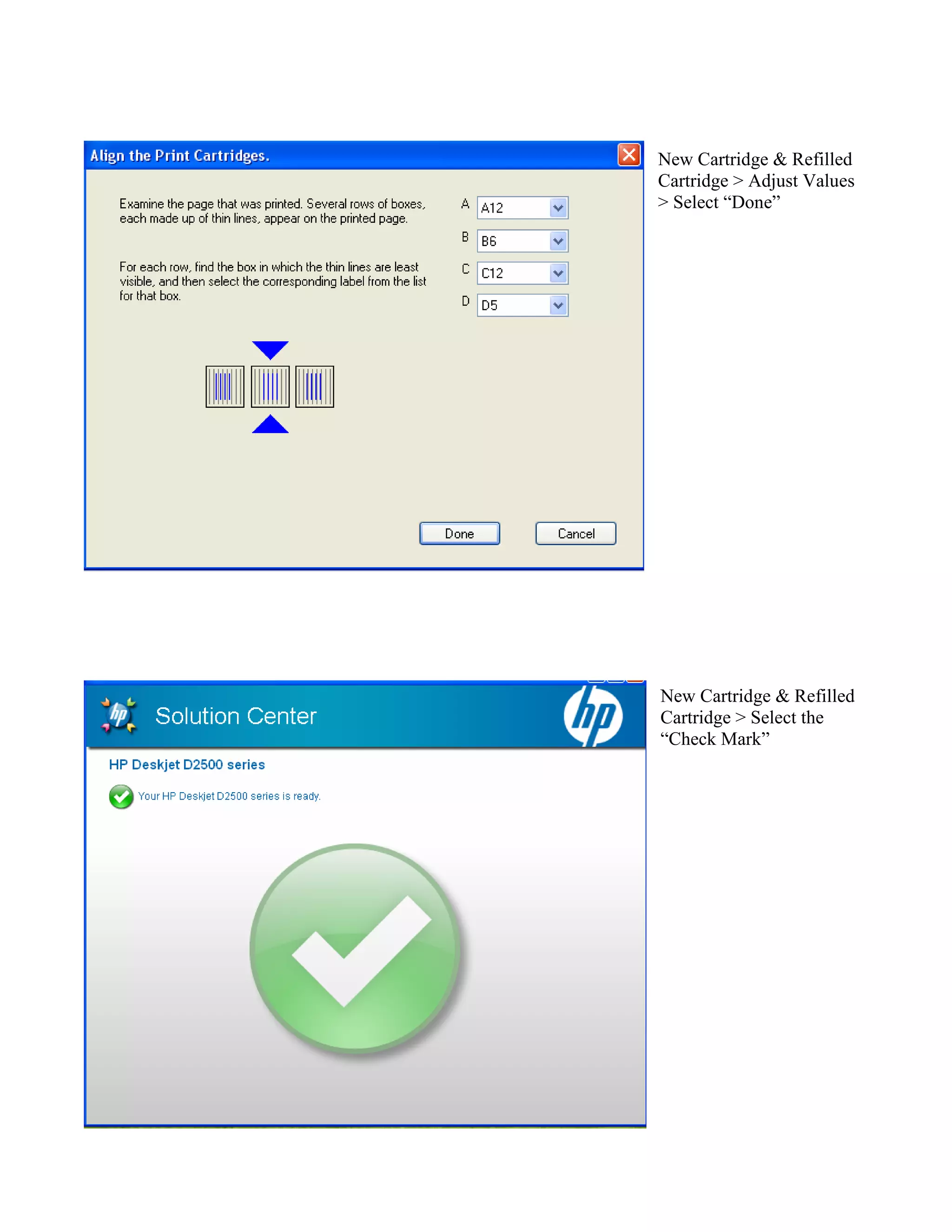
New Cartridge & Refilled
Cartridge > Adjust Values
> Select “Done”
New Cartridge & Refilled
Cartridge > Select the
“Check Mark”
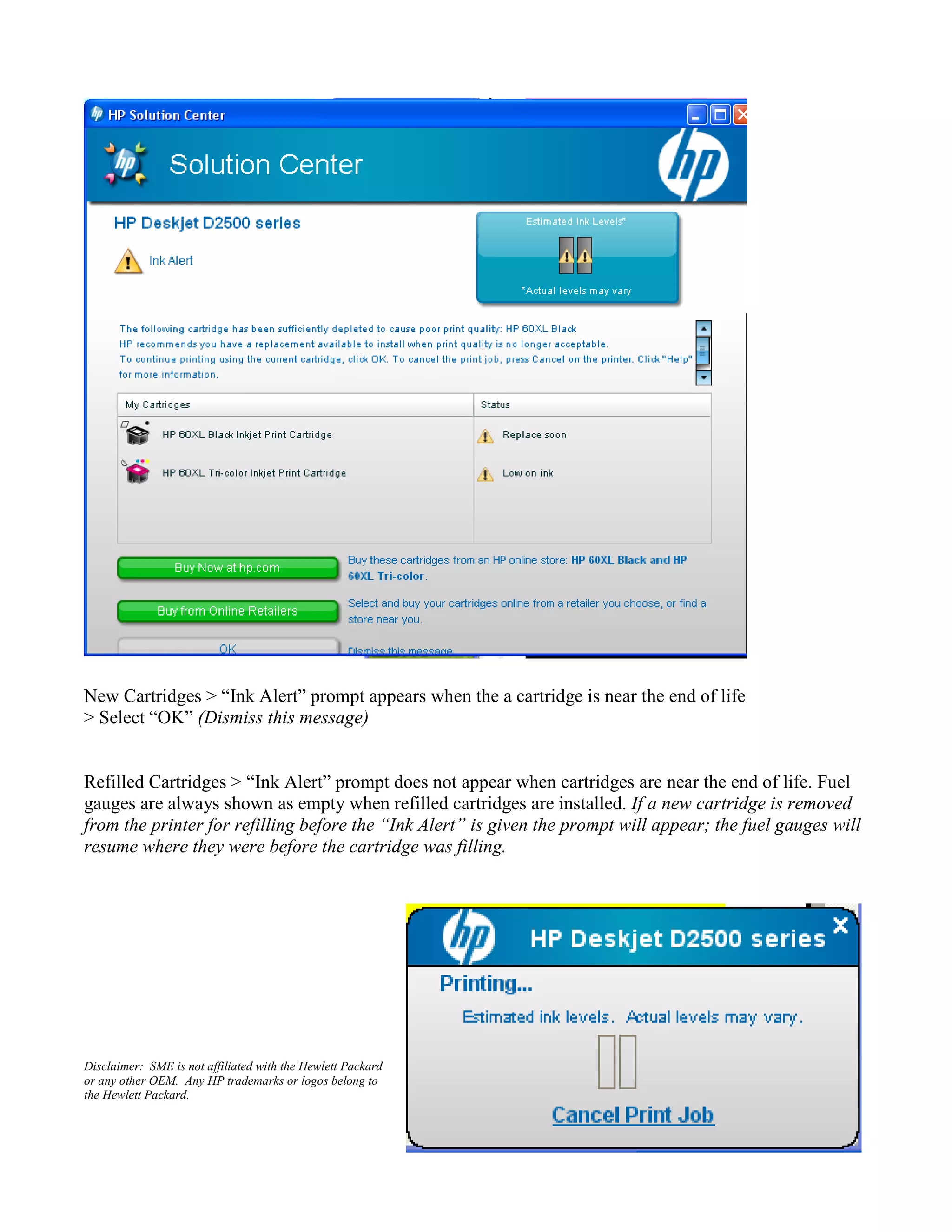
New Cartridges > “Ink Alert” prompt appears when the a cartridge is near the end of life
> Select “OK” (Dismiss this message)
Refilled Cartridges > “Ink Alert” prompt does not appear when cartridges are near the end of life. Fuel
gauges are always shown as empty when refilled cartridges are installed. If a new cartridge is removed
from the printer for refilling before the “Ink Alert” is given the prompt will appear; the fuel gauges will
resume where they were before the cartridge was filling.
Disclaimer: SME is not affiliated with the Hewlett Packard
or any other OEM. Any HP trademarks or logos belong to
the Hewlett Packard.

Hp software prompts_03-10

  • 1.
    Hewlett Packard SoftwarePrompts Hewlett Packard software prompts given when printing with refilled cartridges can only be disabled when installing the printer’s software by installing the print driver only. Refilled cartridges can be used without issues when all software options are installed but more prompts are given. Selecting the default on all prompts will allow printing with a refilled cartridge. Customer education is important to limit returns. Let your customers know that they will see extra prompts that they would not normally see when installing a new OEM cartridge and that the ink level prompt will always show empty. Some customers may choose to reinstall their printer’s software using the driver only option outlined below. Go to “Control Panel” and select > “Add or Remove Programs” to remove printer software
  • 2.
    Insert Printer’s SoftwareCD & Install Software: Select > “Advanced Install” then > “Next” *** unplug the printers USB cable until prompted to connect *** Printer Software can be downloaded from HP’s website if Printer’s Software CD has been misplaced. Windows XP users have the option of downloading a “Basic” Driver only. Visa and Windows 7 users must download the full software version. Select > No, I prefer to do this myself
  • 3.
    Select > Custom(for advanced users)* Uncheck all and Select > Next (Driver Software is required, it cannot be unselected) *** from this point select defaults and reconnect the USB cable when prompted ***
  • 4.
    Software prompts examplesbelow are a comparison between “new” and “refilled” cartridges with full software options installed New Cartridges > Select “OK” Refilled Cartridge > Select “OK”
  • 5.
    Refilled Cartridge >Select “OK” (this prompt appears when a refilled cartridge is installed because the software sees the cartridge ink level as empty; does not appear when a new cartridge is installed)
  • 6.
    New Cartridge &Refilled Cartridge > Select “Alignment” New Cartridge & Refilled Cartridge > Select “Align”
  • 7.
    New Cartridge &Refilled Cartridge > Adjust Values > Select “Done” New Cartridge & Refilled Cartridge > Select the “Check Mark”
  • 8.
    New Cartridges >“Ink Alert” prompt appears when the a cartridge is near the end of life > Select “OK” (Dismiss this message) Refilled Cartridges > “Ink Alert” prompt does not appear when cartridges are near the end of life. Fuel gauges are always shown as empty when refilled cartridges are installed. If a new cartridge is removed from the printer for refilling before the “Ink Alert” is given the prompt will appear; the fuel gauges will resume where they were before the cartridge was filling. Disclaimer: SME is not affiliated with the Hewlett Packard or any other OEM. Any HP trademarks or logos belong to the Hewlett Packard.