How to setup a wireless printer without a CD
For this example, I am using an HP Deskjet 3632. This is one of the simpler wireless printers. With
computers getting smaller, many laptops don’t include a disc drive, so I will be showing you how to
without one.
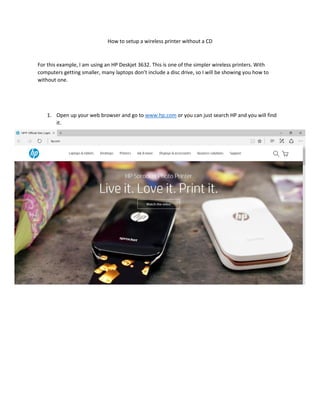
1. Open up your web browser and go to www.hp.com or you can just search HP and you will find
it.
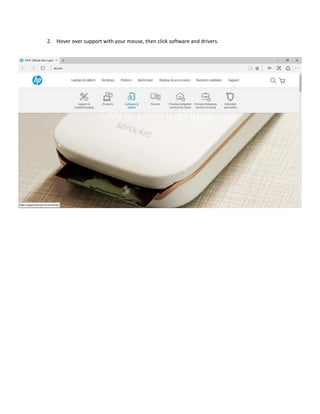
2. Hover over support with your mouse, then click software and drivers.
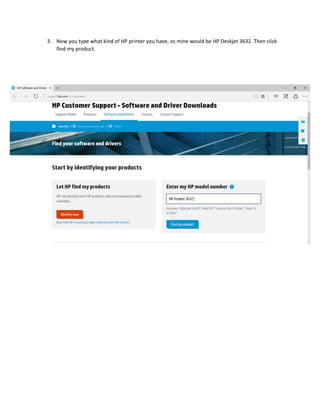
3. Now you type what kind of HP printer you have, so mine would be HP Deskjet 3632. Then click
find my product.
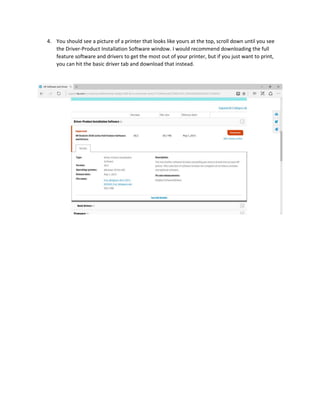
4. You should see a picture of a printer that looks like yours at the top, scroll down until you see
the Driver-Product Installation Software window. I would recommend downloading the full
feature software and drivers to get the most out of your printer, but if you just want to print,
you can hit the basic driver tab and download that instead.
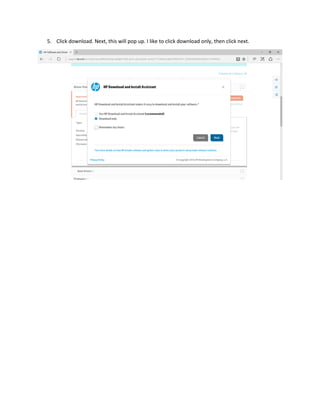
5. Click download. Next, this will pop up. I like to click download only, then click next.
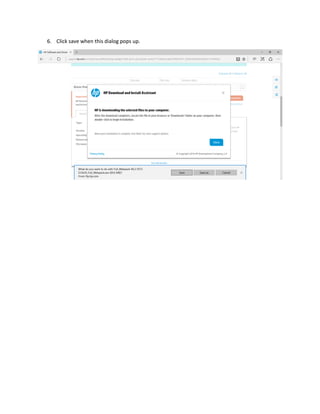
6. Click save when this dialog pops up.
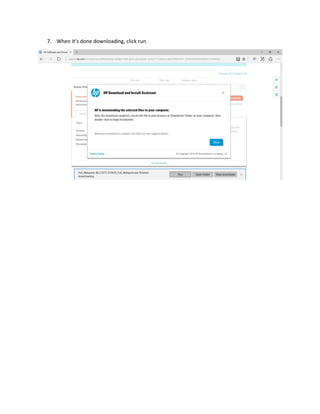
7. When it’s done downloading, click run.
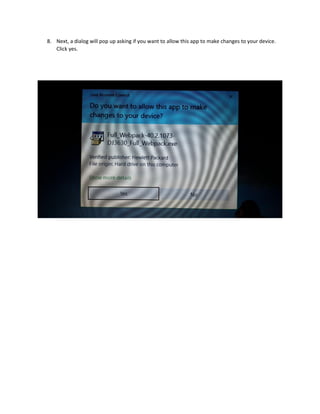
8. Next, a dialog will pop up asking if you want to allow this app to make changes to your device.
Click yes.
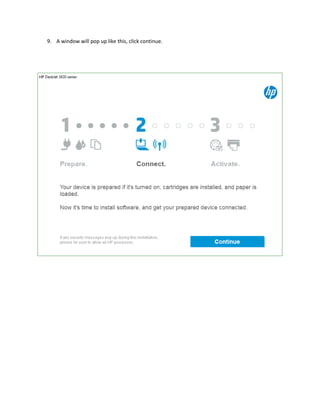
9. A window will pop up like this, click continue.
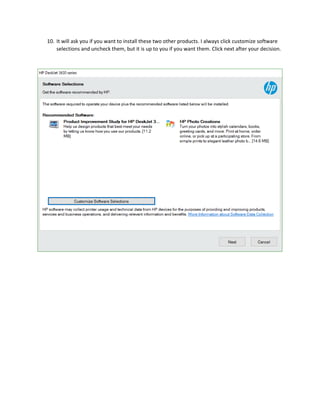
10. It will ask you if you want to install these two other products. I always click customize software
selections and uncheck them, but it is up to you if you want them. Click next after your decision.
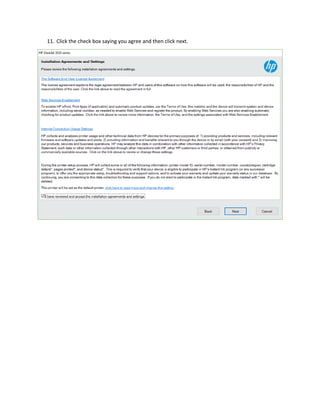
11. Click the check box saying you agree and then click next.
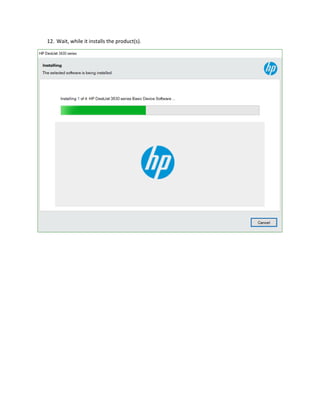
12. Wait, while it installs the product(s).
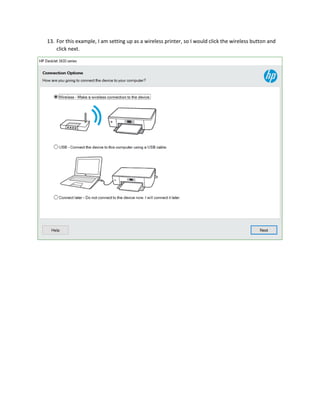
13. For this example, I am setting up as a wireless printer, so I would click the wireless button and
click next.
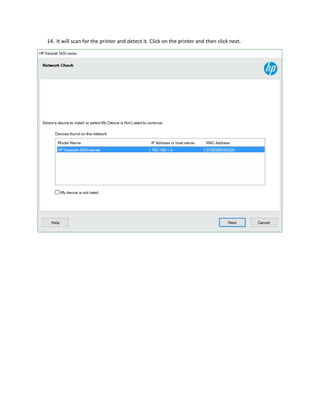
14. It will scan for the printer and detect it. Click on the printer and then click next.
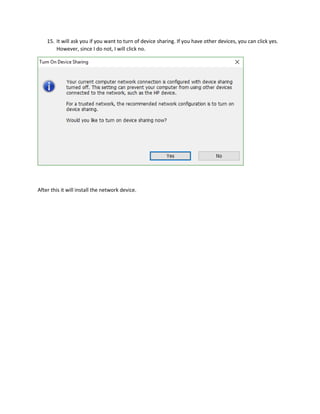
15. It will ask you if you want to turn of device sharing. If you have other devices, you can click yes.
However, since I do not, I will click no.
After this it will install the network device.
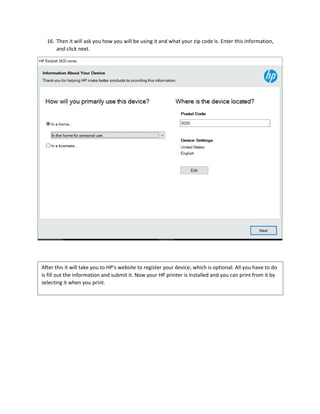
16. Then it will ask you how you will be using it and what your zip code is. Enter this information,
and click next.
After this it will take you to HP’s website to register your device, which is optional. All you have to do
is fill out the information and submit it. Now your HP printer is installed and you can print from it by
selecting it when you print.

Adding a printer

  • 1.
    How to setupa wireless printer without a CD For this example, I am using an HP Deskjet 3632. This is one of the simpler wireless printers. With computers getting smaller, many laptops don’t include a disc drive, so I will be showing you how to without one. 1. Open up your web browser and go to www.hp.com or you can just search HP and you will find it.
  • 2.
    2. Hover oversupport with your mouse, then click software and drivers.
  • 3.
    3. Now youtype what kind of HP printer you have, so mine would be HP Deskjet 3632. Then click find my product.
  • 4.
    4. You shouldsee a picture of a printer that looks like yours at the top, scroll down until you see the Driver-Product Installation Software window. I would recommend downloading the full feature software and drivers to get the most out of your printer, but if you just want to print, you can hit the basic driver tab and download that instead.
  • 5.
    5. Click download.Next, this will pop up. I like to click download only, then click next.
  • 6.
    6. Click savewhen this dialog pops up.
  • 7.
    7. When it’sdone downloading, click run.
  • 8.
    8. Next, adialog will pop up asking if you want to allow this app to make changes to your device. Click yes.
  • 9.
    9. A windowwill pop up like this, click continue.
  • 10.
    10. It willask you if you want to install these two other products. I always click customize software selections and uncheck them, but it is up to you if you want them. Click next after your decision.
  • 11.
    11. Click thecheck box saying you agree and then click next.
  • 12.
    12. Wait, whileit installs the product(s).
  • 13.
    13. For thisexample, I am setting up as a wireless printer, so I would click the wireless button and click next.
  • 14.
    14. It willscan for the printer and detect it. Click on the printer and then click next.
  • 15.
    15. It willask you if you want to turn of device sharing. If you have other devices, you can click yes. However, since I do not, I will click no. After this it will install the network device.
  • 16.
    16. Then itwill ask you how you will be using it and what your zip code is. Enter this information, and click next. After this it will take you to HP’s website to register your device, which is optional. All you have to do is fill out the information and submit it. Now your HP printer is installed and you can print from it by selecting it when you print.