Blog Optimization - Author Tag
SEO/SEM & Search – Web Presence Optimization
Andrea Berberich

http://seosemadvice.com

1
What are Author Tags?
In blended search results author photos appear next to search results

 Google Plus (Google+)
By connecting your Google+ account to your blog you qualify for your photo, and other
links to appear in blended search results.

 Benefits of Author Tags
•
•
•

Author Tags add authority
Create more clickable space
Attract the eye for great click through rate (CTR)

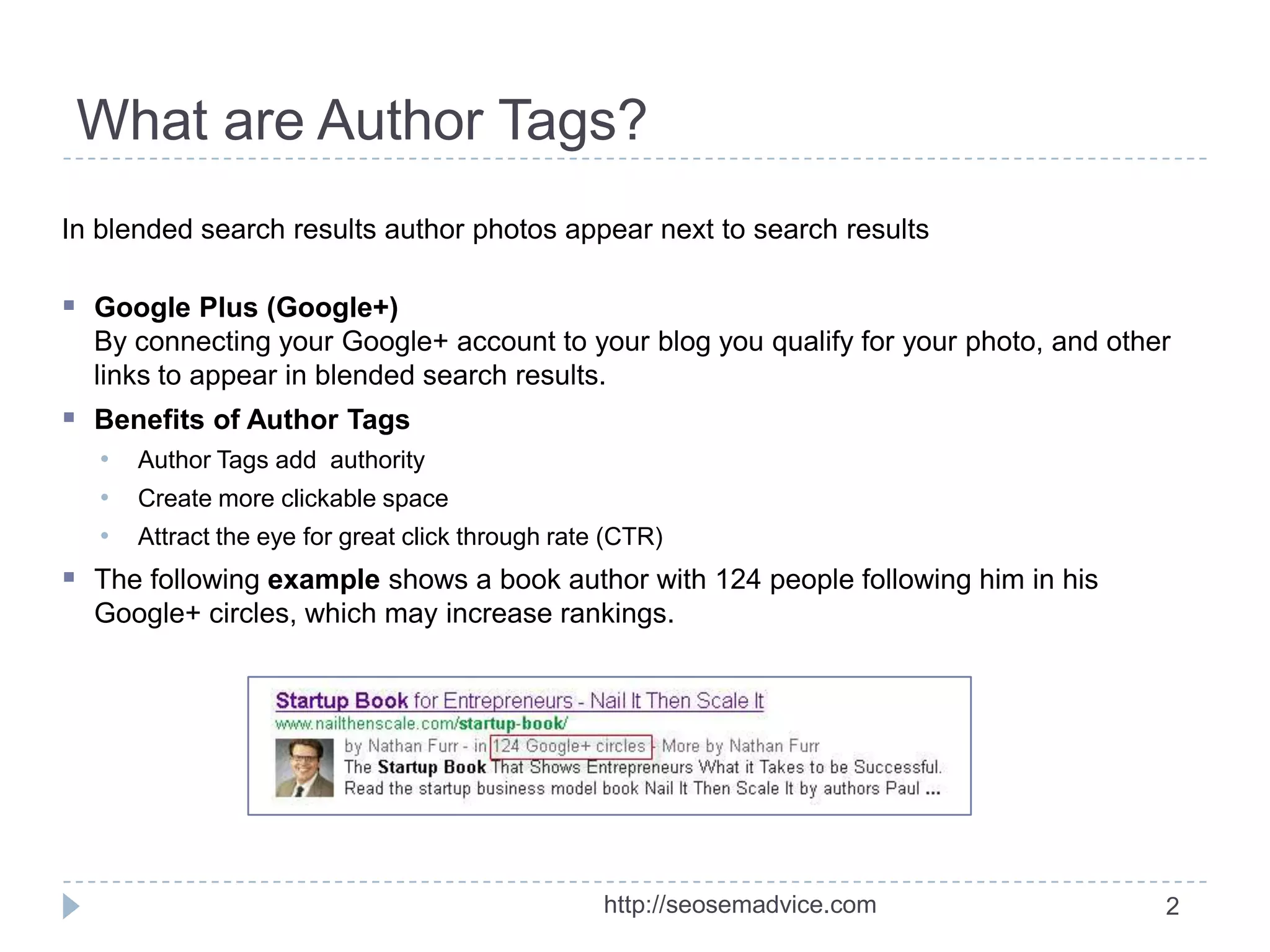
 The following example shows a book author with 124 people following him in his
Google+ circles, which may increase rankings.

http://seosemadvice.com

2
Why adding an Author Tag?
There are many reasons anybody who has a website and/or blog should add an Author
Tag, here are a few to consider:






It improves SEO = Search Engine Optimization; i.e. Web Presence Optimization
Broadens company branding and/or personal branding
Enthusiasts will be able to find you i.e. Google+ 1s and will be able to follow you

Having an Author Tag (rel “author”) improve the look and feel of the search results within
the search engines results page (SERP)

 Author Tag can be part of the structured data (schema.org) that all search engines agree
to adapt and accept

 Broaden your companies and/or your personal “Digital Footprint”
 Differentiate a real Author from a unreal Author (spammer)
 Great explanation by Matt Cutts: http://www.searchenginejournal.com/what-is-the-futureof-the-relauthor-tag/64412/

http://seosemadvice.com

3
Creating a Google+ Account
Steps for linking a Google+ account to your company email

 Gmail
If you don’t have a Gmail account then create a free account. This will be your basic
login for multiple Google Apps.

 Google Plus
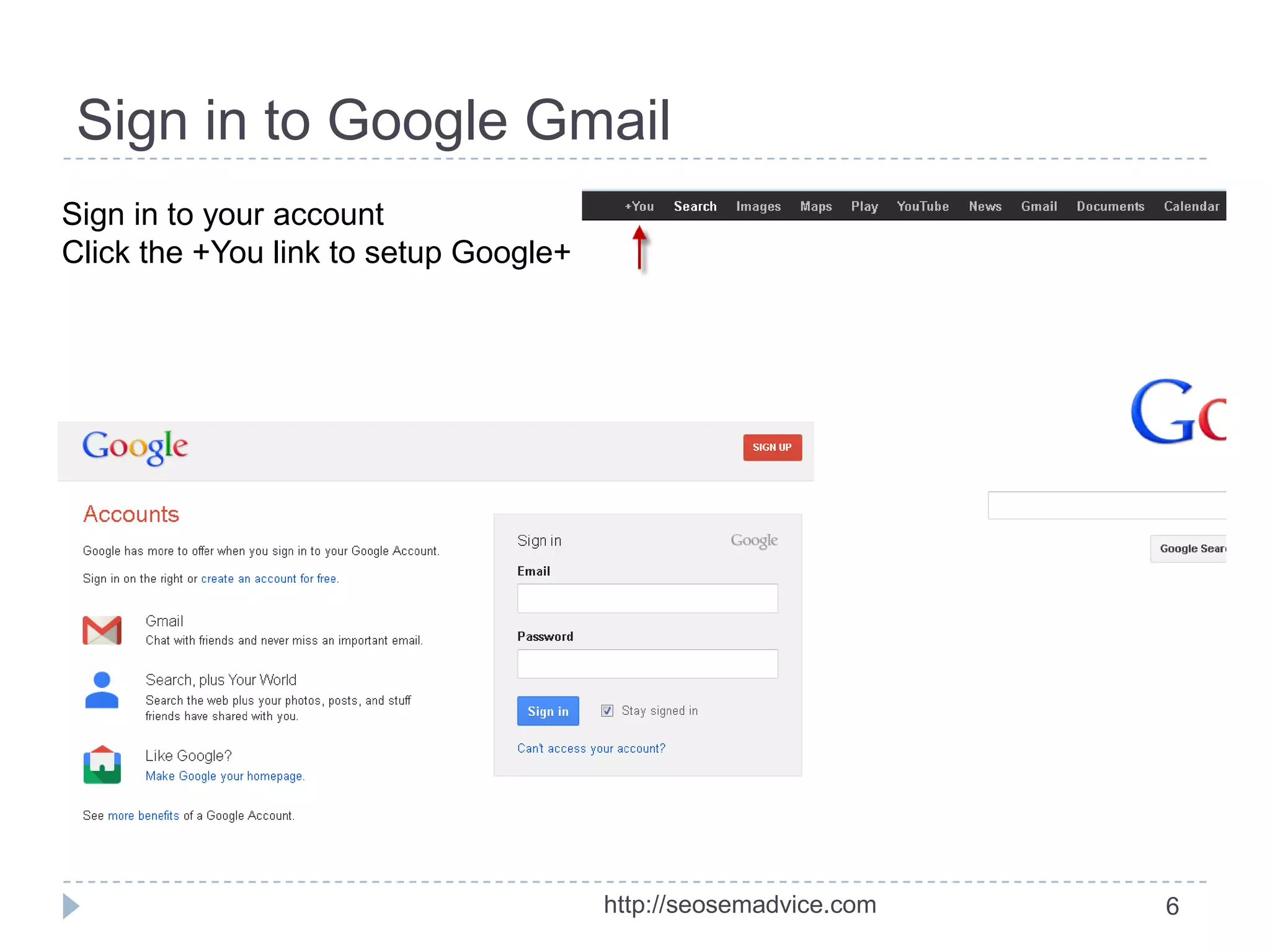
Once logged in with Gmail add the Google+ app by clicking on +You (your name) at the
top left of the browser window.

 Company Email Address
Use your company email and follow the instructions on the next page. This will create a
Google Plus connection with your company domain. That’s all you need to do.
Note: You can have multiple email accounts associated with your Google+ account

http://seosemadvice.com

4
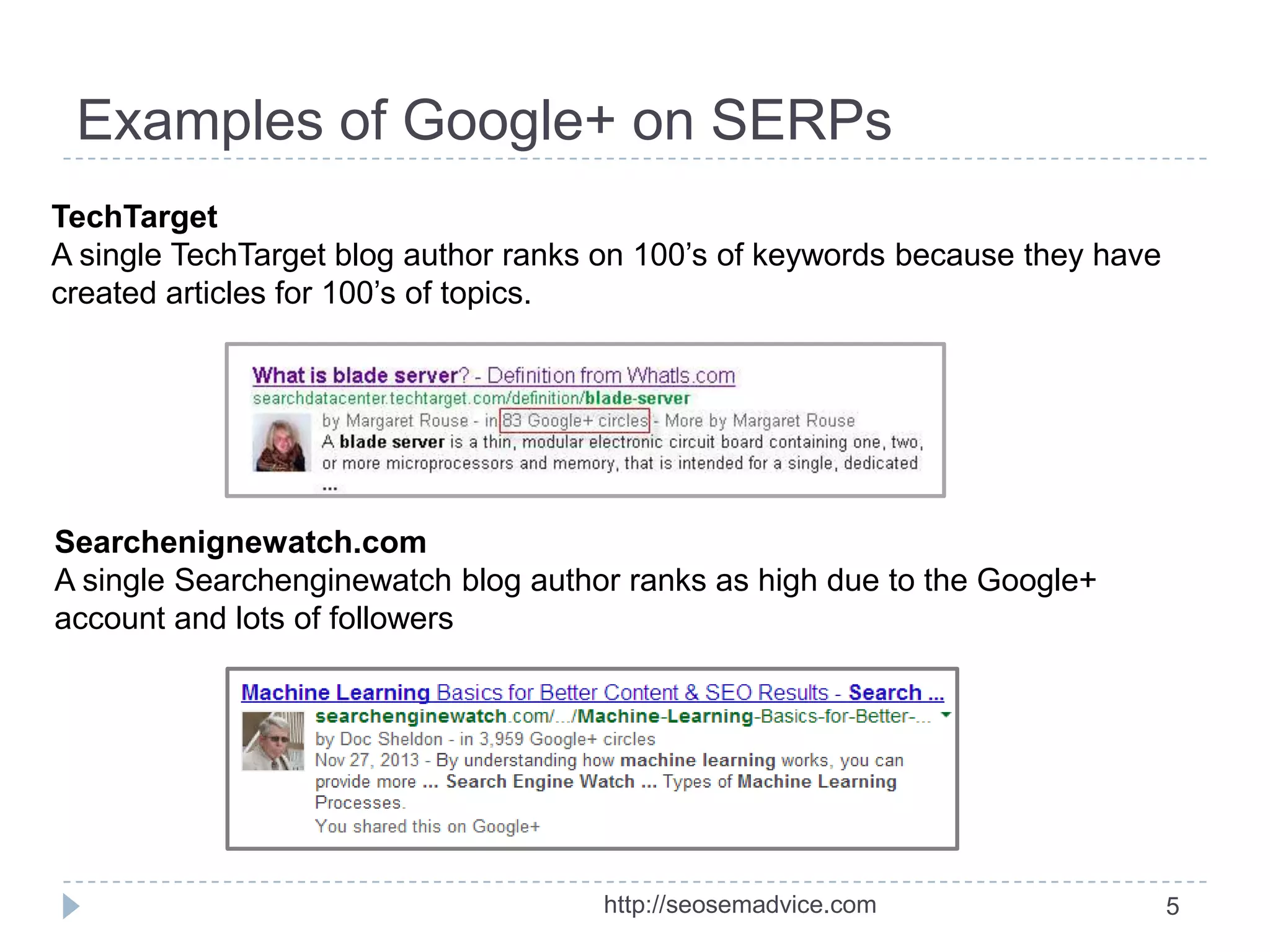
Examples of Google+ on SERPs
TechTarget
A single TechTarget blog author ranks on 100’s of keywords because they have
created articles for 100’s of topics.

Searchenignewatch.com
A single Searchenginewatch blog author ranks as high due to the Google+
account and lots of followers

http://seosemadvice.com

5
Sign in to Google Gmail
Sign in to your account
Click the +You link to setup Google+

http://seosemadvice.com

6
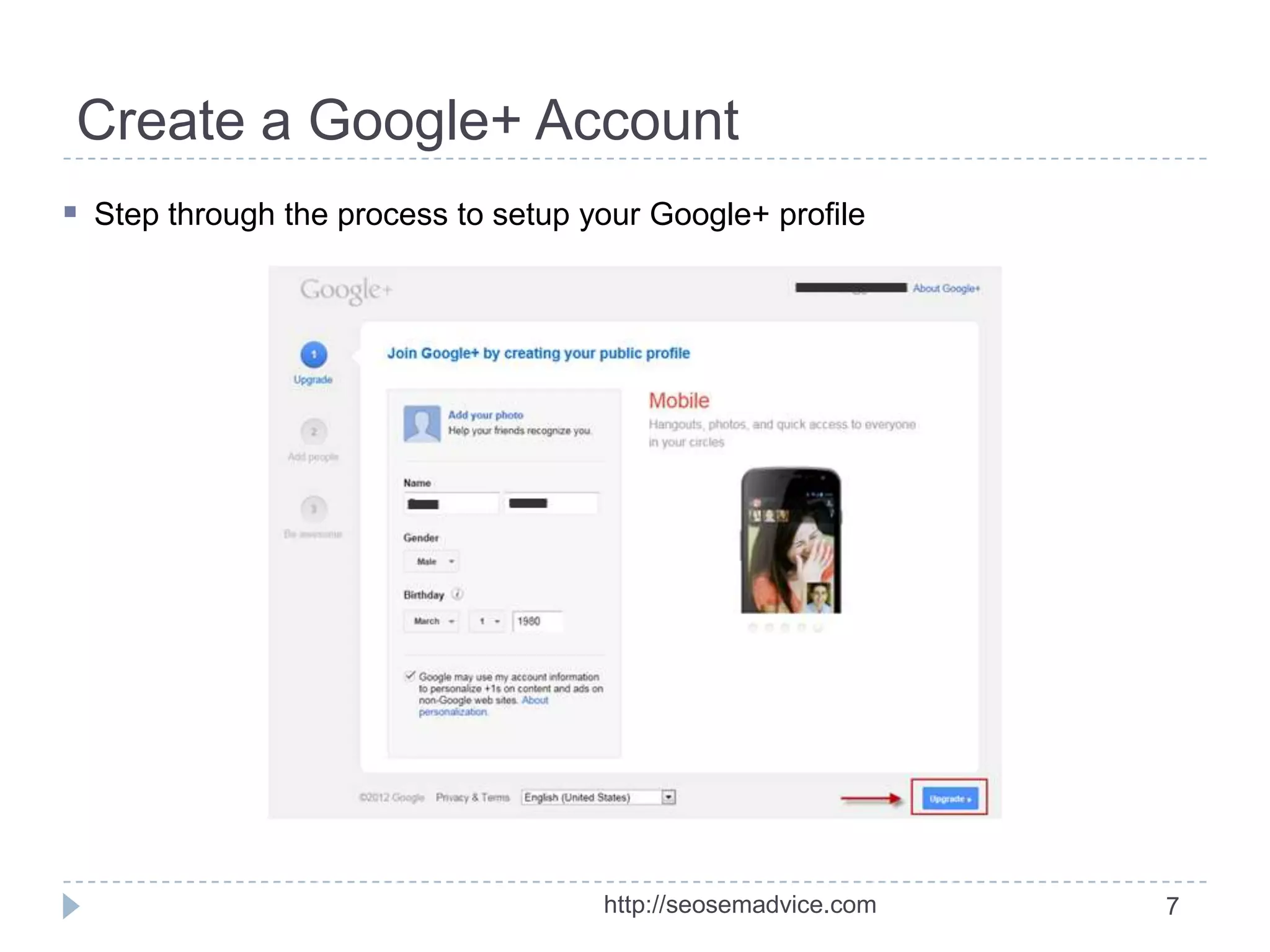
Create a Google+ Account
 Step through the process to setup your Google+ profile

http://seosemadvice.com

7
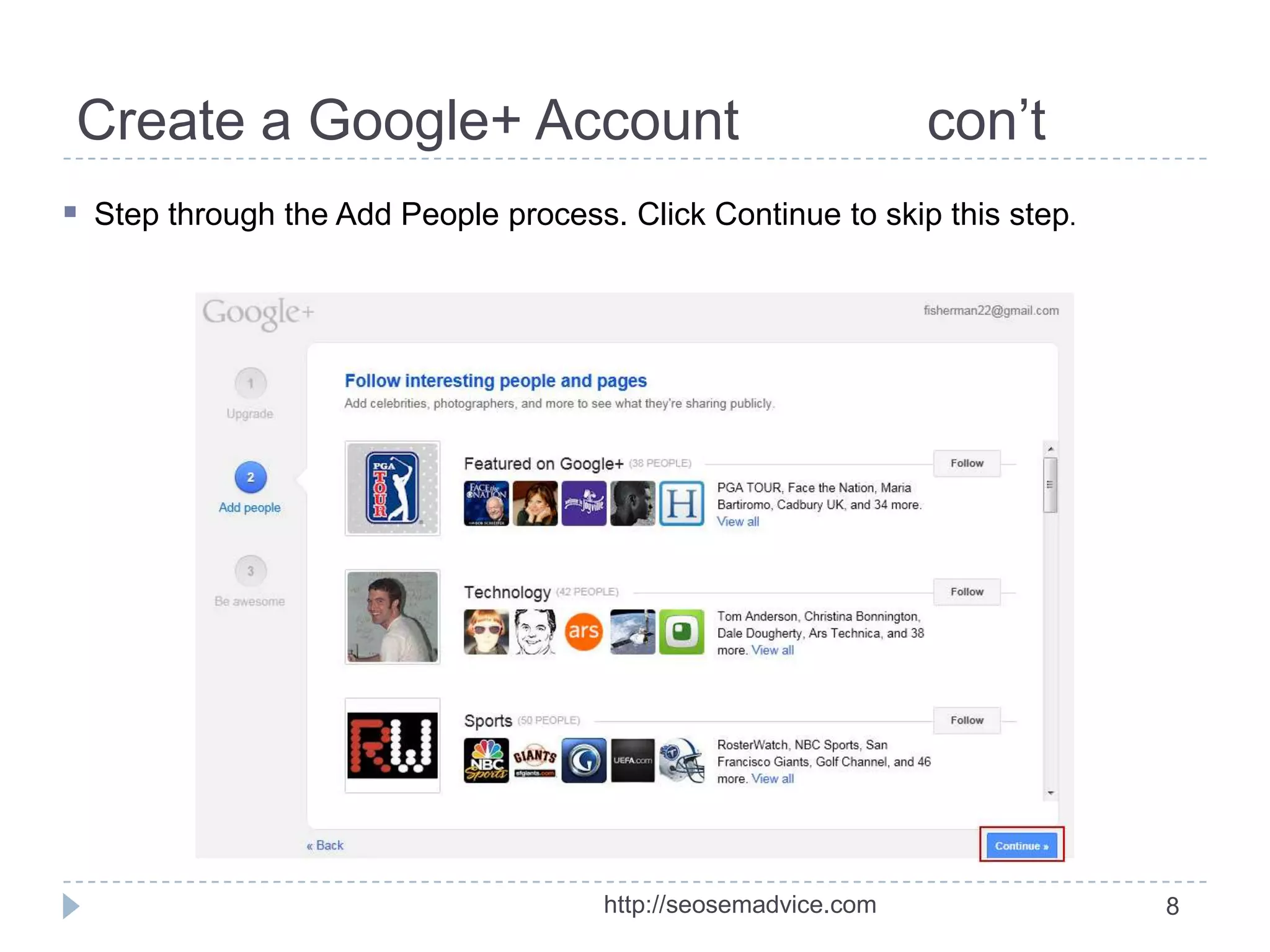
Create a Google+ Account

con’t

 Step through the Add People process. Click Continue to skip this step.

http://seosemadvice.com

8
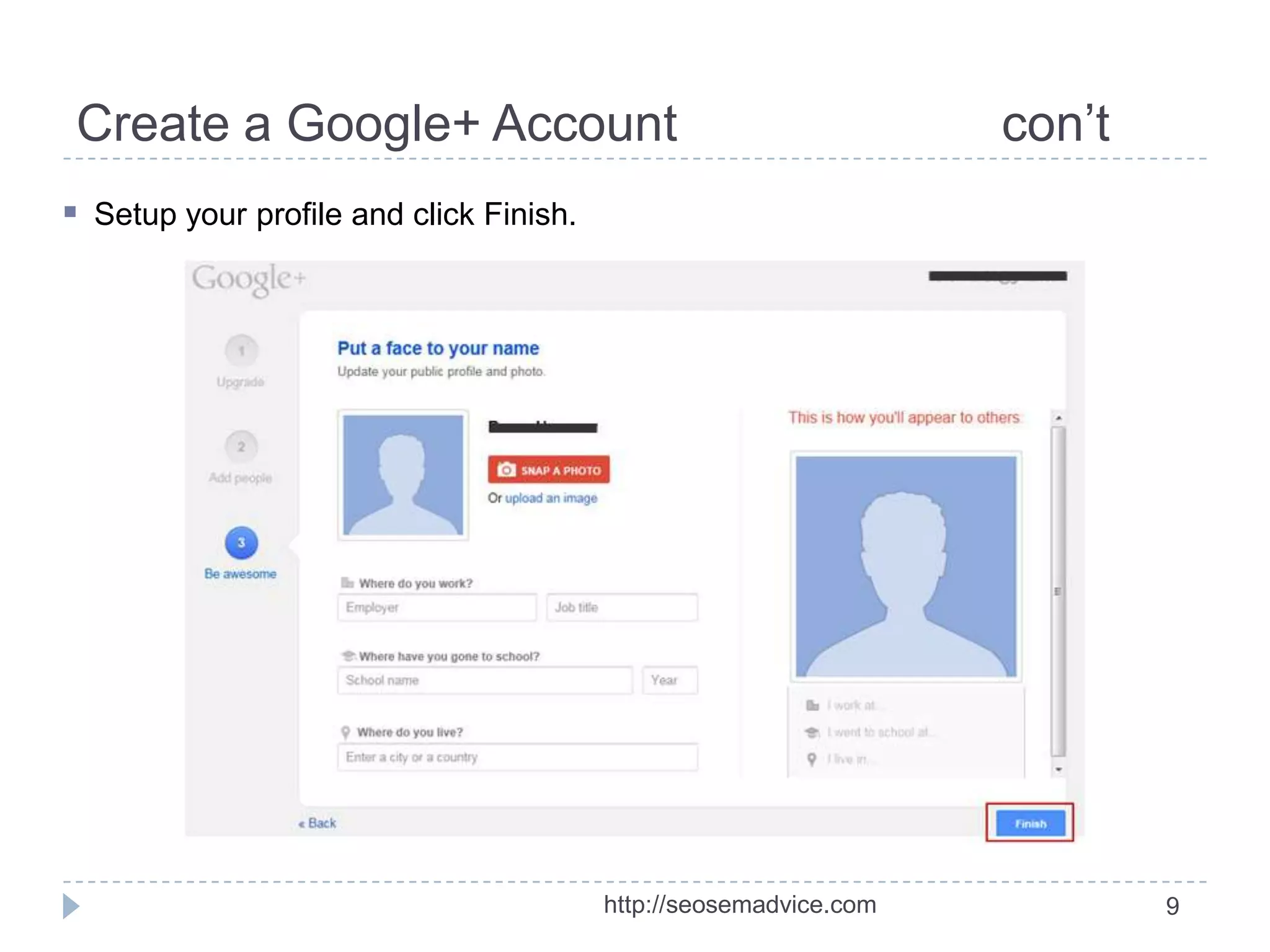
Create a Google+ Account

con’t

 Setup your profile and click Finish.

http://seosemadvice.com

9
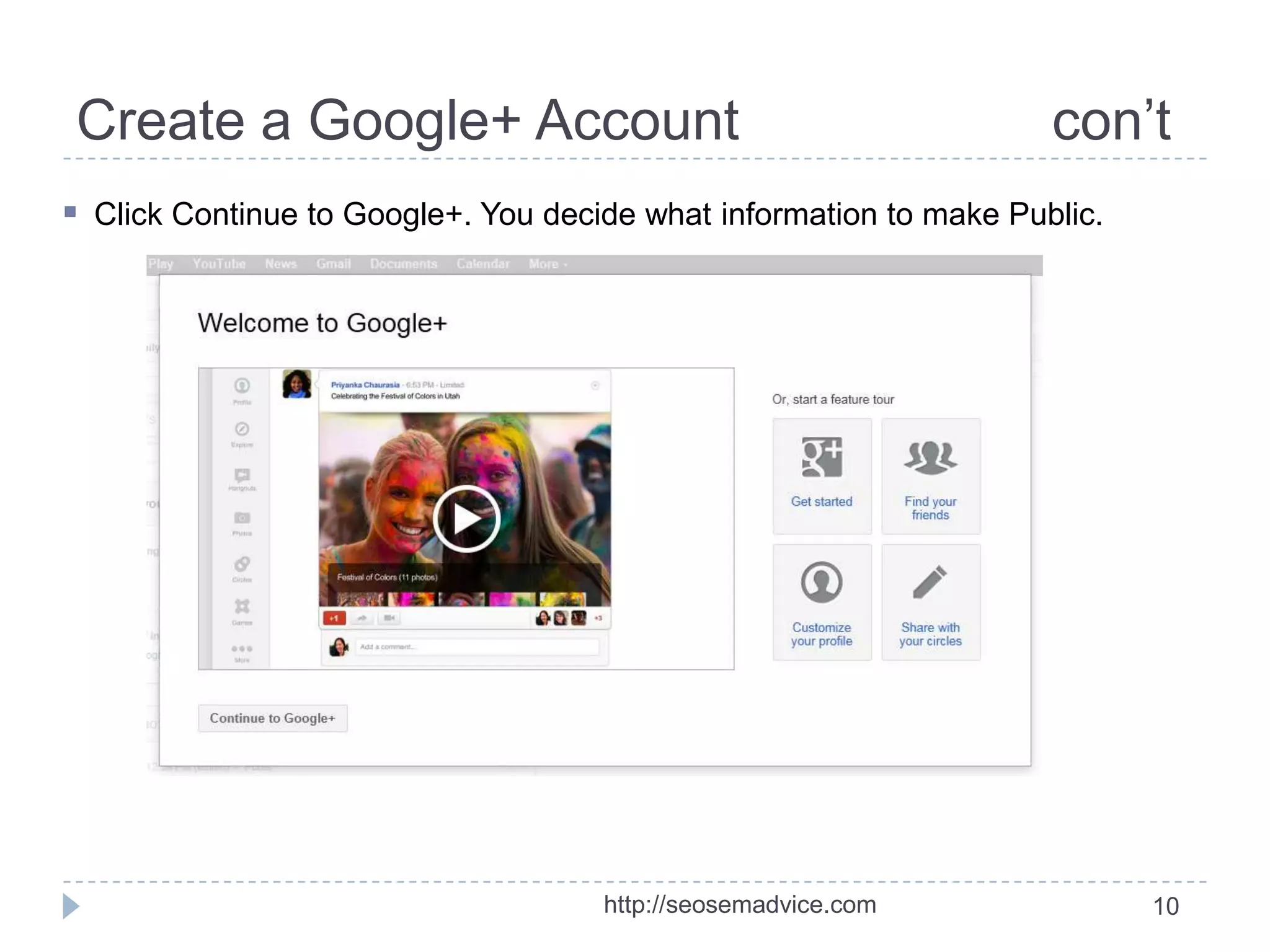
Create a Google+ Account

con’t

 Click Continue to Google+. You decide what information to make Public.

http://seosemadvice.com

10
Adding the Author Tag
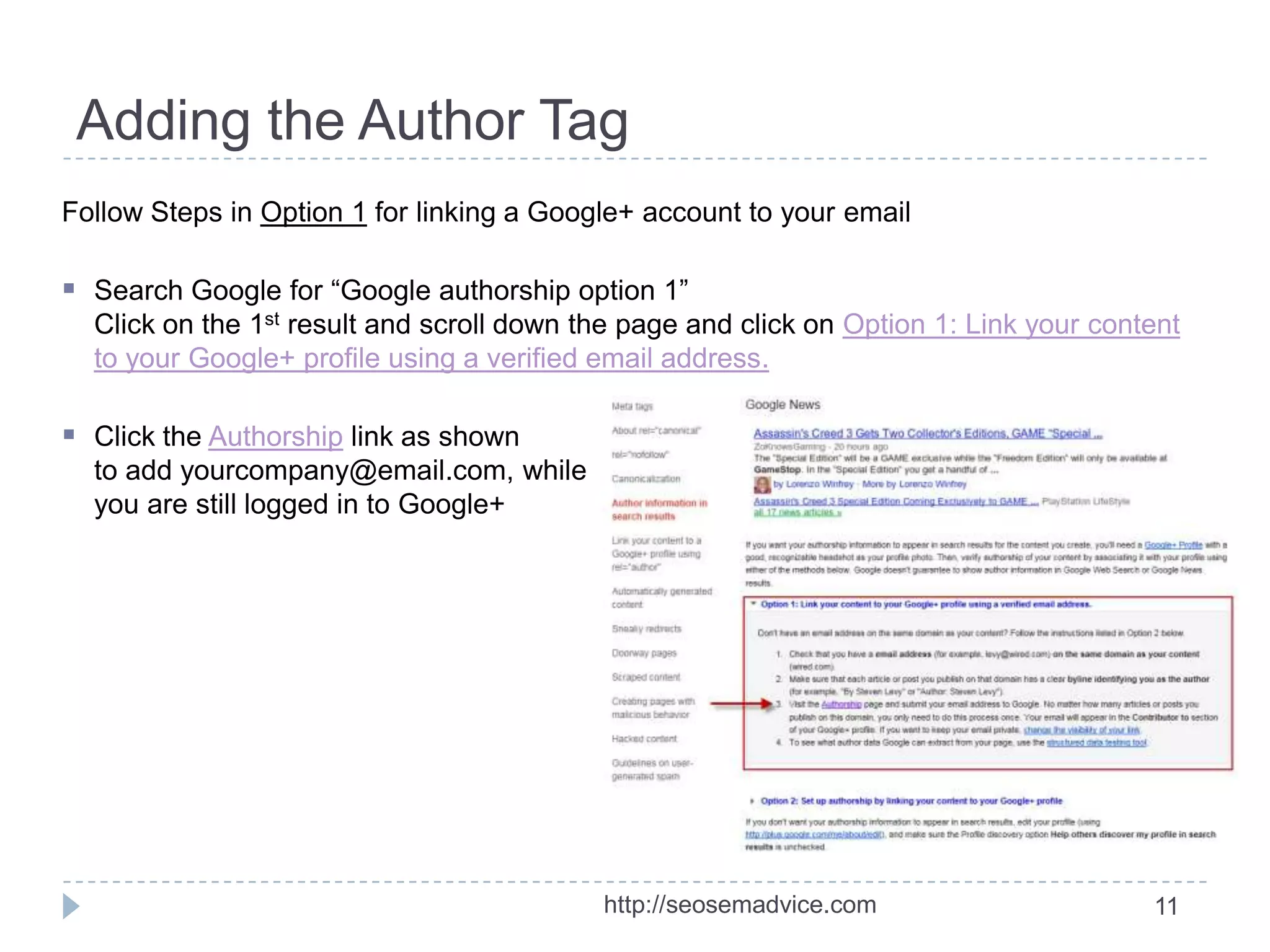
Follow Steps in Option 1 for linking a Google+ account to your email

 Search Google for “Google authorship option 1”
Click on the 1st result and scroll down the page and click on Option 1: Link your content
to your Google+ profile using a verified email address.

 Click the Authorship link as shown
to add yourcompany@email.com, while
you are still logged in to Google+

http://seosemadvice.com

11
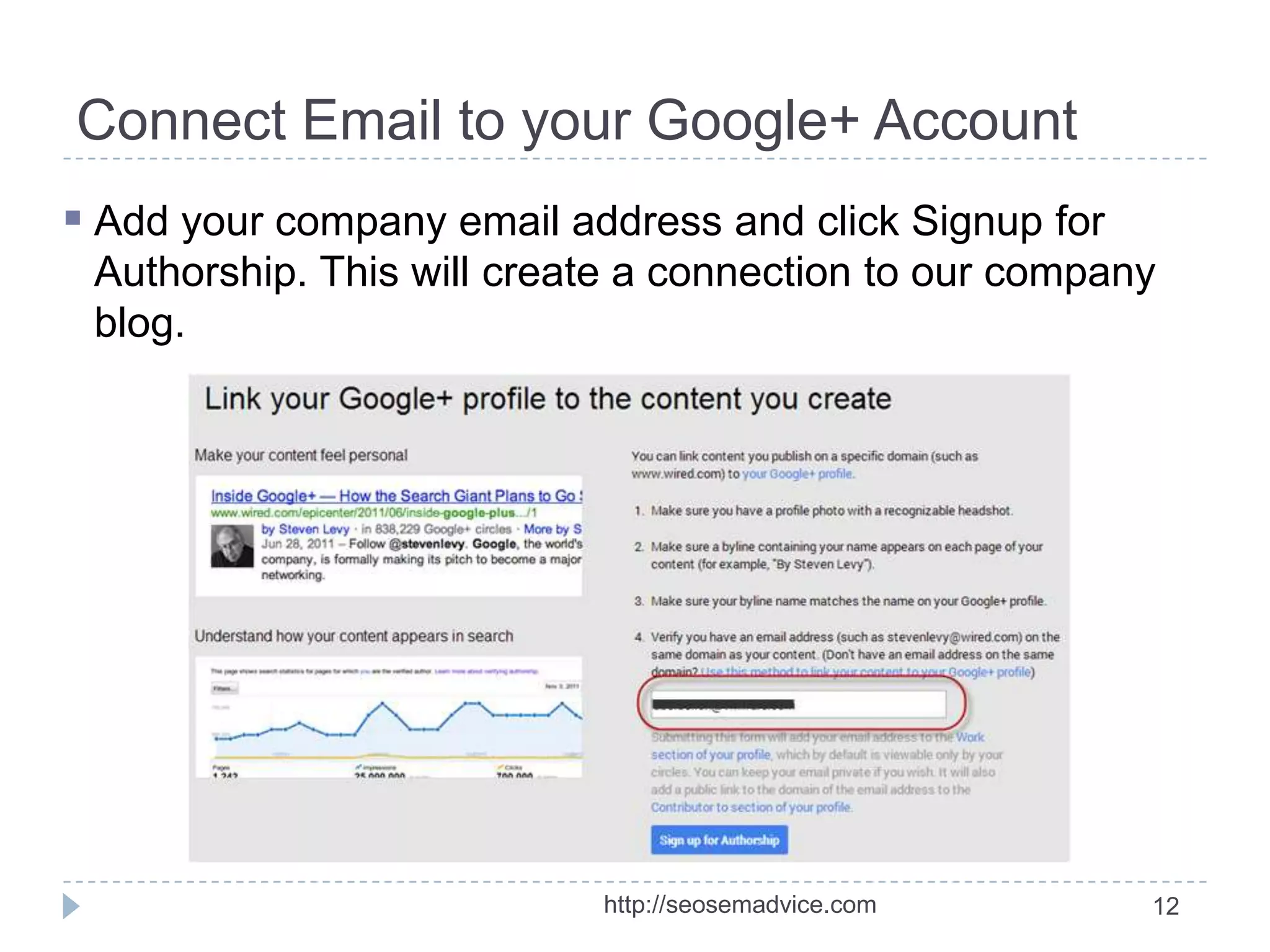
Connect Email to your Google+ Account
 Add your company email address and click Signup for
Authorship. This will create a connection to our company
blog.

http://seosemadvice.com

12
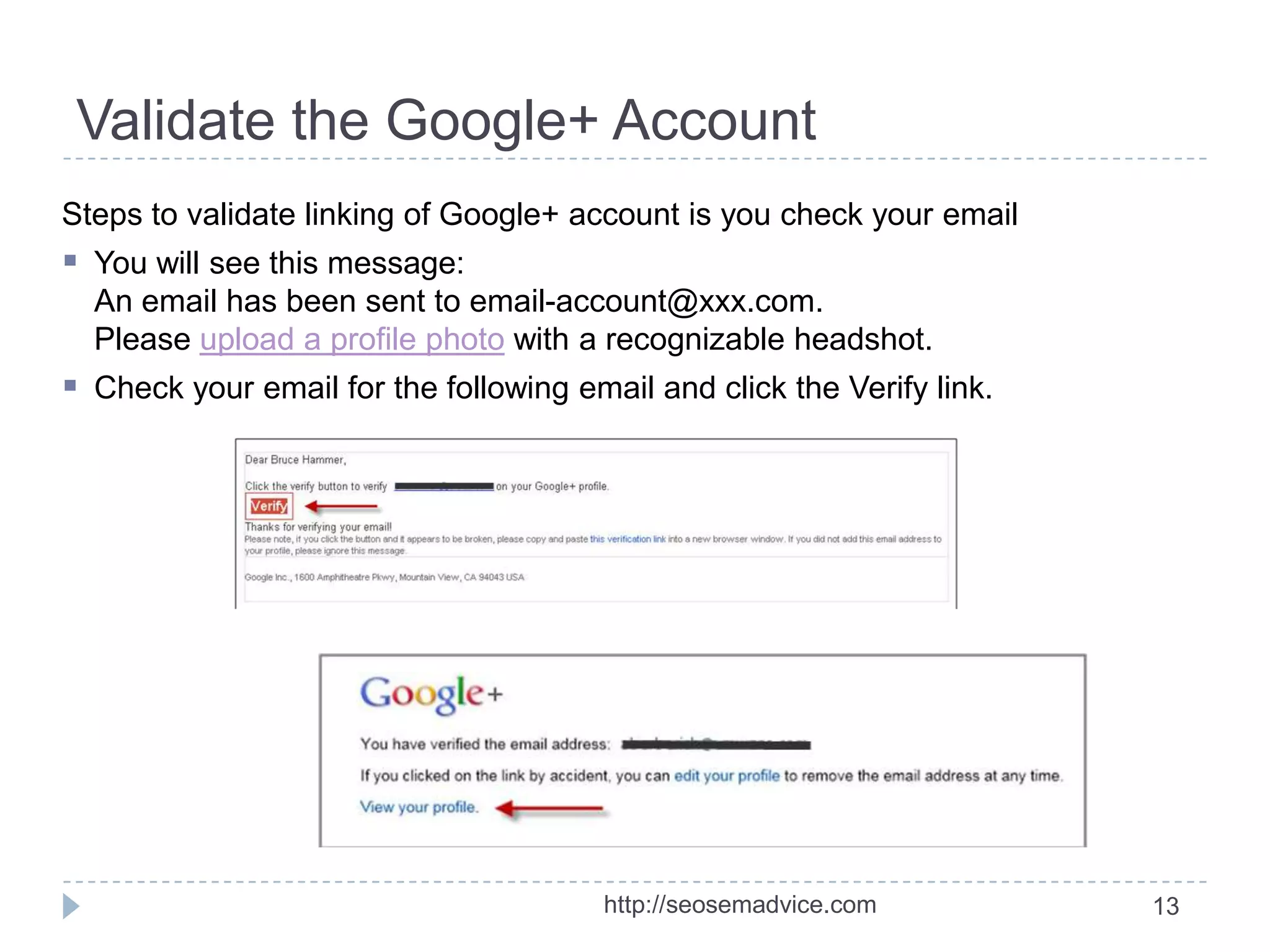
Validate the Google+ Account
Steps to validate linking of Google+ account is you check your email

 You will see this message:
An email has been sent to email-account@xxx.com.
Please upload a profile photo with a recognizable headshot.

 Check your email for the following email and click the Verify link.

http://seosemadvice.com

13
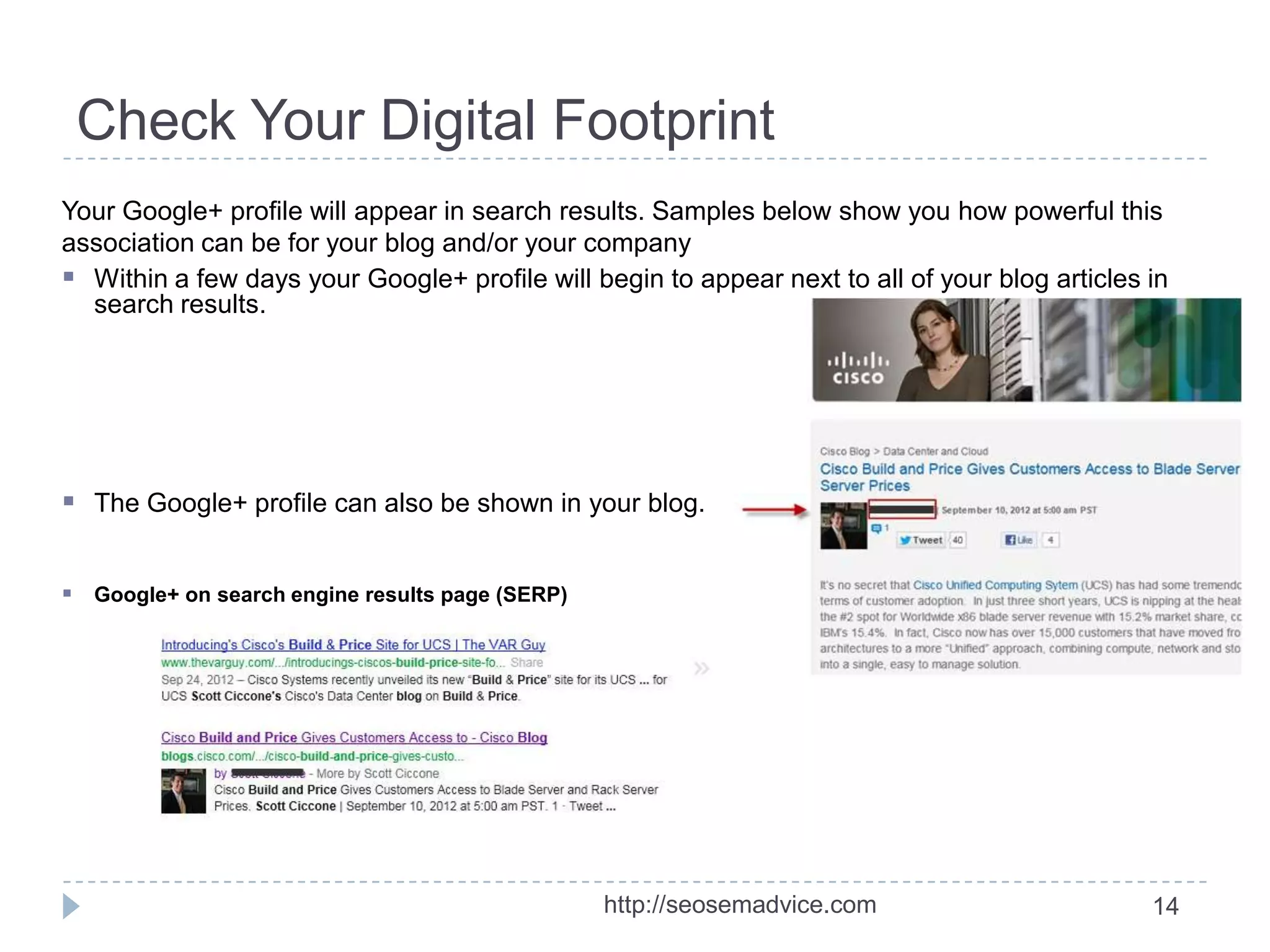
Check Your Digital Footprint
Your Google+ profile will appear in search results. Samples below show you how powerful this
association can be for your blog and/or your company
 Within a few days your Google+ profile will begin to appear next to all of your blog articles in
search results.

 The Google+ profile can also be shown in your blog.
 Google+ on search engine results page (SERP)

http://seosemadvice.com

14
Thank you!

http://seosemadvice.com
Andrea Berberich

http://seosemadvice.com

15

Blog optimization adding google+ author tag

  • 1.
    Blog Optimization -Author Tag SEO/SEM & Search – Web Presence Optimization Andrea Berberich http://seosemadvice.com 1
  • 2.
    What are AuthorTags? In blended search results author photos appear next to search results  Google Plus (Google+) By connecting your Google+ account to your blog you qualify for your photo, and other links to appear in blended search results.  Benefits of Author Tags • • • Author Tags add authority Create more clickable space Attract the eye for great click through rate (CTR)  The following example shows a book author with 124 people following him in his Google+ circles, which may increase rankings. http://seosemadvice.com 2
  • 3.
    Why adding anAuthor Tag? There are many reasons anybody who has a website and/or blog should add an Author Tag, here are a few to consider:     It improves SEO = Search Engine Optimization; i.e. Web Presence Optimization Broadens company branding and/or personal branding Enthusiasts will be able to find you i.e. Google+ 1s and will be able to follow you Having an Author Tag (rel “author”) improve the look and feel of the search results within the search engines results page (SERP)  Author Tag can be part of the structured data (schema.org) that all search engines agree to adapt and accept  Broaden your companies and/or your personal “Digital Footprint”  Differentiate a real Author from a unreal Author (spammer)  Great explanation by Matt Cutts: http://www.searchenginejournal.com/what-is-the-futureof-the-relauthor-tag/64412/ http://seosemadvice.com 3
  • 4.
    Creating a Google+Account Steps for linking a Google+ account to your company email  Gmail If you don’t have a Gmail account then create a free account. This will be your basic login for multiple Google Apps.  Google Plus Once logged in with Gmail add the Google+ app by clicking on +You (your name) at the top left of the browser window.  Company Email Address Use your company email and follow the instructions on the next page. This will create a Google Plus connection with your company domain. That’s all you need to do. Note: You can have multiple email accounts associated with your Google+ account http://seosemadvice.com 4
  • 5.
    Examples of Google+on SERPs TechTarget A single TechTarget blog author ranks on 100’s of keywords because they have created articles for 100’s of topics. Searchenignewatch.com A single Searchenginewatch blog author ranks as high due to the Google+ account and lots of followers http://seosemadvice.com 5
  • 6.
    Sign in toGoogle Gmail Sign in to your account Click the +You link to setup Google+ http://seosemadvice.com 6
  • 7.
    Create a Google+Account  Step through the process to setup your Google+ profile http://seosemadvice.com 7
  • 8.
    Create a Google+Account con’t  Step through the Add People process. Click Continue to skip this step. http://seosemadvice.com 8
  • 9.
    Create a Google+Account con’t  Setup your profile and click Finish. http://seosemadvice.com 9
  • 10.
    Create a Google+Account con’t  Click Continue to Google+. You decide what information to make Public. http://seosemadvice.com 10
  • 11.
    Adding the AuthorTag Follow Steps in Option 1 for linking a Google+ account to your email  Search Google for “Google authorship option 1” Click on the 1st result and scroll down the page and click on Option 1: Link your content to your Google+ profile using a verified email address.  Click the Authorship link as shown to add yourcompany@email.com, while you are still logged in to Google+ http://seosemadvice.com 11
  • 12.
    Connect Email toyour Google+ Account  Add your company email address and click Signup for Authorship. This will create a connection to our company blog. http://seosemadvice.com 12
  • 13.
    Validate the Google+Account Steps to validate linking of Google+ account is you check your email  You will see this message: An email has been sent to email-account@xxx.com. Please upload a profile photo with a recognizable headshot.  Check your email for the following email and click the Verify link. http://seosemadvice.com 13
  • 14.
    Check Your DigitalFootprint Your Google+ profile will appear in search results. Samples below show you how powerful this association can be for your blog and/or your company  Within a few days your Google+ profile will begin to appear next to all of your blog articles in search results.  The Google+ profile can also be shown in your blog.  Google+ on search engine results page (SERP) http://seosemadvice.com 14
  • 15.