DELICIOUS SOCIAL BOOKMARKING
DELICIOUS SOCIAL BOOKMARKING How to Use  del.icio.us   to  Save, Share and Distribute Links
What is Social Bookmarking? Web-based saving, organizing and sharing of favorite links. Links are accessible to the public through a specific network or website service. Other users can search and view links by topic, category or randomly.
Today’s Most Popular Social Bookmarking Website: www.delicious.com Started in 2003 as a hobby and informal way to share web pages with friends. Purchased by Yahoo! in 2005 as service began to expand and grow in popularity. del.icio.us
del.icio.us??? Is a free social bookmarking website service that allows users to save or  tag , manage, access and share  bookmarks  of web pages from any computer all in one site.  Bookmarks are stored on the web instead of inside your browser on “Favorites” so that you can access them and tag new ones from any computer. Can be as private or public as you wish and used by anyone who uses the Internet.
You can use  del.icio.us   to: Keep links to your favorite sites, articles, blogs and music. Share favorites with friends, family, collegues, students and the  del.icio.us   community. Discover new things.  See the interesting links that others have found.
Examples of how to use  del.icio.us : Research  – keep track of sites Collaboration  – share sites with students and staff  Wishlist  – build your own and share it Vacation  – plan a trip Cookbooks  – see what others are cooking and organize your recipes in one place
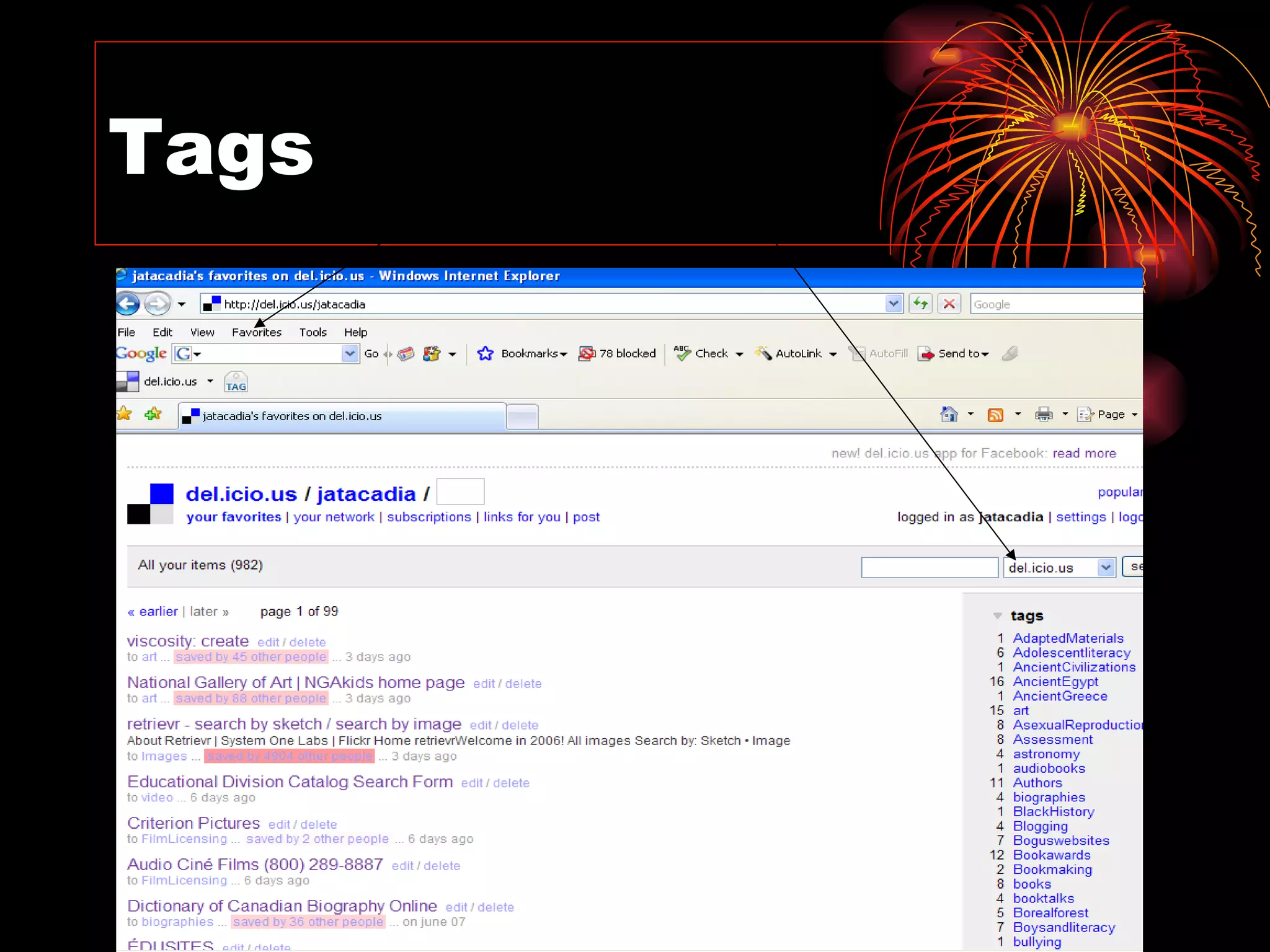
What are tags? Keywords that you use to describe a bookmark.  Can be renamed or deleted at any time. Can use as many as you like.  Can be categorized for easy reference. Listed alphabetically.
Tags
HOW DO I CREATE A DEL.ICIO.US ACCOUNT? All  school computers currently have the  del.icio.us  icon on the Explorer Browser.
Click on the  del.icio.us  icon on the toolbar. Note : If using del.icio.us for the first time on a school computer, access it through the Internet Explorer  from the “Start” menu.  After that, it can be accessed from the desktop. At home, just Google “delicious.”
Creating an Account Go to “get started”
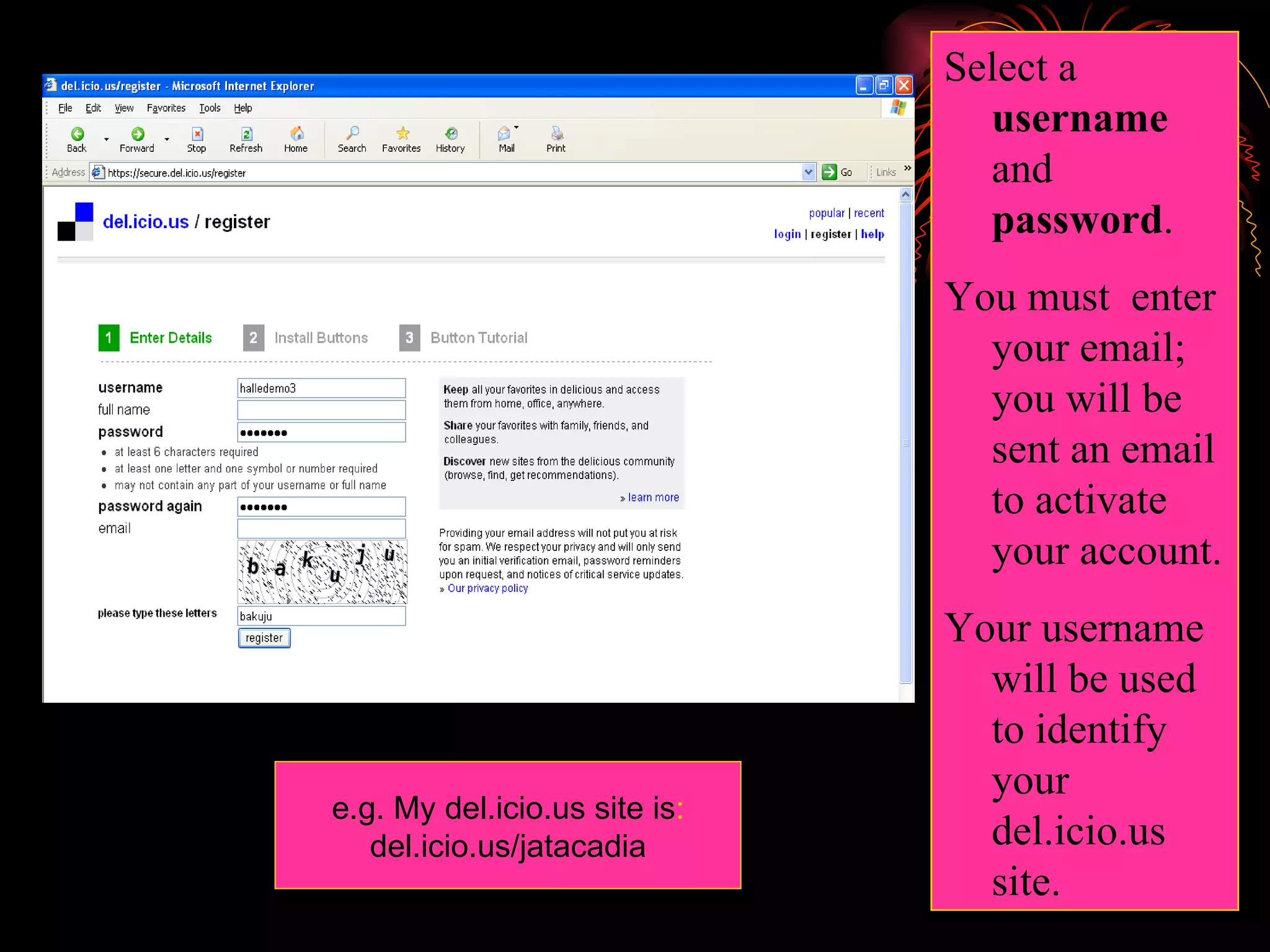
Select a  username  and  password . You must  enter your email; you will be sent an email to activate your account. Your username will be used to identify your del.icio.us site. e.g. My del.icio.us site is : del.icio.us/jatacadia
Select   bookmarklet buttons for any browser Adding  del.icio.us  Icons on Toolbar
For help adding buttons on your own, there’s a video tutorial at the instructions for manually installing the buttons.
How to Tag or Bookmark Sites While on the Internet site you  want to save,  click the “tag”  icon on the toolbar.
On school computers, you will be asked to enter your: Username   and Password At home, when you click “tag,” this step should be eliminated. This will bring up your  del.icio.us  account.
The web page title is automatically added to the description. Click on any popular tags to add them to your tags for the item or type in your own name on “tags.”
Adding Notes Highlight text on the page before clicking Tag  and the text will be automatically included in the Notes.
Basic Tagging Tips If you want to combine words in one tag, mash or use punctuation to separate: InformationLiteracy information_literacy Tags are  not  case-sensitive. Be consistent. Careful with your spelling!
To View Your  del.icio.us  Site Click on the del.icio.us icon on the toolbar: or Type in your  del.icio.us  site address: e.g.  del.icio.us/jatacadia.ca
Viewing Your Tags Click on a tag from the list on the right or the tags under an item to view all of your favorites with that tag.
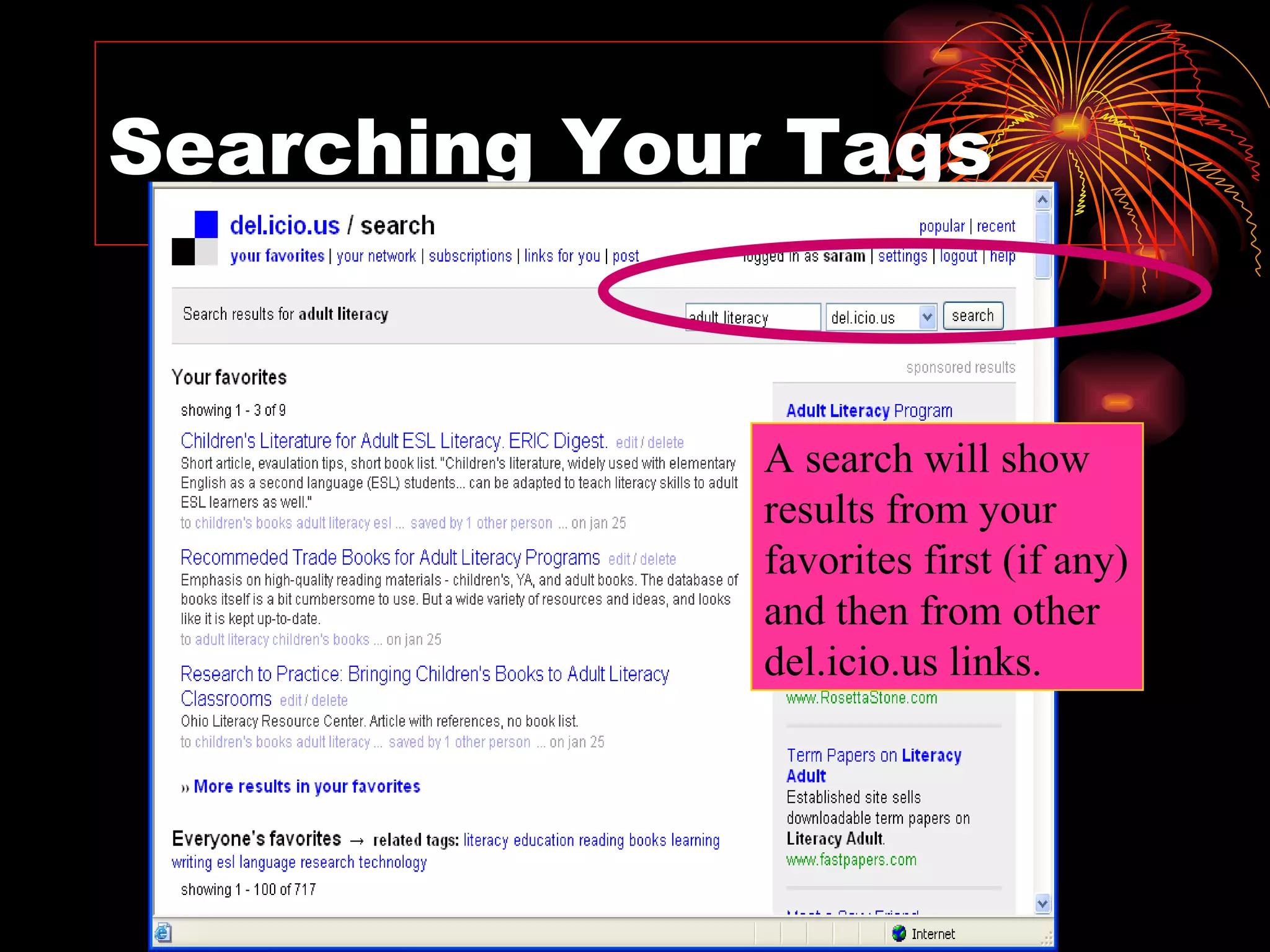
Searching Your Tags A search will show results from your favorites first (if any) and then from other del.icio.us links.
Narrowing Searches To narrow your results, Combine more than one search term with “+”
Locating Popular and Recent Tags
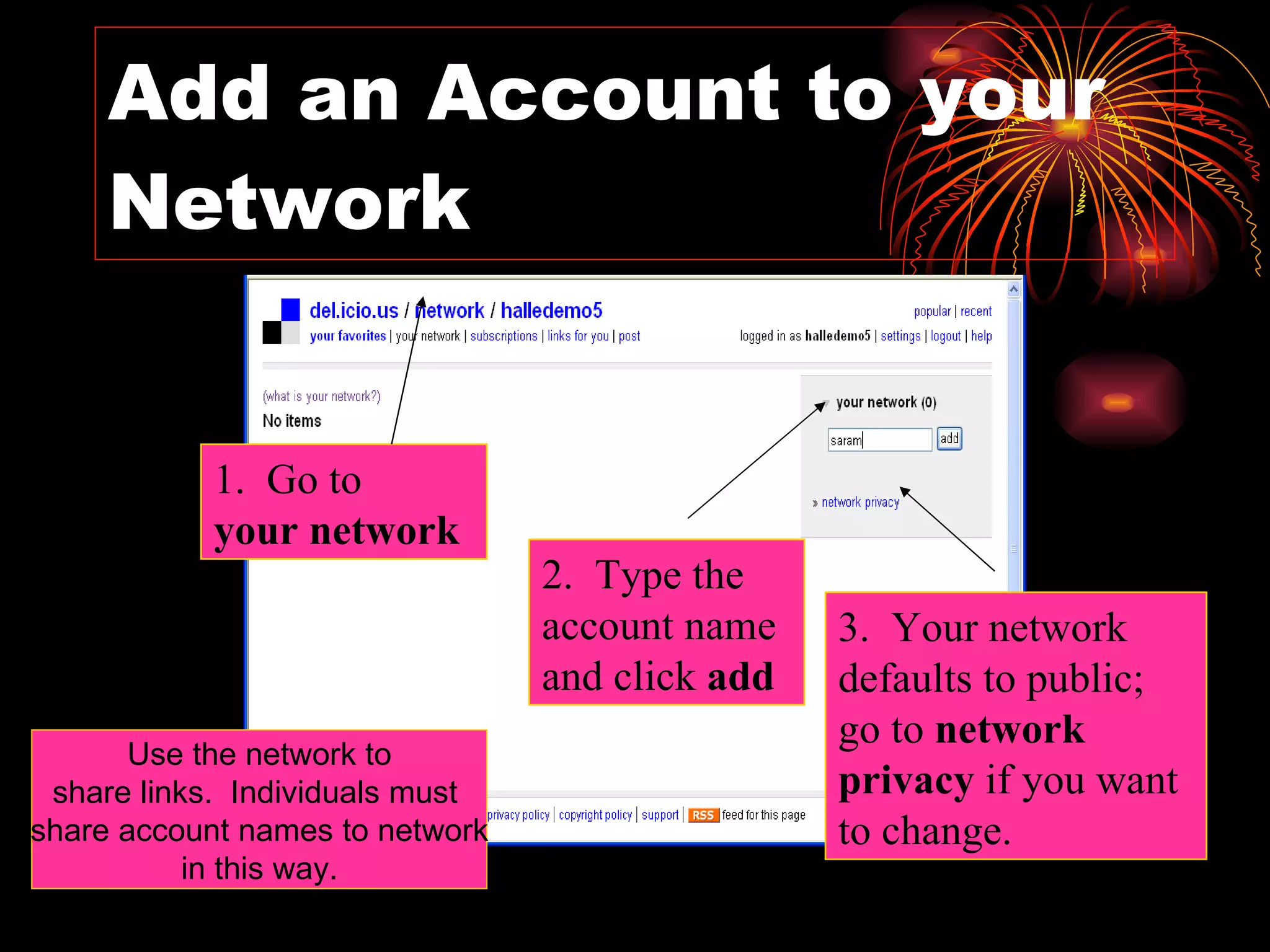
Add an Account to your Network 1.  Go to  your network 2.  Type the account name and click  add 3.  Your network defaults to public; go to  network privacy  if you want to change. Use the network to share links.  Individuals must  share account names to network in this way.
Making Changes To account, bookmarks, tags and network. Tags can be renamed, deleted or bundled.
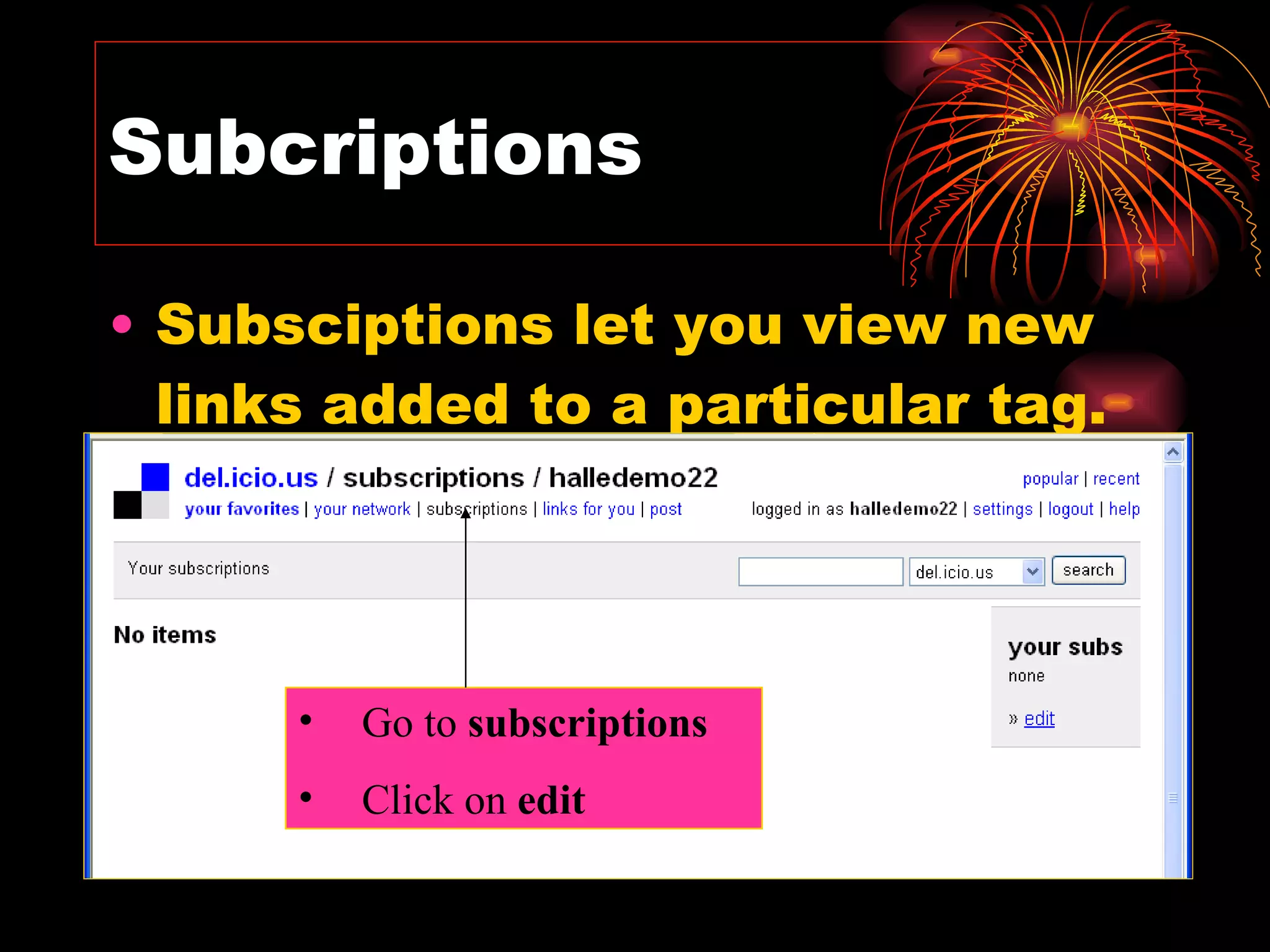
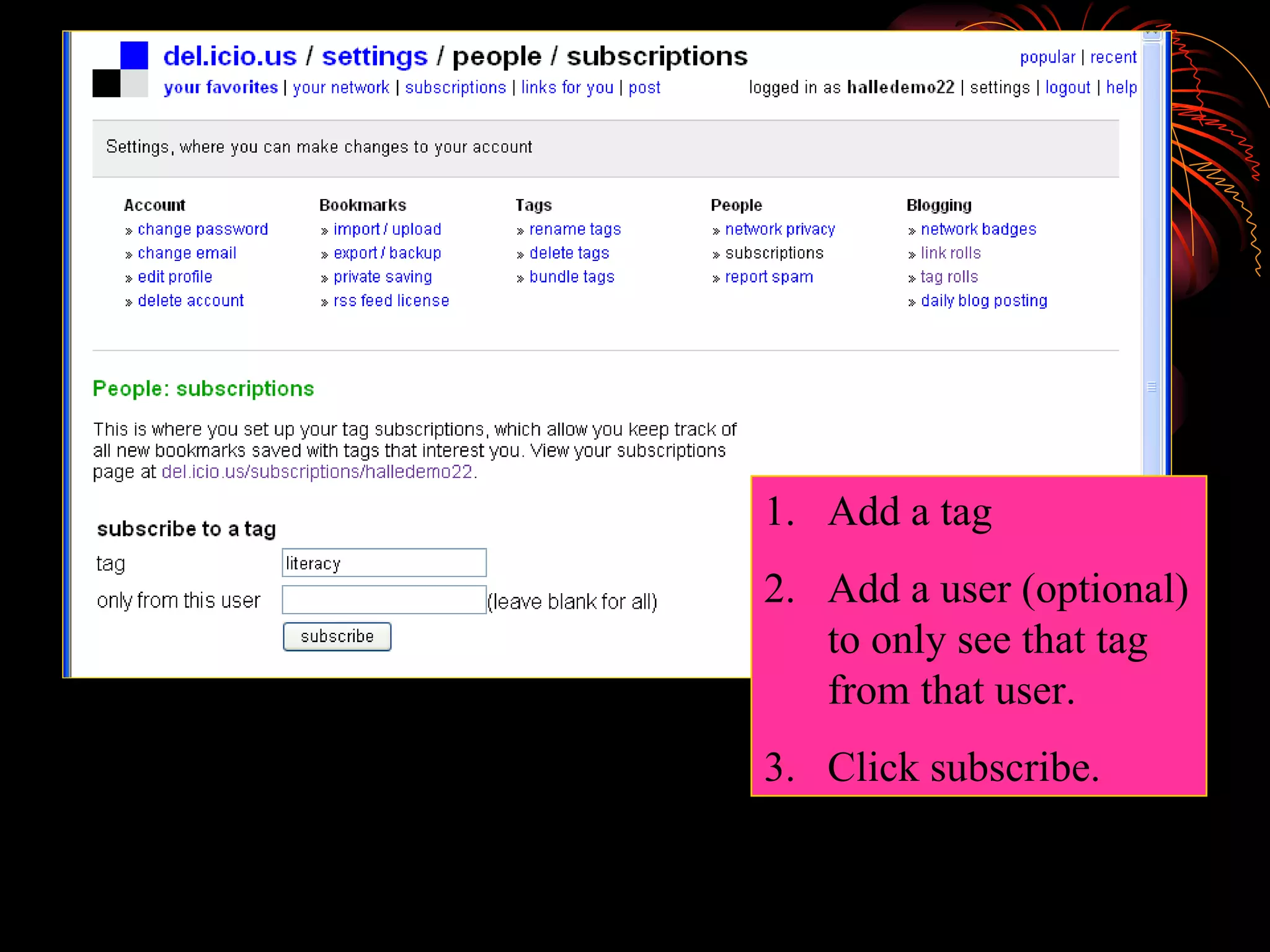
Subcriptions Subsciptions let you view new links added to a particular tag. Go to  subscriptions Click on  edit
Add a tag  Add a user (optional) to only see that tag from that user. Click subscribe.
More Information About a Tag Click on saved by [n] other people to  see the del.icio.us history for the item.
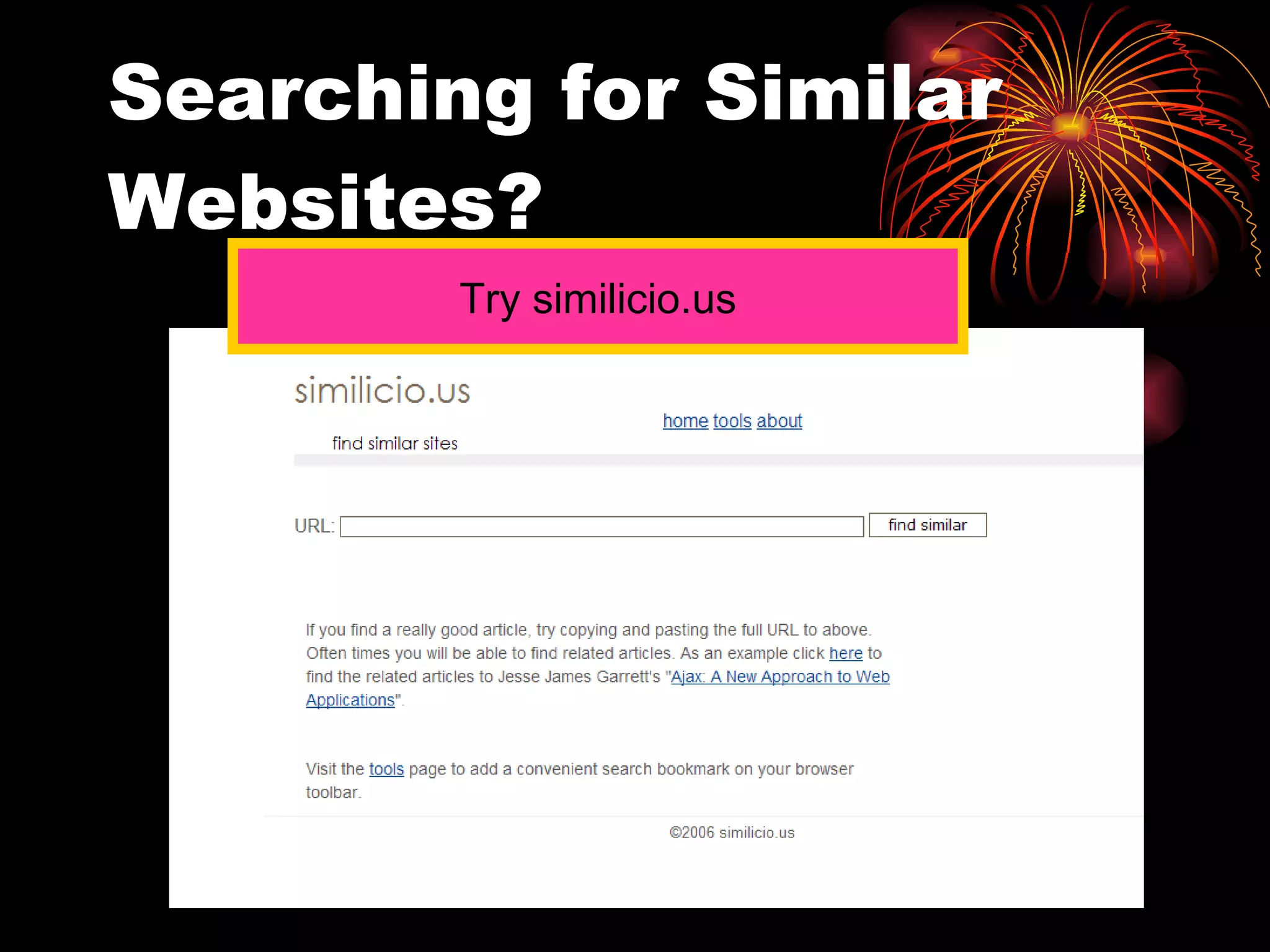
Searching for Similar Websites? Try similicio.us
Search Strategies. Social Bookmarking
Looking for information: Where do YOU look for information? What are YOUR tricks to find exactly what you need?
Severalsearchingtricks: * Means any word.  You can look for “blogs can be used for *” when you need ideas for using blogs * Looks for definitions define: Finds information without the  term - term Finds exact quoted phrase “”
Google advanced search: Language and region : when you want only authentic websites  (region selection is available only at www.google.RU) Domen : choose edu when you need more reliable information Date : sometimes you might need most recent entries Format : ppt stands for Power Point Presentations
Bookmarks: How do YOU save the websites you find useful? How do you know what websites your colleagues like and use?
Social bookmarking http://delicious.com www.bobrdobr.ru
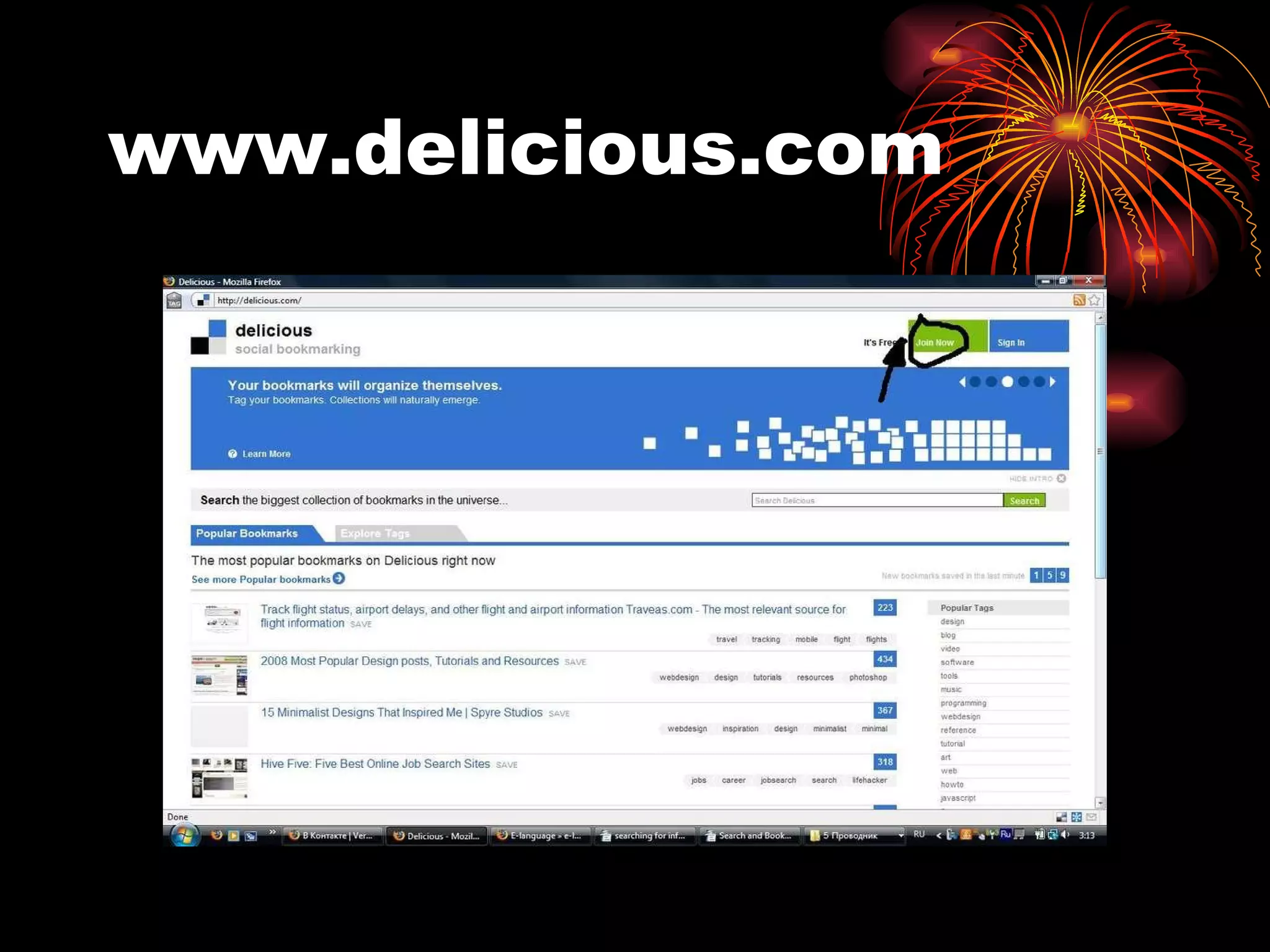
www.delicious.com
Tasks: Register at  http:// delicious.com save two or three of your favourite websites there (right upper corner: Save a new Bookmark -> add description and tags -> Save)
Tasks: type your username on the slide find other group members and add them to your network (People -> Go to a User -> Add to my Network (right upper corner)) Explore what your colleagues saved. Are there any websites you find useful?
Thank you! ??? Feel free to ask any questions For any  queries:CT:muthukumaran_85@rediffmail.com
References Del.icio.us, retrieved June 14, 2007 from  http://del.icio.us/help Social Bookmarking, retrieved June 14, 2007 from  http://enwikipedia.org Social Bookmarking is del.icio.us , retrieved June 14, 2007

Smk Delicious

  • 1.
  • 2.
    DELICIOUS SOCIAL BOOKMARKINGHow to Use del.icio.us to Save, Share and Distribute Links
  • 3.
    What is SocialBookmarking? Web-based saving, organizing and sharing of favorite links. Links are accessible to the public through a specific network or website service. Other users can search and view links by topic, category or randomly.
  • 4.
    Today’s Most PopularSocial Bookmarking Website: www.delicious.com Started in 2003 as a hobby and informal way to share web pages with friends. Purchased by Yahoo! in 2005 as service began to expand and grow in popularity. del.icio.us
  • 5.
    del.icio.us??? Is afree social bookmarking website service that allows users to save or tag , manage, access and share bookmarks of web pages from any computer all in one site. Bookmarks are stored on the web instead of inside your browser on “Favorites” so that you can access them and tag new ones from any computer. Can be as private or public as you wish and used by anyone who uses the Internet.
  • 6.
    You can use del.icio.us to: Keep links to your favorite sites, articles, blogs and music. Share favorites with friends, family, collegues, students and the del.icio.us community. Discover new things. See the interesting links that others have found.
  • 7.
    Examples of howto use del.icio.us : Research – keep track of sites Collaboration – share sites with students and staff Wishlist – build your own and share it Vacation – plan a trip Cookbooks – see what others are cooking and organize your recipes in one place
  • 8.
    What are tags?Keywords that you use to describe a bookmark. Can be renamed or deleted at any time. Can use as many as you like. Can be categorized for easy reference. Listed alphabetically.
  • 9.
  • 10.
    HOW DO ICREATE A DEL.ICIO.US ACCOUNT? All school computers currently have the del.icio.us icon on the Explorer Browser.
  • 11.
    Click on the del.icio.us icon on the toolbar. Note : If using del.icio.us for the first time on a school computer, access it through the Internet Explorer from the “Start” menu. After that, it can be accessed from the desktop. At home, just Google “delicious.”
  • 12.
    Creating an AccountGo to “get started”
  • 13.
    Select a username and password . You must enter your email; you will be sent an email to activate your account. Your username will be used to identify your del.icio.us site. e.g. My del.icio.us site is : del.icio.us/jatacadia
  • 14.
    Select bookmarklet buttons for any browser Adding del.icio.us Icons on Toolbar
  • 15.
    For help addingbuttons on your own, there’s a video tutorial at the instructions for manually installing the buttons.
  • 16.
    How to Tagor Bookmark Sites While on the Internet site you want to save, click the “tag” icon on the toolbar.
  • 17.
    On school computers,you will be asked to enter your: Username and Password At home, when you click “tag,” this step should be eliminated. This will bring up your del.icio.us account.
  • 18.
    The web pagetitle is automatically added to the description. Click on any popular tags to add them to your tags for the item or type in your own name on “tags.”
  • 19.
    Adding Notes Highlighttext on the page before clicking Tag and the text will be automatically included in the Notes.
  • 20.
    Basic Tagging TipsIf you want to combine words in one tag, mash or use punctuation to separate: InformationLiteracy information_literacy Tags are not case-sensitive. Be consistent. Careful with your spelling!
  • 21.
    To View Your del.icio.us Site Click on the del.icio.us icon on the toolbar: or Type in your del.icio.us site address: e.g. del.icio.us/jatacadia.ca
  • 22.
    Viewing Your TagsClick on a tag from the list on the right or the tags under an item to view all of your favorites with that tag.
  • 23.
    Searching Your TagsA search will show results from your favorites first (if any) and then from other del.icio.us links.
  • 24.
    Narrowing Searches Tonarrow your results, Combine more than one search term with “+”
  • 25.
  • 26.
    Add an Accountto your Network 1. Go to your network 2. Type the account name and click add 3. Your network defaults to public; go to network privacy if you want to change. Use the network to share links. Individuals must share account names to network in this way.
  • 27.
    Making Changes Toaccount, bookmarks, tags and network. Tags can be renamed, deleted or bundled.
  • 28.
    Subcriptions Subsciptions letyou view new links added to a particular tag. Go to subscriptions Click on edit
  • 29.
    Add a tag Add a user (optional) to only see that tag from that user. Click subscribe.
  • 30.
    More Information Abouta Tag Click on saved by [n] other people to see the del.icio.us history for the item.
  • 31.
    Searching for SimilarWebsites? Try similicio.us
  • 32.
  • 33.
    Looking for information:Where do YOU look for information? What are YOUR tricks to find exactly what you need?
  • 34.
    Severalsearchingtricks: * Meansany word. You can look for “blogs can be used for *” when you need ideas for using blogs * Looks for definitions define: Finds information without the term - term Finds exact quoted phrase “”
  • 35.
    Google advanced search:Language and region : when you want only authentic websites (region selection is available only at www.google.RU) Domen : choose edu when you need more reliable information Date : sometimes you might need most recent entries Format : ppt stands for Power Point Presentations
  • 36.
    Bookmarks: How doYOU save the websites you find useful? How do you know what websites your colleagues like and use?
  • 37.
  • 38.
  • 39.
    Tasks: Register at http:// delicious.com save two or three of your favourite websites there (right upper corner: Save a new Bookmark -> add description and tags -> Save)
  • 40.
    Tasks: type yourusername on the slide find other group members and add them to your network (People -> Go to a User -> Add to my Network (right upper corner)) Explore what your colleagues saved. Are there any websites you find useful?
  • 41.
    Thank you! ???Feel free to ask any questions For any queries:CT:muthukumaran_85@rediffmail.com
  • 42.
    References Del.icio.us, retrievedJune 14, 2007 from http://del.icio.us/help Social Bookmarking, retrieved June 14, 2007 from http://enwikipedia.org Social Bookmarking is del.icio.us , retrieved June 14, 2007