Grade VI
Sub : Computer
Unit 2
Inserting data in a table
Modifying Tables
Deleting a Tables
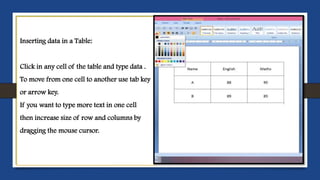
Inserting data in a Table:
Click in any cell of the table and type data .
To move from one cell to another use tab key
or arrow key.
If you want to type more text in one cell
then increase size of row and columns by
dragging the mouse cursor.
Modifying Tables
Word allows you to customize tables as per your
requirement. You can modify your table in
different ways, i.e. you can choose a table style,
table design and draw borders.
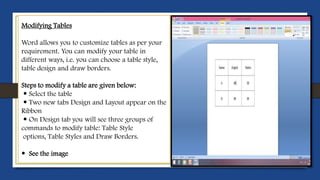
Steps to modify a table are given below:
 Select the table
 Two new tabs Design and Layout appear on the
Ribbon
 On Design tab you will see three groups of
commands to modify table: Table Style
options, Table Styles and Draw Borders.
 See the image
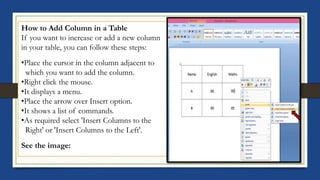
How to Add Column in a Table
If you want to increase or add a new column
in your table, you can follow these steps:
•Place the cursor in the column adjacent to
which you want to add the column.
•Right click the mouse.
•It displays a menu.
•Place the arrow over Insert option.
•It shows a list of commands.
•As required select 'Insert Columns to the
Right' or 'Insert Columns to the Left'.
See the image:
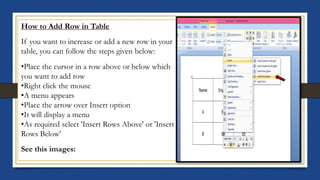
How to Add Row in Table
If you want to increase or add a new row in your
table, you can follow the steps given below:
•Place the cursor in a row above or below which
you want to add row
•Right click the mouse
•A menu appears
•Place the arrow over Insert option
•It will display a menu
•As required select 'Insert Rows Above' or 'Insert
Rows Below'
See this images:
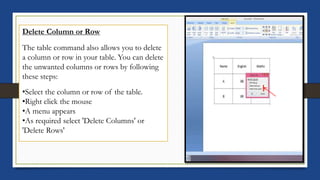
Delete Column or Row
The table command also allows you to delete
a column or row in your table. You can delete
the unwanted columns or rows by following
these steps:
•Select the column or row of the table.
•Right click the mouse
•A menu appears
•As required select 'Delete Columns' or
'Delete Rows'
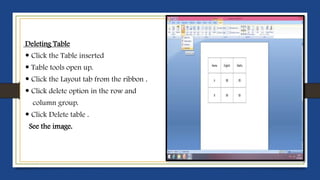
Deleting Table
 Click the Table inserted
 Table tools open up.
 Click the Layout tab from the ribbon .
 Click delete option in the row and
column group.
 Click Delete table .
See the image.
Prepared by :Mrs Ankita Shirke

Grade vi sub word processor tabular presentation unit 2

  • 1.
    Grade VI Sub :Computer Unit 2 Inserting data in a table Modifying Tables Deleting a Tables
  • 2.
    Inserting data ina Table: Click in any cell of the table and type data . To move from one cell to another use tab key or arrow key. If you want to type more text in one cell then increase size of row and columns by dragging the mouse cursor.
  • 3.
    Modifying Tables Word allowsyou to customize tables as per your requirement. You can modify your table in different ways, i.e. you can choose a table style, table design and draw borders. Steps to modify a table are given below:  Select the table  Two new tabs Design and Layout appear on the Ribbon  On Design tab you will see three groups of commands to modify table: Table Style options, Table Styles and Draw Borders.  See the image
  • 4.
    How to AddColumn in a Table If you want to increase or add a new column in your table, you can follow these steps: •Place the cursor in the column adjacent to which you want to add the column. •Right click the mouse. •It displays a menu. •Place the arrow over Insert option. •It shows a list of commands. •As required select 'Insert Columns to the Right' or 'Insert Columns to the Left'. See the image:
  • 5.
    How to AddRow in Table If you want to increase or add a new row in your table, you can follow the steps given below: •Place the cursor in a row above or below which you want to add row •Right click the mouse •A menu appears •Place the arrow over Insert option •It will display a menu •As required select 'Insert Rows Above' or 'Insert Rows Below' See this images:
  • 6.
    Delete Column orRow The table command also allows you to delete a column or row in your table. You can delete the unwanted columns or rows by following these steps: •Select the column or row of the table. •Right click the mouse •A menu appears •As required select 'Delete Columns' or 'Delete Rows'
  • 7.
    Deleting Table  Clickthe Table inserted  Table tools open up.  Click the Layout tab from the ribbon .  Click delete option in the row and column group.  Click Delete table . See the image.
  • 8.
    Prepared by :MrsAnkita Shirke