How to Use
   Google
Presentations
Step One: Create a Google
        Account
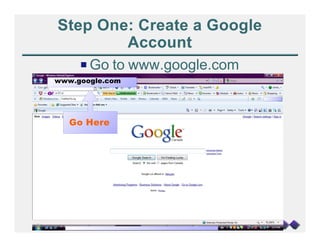
     P Go to www.google.com
www.google.com


   Go Here
Step One: Creating a Google
         Account
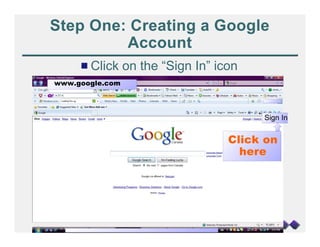
     # Click on the “Sign In” icon
www.google.com


                                Click on
                                  here
Step One: Creating a Google
         Account
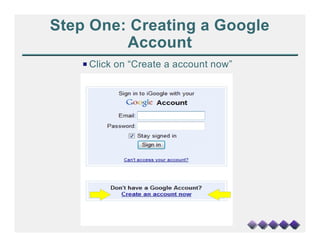
    P Click on “Create a account now”
Step One: Creating a Google
            Account
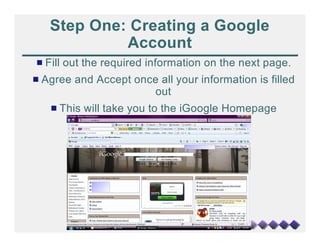
# Fill out the required information on the next page.
# Agree and Accept once all your information is filled
                      out
   # This will take you to the iGoogle Homepage
Step Two: Getting to a new
              Presentation
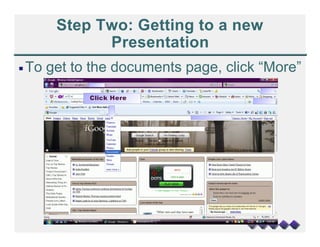
P To   get to the documents page, click “More”
             Click Here
Step Two: Getting to a new
           Presentation
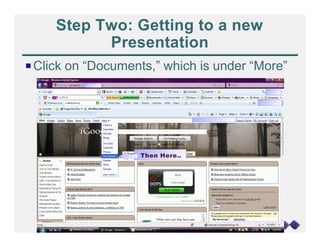
P Click on “Documents,” which is under “More”


                   Then Here..
Step Two: Getting to a new
      Presentation
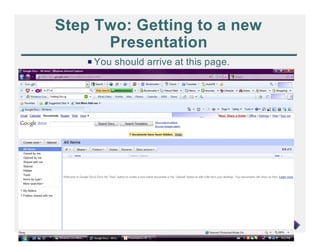
    P You should arrive at this page.
Step Two: Getting to a new
       Presentation
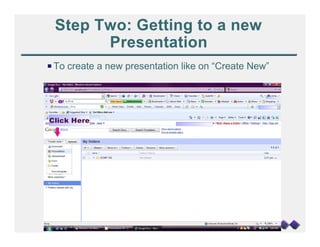
P To create a new presentation like on “Create New”


Click Here
Step Two: Getting to a new
      Presentation
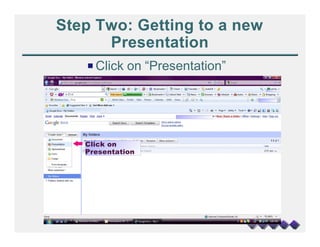
   P Click on “Presentation”


   Click on
   Presentation
Step Two: Getting to a new
         Presentation
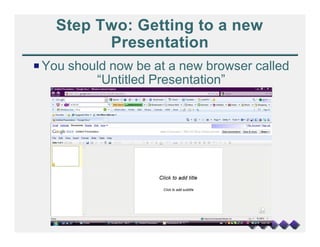
P You should now be at a new browser called
          “Untitled Presentation”
Step Three: Renaming the Project
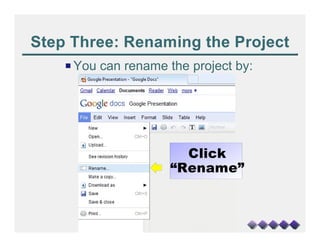
    P You can rename the project by:


                       Click
                     “Rename”
Step Three: Renaming the Project
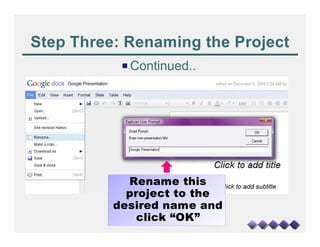
           P Continued..


            Rename this
            project to the
          desired name and
              click “OK”
Step Three: Basics
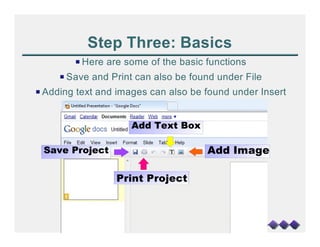
        P Here are some of the basic functions
     P Save and Print can also be found under File
P Adding text and images can also be found under Insert


                     Add Text Box

 Save Project                        Add Image

                 Print Project
Step Three: Adding Speaker Notes
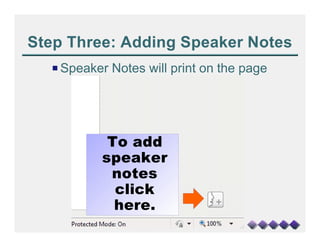
  P Speaker Notes will print on the page


           To add
          speaker
           notes
            click
            here.
Adding an Image
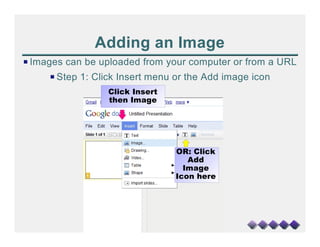
P Images can be uploaded from your computer or from a URL
     P Step 1: Click Insert menu or the Add image icon
                  Click Insert
                  then Image


                                 OR: Click
                                    Add
                                   Image
                                 Icon here
Adding an Image
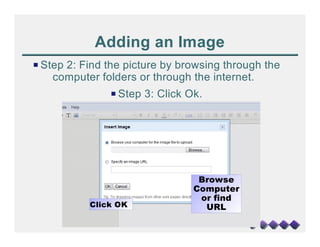
P Step 2: Find the picture by browsing through the
    computer folders or through the internet.
               P Step 3: Click Ok.


                                 Browse
                                Computer
                                 or find
           Click OK               URL
Adding an Video
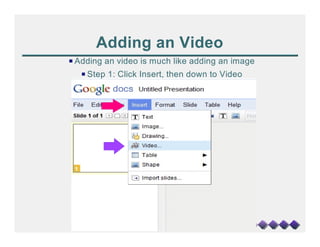
P Adding an video is much like adding an image
   P Step 1: Click Insert, then down to Video
Adding an Video
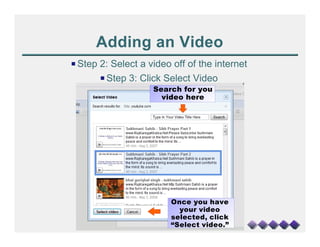
P Step 2: Select a video off of the internet
       P Step 3: Click Select Video
                    Search for you
                      video here


                        Once you have
                          your video
                        selected, click
                        “Select video.”
Sharing With Others
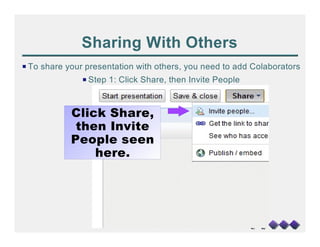
P To share your presentation with others, you need to add Colaborators
               P Step 1: Click Share, then Invite People


            Click Share,
             then Invite
            People seen
                here.
Sharing With Others
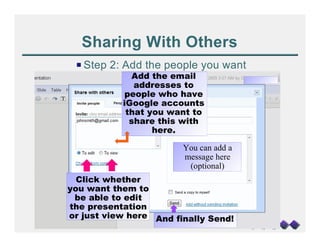
 P Step 2: Add the people you want
              Add the email
              addresses to
           people who have
           iGoogle accounts
            that you want to
             share this with
                  here.

                        You can add a
                        message here
                         (optional)
  Click whether
you want them to
 be able to edit
the presentation
or just view here And finally Send!
Viewing the Presentation
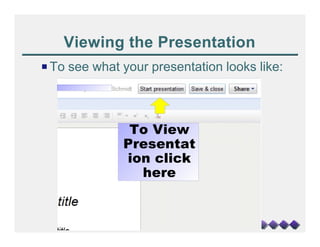
P To see what your presentation looks like:


               To View
              Presentat
              ion click
                here
Save and Close
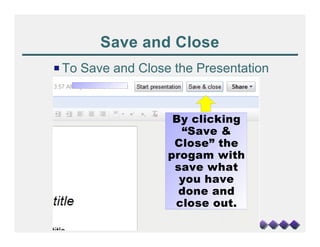
P To Save and Close the Presentation


                    By clicking
                     “Save &
                    Close” the
                   progam with
                    save what
                     you have
                     done and
                    close out.
Editing
 P You and whoever you invited to collaborate
can edit this presentation whenever and where
 ever a computer with the internet is available
 P You can see what others have done to this
                  presentation


           Hope this works for you!

Google Presentation

  • 1.
    How to Use Google Presentations
  • 2.
    Step One: Createa Google Account P Go to www.google.com www.google.com Go Here
  • 3.
    Step One: Creatinga Google Account # Click on the “Sign In” icon www.google.com Click on here
  • 4.
    Step One: Creatinga Google Account P Click on “Create a account now”
  • 5.
    Step One: Creatinga Google Account # Fill out the required information on the next page. # Agree and Accept once all your information is filled out # This will take you to the iGoogle Homepage
  • 6.
    Step Two: Gettingto a new Presentation P To get to the documents page, click “More” Click Here
  • 7.
    Step Two: Gettingto a new Presentation P Click on “Documents,” which is under “More” Then Here..
  • 8.
    Step Two: Gettingto a new Presentation P You should arrive at this page.
  • 9.
    Step Two: Gettingto a new Presentation P To create a new presentation like on “Create New” Click Here
  • 10.
    Step Two: Gettingto a new Presentation P Click on “Presentation” Click on Presentation
  • 11.
    Step Two: Gettingto a new Presentation P You should now be at a new browser called “Untitled Presentation”
  • 12.
    Step Three: Renamingthe Project P You can rename the project by: Click “Rename”
  • 13.
    Step Three: Renamingthe Project P Continued.. Rename this project to the desired name and click “OK”
  • 14.
    Step Three: Basics P Here are some of the basic functions P Save and Print can also be found under File P Adding text and images can also be found under Insert Add Text Box Save Project Add Image Print Project
  • 15.
    Step Three: AddingSpeaker Notes P Speaker Notes will print on the page To add speaker notes click here.
  • 16.
    Adding an Image PImages can be uploaded from your computer or from a URL P Step 1: Click Insert menu or the Add image icon Click Insert then Image OR: Click Add Image Icon here
  • 17.
    Adding an Image PStep 2: Find the picture by browsing through the computer folders or through the internet. P Step 3: Click Ok. Browse Computer or find Click OK URL
  • 18.
    Adding an Video PAdding an video is much like adding an image P Step 1: Click Insert, then down to Video
  • 19.
    Adding an Video PStep 2: Select a video off of the internet P Step 3: Click Select Video Search for you video here Once you have your video selected, click “Select video.”
  • 20.
    Sharing With Others PTo share your presentation with others, you need to add Colaborators P Step 1: Click Share, then Invite People Click Share, then Invite People seen here.
  • 21.
    Sharing With Others P Step 2: Add the people you want Add the email addresses to people who have iGoogle accounts that you want to share this with here. You can add a message here (optional) Click whether you want them to be able to edit the presentation or just view here And finally Send!
  • 22.
    Viewing the Presentation PTo see what your presentation looks like: To View Presentat ion click here
  • 23.
    Save and Close PTo Save and Close the Presentation By clicking “Save & Close” the progam with save what you have done and close out.
  • 24.
    Editing P Youand whoever you invited to collaborate can edit this presentation whenever and where ever a computer with the internet is available P You can see what others have done to this presentation Hope this works for you!