Slideshare is an online
document hosting ser-
vice, particularly known
for PowerPoint uploads:
upload, view, be inspired, comment & share.
Pedagogical Uses
   Student presentations (including narrated versions) can
    be uploaded to share with a wider audience
   Students develop a knowledge of copyright and intellec-
    tual property in putting materials in the public domain
Research Uses
   Specialist knowledge can be evidenced, and discovered
    via keywords used in (accompanying) text.
   Presentations can be embedded into blogs, particularly
    helpful for conference presentations.
Setting Up an Account
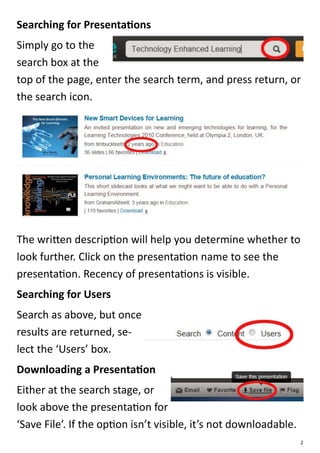
   Go to https://
    www.slideshare.net/
   Look to top-right for ‘Signup’.
   Follow the simple instructions,
    ensuring that
    you add a pic-
    ture and brief
    bio.
                                                              1
Searching for Presentations
Simply go to the
search box at the
top of the page, enter the search term, and press return, or
the search icon.


The written description will help you determine whether to
look further. Click on the presentation name to see the
presentation. Recency of presentations is visible.
Searching for Users
Search as above, but once
results are returned, se-
lect the ‘Users’ box.
Downloading a Presentation
Either at the search stage, or
look above the presentation for
‘Save File’. If the option isn’t visible, it’s not downloadable.
                                                                   2
Uploading a Presentation
   Select the ‘Upload’ button next
    to the search box. Unless you
    pay for the ‘Pro’ version, click
    again on the next orange ‘Upload’ button.
   Find a file saved on your hard-drive. Press ‘open’ once
    the file has been selected.
   Whilst the file is uploading, you have the opportunity to
    add details (if you wish untick ‘allow file download’), but
    don’t panic if
    you’re not fast
    enough as you can
    complete once up-
    loaded. Include ti-
    tle, tags and de-
    scription to allow
    others to find your
    work easily:
Embedding a Presentation
At the top of the uploaded presentation find ‘Embed’, then
simply ‘Copy’ the HTML code into your blog or website.


                                                              3
Editing Uploaded Material
       Go to your user name, and allow
        the list to drop down. Some op-
        tions are only available for ‘Pro’
        users.
       Select ‘My Uploads’
       A list of all your uploaded presen-
        tations will appear. Select Edit/
        Delete on the required
        presentation.
       You can then edit all the
        details about the presen-
        tation.
       Consider applying a
        ‘Creative Commons’ li-
        cence to your material, to
        allow wider distribution.
       A newer version of the
        document can be up-
        loaded, maintaining the
        web address (URL).
        Simply select ‘Replace document’. This is particularly
        good for getting a URL before you give a presentation.
Dr Bex Lewis: Creative Commons Attribution-NonCommercial-ShareAlike 3.0 Unported License.   4

Slideshare

  • 1.
    Slideshare is anonline document hosting ser- vice, particularly known for PowerPoint uploads: upload, view, be inspired, comment & share. Pedagogical Uses  Student presentations (including narrated versions) can be uploaded to share with a wider audience  Students develop a knowledge of copyright and intellec- tual property in putting materials in the public domain Research Uses  Specialist knowledge can be evidenced, and discovered via keywords used in (accompanying) text.  Presentations can be embedded into blogs, particularly helpful for conference presentations. Setting Up an Account  Go to https:// www.slideshare.net/  Look to top-right for ‘Signup’.  Follow the simple instructions, ensuring that you add a pic- ture and brief bio. 1
  • 2.
    Searching for Presentations Simplygo to the search box at the top of the page, enter the search term, and press return, or the search icon. The written description will help you determine whether to look further. Click on the presentation name to see the presentation. Recency of presentations is visible. Searching for Users Search as above, but once results are returned, se- lect the ‘Users’ box. Downloading a Presentation Either at the search stage, or look above the presentation for ‘Save File’. If the option isn’t visible, it’s not downloadable. 2
  • 3.
    Uploading a Presentation  Select the ‘Upload’ button next to the search box. Unless you pay for the ‘Pro’ version, click again on the next orange ‘Upload’ button.  Find a file saved on your hard-drive. Press ‘open’ once the file has been selected.  Whilst the file is uploading, you have the opportunity to add details (if you wish untick ‘allow file download’), but don’t panic if you’re not fast enough as you can complete once up- loaded. Include ti- tle, tags and de- scription to allow others to find your work easily: Embedding a Presentation At the top of the uploaded presentation find ‘Embed’, then simply ‘Copy’ the HTML code into your blog or website. 3
  • 4.
    Editing Uploaded Material  Go to your user name, and allow the list to drop down. Some op- tions are only available for ‘Pro’ users.  Select ‘My Uploads’  A list of all your uploaded presen- tations will appear. Select Edit/ Delete on the required presentation.  You can then edit all the details about the presen- tation.  Consider applying a ‘Creative Commons’ li- cence to your material, to allow wider distribution.  A newer version of the document can be up- loaded, maintaining the web address (URL). Simply select ‘Replace document’. This is particularly good for getting a URL before you give a presentation. Dr Bex Lewis: Creative Commons Attribution-NonCommercial-ShareAlike 3.0 Unported License. 4