An Educator's Best Friend
         http://bit.ly/huntcotech
Amy Hopkins
Caddo Mills ISD
ahopkins@caddomillsisd.org
About Me

• 6th Grade Technology Teacher in the Caddo Mills ISD

• Webmaster for District and Middle School websites

• Technology training for CMISD and other
  districts/programs


                                         Clipart from OpenClipart.org
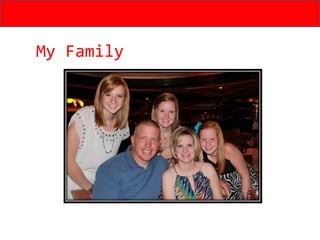
My Family
Background
• Implemented use of Google Accounts in my classroom 4
  years ago with 8th graders

• District converted email to Google Apps 2 years ago

• Converted my classroom/middle school campus to Google
  Apps last school year with new full suite of products added
  in Fall 2010.


                                                  Flickr picture courtesy of Eric Begin
Google Apps
•   Google Apps
•   Google Apps for Business
•   Google Apps for Government
•   Google Apps for Education offers many benefits of Google
    Apps for Business, but at no cost to schools, universities
    and qualifying non-profits.
Google Apps AFTER
Google Apps BEFORE
• Email                     Original suite of
• Docs/Spreadsheets          products PLUS
• Calendar                        • Blogger
• Sites                            • Reader
• Contacts            • Picasa Web Albums
                          And MANY MORE
WHY Google Apps for
Education?
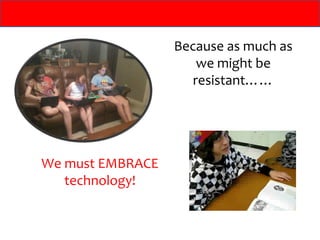
Because as much as
                      we might be
                     resistant……


We must EMBRACE
   technology!
Steps to Implement
GOOGLE APPS FOR EDUCATION
Step 1: Purchase A Domain


• I used www.mydomain.com
• $10.47 per year
• Our domain name is cmisd.org
Step 2: Register this domain for Google Apps
         By going here to Google Apps for Education


• Completing this form will immediately launch a standard
  edition of Google Apps while Google reviews the education
  application. Continue setting up the domain in the
  meantime.

• Google will email requesting more information regarding
  application. Reply to the message with the required
  information.
• If in 48 hours Google has not been upgraded, complete this
  form: http://www.google.com/support/a/bin/request.py?
  contact_type=nonprofit


• Enable services for your domain and closely follow the
  instructions on-screen.
Step 2: Verify Domain Ownership
• You must confirm that you own the domain you signed up
  with.

             There are two verification methods:
1. Upload an HTML file to your site
2. Create special CNAME and MX records for your domain
•   Must return to the website where domain was purchased and make
    additions there
Step 2: Verify Domain Ownership


CNAME Records
Creating a CNAME record shows that you have access to your domain's
   DNS settings, which proves to Google that you own the domain.

For help:
http://www.google.com/support/a/bin/answer.py?answer=47283&cbid=-
   65l2wa8damz7&src=cb&lev=%20answer
Step 2: Verify Domain Ownership


MX Records
An MX record identifies an email server available to the domain. Most
   domains have multiple MX records, arranged in order of priority. When
   someone sends an email message to the domain, the first available
   server in the priority list handles the message.

For help:
http://www.google.com/support/a/bin/answer.py?answer=140034

http://www.google.com/support/a/bin/answer.py?answer=174125
• Step 3: Customize Google Apps

• Upload your logo on the control panel so it will appear on
  the sign-in page and on applications

• Go into each product and customize
   – enable/disable services and certain options
   – relatively easy; some are very technical and may require help
     from IT personnel
   – choosing basic options is not difficult and will suffice unless
     there is interest in more advanced services
Step 4: Create User Accounts

• Once signed up and customized, you can now create as
  many user accounts as you need from the control panel.
              There are two ways to add users:

                  1. Add users individually

                    2. Add users in bulk

• Our student usernames are: first.last@cmisd.org
1. Add users individually
• To do this, click ‘User Accounts’ tab and then ‘Create a new user
  ‘.
• Enter each users’ full name, username and temporary password.
  Then click ‘Create new user’ button.
• Repeat for as many users as you have.


2. Add users in bulk
• Recommended if you have 10+ users in your organization, as
  adding each individually is tedious and time consuming.
• To create multiple accounts at once, upload a spreadsheet of
  users accounts and usernames by click the ‘Upload’ link from the
  ‘User Accounts’ tab.
                   CSV Bulk Upload Template
For more help with
implementation steps,
Google can help!
Google Apps Administrator Help


                                 Clipart from OpenClipart.org
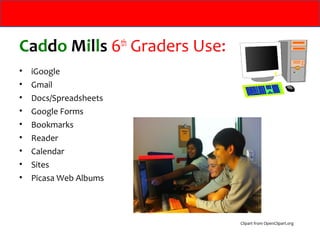
Caddo Mills 6th Graders Use:
•   iGoogle
•   Gmail
•   Docs/Spreadsheets
•   Google Forms
•   Bookmarks
•   Reader
•   Calendar
•   Sites
•   Picasa Web Albums


                               Clipart from OpenClipart.org
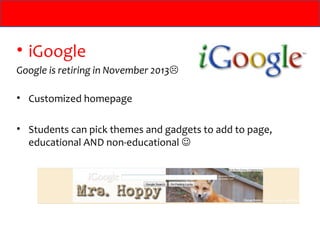
• iGoogle
Google is retiring in November 2013

• Customized homepage

• Students can pick themes and gadgets to add to page,
  educational AND non-educational 
Gmail
• Gives students and teachers an email address to
  make signing up for educational websites EASY!
• Teachers communicate with students on issues
  such as:
  – Test/quiz reminders
  – Late work
  – Sending of study sheets/handouts/assignments
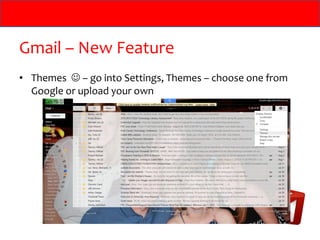
Gmail – New Feature
• Themes  – go into Settings, Themes – choose one from
  Google or upload your own
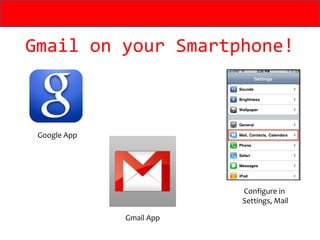
Gmail on your Smartphone!


 Google App


                          Configure in
                          Settings, Mail

              Gmail App
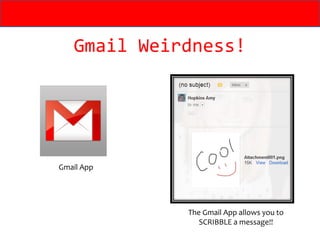
Gmail Weirdness!


Gmail App


             The Gmail App allows you to
                SCRIBBLE a message!!
Blogger
• Users can create custom, hosted blogs with
  features such as photo publishing,
  comments, group blogs, & mobile-based
  posting with little technical knowledge
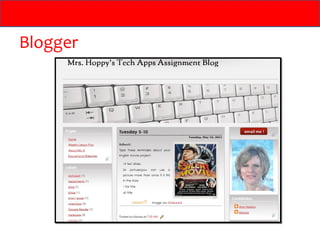
Blogger
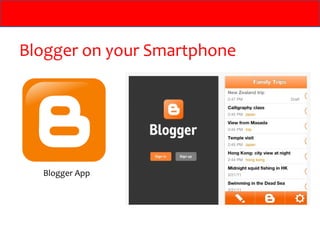
Blogger on your Smartphone


  Blogger App
Google Docs and Spreadsheets/
Will soon be referred to as Google Drive

• Ability to create documents – word processing,
  spreadsheets and presentations
• Can also upload already-created documents and continue
  working
• Access from anywhere the user has an Internet connection
• Allows users to collaborate with others on documents
• New features added often!
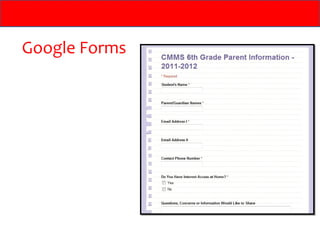
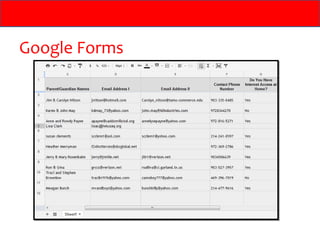
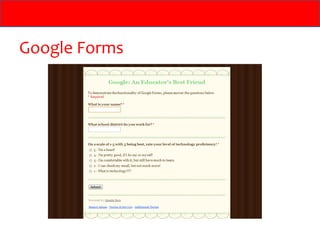
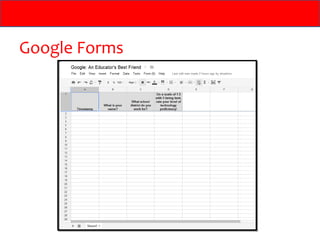
Google Forms
• Plan events, send a survey, give students a quiz, or
  collect other information in an easy, streamlined way
• Form connected to a spreadsheet with the same title.
• Send or share a form, and recipients’ responses will
  automatically be collected in that spreadsheet.
Google Forms
Google Forms
Google Forms
Google Forms
Google Forms


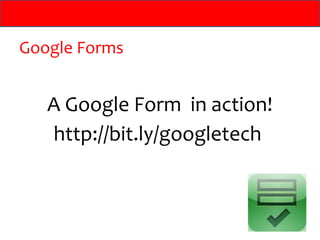
   A Google Form in action!
   http://bit.ly/googletech
Google Forms

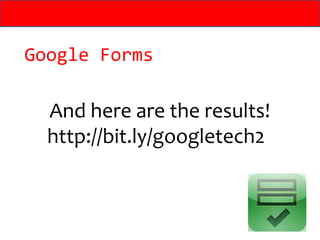
  And here are the results!
  http://bit.ly/googletech2
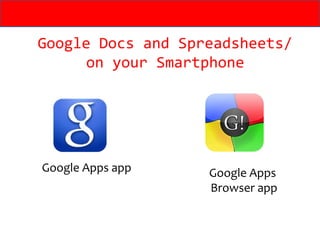
Google Docs and Spreadsheets/
      on your Smartphone


Google Apps app    Google Apps
                   Browser app
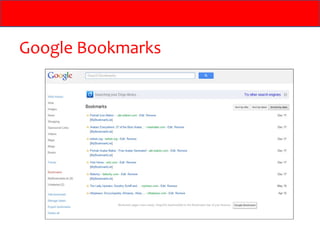
Google Bookmarks
• Students can save their favorite websites to access at any
  time
• Create “labels” or folders/categories to keep them
  organized
• Share bookmarks with others
• No more having to remember website names
  and addresses!!
Google Bookmarks
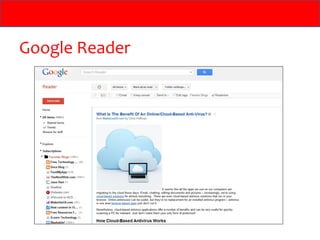
Google Reader
• Constantly checks favorite news sites and blogs
  for new content
• Shows all of your favorite sites in one convenient
  place
• The #1 TOOL I USE TO LEARN!!
Google Reader
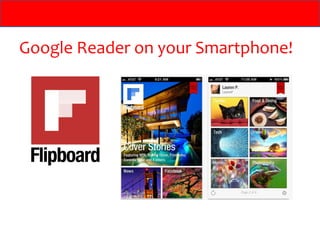
Google Reader on your Smartphone!
Google Calendar
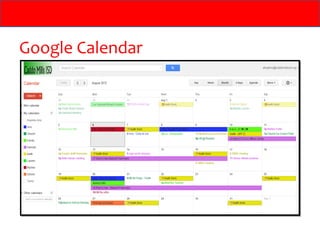
• Full functioning calendar with LOTS of extra
  features
   –   Receive email or mobile text-message reminders
   –   Share calendars with others
   –   Print out your calendars, if needed.
   –   Access Google Calendar from a mobile phone
Google Calendar
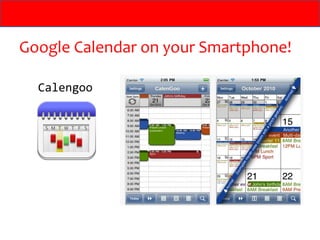
Google Calendar on your Smartphone!

  Calengoo
Google Sites

• A structured wiki- and web page-creation
  tool
• Create a team-oriented site where multiple
  people can collaborate and share files
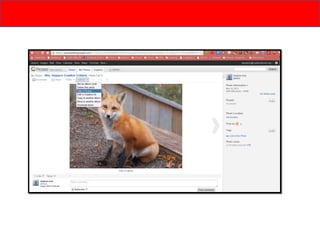
Picasa Web Albums

• Image organizer and image viewer for
  organizing and editing digital photos,
• Editing must be done in the desktop version
  of Picasa -
• Plus an integrated photo-sharing website
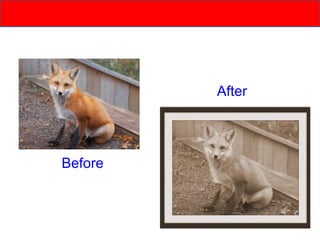
After


Before
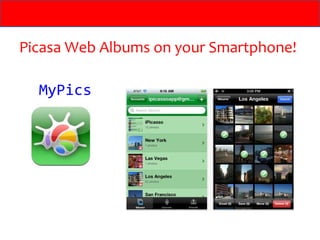
Picasa Web Albums on your Smartphone!

  MyPics
Works Cited
•   123jschwartz. "Why Google Apps for Education? ." YouTube - Broadcast
    Yourself. . N.p., n.d. Web. 4 Feb. 2011. <http://www.youtube.com/watch?
    v=IRYRbPCHTck>.
•   Begin, Eric. "Red fox pup ( wild ) | Flickr - Photo Sharing!." Welcome to Flickr -
    Photo Sharing. Yahoo, n.d. Web. 4 Feb. 2011.
    <http://www.flickr.com/photos/ericbegin/2462700869/in/set-
    72157605076496782/>.
•   "Google Apps." The Next Web. N.p., n.d. Web. 4 Feb. 2011.
    <http://thenextweb.com/google/2010/11/18/google-apps-get-more-googly-with-
    over-60-consumer-applications-now-available-for-businesses/google-apps/>.
•   "Icon with question mark - OpenClipArt." OpenClipArt. N.p., n.d. Web. 6 Feb.
    2011. <http://www.openclipart.org/detail/28725>.
•   "Joes Non Notebook Video." Music Videos, Politics, and Funny Videos at Vodpod.
    N.p., n.d. Web. 31 Jan. 2011. <http://vodpod.com/watch/1452948-joes-non-
    notebook>.
•   "Laptop - OpenClipArt." OpenClipArt. N.p., n.d. Web. 4 Feb. 2011.
    <http://www.openclipart.org/detail/5012>.
•
An Educator's Best Friend

            http://bit.ly/huntcotech

Amy Hopkins
Caddo Mills ISD
ahopkins@caddomillsisd.org

Google: An Educator's Best Friend

  • 1.
    An Educator's BestFriend http://bit.ly/huntcotech Amy Hopkins Caddo Mills ISD ahopkins@caddomillsisd.org
  • 2.
    About Me • 6thGrade Technology Teacher in the Caddo Mills ISD • Webmaster for District and Middle School websites • Technology training for CMISD and other districts/programs Clipart from OpenClipart.org
  • 3.
  • 4.
    Background • Implemented useof Google Accounts in my classroom 4 years ago with 8th graders • District converted email to Google Apps 2 years ago • Converted my classroom/middle school campus to Google Apps last school year with new full suite of products added in Fall 2010. Flickr picture courtesy of Eric Begin
  • 5.
    Google Apps • Google Apps • Google Apps for Business • Google Apps for Government • Google Apps for Education offers many benefits of Google Apps for Business, but at no cost to schools, universities and qualifying non-profits.
  • 6.
    Google Apps AFTER GoogleApps BEFORE • Email Original suite of • Docs/Spreadsheets products PLUS • Calendar • Blogger • Sites • Reader • Contacts • Picasa Web Albums And MANY MORE
  • 7.
    WHY Google Appsfor Education?
  • 8.
    Because as muchas we might be resistant…… We must EMBRACE technology!
  • 9.
    Steps to Implement GOOGLEAPPS FOR EDUCATION
  • 10.
    Step 1: PurchaseA Domain • I used www.mydomain.com • $10.47 per year • Our domain name is cmisd.org
  • 11.
    Step 2: Registerthis domain for Google Apps By going here to Google Apps for Education • Completing this form will immediately launch a standard edition of Google Apps while Google reviews the education application. Continue setting up the domain in the meantime. • Google will email requesting more information regarding application. Reply to the message with the required information.
  • 12.
    • If in48 hours Google has not been upgraded, complete this form: http://www.google.com/support/a/bin/request.py? contact_type=nonprofit • Enable services for your domain and closely follow the instructions on-screen.
  • 13.
    Step 2: VerifyDomain Ownership • You must confirm that you own the domain you signed up with. There are two verification methods: 1. Upload an HTML file to your site 2. Create special CNAME and MX records for your domain • Must return to the website where domain was purchased and make additions there
  • 14.
    Step 2: VerifyDomain Ownership CNAME Records Creating a CNAME record shows that you have access to your domain's DNS settings, which proves to Google that you own the domain. For help: http://www.google.com/support/a/bin/answer.py?answer=47283&cbid=- 65l2wa8damz7&src=cb&lev=%20answer
  • 15.
    Step 2: VerifyDomain Ownership MX Records An MX record identifies an email server available to the domain. Most domains have multiple MX records, arranged in order of priority. When someone sends an email message to the domain, the first available server in the priority list handles the message. For help: http://www.google.com/support/a/bin/answer.py?answer=140034 http://www.google.com/support/a/bin/answer.py?answer=174125
  • 16.
    • Step 3:Customize Google Apps • Upload your logo on the control panel so it will appear on the sign-in page and on applications • Go into each product and customize – enable/disable services and certain options – relatively easy; some are very technical and may require help from IT personnel – choosing basic options is not difficult and will suffice unless there is interest in more advanced services
  • 17.
    Step 4: CreateUser Accounts • Once signed up and customized, you can now create as many user accounts as you need from the control panel. There are two ways to add users: 1. Add users individually 2. Add users in bulk • Our student usernames are: first.last@cmisd.org
  • 18.
    1. Add usersindividually • To do this, click ‘User Accounts’ tab and then ‘Create a new user ‘. • Enter each users’ full name, username and temporary password. Then click ‘Create new user’ button. • Repeat for as many users as you have. 2. Add users in bulk • Recommended if you have 10+ users in your organization, as adding each individually is tedious and time consuming. • To create multiple accounts at once, upload a spreadsheet of users accounts and usernames by click the ‘Upload’ link from the ‘User Accounts’ tab. CSV Bulk Upload Template
  • 19.
    For more helpwith implementation steps, Google can help! Google Apps Administrator Help Clipart from OpenClipart.org
  • 20.
    Caddo Mills 6thGraders Use: • iGoogle • Gmail • Docs/Spreadsheets • Google Forms • Bookmarks • Reader • Calendar • Sites • Picasa Web Albums Clipart from OpenClipart.org
  • 21.
    • iGoogle Google isretiring in November 2013 • Customized homepage • Students can pick themes and gadgets to add to page, educational AND non-educational 
  • 22.
    Gmail • Gives studentsand teachers an email address to make signing up for educational websites EASY! • Teachers communicate with students on issues such as: – Test/quiz reminders – Late work – Sending of study sheets/handouts/assignments
  • 23.
    Gmail – NewFeature • Themes  – go into Settings, Themes – choose one from Google or upload your own
  • 24.
    Gmail on yourSmartphone! Google App Configure in Settings, Mail Gmail App
  • 25.
    Gmail Weirdness! Gmail App The Gmail App allows you to SCRIBBLE a message!!
  • 26.
    Blogger • Users cancreate custom, hosted blogs with features such as photo publishing, comments, group blogs, & mobile-based posting with little technical knowledge
  • 27.
  • 28.
    Blogger on yourSmartphone Blogger App
  • 29.
    Google Docs andSpreadsheets/ Will soon be referred to as Google Drive • Ability to create documents – word processing, spreadsheets and presentations • Can also upload already-created documents and continue working • Access from anywhere the user has an Internet connection • Allows users to collaborate with others on documents • New features added often!
  • 30.
    Google Forms • Planevents, send a survey, give students a quiz, or collect other information in an easy, streamlined way • Form connected to a spreadsheet with the same title. • Send or share a form, and recipients’ responses will automatically be collected in that spreadsheet.
  • 31.
  • 32.
  • 33.
  • 34.
  • 35.
    Google Forms A Google Form in action! http://bit.ly/googletech
  • 36.
    Google Forms And here are the results! http://bit.ly/googletech2
  • 38.
    Google Docs andSpreadsheets/ on your Smartphone Google Apps app Google Apps Browser app
  • 39.
    Google Bookmarks • Studentscan save their favorite websites to access at any time • Create “labels” or folders/categories to keep them organized • Share bookmarks with others • No more having to remember website names and addresses!!
  • 40.
  • 41.
    Google Reader • Constantlychecks favorite news sites and blogs for new content • Shows all of your favorite sites in one convenient place • The #1 TOOL I USE TO LEARN!!
  • 42.
  • 43.
    Google Reader onyour Smartphone!
  • 44.
    Google Calendar • Fullfunctioning calendar with LOTS of extra features – Receive email or mobile text-message reminders – Share calendars with others – Print out your calendars, if needed. – Access Google Calendar from a mobile phone
  • 45.
  • 46.
    Google Calendar onyour Smartphone! Calengoo
  • 47.
    Google Sites • Astructured wiki- and web page-creation tool • Create a team-oriented site where multiple people can collaborate and share files
  • 48.
    Picasa Web Albums •Image organizer and image viewer for organizing and editing digital photos, • Editing must be done in the desktop version of Picasa - • Plus an integrated photo-sharing website
  • 50.
  • 51.
    Picasa Web Albumson your Smartphone! MyPics
  • 52.
    Works Cited • 123jschwartz. "Why Google Apps for Education? ." YouTube - Broadcast Yourself. . N.p., n.d. Web. 4 Feb. 2011. <http://www.youtube.com/watch? v=IRYRbPCHTck>. • Begin, Eric. "Red fox pup ( wild ) | Flickr - Photo Sharing!." Welcome to Flickr - Photo Sharing. Yahoo, n.d. Web. 4 Feb. 2011. <http://www.flickr.com/photos/ericbegin/2462700869/in/set- 72157605076496782/>. • "Google Apps." The Next Web. N.p., n.d. Web. 4 Feb. 2011. <http://thenextweb.com/google/2010/11/18/google-apps-get-more-googly-with- over-60-consumer-applications-now-available-for-businesses/google-apps/>. • "Icon with question mark - OpenClipArt." OpenClipArt. N.p., n.d. Web. 6 Feb. 2011. <http://www.openclipart.org/detail/28725>. • "Joes Non Notebook Video." Music Videos, Politics, and Funny Videos at Vodpod. N.p., n.d. Web. 31 Jan. 2011. <http://vodpod.com/watch/1452948-joes-non- notebook>. • "Laptop - OpenClipArt." OpenClipArt. N.p., n.d. Web. 4 Feb. 2011. <http://www.openclipart.org/detail/5012>. •
  • 53.
    An Educator's BestFriend http://bit.ly/huntcotech Amy Hopkins Caddo Mills ISD ahopkins@caddomillsisd.org

Editor's Notes