Technology-
Based Teaching
and Assessment

NCTE--Las Vegas, NV
  November 2012

    Presenters:
 Kathy Kelly-Garris
& Brandy Lockwood
 Teachers of Middle
    Grades ELA
Penn-Trafford School
      District
 Harrison City, PA
End Goal– ongoing collaboration with all
   educators following this conference.
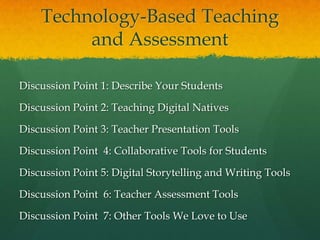
Technology-Based Teaching
         and Assessment

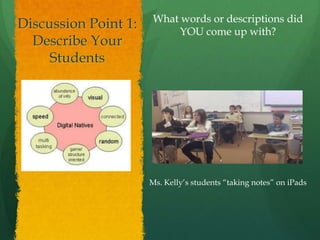
Discussion Point 1: Describe Your Students

Discussion Point 2: Teaching Digital Natives

Discussion Point 3: Teacher Presentation Tools

Discussion Point 4: Collaborative Tools for Students

Discussion Point 5: Digital Storytelling and Writing Tools

Discussion Point 6: Teacher Assessment Tools

Discussion Point 7: Other Tools We Love to Use
Discussion Point 1 ―Do Now‖—Describe your
students…
Write down the words dictated to you.
Circle any ―unfamiliar‖ or ―new‖ words. Use as
many as you can to describe your typical day in
the classroom. You may add endings to words if
needed.
Turn and Talk–
Share what you wrote with someone right next to
you.
What words or descriptions did
Discussion Point 1:         YOU come up with?
  Describe Your
     Students


                      Ms. Kelly’s students ―taking notes‖ on iPads
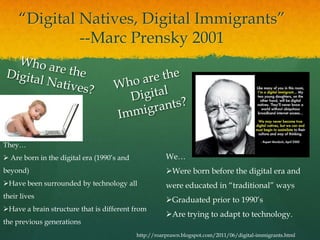
―Digital Natives, Digital Immigrants‖
              --Marc Prensky 2001


They…
 Are born in the digital era (1990’s and              We…
beyond)                                                Were born before the digital era and
Have been surrounded by technology all                were educated in ―traditional‖ ways
their lives
                                                       Graduated prior to 1990’s
Have a brain structure that is different from
                                                       Are trying to adapt to technology.
the previous generations
                                            http://roarprawn.blogspot.com/2011/06/digital-immigrants.html
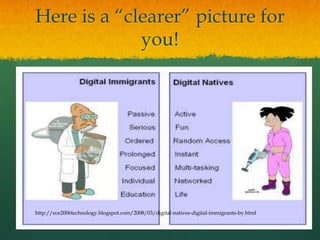
Here is a ―clearer‖ picture for
             you!


http://ece2006technology.blogspot.com/2008/03/digital-natives-digital-immigrants-by.html
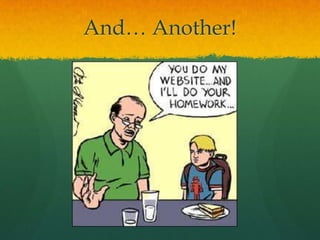
And… Another!
DiscussionPoint 3:
Teacher Presentation Tools

 Inspiration, Prezi,
 Glogster, Bubbl.us
Discussion Point 3:
Teacher Presentation Tools
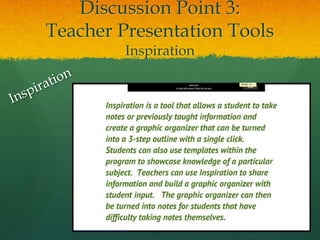
         Inspiration
Teacher Presentation Tools:
        Inspiration
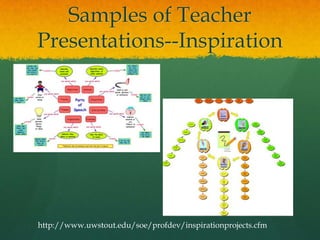
Samples of Teacher
Presentations--Inspiration


http://www.uwstout.edu/soe/profdev/inspirationprojects.cfm
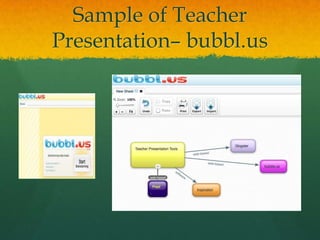
Sample of Teacher
Presentation– bubbl.us
Discussion Point 3:
Presentation Tools
      Glogster
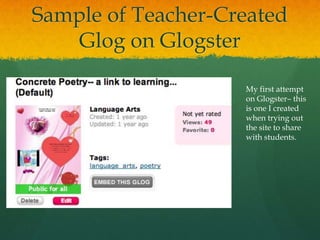
Sample of Teacher-Created
    Glog on Glogster

                    My first attempt
                    on Glogster– this
                    is one I created
                    when trying out
                    the site to share
                    with students.
Sample of Teacher-Created
    Glog on Glogster
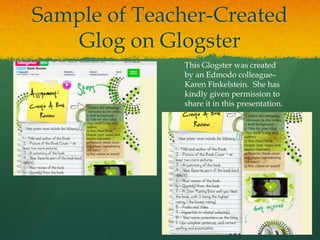
              This Glogster was created
              by an Edmodo colleague–
              Karen Finkelstein. She has
              kindly given permission to
              share it in this presentation.
Sample of Teacher-Created
    Glog on Glogster

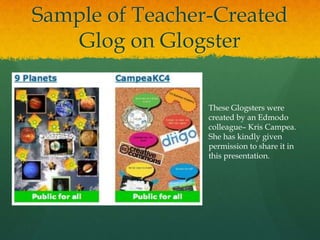
                 These Glogsters were
                 created by an Edmodo
                 colleague– Kris Campea.
                 She has kindly given
                 permission to share it in
                 this presentation.
Beyond the presentation…

Many tools can be used for
student assessment as well as
for teacher presentation.
Inspiration is one of those
tools.
Student-Created Graphic
       Organizer
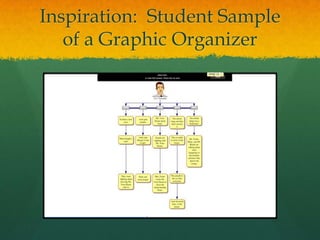
Inspiration: Student Sample
   of a Graphic Organizer
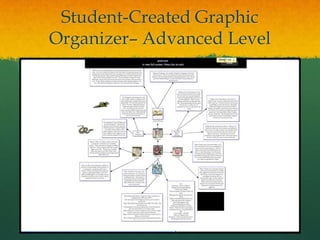
Student-Created Graphic
Organizer– Advanced Level
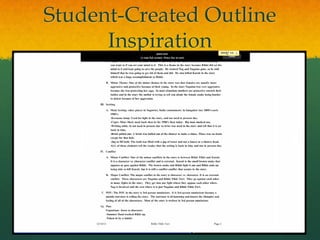
Student-Created Outline
      Inspiration
Discussion Point 3:
Presentation Tools
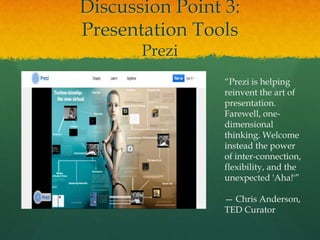
       Prezi
                 ―Prezi is helping
                 reinvent the art of
                 presentation.
                 Farewell, one-
                 dimensional
                 thinking. Welcome
                 instead the power
                 of inter-connection,
                 flexibility, and the
                 unexpected 'Aha!'‖

                 — Chris Anderson,
                 TED Curator
Discussion Point 3:
Presentation Tools
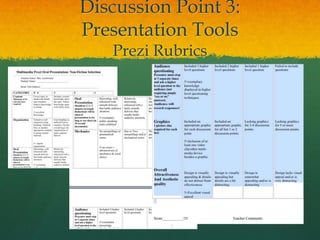
   Prezi Rubrics
Discussion Point 3:
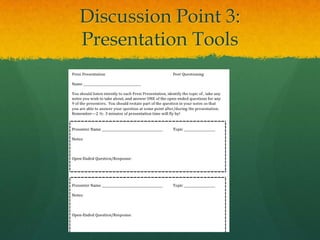
Presentation Tools
Discussion Point 4--

Collaborative Tools for Students

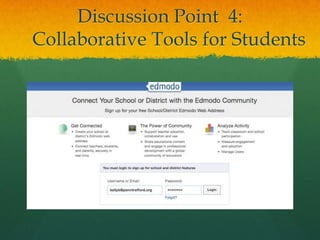
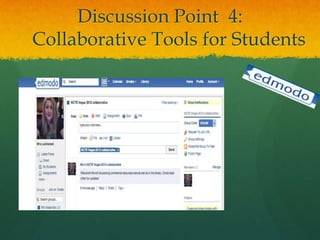
  Google Docs & Edmodo
Discussion Point 4:
    Collaborative Tools for Students
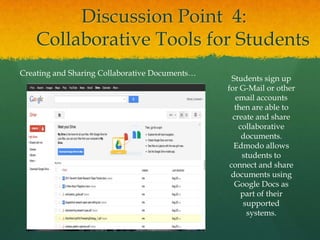
Creating and Sharing Collaborative Documents…
                                                  Students sign up
                                                for G-Mail or other
                                                   email accounts
                                                   then are able to
                                                  create and share
                                                    collaborative
                                                     documents.
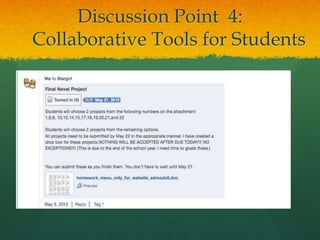
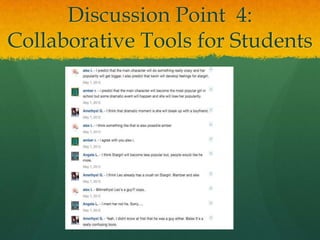
                                                  Edmodo allows
                                                     students to
                                                 connect and share
                                                 documents using
                                                   Google Docs as
                                                     part of their
                                                      supported
                                                       systems.
Discussion Point 4:
Collaborative Tools for Students
Discussion Point 4:
Collaborative Tools for Students
Discussion Point 4:
Collaborative Tools for Students
Discussion Point 4:
Collaborative Tools for Students
Discussion Point 4:
Collaborative Tools ―Do Now‖


How would you use these and other tools
in your classroom? Write down 3
possible ways to use these tools and
discuss them with someone behind/in
front of you.
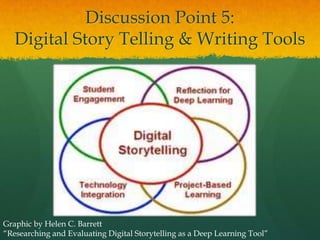
Discussion Point 5:
   Digital Story Telling & Writing Tools


Graphic by Helen C. Barrett
―Researching and Evaluating Digital Storytelling as a Deep Learning Tool‖
Discussion Point 5: Digital Storytelling and
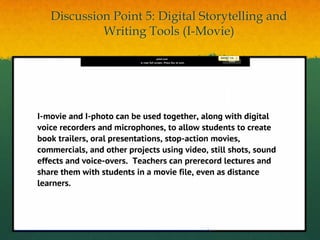
         Writing Tools (I-Movie)
Discussion Point 5: Digital
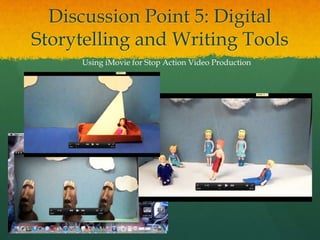
Storytelling and Writing Tools
     Using iMovie for Stop Action Video Production
Sample Student iMovie—
   Poetry Analysis
Discussion Point 5: Digital
Storytelling and Writing Tools

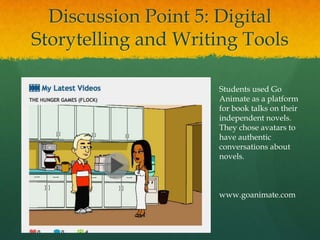
                     Students used Go
                     Animate as a platform
                     for book talks on their
                     independent novels.
                     They chose avatars to
                     have authentic
                     conversations about
                     novels.


                     www.goanimate.com
Discussion Point 5: Digital
Storytelling and Writing Tools
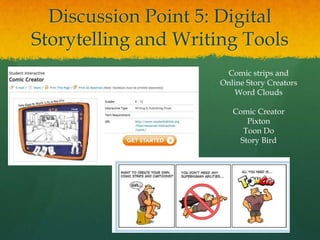
                       Comic strips and
                      Online Story Creators
                          Word Clouds

                         Comic Creator
                            Pixton
                           Toon Do
                          Story Bird
Discussion Point 5: Digital
  Storytelling and Writing Tools


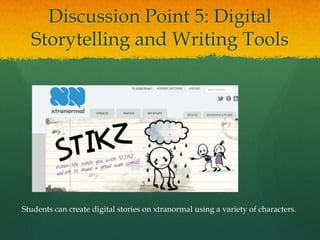
Students can create digital stories on xtranormal using a variety of characters.
Discussion Point 5:
Digital Storytelling and Writing Tools


  How would you use these tools and others
  in your classroom? Turn and talk to
  someone you HAVE NOT talked to yet.

  What are some projects in which you could

  use these tools?
Discussion Point 6: Teacher
     Assessment Tools
Discussion Point 6: Teacher
     Assessment Tools
Discussion Point 6: Teacher
     Assessment Tools
Discussion Point 6: Teacher
     Assessment Tools
Discussion Point 7– Other
        Favorites
Any questions?


The presentation will be available as a library resource in a
collaborative Edmodo online classroom. Use the following
code to join after the conference: d1cre0

You will have the option to interact with colleagues from
all over the country (and even the world) within this
classroom.

Final ncte

Editor's Notes

  • #2 We are so honored to be here with you today. We are not only representing our school district in Western Pennsylvania, Penn-Trafford School District, but we are here as digital immigrants sharing ideas with other digital immigrants on how to speak the native tongue of our digital native students.
  • #3 We like to often show our students the “end point” or our desired end destination prior to beginning a lesson. Ideally, we will end up ultimately sharing with everyone in this room in an online, collaborative classroom for an undetermined time AFTER we leave this conference. That is our goal– continued collaboration. But during our presentation, we will focus our discussion on 7 specific points. We will attempt to share information and open up for a question and answer session after each discussion point. All resources for this presentation will be available in an Edmodo classroom for which we will provide a join code as well as information on how to join the free educational social networking site for future collaboration.
  • #5 Typically, we would share this information with students in a very different format; perhaps we would upload this power point on a wiki, a social networking site, or blog. We would allow students to preview some parts of this information prior to coming to class, and we would then do both guided and independent practice of specific skill sets taught in a “flipped” teaching experience. This activity is a typical “before” activity, designed to allow you to engage your previous knowledge before we dive right into the first discussion point. Word Splash Words– digital native, digital immigrant, instruction, classroom, website, web 2.0 tools, guided practice, Smart board, I-movie, I-photo, Inspiration (with a capital I), collaboration, Edmodo, graphic organizer, Google Docs, Prezi, rubric, assess(ment)How many of the words did you circle? 1, 2, 3, 4, 5 or more? Of those words, how many are TOTALLY unfamiliar to you?
  • #6 How many of these words and phrases are reflected in what you wrote (even if you did not use the same exact terms?) What words or phrases could you use to describe your students? What type of learners are in your classrooms? How many of you are in full inclusion setting? Do you have students that are at a varying ability level? How about a varying socio-economic level? Do you have any gifted learners in your classroom?
  • #7 In the words of the children we educate, we will hear the importance of using a language to communicate (and an instructional repertoire to instruct) the students we have in our classrooms.
  • #8 This information is from an article written by Marc Prensky in 2001. You can access the entire PDF file at the following link:http://www.marcprensky.com/writing/prensky%20-%20digital%20natives,%20digital%20immigrants%20-%20part1.pdf.This article, among other resources, is available in our collaborative classroom.
  • #10 How many of you have ever asked your child/grandchild/student to explain an electronic device to you? We cannot be afraid to use technology simply because we do not fully understand it. If we will put ourselves out there and simply introduce a tool for a student to use, he or she will embrace it and will figure it out 10X faster than we can even teach him or her to use it. Besides– Youtube has great tutorials on EVERY single topic out there!
  • #11 How many Mac users are here today? How many PC users? We will be sharing ideas and projects created with tools that range from Web 2.0 tools to purchased software. The nice thing about Web 2.0 tools is that they work with any platform. The software-based projects that we are sharing have been created on Mac software, but for many of these tools, there is a PC version of the software as well as a web-based tool that works similarly. We will try to share a PC/Web-based tool for each project so you are not left out if you are not a Mac user. Remember-- These are only a few of the wonderful tools that can be used for both teacher and student presentations.
  • #12 This is a software tool that is a purchased product. There is a free version for download at the following website http://www.inspiration.com/, but is only available for 30 days. Once the period expires, any files not converted to PDF files will be lost, unless the full version is purchased.
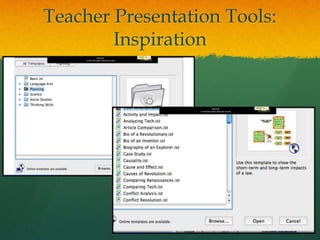
  • #13 Inspiration 8 and 9 provide pre-made templates in a variety of content areas. Students can also opt to create a graphic organizer from scratch.
  • #15 This is a sample of a web-based graphic organizer to be used for presentation that was very quickly created on bubbl.us. It has some of the same capabilities as Inspiration, but you are not able to create an outline from your information.
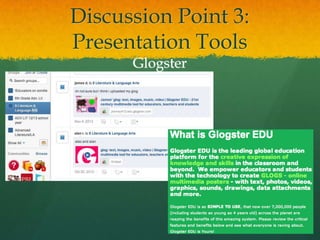
  • #16 Teachers and students can create online multimedia posters to share information in an exciting way with Glogster. Teachers have yet another presentation tool to share information live or to use as a “flipped learning” experience for students to access on their own before, during or after a lesson in the classroom.
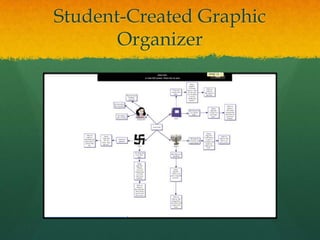
  • #21 This graphic organizer was created in response to a task asking students to analyze a scene of “The Diary of Ann Frank”. Eighth graders read this story in a drama format as part of the curriculum each year.
  • #22 While it is hard to see the exact words, it is easy to see the linear design of this student-created graphic organizer. Students were guided and directed to complete an analysis of an act of a play. This graphic organizer provided the first step to the creation of a paragraph and was turned into an outline with a single click of a button.
  • #25 An alternative to Power Point. Web-based presentation software
  • #26 An alternative to Power Point. Web-based presentation software
  • #27 An alternative to Power Point. Web-based presentation software
  • #37 Students created original stories from the oral tradition. After creating story boards and scripts, they used flip cameras and digital cameras to take short videos and still shots to use in creating a series of shots that were placed into I-movie.
  • #38 Movies allow students to showcase knowledge of literary terms by creating a “new product”– demonstrating analysis, synthesis and other “higher order” thinking skills. Movies can be made in other software based platforms as well as with web-based platforms. PCs come with “movie maker” installed while Macs come with iMovie and other Apple products.
  • #41 Simplified digital storytelling in 3 panels or less! Free & easy to use… stored on the web & printable! Kids LOVE to use this resource.
  • #42 Another web-based tool.
  • #43 Another web-based tool.
  • #44 You probably have thought of a million ways you could use each of these tools. Use your imagination and jot down some projects you already do and think of how to tweak these projects to incorporate some technology-based tools.
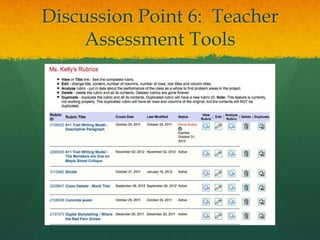
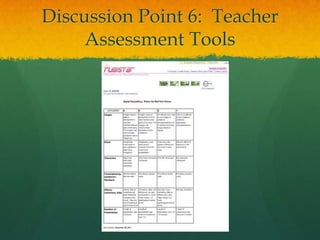
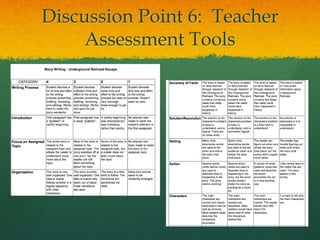
  • #45 It is always a chore to create a rubric that is clear and concise. Rubistar has many teacher-created rubrics available to look at before making your own, as well as templates for many of the projects you use in your classroom.