Chicago Public Schools
      Department of Educational Technology


       CPS DETAIL TECHNOLOGY TRAINING
Digital Storytelling to Support Comprehension
of Central Themes, Details, and Text Structure
What is digital storytelling?
Digital stories combine images, drawings, and voice narration to create stories
that can be shared with others. These stories can be narrative in form or
contain research-based information from across the curriculum. Students
develop skills in creating central story themes, establishing supporting details,
and writing scripts that demonstrate an understanding of text structure while
leveraging literary devices to improve the story. Students develop speaking and
listening skills by creating the audio component. They build information and
visual literacy skills, artistic sensibilities, and technology skills while making
digital photo selections, adding drawn content to the images, and incorporating
narration.
Digital Stories in the Classroom
Teachers can use digital stories to

     •   Share research as a digital story
     •   Develop writing and speaking skills
     •   Foster collaboration between peers
     •   Cultivate visual literacy skills
     •   Integrate educational technology with the
         curriculum
Using Digital Stories to Address CCSS
                              (Primary Example)

Digital stories can be used to address a very wide range of CCSS.
•    A primary grade teacher creates a unit of instruction on nutrition. The students take
     notes about healthy eating habits based on books they read and instructional videos
     they watch. The classroom teacher collaborates with the librarian, so part of the
     notetaking is done in the library. Using a simple, teacher-created, two-column
     graphic organizer, the students write short reports about what they have learned,
     breaking them into discreet segments in the right column, creating a storyboard of
     the planned digital story. Next, in collaboration with the computer teacher, the
     students identify and download pictures that illustrate each segment of their report.
     The students upload their images and comment on them, using their report scripts,
     at the VoiceThread website

Selected related anchor CCSS: R2, R7, R10, W1 > W10, SL2, SL4, SL5, L1
Using Digital Stories to Address CCSS
                           (Intermediate Example)

Digital stories can be used to address a very wide range of CCSS.
•    A middle grades social studies teacher creates a unit on “Sub-Saharan Africa”. In this
     unit, small groups of students research various aspects of the topic, such as the
     politics, history, geography, identity, and culture. They use various print and
     electronic sources to get knowledge, leveraging their time in the library, as well as
     the classroom. The notes are used to create the scripts of their digital stories. In the
     classroom or computer lab, students download appropriate images to illustrate their
     stories. They use the images and scripts to create their VoiceThread digital stories.
     As a follow-up, students perform peer assessment by commenting appropriately on
     each other’s VoiceThreads.

Selected related anchor CCSS: R2, R7, R10, W1 > W10, SL2, SL4, SL5, L1
Using Digital Stories to Address CCSS
                           (High School Example)

Digital stories can be used to address a very wide range of CCSS.
•    A high school history teacher creates a unit of study on the topic of “Immigration &
     the Progressive Era”. Students research component topics, such as politics, history,
     identity, and culture of the time period. They use print and digital resources from
     their library to get background information. They also use a museum fieldtrip to
     analyze artifacts of the time and to listen to recorded oral histories of immigrants.
     They use this information to compare and contrast the experiences of immigrants in
     that time period with modern immigrants to Chicago based on interviews of people
     they know and additional research. At each step, they build a collection of relevant
     images. They prepare formal research papers to share the results of their research
     and, also, create a companion VoiceThread to tell the fictionalized story of an
     immigrant of that era who played a unique role in society.

Selected related anchor CCSS: R2, R7, R10, W1 > W10, SL2, SL4, SL5, L1
Samples of CPS Digital Stories
“Wilma Rudolph” - Byrne Elementary School
http://voicethread.com/?#q.b1019998.i5438613

“Poverty in Africa” – Inter-American Magnet Elementary School
http://voicethread.com/#q.b1202237.i6484572

“Tamales” in Spanish – Westinghouse High School
http://voicethread.com/?#q.b1050940.i5606694

“The Life Cycle of a Plant” – Pirie Elementary School
http://voicethread.com/?#q.b1168171.i6294666

“Brazil” – Daniel Hale Williams Prep
http://voicethread.com/#q.b1733064.i9119290
Using VoiceThread
Digital stories can be told by using a variety of technologies,
including edited video, narrated slideshows, and software
programs. This tutorial uses the online tool VoiceThread. Its
advantages include:

   • Applicability to K – 12 educational environments
   • Multiple commenting format to meet various student
     needs
   • Easy online accessibility
   • Shallow learning curve
   • Ability to safely monitor student activity
   • Availability of a free teacher version
Preparing to Make
 the VoiceThread
Step 1: Identify the Purpose of the Story


Determine the Common Core State Standards and curriculum
objectives that you need to address with this assignment. Pay
particular attention to writing and research-related standards.
Identify content-related standards that can also be
incorporated into the assignment. Use this information to
create the scope of the assignment for your students.
Step 2: Research & Information Gathering


Research-related stories
   • Plan for the research process
   • Incorporate print and digital resources
   • Leverage the librarian, computer teacher, literacy specialist or
     other partner teachers who can collaborate in the process
   • Use graphic organizers or other note-taking devices to help
     students keep track of their work
   • Monitor the process to help student summarize their research
     effectively and cite their sources
Creative stories
   • Plan for the research process, if needed
   • Help students create a story map or outline to assist in
      the planning of their stories

  This step can be a distinct part of the assessment and grading process.
Step 3: Create the Script


Direct students to prepare a script that they plan to use in the
creation of their VoiceThread digital stories. The script can be
assess for the use of:

   • Central themes, supporting details, text structure, and
     employment of literary devices
   • Accurate, cited information that is summarized in the
     student’s own words (research-related)
   • Story development (creative writing)


  This step can be a distinct part of the assessment and grading process.
Step 4: Storyboards


Storyboards can be used to plan the digital story. This step can
be done in conjunction with the script-writing or separately.

   • Use the storyboard to identify visual images needed for
     the story and to separate the script into segments.
   • A simple, teacher-made blank, gridded table with two
     columns is often sufficient. There are many other
     storyboard templates available on the Internet.
   • In VoiceThread, it is possible to extend one segment of
     narration across multiple visual images.

  This step can be a distinct part of the assessment and grading process.
Step 5: Getting Images


There are a variety of ways to get images for use in
VoiceThread. Consider partnering with the librarian, computer
teacher, or another collaborating teacher for this phase. To
build digital citizenship responsibilities, make sure students use
images for which they have permission. Images with Creative
Commons licensing are the easiest to use. Have students save
the URLs of these images and include them in the final slide of
their VoiceThreads. See the following slides for more
information.


  This step can be a distinct part of the assessment and grading process.
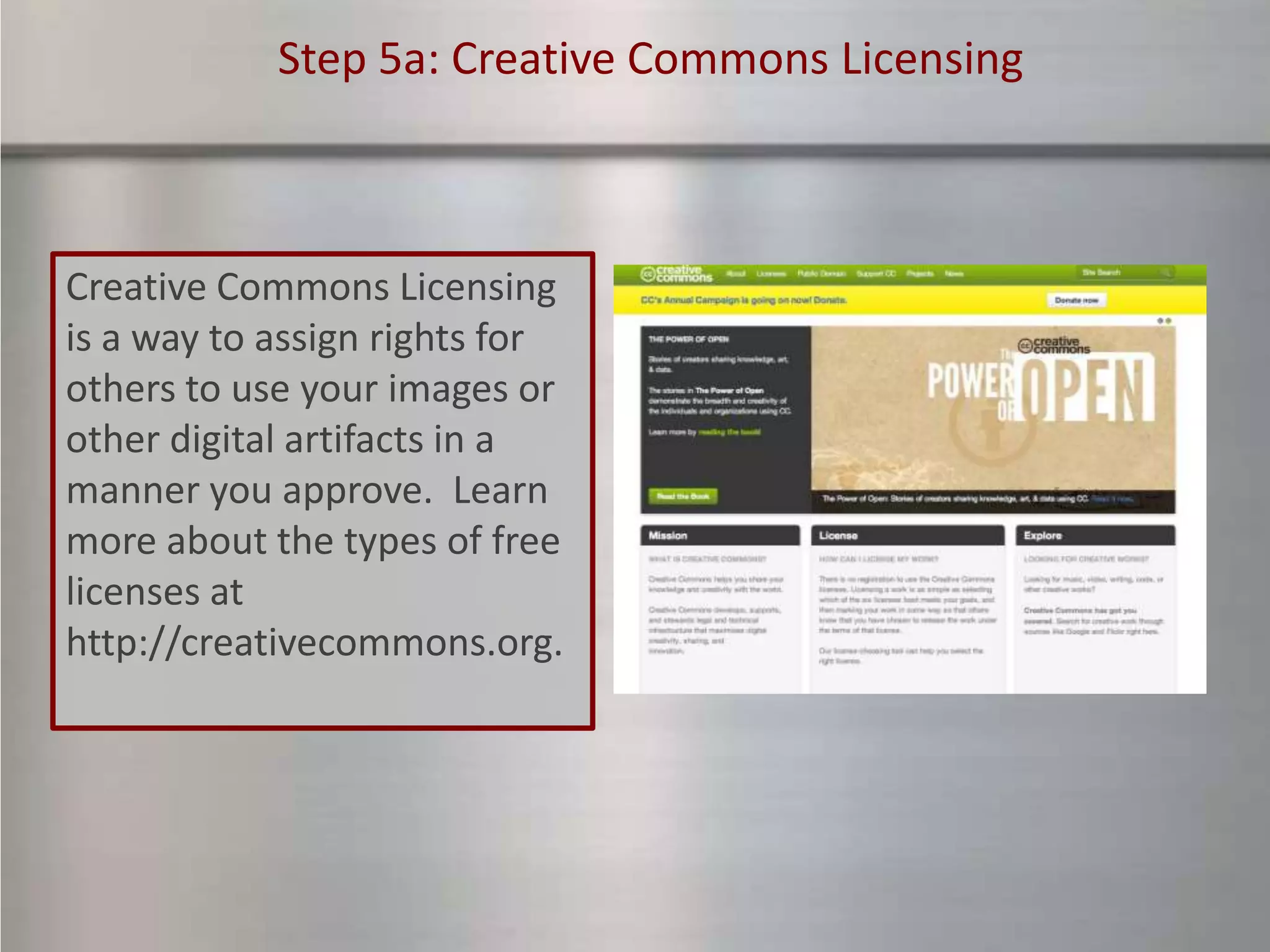
Step 5a: Creative Commons Licensing


Creative Commons Licensing
is a way to assign rights for
others to use your images or
other digital artifacts in a
manner you approve. Learn
more about the types of free
licenses at
http://creativecommons.org.
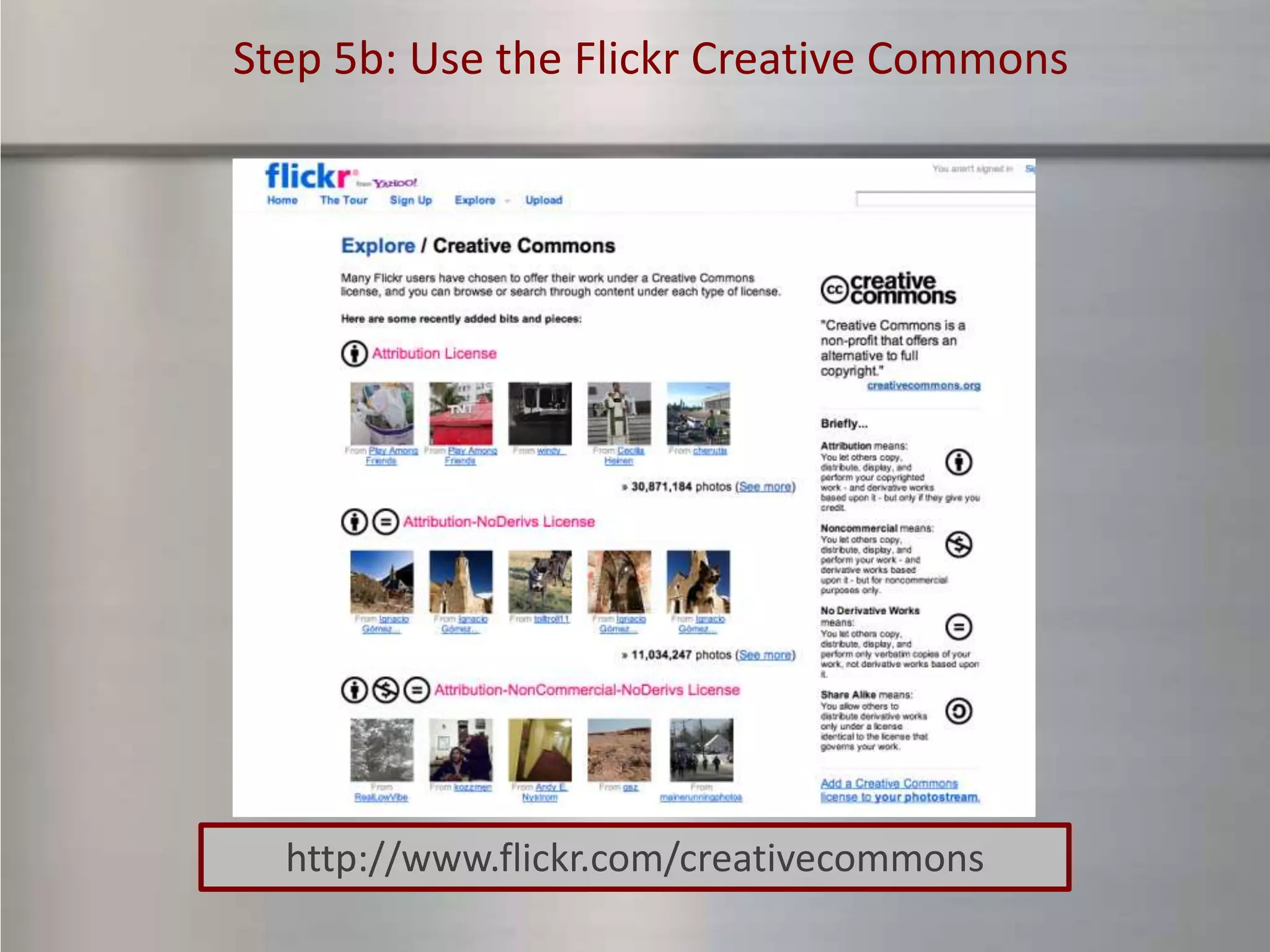
Step 5b: Use the Flickr Creative Commons


  http://www.flickr.com/creativecommons
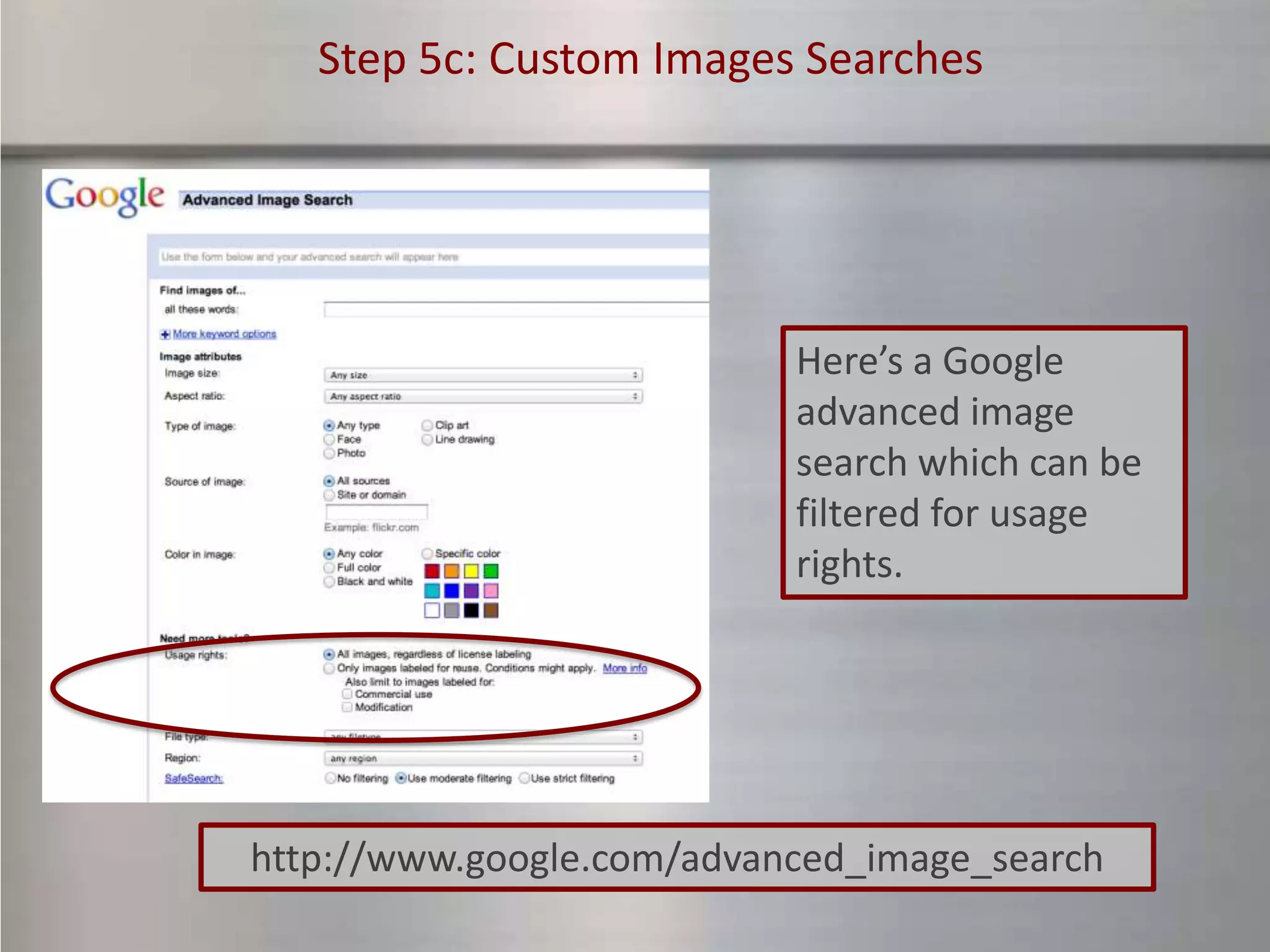
Step 5c: Custom Images Searches


                           Here’s a Google
                           advanced image
                           search which can be
                           filtered for usage
                           rights.


http://www.google.com/advanced_image_search
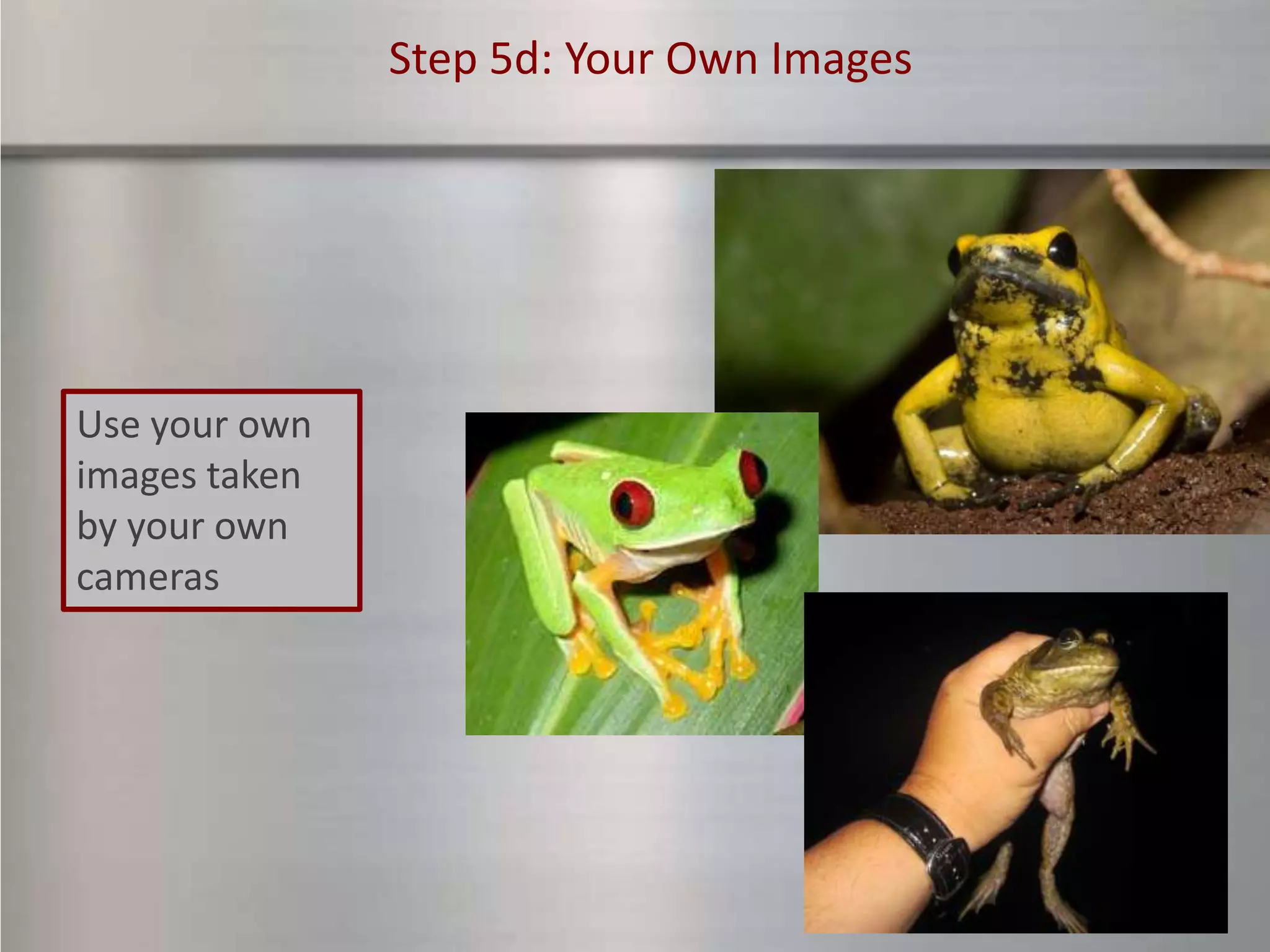
Step 5d: Your Own Images


Use your own
images taken
by your own
cameras
Step 5e: PowerPoint Slides


               Create your slides within
               PowerPoint and save the
               slides as .JPGs. In this way,
               images can be edited or
               combined with text and
               shapes, to make interesting
               slides.
Creating the
VoiceThread
Step 6: Create a VoiceThread Account

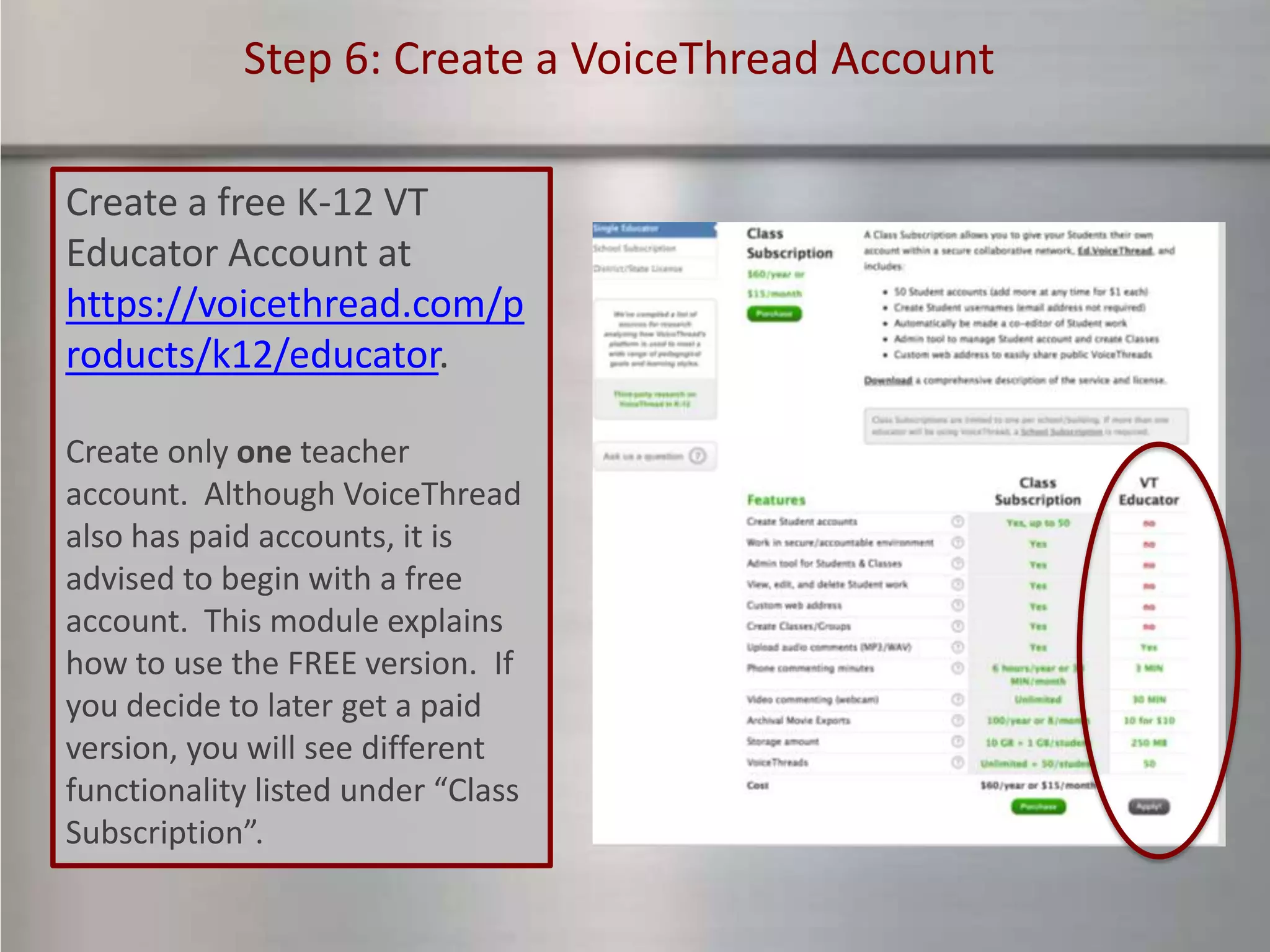
Create a free K-12 VT
Educator Account at
https://voicethread.com/p
roducts/k12/educator.

Create only one teacher
account. Although VoiceThread
also has paid accounts, it is
advised to begin with a free
account. This module explains
how to use the FREE version. If
you decide to later get a paid
version, you will see different
functionality listed under “Class
Subscription”.
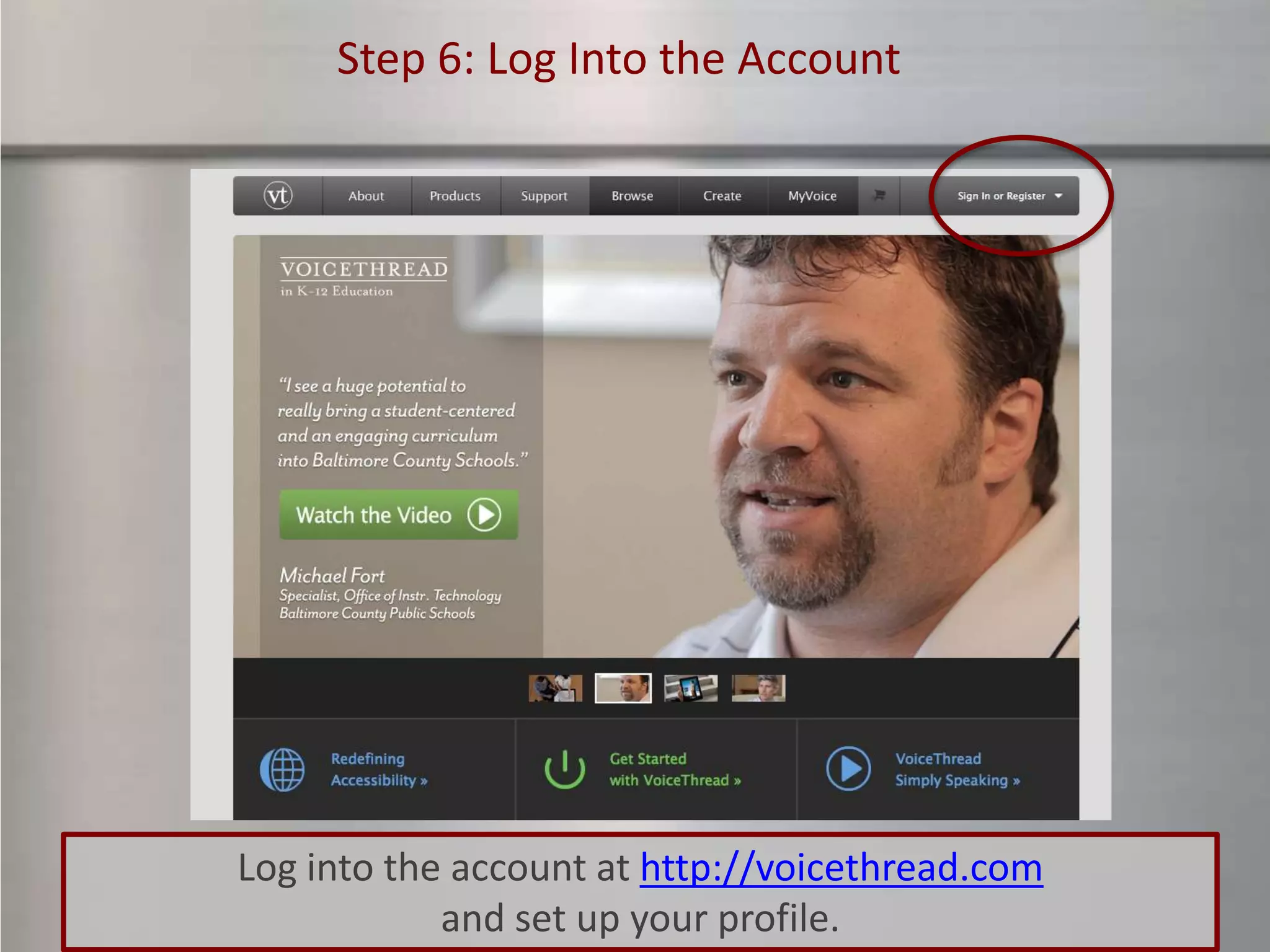
Step 6: Log Into the Account


Log into the account at http://voicethread.com
            and set up your profile.
Step 7: Watch the Informational Video


                    Athttps://ed.voicethread.com/products
                    /k12 , watch an overview video to learn
                    more and familiarize yourself with the
                    support portal. Click on the “Browse”
                    link to see VoiceThreads created by
                    others. When ready, go to
                    http://voicethread.com and click on
                    the “Create” button. [Note: Only paid
                    accounts work under the
                    ed.voicethread.com website.]
Step 8: Upload Your Images


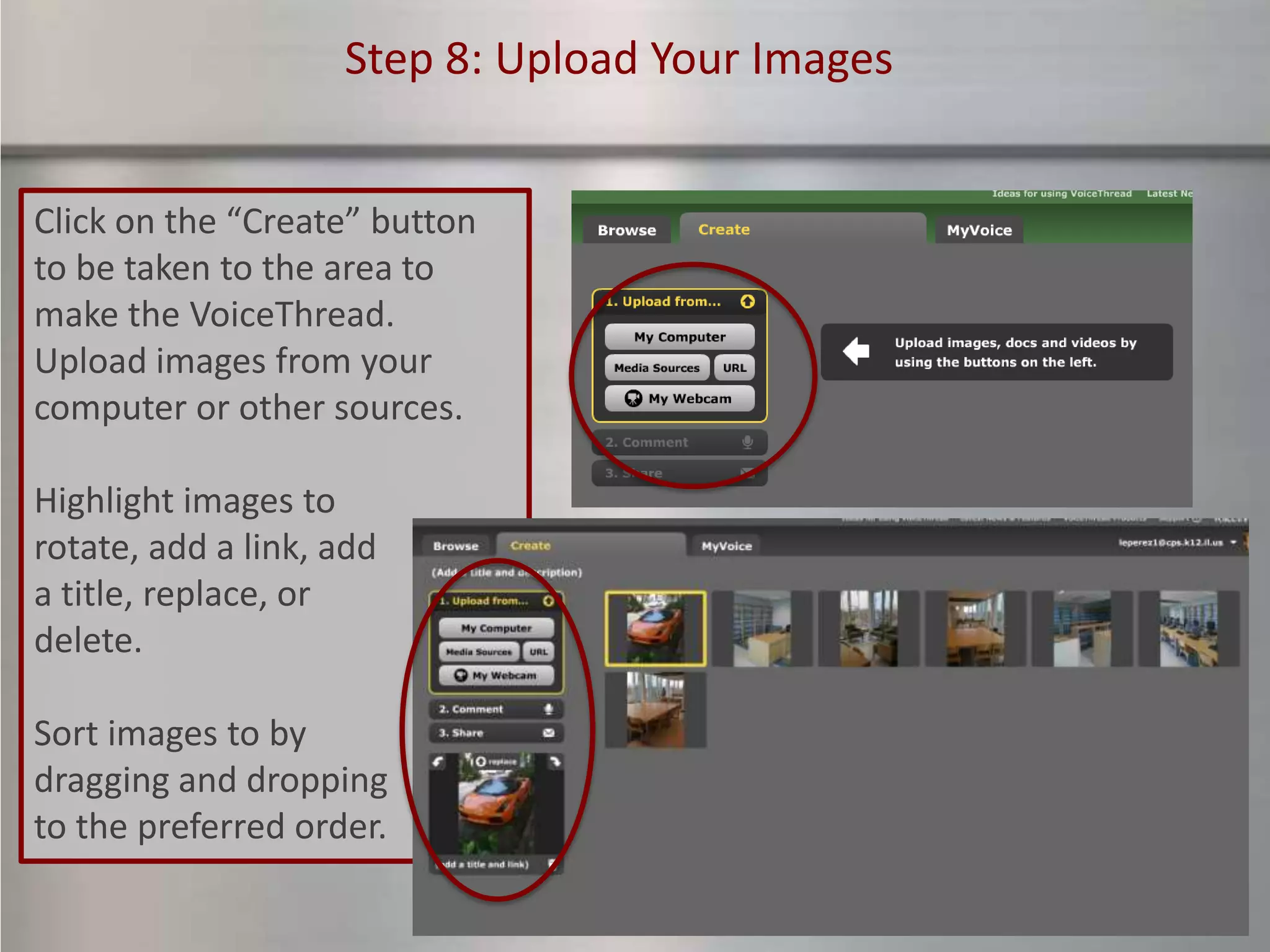
Click on the “Create” button
to be taken to the area to
make the VoiceThread.
Upload images from your
computer or other sources.

Highlight images to
rotate, add a link, add
a title, replace, or
delete.

Sort images to by
dragging and dropping
to the preferred order.
Step 9: Add Your Voice


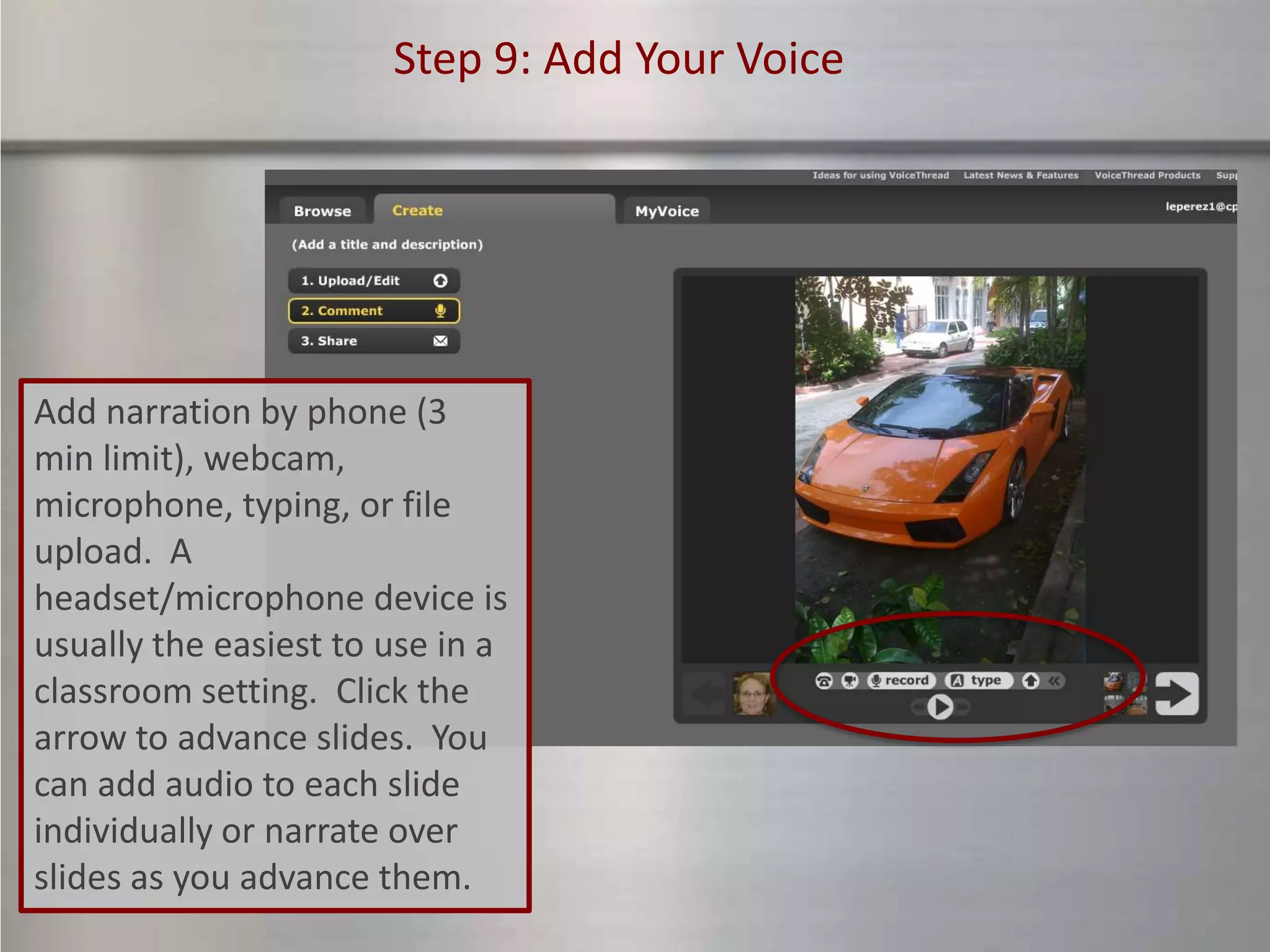
Add narration by phone (3
min limit), webcam,
microphone, typing, or file
upload. A
headset/microphone device is
usually the easiest to use in a
classroom setting. Click the
arrow to advance slides. You
can add audio to each slide
individually or narrate over
slides as you advance them.
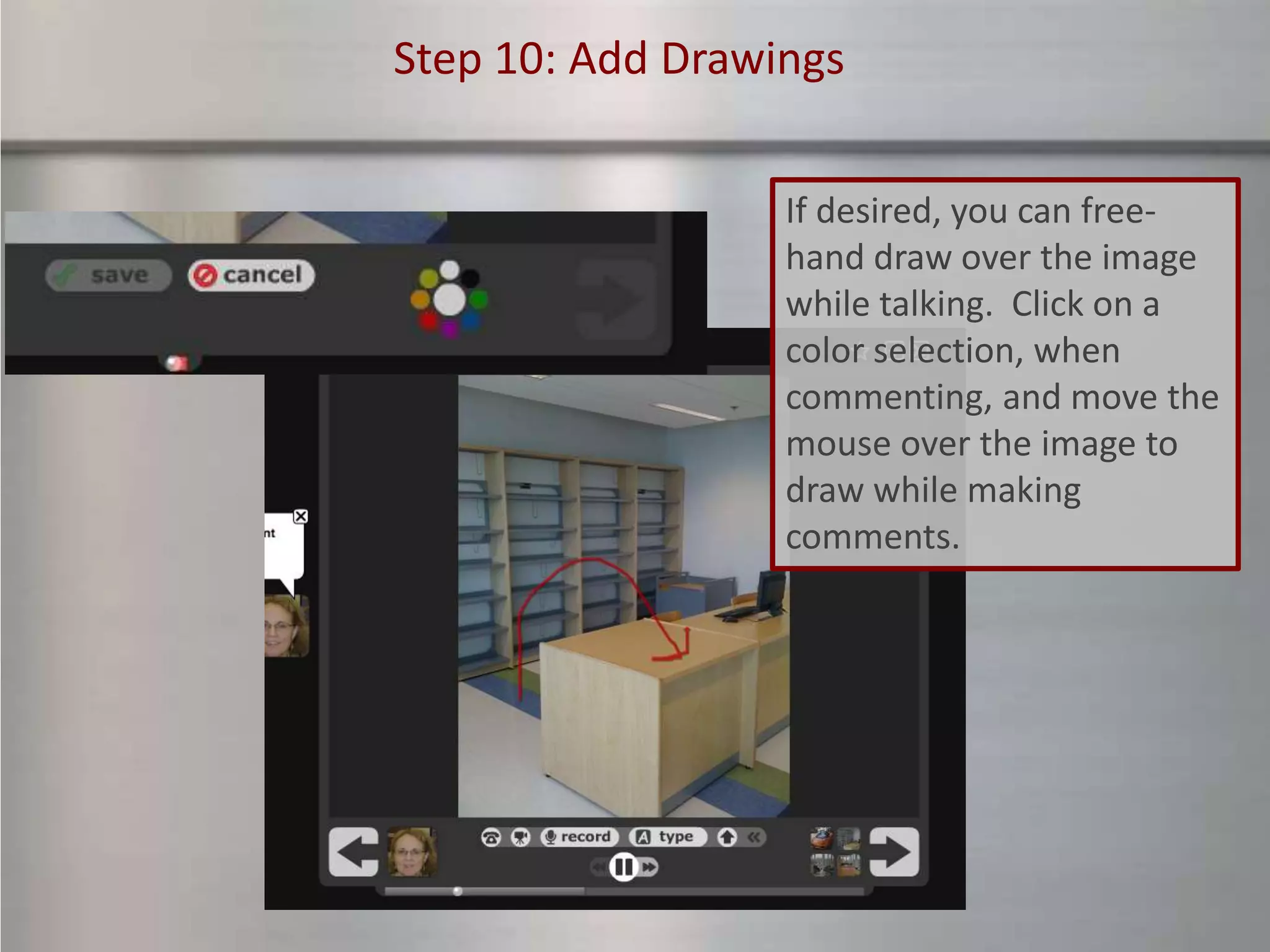
Step 10: Add Drawings


                  If desired, you can free-
                  hand draw over the image
                  while talking. Click on a
                  color selection, when
                  commenting, and move the
                  mouse over the image to
                  draw while making
                  comments.
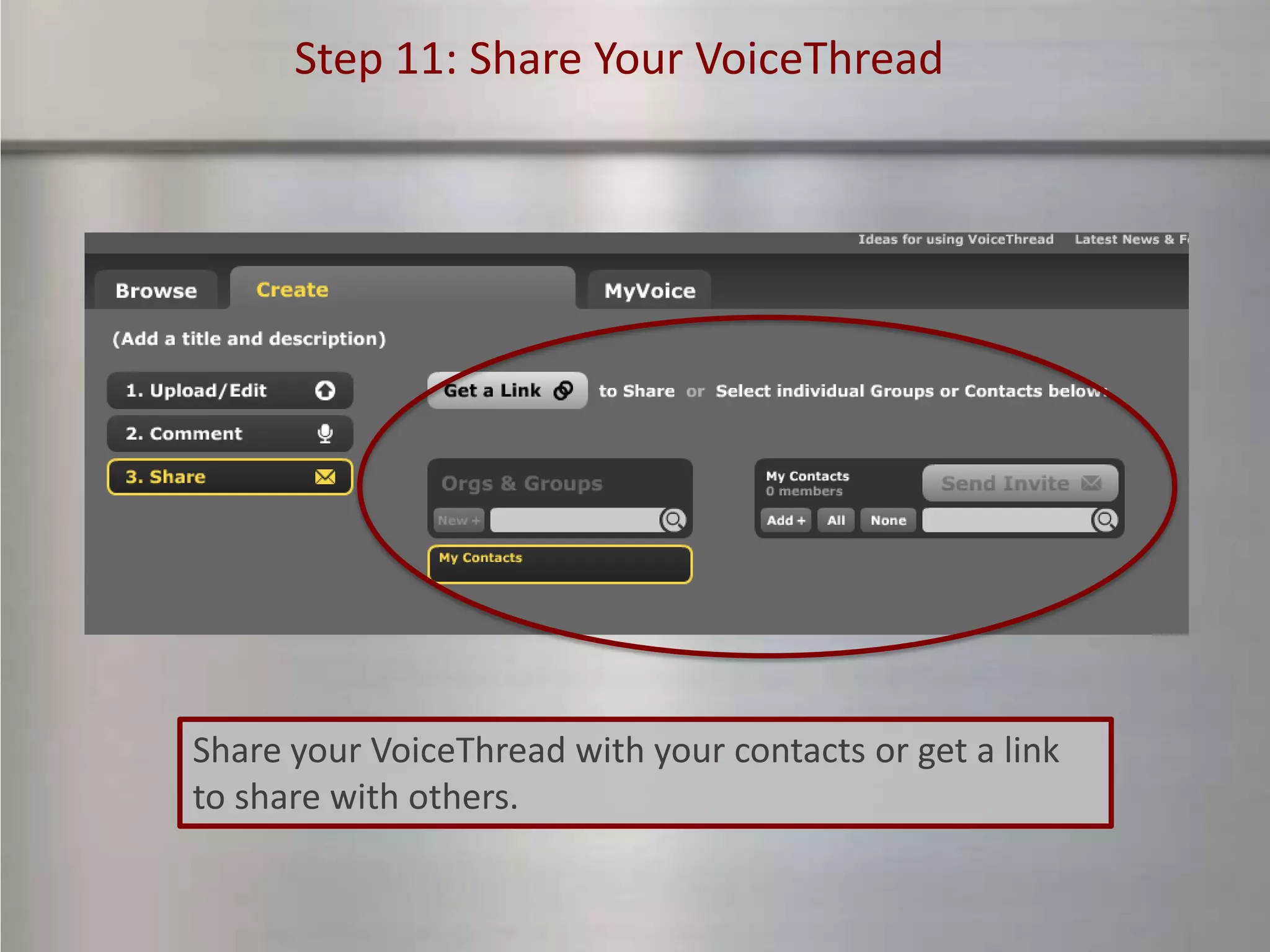
Step 11: Share Your VoiceThread


Share your VoiceThread with your contacts or get a link
to share with others.
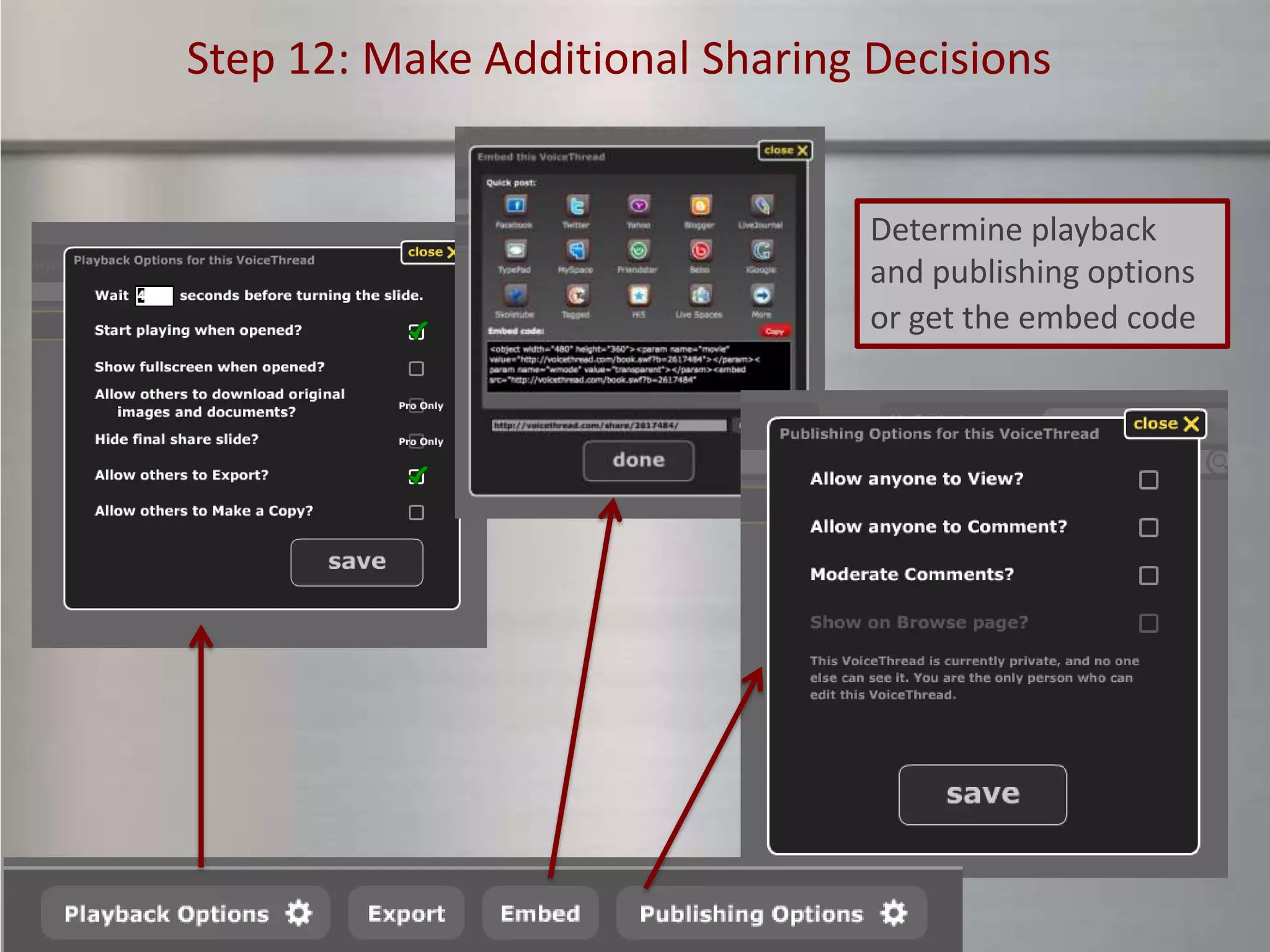
Step 12: Make Additional Sharing Decisions


                                 Determine playback
                                 and publishing options
                                 or get the embed code
Step 13: VoiceThread Classroom Logistics


Free VT Educator accounts allow up to 50 VoiceThreads to be created under one
teacher account. With the free VT Educator account, the following classroom
procedures are recommended:

    • All activities leading up to the actual creation of the VoiceThreads can
      be done as full-group activities
    • The VoiceThreads should be created by each student individually or by
      small groups working together at one computer. The teacher should log
      into the account and not share the password with students. You cannot
      log into two computers with the same account simultaneously.
    • It is possible to create various student identities within the main teacher
      account, if desired. (See next slide)
    • Monitor students as they work. Be aware that students will have access
      to the work of other students. Students should be advised to only edit
      their own VoiceThread.
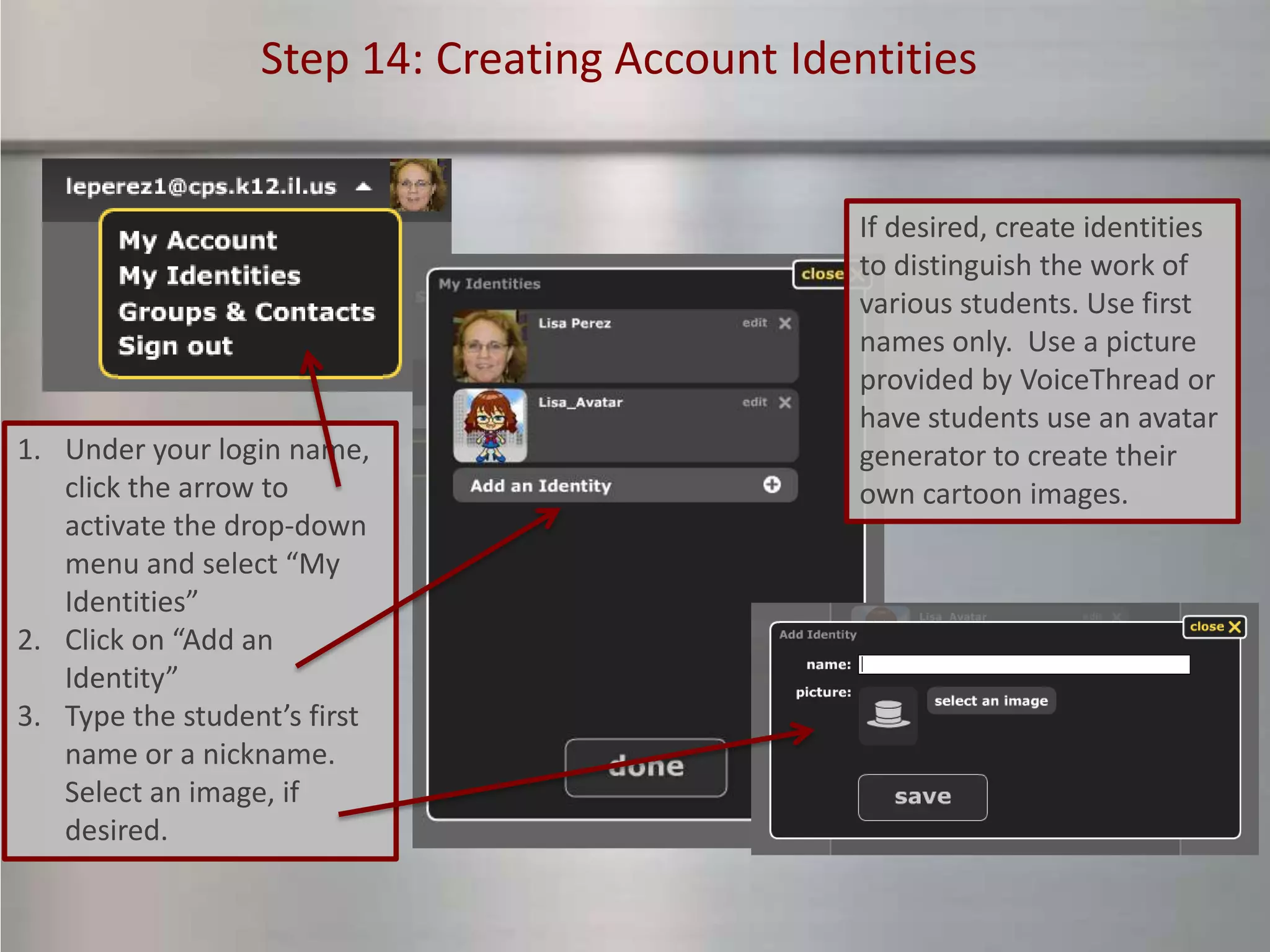
Step 14: Creating Account Identities


                                                If desired, create identities
                                                to distinguish the work of
                                                various students. Use first
                                                names only. Use a picture
                                                provided by VoiceThread or
                                                have students use an avatar
1. Under your login name,                       generator to create their
   click the arrow to                           own cartoon images.
   activate the drop-down
   menu and select “My
   Identities”
2. Click on “Add an
   Identity”
3. Type the student’s first
   name or a nickname.
   Select an image, if
   desired.
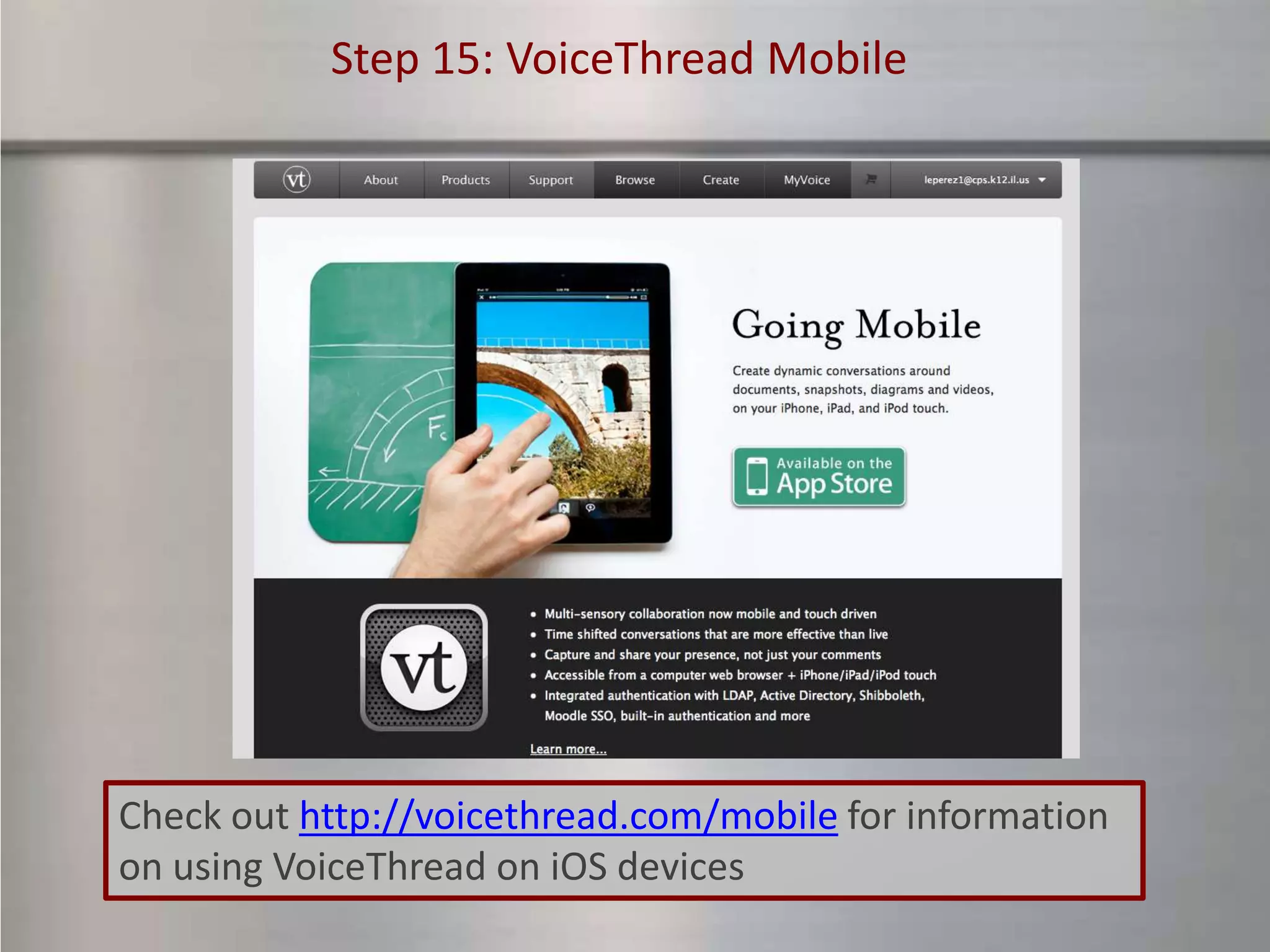
Step 15: VoiceThread Mobile


Check out http://voicethread.com/mobile for information
on using VoiceThread on iOS devices
Step 16: More Digital Storytelling platforms


Once you’ve tried VoiceThread, you may want to continue with
this easy and effective digital storytelling platform. Other
technologies to investigate in the future include:

   • Microsoft Photostory (download to computer)
   • Movie Maker or iMovie or CamStudio (movie editing,
     download to computer)
   • PowerPoint with narration
   • Various iPad apps, such as StoryKit, Toontastic, and
     Screen Chomp
   • PicLits, Storybird, Animoto, Zooburst, and other web-
     based programs.
DETAIL: Digital Storytelling with VoiceThread

DETAIL: Digital Storytelling with VoiceThread

  • 1.
    Chicago Public Schools Department of Educational Technology CPS DETAIL TECHNOLOGY TRAINING Digital Storytelling to Support Comprehension of Central Themes, Details, and Text Structure
  • 2.
    What is digitalstorytelling? Digital stories combine images, drawings, and voice narration to create stories that can be shared with others. These stories can be narrative in form or contain research-based information from across the curriculum. Students develop skills in creating central story themes, establishing supporting details, and writing scripts that demonstrate an understanding of text structure while leveraging literary devices to improve the story. Students develop speaking and listening skills by creating the audio component. They build information and visual literacy skills, artistic sensibilities, and technology skills while making digital photo selections, adding drawn content to the images, and incorporating narration.
  • 3.
    Digital Stories inthe Classroom Teachers can use digital stories to • Share research as a digital story • Develop writing and speaking skills • Foster collaboration between peers • Cultivate visual literacy skills • Integrate educational technology with the curriculum
  • 4.
    Using Digital Storiesto Address CCSS (Primary Example) Digital stories can be used to address a very wide range of CCSS. • A primary grade teacher creates a unit of instruction on nutrition. The students take notes about healthy eating habits based on books they read and instructional videos they watch. The classroom teacher collaborates with the librarian, so part of the notetaking is done in the library. Using a simple, teacher-created, two-column graphic organizer, the students write short reports about what they have learned, breaking them into discreet segments in the right column, creating a storyboard of the planned digital story. Next, in collaboration with the computer teacher, the students identify and download pictures that illustrate each segment of their report. The students upload their images and comment on them, using their report scripts, at the VoiceThread website Selected related anchor CCSS: R2, R7, R10, W1 > W10, SL2, SL4, SL5, L1
  • 5.
    Using Digital Storiesto Address CCSS (Intermediate Example) Digital stories can be used to address a very wide range of CCSS. • A middle grades social studies teacher creates a unit on “Sub-Saharan Africa”. In this unit, small groups of students research various aspects of the topic, such as the politics, history, geography, identity, and culture. They use various print and electronic sources to get knowledge, leveraging their time in the library, as well as the classroom. The notes are used to create the scripts of their digital stories. In the classroom or computer lab, students download appropriate images to illustrate their stories. They use the images and scripts to create their VoiceThread digital stories. As a follow-up, students perform peer assessment by commenting appropriately on each other’s VoiceThreads. Selected related anchor CCSS: R2, R7, R10, W1 > W10, SL2, SL4, SL5, L1
  • 6.
    Using Digital Storiesto Address CCSS (High School Example) Digital stories can be used to address a very wide range of CCSS. • A high school history teacher creates a unit of study on the topic of “Immigration & the Progressive Era”. Students research component topics, such as politics, history, identity, and culture of the time period. They use print and digital resources from their library to get background information. They also use a museum fieldtrip to analyze artifacts of the time and to listen to recorded oral histories of immigrants. They use this information to compare and contrast the experiences of immigrants in that time period with modern immigrants to Chicago based on interviews of people they know and additional research. At each step, they build a collection of relevant images. They prepare formal research papers to share the results of their research and, also, create a companion VoiceThread to tell the fictionalized story of an immigrant of that era who played a unique role in society. Selected related anchor CCSS: R2, R7, R10, W1 > W10, SL2, SL4, SL5, L1
  • 7.
    Samples of CPSDigital Stories “Wilma Rudolph” - Byrne Elementary School http://voicethread.com/?#q.b1019998.i5438613 “Poverty in Africa” – Inter-American Magnet Elementary School http://voicethread.com/#q.b1202237.i6484572 “Tamales” in Spanish – Westinghouse High School http://voicethread.com/?#q.b1050940.i5606694 “The Life Cycle of a Plant” – Pirie Elementary School http://voicethread.com/?#q.b1168171.i6294666 “Brazil” – Daniel Hale Williams Prep http://voicethread.com/#q.b1733064.i9119290
  • 8.
    Using VoiceThread Digital storiescan be told by using a variety of technologies, including edited video, narrated slideshows, and software programs. This tutorial uses the online tool VoiceThread. Its advantages include: • Applicability to K – 12 educational environments • Multiple commenting format to meet various student needs • Easy online accessibility • Shallow learning curve • Ability to safely monitor student activity • Availability of a free teacher version
  • 9.
    Preparing to Make the VoiceThread
  • 10.
    Step 1: Identifythe Purpose of the Story Determine the Common Core State Standards and curriculum objectives that you need to address with this assignment. Pay particular attention to writing and research-related standards. Identify content-related standards that can also be incorporated into the assignment. Use this information to create the scope of the assignment for your students.
  • 11.
    Step 2: Research& Information Gathering Research-related stories • Plan for the research process • Incorporate print and digital resources • Leverage the librarian, computer teacher, literacy specialist or other partner teachers who can collaborate in the process • Use graphic organizers or other note-taking devices to help students keep track of their work • Monitor the process to help student summarize their research effectively and cite their sources Creative stories • Plan for the research process, if needed • Help students create a story map or outline to assist in the planning of their stories This step can be a distinct part of the assessment and grading process.
  • 12.
    Step 3: Createthe Script Direct students to prepare a script that they plan to use in the creation of their VoiceThread digital stories. The script can be assess for the use of: • Central themes, supporting details, text structure, and employment of literary devices • Accurate, cited information that is summarized in the student’s own words (research-related) • Story development (creative writing) This step can be a distinct part of the assessment and grading process.
  • 13.
    Step 4: Storyboards Storyboardscan be used to plan the digital story. This step can be done in conjunction with the script-writing or separately. • Use the storyboard to identify visual images needed for the story and to separate the script into segments. • A simple, teacher-made blank, gridded table with two columns is often sufficient. There are many other storyboard templates available on the Internet. • In VoiceThread, it is possible to extend one segment of narration across multiple visual images. This step can be a distinct part of the assessment and grading process.
  • 14.
    Step 5: GettingImages There are a variety of ways to get images for use in VoiceThread. Consider partnering with the librarian, computer teacher, or another collaborating teacher for this phase. To build digital citizenship responsibilities, make sure students use images for which they have permission. Images with Creative Commons licensing are the easiest to use. Have students save the URLs of these images and include them in the final slide of their VoiceThreads. See the following slides for more information. This step can be a distinct part of the assessment and grading process.
  • 15.
    Step 5a: CreativeCommons Licensing Creative Commons Licensing is a way to assign rights for others to use your images or other digital artifacts in a manner you approve. Learn more about the types of free licenses at http://creativecommons.org.
  • 16.
    Step 5b: Usethe Flickr Creative Commons http://www.flickr.com/creativecommons
  • 17.
    Step 5c: CustomImages Searches Here’s a Google advanced image search which can be filtered for usage rights. http://www.google.com/advanced_image_search
  • 18.
    Step 5d: YourOwn Images Use your own images taken by your own cameras
  • 19.
    Step 5e: PowerPointSlides Create your slides within PowerPoint and save the slides as .JPGs. In this way, images can be edited or combined with text and shapes, to make interesting slides.
  • 20.
  • 21.
    Step 6: Createa VoiceThread Account Create a free K-12 VT Educator Account at https://voicethread.com/p roducts/k12/educator. Create only one teacher account. Although VoiceThread also has paid accounts, it is advised to begin with a free account. This module explains how to use the FREE version. If you decide to later get a paid version, you will see different functionality listed under “Class Subscription”.
  • 22.
    Step 6: LogInto the Account Log into the account at http://voicethread.com and set up your profile.
  • 23.
    Step 7: Watchthe Informational Video Athttps://ed.voicethread.com/products /k12 , watch an overview video to learn more and familiarize yourself with the support portal. Click on the “Browse” link to see VoiceThreads created by others. When ready, go to http://voicethread.com and click on the “Create” button. [Note: Only paid accounts work under the ed.voicethread.com website.]
  • 24.
    Step 8: UploadYour Images Click on the “Create” button to be taken to the area to make the VoiceThread. Upload images from your computer or other sources. Highlight images to rotate, add a link, add a title, replace, or delete. Sort images to by dragging and dropping to the preferred order.
  • 25.
    Step 9: AddYour Voice Add narration by phone (3 min limit), webcam, microphone, typing, or file upload. A headset/microphone device is usually the easiest to use in a classroom setting. Click the arrow to advance slides. You can add audio to each slide individually or narrate over slides as you advance them.
  • 26.
    Step 10: AddDrawings If desired, you can free- hand draw over the image while talking. Click on a color selection, when commenting, and move the mouse over the image to draw while making comments.
  • 27.
    Step 11: ShareYour VoiceThread Share your VoiceThread with your contacts or get a link to share with others.
  • 28.
    Step 12: MakeAdditional Sharing Decisions Determine playback and publishing options or get the embed code
  • 29.
    Step 13: VoiceThreadClassroom Logistics Free VT Educator accounts allow up to 50 VoiceThreads to be created under one teacher account. With the free VT Educator account, the following classroom procedures are recommended: • All activities leading up to the actual creation of the VoiceThreads can be done as full-group activities • The VoiceThreads should be created by each student individually or by small groups working together at one computer. The teacher should log into the account and not share the password with students. You cannot log into two computers with the same account simultaneously. • It is possible to create various student identities within the main teacher account, if desired. (See next slide) • Monitor students as they work. Be aware that students will have access to the work of other students. Students should be advised to only edit their own VoiceThread.
  • 30.
    Step 14: CreatingAccount Identities If desired, create identities to distinguish the work of various students. Use first names only. Use a picture provided by VoiceThread or have students use an avatar 1. Under your login name, generator to create their click the arrow to own cartoon images. activate the drop-down menu and select “My Identities” 2. Click on “Add an Identity” 3. Type the student’s first name or a nickname. Select an image, if desired.
  • 31.
    Step 15: VoiceThreadMobile Check out http://voicethread.com/mobile for information on using VoiceThread on iOS devices
  • 32.
    Step 16: MoreDigital Storytelling platforms Once you’ve tried VoiceThread, you may want to continue with this easy and effective digital storytelling platform. Other technologies to investigate in the future include: • Microsoft Photostory (download to computer) • Movie Maker or iMovie or CamStudio (movie editing, download to computer) • PowerPoint with narration • Various iPad apps, such as StoryKit, Toontastic, and Screen Chomp • PicLits, Storybird, Animoto, Zooburst, and other web- based programs.