BANK ACCOUNTING
END USER TRAINING DOCUMENTS
COST CENTER ACCOUNTING
FCH5 -
Functionality
This functions allows you to link manually issued checks with the payment documents. In
order to keep the use and management of manually created checks separate from those
created automatically, a separate number range should be reserved for them.
Scenario
The automatic payment run was made without having the relevant check lot in the system.
You have to enter the check details in the check register manually.
Requirements
You need to manually post a payment document before you can use this transaction.
Menu Path Accounting → Financial Accounting → Accounts Payable →
Environment → Check information → Create → FCH5 -
Manual checks
Transaction Code FCH5
1. Double click on FCH5 - Manual checks.
SAPTOPJOBS Page 1 of 5
BANK ACCOUNTING
END USER TRAINING DOCUMENTS
COST CENTER ACCOUNTING
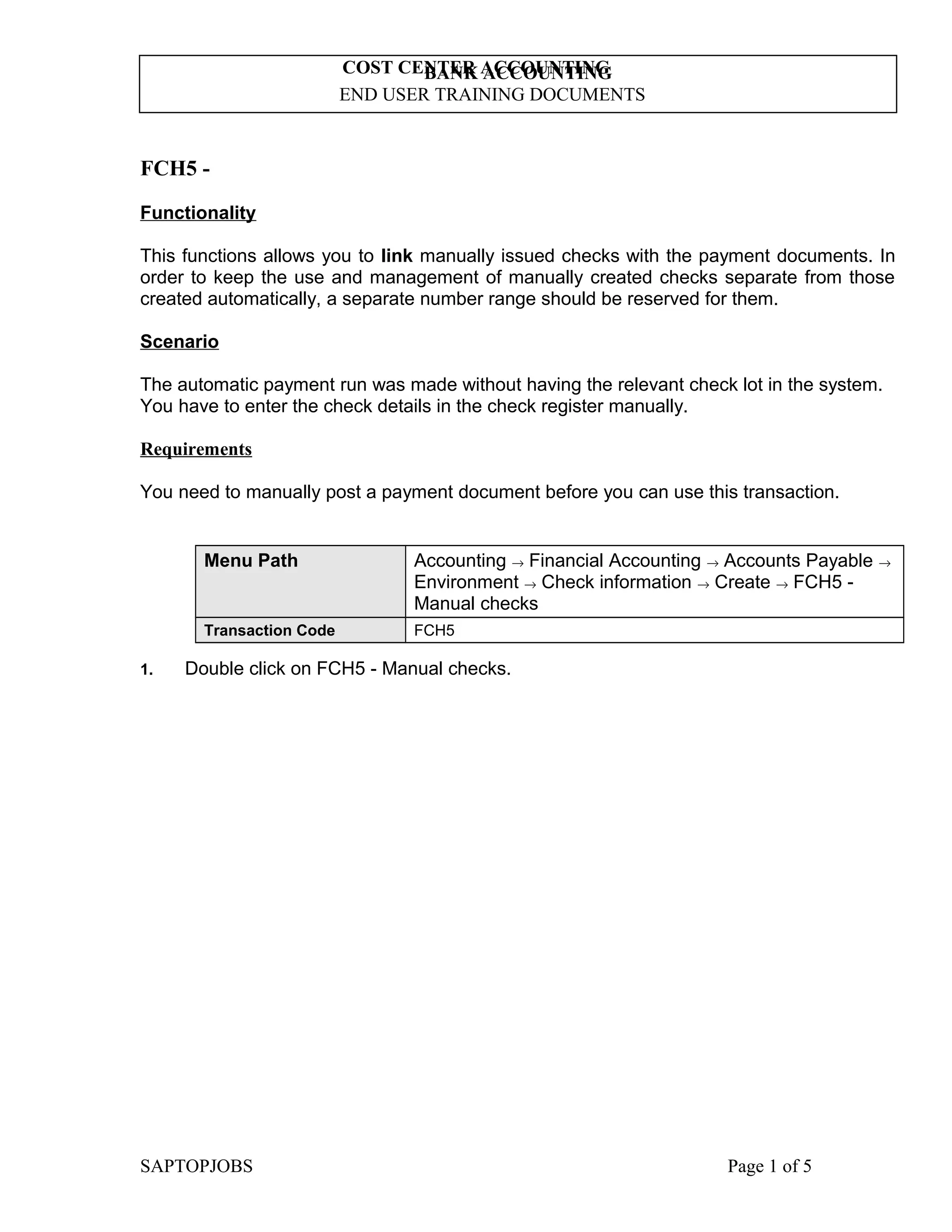
Create Check Information
2. Update the following fields:
Field Name Field Description Values
Payment document
number
Number of payment document
you want to create a check for
Example: 150000020
Paying company code The company code which
processes the payment
transactions
Example: 5200
Fiscal year Fiscal year number Example: 2002
House bank Identification number for the
house bank to which the
transaction corresponds
Enter value in House bank.
Example: CITI
Account ID Code identifying the account to
which the General Ledger
account corresponds
Enter value in Account ID.
Example: OP001
Check number The unique check number per
company code, bank, and
account number
Example: 1000015
SAPTOPJOBS Page 2 of 5
BANK ACCOUNTING
END USER TRAINING DOCUMENTS
COST CENTER ACCOUNTING
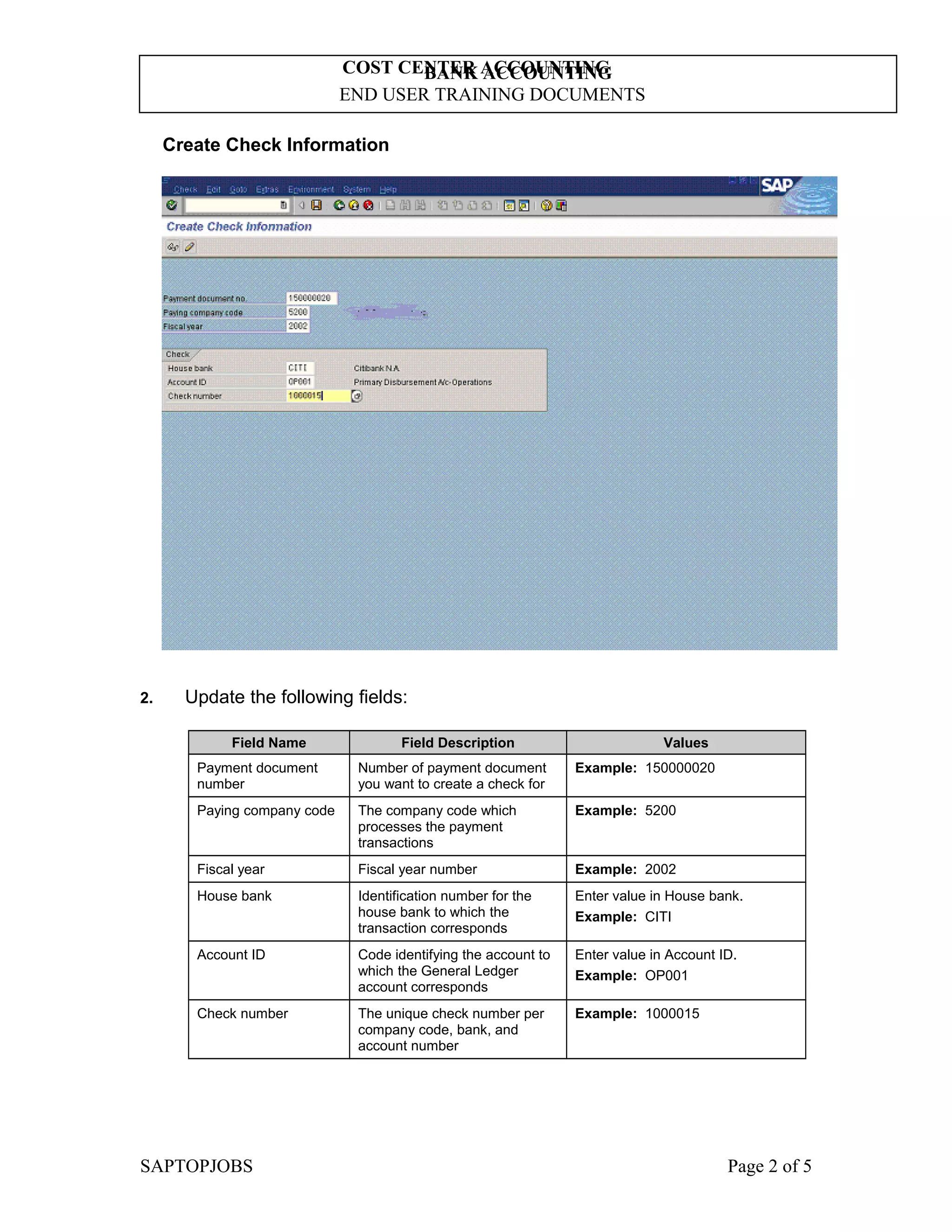
3. Click Enter Button to confirm your entries.
Create Check Information
4. Update the following fields:
Field Name Field Description Values
Amount paid Amount for which the check is
written
Example: 10000
Payee name Name of the vendor being paid Example: Enter Payee name here
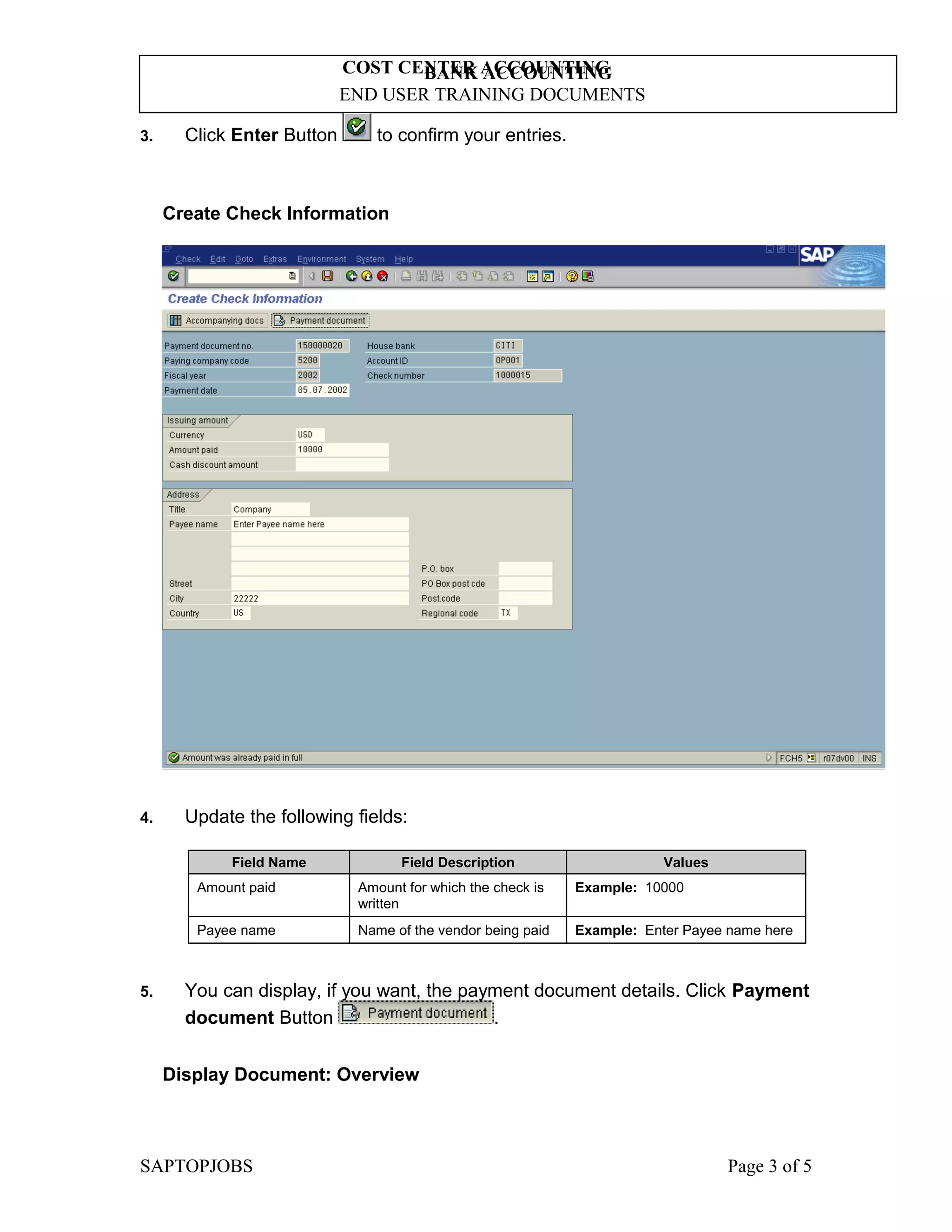
5. You can display, if you want, the payment document details. Click Payment
document Button .
Display Document: Overview
SAPTOPJOBS Page 3 of 5
BANK ACCOUNTING
END USER TRAINING DOCUMENTS
COST CENTER ACCOUNTING
6. Click Back Button .
SAPTOPJOBS Page 4 of 5
BANK ACCOUNTING
END USER TRAINING DOCUMENTS
COST CENTER ACCOUNTING
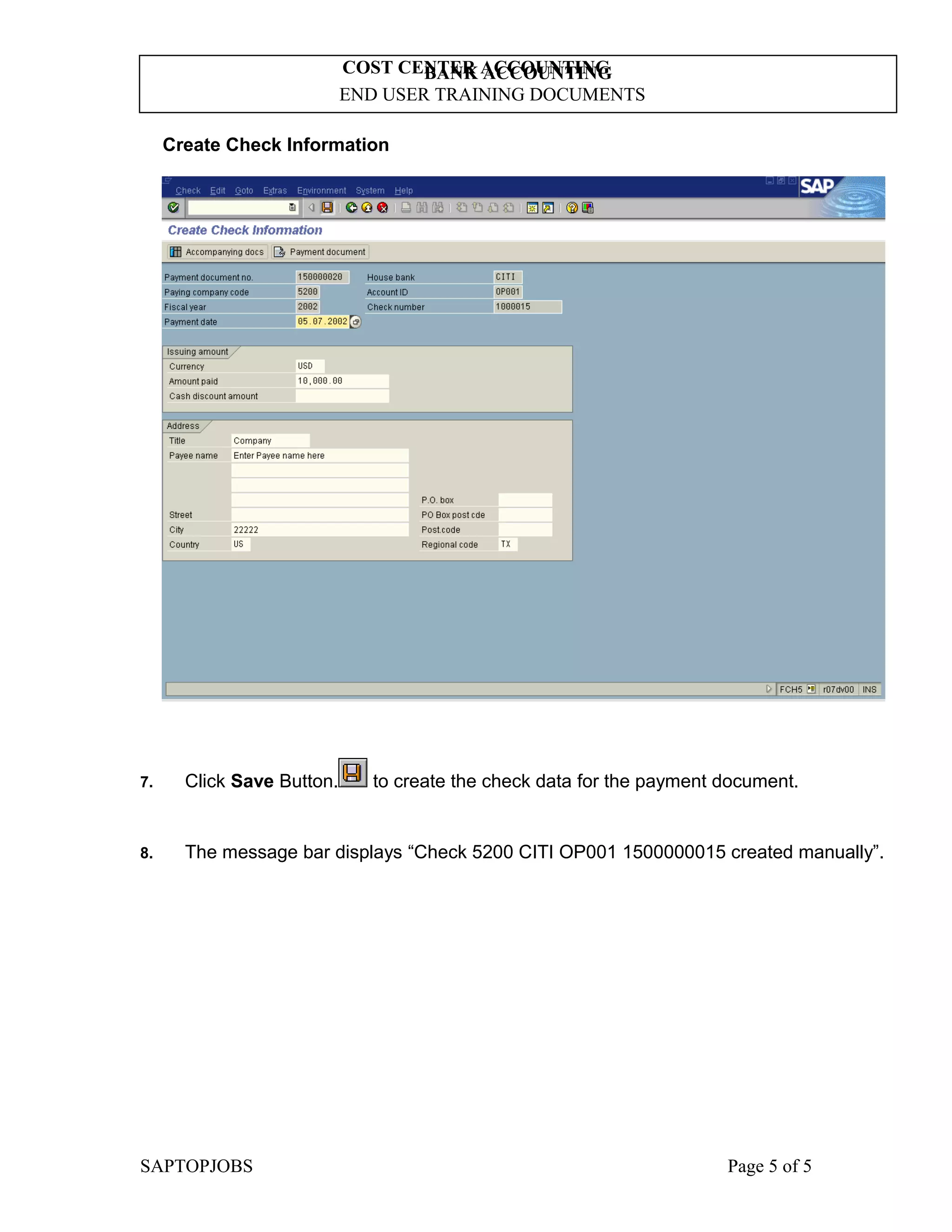
Create Check Information
7. Click Save Button. to create the check data for the payment document.
8. The message bar displays “Check 5200 CITI OP001 1500000015 created manually”.
SAPTOPJOBS Page 5 of 5
BANK ACCOUNTING
END USER TRAINING DOCUMENTS
COST CENTER ACCOUNTING
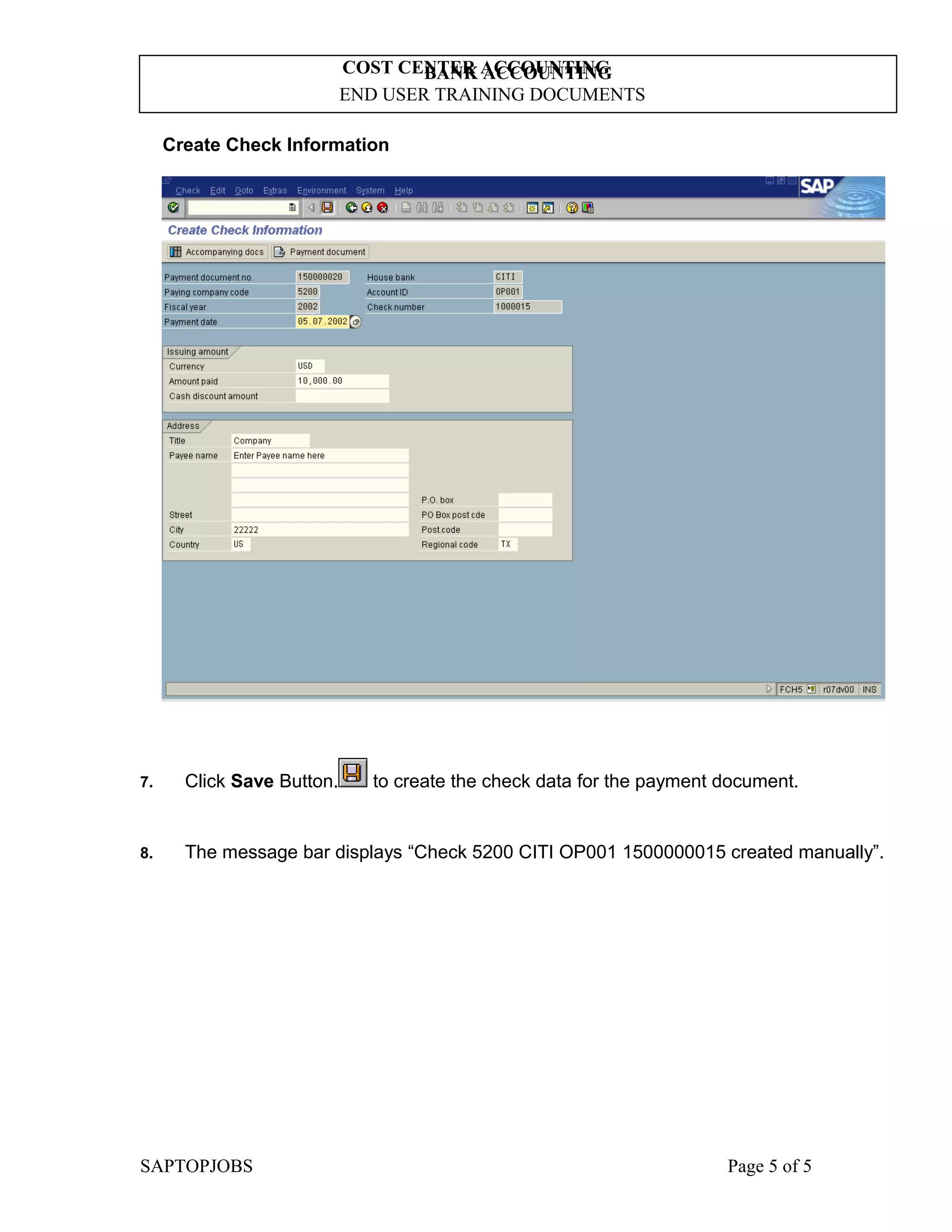
Create Check Information
7. Click Save Button. to create the check data for the payment document.
8. The message bar displays “Check 5200 CITI OP001 1500000015 created manually”.
SAPTOPJOBS Page 5 of 5

Fch5 create manual checks

  • 1.
    BANK ACCOUNTING END USERTRAINING DOCUMENTS COST CENTER ACCOUNTING FCH5 - Functionality This functions allows you to link manually issued checks with the payment documents. In order to keep the use and management of manually created checks separate from those created automatically, a separate number range should be reserved for them. Scenario The automatic payment run was made without having the relevant check lot in the system. You have to enter the check details in the check register manually. Requirements You need to manually post a payment document before you can use this transaction. Menu Path Accounting → Financial Accounting → Accounts Payable → Environment → Check information → Create → FCH5 - Manual checks Transaction Code FCH5 1. Double click on FCH5 - Manual checks. SAPTOPJOBS Page 1 of 5
  • 2.
    BANK ACCOUNTING END USERTRAINING DOCUMENTS COST CENTER ACCOUNTING Create Check Information 2. Update the following fields: Field Name Field Description Values Payment document number Number of payment document you want to create a check for Example: 150000020 Paying company code The company code which processes the payment transactions Example: 5200 Fiscal year Fiscal year number Example: 2002 House bank Identification number for the house bank to which the transaction corresponds Enter value in House bank. Example: CITI Account ID Code identifying the account to which the General Ledger account corresponds Enter value in Account ID. Example: OP001 Check number The unique check number per company code, bank, and account number Example: 1000015 SAPTOPJOBS Page 2 of 5
  • 3.
    BANK ACCOUNTING END USERTRAINING DOCUMENTS COST CENTER ACCOUNTING 3. Click Enter Button to confirm your entries. Create Check Information 4. Update the following fields: Field Name Field Description Values Amount paid Amount for which the check is written Example: 10000 Payee name Name of the vendor being paid Example: Enter Payee name here 5. You can display, if you want, the payment document details. Click Payment document Button . Display Document: Overview SAPTOPJOBS Page 3 of 5
  • 4.
    BANK ACCOUNTING END USERTRAINING DOCUMENTS COST CENTER ACCOUNTING 6. Click Back Button . SAPTOPJOBS Page 4 of 5
  • 5.
    BANK ACCOUNTING END USERTRAINING DOCUMENTS COST CENTER ACCOUNTING Create Check Information 7. Click Save Button. to create the check data for the payment document. 8. The message bar displays “Check 5200 CITI OP001 1500000015 created manually”. SAPTOPJOBS Page 5 of 5
  • 6.
    BANK ACCOUNTING END USERTRAINING DOCUMENTS COST CENTER ACCOUNTING Create Check Information 7. Click Save Button. to create the check data for the payment document. 8. The message bar displays “Check 5200 CITI OP001 1500000015 created manually”. SAPTOPJOBS Page 5 of 5