GENERAL LEDGER
END USER TRAINING DOCUMENTS
COST CENTER ACCOUNTING
F.13 -
Functionality
Automatic clearing allows you to clear many GL accounts in one transaction run. You can
use a test mode to check your entries before posting takes place.
In customizing you can define up to three fields that are treated by the system as the sort
criteria for clearing. For instance, you can decide that all the documents with the same
value in the field “Assignment” can be cleared.
Scenario
Certain GL accounts, e.g. accrual, that are managed on open item basis, have debits &
credits transactions. At the end of each month, you want to match (clear) certain debits to
credits automatically.
Requirements
The GL accounts must be flagged as open item.
Menu Path Accounting → Financial Accounting → General Ledger →
Periodic Processing → Automatic Clearing → F.13 -
Without Specification of Clearing Currency
Transaction Code F.13
1. Double click on F.13 - Without Specification of Clearing Currency
SAPTOPJOBS Page 1 of 4
GENERAL LEDGER
END USER TRAINING DOCUMENTS
COST CENTER ACCOUNTING
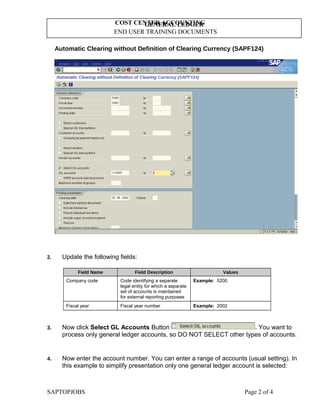
Automatic Clearing without Definition of Clearing Currency (SAPF124)
2. Update the following fields:
Field Name Field Description Values
Company code Code identifying a separate
legal entity for which a separate
set of accounts is maintained
for external reporting purposes
Example: 5200
Fiscal year Fiscal year number Example: 2002
3. Now click Select GL Accounts Button . You want to
process only general ledger accounts, so DO NOT SELECT other types of accounts.
4. Now enter the account number. You can enter a range of accounts (usual setting). In
this example to simplify presentation only one general ledger account is selected:
SAPTOPJOBS Page 2 of 4
GENERAL LEDGER
END USER TRAINING DOCUMENTS
COST CENTER ACCOUNTING
Field Name Field Description Values
General ledger
accounts
Number of general ledger
account
Example: 114005
5. At the bottom of the screen (you need to use a mouse to scroll the screen down)
there’s another radio button you need to select. Click Only docs which can be
cleared . This way the system will clear only the
documents that fulfill pre-defined clearing criteria (e.g. like the same assignment
number).
6. By default the system is in the test mode. Click Test run
button to turn it off.
7. You entered the selection criteria. Now click Execute Button to begin clearing
procedure.
SAPTOPJOBS Page 3 of 4
GENERAL LEDGER
END USER TRAINING DOCUMENTS
COST CENTER ACCOUNTING
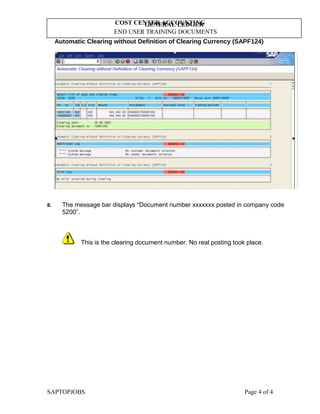
Automatic Clearing without Definition of Clearing Currency (SAPF124)
8. The message bar displays “Document number xxxxxxx posted in company code
5200”.
This is the clearing document number. No real posting took place.
SAPTOPJOBS Page 4 of 4

F.13 gl account automatic clearing

  • 1.
    GENERAL LEDGER END USERTRAINING DOCUMENTS COST CENTER ACCOUNTING F.13 - Functionality Automatic clearing allows you to clear many GL accounts in one transaction run. You can use a test mode to check your entries before posting takes place. In customizing you can define up to three fields that are treated by the system as the sort criteria for clearing. For instance, you can decide that all the documents with the same value in the field “Assignment” can be cleared. Scenario Certain GL accounts, e.g. accrual, that are managed on open item basis, have debits & credits transactions. At the end of each month, you want to match (clear) certain debits to credits automatically. Requirements The GL accounts must be flagged as open item. Menu Path Accounting → Financial Accounting → General Ledger → Periodic Processing → Automatic Clearing → F.13 - Without Specification of Clearing Currency Transaction Code F.13 1. Double click on F.13 - Without Specification of Clearing Currency SAPTOPJOBS Page 1 of 4
  • 2.
    GENERAL LEDGER END USERTRAINING DOCUMENTS COST CENTER ACCOUNTING Automatic Clearing without Definition of Clearing Currency (SAPF124) 2. Update the following fields: Field Name Field Description Values Company code Code identifying a separate legal entity for which a separate set of accounts is maintained for external reporting purposes Example: 5200 Fiscal year Fiscal year number Example: 2002 3. Now click Select GL Accounts Button . You want to process only general ledger accounts, so DO NOT SELECT other types of accounts. 4. Now enter the account number. You can enter a range of accounts (usual setting). In this example to simplify presentation only one general ledger account is selected: SAPTOPJOBS Page 2 of 4
  • 3.
    GENERAL LEDGER END USERTRAINING DOCUMENTS COST CENTER ACCOUNTING Field Name Field Description Values General ledger accounts Number of general ledger account Example: 114005 5. At the bottom of the screen (you need to use a mouse to scroll the screen down) there’s another radio button you need to select. Click Only docs which can be cleared . This way the system will clear only the documents that fulfill pre-defined clearing criteria (e.g. like the same assignment number). 6. By default the system is in the test mode. Click Test run button to turn it off. 7. You entered the selection criteria. Now click Execute Button to begin clearing procedure. SAPTOPJOBS Page 3 of 4
  • 4.
    GENERAL LEDGER END USERTRAINING DOCUMENTS COST CENTER ACCOUNTING Automatic Clearing without Definition of Clearing Currency (SAPF124) 8. The message bar displays “Document number xxxxxxx posted in company code 5200”. This is the clearing document number. No real posting took place. SAPTOPJOBS Page 4 of 4