EHP3 for SAP ERP
6.0
June 2009
English
Funds Management-Basic
Settings (951)
SAP AG
Dietmar-Hopp-Allee 16
69190 Walldorf
Germany
Building Block Configuration Guide
SAP Best Practices Funds Management-Basic Settings (951): Configuration Guide
© SAP AG Page 2 of 73
Copyright
© Copyright 2009 SAP AG. All rights reserved.
No part of this publication may be reproduced or transmitted in any form or for any purpose without the
express permission of SAP AG. The information contained herein may be changed without prior notice.
Some software products marketed by SAP AG and its distributors contain proprietary software components
of other software vendors.
Microsoft, Windows, Excel, Outlook, and PowerPoint are registered trademarks of Microsoft Corporation.
IBM, DB2, DB2 Universal Database, OS/2, Parallel Sysplex, MVS/ESA, AIX, S/390, AS/400, OS/390,
OS/400, iSeries, pSeries, xSeries, zSeries, System i, System i5, System p, System p5, System x, System z,
System z9, z/OS, AFP, Intelligent Miner, WebSphere, Netfinity, Tivoli, Informix, i5/OS, POWER, POWER5,
POWER5+, OpenPower and PowerPC are trademarks or registered trademarks of IBM Corporation.
Adobe, the Adobe logo, Acrobat, PostScript, and Reader are either trademarks or registered trademarks of
Adobe Systems Incorporated in the United States and/or other countries.
Oracle is a registered trademark of Oracle Corporation.
UNIX, X/Open, OSF/1, and Motif are registered trademarks of the Open Group.
Citrix, ICA, Program Neighborhood, MetaFrame, WinFrame, VideoFrame, and MultiWin are trademarks or
registered trademarks of Citrix Systems, Inc.
HTML, XML, XHTML, and W3C are trademarks or registered trademarks of W3C®, World Wide Web
Consortium, Massachusetts Institute of Technology.
Java is a registered trademark of Sun Microsystems, Inc.
JavaScript is a registered trademark of Sun Microsystems, Inc., used under license for technology invented
and implemented by Netscape.
SAP, R/3, xApps, xApp, SAP NetWeaver, Duet, PartnerEdge, ByDesign, SAP Business ByDesign, and
other SAP products and services mentioned herein as well as their respective logos are trademarks or
registered trademarks of SAP AG in Germany and in several other countries all over the world. All other
product and service names mentioned are the trademarks of their respective companies. Data contained in
this document serves informational purposes only. National product specifications may vary.
These materials are subject to change without notice. These materials are provided by SAP AG and its
affiliated companies ("SAP Group") for informational purposes only, without representation or warranty of
any kind, and SAP Group shall not be liable for errors or omissions with respect to the materials. The only
warranties for SAP Group products and services are those that are set forth in the express warranty
statements accompanying such products and services, if any. Nothing herein should be construed as
constituting an additional warranty.
SAP Best Practices Funds Management-Basic Settings (951): Configuration Guide
© SAP AG Page 3 of 73
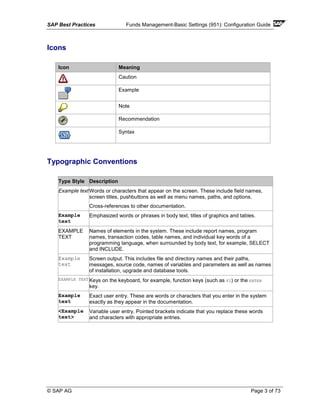
Icons
Icon Meaning
Caution
Example
Note
Recommendation
Syntax
Typographic Conventions
Type Style Description
Example textWords or characters that appear on the screen. These include field names,
screen titles, pushbuttons as well as menu names, paths, and options.
Cross-references to other documentation.
Example
text
Emphasized words or phrases in body text, titles of graphics and tables.
EXAMPLE
TEXT
Names of elements in the system. These include report names, program
names, transaction codes, table names, and individual key words of a
programming language, when surrounded by body text, for example, SELECT
and INCLUDE.
Example
text
Screen output. This includes file and directory names and their paths,
messages, source code, names of variables and parameters as well as names
of installation, upgrade and database tools.
EXAMPLE TEXT Keys on the keyboard, for example, function keys (such as F2) or the ENTER
key.
Example
text
Exact user entry. These are words or characters that you enter in the system
exactly as they appear in the documentation.
<Example
text>
Variable user entry. Pointed brackets indicate that you replace these words
and characters with appropriate entries.
SAP Best Practices Funds Management-Basic Settings (951): Configuration Guide
© SAP AG Page 4 of 73
Contents
Funds Management-Basic Settings (951) ....................................................................................... 7
1 Purpose .................................................................................................................................... 7
2 Preparation............................................................................................................................... 7
2.1 Prerequisites .................................................................................................................. 7
3 Configuration ............................................................................................................................ 7
3.1 Public Sector Management Configuration ..................................................................... 7
3.1.1 Maintain FM Area....................................................................................................... 7
3.1.2 Assign Company code to FM Area............................................................................ 8
3.1.3 Assign Fiscal Year variant to FM Area ...................................................................... 8
3.1.4 Activate Account Assignment Elements .................................................................... 9
3.1.5 Activate Global Funds.............................................................................................. 10
3.1.6 Define Business Area .............................................................................................. 10
3.2 Financial Accounting Configuration ............................................................................. 11
3.2.1 Define Ledgers for General Ledger Accounting ...................................................... 11
3.2.2 Define Currencies of Leading Ledger...................................................................... 12
3.2.3 Include Fields in Totals Table .................................................................................. 12
3.2.4 Include Fields-Master Data Check........................................................................... 13
3.2.5 Assign Scenarios and Customer Fields to Ledger .................................................. 14
3.2.6 Define Variants for Real time Integration CO → FI ................................................. 15
3.2.7 Enter Global Parameters ......................................................................................... 16
3.2.8 Define Document Number Ranges for Entry View .................................................. 17
3.2.9 Define Document Types for Entry View................................................................... 18
3.2.10 Define Posting Keys................................................................................................. 18
3.2.11 Define Retained Earnings Account.......................................................................... 19
3.3 Financials Documents.................................................................................................. 20
3.3.1 Classify G/L Accounts for Document Splitting ......................................................... 20
3.3.2 Define Zero-Balance Clearing Account ................................................................... 21
3.3.3 Define Business Transaction Variant....................................................................... 22
3.3.4 Classify Document Types for Document Splitting ................................................... 24
3.3.5 Define Document Splitting Characteristics for General Ledger............................... 25
3.3.6 Define Document Splitting Characteristics for Controlling....................................... 26
3.3.7 Define Field Status Variants – Field Status Groups ................................................ 26
3.3.8 Define Extended Document Splitting Method.......................................................... 28
3.3.9 Activate Document Splitting..................................................................................... 28
3.3.10 Assign Document Splitting Method.......................................................................... 29
SAP Best Practices Funds Management-Basic Settings (951): Configuration Guide
© SAP AG Page 5 of 73
3.3.11 Define Document Splitting Rule............................................................................... 29
3.4 New GL for Treasury and Payroll Constants ............................................................... 30
3.4.1 Edit Constant for Nonassigned Processes .............................................................. 30
3.5 Grants Management .................................................................................................... 32
3.5.1 Define NON_RELEVANT Grant .............................................................................. 32
3.6 Funds Management Basic Settings ............................................................................. 32
3.6.1 Activate Global Functions of BCS............................................................................ 32
3.7 Funds Management Master Data ................................................................................ 33
3.7.1 Create / Change Hierarchy Variant – Fund Center ................................................. 33
3.7.2 Assign Hierarchy Variant to FM Area ...................................................................... 34
3.7.3 Create FM Fund Type.............................................................................................. 34
3.7.4 Create and Maintain Funded Program Type ........................................................... 35
3.8 BCS Setup - Budgeting................................................................................................ 36
3.8.1 Activate Account Assignment Elements in BCS...................................................... 36
3.8.2 Define Budget Category .......................................................................................... 36
3.8.3 Define Budget Type ................................................................................................. 37
3.8.4 Define Budget Type Groups .................................................................................... 38
3.8.5 Edit Versions............................................................................................................ 39
3.8.6 Define Document Types .......................................................................................... 40
3.8.7 Maintain Number Range Intervals for Entry Documents ......................................... 41
3.8.8 Maintain Number Range Intervals for Budget Change Documents ........................ 41
3.8.9 Maintain Number Range Intervals for Document Family......................................... 42
3.8.10 Define Layout for Budget Workbench...................................................................... 43
3.8.11 Define Editing Options for Budget Amounts ............................................................ 44
3.8.12 Activate Period Control in Budgeting....................................................................... 44
3.8.13 Control Budgeting Flow - Edit Status....................................................................... 45
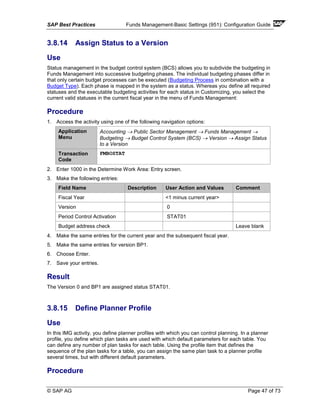
3.8.14 Assign Status to a Version....................................................................................... 47
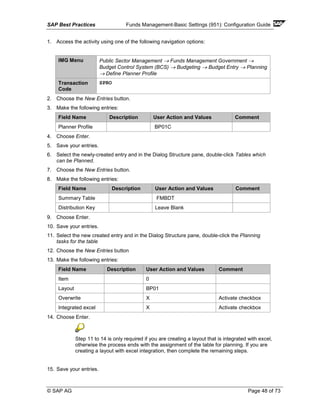
3.8.15 Define Planner Profile.............................................................................................. 47
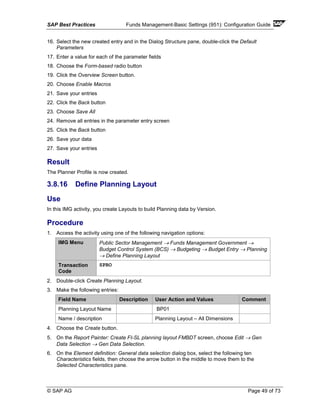
3.8.16 Define Planning Layout............................................................................................ 49
3.9 BCS - AVC ................................................................................................................... 51
3.9.1 Edit Tolerance Profile............................................................................................... 51
3.9.2 Filter Settings for Budget Values ............................................................................. 53
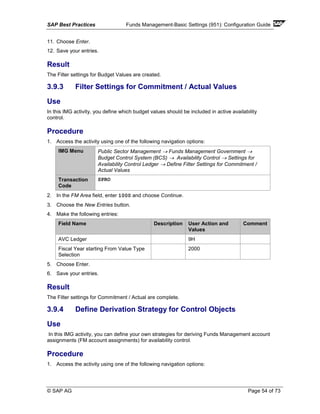
3.9.3 Filter Settings for Commitment / Actual Values ....................................................... 54
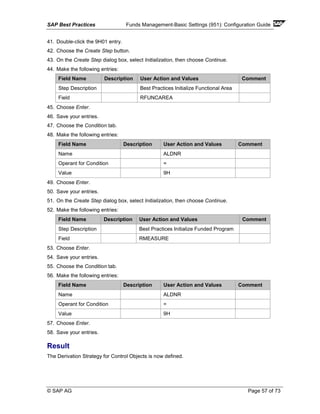
3.9.4 Define Derivation Strategy for Control Objects........................................................ 54
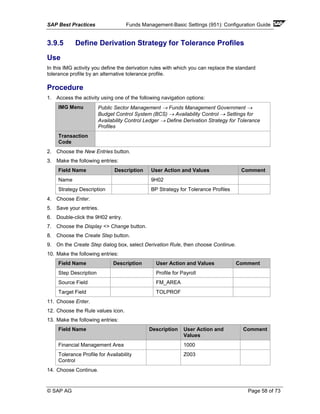
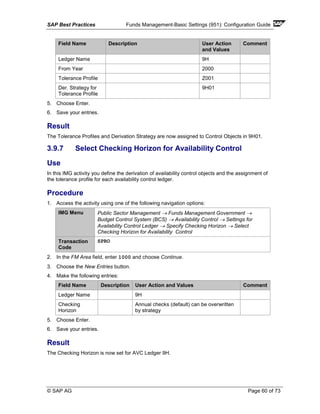
3.9.5 Define Derivation Strategy for Tolerance Profiles ................................................... 58
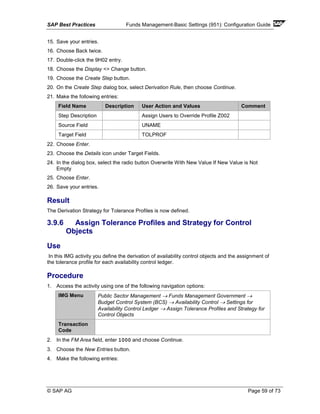
3.9.6 Assign Tolerance Profiles and Strategy for Control Objects ................................... 59
3.9.7 Select Checking Horizon for Availability Control ..................................................... 60
SAP Best Practices Funds Management-Basic Settings (951): Configuration Guide
© SAP AG Page 6 of 73
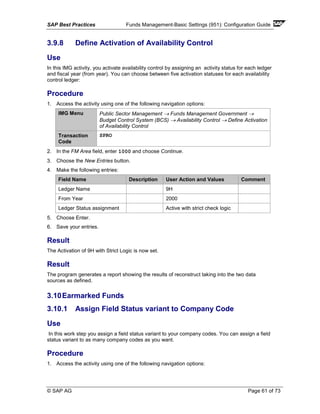
3.9.8 Define Activation of Availability Control ................................................................... 61
3.10 Earmarked Funds......................................................................................................... 61
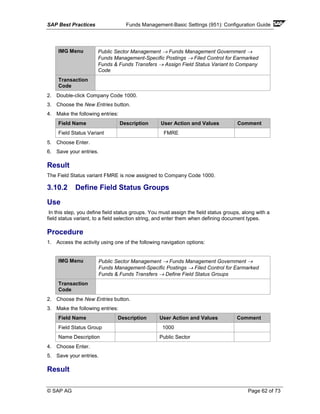
3.10.1 Assign Field Status variant to Company Code ........................................................ 61
3.10.2 Define Field Status Groups...................................................................................... 62
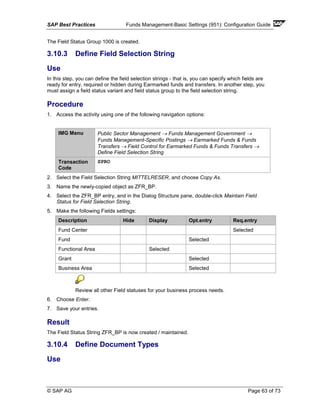
3.10.3 Define Field Selection String ................................................................................... 63
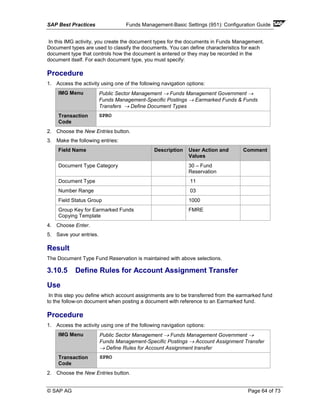
3.10.4 Define Document Types .......................................................................................... 63
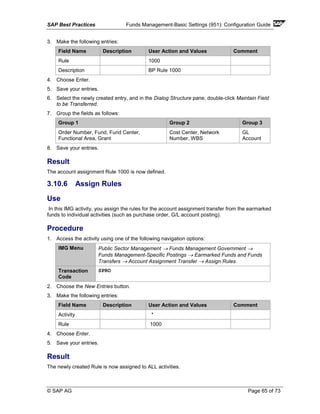
3.10.5 Define Rules for Account Assignment Transfer....................................................... 64
3.10.6 Assign Rules ............................................................................................................ 65
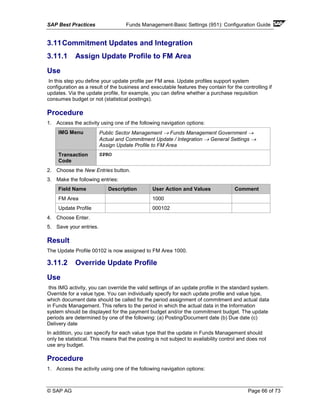
3.11 Commitment Updates and Integration ......................................................................... 66
3.11.1 Assign Update Profile to FM Area ........................................................................... 66
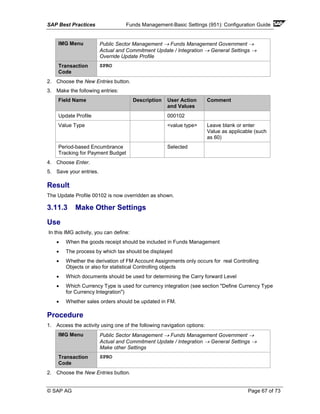
3.11.2 Override Update Profile ........................................................................................... 66
3.11.3 Make Other Settings ................................................................................................ 67
3.11.4 Assign Number Range to FM Area.......................................................................... 68
3.11.5 Activate / Deactivate Funds Management............................................................... 68
3.12 Closing Operations....................................................................................................... 69
3.12.1 Open Periods for FM Postings................................................................................. 69
3.12.2 Enter Default Settings.............................................................................................. 70
3.12.3 Enter Settings for Commitment Item Carry Forward Payment Budget.................... 71
3.12.4 BCS - Activate Budget Carry Forward for Commitment .......................................... 71
3.12.5 BCS – Define Budget Entry Documents for Commitment carry forward................. 72
SAP Best Practices Funds Management-Basic Settings (951): Configuration Guide
© SAP AG Page 7 of 73
Funds Management-Basic Settings (951)
1 Purpose
This configuration guide provides the information you need to set up the configuration of this
building block manually.
If you do not want to configure manually and prefer an automated installation process using BC
Sets and other tools, refer to the Quick Guide of your SAP Best Practices version, which you can
find on this solution's SAP Note.
2 Preparation
2.1 Prerequisites
Building Blocks
Before you start installing this building block, review the Prerequisite Matrix for this solution,
which is available on the Documentation DVD via the Site map page.
3 Configuration
3.1 Public Sector Management Configuration
3.1.1 Maintain FM Area
Use
The Funds Management Area (FM Area) is the primary structural component that is required to
be maintained to implant Public Sector Funds management solution.
Procedure
1. Access the activity using one of the following navigation options:
IMG Menu Enterprise Structure → Definition → Financial Accounting → Maintain
FM Area.
Transaction
Code
SPRO
2. Choose the New Entries button.
3. Make the following entries:
Field Name Description User Action and Values Comment
SAP Best Practices Funds Management-Basic Settings (951): Configuration Guide
© SAP AG Page 8 of 73
Field Name Description User Action and Values Comment
FIKRS FM Area 1000
FITXT FM Areas text FM Area 1000
FM_WAERS FM area currency USD
4. Save your entries.
Result
The required FM Area is created and is now available for assignments.
3.1.2 Assign Company code to FM Area
Use
The Funds Management area must be assigned in the enterprise structure.
Procedure
1. Access the activity using one of the following navigation options:
IMG Menu Enterprise Structure → Assignment → Financial Accounting → Assign
Company code to Financial Management area
Transaction
Code
SPRO
2. Choose the New Entries button.
3. Make the following entries:
Field Name Description User Action and Values Comment
BUKRS Company code 1000
FIKRS FM Area FM Area 1000
FITXT FM area Text FM Area 1000
4. Save your entries.
Result
The FM Area 1000 is now assigned to Company code 1000.
3.1.3 Assign Fiscal Year variant to FM Area
Use
A Fiscal Year variant is needed to define the accounting year and posting periods for the
company.
Prerequisites
The Fiscal Year Variant is defined.
SAP Best Practices Funds Management-Basic Settings (951): Configuration Guide
© SAP AG Page 9 of 73
Procedure
1. Access the activity using one of the following navigation options:
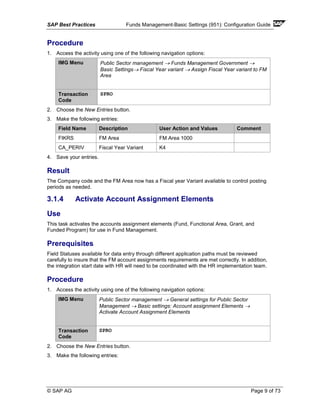
IMG Menu Public Sector management → Funds Management Government →
Basic Settings→ Fiscal Year variant → Assign Fiscal Year variant to FM
Area
Transaction
Code
SPRO
2. Choose the New Entries button.
3. Make the following entries:
Field Name Description User Action and Values Comment
FIKRS FM Area FM Area 1000
CA_PERIV Fiscal Year Variant K4
4. Save your entries.
Result
The Company code and the FM Area now has a Fiscal year Variant available to control posting
periods as needed.
3.1.4 Activate Account Assignment Elements
Use
This task activates the accounts assignment elements (Fund, Functional Area, Grant, and
Funded Program) for use in Fund Management.
Prerequisites
Field Statuses available for data entry through different application paths must be reviewed
carefully to insure that the FM account assignments requirements are met correctly. In addition,
the integration start date with HR will need to be coordinated with the HR implementation team.
Procedure
1. Access the activity using one of the following navigation options:
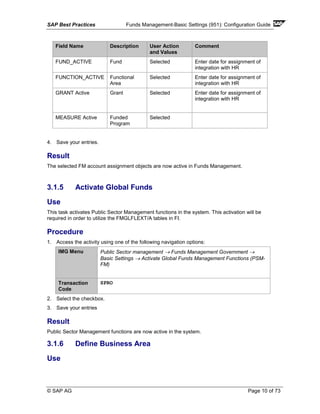
IMG Menu Public Sector management → General settings for Public Sector
Management → Basic settings: Account assignment Elements →
Activate Account Assignment Elements
Transaction
Code
SPRO
2. Choose the New Entries button.
3. Make the following entries:
SAP Best Practices Funds Management-Basic Settings (951): Configuration Guide
© SAP AG Page 10 of 73
4. Save your entries.
Result
The selected FM account assignment objects are now active in Funds Management.
3.1.5 Activate Global Funds
Use
This task activates Public Sector Management functions in the system. This activation will be
required in order to utilize the FMGLFLEXT/A tables in FI.
Procedure
1. Access the activity using one of the following navigation options:
IMG Menu Public Sector management → Funds Management Government →
Basic Settings → Activate Global Funds Management Functions (PSM-
FM)
Transaction
Code
SPRO
2. Select the checkbox.
3. Save your entries
Result
Public Sector Management functions are now active in the system.
3.1.6 Define Business Area
Use
Field Name Description User Action
and Values
Comment
FUND_ACTIVE Fund Selected Enter date for assignment of
integration with HR
FUNCTION_ACTIVE Functional
Area
Selected Enter date for assignment of
integration with HR
GRANT Active Grant Selected Enter date for assignment of
integration with HR
MEASURE Active Funded
Program
Selected
SAP Best Practices Funds Management-Basic Settings (951): Configuration Guide
© SAP AG Page 11 of 73
This task creates Business Areas in the system. Business Areas are used as on organizational
unit that represents a separate area of operational responsibility. A general guideline is to create
a business area for each organization unit that will require P&L and Balance sheet reporting.
Procedure
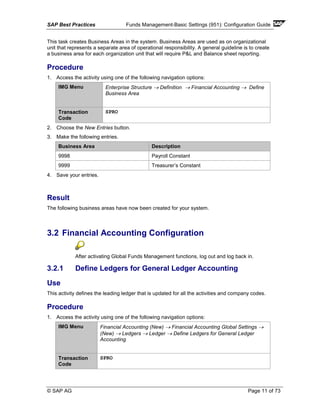
1. Access the activity using one of the following navigation options:
IMG Menu Enterprise Structure → Definition → Financial Accounting → Define
Business Area
Transaction
Code
SPRO
2. Choose the New Entries button.
3. Make the following entries.
Business Area Description
9998 Payroll Constant
9999 Treasurer’s Constant
4. Save your entries.
Result
The following business areas have now been created for your system.
3.2 Financial Accounting Configuration
After activating Global Funds Management functions, log out and log back in.
3.2.1 Define Ledgers for General Ledger Accounting
Use
This activity defines the leading ledger that is updated for all the activities and company codes.
Procedure
1. Access the activity using one of the following navigation options:
IMG Menu Financial Accounting (New) → Financial Accounting Global Settings →
(New) → Ledgers → Ledger → Define Ledgers for General Ledger
Accounting
Transaction
Code
SPRO
SAP Best Practices Funds Management-Basic Settings (951): Configuration Guide
© SAP AG Page 12 of 73
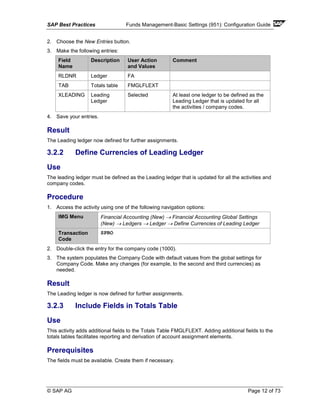
2. Choose the New Entries button.
3. Make the following entries:
Field
Name
Description User Action
and Values
Comment
RLDNR Ledger FA
TAB Totals table FMGLFLEXT
XLEADING Leading
Ledger
Selected At least one ledger to be defined as the
Leading Ledger that is updated for all
the activities / company codes.
4. Save your entries.
Result
The Leading ledger now defined for further assignments.
3.2.2 Define Currencies of Leading Ledger
Use
The leading ledger must be defined as the Leading ledger that is updated for all the activities and
company codes.
Procedure
1. Access the activity using one of the following navigation options:
IMG Menu Financial Accounting (New) → Financial Accounting Global Settings
(New) → Ledgers → Ledger → Define Currencies of Leading Ledger
Transaction
Code
SPRO
2. Double-click the entry for the company code (1000).
3. The system populates the Company Code with default values from the global settings for
Company Code. Make any changes (for example, to the second and third currencies) as
needed.
Result
The Leading ledger is now defined for further assignments.
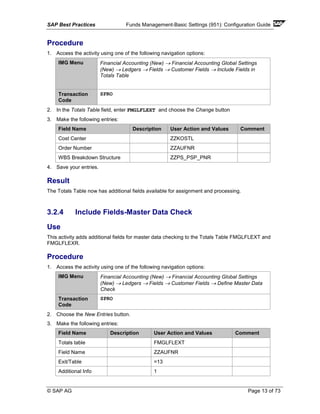
3.2.3 Include Fields in Totals Table
Use
This activity adds additional fields to the Totals Table FMGLFLEXT. Adding additional fields to the
totals tables facilitates reporting and derivation of account assignment elements.
Prerequisites
The fields must be available. Create them if necessary.
SAP Best Practices Funds Management-Basic Settings (951): Configuration Guide
© SAP AG Page 13 of 73
Procedure
1. Access the activity using one of the following navigation options:
IMG Menu Financial Accounting (New) → Financial Accounting Global Settings
(New) → Ledgers → Fields → Customer Fields → Include Fields in
Totals Table
Transaction
Code
SPRO
2. In the Totals Table field, enter FMGLFLEXT and choose the Change button
3. Make the following entries:
Field Name Description User Action and Values Comment
Cost Center ZZKOSTL
Order Number ZZAUFNR
WBS Breakdown Structure ZZPS_PSP_PNR
4. Save your entries.
Result
The Totals Table now has additional fields available for assignment and processing.
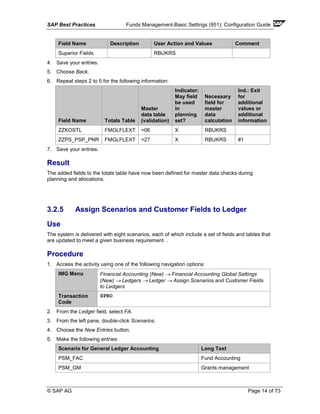
3.2.4 Include Fields-Master Data Check
Use
This activity adds additional fields for master data checking to the Totals Table FMGLFLEXT and
FMGLFLEXR.
Procedure
1. Access the activity using one of the following navigation options:
IMG Menu Financial Accounting (New) → Financial Accounting Global Settings
(New) → Ledgers → Fields → Customer Fields → Define Master Data
Check
Transaction
Code
SPRO
2. Choose the New Entries button.
3. Make the following entries:
Field Name Description User Action and Values Comment
Totals table FMGLFLEXT
Field Name ZZAUFNR
Exit/Table =13
Additional Info 1
SAP Best Practices Funds Management-Basic Settings (951): Configuration Guide
© SAP AG Page 14 of 73
Field Name Description User Action and Values Comment
Superior Fields RBUKRS
4. Save your entries.
5. Choose Back.
6. Repeat steps 2 to 5 for the following information:
Field Name Totals Table
Master
data table
(validation)
Indicator:
May field
be used
in
planning
set?
Necessary
field for
master
data
calculation
Ind.: Exit
for
additional
values or
additional
information
ZZKOSTL FMGLFLEXT =06 X RBUKRS
ZZPS_PSP_PNR FMGLFLEXT =27 X RBUKRS #1
7. Save your entries.
Result
The added fields to the totals table have now been defined for master data checks during
planning and allocations.
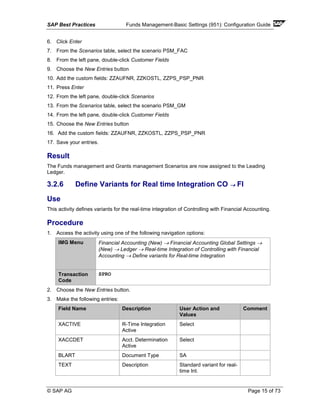
3.2.5 Assign Scenarios and Customer Fields to Ledger
Use
The system is delivered with eight scenarios, each of which include a set of fields and tables that
are updated to meet a given business requirement. .
Procedure
1. Access the activity using one of the following navigation options:
IMG Menu Financial Accounting (New) → Financial Accounting Global Settings
(New) → Ledgers → Ledger → Assign Scenarios and Customer Fields
to Ledgers
Transaction
Code
SPRO
2. From the Ledger field, select FA.
3. From the left pane, double-click Scenarios.
4. Choose the New Entries button.
5. Make the following entries:
Scenario for General Ledger Accounting Long Text
PSM_FAC Fund Accounting
PSM_GM Grants management
SAP Best Practices Funds Management-Basic Settings (951): Configuration Guide
© SAP AG Page 15 of 73
6. Click Enter
7. From the Scenarios table, select the scenario PSM_FAC
8. From the left pane, double-click Customer Fields
9. Choose the New Entries button
10. Add the custom fields: ZZAUFNR, ZZKOSTL, ZZPS_PSP_PNR
11. Press Enter
12. From the left pane, double-click Scenarios
13. From the Scenarios table, select the scenario PSM_GM
14. From the left pane, double-click Customer Fields
15. Choose the New Entries button
16. Add the custom fields: ZZAUFNR, ZZKOSTL, ZZPS_PSP_PNR
17. Save your entries.
Result
The Funds management and Grants management Scenarios are now assigned to the Leading
Ledger.
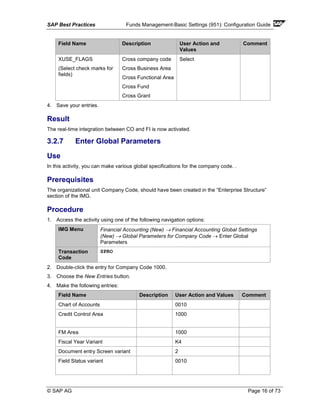
3.2.6 Define Variants for Real time Integration CO →→→→ FI
Use
This activity defines variants for the real-time integration of Controlling with Financial Accounting.
Procedure
1. Access the activity using one of the following navigation options:
IMG Menu Financial Accounting (New) → Financial Accounting Global Settings →
(New) → Ledger → Real-time Integration of Controlling with Financial
Accounting → Define variants for Real-time Integration
Transaction
Code
SPRO
2. Choose the New Entries button.
3. Make the following entries:
Field Name Description User Action and
Values
Comment
XACTIVE R-Time Integration
Active
Select
XACCDET Acct. Determination
Active
Select
BLART Document Type SA
TEXT Description Standard variant for real-
time Int.
SAP Best Practices Funds Management-Basic Settings (951): Configuration Guide
© SAP AG Page 16 of 73
Field Name Description User Action and
Values
Comment
XUSE_FLAGS
(Select check marks for
fields)
Cross company code
Cross Business Area
Cross Functional Area
Cross Fund
Cross Grant
Select
4. Save your entries.
Result
The real-time integration between CO and FI is now activated.
3.2.7 Enter Global Parameters
Use
In this activity, you can make various global specifications for the company code. .
Prerequisites
The organizational unit Company Code, should have been created in the “Enterprise Structure”
section of the IMG.
Procedure
1. Access the activity using one of the following navigation options:
IMG Menu Financial Accounting (New) → Financial Accounting Global Settings
(New) → Global Parameters for Company Code → Enter Global
Parameters
Transaction
Code
SPRO
2. Double-click the entry for Company Code 1000.
3. Choose the New Entries button.
4. Make the following entries:
Field Name Description User Action and Values Comment
Chart of Accounts 0010
Credit Control Area 1000
FM Area 1000
Fiscal Year Variant K4
Document entry Screen variant 2
Field Status variant 0010
SAP Best Practices Funds Management-Basic Settings (951): Configuration Guide
© SAP AG Page 17 of 73
Field Name Description User Action and Values Comment
Posting Period Variant 0010
Max Exch. Rate Variance 10%
Workflow variant 1000
Define default value date Selected
Propose Fiscal Year Selected
Tax Base is Net value Selected
Activate CM Selected
5. Save your entries.
Result
The Global parameters for the Company Code are set.
3.2.8 Define Document Number Ranges for Entry View
Use
Number Ranges must be set up for Entry View of the New General Ledger.
Procedure
1. Access the activity using one of the following navigation options:
IMG Menu Financial Accounting (New) → Financial Accounting Global Settings →
(New) → Document → Document Number Ranges → Documents in
Entry View → Define Document Number Ranges for Entry View
Transaction
Code
SPRO
2. Make the following entries:
Field Name Description User Action and Values Comment
Company Code 1000
3. Choose the Change Intervals button.
4. Choose the + button to add a number range.
5. Create Number ranges for 01, 02, 03, 04, 05, 06, 07, 08, 09, and so on.
6. Enter a number range value for each number range object created [e.g. 01 = 100000000 to
199999999].
7. Save your entries.
Result
The Number ranges are created for Entry View documents.
SAP Best Practices Funds Management-Basic Settings (951): Configuration Guide
© SAP AG Page 18 of 73
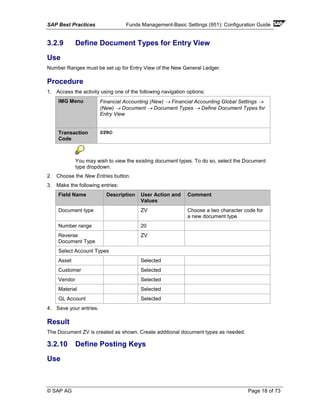
3.2.9 Define Document Types for Entry View
Use
Number Ranges must be set up for Entry View of the New General Ledger.
Procedure
1. Access the activity using one of the following navigation options:
IMG Menu Financial Accounting (New) → Financial Accounting Global Settings →
(New) → Document → Document Types → Define Document Types for
Entry View
Transaction
Code
SPRO
You may wish to view the existing document types. To do so, select the Document
type dropdown.
2. Choose the New Entries button.
3. Make the following entries:
Field Name Description User Action and
Values
Comment
Document type ZV Choose a two character code for
a new document type
Number range 20
Reverse
Document Type
ZV
Select Account Types
Asset Selected
Customer Selected
Vendor Selected
Material Selected
GL Account Selected
4. Save your entries.
Result
The Document ZV is created as shown. Create additional document types as needed.
3.2.10 Define Posting Keys
Use
SAP Best Practices Funds Management-Basic Settings (951): Configuration Guide
© SAP AG Page 19 of 73
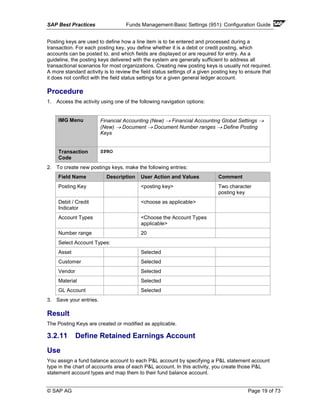
Posting keys are used to define how a line item is to be entered and processed during a
transaction. For each posting key, you define whether it is a debit or credit posting, which
accounts can be posted to, and which fields are displayed or are required for entry. As a
guideline, the posting keys delivered with the system are generally sufficient to address all
transactional scenarios for most organizations. Creating new posting keys is usually not required.
A more standard activity is to review the field status settings of a given posting key to ensure that
it does not conflict with the field status settings for a given general ledger account.
Procedure
1. Access the activity using one of the following navigation options:
IMG Menu Financial Accounting (New) → Financial Accounting Global Settings →
(New) → Document → Document Number ranges → Define Posting
Keys
Transaction
Code
SPRO
2. To create new postings keys, make the following entries:
Field Name Description User Action and Values Comment
Posting Key <posting key> Two character
posting key
Debit / Credit
Indicator
<choose as applicable>
Account Types <Choose the Account Types
applicable>
Number range 20
Select Account Types:
Asset Selected
Customer Selected
Vendor Selected
Material Selected
GL Account Selected
3. Save your entries.
Result
The Posting Keys are created or modified as applicable.
3.2.11 Define Retained Earnings Account
Use
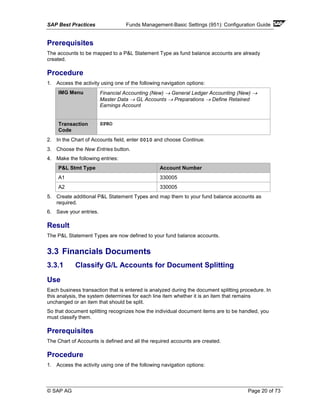
You assign a fund balance account to each P&L account by specifying a P&L statement account
type in the chart of accounts area of each P&L account. In this activity, you create those P&L
statement account types and map them to their fund balance account.
SAP Best Practices Funds Management-Basic Settings (951): Configuration Guide
© SAP AG Page 20 of 73
Prerequisites
The accounts to be mapped to a P&L Statement Type as fund balance accounts are already
created.
Procedure
1. Access the activity using one of the following navigation options:
IMG Menu Financial Accounting (New) → General Ledger Accounting (New) →
Master Data → GL Accounts → Preparations → Define Retained
Earnings Account
Transaction
Code
SPRO
2. In the Chart of Accounts field, enter 0010 and choose Continue.
3. Choose the New Entries button.
4. Make the following entries:
P&L Stmt Type Account Number
A1 330005
A2 330005
5. Create additional P&L Statement Types and map them to your fund balance accounts as
required.
6. Save your entries.
Result
The P&L Statement Types are now defined to your fund balance accounts.
3.3 Financials Documents
3.3.1 Classify G/L Accounts for Document Splitting
Use
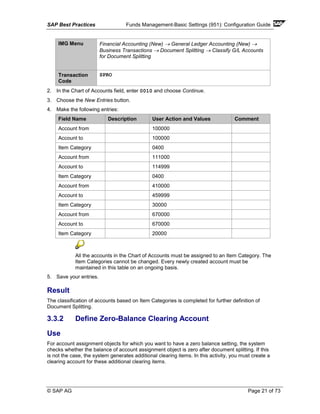
Each business transaction that is entered is analyzed during the document splitting procedure. In
this analysis, the system determines for each line item whether it is an item that remains
unchanged or an item that should be split.
So that document splitting recognizes how the individual document items are to be handled, you
must classify them.
Prerequisites
The Chart of Accounts is defined and all the required accounts are created.
Procedure
1. Access the activity using one of the following navigation options:
SAP Best Practices Funds Management-Basic Settings (951): Configuration Guide
© SAP AG Page 21 of 73
IMG Menu Financial Accounting (New) → General Ledger Accounting (New) →
Business Transactions → Document Splitting → Classify G/L Accounts
for Document Splitting
Transaction
Code
SPRO
2. In the Chart of Accounts field, enter 0010 and choose Continue.
3. Choose the New Entries button.
4. Make the following entries:
Field Name Description User Action and Values Comment
Account from 100000
Account to 100000
Item Category 0400
Account from 111000
Account to 114999
Item Category 0400
Account from 410000
Account to 459999
Item Category 30000
Account from 670000
Account to 670000
Item Category 20000
All the accounts in the Chart of Accounts must be assigned to an Item Category. The
Item Categories cannot be changed. Every newly created account must be
maintained in this table on an ongoing basis.
5. Save your entries.
Result
The classification of accounts based on Item Categories is completed for further definition of
Document Splitting.
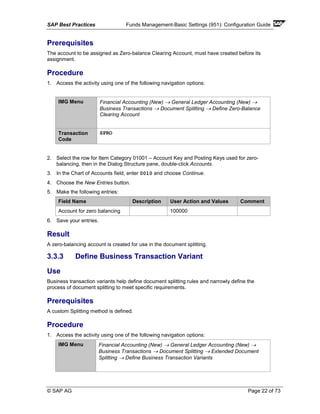
3.3.2 Define Zero-Balance Clearing Account
Use
For account assignment objects for which you want to have a zero balance setting, the system
checks whether the balance of account assignment object is zero after document splitting. If this
is not the case, the system generates additional clearing items. In this activity, you must create a
clearing account for these additional clearing items.
SAP Best Practices Funds Management-Basic Settings (951): Configuration Guide
© SAP AG Page 22 of 73
Prerequisites
The account to be assigned as Zero-balance Clearing Account, must have created before its
assignment.
Procedure
1. Access the activity using one of the following navigation options:
IMG Menu Financial Accounting (New) → General Ledger Accounting (New) →
Business Transactions → Document Splitting → Define Zero-Balance
Clearing Account
Transaction
Code
SPRO
2. Select the row for Item Category 01001 – Account Key and Posting Keys used for zero-
balancing, then in the Dialog Structure pane, double-click Accounts.
3. In the Chart of Accounts field, enter 0010 and choose Continue.
4. Choose the New Entries button.
5. Make the following entries:
Field Name Description User Action and Values Comment
Account for zero balancing 100000
6. Save your entries.
Result
A zero-balancing account is created for use in the document splitting.
3.3.3 Define Business Transaction Variant
Use
Business transaction variants help define document splitting rules and narrowly define the
process of document splitting to meet specific requirements.
Prerequisites
A custom Splitting method is defined.
Procedure
1. Access the activity using one of the following navigation options:
IMG Menu Financial Accounting (New) → General Ledger Accounting (New) →
Business Transactions → Document Splitting → Extended Document
Splitting → Define Business Transaction Variants
SAP Best Practices Funds Management-Basic Settings (951): Configuration Guide
© SAP AG Page 23 of 73
Transaction
Code
SPRO
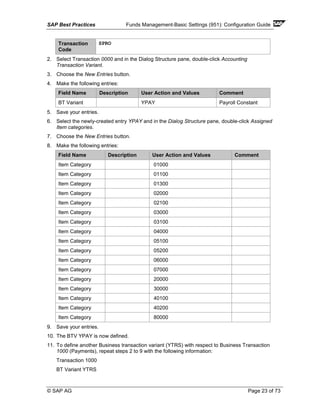
2. Select Transaction 0000 and in the Dialog Structure pane, double-click Accounting
Transaction Variant.
3. Choose the New Entries button.
4. Make the following entries:
Field Name Description User Action and Values Comment
BT Variant YPAY Payroll Constant
5. Save your entries.
6. Select the newly-created entry YPAY and in the Dialog Structure pane, double-click Assigned
Item categories.
7. Choose the New Entries button.
8. Make the following entries:
Field Name Description User Action and Values Comment
Item Category 01000
Item Category 01100
Item Category 01300
Item Category 02000
Item Category 02100
Item Category 03000
Item Category 03100
Item Category 04000
Item Category 05100
Item Category 05200
Item Category 06000
Item Category 07000
Item Category 20000
Item Category 30000
Item Category 40100
Item Category 40200
Item Category 80000
9. Save your entries.
10. The BTV YPAY is now defined.
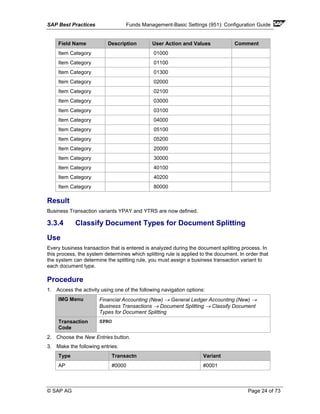
11. To define another Business transaction variant (YTRS) with respect to Business Transaction
1000 (Payments), repeat steps 2 to 9 with the following information:
Transaction 1000
BT Variant YTRS
SAP Best Practices Funds Management-Basic Settings (951): Configuration Guide
© SAP AG Page 24 of 73
Field Name Description User Action and Values Comment
Item Category 01000
Item Category 01100
Item Category 01300
Item Category 02000
Item Category 02100
Item Category 03000
Item Category 03100
Item Category 04000
Item Category 05100
Item Category 05200
Item Category 20000
Item Category 30000
Item Category 40100
Item Category 40200
Item Category 80000
Result
Business Transaction variants YPAY and YTRS are now defined.
3.3.4 Classify Document Types for Document Splitting
Use
Every business transaction that is entered is analyzed during the document splitting process. In
this process, the system determines which splitting rule is applied to the document. In order that
the system can determine the splitting rule, you must assign a business transaction variant to
each document type.
Procedure
1. Access the activity using one of the following navigation options:
IMG Menu Financial Accounting (New) → General Ledger Accounting (New) →
Business Transactions → Document Splitting → Classify Document
Types for Document Splitting
Transaction
Code
SPRO
2. Choose the New Entries button.
3. Make the following entries:
Type Transactn Variant
AP #0000 #0001
SAP Best Practices Funds Management-Basic Settings (951): Configuration Guide
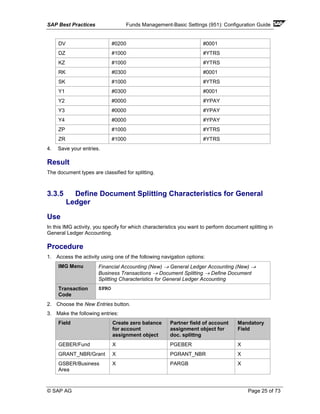
© SAP AG Page 25 of 73
DV #0200 #0001
DZ #1000 #YTRS
KZ #1000 #YTRS
RK #0300 #0001
SK #1000 #YTRS
Y1 #0300 #0001
Y2 #0000 #YPAY
Y3 #0000 #YPAY
Y4 #0000 #YPAY
ZP #1000 #YTRS
ZR #1000 #YTRS
4. Save your entries.
Result
The document types are classified for splitting.
3.3.5 Define Document Splitting Characteristics for General
Ledger
Use
In this IMG activity, you specify for which characteristics you want to perform document splitting in
General Ledger Accounting.
Procedure
1. Access the activity using one of the following navigation options:
IMG Menu Financial Accounting (New) → General Ledger Accounting (New) →
Business Transactions → Document Splitting → Define Document
Splitting Characteristics for General Ledger Accounting
Transaction
Code
SPRO
2. Choose the New Entries button.
3. Make the following entries:
Field Create zero balance
for account
assignment object
Partner field of account
assignment object for
doc. splittng
Mandatory
Field
GEBER/Fund X PGEBER X
GRANT_NBR/Grant X PGRANT_NBR X
GSBER/Business
Area
X PARGB X
SAP Best Practices Funds Management-Basic Settings (951): Configuration Guide
© SAP AG Page 26 of 73
4. Save your entries.
Result
The characteristics are specified.
3.3.6 Define Document Splitting Characteristics for
Controlling
Use
In this IMG activity, you specify on which additional characteristics you intend to apply document
splitting. The additional characteristics are not relevant for General Ledger Accounting. Instead,
they are relevant for other application components (such as subcomponents in Controlling) that
use documents transferred from General Ledger Accounting.
Procedure
1. Access the activity using one of the following navigation options:
IMG Menu Financial Accounting (New) → General Ledger Accounting (New) →
Business Transactions → Document Splitting → Define Document
Splitting Characteristics for Controlling
Transaction
Code
SPRO
2. Choose the New Entries button.
3. Make the following entries:
Field
AUFNR/Order
KOSTL/Cost Center
PS_PSP_PNR/WBS Element
4. Save your entries.
Result
The characteristics are specified.
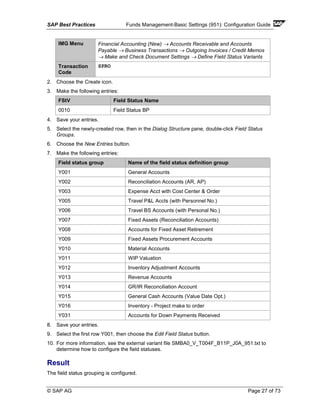
3.3.7 Define Field Status Variants – Field Status Groups
Use
In this activity you can define and edit field status variants and groups. You group several field
status groups together in one field status variant. You assign the field status variants to a
company code in the activity Assign Company Code to Field Status Variants. This allows you to
work with the same field status groups in any number of company codes.
Procedure
1. Access the activity using one of the following navigation options:
SAP Best Practices Funds Management-Basic Settings (951): Configuration Guide
© SAP AG Page 27 of 73
IMG Menu Financial Accounting (New) → Accounts Receivable and Accounts
Payable → Business Transactions → Outgoing Invoices / Credit Memos
→ Make and Check Document Settings → Define Field Status Variants
Transaction
Code
SPRO
2. Choose the Create icon.
3. Make the following entries:
FStV Field Status Name
0010 Field Status BP
4. Save your entries.
5. Select the newly-created row, then in the Dialog Structure pane, double-click Field Status
Groups.
6. Choose the New Entries button.
7. Make the following entries:
Field status group Name of the field status definition group
Y001 General Accounts
Y002 Reconciliation Accounts (AR, AP)
Y003 Expense Acct with Cost Center & Order
Y005 Travel P&L Accts (with Personnel No.)
Y006 Travel BS Accounts (with Personal No.)
Y007 Fixed Assets (Reconciliation Accounts)
Y008 Accounts for Fixed Asset Retirement
Y009 Fixed Assets Procurement Accounts
Y010 Material Accounts
Y011 WIP Valuation
Y012 Inventory Adjustment Accounts
Y013 Revenue Accounts
Y014 GR/IR Reconciliation Account
Y015 General Cash Accounts (Value Date Opt.)
Y016 Inventory - Project make to order
Y031 Accounts for Down Payments Received
8. Save your entries.
9. Select the first row Y001, then choose the Edit Field Status button.
10. For more information, see the external variant file SMBA0_V_T004F_B11P_J0A_951.txt to
determine how to configure the field statuses.
Result
The field status grouping is configured.
SAP Best Practices Funds Management-Basic Settings (951): Configuration Guide
© SAP AG Page 28 of 73
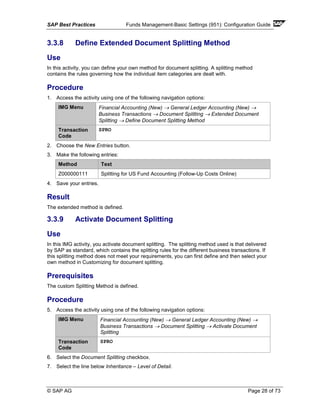
3.3.8 Define Extended Document Splitting Method
Use
In this activity, you can define your own method for document splitting. A splitting method
contains the rules governing how the individual item categories are dealt with.
Procedure
1. Access the activity using one of the following navigation options:
IMG Menu Financial Accounting (New) → General Ledger Accounting (New) →
Business Transactions → Document Splitting → Extended Document
Splitting → Define Document Splitting Method
Transaction
Code
SPRO
2. Choose the New Entries button.
3. Make the following entries:
Method Text
Z000000111 Splitting for US Fund Accounting (Follow-Up Costs Online)
4. Save your entries.
Result
The extended method is defined.
3.3.9 Activate Document Splitting
Use
In this IMG activity, you activate document splitting. The splitting method used is that delivered
by SAP as standard, which contains the splitting rules for the different business transactions. If
this splitting method does not meet your requirements, you can first define and then select your
own method in Customizing for document splitting.
Prerequisites
The custom Splitting Method is defined.
Procedure
5. Access the activity using one of the following navigation options:
IMG Menu Financial Accounting (New) → General Ledger Accounting (New) →
Business Transactions → Document Splitting → Activate Document
Splitting
Transaction
Code
SPRO
6. Select the Document Splitting checkbox.
7. Select the line below Inheritance – Level of Detail.
SAP Best Practices Funds Management-Basic Settings (951): Configuration Guide
© SAP AG Page 29 of 73
8. Save your entries.
Result
Business Transaction variants YPAY and YTRS are now defined.
3.3.10 Assign Document Splitting Method
Use
In this activity, you can replace the splitting method provided in the SAP standard delivery
(containing the splitting rules for the different business transactions) with a user-defined splitting
method.
Prerequisites
You have defined your own splitting method.
Procedure
1. Access the activity using one of the following navigation options:
IMG Menu Financial Accounting (New) → General Ledger Accounting (New) →
Business Transactions → Document Splitting → Extended Document
Splitting → Assign Document Splitting Method
Transaction
Code
SPRO
2. Select the Document Splitting checkbox
3. Select the checkbox in the line below Inheritance – Level of Detail.
4. In the Box Method field, enter Z000000111.
5. Save your entries.
Result
The custom Document Splitting Method is now assigned.
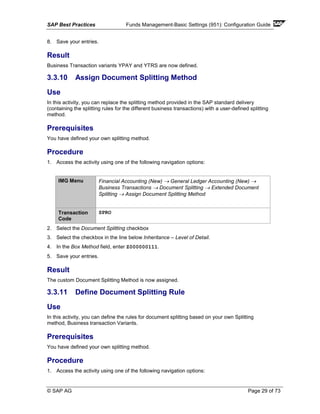
3.3.11 Define Document Splitting Rule
Use
In this activity, you can define the rules for document splitting based on your own Splitting
method, Business transaction Variants.
Prerequisites
You have defined your own splitting method.
Procedure
1. Access the activity using one of the following navigation options:
SAP Best Practices Funds Management-Basic Settings (951): Configuration Guide
© SAP AG Page 30 of 73
IMG Menu Financial Accounting (New) → General Ledger Accounting (New) →
Business Transactions → Document Splitting → Extended Document
Splitting → Define Document Splitting Rule
Transaction
Code
SPRO
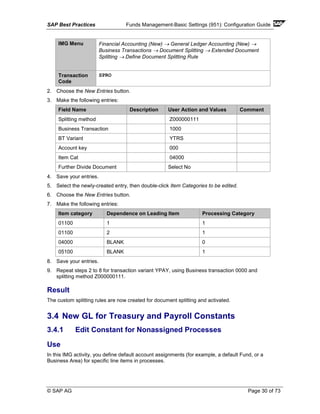
2. Choose the New Entries button.
3. Make the following entries:
Field Name Description User Action and Values Comment
Splitting method Z000000111
Business Transaction 1000
BT Variant YTRS
Account key 000
Item Cat 04000
Further Divide Document Select No
4. Save your entries.
5. Select the newly-created entry, then double-click Item Categories to be edited.
6. Choose the New Entries button.
7. Make the following entries:
Item category Dependence on Leading Item Processing Category
01100 1 1
01100 2 1
04000 BLANK 0
05100 BLANK 1
8. Save your entries.
9. Repeat steps 2 to 8 for transaction variant YPAY, using Business transaction 0000 and
splitting method Z000000111.
Result
The custom splitting rules are now created for document splitting and activated.
3.4 New GL for Treasury and Payroll Constants
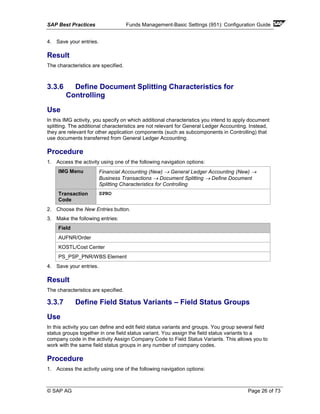
3.4.1 Edit Constant for Nonassigned Processes
Use
In this IMG activity, you define default account assignments (for example, a default Fund, or a
Business Area) for specific line items in processes.
SAP Best Practices Funds Management-Basic Settings (951): Configuration Guide
© SAP AG Page 31 of 73
Prerequisites
You have defined your own splitting method.
Procedure
1. Access the activity using one of the following navigation options:
IMG Menu Financial Accounting (New) → General Ledger Accounting (New) →
Business Transactions → Document Splitting → Edit Constants for non-
assigned Processes
Transaction
Code
SPRO
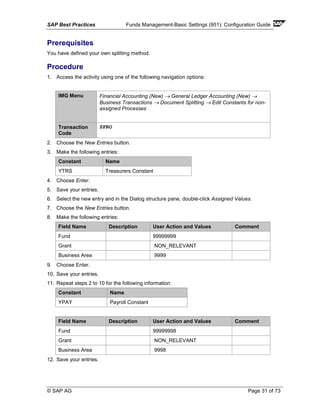
2. Choose the New Entries button.
3. Make the following entries:
Constant Name
YTRS Treasurers Constant
4. Choose Enter.
5. Save your entries.
6. Select the new entry and in the Dialog structure pane, double-click Assigned Values.
7. Choose the New Entries button.
8. Make the following entries:
Field Name Description User Action and Values Comment
Fund 99999999
Grant NON_RELEVANT
Business Area 9999
9. Choose Enter.
10. Save your entries.
11. Repeat steps 2 to 10 for the following information:
Constant Name
YPAY Payroll Constant
Field Name Description User Action and Values Comment
Fund 99999998
Grant NON_RELEVANT
Business Area 9998
12. Save your entries.
SAP Best Practices Funds Management-Basic Settings (951): Configuration Guide
© SAP AG Page 32 of 73
Result
The custom Constants are now ready for Split Processor.
3.5 Grants Management
3.5.1 Define NON_RELEVANT Grant
Use
The leading ledger must be defined as the Leading ledger that is updated for all the activities and
company codes.
Procedure
1. Access the activity using one of the following navigation options:
IMG Menu Public sector Management → Grants Management → Grantee
Management → Global Settings → Set Grant as Not Relevant for
Grants Management
Transaction
Code
SPRO
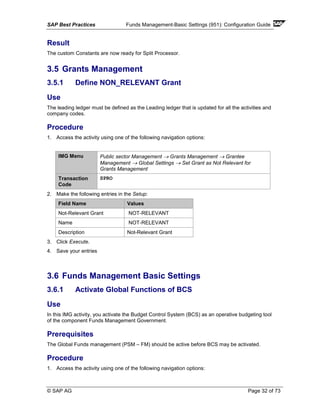
2. Make the following entries in the Setup:
Field Name Values
Not-Relevant Grant NOT-RELEVANT
Name NOT-RELEVANT
Description Not-Relevant Grant
3. Click Execute.
4. Save your entries
3.6 Funds Management Basic Settings
3.6.1 Activate Global Functions of BCS
Use
In this IMG activity, you activate the Budget Control System (BCS) as an operative budgeting tool
of the component Funds Management Government.
Prerequisites
The Global Funds management (PSM – FM) should be active before BCS may be activated.
Procedure
1. Access the activity using one of the following navigation options:
SAP Best Practices Funds Management-Basic Settings (951): Configuration Guide
© SAP AG Page 33 of 73
IMG Menu Public Sector Management → Funds Management Government →
Basic settings → > Activate Global Functions for Budget Control System
(BCS)
Transaction
Code
SPRO
2. Choose the New Entries button.
3. Make the following entries:
Field Name User Action and Values Comment
FM Area 1000
Year Active from 2000
4. Save your entries.
Result
Global functions of BCS are now activated.
3.7 Funds Management Master Data
3.7.1 Create / Change Hierarchy Variant – Fund Center
Use
You create new hierarchy variants in this section. These are then used to define a funds center
hierarchy in master data.
Procedure
1. Access the activity using one of the following navigation options:
IMG Menu Public sector management → Funds Management Government →
Master Data → Account Assignment Elements → Fund center →
Hierarchy Variant → Create / Change Hierarchy variant
Transaction
Code
SPRO
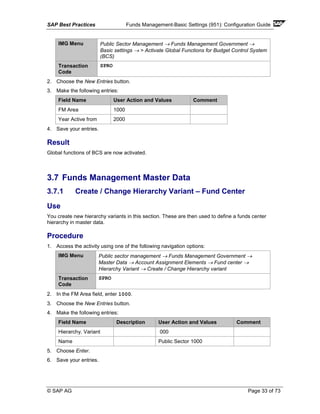
2. In the FM Area field, enter 1000.
3. Choose the New Entries button.
4. Make the following entries:
Field Name Description User Action and Values Comment
Hierarchy. Variant 000
Name Public Sector 1000
5. Choose Enter.
6. Save your entries.
SAP Best Practices Funds Management-Basic Settings (951): Configuration Guide
© SAP AG Page 34 of 73
Result
A custom Hierarchy Variant is now created.
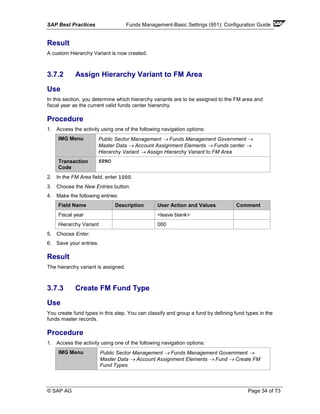
3.7.2 Assign Hierarchy Variant to FM Area
Use
In this section, you determine which hierarchy variants are to be assigned to the FM area and
fiscal year as the current valid funds center hierarchy.
Procedure
1. Access the activity using one of the following navigation options:
IMG Menu Public Sector Management → Funds Management Government →
Master Data → Account Assignment Elements → Funds center →
Hierarchy Variant → Assign Hierarchy Variant to FM Area
Transaction
Code
SPRO
2. In the FM Area field, enter 1000.
3. Choose the New Entries button.
4. Make the following entries:
Field Name Description User Action and Values Comment
Fiscal year <leave blank>
Hierarchy Variant 000
5. Choose Enter.
6. Save your entries.
Result
The hierarchy variant is assigned.
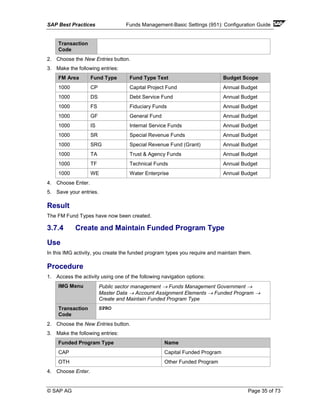
3.7.3 Create FM Fund Type
Use
You create fund types in this step. You can classify and group a fund by defining fund types in the
funds master records.
Procedure
1. Access the activity using one of the following navigation options:
IMG Menu Public Sector Management → Funds Management Government →
Master Data → Account Assignment Elements → Fund → Create FM
Fund Types
SAP Best Practices Funds Management-Basic Settings (951): Configuration Guide
© SAP AG Page 35 of 73
Transaction
Code
2. Choose the New Entries button.
3. Make the following entries:
FM Area Fund Type Fund Type Text Budget Scope
1000 CP Capital Project Fund Annual Budget
1000 DS Debt Service Fund Annual Budget
1000 FS Fiduciary Funds Annual Budget
1000 GF General Fund Annual Budget
1000 IS Internal Service Funds Annual Budget
1000 SR Special Revenue Funds Annual Budget
1000 SRG Special Revenue Fund (Grant) Annual Budget
1000 TA Trust & Agency Funds Annual Budget
1000 TF Technical Funds Annual Budget
1000 WE Water Enterprise Annual Budget
4. Choose Enter.
5. Save your entries.
Result
The FM Fund Types have now been created.
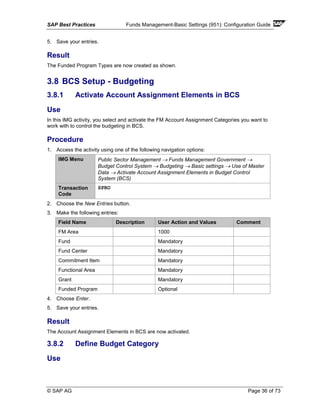
3.7.4 Create and Maintain Funded Program Type
Use
In this IMG activity, you create the funded program types you require and maintain them.
Procedure
1. Access the activity using one of the following navigation options:
IMG Menu Public sector management → Funds Management Government →
Master Data → Account Assignment Elements → Funded Program →
Create and Maintain Funded Program Type
Transaction
Code
SPRO
2. Choose the New Entries button.
3. Make the following entries:
Funded Program Type Name
CAP Capital Funded Program
OTH Other Funded Program
4. Choose Enter.
SAP Best Practices Funds Management-Basic Settings (951): Configuration Guide
© SAP AG Page 36 of 73
5. Save your entries.
Result
The Funded Program Types are now created as shown.
3.8 BCS Setup - Budgeting
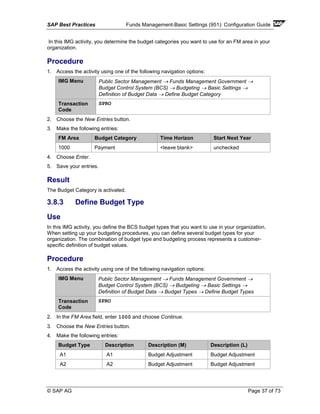
3.8.1 Activate Account Assignment Elements in BCS
Use
In this IMG activity, you select and activate the FM Account Assignment Categories you want to
work with to control the budgeting in BCS.
Procedure
1. Access the activity using one of the following navigation options:
IMG Menu Public Sector Management → Funds Management Government →
Budget Control System → Budgeting → Basic settings → Use of Master
Data → Activate Account Assignment Elements in Budget Control
System (BCS)
Transaction
Code
SPRO
2. Choose the New Entries button.
3. Make the following entries:
Field Name Description User Action and Values Comment
FM Area 1000
Fund Mandatory
Fund Center Mandatory
Commitment Item Mandatory
Functional Area Mandatory
Grant Mandatory
Funded Program Optional
4. Choose Enter.
5. Save your entries.
Result
The Account Assignment Elements in BCS are now activated.
3.8.2 Define Budget Category
Use
SAP Best Practices Funds Management-Basic Settings (951): Configuration Guide
© SAP AG Page 37 of 73
In this IMG activity, you determine the budget categories you want to use for an FM area in your
organization.
Procedure
1. Access the activity using one of the following navigation options:
IMG Menu Public Sector Management → Funds Management Government →
Budget Control System (BCS) → Budgeting → Basic Settings →
Definition of Budget Data → Define Budget Category
Transaction
Code
SPRO
2. Choose the New Entries button.
3. Make the following entries:
FM Area Budget Category Time Horizon Start Next Year
1000 Payment <leave blank> unchecked
4. Choose Enter.
5. Save your entries.
Result
The Budget Category is activated.
3.8.3 Define Budget Type
Use
In this IMG activity, you define the BCS budget types that you want to use in your organization.
When setting up your budgeting procedures, you can define several budget types for your
organization. The combination of budget type and budgeting process represents a customer-
specific definition of budget values.
Procedure
1. Access the activity using one of the following navigation options:
IMG Menu Public Sector Management → Funds Management Government →
Budget Control System (BCS) → Budgeting → Basic Settings →
Definition of Budget Data → Budget Types → Define Budget Types
Transaction
Code
SPRO
2. In the FM Area field, enter 1000 and choose Continue.
3. Choose the New Entries button.
4. Make the following entries:
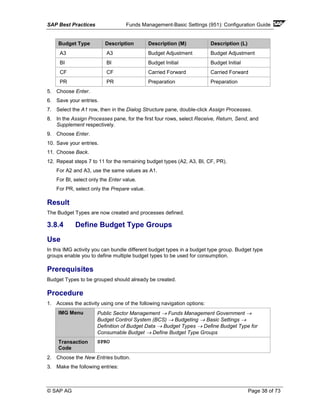
Budget Type Description Description (M) Description (L)
A1 A1 Budget Adjustment Budget Adjustment
A2 A2 Budget Adjustment Budget Adjustment
SAP Best Practices Funds Management-Basic Settings (951): Configuration Guide
© SAP AG Page 38 of 73
Budget Type Description Description (M) Description (L)
A3 A3 Budget Adjustment Budget Adjustment
BI BI Budget Initial Budget Initial
CF CF Carried Forward Carried Forward
PR PR Preparation Preparation
5. Choose Enter.
6. Save your entries.
7. Select the A1 row, then in the Dialog Structure pane, double-click Assign Processes.
8. In the Assign Processes pane, for the first four rows, select Receive, Return, Send, and
Supplement respectively.
9. Choose Enter.
10. Save your entries.
11. Choose Back.
12. Repeat steps 7 to 11 for the remaining budget types (A2, A3, BI, CF, PR).
For A2 and A3, use the same values as A1.
For BI, select only the Enter value.
For PR, select only the Prepare value.
Result
The Budget Types are now created and processes defined.
3.8.4 Define Budget Type Groups
Use
In this IMG activity you can bundle different budget types in a budget type group. Budget type
groups enable you to define multiple budget types to be used for consumption.
Prerequisites
Budget Types to be grouped should already be created.
Procedure
1. Access the activity using one of the following navigation options:
IMG Menu Public Sector Management → Funds Management Government →
Budget Control System (BCS) → Budgeting → Basic Settings →
Definition of Budget Data → Budget Types → Define Budget Type for
Consumable Budget → Define Budget Type Groups
Transaction
Code
SPRO
2. Choose the New Entries button.
3. Make the following entries:
SAP Best Practices Funds Management-Basic Settings (951): Configuration Guide
© SAP AG Page 39 of 73
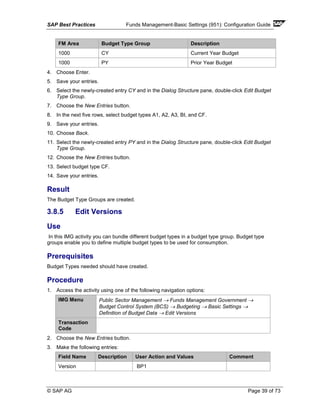
FM Area Budget Type Group Description
1000 CY Current Year Budget
1000 PY Prior Year Budget
4. Choose Enter.
5. Save your entries.
6. Select the newly-created entry CY and in the Dialog Structure pane, double-click Edit Budget
Type Group.
7. Choose the New Entries button.
8. In the next five rows, select budget types A1, A2, A3, BI, and CF.
9. Save your entries.
10. Choose Back.
11. Select the newly-created entry PY and in the Dialog Structure pane, double-click Edit Budget
Type Group.
12. Choose the New Entries button.
13. Select budget type CF.
14. Save your entries.
Result
The Budget Type Groups are created.
3.8.5 Edit Versions
Use
In this IMG activity you can bundle different budget types in a budget type group. Budget type
groups enable you to define multiple budget types to be used for consumption.
Prerequisites
Budget Types needed should have created.
Procedure
1. Access the activity using one of the following navigation options:
IMG Menu Public Sector Management → Funds Management Government →
Budget Control System (BCS) → Budgeting → Basic Settings →
Definition of Budget Data → Edit Versions
Transaction
Code
2. Choose the New Entries button.
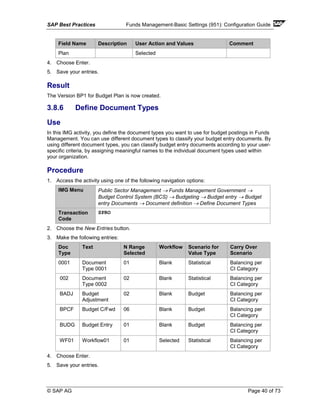
3. Make the following entries:
Field Name Description User Action and Values Comment
Version BP1
SAP Best Practices Funds Management-Basic Settings (951): Configuration Guide
© SAP AG Page 40 of 73
Field Name Description User Action and Values Comment
Plan Selected
4. Choose Enter.
5. Save your entries.
Result
The Version BP1 for Budget Plan is now created.
3.8.6 Define Document Types
Use
In this IMG activity, you define the document types you want to use for budget postings in Funds
Management. You can use different document types to classify your budget entry documents. By
using different document types, you can classify budget entry documents according to your user-
specific criteria, by assigning meaningful names to the individual document types used within
your organization.
Procedure
1. Access the activity using one of the following navigation options:
IMG Menu Public Sector Management → Funds Management Government →
Budget Control System (BCS) → Budgeting → Budget entry → Budget
entry Documents → Document definition → Define Document Types
Transaction
Code
SPRO
2. Choose the New Entries button.
3. Make the following entries:
Doc
Type
Text N Range
Selected
Workflow Scenario for
Value Type
Carry Over
Scenario
0001 Document
Type 0001
01 Blank Statistical Balancing per
CI Category
002 Document
Type 0002
02 Blank Statistical Balancing per
CI Category
BADJ Budget
Adjustment
02 Blank Budget Balancing per
CI Category
BPCF Budget C/Fwd 06 Blank Budget Balancing per
CI Category
BUDG Budget Entry 01 Blank Budget Balancing per
CI Category
WF01 Workflow01 01 Selected Statistical Balancing per
CI Category
4. Choose Enter.
5. Save your entries.
SAP Best Practices Funds Management-Basic Settings (951): Configuration Guide
© SAP AG Page 41 of 73
Result
The Budget Document Types are created.
3.8.7 Maintain Number Range Intervals for Entry Documents
Use
In this IMG activity, you define the number range interval for budget entry documents of an FM
area for each fiscal year for the industry-specific component Funds Management.
Procedure
1. Access the activity using one of the following navigation options:
IMG Menu Public Sector Management → Funds Management Government →
Budget Control System (BCS) → Budgeting → Budget entry → Budget
entry Documents → Document definition → Maintain Number range
Interval for Entry Documents
Transaction
Code
SPRO
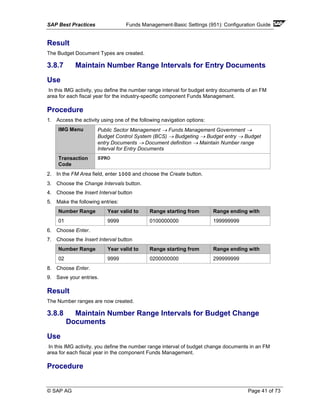
2. In the FM Area field, enter 1000 and choose the Create button.
3. Choose the Change Intervals button.
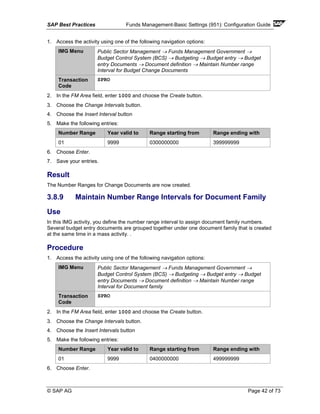
4. Choose the Insert Interval button
5. Make the following entries:
Number Range Year valid to Range starting from Range ending with
01 9999 0100000000 199999999
6. Choose Enter.
7. Choose the Insert Interval button
Number Range Year valid to Range starting from Range ending with
02 9999 0200000000 299999999
8. Choose Enter.
9. Save your entries.
Result
The Number ranges are now created.
3.8.8 Maintain Number Range Intervals for Budget Change
Documents
Use
In this IMG activity, you define the number range interval of budget change documents in an FM
area for each fiscal year in the component Funds Management.
Procedure
SAP Best Practices Funds Management-Basic Settings (951): Configuration Guide
© SAP AG Page 42 of 73
1. Access the activity using one of the following navigation options:
IMG Menu Public Sector Management → Funds Management Government →
Budget Control System (BCS) → Budgeting → Budget entry → Budget
entry Documents → Document definition → Maintain Number range
Interval for Budget Change Documents
Transaction
Code
SPRO
2. In the FM Area field, enter 1000 and choose the Create button.
3. Choose the Change Intervals button.
4. Choose the Insert Interval button
5. Make the following entries:
Number Range Year valid to Range starting from Range ending with
01 9999 0300000000 399999999
6. Choose Enter.
7. Save your entries.
Result
The Number Ranges for Change Documents are now created.
3.8.9 Maintain Number Range Intervals for Document Family
Use
In this IMG activity, you define the number range interval to assign document family numbers.
Several budget entry documents are grouped together under one document family that is created
at the same time in a mass activity. .
Procedure
1. Access the activity using one of the following navigation options:
IMG Menu Public Sector Management → Funds Management Government →
Budget Control System (BCS) → Budgeting → Budget entry → Budget
entry Documents → Document definition → Maintain Number range
Interval for Document family
Transaction
Code
SPRO
2. In the FM Area field, enter 1000 and choose the Create button.
3. Choose the Change Intervals button.
4. Choose the Insert Intervals button
5. Make the following entries:
Number Range Year valid to Range starting from Range ending with
01 9999 0400000000 499999999
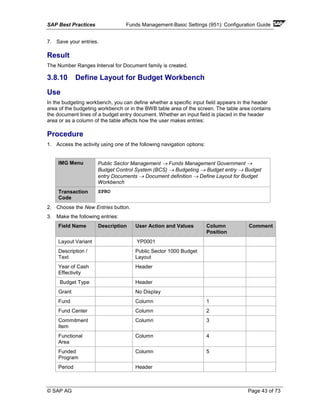
6. Choose Enter.
SAP Best Practices Funds Management-Basic Settings (951): Configuration Guide
© SAP AG Page 43 of 73
7. Save your entries.
Result
The Number Ranges Interval for Document family is created.
3.8.10 Define Layout for Budget Workbench
Use
In the budgeting workbench, you can define whether a specific input field appears in the header
area of the budgeting workbench or in the BWB table area of the screen. The table area contains
the document lines of a budget entry document. Whether an input field is placed in the header
area or as a column of the table affects how the user makes entries:
Procedure
1. Access the activity using one of the following navigation options:
IMG Menu Public Sector Management → Funds Management Government →
Budget Control System (BCS) → Budgeting → Budget entry → Budget
entry Documents → Document definition → Define Layout for Budget
Workbench
Transaction
Code
SPRO
2. Choose the New Entries button.
3. Make the following entries:
Field Name Description User Action and Values Column
Position
Comment
Layout Variant YP0001
Description /
Text
Public Sector 1000 Budget
Layout
Year of Cash
Effectivity
Header
Budget Type Header
Grant No Display
Fund Column 1
Fund Center Column 2
Commitment
Item
Column 3
Functional
Area
Column 4
Funded
Program
Column 5
Period Header
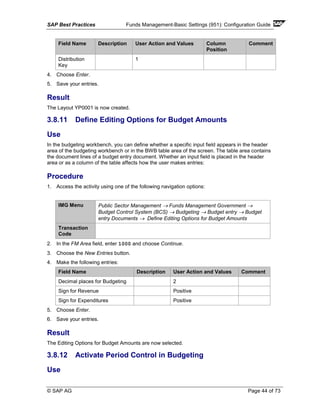
SAP Best Practices Funds Management-Basic Settings (951): Configuration Guide
© SAP AG Page 44 of 73
Field Name Description User Action and Values Column
Position
Comment
Distribution
Key
1
4. Choose Enter.
5. Save your entries.
Result
The Layout YP0001 is now created.
3.8.11 Define Editing Options for Budget Amounts
Use
In the budgeting workbench, you can define whether a specific input field appears in the header
area of the budgeting workbench or in the BWB table area of the screen. The table area contains
the document lines of a budget entry document. Whether an input field is placed in the header
area or as a column of the table affects how the user makes entries:
Procedure
1. Access the activity using one of the following navigation options:
IMG Menu Public Sector Management → Funds Management Government →
Budget Control System (BCS) → Budgeting → Budget entry → Budget
entry Documents → Define Editing Options for Budget Amounts
Transaction
Code
2. In the FM Area field, enter 1000 and choose Continue.
3. Choose the New Entries button.
4. Make the following entries:
Field Name Description User Action and Values Comment
Decimal places for Budgeting 2
Sign for Revenue Positive
Sign for Expenditures Positive
5. Choose Enter.
6. Save your entries.
Result
The Editing Options for Budget Amounts are now selected.
3.8.12 Activate Period Control in Budgeting
Use
SAP Best Practices Funds Management-Basic Settings (951): Configuration Guide
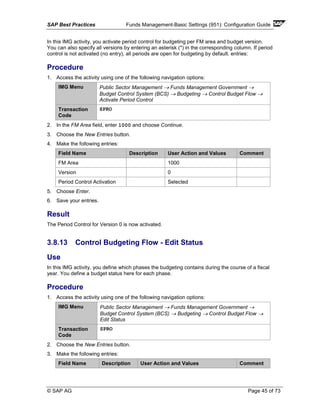
© SAP AG Page 45 of 73
In this IMG activity, you activate period control for budgeting per FM area and budget version.
You can also specify all versions by entering an asterisk (*) in the corresponding column. If period
control is not activated (no entry), all periods are open for budgeting by default. entries:
Procedure
1. Access the activity using one of the following navigation options:
IMG Menu Public Sector Management → Funds Management Government →
Budget Control System (BCS) → Budgeting → Control Budget Flow →
Activate Period Control
Transaction
Code
SPRO
2. In the FM Area field, enter 1000 and choose Continue.
3. Choose the New Entries button.
4. Make the following entries:
Field Name Description User Action and Values Comment
FM Area 1000
Version 0
Period Control Activation Selected
5. Choose Enter.
6. Save your entries.
Result
The Period Control for Version 0 is now activated.
3.8.13 Control Budgeting Flow - Edit Status
Use
In this IMG activity, you define which phases the budgeting contains during the course of a fiscal
year. You define a budget status here for each phase.
Procedure
1. Access the activity using one of the following navigation options:
IMG Menu Public Sector Management → Funds Management Government →
Budget Control System (BCS) → Budgeting → Control Budget Flow →
Edit Status
Transaction
Code
SPRO
2. Choose the New Entries button.
3. Make the following entries:
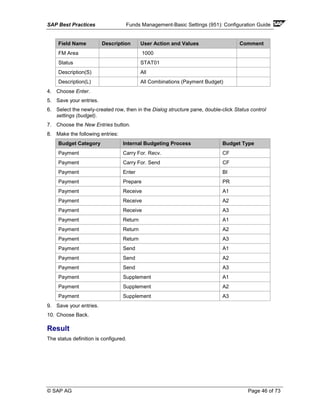
Field Name Description User Action and Values Comment
SAP Best Practices Funds Management-Basic Settings (951): Configuration Guide
© SAP AG Page 46 of 73
Field Name Description User Action and Values Comment
FM Area 1000
Status STAT01
Description(S) All
Description(L) All Combinations (Payment Budget)
4. Choose Enter.
5. Save your entries.
6. Select the newly-created row, then in the Dialog structure pane, double-click Status control
settings (budget).
7. Choose the New Entries button.
8. Make the following entries:
Budget Category Internal Budgeting Process Budget Type
Payment Carry For. Recv. CF
Payment Carry For. Send CF
Payment Enter BI
Payment Prepare PR
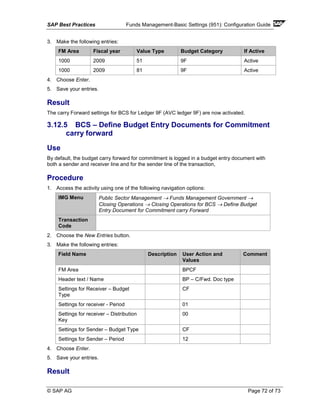
Payment Receive A1
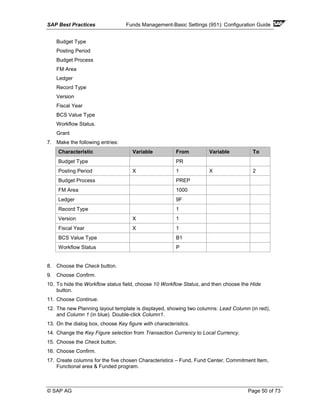
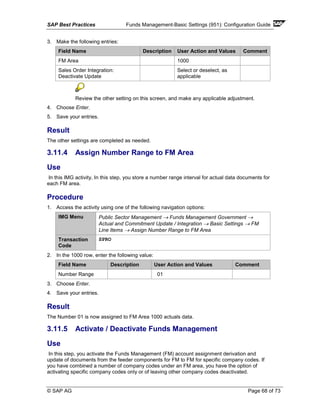
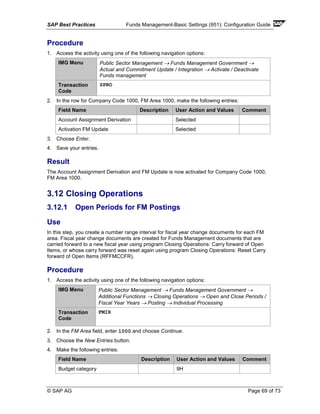
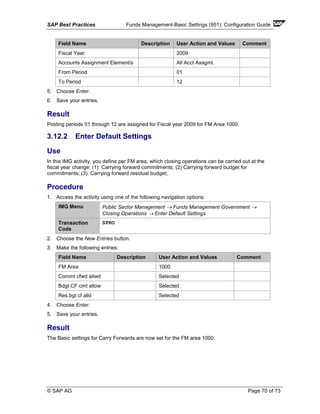
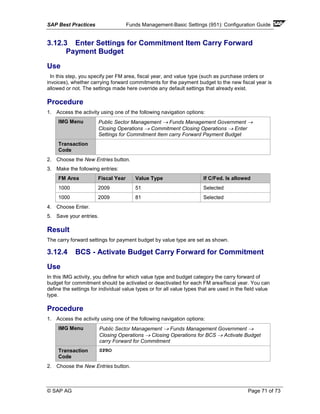
Payment Receive A2
Payment Receive A3
Payment Return A1
Payment Return A2
Payment Return A3
Payment Send A1
Payment Send A2
Payment Send A3
Payment Supplement A1
Payment Supplement A2
Payment Supplement A3
9. Save your entries.
10. Choose Back.
Result
The status definition is configured.
SAP Best Practices Funds Management-Basic Settings (951): Configuration Guide
© SAP AG Page 47 of 73
3.8.14 Assign Status to a Version
Use
Status management in the budget control system (BCS) allows you to subdivide the budgeting in
Funds Management into successive budgeting phases. The individual budgeting phases differ in
that only certain budget processes can be executed (Budgeting Process in combination with a
Budget Type). Each phase is mapped in the system as a status. Whereas you define all required
statuses and the executable budgeting activities for each status in Customizing, you select the
current valid statuses in the current fiscal year in the menu of Funds Management:
Procedure
1. Access the activity using one of the following navigation options:
Application
Menu
Accounting → Public Sector Management → Funds Management →
Budgeting → Budget Control System (BCS) → Version → Assign Status
to a Version
Transaction
Code
FMBOSTAT
2. Enter 1000 in the Determine Work Area: Entry screen.
3. Make the following entries:
Field Name Description User Action and Values Comment
Fiscal Year <1 minus current year>
Version 0
Period Control Activation STAT01
Budget address check Leave blank
4. Make the same entries for the current year and the subsequent fiscal year.
5. Make the same entries for version BP1.
6. Choose Enter.
7. Save your entries.
Result
The Version 0 and BP1 are assigned status STAT01.
3.8.15 Define Planner Profile
Use
In this IMG activity, you define planner profiles with which you can control planning. In a planner
profile, you define which plan tasks are used with which default parameters for each table. You
can define any number of plan tasks for each table. Using the profile item that defines the
sequence of the plan tasks for a table, you can assign the same plan task to a planner profile
several times, but with different default parameters.
Procedure
SAP Best Practices Funds Management-Basic Settings (951): Configuration Guide
© SAP AG Page 48 of 73
1. Access the activity using one of the following navigation options:
IMG Menu Public Sector Management → Funds Management Government →
Budget Control System (BCS) → Budgeting → Budget Entry → Planning
→ Define Planner Profile
Transaction
Code
SPRO
2. Choose the New Entries button.
3. Make the following entries:
Field Name Description User Action and Values Comment
Planner Profile BP01C
4. Choose Enter.
5. Save your entries.
6. Select the newly-created entry and in the Dialog Structure pane, double-click Tables which
can be Planned.
7. Choose the New Entries button.
8. Make the following entries:
Field Name Description User Action and Values Comment
Summary Table FMBDT
Distribution Key Leave Blank
9. Choose Enter.
10. Save your entries.
11. Select the new created entry and in the Dialog Structure pane, double-click the Planning
tasks for the table
12. Choose the New Entries button
13. Make the following entries:
Field Name Description User Action and Values Comment
Item 0
Layout BP01
Overwrite X Activate checkbox
Integrated excel X Activate checkbox
14. Choose Enter.
Step 11 to 14 is only required if you are creating a layout that is integrated with excel,
otherwise the process ends with the assignment of the table for planning. If you are
creating a layout with excel integration, then complete the remaining steps.
15. Save your entries.
SAP Best Practices Funds Management-Basic Settings (951): Configuration Guide
© SAP AG Page 49 of 73
16. Select the new created entry and in the Dialog Structure pane, double-click the Default
Parameters
17. Enter a value for each of the parameter fields
18. Choose the Form-based radio button
19. Click the Overview Screen button.
20. Choose Enable Macros
21. Save your entries
22. Click the Back button
23. Choose Save All
24. Remove all entries in the parameter entry screen
25. Click the Back button
26. Save your data
27. Save your entries
Result
The Planner Profile is now created.
3.8.16 Define Planning Layout
Use
In this IMG activity, you create Layouts to build Planning data by Version.
Procedure
1. Access the activity using one of the following navigation options:
IMG Menu Public Sector Management → Funds Management Government →
Budget Control System (BCS) → Budgeting → Budget Entry → Planning
→ Define Planning Layout
Transaction
Code
SPRO
2. Double-click Create Planning Layout.
3. Make the following entries:
Field Name Description User Action and Values Comment
Planning Layout Name BP01
Name / description Planning Layout – All Dimensions
4. Choose the Create button.
5. On the Report Painter: Create FI-SL planning layout FMBDT screen, choose Edit → Gen
Data Selection → Gen Data Selection.
6. On the Element definition: General data selection dialog box, select the following ten
Characteristics fields, then choose the arrow button in the middle to move them to the
Selected Characteristics pane.
SAP Best Practices Funds Management-Basic Settings (951): Configuration Guide
© SAP AG Page 50 of 73
Budget Type
Posting Period
Budget Process
FM Area
Ledger
Record Type
Version
Fiscal Year
BCS Value Type
Workflow Status.
Grant
7. Make the following entries:
Characteristic Variable From Variable To
Budget Type PR
Posting Period X 1 X 2
Budget Process PREP
FM Area 1000
Ledger 9F
Record Type 1
Version X 1
Fiscal Year X 1
BCS Value Type B1
Workflow Status P
8. Choose the Check button.
9. Choose Confirm.
10. To hide the Workflow status field, choose 10 Workflow Status, and then choose the Hide
button.
11. Choose Continue.
12. The new Planning layout template is displayed, showing two columns: Lead Column (in red),
and Column 1 (in blue). Double-click Column1.
13. On the dialog box, choose Key figure with characteristics.
14. Change the Key Figure selection from Transaction Currency to Local Currency.
15. Choose the Check button.
16. Choose Confirm.
17. Create columns for the five chosen Characteristics – Fund, Fund Center, Commitment Item,
Functional area & Funded program.
SAP Best Practices Funds Management-Basic Settings (951): Configuration Guide
© SAP AG Page 51 of 73
18. To create the first column, double-click Lead Column (in red).
19. In the dialog box, select the Funded Program characteristic. and move it to the left using the
arrow button.
20. Add option of local variable with a range of 1 to 2.
21. Complete the selection by choosing Check and then choosing Confirm.
22. On the Lead column structure: Funded Program dialog box, choose the Characteristic value
radio button, then choose Confirm.
23. Repeat steps 18 to 22 for Functional Area, Commitment Item, Fund Center, and Fund (in that
order).
To add columns for the other four Characteristics, choose the New Lead Column
button.
24. Once all the columns are defined, choose the Check button to validate your work. Correct
errors, if any.
25. Choose Enter.
26. Save your entries.
Result
The Planning Layout BP01 is now created.
3.9 BCS - AVC
3.9.1 Edit Tolerance Profile
Use
A tolerance profile pools different tolerance limits for availability control when processing actual
transactions.
Procedure
1. Access the activity using one of the following navigation options:
IMG Menu Public Sector Management → Funds Management Government →
Budget Control System (BCS) → Budgeting → Availability Control →
Edit Tolerance Profiles
Transaction
Code
2. Choose the New Entries button.
3. Make the following entries:
Tolerance Profile Name Description Currency Category of Tolerance Profile
Z001 User Warnings Only USD Only Usage rates are allowed
Z002 User Warnings Only USD Only Usage rates are allowed
SAP Best Practices Funds Management-Basic Settings (951): Configuration Guide
© SAP AG Page 52 of 73
4. Choose Enter.
5. Save your entries.
6. Select Tolerance Profile Z001, then from the Dialog Structure double-click Maintain
Tolerance Limits.
7. Choose the New Entries button.
8. Make the following entries:
Field Name Description User Action and Values Comment
Ceiling Type Expenditure - Outgoings
Activity group ++
Category of Tolerance Profile Only Usage rates are allowed
Order for checking 0
Message Type Warning
Usage / Limit 90%
AVC Event Leave Blank
Ceiling Type Expenditure - Outgoings
Activity group ++
Category of Tolerance Profile Only Usage rates are allowed
Order for checking 1
Message Type Error
Usage / Limit 100%
Ceiling Type Expenditure - Outgoings
Activity group 80
Category of Tolerance Profile Only Usage rates are allowed
Order for checking 2
Message Type Warning
Usage / Limit 100%
AVC Event Leave Blank
9. Choose Enter.
10. Save your entries.
11. Choose Back.
12. Repeat steps 6 to 11 for Tolerance Profile Z002 with the following information:
Field Name Description User Action and Values Comment
Ceiling Type Expenditure - Outgoings
Activity group ++
Category of Tolerance Profile Only Usage rates are allowed
Order for checking 0
SAP Best Practices Funds Management-Basic Settings (951): Configuration Guide
© SAP AG Page 53 of 73
Field Name Description User Action and Values Comment
Message Type Warning
Usage / Limit 100%
AVC Event Leave Blank
Result
The Tolerance Profiles Z001 and Z002 are now created.
3.9.2 Filter Settings for Budget Values
Use
In this IMG activity, you define which budget values should be included in active availability
control.
Procedure
1. Access the activity using one of the following navigation options:
IMG Menu Public Sector Management → Funds Management Government →
Budget Control System (BCS) → Availability Control → Settings for
Availability Control Ledger → Define Filter Settings for Budget Values
Transaction
Code
SPRO
2. Double-click Define the Consumable Budget.
3. In the FM Area field, enter 1000 and choose Continue.
4. Choose the New Entries button.
5. Make the following entries:
Field Name Description User Action and Values Comment
Version 0
Value Type Selection B
6. Choose Enter.
7. Save your entries.
8. In the Dialog Structure pane, double-click Select Budget Types.
9. Choose the New Entries button.
10. Make the following entries:
Budget Type Long Description of Budget Type
A1 Budget Adjustment
A2 Budget Adjustment
A3 Budget Adjustment
BI Budget Initial
CF Carried Forward
SAP Best Practices Funds Management-Basic Settings (951): Configuration Guide
© SAP AG Page 54 of 73
11. Choose Enter.
12. Save your entries.
Result
The Filter settings for Budget Values are created.
3.9.3 Filter Settings for Commitment / Actual Values
Use
In this IMG activity, you define which budget values should be included in active availability
control.
Procedure
1. Access the activity using one of the following navigation options:
IMG Menu Public Sector Management → Funds Management Government →
Budget Control System (BCS) → Availability Control → Settings for
Availability Control Ledger → Define Filter Settings for Commitment /
Actual Values
Transaction
Code
SPRO
2. In the FM Area field, enter 1000 and choose Continue.
3. Choose the New Entries button.
4. Make the following entries:
Field Name Description User Action and
Values
Comment
AVC Ledger 9H
Fiscal Year starting From Value Type
Selection
2000
5. Choose Enter.
6. Save your entries.
Result
The Filter settings for Commitment / Actual are complete.
3.9.4 Define Derivation Strategy for Control Objects
Use
In this IMG activity, you can define your own strategies for deriving Funds Management account
assignments (FM account assignments) for availability control.
Procedure
1. Access the activity using one of the following navigation options:
SAP Best Practices Funds Management-Basic Settings (951): Configuration Guide
© SAP AG Page 55 of 73
IMG Menu Public Sector Management → Funds Management Government →
Budget Control System (BCS) → Availability Control → Settings for
Availability Control Ledger → Define Derivation Strategy for Control
Objects
Transaction
Code
SPRO
2. Choose the New Entries button.
3. Make the following entries:
Field Name Description User Action and Values Comment
Derivation Strategy
Name
9H01
Description Best Practices Strategy: Control
Objects
4. Choose Enter.
5. Save your entries.
6. Double-click the newly-created entry.
7. Choose the Display <> Change button.
8. Choose the Create Step button.
9. On the Create Step dialog box, select Derivation Rule, then choose Continue.
10. Make the following entries:
Field Name Description User Action and Values Comment
Step Description Best Practices Fund to Fund
Source Fields FUND
Target Fields RFUND
11. Choose Enter.
12. Save your entries.
13. Choose the Condition tab.
14. Make the following entries:
Field Name Description User Action and Values Comment
Source field for Condition FM_AREA
Operant for Condition =
Source field for Condition 1000
15. Choose Enter.
16. Save your entries.
17. Choose Back twice.
18. Double-click the 9H01 entry.
19. Choose the Create Step button.
20. On the Create Step dialog box, select Derivation Rule, then choose Continue.
SAP Best Practices Funds Management-Basic Settings (951): Configuration Guide
© SAP AG Page 56 of 73
Field Name Description User Action and Values Comment
Step Description Best Practices CI to CI
Source Field CMMTITEM
Target Field RCMMTITEM
21. Choose Enter.
22. Save your entries.
23. Choose the Condition tab.
24. Make the following entries:
Field Name Description User Action and Values Comment
Source field for Condition FM_AREA
Operant for Condition =
Source field for Condition 1000
25. Choose Enter.
26. Save your entries.
27. Choose Back.
28. Choose Back twice.
29. Double-click the 9H01 entry.
30. Choose the Create Step button.
31. On the Create Step dialog box, select Derivation Rule, then choose Continue.
32. Make the following entries:
Field Name Description User Action and Values Comment
Step Description Best Practices Fund Ctr to Fund Ctr
Source Field FUNDSCTR
Target Field RFUNDSCTR
33. Choose Enter.
34. Save your entries.
35. Choose the Condition tab.
36. Make the following entries:
Field Name Description User Action and Values Comment
Source field for Condition FM_AREA
Operant for Condition =
Source field for Condition 1000
37. Choose Enter.
38. Save your entries.
39. Choose Back.
40. Choose Back twice.
SAP Best Practices Funds Management-Basic Settings (951): Configuration Guide
© SAP AG Page 57 of 73
41. Double-click the 9H01 entry.
42. Choose the Create Step button.
43. On the Create Step dialog box, select Initialization, then choose Continue.
44. Make the following entries:
Field Name Description User Action and Values Comment
Step Description Best Practices Initialize Functional Area
Field RFUNCAREA
45. Choose Enter.
46. Save your entries.
47. Choose the Condition tab.
48. Make the following entries:
Field Name Description User Action and Values Comment
Name ALDNR
Operant for Condition =
Value 9H
49. Choose Enter.
50. Save your entries.
51. On the Create Step dialog box, select Initialization, then choose Continue.
52. Make the following entries:
Field Name Description User Action and Values Comment
Step Description Best Practices Initialize Funded Program
Field RMEASURE
53. Choose Enter.
54. Save your entries.
55. Choose the Condition tab.
56. Make the following entries:
Field Name Description User Action and Values Comment
Name ALDNR
Operant for Condition =
Value 9H
57. Choose Enter.
58. Save your entries.
Result
The Derivation Strategy for Control Objects is now defined.
SAP Best Practices Funds Management-Basic Settings (951): Configuration Guide
© SAP AG Page 58 of 73
3.9.5 Define Derivation Strategy for Tolerance Profiles
Use
In this IMG activity you define the derivation rules with which you can replace the standard
tolerance profile by an alternative tolerance profile.
Procedure
1. Access the activity using one of the following navigation options:
IMG Menu Public Sector Management → Funds Management Government →
Budget Control System (BCS) → Availability Control → Settings for
Availability Control Ledger → Define Derivation Strategy for Tolerance
Profiles
Transaction
Code
2. Choose the New Entries button.
3. Make the following entries:
Field Name Description User Action and Values Comment
Name 9H02
Strategy Description BP Strategy for Tolerance Profiles
4. Choose Enter.
5. Save your entries.
6. Double-click the 9H02 entry.
7. Choose the Display <> Change button.
8. Choose the Create Step button.
9. On the Create Step dialog box, select Derivation Rule, then choose Continue.
10. Make the following entries:
Field Name Description User Action and Values Comment
Step Description Profile for Payroll
Source Field FM_AREA
Target Field TOLPROF
11. Choose Enter.
12. Choose the Rule values icon.
13. Make the following entries:
Field Name Description User Action and
Values
Comment
Financial Management Area 1000
Tolerance Profile for Availability
Control
Z003
14. Choose Continue.
SAP Best Practices Funds Management-Basic Settings (951): Configuration Guide
© SAP AG Page 59 of 73
15. Save your entries.
16. Choose Back twice.
17. Double-click the 9H02 entry.
18. Choose the Display <> Change button.
19. Choose the Create Step button.
20. On the Create Step dialog box, select Derivation Rule, then choose Continue.
21. Make the following entries:
Field Name Description User Action and Values Comment
Step Description Assign Users to Override Profile Z002
Source Field UNAME
Target Field TOLPROF
22. Choose Enter.
23. Choose the Details icon under Target Fields.
24. In the dialog box, select the radio button Overwrite With New Value If New Value is Not
Empty
25. Choose Enter.
26. Save your entries.
Result
The Derivation Strategy for Tolerance Profiles is now defined.
3.9.6 Assign Tolerance Profiles and Strategy for Control
Objects
Use
In this IMG activity you define the derivation of availability control objects and the assignment of
the tolerance profile for each availability control ledger.
Procedure
1. Access the activity using one of the following navigation options:
IMG Menu Public Sector Management → Funds Management Government →
Budget Control System (BCS) → Availability Control → Settings for
Availability Control Ledger → Assign Tolerance Profiles and Strategy for
Control Objects
Transaction
Code
2. In the FM Area field, enter 1000 and choose Continue.
3. Choose the New Entries button.
4. Make the following entries:
SAP Best Practices Funds Management-Basic Settings (951): Configuration Guide
© SAP AG Page 60 of 73
Field Name Description User Action
and Values
Comment
Ledger Name 9H
From Year 2000
Tolerance Profile Z001
Der. Strategy for
Tolerance Profile
9H01
5. Choose Enter.
6. Save your entries.
Result
The Tolerance Profiles and Derivation Strategy are now assigned to Control Objects in 9H01.
3.9.7 Select Checking Horizon for Availability Control
Use
In this IMG activity you define the derivation of availability control objects and the assignment of
the tolerance profile for each availability control ledger.
Procedure
1. Access the activity using one of the following navigation options:
IMG Menu Public Sector Management → Funds Management Government →
Budget Control System (BCS) → Availability Control → Settings for
Availability Control Ledger → Specify Checking Horizon → Select
Checking Horizon for Availability Control
Transaction
Code
SPRO
2. In the FM Area field, enter 1000 and choose Continue.
3. Choose the New Entries button.
4. Make the following entries:
Field Name Description User Action and Values Comment
Ledger Name 9H
Checking
Horizon
Annual checks (default) can be overwritten
by strategy
5. Choose Enter.
6. Save your entries.
Result
The Checking Horizon is now set for AVC Ledger 9H.
SAP Best Practices Funds Management-Basic Settings (951): Configuration Guide
© SAP AG Page 61 of 73
3.9.8 Define Activation of Availability Control
Use
In this IMG activity, you activate availability control by assigning an activity status for each ledger
and fiscal year (from year). You can choose between five activation statuses for each availability
control ledger:
Procedure
1. Access the activity using one of the following navigation options:
IMG Menu Public Sector Management → Funds Management Government →
Budget Control System (BCS) → Availability Control → Define Activation
of Availability Control
Transaction
Code
SPRO
2. In the FM Area field, enter 1000 and choose Continue.
3. Choose the New Entries button.
4. Make the following entries:
Field Name Description User Action and Values Comment
Ledger Name 9H
From Year 2000
Ledger Status assignment Active with strict check logic
5. Choose Enter.
6. Save your entries.
Result
The Activation of 9H with Strict Logic is now set.
Result
The program generates a report showing the results of reconstruct taking into the two data
sources as defined.
3.10Earmarked Funds
3.10.1 Assign Field Status variant to Company Code
Use
In this work step you assign a field status variant to your company codes. You can assign a field
status variant to as many company codes as you want.
Procedure
1. Access the activity using one of the following navigation options:
SAP Best Practices Funds Management-Basic Settings (951): Configuration Guide
© SAP AG Page 62 of 73
IMG Menu Public Sector Management → Funds Management Government →
Funds Management-Specific Postings → Filed Control for Earmarked
Funds & Funds Transfers → Assign Field Status Variant to Company
Code
Transaction
Code
2. Double-click Company Code 1000.
3. Choose the New Entries button.
4. Make the following entries:
Field Name Description User Action and Values Comment
Field Status Variant FMRE
5. Choose Enter.
6. Save your entries.
Result
The Field Status variant FMRE is now assigned to Company Code 1000.
3.10.2 Define Field Status Groups
Use
In this step, you define field status groups. You must assign the field status groups, along with a
field status variant, to a field selection string, and enter them when defining document types.
Procedure
1. Access the activity using one of the following navigation options:
IMG Menu Public Sector Management → Funds Management Government →
Funds Management-Specific Postings → Filed Control for Earmarked
Funds & Funds Transfers → Define Field Status Groups
Transaction
Code
2. Choose the New Entries button.
3. Make the following entries:
Field Name Description User Action and Values Comment
Field Status Group 1000
Name Description Public Sector
4. Choose Enter.
5. Save your entries.
Result
SAP Best Practices Funds Management-Basic Settings (951): Configuration Guide
© SAP AG Page 63 of 73
The Field Status Group 1000 is created.
3.10.3 Define Field Selection String
Use
In this step, you can define the field selection strings - that is, you can specify which fields are
ready for entry, required or hidden during Earmarked funds and transfers. In another step, you
must assign a field status variant and field status group to the field selection string.
Procedure
1. Access the activity using one of the following navigation options:
IMG Menu Public Sector Management → Funds Management Government →
Funds Management-Specific Postings → Earmarked Funds & Funds
Transfers → Field Control for Earmarked Funds & Funds Transfers →
Define Field Selection String
Transaction
Code
SPRO
2. Select the Field Selection String MITTELRESER, and choose Copy As.
3. Name the newly-copied object as ZFR_BP.
4. Select the ZFR_BP entry, and in the Dialog Structure pane, double-click Maintain Field
Status for Field Selection String.
5. Make the following Fields settings:
Description Hide Display Opt.entry Req.entry
Fund Center Selected
Fund Selected
Functional Area Selected
Grant Selected
Business Area Selected
Review all other Field statuses for your business process needs.
6. Choose Enter.
7. Save your entries.
Result
The Field Status String ZFR_BP is now created / maintained.
3.10.4 Define Document Types
Use
SAP Best Practices Funds Management-Basic Settings (951): Configuration Guide
© SAP AG Page 64 of 73
In this IMG activity, you create the document types for the documents in Funds Management.
Document types are used to classify the documents. You can define characteristics for each
document type that controls how the document is entered or they may be recorded in the
document itself. For each document type, you must specify:
Procedure
1. Access the activity using one of the following navigation options:
IMG Menu Public Sector Management → Funds Management Government →
Funds Management-Specific Postings → Earmarked Funds & Funds
Transfers → Define Document Types
Transaction
Code
SPRO
2. Choose the New Entries button.
3. Make the following entries:
Field Name Description User Action and
Values
Comment
Document Type Category 30 – Fund
Reservation
Document Type 11
Number Range 03
Field Status Group 1000
Group Key for Earmarked Funds
Copying Template
FMRE
4. Choose Enter.
5. Save your entries.
Result
The Document Type Fund Reservation is maintained with above selections.
3.10.5 Define Rules for Account Assignment Transfer
Use
In this step you define which account assignments are to be transferred from the earmarked fund
to the follow-on document when posting a document with reference to an Earmarked fund.
Procedure
1. Access the activity using one of the following navigation options:
IMG Menu Public Sector Management → Funds Management Government →
Funds Management-Specific Postings → Account Assignment Transfer
→ Define Rules for Account Assignment transfer
Transaction
Code
SPRO
2. Choose the New Entries button.
SAP Best Practices Funds Management-Basic Settings (951): Configuration Guide
© SAP AG Page 65 of 73
3. Make the following entries:
Field Name Description User Action and Values Comment
Rule 1000
Description BP Rule 1000
4. Choose Enter.
5. Save your entries.
6. Select the newly created entry, and in the Dialog Structure pane, double-click Maintain Field
to be Transferred.
7. Group the fields as follows:
Group 1 Group 2 Group 3
Order Number, Fund, Fund Center,
Functional Area, Grant
Cost Center, Network
Number, WBS
GL
Account
8. Save your entries.
Result
The account assignment Rule 1000 is now defined.
3.10.6 Assign Rules
Use
In this IMG activity, you assign the rules for the account assignment transfer from the earmarked
funds to individual activities (such as purchase order, G/L account posting).
Procedure
1. Access the activity using one of the following navigation options:
IMG Menu Public Sector Management → Funds Management Government →
Funds Management-Specific Postings → Earmarked Funds and Funds
Transfers → Account Assignment Transfer → Assign Rules
Transaction
Code
SPRO
2. Choose the New Entries button.
3. Make the following entries:
Field Name Description User Action and Values Comment
Activity *
Rule 1000
4. Choose Enter.
5. Save your entries.
Result
The newly created Rule is now assigned to ALL activities.
SAP Best Practices Funds Management-Basic Settings (951): Configuration Guide
© SAP AG Page 66 of 73
3.11Commitment Updates and Integration
3.11.1 Assign Update Profile to FM Area
Use
In this step you define your update profile per FM area. Update profiles support system
configuration as a result of the business and executable features they contain for the controlling if
updates. Via the update profile, for example, you can define whether a purchase requisition
consumes budget or not (statistical postings).
Procedure
1. Access the activity using one of the following navigation options:
IMG Menu Public Sector Management → Funds Management Government →
Actual and Commitment Update / Integration → General Settings →
Assign Update Profile to FM Area
Transaction
Code
SPRO
2. Choose the New Entries button.
3. Make the following entries:
Field Name Description User Action and Values Comment
FM Area 1000
Update Profile 000102
4. Choose Enter.
5. Save your entries.
Result
The Update Profile 00102 is now assigned to FM Area 1000.
3.11.2 Override Update Profile
Use
this IMG activity, you can override the valid settings of an update profile in the standard system.
Override for a value type. You can individually specify for each update profile and value type,
which document date should be called for the period assignment of commitment and actual data
in Funds Management. This refers to the period in which the actual data in the Information
system should be displayed for the payment budget and/or the commitment budget. The update
periods are determined by one of the following: (a) Posting/Document date (b) Due date (c)
Delivery date
In addition, you can specify for each value type that the update in Funds Management should
only be statistical. This means that the posting is not subject to availability control and does not
use any budget.
Procedure
1. Access the activity using one of the following navigation options:
SAP Best Practices Funds Management-Basic Settings (951): Configuration Guide
© SAP AG Page 67 of 73
IMG Menu Public Sector Management → Funds Management Government →
Actual and Commitment Update / Integration → General Settings →
Override Update Profile
Transaction
Code
SPRO
2. Choose the New Entries button.
3. Make the following entries:
Field Name Description User Action
and Values
Comment
Update Profile 000102
Value Type <value type> Leave blank or enter
Value as applicable (such
as 60)
Period-based Encumbrance
Tracking for Payment Budget
Selected
4. Choose Enter.
5. Save your entries.
Result
The Update Profile 00102 is now overridden as shown.
3.11.3 Make Other Settings
Use
In this IMG activity, you can define:
• When the goods receipt should be included in Funds Management
• The process by which tax should be displayed
• Whether the derivation of FM Account Assignments only occurs for real Controlling
Objects or also for statistical Controlling objects
• Which documents should be used for determining the Carry forward Level
• Which Currency Type is used for currency integration (see section "Define Currency Type
for Currency Integration")
• Whether sales orders should be updated in FM.
Procedure
1. Access the activity using one of the following navigation options:
IMG Menu Public Sector Management → Funds Management Government →
Actual and Commitment Update / Integration → General Settings →
Make other Settings
Transaction
Code
SPRO
2. Choose the New Entries button.
SAP Best Practices Funds Management-Basic Settings (951): Configuration Guide
© SAP AG Page 68 of 73
3. Make the following entries:
Field Name Description User Action and Values Comment
FM Area 1000
Sales Order Integration:
Deactivate Update
Select or deselect, as
applicable
Review the other setting on this screen, and make any applicable adjustment.
4. Choose Enter.
5. Save your entries.
Result
The other settings are completed as needed.
3.11.4 Assign Number Range to FM Area
Use
In this IMG activity, In this step, you store a number range interval for actual data documents for
each FM area.
Procedure
1. Access the activity using one of the following navigation options:
IMG Menu Public Sector Management → Funds Management Government →
Actual and Commitment Update / Integration → Basic Settings → FM
Line Items → Assign Number Range to FM Area
Transaction
Code
SPRO
2. In the 1000 row, enter the following value:
Field Name Description User Action and Values Comment
Number Range 01
3. Choose Enter.
4. Save your entries.
Result
The Number 01 is now assigned to FM Area 1000 actuals data.
3.11.5 Activate / Deactivate Funds Management
Use
In this step, you activate the Funds Management (FM) account assignment derivation and
update of documents from the feeder components for FM to FM for specific company codes. If
you have combined a number of company codes under an FM area, you have the option of
activating specific company codes only or of leaving other company codes deactivated.
SAP Best Practices Funds Management-Basic Settings (951): Configuration Guide
© SAP AG Page 69 of 73
Procedure
1. Access the activity using one of the following navigation options:
IMG Menu Public Sector Management → Funds Management Government →
Actual and Commitment Update / Integration → Activate / Deactivate
Funds management
Transaction
Code
SPRO
2. In the row for Company Code 1000, FM Area 1000, make the following entries:
Field Name Description User Action and Values Comment
Account Assignment Derivation Selected
Activation FM Update Selected
3. Choose Enter.
4. Save your entries.
Result
The Account Assignment Derivation and FM Update is now activated for Company Code 1000,
FM Area 1000.
3.12 Closing Operations
3.12.1 Open Periods for FM Postings
Use
In this step, you create a number range interval for fiscal year change documents for each FM
area. Fiscal year change documents are created for Funds Management documents that are
carried forward to a new fiscal year using program Closing Operations: Carry forward of Open
Items, or whose carry forward was reset again using program Closing Operations: Reset Carry
forward of Open Items (RFFMCCFR).
Procedure
1. Access the activity using one of the following navigation options:
IMG Menu Public Sector Management → Funds Management Government →
Additional Functions → Closing Operations → Open and Close Periods /
Fiscal Year Years → Posting → Individual Processing
Transaction
Code
FMIR
2. In the FM Area field, enter 1000 and choose Continue.
3. Choose the New Entries button.
4. Make the following entries:
Field Name Description User Action and Values Comment
Budget category 9H
SAP Best Practices Funds Management-Basic Settings (951): Configuration Guide
© SAP AG Page 70 of 73
Field Name Description User Action and Values Comment
Fiscal Year 2009
Accounts Assignment Element/s All Acct Assgmt.
From Period 01
To Period 12
5. Choose Enter.
6. Save your entries.
Result
Posting periods 01 through 12 are assigned for Fiscal year 2009 for FM Area 1000.
3.12.2 Enter Default Settings
Use
In this IMG activity, you define per FM area, which closing operations can be carried out at the
fiscal year change: (1) Carrying forward commitments; (2) Carrying forward budget for
commitments; (3) Carrying forward residual budget;
Procedure
1. Access the activity using one of the following navigation options:
IMG Menu Public Sector Management → Funds Management Government →
Closing Operations → Enter Default Settings
Transaction
Code
SPRO
2. Choose the New Entries button.
3. Make the following entries:
Field Name Description User Action and Values Comment
FM Area 1000
Commt cfwd allwd Selected
Bdgt CF cmt allow Selected
Res.bgt cf alld Selected
4. Choose Enter.
5. Save your entries.
Result
The Basic settings for Carry Forwards are now set for the FM area 1000.
SAP Best Practices Funds Management-Basic Settings (951): Configuration Guide
© SAP AG Page 71 of 73
3.12.3 Enter Settings for Commitment Item Carry Forward
Payment Budget
Use
In this step, you specify per FM area, fiscal year, and value type (such as purchase orders or
invoices), whether carrying forward commitments for the payment budget to the new fiscal year is
allowed or not. The settings made here override any default settings that already exist.
Procedure
1. Access the activity using one of the following navigation options:
IMG Menu Public Sector Management → Funds Management Government →
Closing Operations → Commitment Closing Operations → Enter
Settings for Commitment Item carry Forward Payment Budget
Transaction
Code
2. Choose the New Entries button.
3. Make the following entries:
FM Area Fiscal Year Value Type If C/Fed. Is allowed
1000 2009 51 Selected
1000 2009 81 Selected
4. Choose Enter.
5. Save your entries.
Result
The carry forward settings for payment budget by value type are set as shown.
3.12.4 BCS - Activate Budget Carry Forward for Commitment
Use
In this IMG activity, you define for which value type and budget category the carry forward of
budget for commitment should be activated or deactivated for each FM area/fiscal year. You can
define the settings for individual value types or for all value types that are used in the field value
type.
Procedure
1. Access the activity using one of the following navigation options:
IMG Menu Public Sector Management → Funds Management Government →
Closing Operations → Closing Operations for BCS → Activate Budget
carry Forward for Commitment
Transaction
Code
SPRO
2. Choose the New Entries button.
SAP Best Practices Funds Management-Basic Settings (951): Configuration Guide
© SAP AG Page 72 of 73
3. Make the following entries:
FM Area Fiscal year Value Type Budget Category If Active
1000 2009 51 9F Active
1000 2009 81 9F Active
4. Choose Enter.
5. Save your entries.
Result
The carry Forward settings for BCS for Ledger 9F (AVC ledger 9F) are now activated.
3.12.5 BCS – Define Budget Entry Documents for Commitment
carry forward
Use
By default, the budget carry forward for commitment is logged in a budget entry document with
both a sender and receiver line and for the sender line of the transaction,
Procedure
1. Access the activity using one of the following navigation options:
IMG Menu Public Sector Management → Funds Management Government →
Closing Operations → Closing Operations for BCS → Define Budget
Entry Document for Commitment carry Forward
Transaction
Code
2. Choose the New Entries button.
3. Make the following entries:
Field Name Description User Action and
Values
Comment
FM Area BPCF
Header text / Name BP – C/Fwd. Doc type
Settings for Receiver – Budget
Type
CF
Settings for receiver - Period 01
Settings for receiver – Distribution
Key
00
Settings for Sender – Budget Type CF
Settings for Sender – Period 12
4. Choose Enter.
5. Save your entries.
Result
SAP Best Practices Funds Management-Basic Settings (951): Configuration Guide
© SAP AG Page 73 of 73
The Document settings with Budget Type and period settings are set for Carry Forward for BCS.

Funds management configuration sap ag

  • 1.
    EHP3 for SAPERP 6.0 June 2009 English Funds Management-Basic Settings (951) SAP AG Dietmar-Hopp-Allee 16 69190 Walldorf Germany Building Block Configuration Guide
  • 2.
    SAP Best PracticesFunds Management-Basic Settings (951): Configuration Guide © SAP AG Page 2 of 73 Copyright © Copyright 2009 SAP AG. All rights reserved. No part of this publication may be reproduced or transmitted in any form or for any purpose without the express permission of SAP AG. The information contained herein may be changed without prior notice. Some software products marketed by SAP AG and its distributors contain proprietary software components of other software vendors. Microsoft, Windows, Excel, Outlook, and PowerPoint are registered trademarks of Microsoft Corporation. IBM, DB2, DB2 Universal Database, OS/2, Parallel Sysplex, MVS/ESA, AIX, S/390, AS/400, OS/390, OS/400, iSeries, pSeries, xSeries, zSeries, System i, System i5, System p, System p5, System x, System z, System z9, z/OS, AFP, Intelligent Miner, WebSphere, Netfinity, Tivoli, Informix, i5/OS, POWER, POWER5, POWER5+, OpenPower and PowerPC are trademarks or registered trademarks of IBM Corporation. Adobe, the Adobe logo, Acrobat, PostScript, and Reader are either trademarks or registered trademarks of Adobe Systems Incorporated in the United States and/or other countries. Oracle is a registered trademark of Oracle Corporation. UNIX, X/Open, OSF/1, and Motif are registered trademarks of the Open Group. Citrix, ICA, Program Neighborhood, MetaFrame, WinFrame, VideoFrame, and MultiWin are trademarks or registered trademarks of Citrix Systems, Inc. HTML, XML, XHTML, and W3C are trademarks or registered trademarks of W3C®, World Wide Web Consortium, Massachusetts Institute of Technology. Java is a registered trademark of Sun Microsystems, Inc. JavaScript is a registered trademark of Sun Microsystems, Inc., used under license for technology invented and implemented by Netscape. SAP, R/3, xApps, xApp, SAP NetWeaver, Duet, PartnerEdge, ByDesign, SAP Business ByDesign, and other SAP products and services mentioned herein as well as their respective logos are trademarks or registered trademarks of SAP AG in Germany and in several other countries all over the world. All other product and service names mentioned are the trademarks of their respective companies. Data contained in this document serves informational purposes only. National product specifications may vary. These materials are subject to change without notice. These materials are provided by SAP AG and its affiliated companies ("SAP Group") for informational purposes only, without representation or warranty of any kind, and SAP Group shall not be liable for errors or omissions with respect to the materials. The only warranties for SAP Group products and services are those that are set forth in the express warranty statements accompanying such products and services, if any. Nothing herein should be construed as constituting an additional warranty.
  • 3.
    SAP Best PracticesFunds Management-Basic Settings (951): Configuration Guide © SAP AG Page 3 of 73 Icons Icon Meaning Caution Example Note Recommendation Syntax Typographic Conventions Type Style Description Example textWords or characters that appear on the screen. These include field names, screen titles, pushbuttons as well as menu names, paths, and options. Cross-references to other documentation. Example text Emphasized words or phrases in body text, titles of graphics and tables. EXAMPLE TEXT Names of elements in the system. These include report names, program names, transaction codes, table names, and individual key words of a programming language, when surrounded by body text, for example, SELECT and INCLUDE. Example text Screen output. This includes file and directory names and their paths, messages, source code, names of variables and parameters as well as names of installation, upgrade and database tools. EXAMPLE TEXT Keys on the keyboard, for example, function keys (such as F2) or the ENTER key. Example text Exact user entry. These are words or characters that you enter in the system exactly as they appear in the documentation. <Example text> Variable user entry. Pointed brackets indicate that you replace these words and characters with appropriate entries.
  • 4.
    SAP Best PracticesFunds Management-Basic Settings (951): Configuration Guide © SAP AG Page 4 of 73 Contents Funds Management-Basic Settings (951) ....................................................................................... 7 1 Purpose .................................................................................................................................... 7 2 Preparation............................................................................................................................... 7 2.1 Prerequisites .................................................................................................................. 7 3 Configuration ............................................................................................................................ 7 3.1 Public Sector Management Configuration ..................................................................... 7 3.1.1 Maintain FM Area....................................................................................................... 7 3.1.2 Assign Company code to FM Area............................................................................ 8 3.1.3 Assign Fiscal Year variant to FM Area ...................................................................... 8 3.1.4 Activate Account Assignment Elements .................................................................... 9 3.1.5 Activate Global Funds.............................................................................................. 10 3.1.6 Define Business Area .............................................................................................. 10 3.2 Financial Accounting Configuration ............................................................................. 11 3.2.1 Define Ledgers for General Ledger Accounting ...................................................... 11 3.2.2 Define Currencies of Leading Ledger...................................................................... 12 3.2.3 Include Fields in Totals Table .................................................................................. 12 3.2.4 Include Fields-Master Data Check........................................................................... 13 3.2.5 Assign Scenarios and Customer Fields to Ledger .................................................. 14 3.2.6 Define Variants for Real time Integration CO → FI ................................................. 15 3.2.7 Enter Global Parameters ......................................................................................... 16 3.2.8 Define Document Number Ranges for Entry View .................................................. 17 3.2.9 Define Document Types for Entry View................................................................... 18 3.2.10 Define Posting Keys................................................................................................. 18 3.2.11 Define Retained Earnings Account.......................................................................... 19 3.3 Financials Documents.................................................................................................. 20 3.3.1 Classify G/L Accounts for Document Splitting ......................................................... 20 3.3.2 Define Zero-Balance Clearing Account ................................................................... 21 3.3.3 Define Business Transaction Variant....................................................................... 22 3.3.4 Classify Document Types for Document Splitting ................................................... 24 3.3.5 Define Document Splitting Characteristics for General Ledger............................... 25 3.3.6 Define Document Splitting Characteristics for Controlling....................................... 26 3.3.7 Define Field Status Variants – Field Status Groups ................................................ 26 3.3.8 Define Extended Document Splitting Method.......................................................... 28 3.3.9 Activate Document Splitting..................................................................................... 28 3.3.10 Assign Document Splitting Method.......................................................................... 29
  • 5.
    SAP Best PracticesFunds Management-Basic Settings (951): Configuration Guide © SAP AG Page 5 of 73 3.3.11 Define Document Splitting Rule............................................................................... 29 3.4 New GL for Treasury and Payroll Constants ............................................................... 30 3.4.1 Edit Constant for Nonassigned Processes .............................................................. 30 3.5 Grants Management .................................................................................................... 32 3.5.1 Define NON_RELEVANT Grant .............................................................................. 32 3.6 Funds Management Basic Settings ............................................................................. 32 3.6.1 Activate Global Functions of BCS............................................................................ 32 3.7 Funds Management Master Data ................................................................................ 33 3.7.1 Create / Change Hierarchy Variant – Fund Center ................................................. 33 3.7.2 Assign Hierarchy Variant to FM Area ...................................................................... 34 3.7.3 Create FM Fund Type.............................................................................................. 34 3.7.4 Create and Maintain Funded Program Type ........................................................... 35 3.8 BCS Setup - Budgeting................................................................................................ 36 3.8.1 Activate Account Assignment Elements in BCS...................................................... 36 3.8.2 Define Budget Category .......................................................................................... 36 3.8.3 Define Budget Type ................................................................................................. 37 3.8.4 Define Budget Type Groups .................................................................................... 38 3.8.5 Edit Versions............................................................................................................ 39 3.8.6 Define Document Types .......................................................................................... 40 3.8.7 Maintain Number Range Intervals for Entry Documents ......................................... 41 3.8.8 Maintain Number Range Intervals for Budget Change Documents ........................ 41 3.8.9 Maintain Number Range Intervals for Document Family......................................... 42 3.8.10 Define Layout for Budget Workbench...................................................................... 43 3.8.11 Define Editing Options for Budget Amounts ............................................................ 44 3.8.12 Activate Period Control in Budgeting....................................................................... 44 3.8.13 Control Budgeting Flow - Edit Status....................................................................... 45 3.8.14 Assign Status to a Version....................................................................................... 47 3.8.15 Define Planner Profile.............................................................................................. 47 3.8.16 Define Planning Layout............................................................................................ 49 3.9 BCS - AVC ................................................................................................................... 51 3.9.1 Edit Tolerance Profile............................................................................................... 51 3.9.2 Filter Settings for Budget Values ............................................................................. 53 3.9.3 Filter Settings for Commitment / Actual Values ....................................................... 54 3.9.4 Define Derivation Strategy for Control Objects........................................................ 54 3.9.5 Define Derivation Strategy for Tolerance Profiles ................................................... 58 3.9.6 Assign Tolerance Profiles and Strategy for Control Objects ................................... 59 3.9.7 Select Checking Horizon for Availability Control ..................................................... 60
  • 6.
    SAP Best PracticesFunds Management-Basic Settings (951): Configuration Guide © SAP AG Page 6 of 73 3.9.8 Define Activation of Availability Control ................................................................... 61 3.10 Earmarked Funds......................................................................................................... 61 3.10.1 Assign Field Status variant to Company Code ........................................................ 61 3.10.2 Define Field Status Groups...................................................................................... 62 3.10.3 Define Field Selection String ................................................................................... 63 3.10.4 Define Document Types .......................................................................................... 63 3.10.5 Define Rules for Account Assignment Transfer....................................................... 64 3.10.6 Assign Rules ............................................................................................................ 65 3.11 Commitment Updates and Integration ......................................................................... 66 3.11.1 Assign Update Profile to FM Area ........................................................................... 66 3.11.2 Override Update Profile ........................................................................................... 66 3.11.3 Make Other Settings ................................................................................................ 67 3.11.4 Assign Number Range to FM Area.......................................................................... 68 3.11.5 Activate / Deactivate Funds Management............................................................... 68 3.12 Closing Operations....................................................................................................... 69 3.12.1 Open Periods for FM Postings................................................................................. 69 3.12.2 Enter Default Settings.............................................................................................. 70 3.12.3 Enter Settings for Commitment Item Carry Forward Payment Budget.................... 71 3.12.4 BCS - Activate Budget Carry Forward for Commitment .......................................... 71 3.12.5 BCS – Define Budget Entry Documents for Commitment carry forward................. 72
  • 7.
    SAP Best PracticesFunds Management-Basic Settings (951): Configuration Guide © SAP AG Page 7 of 73 Funds Management-Basic Settings (951) 1 Purpose This configuration guide provides the information you need to set up the configuration of this building block manually. If you do not want to configure manually and prefer an automated installation process using BC Sets and other tools, refer to the Quick Guide of your SAP Best Practices version, which you can find on this solution's SAP Note. 2 Preparation 2.1 Prerequisites Building Blocks Before you start installing this building block, review the Prerequisite Matrix for this solution, which is available on the Documentation DVD via the Site map page. 3 Configuration 3.1 Public Sector Management Configuration 3.1.1 Maintain FM Area Use The Funds Management Area (FM Area) is the primary structural component that is required to be maintained to implant Public Sector Funds management solution. Procedure 1. Access the activity using one of the following navigation options: IMG Menu Enterprise Structure → Definition → Financial Accounting → Maintain FM Area. Transaction Code SPRO 2. Choose the New Entries button. 3. Make the following entries: Field Name Description User Action and Values Comment
  • 8.
    SAP Best PracticesFunds Management-Basic Settings (951): Configuration Guide © SAP AG Page 8 of 73 Field Name Description User Action and Values Comment FIKRS FM Area 1000 FITXT FM Areas text FM Area 1000 FM_WAERS FM area currency USD 4. Save your entries. Result The required FM Area is created and is now available for assignments. 3.1.2 Assign Company code to FM Area Use The Funds Management area must be assigned in the enterprise structure. Procedure 1. Access the activity using one of the following navigation options: IMG Menu Enterprise Structure → Assignment → Financial Accounting → Assign Company code to Financial Management area Transaction Code SPRO 2. Choose the New Entries button. 3. Make the following entries: Field Name Description User Action and Values Comment BUKRS Company code 1000 FIKRS FM Area FM Area 1000 FITXT FM area Text FM Area 1000 4. Save your entries. Result The FM Area 1000 is now assigned to Company code 1000. 3.1.3 Assign Fiscal Year variant to FM Area Use A Fiscal Year variant is needed to define the accounting year and posting periods for the company. Prerequisites The Fiscal Year Variant is defined.
  • 9.
    SAP Best PracticesFunds Management-Basic Settings (951): Configuration Guide © SAP AG Page 9 of 73 Procedure 1. Access the activity using one of the following navigation options: IMG Menu Public Sector management → Funds Management Government → Basic Settings→ Fiscal Year variant → Assign Fiscal Year variant to FM Area Transaction Code SPRO 2. Choose the New Entries button. 3. Make the following entries: Field Name Description User Action and Values Comment FIKRS FM Area FM Area 1000 CA_PERIV Fiscal Year Variant K4 4. Save your entries. Result The Company code and the FM Area now has a Fiscal year Variant available to control posting periods as needed. 3.1.4 Activate Account Assignment Elements Use This task activates the accounts assignment elements (Fund, Functional Area, Grant, and Funded Program) for use in Fund Management. Prerequisites Field Statuses available for data entry through different application paths must be reviewed carefully to insure that the FM account assignments requirements are met correctly. In addition, the integration start date with HR will need to be coordinated with the HR implementation team. Procedure 1. Access the activity using one of the following navigation options: IMG Menu Public Sector management → General settings for Public Sector Management → Basic settings: Account assignment Elements → Activate Account Assignment Elements Transaction Code SPRO 2. Choose the New Entries button. 3. Make the following entries:
  • 10.
    SAP Best PracticesFunds Management-Basic Settings (951): Configuration Guide © SAP AG Page 10 of 73 4. Save your entries. Result The selected FM account assignment objects are now active in Funds Management. 3.1.5 Activate Global Funds Use This task activates Public Sector Management functions in the system. This activation will be required in order to utilize the FMGLFLEXT/A tables in FI. Procedure 1. Access the activity using one of the following navigation options: IMG Menu Public Sector management → Funds Management Government → Basic Settings → Activate Global Funds Management Functions (PSM- FM) Transaction Code SPRO 2. Select the checkbox. 3. Save your entries Result Public Sector Management functions are now active in the system. 3.1.6 Define Business Area Use Field Name Description User Action and Values Comment FUND_ACTIVE Fund Selected Enter date for assignment of integration with HR FUNCTION_ACTIVE Functional Area Selected Enter date for assignment of integration with HR GRANT Active Grant Selected Enter date for assignment of integration with HR MEASURE Active Funded Program Selected
  • 11.
    SAP Best PracticesFunds Management-Basic Settings (951): Configuration Guide © SAP AG Page 11 of 73 This task creates Business Areas in the system. Business Areas are used as on organizational unit that represents a separate area of operational responsibility. A general guideline is to create a business area for each organization unit that will require P&L and Balance sheet reporting. Procedure 1. Access the activity using one of the following navigation options: IMG Menu Enterprise Structure → Definition → Financial Accounting → Define Business Area Transaction Code SPRO 2. Choose the New Entries button. 3. Make the following entries. Business Area Description 9998 Payroll Constant 9999 Treasurer’s Constant 4. Save your entries. Result The following business areas have now been created for your system. 3.2 Financial Accounting Configuration After activating Global Funds Management functions, log out and log back in. 3.2.1 Define Ledgers for General Ledger Accounting Use This activity defines the leading ledger that is updated for all the activities and company codes. Procedure 1. Access the activity using one of the following navigation options: IMG Menu Financial Accounting (New) → Financial Accounting Global Settings → (New) → Ledgers → Ledger → Define Ledgers for General Ledger Accounting Transaction Code SPRO
  • 12.
    SAP Best PracticesFunds Management-Basic Settings (951): Configuration Guide © SAP AG Page 12 of 73 2. Choose the New Entries button. 3. Make the following entries: Field Name Description User Action and Values Comment RLDNR Ledger FA TAB Totals table FMGLFLEXT XLEADING Leading Ledger Selected At least one ledger to be defined as the Leading Ledger that is updated for all the activities / company codes. 4. Save your entries. Result The Leading ledger now defined for further assignments. 3.2.2 Define Currencies of Leading Ledger Use The leading ledger must be defined as the Leading ledger that is updated for all the activities and company codes. Procedure 1. Access the activity using one of the following navigation options: IMG Menu Financial Accounting (New) → Financial Accounting Global Settings (New) → Ledgers → Ledger → Define Currencies of Leading Ledger Transaction Code SPRO 2. Double-click the entry for the company code (1000). 3. The system populates the Company Code with default values from the global settings for Company Code. Make any changes (for example, to the second and third currencies) as needed. Result The Leading ledger is now defined for further assignments. 3.2.3 Include Fields in Totals Table Use This activity adds additional fields to the Totals Table FMGLFLEXT. Adding additional fields to the totals tables facilitates reporting and derivation of account assignment elements. Prerequisites The fields must be available. Create them if necessary.
  • 13.
    SAP Best PracticesFunds Management-Basic Settings (951): Configuration Guide © SAP AG Page 13 of 73 Procedure 1. Access the activity using one of the following navigation options: IMG Menu Financial Accounting (New) → Financial Accounting Global Settings (New) → Ledgers → Fields → Customer Fields → Include Fields in Totals Table Transaction Code SPRO 2. In the Totals Table field, enter FMGLFLEXT and choose the Change button 3. Make the following entries: Field Name Description User Action and Values Comment Cost Center ZZKOSTL Order Number ZZAUFNR WBS Breakdown Structure ZZPS_PSP_PNR 4. Save your entries. Result The Totals Table now has additional fields available for assignment and processing. 3.2.4 Include Fields-Master Data Check Use This activity adds additional fields for master data checking to the Totals Table FMGLFLEXT and FMGLFLEXR. Procedure 1. Access the activity using one of the following navigation options: IMG Menu Financial Accounting (New) → Financial Accounting Global Settings (New) → Ledgers → Fields → Customer Fields → Define Master Data Check Transaction Code SPRO 2. Choose the New Entries button. 3. Make the following entries: Field Name Description User Action and Values Comment Totals table FMGLFLEXT Field Name ZZAUFNR Exit/Table =13 Additional Info 1
  • 14.
    SAP Best PracticesFunds Management-Basic Settings (951): Configuration Guide © SAP AG Page 14 of 73 Field Name Description User Action and Values Comment Superior Fields RBUKRS 4. Save your entries. 5. Choose Back. 6. Repeat steps 2 to 5 for the following information: Field Name Totals Table Master data table (validation) Indicator: May field be used in planning set? Necessary field for master data calculation Ind.: Exit for additional values or additional information ZZKOSTL FMGLFLEXT =06 X RBUKRS ZZPS_PSP_PNR FMGLFLEXT =27 X RBUKRS #1 7. Save your entries. Result The added fields to the totals table have now been defined for master data checks during planning and allocations. 3.2.5 Assign Scenarios and Customer Fields to Ledger Use The system is delivered with eight scenarios, each of which include a set of fields and tables that are updated to meet a given business requirement. . Procedure 1. Access the activity using one of the following navigation options: IMG Menu Financial Accounting (New) → Financial Accounting Global Settings (New) → Ledgers → Ledger → Assign Scenarios and Customer Fields to Ledgers Transaction Code SPRO 2. From the Ledger field, select FA. 3. From the left pane, double-click Scenarios. 4. Choose the New Entries button. 5. Make the following entries: Scenario for General Ledger Accounting Long Text PSM_FAC Fund Accounting PSM_GM Grants management
  • 15.
    SAP Best PracticesFunds Management-Basic Settings (951): Configuration Guide © SAP AG Page 15 of 73 6. Click Enter 7. From the Scenarios table, select the scenario PSM_FAC 8. From the left pane, double-click Customer Fields 9. Choose the New Entries button 10. Add the custom fields: ZZAUFNR, ZZKOSTL, ZZPS_PSP_PNR 11. Press Enter 12. From the left pane, double-click Scenarios 13. From the Scenarios table, select the scenario PSM_GM 14. From the left pane, double-click Customer Fields 15. Choose the New Entries button 16. Add the custom fields: ZZAUFNR, ZZKOSTL, ZZPS_PSP_PNR 17. Save your entries. Result The Funds management and Grants management Scenarios are now assigned to the Leading Ledger. 3.2.6 Define Variants for Real time Integration CO →→→→ FI Use This activity defines variants for the real-time integration of Controlling with Financial Accounting. Procedure 1. Access the activity using one of the following navigation options: IMG Menu Financial Accounting (New) → Financial Accounting Global Settings → (New) → Ledger → Real-time Integration of Controlling with Financial Accounting → Define variants for Real-time Integration Transaction Code SPRO 2. Choose the New Entries button. 3. Make the following entries: Field Name Description User Action and Values Comment XACTIVE R-Time Integration Active Select XACCDET Acct. Determination Active Select BLART Document Type SA TEXT Description Standard variant for real- time Int.
  • 16.
    SAP Best PracticesFunds Management-Basic Settings (951): Configuration Guide © SAP AG Page 16 of 73 Field Name Description User Action and Values Comment XUSE_FLAGS (Select check marks for fields) Cross company code Cross Business Area Cross Functional Area Cross Fund Cross Grant Select 4. Save your entries. Result The real-time integration between CO and FI is now activated. 3.2.7 Enter Global Parameters Use In this activity, you can make various global specifications for the company code. . Prerequisites The organizational unit Company Code, should have been created in the “Enterprise Structure” section of the IMG. Procedure 1. Access the activity using one of the following navigation options: IMG Menu Financial Accounting (New) → Financial Accounting Global Settings (New) → Global Parameters for Company Code → Enter Global Parameters Transaction Code SPRO 2. Double-click the entry for Company Code 1000. 3. Choose the New Entries button. 4. Make the following entries: Field Name Description User Action and Values Comment Chart of Accounts 0010 Credit Control Area 1000 FM Area 1000 Fiscal Year Variant K4 Document entry Screen variant 2 Field Status variant 0010
  • 17.
    SAP Best PracticesFunds Management-Basic Settings (951): Configuration Guide © SAP AG Page 17 of 73 Field Name Description User Action and Values Comment Posting Period Variant 0010 Max Exch. Rate Variance 10% Workflow variant 1000 Define default value date Selected Propose Fiscal Year Selected Tax Base is Net value Selected Activate CM Selected 5. Save your entries. Result The Global parameters for the Company Code are set. 3.2.8 Define Document Number Ranges for Entry View Use Number Ranges must be set up for Entry View of the New General Ledger. Procedure 1. Access the activity using one of the following navigation options: IMG Menu Financial Accounting (New) → Financial Accounting Global Settings → (New) → Document → Document Number Ranges → Documents in Entry View → Define Document Number Ranges for Entry View Transaction Code SPRO 2. Make the following entries: Field Name Description User Action and Values Comment Company Code 1000 3. Choose the Change Intervals button. 4. Choose the + button to add a number range. 5. Create Number ranges for 01, 02, 03, 04, 05, 06, 07, 08, 09, and so on. 6. Enter a number range value for each number range object created [e.g. 01 = 100000000 to 199999999]. 7. Save your entries. Result The Number ranges are created for Entry View documents.
  • 18.
    SAP Best PracticesFunds Management-Basic Settings (951): Configuration Guide © SAP AG Page 18 of 73 3.2.9 Define Document Types for Entry View Use Number Ranges must be set up for Entry View of the New General Ledger. Procedure 1. Access the activity using one of the following navigation options: IMG Menu Financial Accounting (New) → Financial Accounting Global Settings → (New) → Document → Document Types → Define Document Types for Entry View Transaction Code SPRO You may wish to view the existing document types. To do so, select the Document type dropdown. 2. Choose the New Entries button. 3. Make the following entries: Field Name Description User Action and Values Comment Document type ZV Choose a two character code for a new document type Number range 20 Reverse Document Type ZV Select Account Types Asset Selected Customer Selected Vendor Selected Material Selected GL Account Selected 4. Save your entries. Result The Document ZV is created as shown. Create additional document types as needed. 3.2.10 Define Posting Keys Use
  • 19.
    SAP Best PracticesFunds Management-Basic Settings (951): Configuration Guide © SAP AG Page 19 of 73 Posting keys are used to define how a line item is to be entered and processed during a transaction. For each posting key, you define whether it is a debit or credit posting, which accounts can be posted to, and which fields are displayed or are required for entry. As a guideline, the posting keys delivered with the system are generally sufficient to address all transactional scenarios for most organizations. Creating new posting keys is usually not required. A more standard activity is to review the field status settings of a given posting key to ensure that it does not conflict with the field status settings for a given general ledger account. Procedure 1. Access the activity using one of the following navigation options: IMG Menu Financial Accounting (New) → Financial Accounting Global Settings → (New) → Document → Document Number ranges → Define Posting Keys Transaction Code SPRO 2. To create new postings keys, make the following entries: Field Name Description User Action and Values Comment Posting Key <posting key> Two character posting key Debit / Credit Indicator <choose as applicable> Account Types <Choose the Account Types applicable> Number range 20 Select Account Types: Asset Selected Customer Selected Vendor Selected Material Selected GL Account Selected 3. Save your entries. Result The Posting Keys are created or modified as applicable. 3.2.11 Define Retained Earnings Account Use You assign a fund balance account to each P&L account by specifying a P&L statement account type in the chart of accounts area of each P&L account. In this activity, you create those P&L statement account types and map them to their fund balance account.
  • 20.
    SAP Best PracticesFunds Management-Basic Settings (951): Configuration Guide © SAP AG Page 20 of 73 Prerequisites The accounts to be mapped to a P&L Statement Type as fund balance accounts are already created. Procedure 1. Access the activity using one of the following navigation options: IMG Menu Financial Accounting (New) → General Ledger Accounting (New) → Master Data → GL Accounts → Preparations → Define Retained Earnings Account Transaction Code SPRO 2. In the Chart of Accounts field, enter 0010 and choose Continue. 3. Choose the New Entries button. 4. Make the following entries: P&L Stmt Type Account Number A1 330005 A2 330005 5. Create additional P&L Statement Types and map them to your fund balance accounts as required. 6. Save your entries. Result The P&L Statement Types are now defined to your fund balance accounts. 3.3 Financials Documents 3.3.1 Classify G/L Accounts for Document Splitting Use Each business transaction that is entered is analyzed during the document splitting procedure. In this analysis, the system determines for each line item whether it is an item that remains unchanged or an item that should be split. So that document splitting recognizes how the individual document items are to be handled, you must classify them. Prerequisites The Chart of Accounts is defined and all the required accounts are created. Procedure 1. Access the activity using one of the following navigation options:
  • 21.
    SAP Best PracticesFunds Management-Basic Settings (951): Configuration Guide © SAP AG Page 21 of 73 IMG Menu Financial Accounting (New) → General Ledger Accounting (New) → Business Transactions → Document Splitting → Classify G/L Accounts for Document Splitting Transaction Code SPRO 2. In the Chart of Accounts field, enter 0010 and choose Continue. 3. Choose the New Entries button. 4. Make the following entries: Field Name Description User Action and Values Comment Account from 100000 Account to 100000 Item Category 0400 Account from 111000 Account to 114999 Item Category 0400 Account from 410000 Account to 459999 Item Category 30000 Account from 670000 Account to 670000 Item Category 20000 All the accounts in the Chart of Accounts must be assigned to an Item Category. The Item Categories cannot be changed. Every newly created account must be maintained in this table on an ongoing basis. 5. Save your entries. Result The classification of accounts based on Item Categories is completed for further definition of Document Splitting. 3.3.2 Define Zero-Balance Clearing Account Use For account assignment objects for which you want to have a zero balance setting, the system checks whether the balance of account assignment object is zero after document splitting. If this is not the case, the system generates additional clearing items. In this activity, you must create a clearing account for these additional clearing items.
  • 22.
    SAP Best PracticesFunds Management-Basic Settings (951): Configuration Guide © SAP AG Page 22 of 73 Prerequisites The account to be assigned as Zero-balance Clearing Account, must have created before its assignment. Procedure 1. Access the activity using one of the following navigation options: IMG Menu Financial Accounting (New) → General Ledger Accounting (New) → Business Transactions → Document Splitting → Define Zero-Balance Clearing Account Transaction Code SPRO 2. Select the row for Item Category 01001 – Account Key and Posting Keys used for zero- balancing, then in the Dialog Structure pane, double-click Accounts. 3. In the Chart of Accounts field, enter 0010 and choose Continue. 4. Choose the New Entries button. 5. Make the following entries: Field Name Description User Action and Values Comment Account for zero balancing 100000 6. Save your entries. Result A zero-balancing account is created for use in the document splitting. 3.3.3 Define Business Transaction Variant Use Business transaction variants help define document splitting rules and narrowly define the process of document splitting to meet specific requirements. Prerequisites A custom Splitting method is defined. Procedure 1. Access the activity using one of the following navigation options: IMG Menu Financial Accounting (New) → General Ledger Accounting (New) → Business Transactions → Document Splitting → Extended Document Splitting → Define Business Transaction Variants
  • 23.
    SAP Best PracticesFunds Management-Basic Settings (951): Configuration Guide © SAP AG Page 23 of 73 Transaction Code SPRO 2. Select Transaction 0000 and in the Dialog Structure pane, double-click Accounting Transaction Variant. 3. Choose the New Entries button. 4. Make the following entries: Field Name Description User Action and Values Comment BT Variant YPAY Payroll Constant 5. Save your entries. 6. Select the newly-created entry YPAY and in the Dialog Structure pane, double-click Assigned Item categories. 7. Choose the New Entries button. 8. Make the following entries: Field Name Description User Action and Values Comment Item Category 01000 Item Category 01100 Item Category 01300 Item Category 02000 Item Category 02100 Item Category 03000 Item Category 03100 Item Category 04000 Item Category 05100 Item Category 05200 Item Category 06000 Item Category 07000 Item Category 20000 Item Category 30000 Item Category 40100 Item Category 40200 Item Category 80000 9. Save your entries. 10. The BTV YPAY is now defined. 11. To define another Business transaction variant (YTRS) with respect to Business Transaction 1000 (Payments), repeat steps 2 to 9 with the following information: Transaction 1000 BT Variant YTRS
  • 24.
    SAP Best PracticesFunds Management-Basic Settings (951): Configuration Guide © SAP AG Page 24 of 73 Field Name Description User Action and Values Comment Item Category 01000 Item Category 01100 Item Category 01300 Item Category 02000 Item Category 02100 Item Category 03000 Item Category 03100 Item Category 04000 Item Category 05100 Item Category 05200 Item Category 20000 Item Category 30000 Item Category 40100 Item Category 40200 Item Category 80000 Result Business Transaction variants YPAY and YTRS are now defined. 3.3.4 Classify Document Types for Document Splitting Use Every business transaction that is entered is analyzed during the document splitting process. In this process, the system determines which splitting rule is applied to the document. In order that the system can determine the splitting rule, you must assign a business transaction variant to each document type. Procedure 1. Access the activity using one of the following navigation options: IMG Menu Financial Accounting (New) → General Ledger Accounting (New) → Business Transactions → Document Splitting → Classify Document Types for Document Splitting Transaction Code SPRO 2. Choose the New Entries button. 3. Make the following entries: Type Transactn Variant AP #0000 #0001
  • 25.
    SAP Best PracticesFunds Management-Basic Settings (951): Configuration Guide © SAP AG Page 25 of 73 DV #0200 #0001 DZ #1000 #YTRS KZ #1000 #YTRS RK #0300 #0001 SK #1000 #YTRS Y1 #0300 #0001 Y2 #0000 #YPAY Y3 #0000 #YPAY Y4 #0000 #YPAY ZP #1000 #YTRS ZR #1000 #YTRS 4. Save your entries. Result The document types are classified for splitting. 3.3.5 Define Document Splitting Characteristics for General Ledger Use In this IMG activity, you specify for which characteristics you want to perform document splitting in General Ledger Accounting. Procedure 1. Access the activity using one of the following navigation options: IMG Menu Financial Accounting (New) → General Ledger Accounting (New) → Business Transactions → Document Splitting → Define Document Splitting Characteristics for General Ledger Accounting Transaction Code SPRO 2. Choose the New Entries button. 3. Make the following entries: Field Create zero balance for account assignment object Partner field of account assignment object for doc. splittng Mandatory Field GEBER/Fund X PGEBER X GRANT_NBR/Grant X PGRANT_NBR X GSBER/Business Area X PARGB X
  • 26.
    SAP Best PracticesFunds Management-Basic Settings (951): Configuration Guide © SAP AG Page 26 of 73 4. Save your entries. Result The characteristics are specified. 3.3.6 Define Document Splitting Characteristics for Controlling Use In this IMG activity, you specify on which additional characteristics you intend to apply document splitting. The additional characteristics are not relevant for General Ledger Accounting. Instead, they are relevant for other application components (such as subcomponents in Controlling) that use documents transferred from General Ledger Accounting. Procedure 1. Access the activity using one of the following navigation options: IMG Menu Financial Accounting (New) → General Ledger Accounting (New) → Business Transactions → Document Splitting → Define Document Splitting Characteristics for Controlling Transaction Code SPRO 2. Choose the New Entries button. 3. Make the following entries: Field AUFNR/Order KOSTL/Cost Center PS_PSP_PNR/WBS Element 4. Save your entries. Result The characteristics are specified. 3.3.7 Define Field Status Variants – Field Status Groups Use In this activity you can define and edit field status variants and groups. You group several field status groups together in one field status variant. You assign the field status variants to a company code in the activity Assign Company Code to Field Status Variants. This allows you to work with the same field status groups in any number of company codes. Procedure 1. Access the activity using one of the following navigation options:
  • 27.
    SAP Best PracticesFunds Management-Basic Settings (951): Configuration Guide © SAP AG Page 27 of 73 IMG Menu Financial Accounting (New) → Accounts Receivable and Accounts Payable → Business Transactions → Outgoing Invoices / Credit Memos → Make and Check Document Settings → Define Field Status Variants Transaction Code SPRO 2. Choose the Create icon. 3. Make the following entries: FStV Field Status Name 0010 Field Status BP 4. Save your entries. 5. Select the newly-created row, then in the Dialog Structure pane, double-click Field Status Groups. 6. Choose the New Entries button. 7. Make the following entries: Field status group Name of the field status definition group Y001 General Accounts Y002 Reconciliation Accounts (AR, AP) Y003 Expense Acct with Cost Center & Order Y005 Travel P&L Accts (with Personnel No.) Y006 Travel BS Accounts (with Personal No.) Y007 Fixed Assets (Reconciliation Accounts) Y008 Accounts for Fixed Asset Retirement Y009 Fixed Assets Procurement Accounts Y010 Material Accounts Y011 WIP Valuation Y012 Inventory Adjustment Accounts Y013 Revenue Accounts Y014 GR/IR Reconciliation Account Y015 General Cash Accounts (Value Date Opt.) Y016 Inventory - Project make to order Y031 Accounts for Down Payments Received 8. Save your entries. 9. Select the first row Y001, then choose the Edit Field Status button. 10. For more information, see the external variant file SMBA0_V_T004F_B11P_J0A_951.txt to determine how to configure the field statuses. Result The field status grouping is configured.
  • 28.
    SAP Best PracticesFunds Management-Basic Settings (951): Configuration Guide © SAP AG Page 28 of 73 3.3.8 Define Extended Document Splitting Method Use In this activity, you can define your own method for document splitting. A splitting method contains the rules governing how the individual item categories are dealt with. Procedure 1. Access the activity using one of the following navigation options: IMG Menu Financial Accounting (New) → General Ledger Accounting (New) → Business Transactions → Document Splitting → Extended Document Splitting → Define Document Splitting Method Transaction Code SPRO 2. Choose the New Entries button. 3. Make the following entries: Method Text Z000000111 Splitting for US Fund Accounting (Follow-Up Costs Online) 4. Save your entries. Result The extended method is defined. 3.3.9 Activate Document Splitting Use In this IMG activity, you activate document splitting. The splitting method used is that delivered by SAP as standard, which contains the splitting rules for the different business transactions. If this splitting method does not meet your requirements, you can first define and then select your own method in Customizing for document splitting. Prerequisites The custom Splitting Method is defined. Procedure 5. Access the activity using one of the following navigation options: IMG Menu Financial Accounting (New) → General Ledger Accounting (New) → Business Transactions → Document Splitting → Activate Document Splitting Transaction Code SPRO 6. Select the Document Splitting checkbox. 7. Select the line below Inheritance – Level of Detail.
  • 29.
    SAP Best PracticesFunds Management-Basic Settings (951): Configuration Guide © SAP AG Page 29 of 73 8. Save your entries. Result Business Transaction variants YPAY and YTRS are now defined. 3.3.10 Assign Document Splitting Method Use In this activity, you can replace the splitting method provided in the SAP standard delivery (containing the splitting rules for the different business transactions) with a user-defined splitting method. Prerequisites You have defined your own splitting method. Procedure 1. Access the activity using one of the following navigation options: IMG Menu Financial Accounting (New) → General Ledger Accounting (New) → Business Transactions → Document Splitting → Extended Document Splitting → Assign Document Splitting Method Transaction Code SPRO 2. Select the Document Splitting checkbox 3. Select the checkbox in the line below Inheritance – Level of Detail. 4. In the Box Method field, enter Z000000111. 5. Save your entries. Result The custom Document Splitting Method is now assigned. 3.3.11 Define Document Splitting Rule Use In this activity, you can define the rules for document splitting based on your own Splitting method, Business transaction Variants. Prerequisites You have defined your own splitting method. Procedure 1. Access the activity using one of the following navigation options:
  • 30.
    SAP Best PracticesFunds Management-Basic Settings (951): Configuration Guide © SAP AG Page 30 of 73 IMG Menu Financial Accounting (New) → General Ledger Accounting (New) → Business Transactions → Document Splitting → Extended Document Splitting → Define Document Splitting Rule Transaction Code SPRO 2. Choose the New Entries button. 3. Make the following entries: Field Name Description User Action and Values Comment Splitting method Z000000111 Business Transaction 1000 BT Variant YTRS Account key 000 Item Cat 04000 Further Divide Document Select No 4. Save your entries. 5. Select the newly-created entry, then double-click Item Categories to be edited. 6. Choose the New Entries button. 7. Make the following entries: Item category Dependence on Leading Item Processing Category 01100 1 1 01100 2 1 04000 BLANK 0 05100 BLANK 1 8. Save your entries. 9. Repeat steps 2 to 8 for transaction variant YPAY, using Business transaction 0000 and splitting method Z000000111. Result The custom splitting rules are now created for document splitting and activated. 3.4 New GL for Treasury and Payroll Constants 3.4.1 Edit Constant for Nonassigned Processes Use In this IMG activity, you define default account assignments (for example, a default Fund, or a Business Area) for specific line items in processes.
  • 31.
    SAP Best PracticesFunds Management-Basic Settings (951): Configuration Guide © SAP AG Page 31 of 73 Prerequisites You have defined your own splitting method. Procedure 1. Access the activity using one of the following navigation options: IMG Menu Financial Accounting (New) → General Ledger Accounting (New) → Business Transactions → Document Splitting → Edit Constants for non- assigned Processes Transaction Code SPRO 2. Choose the New Entries button. 3. Make the following entries: Constant Name YTRS Treasurers Constant 4. Choose Enter. 5. Save your entries. 6. Select the new entry and in the Dialog structure pane, double-click Assigned Values. 7. Choose the New Entries button. 8. Make the following entries: Field Name Description User Action and Values Comment Fund 99999999 Grant NON_RELEVANT Business Area 9999 9. Choose Enter. 10. Save your entries. 11. Repeat steps 2 to 10 for the following information: Constant Name YPAY Payroll Constant Field Name Description User Action and Values Comment Fund 99999998 Grant NON_RELEVANT Business Area 9998 12. Save your entries.
  • 32.
    SAP Best PracticesFunds Management-Basic Settings (951): Configuration Guide © SAP AG Page 32 of 73 Result The custom Constants are now ready for Split Processor. 3.5 Grants Management 3.5.1 Define NON_RELEVANT Grant Use The leading ledger must be defined as the Leading ledger that is updated for all the activities and company codes. Procedure 1. Access the activity using one of the following navigation options: IMG Menu Public sector Management → Grants Management → Grantee Management → Global Settings → Set Grant as Not Relevant for Grants Management Transaction Code SPRO 2. Make the following entries in the Setup: Field Name Values Not-Relevant Grant NOT-RELEVANT Name NOT-RELEVANT Description Not-Relevant Grant 3. Click Execute. 4. Save your entries 3.6 Funds Management Basic Settings 3.6.1 Activate Global Functions of BCS Use In this IMG activity, you activate the Budget Control System (BCS) as an operative budgeting tool of the component Funds Management Government. Prerequisites The Global Funds management (PSM – FM) should be active before BCS may be activated. Procedure 1. Access the activity using one of the following navigation options:
  • 33.
    SAP Best PracticesFunds Management-Basic Settings (951): Configuration Guide © SAP AG Page 33 of 73 IMG Menu Public Sector Management → Funds Management Government → Basic settings → > Activate Global Functions for Budget Control System (BCS) Transaction Code SPRO 2. Choose the New Entries button. 3. Make the following entries: Field Name User Action and Values Comment FM Area 1000 Year Active from 2000 4. Save your entries. Result Global functions of BCS are now activated. 3.7 Funds Management Master Data 3.7.1 Create / Change Hierarchy Variant – Fund Center Use You create new hierarchy variants in this section. These are then used to define a funds center hierarchy in master data. Procedure 1. Access the activity using one of the following navigation options: IMG Menu Public sector management → Funds Management Government → Master Data → Account Assignment Elements → Fund center → Hierarchy Variant → Create / Change Hierarchy variant Transaction Code SPRO 2. In the FM Area field, enter 1000. 3. Choose the New Entries button. 4. Make the following entries: Field Name Description User Action and Values Comment Hierarchy. Variant 000 Name Public Sector 1000 5. Choose Enter. 6. Save your entries.
  • 34.
    SAP Best PracticesFunds Management-Basic Settings (951): Configuration Guide © SAP AG Page 34 of 73 Result A custom Hierarchy Variant is now created. 3.7.2 Assign Hierarchy Variant to FM Area Use In this section, you determine which hierarchy variants are to be assigned to the FM area and fiscal year as the current valid funds center hierarchy. Procedure 1. Access the activity using one of the following navigation options: IMG Menu Public Sector Management → Funds Management Government → Master Data → Account Assignment Elements → Funds center → Hierarchy Variant → Assign Hierarchy Variant to FM Area Transaction Code SPRO 2. In the FM Area field, enter 1000. 3. Choose the New Entries button. 4. Make the following entries: Field Name Description User Action and Values Comment Fiscal year <leave blank> Hierarchy Variant 000 5. Choose Enter. 6. Save your entries. Result The hierarchy variant is assigned. 3.7.3 Create FM Fund Type Use You create fund types in this step. You can classify and group a fund by defining fund types in the funds master records. Procedure 1. Access the activity using one of the following navigation options: IMG Menu Public Sector Management → Funds Management Government → Master Data → Account Assignment Elements → Fund → Create FM Fund Types
  • 35.
    SAP Best PracticesFunds Management-Basic Settings (951): Configuration Guide © SAP AG Page 35 of 73 Transaction Code 2. Choose the New Entries button. 3. Make the following entries: FM Area Fund Type Fund Type Text Budget Scope 1000 CP Capital Project Fund Annual Budget 1000 DS Debt Service Fund Annual Budget 1000 FS Fiduciary Funds Annual Budget 1000 GF General Fund Annual Budget 1000 IS Internal Service Funds Annual Budget 1000 SR Special Revenue Funds Annual Budget 1000 SRG Special Revenue Fund (Grant) Annual Budget 1000 TA Trust & Agency Funds Annual Budget 1000 TF Technical Funds Annual Budget 1000 WE Water Enterprise Annual Budget 4. Choose Enter. 5. Save your entries. Result The FM Fund Types have now been created. 3.7.4 Create and Maintain Funded Program Type Use In this IMG activity, you create the funded program types you require and maintain them. Procedure 1. Access the activity using one of the following navigation options: IMG Menu Public sector management → Funds Management Government → Master Data → Account Assignment Elements → Funded Program → Create and Maintain Funded Program Type Transaction Code SPRO 2. Choose the New Entries button. 3. Make the following entries: Funded Program Type Name CAP Capital Funded Program OTH Other Funded Program 4. Choose Enter.
  • 36.
    SAP Best PracticesFunds Management-Basic Settings (951): Configuration Guide © SAP AG Page 36 of 73 5. Save your entries. Result The Funded Program Types are now created as shown. 3.8 BCS Setup - Budgeting 3.8.1 Activate Account Assignment Elements in BCS Use In this IMG activity, you select and activate the FM Account Assignment Categories you want to work with to control the budgeting in BCS. Procedure 1. Access the activity using one of the following navigation options: IMG Menu Public Sector Management → Funds Management Government → Budget Control System → Budgeting → Basic settings → Use of Master Data → Activate Account Assignment Elements in Budget Control System (BCS) Transaction Code SPRO 2. Choose the New Entries button. 3. Make the following entries: Field Name Description User Action and Values Comment FM Area 1000 Fund Mandatory Fund Center Mandatory Commitment Item Mandatory Functional Area Mandatory Grant Mandatory Funded Program Optional 4. Choose Enter. 5. Save your entries. Result The Account Assignment Elements in BCS are now activated. 3.8.2 Define Budget Category Use
  • 37.
    SAP Best PracticesFunds Management-Basic Settings (951): Configuration Guide © SAP AG Page 37 of 73 In this IMG activity, you determine the budget categories you want to use for an FM area in your organization. Procedure 1. Access the activity using one of the following navigation options: IMG Menu Public Sector Management → Funds Management Government → Budget Control System (BCS) → Budgeting → Basic Settings → Definition of Budget Data → Define Budget Category Transaction Code SPRO 2. Choose the New Entries button. 3. Make the following entries: FM Area Budget Category Time Horizon Start Next Year 1000 Payment <leave blank> unchecked 4. Choose Enter. 5. Save your entries. Result The Budget Category is activated. 3.8.3 Define Budget Type Use In this IMG activity, you define the BCS budget types that you want to use in your organization. When setting up your budgeting procedures, you can define several budget types for your organization. The combination of budget type and budgeting process represents a customer- specific definition of budget values. Procedure 1. Access the activity using one of the following navigation options: IMG Menu Public Sector Management → Funds Management Government → Budget Control System (BCS) → Budgeting → Basic Settings → Definition of Budget Data → Budget Types → Define Budget Types Transaction Code SPRO 2. In the FM Area field, enter 1000 and choose Continue. 3. Choose the New Entries button. 4. Make the following entries: Budget Type Description Description (M) Description (L) A1 A1 Budget Adjustment Budget Adjustment A2 A2 Budget Adjustment Budget Adjustment
  • 38.
    SAP Best PracticesFunds Management-Basic Settings (951): Configuration Guide © SAP AG Page 38 of 73 Budget Type Description Description (M) Description (L) A3 A3 Budget Adjustment Budget Adjustment BI BI Budget Initial Budget Initial CF CF Carried Forward Carried Forward PR PR Preparation Preparation 5. Choose Enter. 6. Save your entries. 7. Select the A1 row, then in the Dialog Structure pane, double-click Assign Processes. 8. In the Assign Processes pane, for the first four rows, select Receive, Return, Send, and Supplement respectively. 9. Choose Enter. 10. Save your entries. 11. Choose Back. 12. Repeat steps 7 to 11 for the remaining budget types (A2, A3, BI, CF, PR). For A2 and A3, use the same values as A1. For BI, select only the Enter value. For PR, select only the Prepare value. Result The Budget Types are now created and processes defined. 3.8.4 Define Budget Type Groups Use In this IMG activity you can bundle different budget types in a budget type group. Budget type groups enable you to define multiple budget types to be used for consumption. Prerequisites Budget Types to be grouped should already be created. Procedure 1. Access the activity using one of the following navigation options: IMG Menu Public Sector Management → Funds Management Government → Budget Control System (BCS) → Budgeting → Basic Settings → Definition of Budget Data → Budget Types → Define Budget Type for Consumable Budget → Define Budget Type Groups Transaction Code SPRO 2. Choose the New Entries button. 3. Make the following entries:
  • 39.
    SAP Best PracticesFunds Management-Basic Settings (951): Configuration Guide © SAP AG Page 39 of 73 FM Area Budget Type Group Description 1000 CY Current Year Budget 1000 PY Prior Year Budget 4. Choose Enter. 5. Save your entries. 6. Select the newly-created entry CY and in the Dialog Structure pane, double-click Edit Budget Type Group. 7. Choose the New Entries button. 8. In the next five rows, select budget types A1, A2, A3, BI, and CF. 9. Save your entries. 10. Choose Back. 11. Select the newly-created entry PY and in the Dialog Structure pane, double-click Edit Budget Type Group. 12. Choose the New Entries button. 13. Select budget type CF. 14. Save your entries. Result The Budget Type Groups are created. 3.8.5 Edit Versions Use In this IMG activity you can bundle different budget types in a budget type group. Budget type groups enable you to define multiple budget types to be used for consumption. Prerequisites Budget Types needed should have created. Procedure 1. Access the activity using one of the following navigation options: IMG Menu Public Sector Management → Funds Management Government → Budget Control System (BCS) → Budgeting → Basic Settings → Definition of Budget Data → Edit Versions Transaction Code 2. Choose the New Entries button. 3. Make the following entries: Field Name Description User Action and Values Comment Version BP1
  • 40.
    SAP Best PracticesFunds Management-Basic Settings (951): Configuration Guide © SAP AG Page 40 of 73 Field Name Description User Action and Values Comment Plan Selected 4. Choose Enter. 5. Save your entries. Result The Version BP1 for Budget Plan is now created. 3.8.6 Define Document Types Use In this IMG activity, you define the document types you want to use for budget postings in Funds Management. You can use different document types to classify your budget entry documents. By using different document types, you can classify budget entry documents according to your user- specific criteria, by assigning meaningful names to the individual document types used within your organization. Procedure 1. Access the activity using one of the following navigation options: IMG Menu Public Sector Management → Funds Management Government → Budget Control System (BCS) → Budgeting → Budget entry → Budget entry Documents → Document definition → Define Document Types Transaction Code SPRO 2. Choose the New Entries button. 3. Make the following entries: Doc Type Text N Range Selected Workflow Scenario for Value Type Carry Over Scenario 0001 Document Type 0001 01 Blank Statistical Balancing per CI Category 002 Document Type 0002 02 Blank Statistical Balancing per CI Category BADJ Budget Adjustment 02 Blank Budget Balancing per CI Category BPCF Budget C/Fwd 06 Blank Budget Balancing per CI Category BUDG Budget Entry 01 Blank Budget Balancing per CI Category WF01 Workflow01 01 Selected Statistical Balancing per CI Category 4. Choose Enter. 5. Save your entries.
  • 41.
    SAP Best PracticesFunds Management-Basic Settings (951): Configuration Guide © SAP AG Page 41 of 73 Result The Budget Document Types are created. 3.8.7 Maintain Number Range Intervals for Entry Documents Use In this IMG activity, you define the number range interval for budget entry documents of an FM area for each fiscal year for the industry-specific component Funds Management. Procedure 1. Access the activity using one of the following navigation options: IMG Menu Public Sector Management → Funds Management Government → Budget Control System (BCS) → Budgeting → Budget entry → Budget entry Documents → Document definition → Maintain Number range Interval for Entry Documents Transaction Code SPRO 2. In the FM Area field, enter 1000 and choose the Create button. 3. Choose the Change Intervals button. 4. Choose the Insert Interval button 5. Make the following entries: Number Range Year valid to Range starting from Range ending with 01 9999 0100000000 199999999 6. Choose Enter. 7. Choose the Insert Interval button Number Range Year valid to Range starting from Range ending with 02 9999 0200000000 299999999 8. Choose Enter. 9. Save your entries. Result The Number ranges are now created. 3.8.8 Maintain Number Range Intervals for Budget Change Documents Use In this IMG activity, you define the number range interval of budget change documents in an FM area for each fiscal year in the component Funds Management. Procedure
  • 42.
    SAP Best PracticesFunds Management-Basic Settings (951): Configuration Guide © SAP AG Page 42 of 73 1. Access the activity using one of the following navigation options: IMG Menu Public Sector Management → Funds Management Government → Budget Control System (BCS) → Budgeting → Budget entry → Budget entry Documents → Document definition → Maintain Number range Interval for Budget Change Documents Transaction Code SPRO 2. In the FM Area field, enter 1000 and choose the Create button. 3. Choose the Change Intervals button. 4. Choose the Insert Interval button 5. Make the following entries: Number Range Year valid to Range starting from Range ending with 01 9999 0300000000 399999999 6. Choose Enter. 7. Save your entries. Result The Number Ranges for Change Documents are now created. 3.8.9 Maintain Number Range Intervals for Document Family Use In this IMG activity, you define the number range interval to assign document family numbers. Several budget entry documents are grouped together under one document family that is created at the same time in a mass activity. . Procedure 1. Access the activity using one of the following navigation options: IMG Menu Public Sector Management → Funds Management Government → Budget Control System (BCS) → Budgeting → Budget entry → Budget entry Documents → Document definition → Maintain Number range Interval for Document family Transaction Code SPRO 2. In the FM Area field, enter 1000 and choose the Create button. 3. Choose the Change Intervals button. 4. Choose the Insert Intervals button 5. Make the following entries: Number Range Year valid to Range starting from Range ending with 01 9999 0400000000 499999999 6. Choose Enter.
  • 43.
    SAP Best PracticesFunds Management-Basic Settings (951): Configuration Guide © SAP AG Page 43 of 73 7. Save your entries. Result The Number Ranges Interval for Document family is created. 3.8.10 Define Layout for Budget Workbench Use In the budgeting workbench, you can define whether a specific input field appears in the header area of the budgeting workbench or in the BWB table area of the screen. The table area contains the document lines of a budget entry document. Whether an input field is placed in the header area or as a column of the table affects how the user makes entries: Procedure 1. Access the activity using one of the following navigation options: IMG Menu Public Sector Management → Funds Management Government → Budget Control System (BCS) → Budgeting → Budget entry → Budget entry Documents → Document definition → Define Layout for Budget Workbench Transaction Code SPRO 2. Choose the New Entries button. 3. Make the following entries: Field Name Description User Action and Values Column Position Comment Layout Variant YP0001 Description / Text Public Sector 1000 Budget Layout Year of Cash Effectivity Header Budget Type Header Grant No Display Fund Column 1 Fund Center Column 2 Commitment Item Column 3 Functional Area Column 4 Funded Program Column 5 Period Header
  • 44.
    SAP Best PracticesFunds Management-Basic Settings (951): Configuration Guide © SAP AG Page 44 of 73 Field Name Description User Action and Values Column Position Comment Distribution Key 1 4. Choose Enter. 5. Save your entries. Result The Layout YP0001 is now created. 3.8.11 Define Editing Options for Budget Amounts Use In the budgeting workbench, you can define whether a specific input field appears in the header area of the budgeting workbench or in the BWB table area of the screen. The table area contains the document lines of a budget entry document. Whether an input field is placed in the header area or as a column of the table affects how the user makes entries: Procedure 1. Access the activity using one of the following navigation options: IMG Menu Public Sector Management → Funds Management Government → Budget Control System (BCS) → Budgeting → Budget entry → Budget entry Documents → Define Editing Options for Budget Amounts Transaction Code 2. In the FM Area field, enter 1000 and choose Continue. 3. Choose the New Entries button. 4. Make the following entries: Field Name Description User Action and Values Comment Decimal places for Budgeting 2 Sign for Revenue Positive Sign for Expenditures Positive 5. Choose Enter. 6. Save your entries. Result The Editing Options for Budget Amounts are now selected. 3.8.12 Activate Period Control in Budgeting Use
  • 45.
    SAP Best PracticesFunds Management-Basic Settings (951): Configuration Guide © SAP AG Page 45 of 73 In this IMG activity, you activate period control for budgeting per FM area and budget version. You can also specify all versions by entering an asterisk (*) in the corresponding column. If period control is not activated (no entry), all periods are open for budgeting by default. entries: Procedure 1. Access the activity using one of the following navigation options: IMG Menu Public Sector Management → Funds Management Government → Budget Control System (BCS) → Budgeting → Control Budget Flow → Activate Period Control Transaction Code SPRO 2. In the FM Area field, enter 1000 and choose Continue. 3. Choose the New Entries button. 4. Make the following entries: Field Name Description User Action and Values Comment FM Area 1000 Version 0 Period Control Activation Selected 5. Choose Enter. 6. Save your entries. Result The Period Control for Version 0 is now activated. 3.8.13 Control Budgeting Flow - Edit Status Use In this IMG activity, you define which phases the budgeting contains during the course of a fiscal year. You define a budget status here for each phase. Procedure 1. Access the activity using one of the following navigation options: IMG Menu Public Sector Management → Funds Management Government → Budget Control System (BCS) → Budgeting → Control Budget Flow → Edit Status Transaction Code SPRO 2. Choose the New Entries button. 3. Make the following entries: Field Name Description User Action and Values Comment
  • 46.
    SAP Best PracticesFunds Management-Basic Settings (951): Configuration Guide © SAP AG Page 46 of 73 Field Name Description User Action and Values Comment FM Area 1000 Status STAT01 Description(S) All Description(L) All Combinations (Payment Budget) 4. Choose Enter. 5. Save your entries. 6. Select the newly-created row, then in the Dialog structure pane, double-click Status control settings (budget). 7. Choose the New Entries button. 8. Make the following entries: Budget Category Internal Budgeting Process Budget Type Payment Carry For. Recv. CF Payment Carry For. Send CF Payment Enter BI Payment Prepare PR Payment Receive A1 Payment Receive A2 Payment Receive A3 Payment Return A1 Payment Return A2 Payment Return A3 Payment Send A1 Payment Send A2 Payment Send A3 Payment Supplement A1 Payment Supplement A2 Payment Supplement A3 9. Save your entries. 10. Choose Back. Result The status definition is configured.
  • 47.
    SAP Best PracticesFunds Management-Basic Settings (951): Configuration Guide © SAP AG Page 47 of 73 3.8.14 Assign Status to a Version Use Status management in the budget control system (BCS) allows you to subdivide the budgeting in Funds Management into successive budgeting phases. The individual budgeting phases differ in that only certain budget processes can be executed (Budgeting Process in combination with a Budget Type). Each phase is mapped in the system as a status. Whereas you define all required statuses and the executable budgeting activities for each status in Customizing, you select the current valid statuses in the current fiscal year in the menu of Funds Management: Procedure 1. Access the activity using one of the following navigation options: Application Menu Accounting → Public Sector Management → Funds Management → Budgeting → Budget Control System (BCS) → Version → Assign Status to a Version Transaction Code FMBOSTAT 2. Enter 1000 in the Determine Work Area: Entry screen. 3. Make the following entries: Field Name Description User Action and Values Comment Fiscal Year <1 minus current year> Version 0 Period Control Activation STAT01 Budget address check Leave blank 4. Make the same entries for the current year and the subsequent fiscal year. 5. Make the same entries for version BP1. 6. Choose Enter. 7. Save your entries. Result The Version 0 and BP1 are assigned status STAT01. 3.8.15 Define Planner Profile Use In this IMG activity, you define planner profiles with which you can control planning. In a planner profile, you define which plan tasks are used with which default parameters for each table. You can define any number of plan tasks for each table. Using the profile item that defines the sequence of the plan tasks for a table, you can assign the same plan task to a planner profile several times, but with different default parameters. Procedure
  • 48.
    SAP Best PracticesFunds Management-Basic Settings (951): Configuration Guide © SAP AG Page 48 of 73 1. Access the activity using one of the following navigation options: IMG Menu Public Sector Management → Funds Management Government → Budget Control System (BCS) → Budgeting → Budget Entry → Planning → Define Planner Profile Transaction Code SPRO 2. Choose the New Entries button. 3. Make the following entries: Field Name Description User Action and Values Comment Planner Profile BP01C 4. Choose Enter. 5. Save your entries. 6. Select the newly-created entry and in the Dialog Structure pane, double-click Tables which can be Planned. 7. Choose the New Entries button. 8. Make the following entries: Field Name Description User Action and Values Comment Summary Table FMBDT Distribution Key Leave Blank 9. Choose Enter. 10. Save your entries. 11. Select the new created entry and in the Dialog Structure pane, double-click the Planning tasks for the table 12. Choose the New Entries button 13. Make the following entries: Field Name Description User Action and Values Comment Item 0 Layout BP01 Overwrite X Activate checkbox Integrated excel X Activate checkbox 14. Choose Enter. Step 11 to 14 is only required if you are creating a layout that is integrated with excel, otherwise the process ends with the assignment of the table for planning. If you are creating a layout with excel integration, then complete the remaining steps. 15. Save your entries.
  • 49.
    SAP Best PracticesFunds Management-Basic Settings (951): Configuration Guide © SAP AG Page 49 of 73 16. Select the new created entry and in the Dialog Structure pane, double-click the Default Parameters 17. Enter a value for each of the parameter fields 18. Choose the Form-based radio button 19. Click the Overview Screen button. 20. Choose Enable Macros 21. Save your entries 22. Click the Back button 23. Choose Save All 24. Remove all entries in the parameter entry screen 25. Click the Back button 26. Save your data 27. Save your entries Result The Planner Profile is now created. 3.8.16 Define Planning Layout Use In this IMG activity, you create Layouts to build Planning data by Version. Procedure 1. Access the activity using one of the following navigation options: IMG Menu Public Sector Management → Funds Management Government → Budget Control System (BCS) → Budgeting → Budget Entry → Planning → Define Planning Layout Transaction Code SPRO 2. Double-click Create Planning Layout. 3. Make the following entries: Field Name Description User Action and Values Comment Planning Layout Name BP01 Name / description Planning Layout – All Dimensions 4. Choose the Create button. 5. On the Report Painter: Create FI-SL planning layout FMBDT screen, choose Edit → Gen Data Selection → Gen Data Selection. 6. On the Element definition: General data selection dialog box, select the following ten Characteristics fields, then choose the arrow button in the middle to move them to the Selected Characteristics pane.
  • 50.
    SAP Best PracticesFunds Management-Basic Settings (951): Configuration Guide © SAP AG Page 50 of 73 Budget Type Posting Period Budget Process FM Area Ledger Record Type Version Fiscal Year BCS Value Type Workflow Status. Grant 7. Make the following entries: Characteristic Variable From Variable To Budget Type PR Posting Period X 1 X 2 Budget Process PREP FM Area 1000 Ledger 9F Record Type 1 Version X 1 Fiscal Year X 1 BCS Value Type B1 Workflow Status P 8. Choose the Check button. 9. Choose Confirm. 10. To hide the Workflow status field, choose 10 Workflow Status, and then choose the Hide button. 11. Choose Continue. 12. The new Planning layout template is displayed, showing two columns: Lead Column (in red), and Column 1 (in blue). Double-click Column1. 13. On the dialog box, choose Key figure with characteristics. 14. Change the Key Figure selection from Transaction Currency to Local Currency. 15. Choose the Check button. 16. Choose Confirm. 17. Create columns for the five chosen Characteristics – Fund, Fund Center, Commitment Item, Functional area & Funded program.
  • 51.
    SAP Best PracticesFunds Management-Basic Settings (951): Configuration Guide © SAP AG Page 51 of 73 18. To create the first column, double-click Lead Column (in red). 19. In the dialog box, select the Funded Program characteristic. and move it to the left using the arrow button. 20. Add option of local variable with a range of 1 to 2. 21. Complete the selection by choosing Check and then choosing Confirm. 22. On the Lead column structure: Funded Program dialog box, choose the Characteristic value radio button, then choose Confirm. 23. Repeat steps 18 to 22 for Functional Area, Commitment Item, Fund Center, and Fund (in that order). To add columns for the other four Characteristics, choose the New Lead Column button. 24. Once all the columns are defined, choose the Check button to validate your work. Correct errors, if any. 25. Choose Enter. 26. Save your entries. Result The Planning Layout BP01 is now created. 3.9 BCS - AVC 3.9.1 Edit Tolerance Profile Use A tolerance profile pools different tolerance limits for availability control when processing actual transactions. Procedure 1. Access the activity using one of the following navigation options: IMG Menu Public Sector Management → Funds Management Government → Budget Control System (BCS) → Budgeting → Availability Control → Edit Tolerance Profiles Transaction Code 2. Choose the New Entries button. 3. Make the following entries: Tolerance Profile Name Description Currency Category of Tolerance Profile Z001 User Warnings Only USD Only Usage rates are allowed Z002 User Warnings Only USD Only Usage rates are allowed
  • 52.
    SAP Best PracticesFunds Management-Basic Settings (951): Configuration Guide © SAP AG Page 52 of 73 4. Choose Enter. 5. Save your entries. 6. Select Tolerance Profile Z001, then from the Dialog Structure double-click Maintain Tolerance Limits. 7. Choose the New Entries button. 8. Make the following entries: Field Name Description User Action and Values Comment Ceiling Type Expenditure - Outgoings Activity group ++ Category of Tolerance Profile Only Usage rates are allowed Order for checking 0 Message Type Warning Usage / Limit 90% AVC Event Leave Blank Ceiling Type Expenditure - Outgoings Activity group ++ Category of Tolerance Profile Only Usage rates are allowed Order for checking 1 Message Type Error Usage / Limit 100% Ceiling Type Expenditure - Outgoings Activity group 80 Category of Tolerance Profile Only Usage rates are allowed Order for checking 2 Message Type Warning Usage / Limit 100% AVC Event Leave Blank 9. Choose Enter. 10. Save your entries. 11. Choose Back. 12. Repeat steps 6 to 11 for Tolerance Profile Z002 with the following information: Field Name Description User Action and Values Comment Ceiling Type Expenditure - Outgoings Activity group ++ Category of Tolerance Profile Only Usage rates are allowed Order for checking 0
  • 53.
    SAP Best PracticesFunds Management-Basic Settings (951): Configuration Guide © SAP AG Page 53 of 73 Field Name Description User Action and Values Comment Message Type Warning Usage / Limit 100% AVC Event Leave Blank Result The Tolerance Profiles Z001 and Z002 are now created. 3.9.2 Filter Settings for Budget Values Use In this IMG activity, you define which budget values should be included in active availability control. Procedure 1. Access the activity using one of the following navigation options: IMG Menu Public Sector Management → Funds Management Government → Budget Control System (BCS) → Availability Control → Settings for Availability Control Ledger → Define Filter Settings for Budget Values Transaction Code SPRO 2. Double-click Define the Consumable Budget. 3. In the FM Area field, enter 1000 and choose Continue. 4. Choose the New Entries button. 5. Make the following entries: Field Name Description User Action and Values Comment Version 0 Value Type Selection B 6. Choose Enter. 7. Save your entries. 8. In the Dialog Structure pane, double-click Select Budget Types. 9. Choose the New Entries button. 10. Make the following entries: Budget Type Long Description of Budget Type A1 Budget Adjustment A2 Budget Adjustment A3 Budget Adjustment BI Budget Initial CF Carried Forward
  • 54.
    SAP Best PracticesFunds Management-Basic Settings (951): Configuration Guide © SAP AG Page 54 of 73 11. Choose Enter. 12. Save your entries. Result The Filter settings for Budget Values are created. 3.9.3 Filter Settings for Commitment / Actual Values Use In this IMG activity, you define which budget values should be included in active availability control. Procedure 1. Access the activity using one of the following navigation options: IMG Menu Public Sector Management → Funds Management Government → Budget Control System (BCS) → Availability Control → Settings for Availability Control Ledger → Define Filter Settings for Commitment / Actual Values Transaction Code SPRO 2. In the FM Area field, enter 1000 and choose Continue. 3. Choose the New Entries button. 4. Make the following entries: Field Name Description User Action and Values Comment AVC Ledger 9H Fiscal Year starting From Value Type Selection 2000 5. Choose Enter. 6. Save your entries. Result The Filter settings for Commitment / Actual are complete. 3.9.4 Define Derivation Strategy for Control Objects Use In this IMG activity, you can define your own strategies for deriving Funds Management account assignments (FM account assignments) for availability control. Procedure 1. Access the activity using one of the following navigation options:
  • 55.
    SAP Best PracticesFunds Management-Basic Settings (951): Configuration Guide © SAP AG Page 55 of 73 IMG Menu Public Sector Management → Funds Management Government → Budget Control System (BCS) → Availability Control → Settings for Availability Control Ledger → Define Derivation Strategy for Control Objects Transaction Code SPRO 2. Choose the New Entries button. 3. Make the following entries: Field Name Description User Action and Values Comment Derivation Strategy Name 9H01 Description Best Practices Strategy: Control Objects 4. Choose Enter. 5. Save your entries. 6. Double-click the newly-created entry. 7. Choose the Display <> Change button. 8. Choose the Create Step button. 9. On the Create Step dialog box, select Derivation Rule, then choose Continue. 10. Make the following entries: Field Name Description User Action and Values Comment Step Description Best Practices Fund to Fund Source Fields FUND Target Fields RFUND 11. Choose Enter. 12. Save your entries. 13. Choose the Condition tab. 14. Make the following entries: Field Name Description User Action and Values Comment Source field for Condition FM_AREA Operant for Condition = Source field for Condition 1000 15. Choose Enter. 16. Save your entries. 17. Choose Back twice. 18. Double-click the 9H01 entry. 19. Choose the Create Step button. 20. On the Create Step dialog box, select Derivation Rule, then choose Continue.
  • 56.
    SAP Best PracticesFunds Management-Basic Settings (951): Configuration Guide © SAP AG Page 56 of 73 Field Name Description User Action and Values Comment Step Description Best Practices CI to CI Source Field CMMTITEM Target Field RCMMTITEM 21. Choose Enter. 22. Save your entries. 23. Choose the Condition tab. 24. Make the following entries: Field Name Description User Action and Values Comment Source field for Condition FM_AREA Operant for Condition = Source field for Condition 1000 25. Choose Enter. 26. Save your entries. 27. Choose Back. 28. Choose Back twice. 29. Double-click the 9H01 entry. 30. Choose the Create Step button. 31. On the Create Step dialog box, select Derivation Rule, then choose Continue. 32. Make the following entries: Field Name Description User Action and Values Comment Step Description Best Practices Fund Ctr to Fund Ctr Source Field FUNDSCTR Target Field RFUNDSCTR 33. Choose Enter. 34. Save your entries. 35. Choose the Condition tab. 36. Make the following entries: Field Name Description User Action and Values Comment Source field for Condition FM_AREA Operant for Condition = Source field for Condition 1000 37. Choose Enter. 38. Save your entries. 39. Choose Back. 40. Choose Back twice.
  • 57.
    SAP Best PracticesFunds Management-Basic Settings (951): Configuration Guide © SAP AG Page 57 of 73 41. Double-click the 9H01 entry. 42. Choose the Create Step button. 43. On the Create Step dialog box, select Initialization, then choose Continue. 44. Make the following entries: Field Name Description User Action and Values Comment Step Description Best Practices Initialize Functional Area Field RFUNCAREA 45. Choose Enter. 46. Save your entries. 47. Choose the Condition tab. 48. Make the following entries: Field Name Description User Action and Values Comment Name ALDNR Operant for Condition = Value 9H 49. Choose Enter. 50. Save your entries. 51. On the Create Step dialog box, select Initialization, then choose Continue. 52. Make the following entries: Field Name Description User Action and Values Comment Step Description Best Practices Initialize Funded Program Field RMEASURE 53. Choose Enter. 54. Save your entries. 55. Choose the Condition tab. 56. Make the following entries: Field Name Description User Action and Values Comment Name ALDNR Operant for Condition = Value 9H 57. Choose Enter. 58. Save your entries. Result The Derivation Strategy for Control Objects is now defined.
  • 58.
    SAP Best PracticesFunds Management-Basic Settings (951): Configuration Guide © SAP AG Page 58 of 73 3.9.5 Define Derivation Strategy for Tolerance Profiles Use In this IMG activity you define the derivation rules with which you can replace the standard tolerance profile by an alternative tolerance profile. Procedure 1. Access the activity using one of the following navigation options: IMG Menu Public Sector Management → Funds Management Government → Budget Control System (BCS) → Availability Control → Settings for Availability Control Ledger → Define Derivation Strategy for Tolerance Profiles Transaction Code 2. Choose the New Entries button. 3. Make the following entries: Field Name Description User Action and Values Comment Name 9H02 Strategy Description BP Strategy for Tolerance Profiles 4. Choose Enter. 5. Save your entries. 6. Double-click the 9H02 entry. 7. Choose the Display <> Change button. 8. Choose the Create Step button. 9. On the Create Step dialog box, select Derivation Rule, then choose Continue. 10. Make the following entries: Field Name Description User Action and Values Comment Step Description Profile for Payroll Source Field FM_AREA Target Field TOLPROF 11. Choose Enter. 12. Choose the Rule values icon. 13. Make the following entries: Field Name Description User Action and Values Comment Financial Management Area 1000 Tolerance Profile for Availability Control Z003 14. Choose Continue.
  • 59.
    SAP Best PracticesFunds Management-Basic Settings (951): Configuration Guide © SAP AG Page 59 of 73 15. Save your entries. 16. Choose Back twice. 17. Double-click the 9H02 entry. 18. Choose the Display <> Change button. 19. Choose the Create Step button. 20. On the Create Step dialog box, select Derivation Rule, then choose Continue. 21. Make the following entries: Field Name Description User Action and Values Comment Step Description Assign Users to Override Profile Z002 Source Field UNAME Target Field TOLPROF 22. Choose Enter. 23. Choose the Details icon under Target Fields. 24. In the dialog box, select the radio button Overwrite With New Value If New Value is Not Empty 25. Choose Enter. 26. Save your entries. Result The Derivation Strategy for Tolerance Profiles is now defined. 3.9.6 Assign Tolerance Profiles and Strategy for Control Objects Use In this IMG activity you define the derivation of availability control objects and the assignment of the tolerance profile for each availability control ledger. Procedure 1. Access the activity using one of the following navigation options: IMG Menu Public Sector Management → Funds Management Government → Budget Control System (BCS) → Availability Control → Settings for Availability Control Ledger → Assign Tolerance Profiles and Strategy for Control Objects Transaction Code 2. In the FM Area field, enter 1000 and choose Continue. 3. Choose the New Entries button. 4. Make the following entries:
  • 60.
    SAP Best PracticesFunds Management-Basic Settings (951): Configuration Guide © SAP AG Page 60 of 73 Field Name Description User Action and Values Comment Ledger Name 9H From Year 2000 Tolerance Profile Z001 Der. Strategy for Tolerance Profile 9H01 5. Choose Enter. 6. Save your entries. Result The Tolerance Profiles and Derivation Strategy are now assigned to Control Objects in 9H01. 3.9.7 Select Checking Horizon for Availability Control Use In this IMG activity you define the derivation of availability control objects and the assignment of the tolerance profile for each availability control ledger. Procedure 1. Access the activity using one of the following navigation options: IMG Menu Public Sector Management → Funds Management Government → Budget Control System (BCS) → Availability Control → Settings for Availability Control Ledger → Specify Checking Horizon → Select Checking Horizon for Availability Control Transaction Code SPRO 2. In the FM Area field, enter 1000 and choose Continue. 3. Choose the New Entries button. 4. Make the following entries: Field Name Description User Action and Values Comment Ledger Name 9H Checking Horizon Annual checks (default) can be overwritten by strategy 5. Choose Enter. 6. Save your entries. Result The Checking Horizon is now set for AVC Ledger 9H.
  • 61.
    SAP Best PracticesFunds Management-Basic Settings (951): Configuration Guide © SAP AG Page 61 of 73 3.9.8 Define Activation of Availability Control Use In this IMG activity, you activate availability control by assigning an activity status for each ledger and fiscal year (from year). You can choose between five activation statuses for each availability control ledger: Procedure 1. Access the activity using one of the following navigation options: IMG Menu Public Sector Management → Funds Management Government → Budget Control System (BCS) → Availability Control → Define Activation of Availability Control Transaction Code SPRO 2. In the FM Area field, enter 1000 and choose Continue. 3. Choose the New Entries button. 4. Make the following entries: Field Name Description User Action and Values Comment Ledger Name 9H From Year 2000 Ledger Status assignment Active with strict check logic 5. Choose Enter. 6. Save your entries. Result The Activation of 9H with Strict Logic is now set. Result The program generates a report showing the results of reconstruct taking into the two data sources as defined. 3.10Earmarked Funds 3.10.1 Assign Field Status variant to Company Code Use In this work step you assign a field status variant to your company codes. You can assign a field status variant to as many company codes as you want. Procedure 1. Access the activity using one of the following navigation options:
  • 62.
    SAP Best PracticesFunds Management-Basic Settings (951): Configuration Guide © SAP AG Page 62 of 73 IMG Menu Public Sector Management → Funds Management Government → Funds Management-Specific Postings → Filed Control for Earmarked Funds & Funds Transfers → Assign Field Status Variant to Company Code Transaction Code 2. Double-click Company Code 1000. 3. Choose the New Entries button. 4. Make the following entries: Field Name Description User Action and Values Comment Field Status Variant FMRE 5. Choose Enter. 6. Save your entries. Result The Field Status variant FMRE is now assigned to Company Code 1000. 3.10.2 Define Field Status Groups Use In this step, you define field status groups. You must assign the field status groups, along with a field status variant, to a field selection string, and enter them when defining document types. Procedure 1. Access the activity using one of the following navigation options: IMG Menu Public Sector Management → Funds Management Government → Funds Management-Specific Postings → Filed Control for Earmarked Funds & Funds Transfers → Define Field Status Groups Transaction Code 2. Choose the New Entries button. 3. Make the following entries: Field Name Description User Action and Values Comment Field Status Group 1000 Name Description Public Sector 4. Choose Enter. 5. Save your entries. Result
  • 63.
    SAP Best PracticesFunds Management-Basic Settings (951): Configuration Guide © SAP AG Page 63 of 73 The Field Status Group 1000 is created. 3.10.3 Define Field Selection String Use In this step, you can define the field selection strings - that is, you can specify which fields are ready for entry, required or hidden during Earmarked funds and transfers. In another step, you must assign a field status variant and field status group to the field selection string. Procedure 1. Access the activity using one of the following navigation options: IMG Menu Public Sector Management → Funds Management Government → Funds Management-Specific Postings → Earmarked Funds & Funds Transfers → Field Control for Earmarked Funds & Funds Transfers → Define Field Selection String Transaction Code SPRO 2. Select the Field Selection String MITTELRESER, and choose Copy As. 3. Name the newly-copied object as ZFR_BP. 4. Select the ZFR_BP entry, and in the Dialog Structure pane, double-click Maintain Field Status for Field Selection String. 5. Make the following Fields settings: Description Hide Display Opt.entry Req.entry Fund Center Selected Fund Selected Functional Area Selected Grant Selected Business Area Selected Review all other Field statuses for your business process needs. 6. Choose Enter. 7. Save your entries. Result The Field Status String ZFR_BP is now created / maintained. 3.10.4 Define Document Types Use
  • 64.
    SAP Best PracticesFunds Management-Basic Settings (951): Configuration Guide © SAP AG Page 64 of 73 In this IMG activity, you create the document types for the documents in Funds Management. Document types are used to classify the documents. You can define characteristics for each document type that controls how the document is entered or they may be recorded in the document itself. For each document type, you must specify: Procedure 1. Access the activity using one of the following navigation options: IMG Menu Public Sector Management → Funds Management Government → Funds Management-Specific Postings → Earmarked Funds & Funds Transfers → Define Document Types Transaction Code SPRO 2. Choose the New Entries button. 3. Make the following entries: Field Name Description User Action and Values Comment Document Type Category 30 – Fund Reservation Document Type 11 Number Range 03 Field Status Group 1000 Group Key for Earmarked Funds Copying Template FMRE 4. Choose Enter. 5. Save your entries. Result The Document Type Fund Reservation is maintained with above selections. 3.10.5 Define Rules for Account Assignment Transfer Use In this step you define which account assignments are to be transferred from the earmarked fund to the follow-on document when posting a document with reference to an Earmarked fund. Procedure 1. Access the activity using one of the following navigation options: IMG Menu Public Sector Management → Funds Management Government → Funds Management-Specific Postings → Account Assignment Transfer → Define Rules for Account Assignment transfer Transaction Code SPRO 2. Choose the New Entries button.
  • 65.
    SAP Best PracticesFunds Management-Basic Settings (951): Configuration Guide © SAP AG Page 65 of 73 3. Make the following entries: Field Name Description User Action and Values Comment Rule 1000 Description BP Rule 1000 4. Choose Enter. 5. Save your entries. 6. Select the newly created entry, and in the Dialog Structure pane, double-click Maintain Field to be Transferred. 7. Group the fields as follows: Group 1 Group 2 Group 3 Order Number, Fund, Fund Center, Functional Area, Grant Cost Center, Network Number, WBS GL Account 8. Save your entries. Result The account assignment Rule 1000 is now defined. 3.10.6 Assign Rules Use In this IMG activity, you assign the rules for the account assignment transfer from the earmarked funds to individual activities (such as purchase order, G/L account posting). Procedure 1. Access the activity using one of the following navigation options: IMG Menu Public Sector Management → Funds Management Government → Funds Management-Specific Postings → Earmarked Funds and Funds Transfers → Account Assignment Transfer → Assign Rules Transaction Code SPRO 2. Choose the New Entries button. 3. Make the following entries: Field Name Description User Action and Values Comment Activity * Rule 1000 4. Choose Enter. 5. Save your entries. Result The newly created Rule is now assigned to ALL activities.
  • 66.
    SAP Best PracticesFunds Management-Basic Settings (951): Configuration Guide © SAP AG Page 66 of 73 3.11Commitment Updates and Integration 3.11.1 Assign Update Profile to FM Area Use In this step you define your update profile per FM area. Update profiles support system configuration as a result of the business and executable features they contain for the controlling if updates. Via the update profile, for example, you can define whether a purchase requisition consumes budget or not (statistical postings). Procedure 1. Access the activity using one of the following navigation options: IMG Menu Public Sector Management → Funds Management Government → Actual and Commitment Update / Integration → General Settings → Assign Update Profile to FM Area Transaction Code SPRO 2. Choose the New Entries button. 3. Make the following entries: Field Name Description User Action and Values Comment FM Area 1000 Update Profile 000102 4. Choose Enter. 5. Save your entries. Result The Update Profile 00102 is now assigned to FM Area 1000. 3.11.2 Override Update Profile Use this IMG activity, you can override the valid settings of an update profile in the standard system. Override for a value type. You can individually specify for each update profile and value type, which document date should be called for the period assignment of commitment and actual data in Funds Management. This refers to the period in which the actual data in the Information system should be displayed for the payment budget and/or the commitment budget. The update periods are determined by one of the following: (a) Posting/Document date (b) Due date (c) Delivery date In addition, you can specify for each value type that the update in Funds Management should only be statistical. This means that the posting is not subject to availability control and does not use any budget. Procedure 1. Access the activity using one of the following navigation options:
  • 67.
    SAP Best PracticesFunds Management-Basic Settings (951): Configuration Guide © SAP AG Page 67 of 73 IMG Menu Public Sector Management → Funds Management Government → Actual and Commitment Update / Integration → General Settings → Override Update Profile Transaction Code SPRO 2. Choose the New Entries button. 3. Make the following entries: Field Name Description User Action and Values Comment Update Profile 000102 Value Type <value type> Leave blank or enter Value as applicable (such as 60) Period-based Encumbrance Tracking for Payment Budget Selected 4. Choose Enter. 5. Save your entries. Result The Update Profile 00102 is now overridden as shown. 3.11.3 Make Other Settings Use In this IMG activity, you can define: • When the goods receipt should be included in Funds Management • The process by which tax should be displayed • Whether the derivation of FM Account Assignments only occurs for real Controlling Objects or also for statistical Controlling objects • Which documents should be used for determining the Carry forward Level • Which Currency Type is used for currency integration (see section "Define Currency Type for Currency Integration") • Whether sales orders should be updated in FM. Procedure 1. Access the activity using one of the following navigation options: IMG Menu Public Sector Management → Funds Management Government → Actual and Commitment Update / Integration → General Settings → Make other Settings Transaction Code SPRO 2. Choose the New Entries button.
  • 68.
    SAP Best PracticesFunds Management-Basic Settings (951): Configuration Guide © SAP AG Page 68 of 73 3. Make the following entries: Field Name Description User Action and Values Comment FM Area 1000 Sales Order Integration: Deactivate Update Select or deselect, as applicable Review the other setting on this screen, and make any applicable adjustment. 4. Choose Enter. 5. Save your entries. Result The other settings are completed as needed. 3.11.4 Assign Number Range to FM Area Use In this IMG activity, In this step, you store a number range interval for actual data documents for each FM area. Procedure 1. Access the activity using one of the following navigation options: IMG Menu Public Sector Management → Funds Management Government → Actual and Commitment Update / Integration → Basic Settings → FM Line Items → Assign Number Range to FM Area Transaction Code SPRO 2. In the 1000 row, enter the following value: Field Name Description User Action and Values Comment Number Range 01 3. Choose Enter. 4. Save your entries. Result The Number 01 is now assigned to FM Area 1000 actuals data. 3.11.5 Activate / Deactivate Funds Management Use In this step, you activate the Funds Management (FM) account assignment derivation and update of documents from the feeder components for FM to FM for specific company codes. If you have combined a number of company codes under an FM area, you have the option of activating specific company codes only or of leaving other company codes deactivated.
  • 69.
    SAP Best PracticesFunds Management-Basic Settings (951): Configuration Guide © SAP AG Page 69 of 73 Procedure 1. Access the activity using one of the following navigation options: IMG Menu Public Sector Management → Funds Management Government → Actual and Commitment Update / Integration → Activate / Deactivate Funds management Transaction Code SPRO 2. In the row for Company Code 1000, FM Area 1000, make the following entries: Field Name Description User Action and Values Comment Account Assignment Derivation Selected Activation FM Update Selected 3. Choose Enter. 4. Save your entries. Result The Account Assignment Derivation and FM Update is now activated for Company Code 1000, FM Area 1000. 3.12 Closing Operations 3.12.1 Open Periods for FM Postings Use In this step, you create a number range interval for fiscal year change documents for each FM area. Fiscal year change documents are created for Funds Management documents that are carried forward to a new fiscal year using program Closing Operations: Carry forward of Open Items, or whose carry forward was reset again using program Closing Operations: Reset Carry forward of Open Items (RFFMCCFR). Procedure 1. Access the activity using one of the following navigation options: IMG Menu Public Sector Management → Funds Management Government → Additional Functions → Closing Operations → Open and Close Periods / Fiscal Year Years → Posting → Individual Processing Transaction Code FMIR 2. In the FM Area field, enter 1000 and choose Continue. 3. Choose the New Entries button. 4. Make the following entries: Field Name Description User Action and Values Comment Budget category 9H
  • 70.
    SAP Best PracticesFunds Management-Basic Settings (951): Configuration Guide © SAP AG Page 70 of 73 Field Name Description User Action and Values Comment Fiscal Year 2009 Accounts Assignment Element/s All Acct Assgmt. From Period 01 To Period 12 5. Choose Enter. 6. Save your entries. Result Posting periods 01 through 12 are assigned for Fiscal year 2009 for FM Area 1000. 3.12.2 Enter Default Settings Use In this IMG activity, you define per FM area, which closing operations can be carried out at the fiscal year change: (1) Carrying forward commitments; (2) Carrying forward budget for commitments; (3) Carrying forward residual budget; Procedure 1. Access the activity using one of the following navigation options: IMG Menu Public Sector Management → Funds Management Government → Closing Operations → Enter Default Settings Transaction Code SPRO 2. Choose the New Entries button. 3. Make the following entries: Field Name Description User Action and Values Comment FM Area 1000 Commt cfwd allwd Selected Bdgt CF cmt allow Selected Res.bgt cf alld Selected 4. Choose Enter. 5. Save your entries. Result The Basic settings for Carry Forwards are now set for the FM area 1000.
  • 71.
    SAP Best PracticesFunds Management-Basic Settings (951): Configuration Guide © SAP AG Page 71 of 73 3.12.3 Enter Settings for Commitment Item Carry Forward Payment Budget Use In this step, you specify per FM area, fiscal year, and value type (such as purchase orders or invoices), whether carrying forward commitments for the payment budget to the new fiscal year is allowed or not. The settings made here override any default settings that already exist. Procedure 1. Access the activity using one of the following navigation options: IMG Menu Public Sector Management → Funds Management Government → Closing Operations → Commitment Closing Operations → Enter Settings for Commitment Item carry Forward Payment Budget Transaction Code 2. Choose the New Entries button. 3. Make the following entries: FM Area Fiscal Year Value Type If C/Fed. Is allowed 1000 2009 51 Selected 1000 2009 81 Selected 4. Choose Enter. 5. Save your entries. Result The carry forward settings for payment budget by value type are set as shown. 3.12.4 BCS - Activate Budget Carry Forward for Commitment Use In this IMG activity, you define for which value type and budget category the carry forward of budget for commitment should be activated or deactivated for each FM area/fiscal year. You can define the settings for individual value types or for all value types that are used in the field value type. Procedure 1. Access the activity using one of the following navigation options: IMG Menu Public Sector Management → Funds Management Government → Closing Operations → Closing Operations for BCS → Activate Budget carry Forward for Commitment Transaction Code SPRO 2. Choose the New Entries button.
  • 72.
    SAP Best PracticesFunds Management-Basic Settings (951): Configuration Guide © SAP AG Page 72 of 73 3. Make the following entries: FM Area Fiscal year Value Type Budget Category If Active 1000 2009 51 9F Active 1000 2009 81 9F Active 4. Choose Enter. 5. Save your entries. Result The carry Forward settings for BCS for Ledger 9F (AVC ledger 9F) are now activated. 3.12.5 BCS – Define Budget Entry Documents for Commitment carry forward Use By default, the budget carry forward for commitment is logged in a budget entry document with both a sender and receiver line and for the sender line of the transaction, Procedure 1. Access the activity using one of the following navigation options: IMG Menu Public Sector Management → Funds Management Government → Closing Operations → Closing Operations for BCS → Define Budget Entry Document for Commitment carry Forward Transaction Code 2. Choose the New Entries button. 3. Make the following entries: Field Name Description User Action and Values Comment FM Area BPCF Header text / Name BP – C/Fwd. Doc type Settings for Receiver – Budget Type CF Settings for receiver - Period 01 Settings for receiver – Distribution Key 00 Settings for Sender – Budget Type CF Settings for Sender – Period 12 4. Choose Enter. 5. Save your entries. Result
  • 73.
    SAP Best PracticesFunds Management-Basic Settings (951): Configuration Guide © SAP AG Page 73 of 73 The Document settings with Budget Type and period settings are set for Carry Forward for BCS.