GENERAL LEDGER
END USER TRAINING DOCUMENTS
COST CENTER ACCOUNTING
F.19 -
Functionality
This transaction analyzes goods receipt/invoice receipt (GR/IR) clearing accounts at a
specified key date, and generates adjustment postings if necessary. These are needed in
order to display the following business transactions correctly in the balance sheet:
• Goods delivered, but not invoiced
• Goods invoiced, but not delivered
The program selects all items in GR/IR clearing accounts that are open at the specified key
date. If the open items per purchase order number and item in local currency do not
balance out to zero, adjustment postings are created in a batch input session for these
items. With a credit balance, the transaction is seen as "delivered, but not invoiced". With a
debit balance, the transaction is seen as "invoiced, but not delivered".
Scenario
In this scenario you prepare a clearing for the GR/IR balances at 30.06.2002 to present in
the financial statements in the right categories.
Prerequisites
GL account, posted transactions
Menu Path Accounting → Financial Accounting → General Ledger →
Periodic Processing → Closing → Regroup → F.19 - GR/IR
Clearing
Transaction Code F.19
1. Double click on F.19 - GR/IR Clearing
SAPTOPJOBS Page 1 of 9
GENERAL LEDGER
END USER TRAINING DOCUMENTS
COST CENTER ACCOUNTING
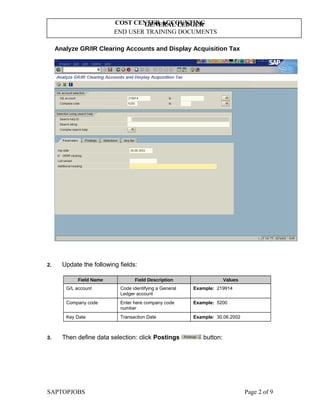
Analyze GR/IR Clearing Accounts and Display Acquisition Tax
2. Update the following fields:
Field Name Field Description Values
G/L account Code identifying a General
Ledger account
Example: 219914
Company code Enter here company code
number
Example: 5200
Key Date Transaction Date Example: 30.06.2002
3. Then define data selection: click Postings button:
SAPTOPJOBS Page 2 of 9
GENERAL LEDGER
END USER TRAINING DOCUMENTS
COST CENTER ACCOUNTING
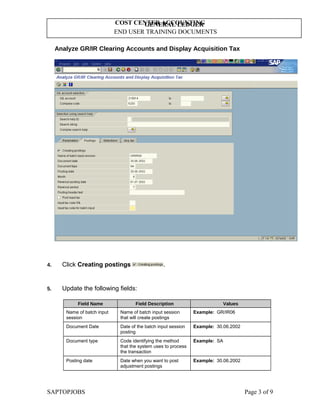
Analyze GR/IR Clearing Accounts and Display Acquisition Tax
4. Click Creating postings .
5. Update the following fields:
Field Name Field Description Values
Name of batch input
session
Name of batch input session
that will create postings
Example: GR/IR06
Document Date Date of the batch input session
posting
Example: 30.06.2002
Document type Code identifying the method
that the system uses to process
the transaction
Example: SA
Posting date Date when you want to post
adjustment postings
Example: 30.06.2002
SAPTOPJOBS Page 3 of 9
GENERAL LEDGER
END USER TRAINING DOCUMENTS
COST CENTER ACCOUNTING
Field Name Field Description Values
Month Period for which you want to
post adjustment postings
Example: 6
Reversal posting date Date when you want to reverse
adjustment postings
Example: 01.0702002
Reversal period Period for which you want to
post reversal of adjustment
postings
Example: 7
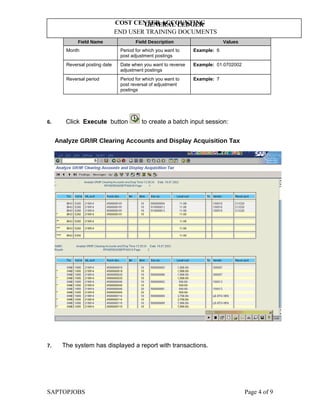
6. Click Execute button to create a batch input session:
Analyze GR/IR Clearing Accounts and Display Acquisition Tax
7. The system has displayed a report with transactions.
SAPTOPJOBS Page 4 of 9
GENERAL LEDGER
END USER TRAINING DOCUMENTS
COST CENTER ACCOUNTING
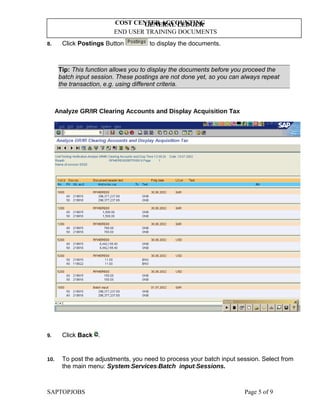
8. Click Postings Button to display the documents.
Tip: This function allows you to display the documents before you proceed the
batch input session. These postings are not done yet, so you can always repeat
the transaction, e.g. using different criteria.
Analyze GR/IR Clearing Accounts and Display Acquisition Tax
9. Click Back .
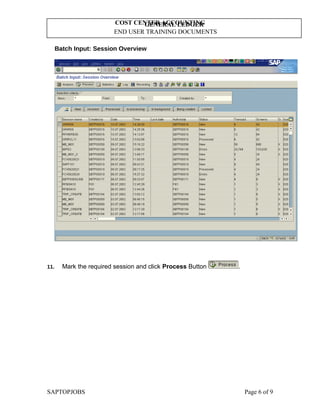
10. To post the adjustments, you need to process your batch input session. Select from
the main menu: SystemServicesBatch inputSessions.
SAPTOPJOBS Page 5 of 9
GENERAL LEDGER
END USER TRAINING DOCUMENTS
COST CENTER ACCOUNTING
Batch Input: Session Overview
11. Mark the required session and click Process Button .
SAPTOPJOBS Page 6 of 9
GENERAL LEDGER
END USER TRAINING DOCUMENTS
COST CENTER ACCOUNTING
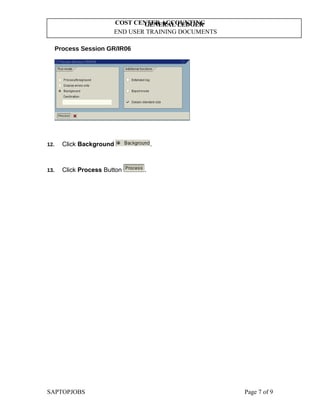
Process Session GR/IR06
12. Click Background .
13. Click Process Button .
SAPTOPJOBS Page 7 of 9
GENERAL LEDGER
END USER TRAINING DOCUMENTS
COST CENTER ACCOUNTING
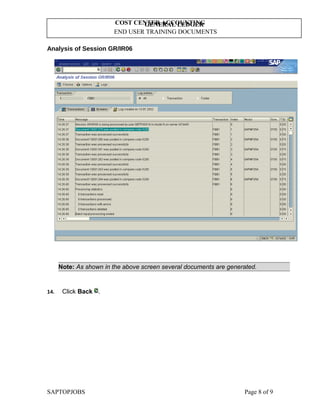
Analysis of Session GR/IR06
Note: As shown in the above screen several documents are generated.
14. Click Back .
SAPTOPJOBS Page 8 of 9
GENERAL LEDGER
END USER TRAINING DOCUMENTS
COST CENTER ACCOUNTING
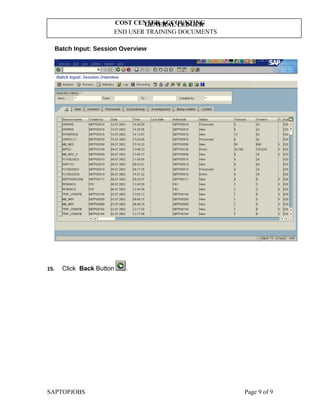
Batch Input: Session Overview
15. Click Back Button .
SAPTOPJOBS Page 9 of 9
GENERAL LEDGER
END USER TRAINING DOCUMENTS
COST CENTER ACCOUNTING
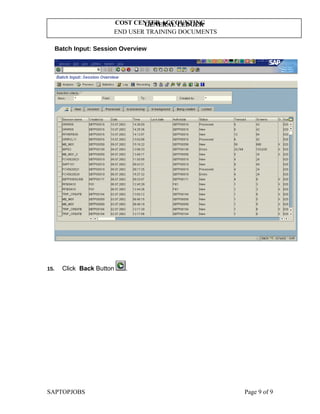
Batch Input: Session Overview
15. Click Back Button .
SAPTOPJOBS Page 9 of 9

F.19 gr ir regrouping

  • 1.
    GENERAL LEDGER END USERTRAINING DOCUMENTS COST CENTER ACCOUNTING F.19 - Functionality This transaction analyzes goods receipt/invoice receipt (GR/IR) clearing accounts at a specified key date, and generates adjustment postings if necessary. These are needed in order to display the following business transactions correctly in the balance sheet: • Goods delivered, but not invoiced • Goods invoiced, but not delivered The program selects all items in GR/IR clearing accounts that are open at the specified key date. If the open items per purchase order number and item in local currency do not balance out to zero, adjustment postings are created in a batch input session for these items. With a credit balance, the transaction is seen as "delivered, but not invoiced". With a debit balance, the transaction is seen as "invoiced, but not delivered". Scenario In this scenario you prepare a clearing for the GR/IR balances at 30.06.2002 to present in the financial statements in the right categories. Prerequisites GL account, posted transactions Menu Path Accounting → Financial Accounting → General Ledger → Periodic Processing → Closing → Regroup → F.19 - GR/IR Clearing Transaction Code F.19 1. Double click on F.19 - GR/IR Clearing SAPTOPJOBS Page 1 of 9
  • 2.
    GENERAL LEDGER END USERTRAINING DOCUMENTS COST CENTER ACCOUNTING Analyze GR/IR Clearing Accounts and Display Acquisition Tax 2. Update the following fields: Field Name Field Description Values G/L account Code identifying a General Ledger account Example: 219914 Company code Enter here company code number Example: 5200 Key Date Transaction Date Example: 30.06.2002 3. Then define data selection: click Postings button: SAPTOPJOBS Page 2 of 9
  • 3.
    GENERAL LEDGER END USERTRAINING DOCUMENTS COST CENTER ACCOUNTING Analyze GR/IR Clearing Accounts and Display Acquisition Tax 4. Click Creating postings . 5. Update the following fields: Field Name Field Description Values Name of batch input session Name of batch input session that will create postings Example: GR/IR06 Document Date Date of the batch input session posting Example: 30.06.2002 Document type Code identifying the method that the system uses to process the transaction Example: SA Posting date Date when you want to post adjustment postings Example: 30.06.2002 SAPTOPJOBS Page 3 of 9
  • 4.
    GENERAL LEDGER END USERTRAINING DOCUMENTS COST CENTER ACCOUNTING Field Name Field Description Values Month Period for which you want to post adjustment postings Example: 6 Reversal posting date Date when you want to reverse adjustment postings Example: 01.0702002 Reversal period Period for which you want to post reversal of adjustment postings Example: 7 6. Click Execute button to create a batch input session: Analyze GR/IR Clearing Accounts and Display Acquisition Tax 7. The system has displayed a report with transactions. SAPTOPJOBS Page 4 of 9
  • 5.
    GENERAL LEDGER END USERTRAINING DOCUMENTS COST CENTER ACCOUNTING 8. Click Postings Button to display the documents. Tip: This function allows you to display the documents before you proceed the batch input session. These postings are not done yet, so you can always repeat the transaction, e.g. using different criteria. Analyze GR/IR Clearing Accounts and Display Acquisition Tax 9. Click Back . 10. To post the adjustments, you need to process your batch input session. Select from the main menu: SystemServicesBatch inputSessions. SAPTOPJOBS Page 5 of 9
  • 6.
    GENERAL LEDGER END USERTRAINING DOCUMENTS COST CENTER ACCOUNTING Batch Input: Session Overview 11. Mark the required session and click Process Button . SAPTOPJOBS Page 6 of 9
  • 7.
    GENERAL LEDGER END USERTRAINING DOCUMENTS COST CENTER ACCOUNTING Process Session GR/IR06 12. Click Background . 13. Click Process Button . SAPTOPJOBS Page 7 of 9
  • 8.
    GENERAL LEDGER END USERTRAINING DOCUMENTS COST CENTER ACCOUNTING Analysis of Session GR/IR06 Note: As shown in the above screen several documents are generated. 14. Click Back . SAPTOPJOBS Page 8 of 9
  • 9.
    GENERAL LEDGER END USERTRAINING DOCUMENTS COST CENTER ACCOUNTING Batch Input: Session Overview 15. Click Back Button . SAPTOPJOBS Page 9 of 9
  • 10.
    GENERAL LEDGER END USERTRAINING DOCUMENTS COST CENTER ACCOUNTING Batch Input: Session Overview 15. Click Back Button . SAPTOPJOBS Page 9 of 9