Flipkart Advantage (FA) – New Features
Seamless tracking of your FA inventory
By completing this tutorial, you will be able to:
• Track your consignment inwarding process
• Generate reports on your seller portal
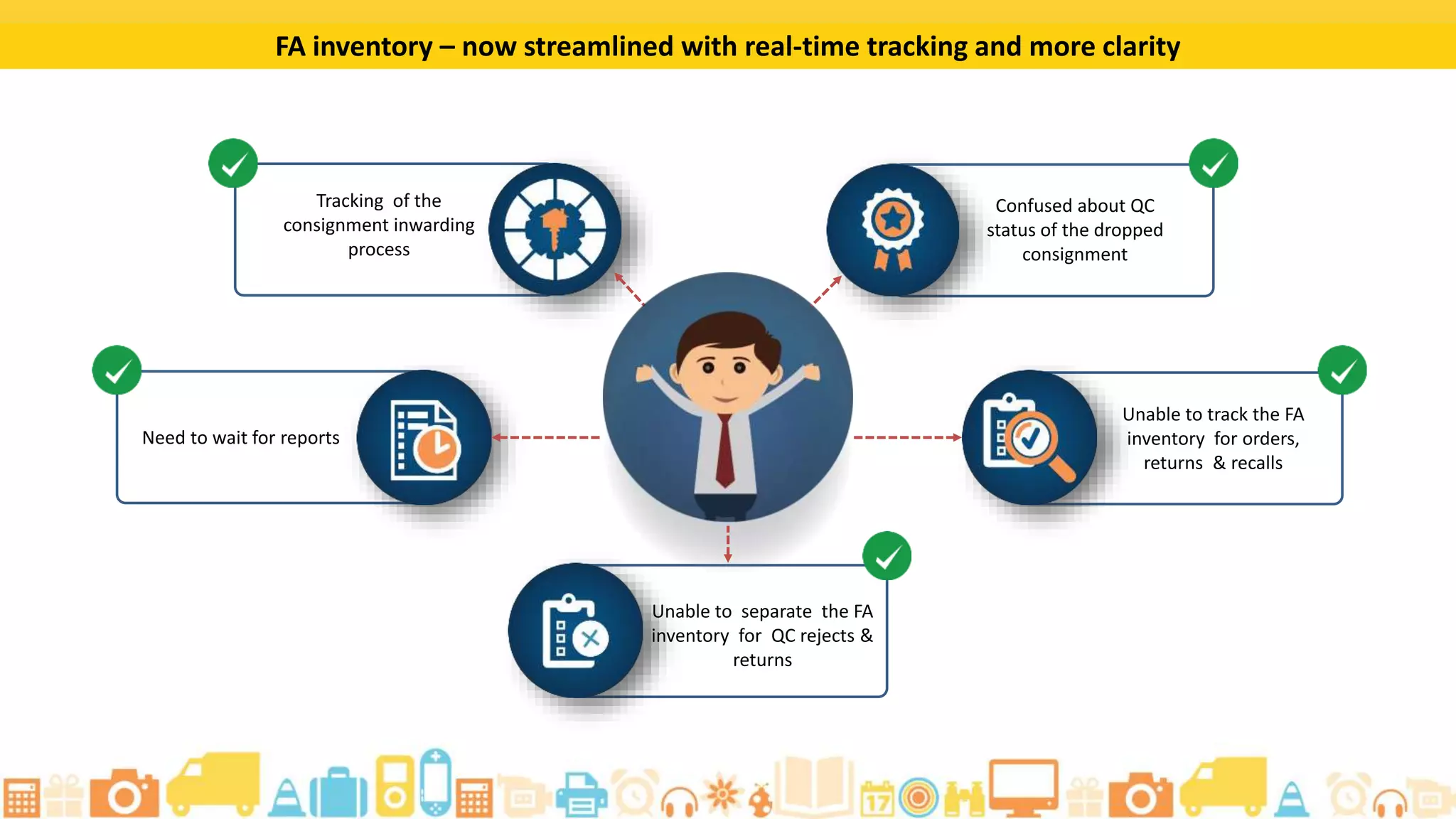
• Track your FA inventory for orders, returns, and recalls
• Access relevant information on your QC rejects and the QC tickets
Learning Objectives
Benefits
The FA Services tab now allows you to:
Track your
consignment
inwarding process
effortlessly
Access reports as and
when you want
through the seller
portal
Track your FA
inventory seamlessly
Schedule your
consignment drops
through the seller
portal directly
Create a Consignment: Step 1
Select the FA
Services tab.
Create a Consignment: Step 2
Click on the Create
Consignment sub-
tab.
Create a Consignment: Step 3
Add the number of
units that you want
to send here.
Create a Consignment: Step 4
Enter the Insurance
value here.
Create a Consignment: Step 5
Click on Save to add
the consignment.
Create a Consignment: Confirmation
A Success Message will appear to confirm
that you have successfully created a
consignment.
For a detailed tutorial on creating bulk consignments, go through the tutorial on Bulk Consignment Creation.
Click on the Download
Active Listings button to
create bulk consignments.
Mark a Listing as FA: Step 1
Click on the Add to consignment
button.
Mark a Listing as FA: Message
This pop-up appears informing that
this product is listed under non-FA
and will be listed under FA after it
gets inwarded to the store.
Mark a Listing as FA: Step 2
Enter the quantity of units that you
want to add and the insurance
value here.
Mark a Listing as FA: Step 3
Click on Save to add
the consignment.
Create a Consignment without Marking as FA
This link appears
only when a product
is listed under FA.
Add a Consignment to Queue: Step 1
After adding listings to a
consignment, click on the Create
Consignment button to add the
consignment to queue.
Add a Consignment to Queue: Step 2
Click on the Add to
Consignment Queue button in
this pop-up to confirm and add
this consignment to queue.
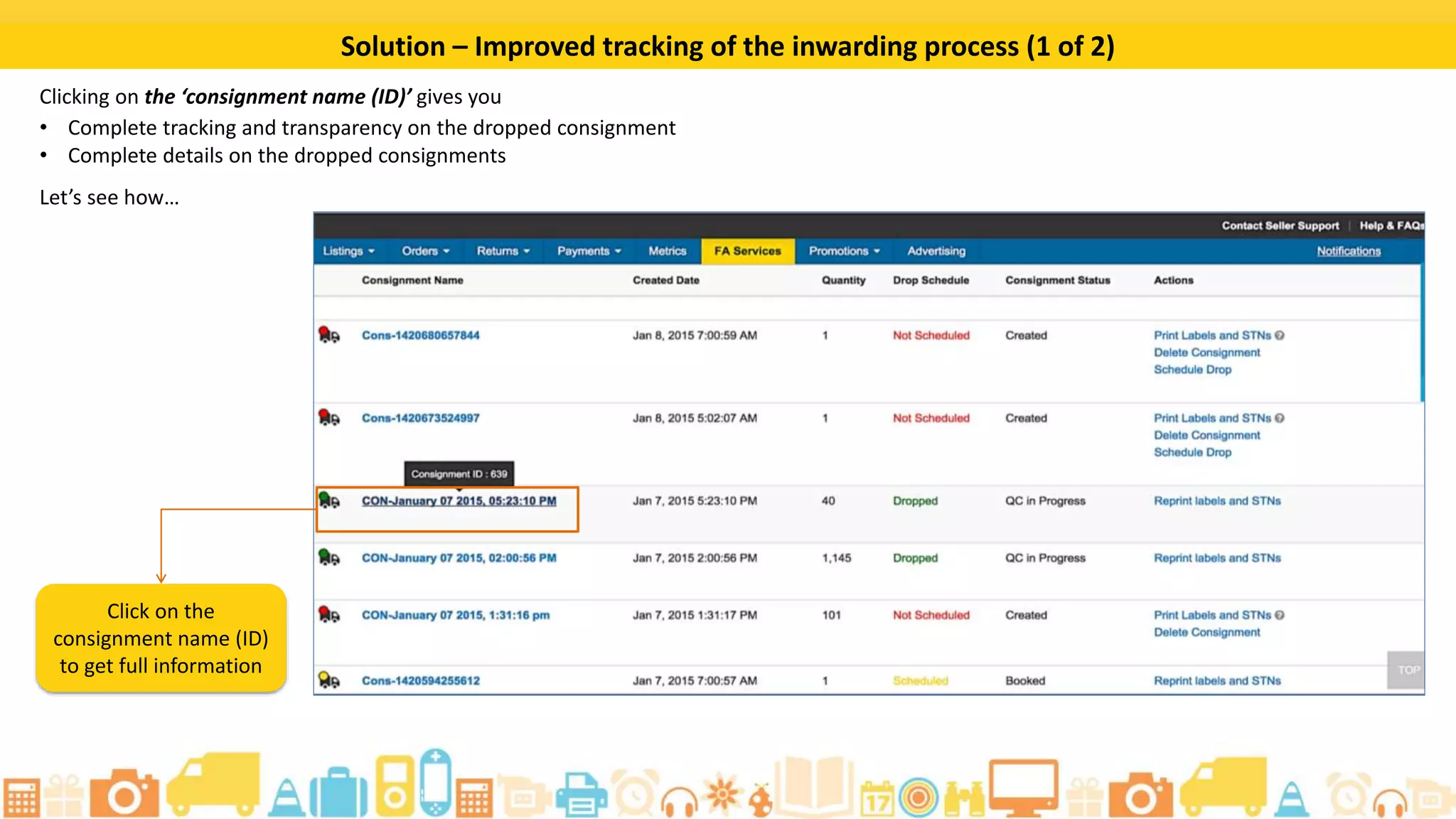
Track Inwarding Process of Consignment (1 of 4)
Click on the Consignment ID to
view details of a dropped
consignment.
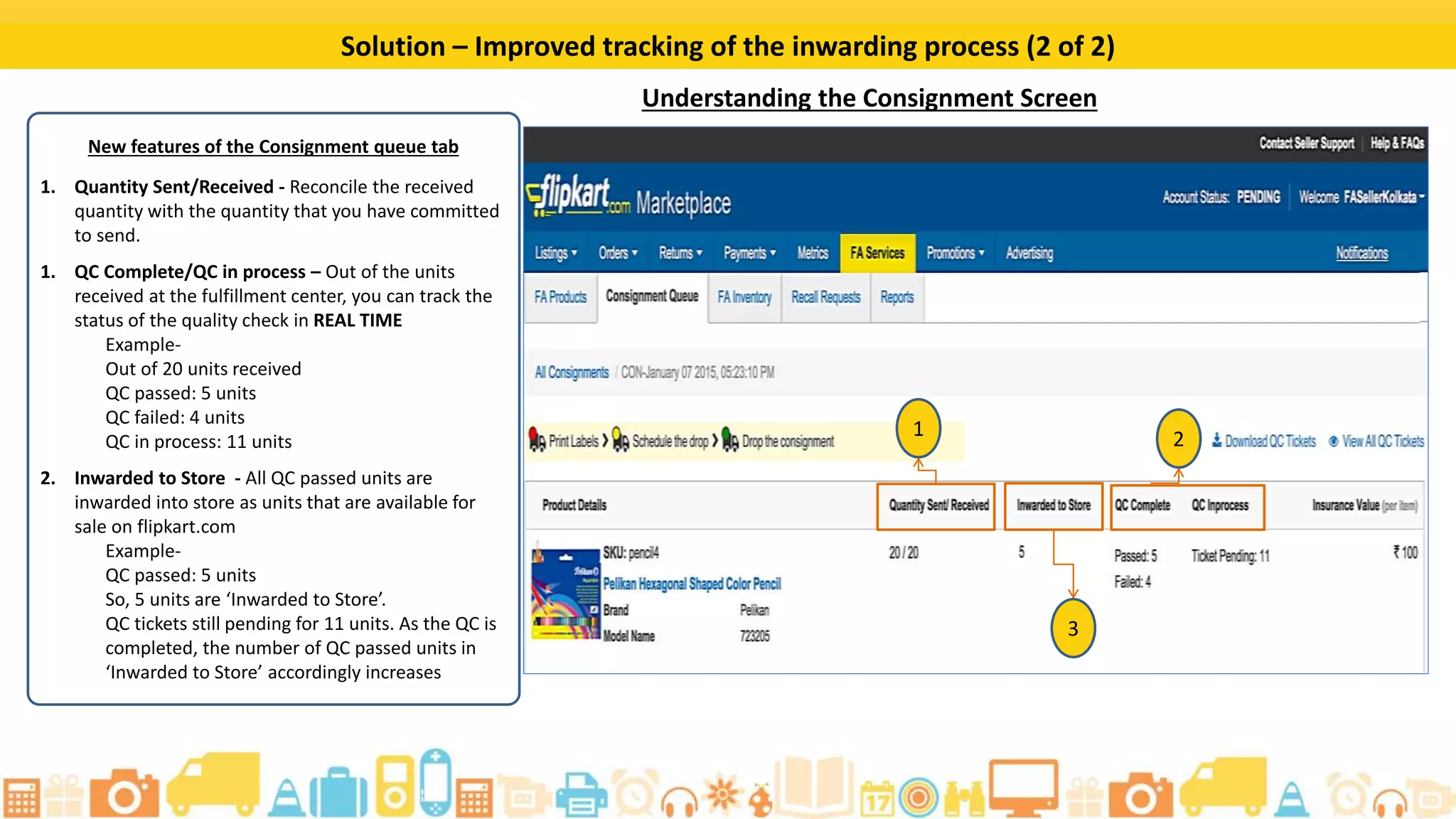
Track Inwarding Process of Consignment (2 of 4)
The Quantity Sent/Received
header displays the received
quantity with the quantity that
you have committed to send.
Track Inwarding Process of Consignment (3 of 4)
The QC Complete/QC in process header
lets you track the status of the quality
check in real-time out of the units
received at the fulfilment centre.
Track Inwarding Process of Consignment (4 of 4)
The Inwarded to Store header shows all the QC-
passed units that are being processed for
inwarding into store as units that are available for
sale on Flipkart.
What are QC Tickets?
QC Tickets are tickets generated by the Fulfilment Centre for products that are found to have quality issues
during quality check.
QC Tickets help you
get better
transparency on the
quality checks of your
consignments.
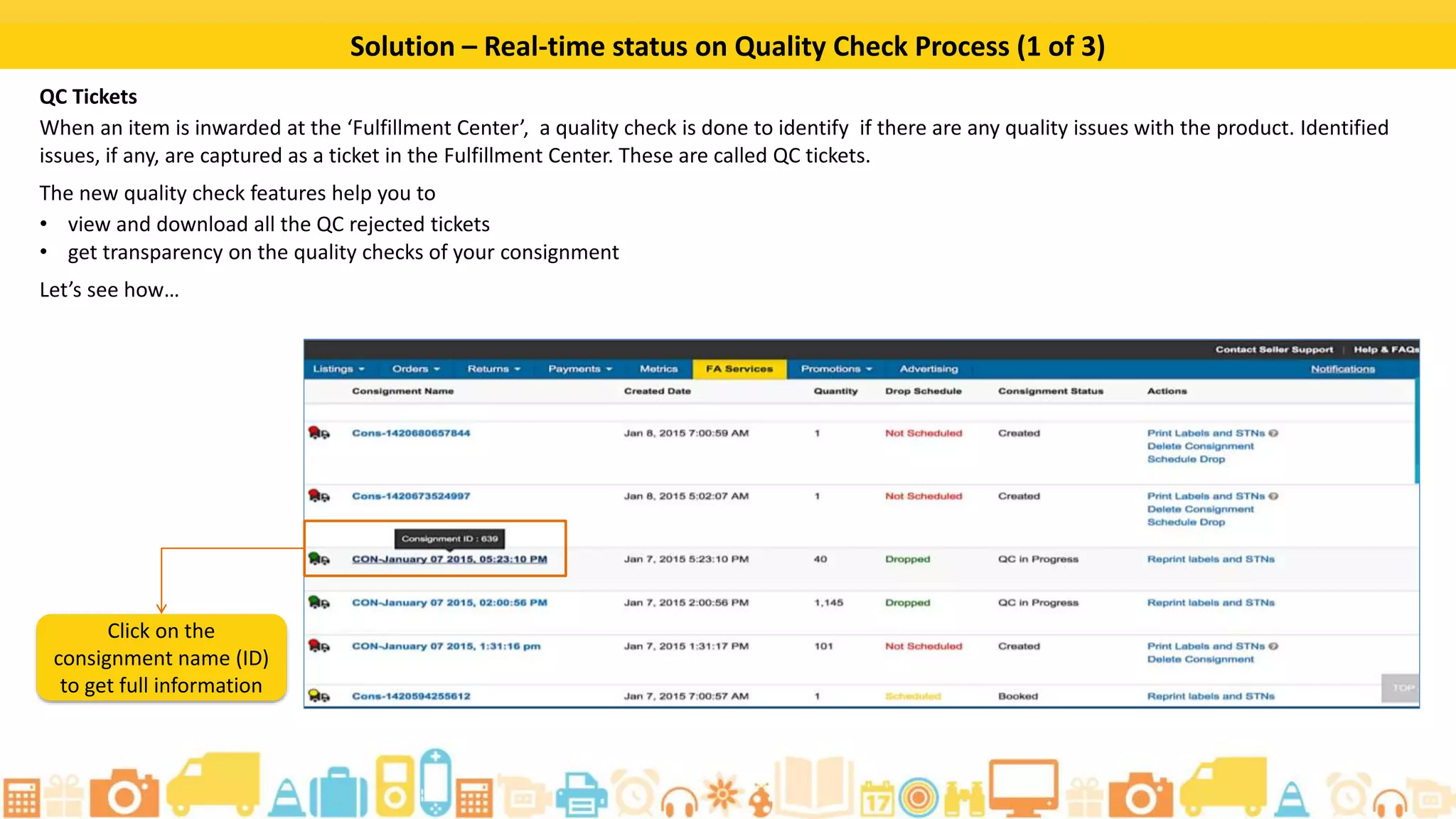
View QC Tickets
Click on the Consignment ID
to view the QC ticket for this
consignment.
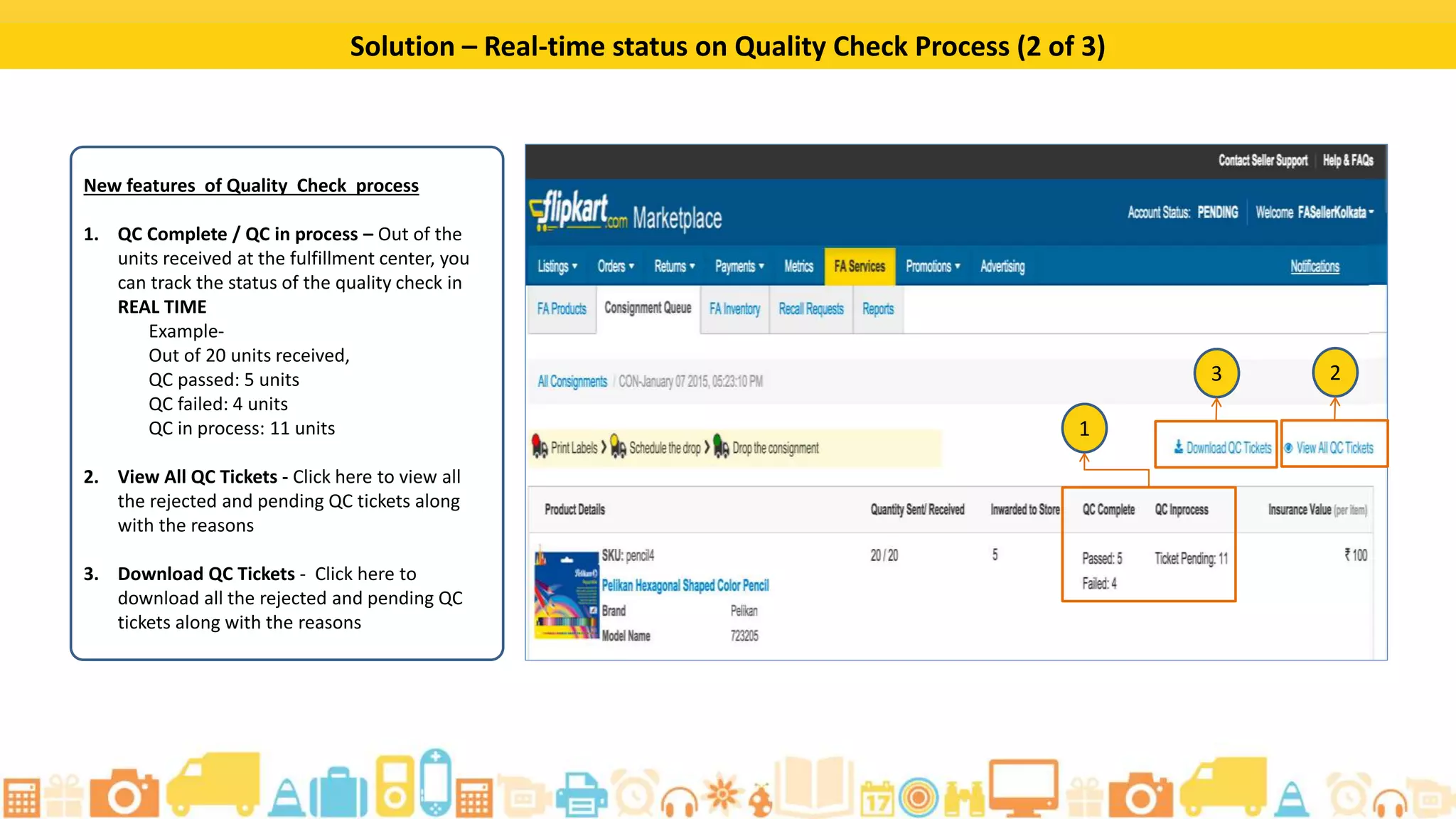
Real-time Status of QC Process (1 of 2)
The QC Complete and QC In
process headers provide
information on how many
units have been received,
QC passed, QC failed, and
are under QC process.
Real-time Status of QC Process (2 of 2)
Click on the View All QC Tickets
link to view all the rejected and
pending QC tickets along with
the reasons.
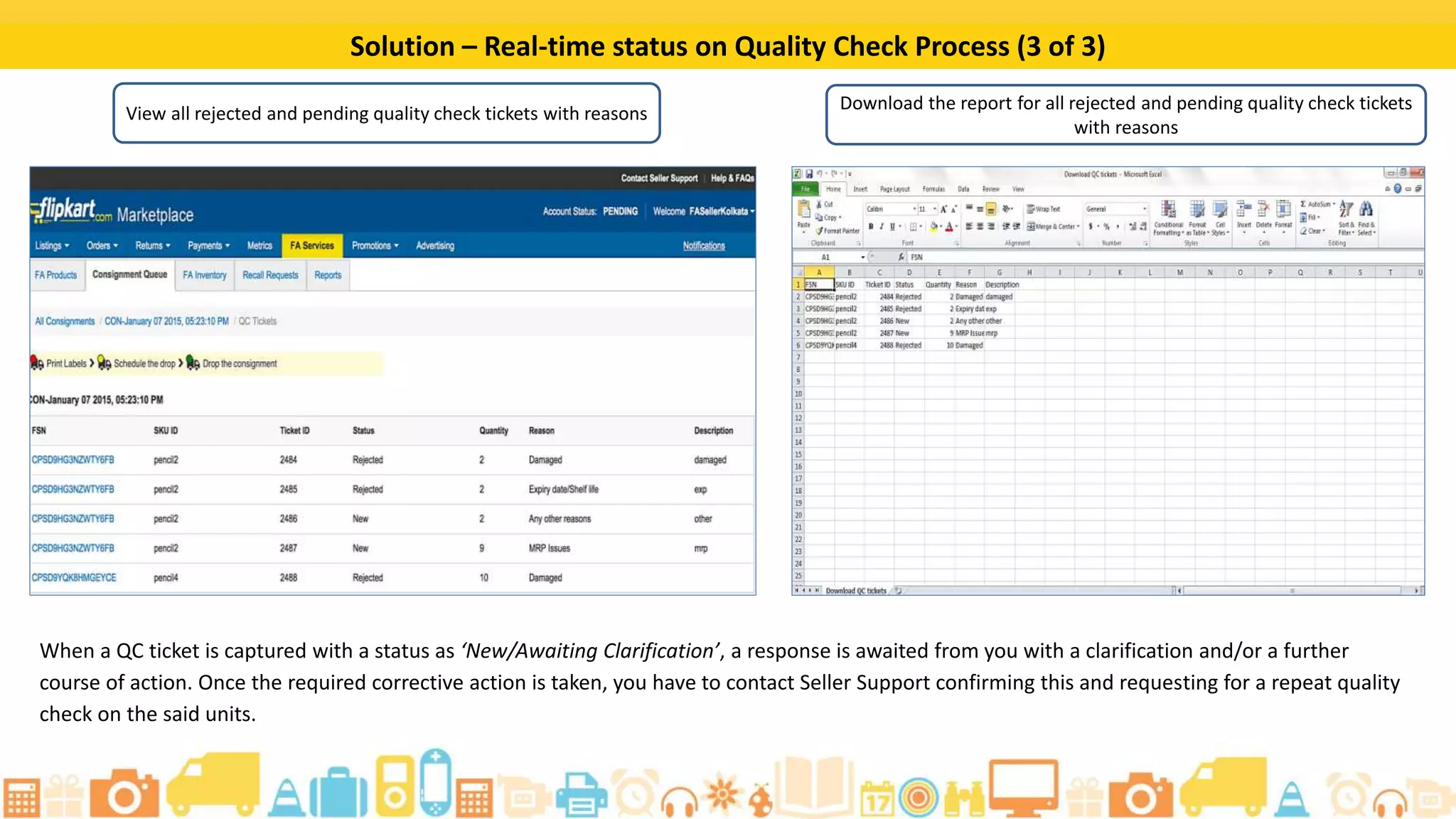
View All QC Tickets
The QC Tickets will appear like this.
Download QC Tickets
Click on this link to
download all the rejected
and pending QC tickets
along with the reasons.
QC Tickets Report
This excel contains information on all the rejected and pending QC tickets.
If a QC ticket is captured with
a ‘New’ or ‘Awaiting
Clarification’ status, you
need to provide a
clarification and/or further
course of action.
After taking the required
action on the QC issue,
contact Seller Support to
request for another quality
check on the relevant units.
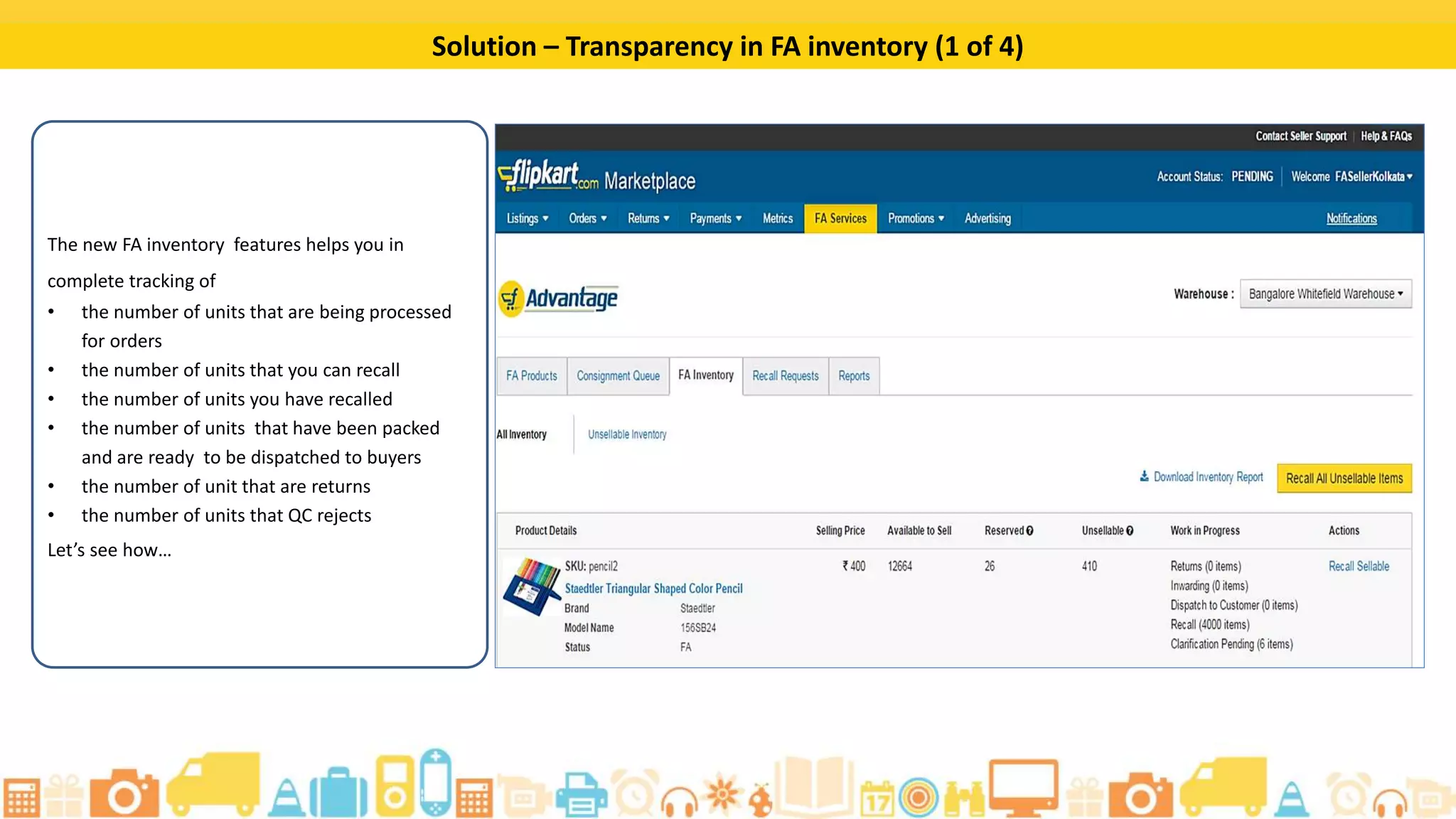
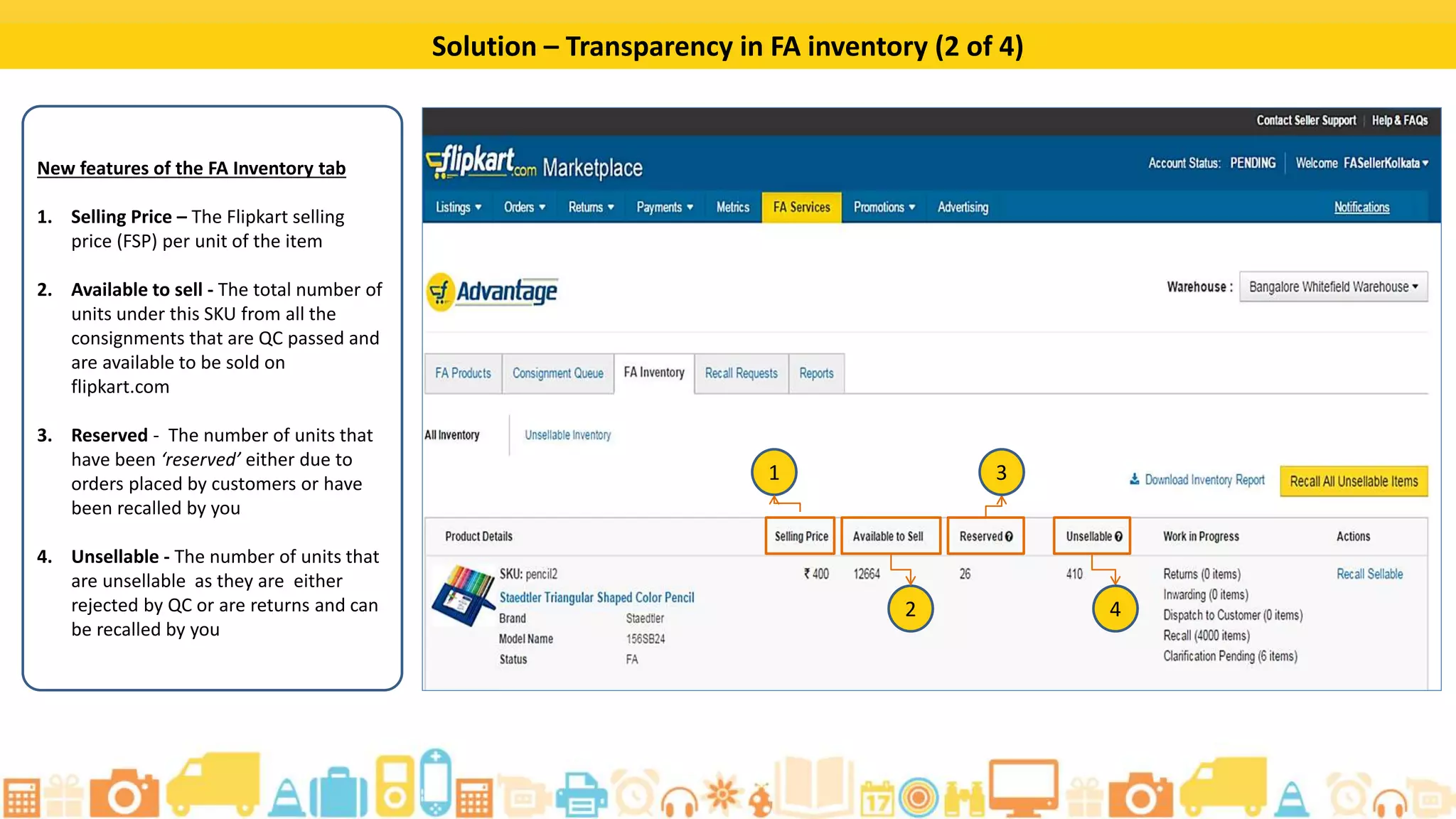
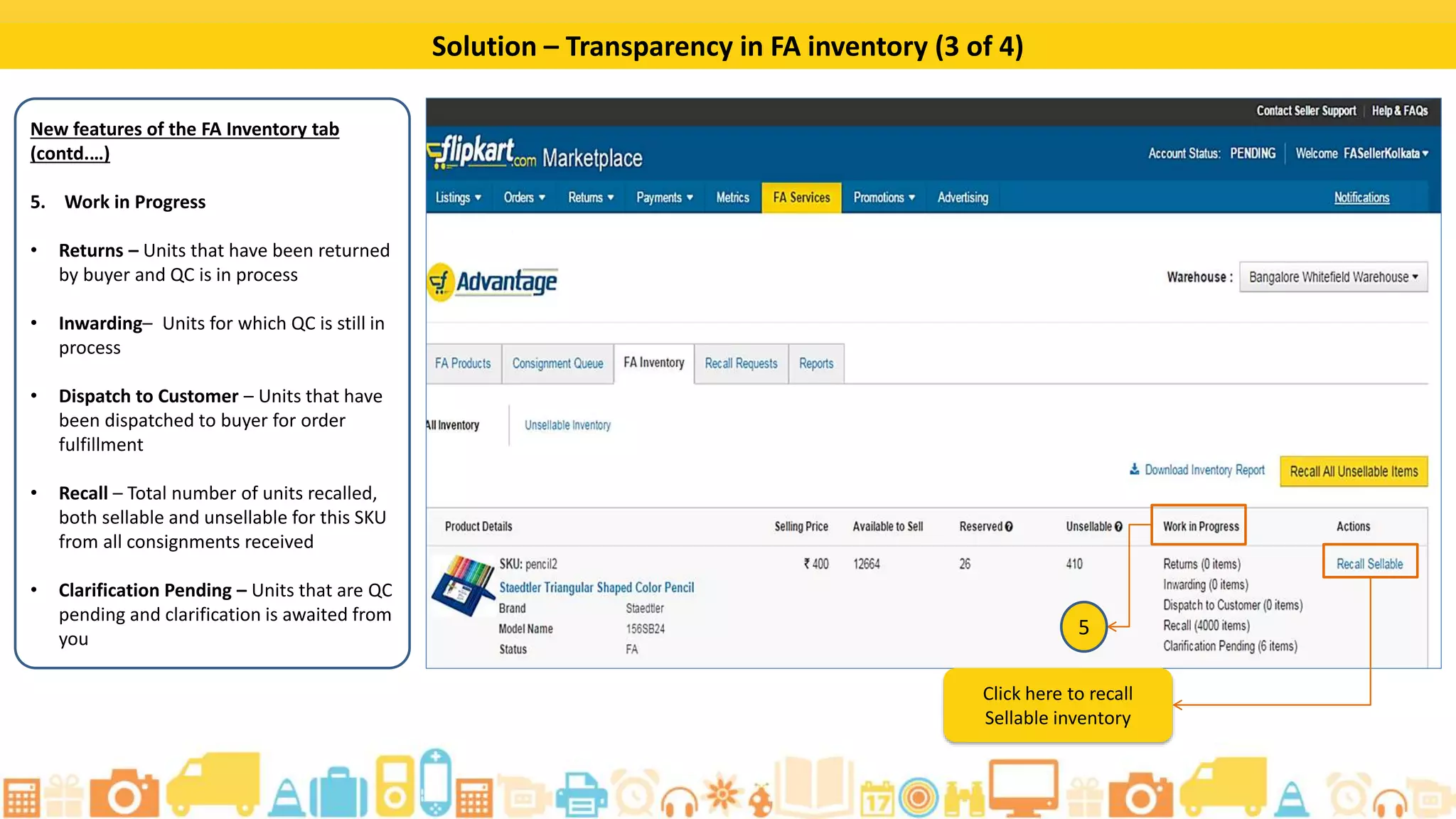
Track FA Inventory (1 of 5)
Under the FA Inventory sub-
tab, you can see:
• Selling Price
• Number of units available to
sell
• Number of reserved units
• Unsellable units
• Work-in-progress units
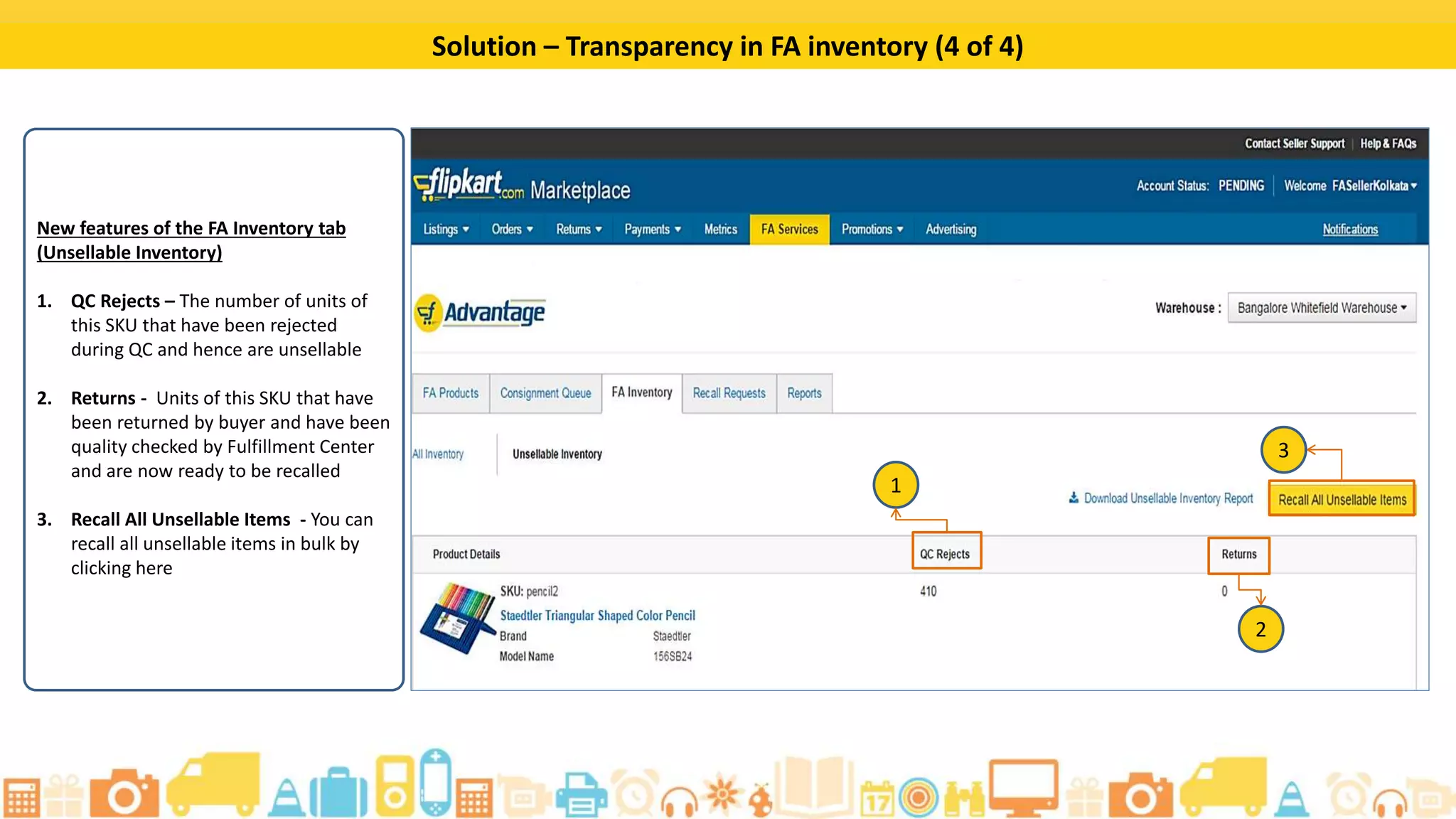
Track FA Inventory (2 of 5)
By clicking on the Unsellable
Inventory option, you can
view details about the QC
Rejects and Returns.
Track FA Inventory (3 of 5)
The QC Rejects header shows
the number of units of an SKU
that have been rejected during
QC and hence, are unsellable.
Track FA Inventory (4 of 5)
The Returns header shows the units of
SKU that are buyer-returned, and have
been quality checked by the Fulfilment
Centre and are ready to be recalled.
Track FA Inventory (5 of 5)
Click on the Recall All
Unsellable Items button to
recall all unsellable items in
bulk.
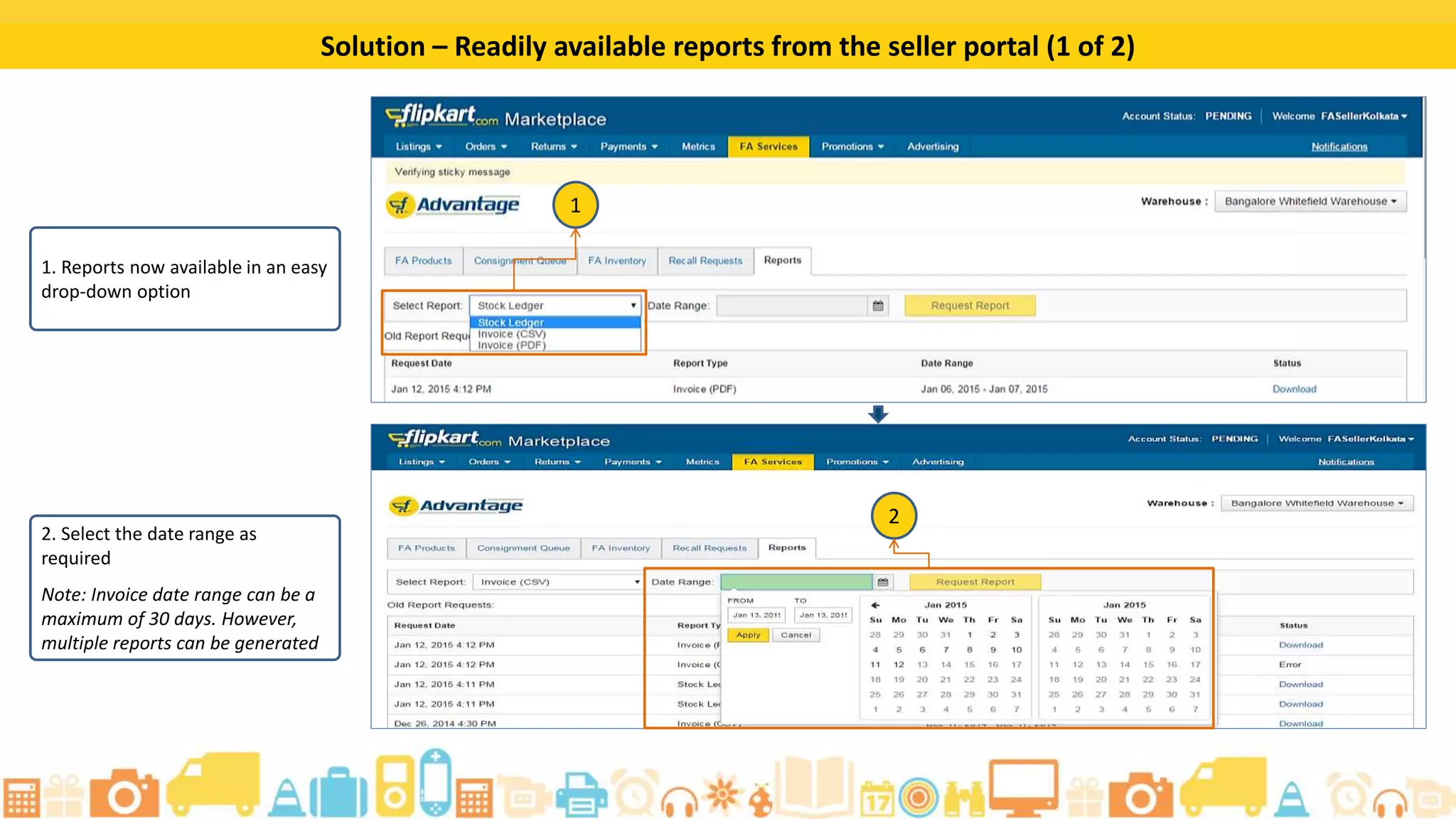
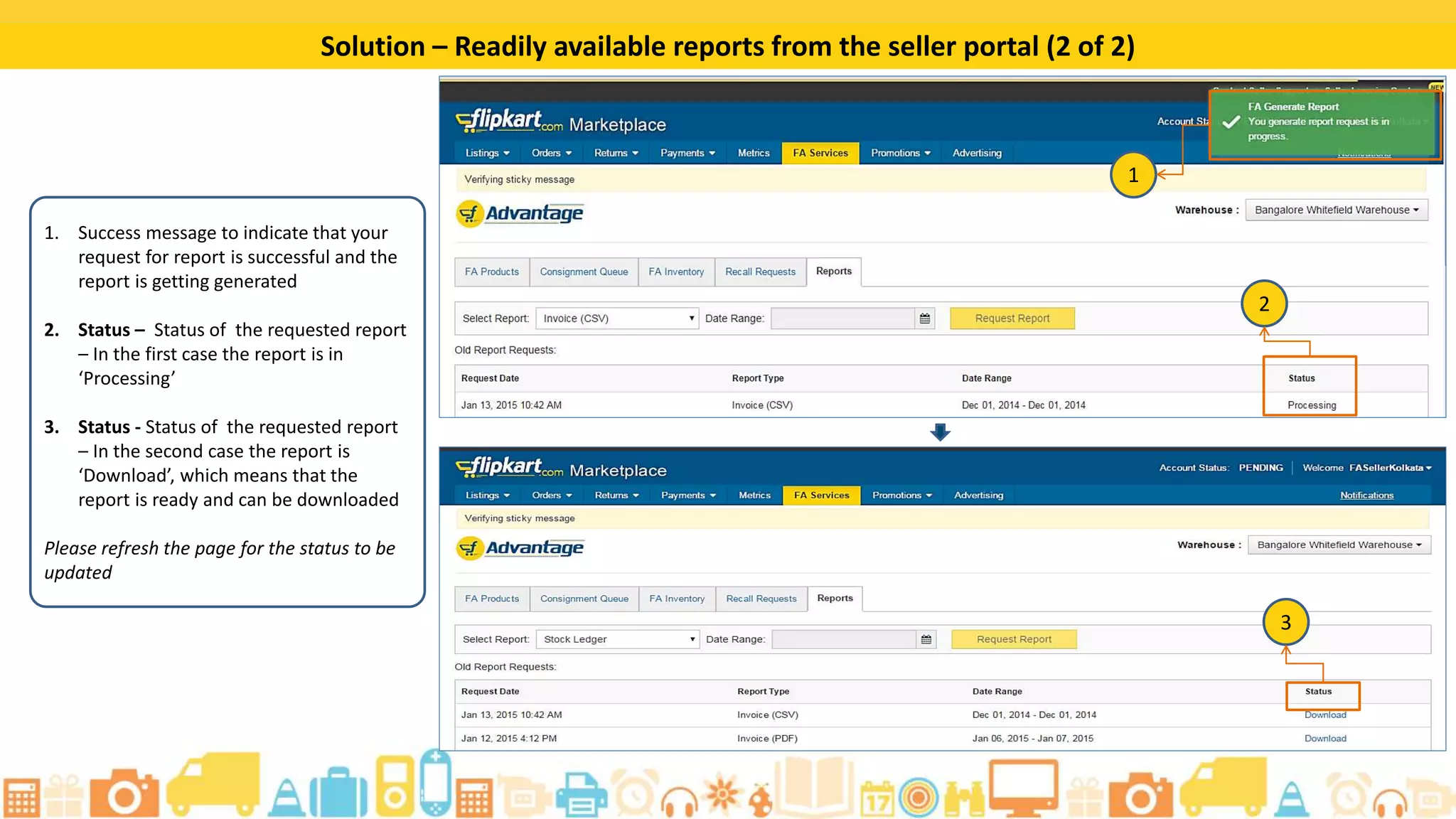
Reports
You can generate reports under the Reports sub-tab.
Schedule a Consignment Drop: Step 1
Click on the Consignment
Queue sub-tab to schedule a
consignment drop through your
seller portal.
Schedule a Consignment Drop: Step 2
Click on the
Schedule Drop link.
Schedule a Consignment Drop: Step 3
Note that you can pick a slot within the a 7-day window.
Select the date and time
when you want to drop off
the consignment.
Schedule a Consignment Drop: Step 4
Click on the Confirm
button to proceed.
Schedule a Consignment Drop: Confirmation
A success message appears confirming the scheduled date and time for the consignment drop.
Schedule a Consignment Drop: Status Update
The status of the consignment changes to ‘Scheduled’ and ‘Booked’ once the drop slot is confirmed.
Schedule a Consignment Drop: Status Update
This status changes to ‘Dropped’ and ‘QC in Progress’ once the consignment is received at the Fulfilment Centre.
In this tutorial, you learned about:
• Tracking your consignment inwarding process effortlessly
• Generating reports on your seller portal
• Tracking your FA inventory for orders, returns, and recalls
• Accessing relevant information on your QC rejects and the QC tickets
Summary
Thank You

Flipkart Advantage (FA) new features

  • 1.
    Flipkart Advantage (FA)– New Features Seamless tracking of your FA inventory
  • 2.
    By completing thistutorial, you will be able to: • Track your consignment inwarding process • Generate reports on your seller portal • Track your FA inventory for orders, returns, and recalls • Access relevant information on your QC rejects and the QC tickets Learning Objectives
  • 3.
    Benefits The FA Servicestab now allows you to: Track your consignment inwarding process effortlessly Access reports as and when you want through the seller portal Track your FA inventory seamlessly Schedule your consignment drops through the seller portal directly
  • 4.
    Create a Consignment:Step 1 Select the FA Services tab.
  • 5.
    Create a Consignment:Step 2 Click on the Create Consignment sub- tab.
  • 6.
    Create a Consignment:Step 3 Add the number of units that you want to send here.
  • 7.
    Create a Consignment:Step 4 Enter the Insurance value here.
  • 8.
    Create a Consignment:Step 5 Click on Save to add the consignment.
  • 9.
    Create a Consignment:Confirmation A Success Message will appear to confirm that you have successfully created a consignment.
  • 10.
    For a detailedtutorial on creating bulk consignments, go through the tutorial on Bulk Consignment Creation. Click on the Download Active Listings button to create bulk consignments.
  • 11.
    Mark a Listingas FA: Step 1 Click on the Add to consignment button.
  • 12.
    Mark a Listingas FA: Message This pop-up appears informing that this product is listed under non-FA and will be listed under FA after it gets inwarded to the store.
  • 13.
    Mark a Listingas FA: Step 2 Enter the quantity of units that you want to add and the insurance value here.
  • 14.
    Mark a Listingas FA: Step 3 Click on Save to add the consignment.
  • 15.
    Create a Consignmentwithout Marking as FA This link appears only when a product is listed under FA.
  • 16.
    Add a Consignmentto Queue: Step 1 After adding listings to a consignment, click on the Create Consignment button to add the consignment to queue.
  • 17.
    Add a Consignmentto Queue: Step 2 Click on the Add to Consignment Queue button in this pop-up to confirm and add this consignment to queue.
  • 18.
    Track Inwarding Processof Consignment (1 of 4) Click on the Consignment ID to view details of a dropped consignment.
  • 19.
    Track Inwarding Processof Consignment (2 of 4) The Quantity Sent/Received header displays the received quantity with the quantity that you have committed to send.
  • 20.
    Track Inwarding Processof Consignment (3 of 4) The QC Complete/QC in process header lets you track the status of the quality check in real-time out of the units received at the fulfilment centre.
  • 21.
    Track Inwarding Processof Consignment (4 of 4) The Inwarded to Store header shows all the QC- passed units that are being processed for inwarding into store as units that are available for sale on Flipkart.
  • 22.
    What are QCTickets? QC Tickets are tickets generated by the Fulfilment Centre for products that are found to have quality issues during quality check. QC Tickets help you get better transparency on the quality checks of your consignments.
  • 23.
    View QC Tickets Clickon the Consignment ID to view the QC ticket for this consignment.
  • 24.
    Real-time Status ofQC Process (1 of 2) The QC Complete and QC In process headers provide information on how many units have been received, QC passed, QC failed, and are under QC process.
  • 25.
    Real-time Status ofQC Process (2 of 2) Click on the View All QC Tickets link to view all the rejected and pending QC tickets along with the reasons.
  • 26.
    View All QCTickets The QC Tickets will appear like this.
  • 27.
    Download QC Tickets Clickon this link to download all the rejected and pending QC tickets along with the reasons.
  • 28.
    QC Tickets Report Thisexcel contains information on all the rejected and pending QC tickets. If a QC ticket is captured with a ‘New’ or ‘Awaiting Clarification’ status, you need to provide a clarification and/or further course of action. After taking the required action on the QC issue, contact Seller Support to request for another quality check on the relevant units.
  • 29.
    Track FA Inventory(1 of 5) Under the FA Inventory sub- tab, you can see: • Selling Price • Number of units available to sell • Number of reserved units • Unsellable units • Work-in-progress units
  • 30.
    Track FA Inventory(2 of 5) By clicking on the Unsellable Inventory option, you can view details about the QC Rejects and Returns.
  • 31.
    Track FA Inventory(3 of 5) The QC Rejects header shows the number of units of an SKU that have been rejected during QC and hence, are unsellable.
  • 32.
    Track FA Inventory(4 of 5) The Returns header shows the units of SKU that are buyer-returned, and have been quality checked by the Fulfilment Centre and are ready to be recalled.
  • 33.
    Track FA Inventory(5 of 5) Click on the Recall All Unsellable Items button to recall all unsellable items in bulk.
  • 34.
    Reports You can generatereports under the Reports sub-tab.
  • 35.
    Schedule a ConsignmentDrop: Step 1 Click on the Consignment Queue sub-tab to schedule a consignment drop through your seller portal.
  • 36.
    Schedule a ConsignmentDrop: Step 2 Click on the Schedule Drop link.
  • 37.
    Schedule a ConsignmentDrop: Step 3 Note that you can pick a slot within the a 7-day window. Select the date and time when you want to drop off the consignment.
  • 38.
    Schedule a ConsignmentDrop: Step 4 Click on the Confirm button to proceed.
  • 39.
    Schedule a ConsignmentDrop: Confirmation A success message appears confirming the scheduled date and time for the consignment drop.
  • 40.
    Schedule a ConsignmentDrop: Status Update The status of the consignment changes to ‘Scheduled’ and ‘Booked’ once the drop slot is confirmed.
  • 41.
    Schedule a ConsignmentDrop: Status Update This status changes to ‘Dropped’ and ‘QC in Progress’ once the consignment is received at the Fulfilment Centre.
  • 42.
    In this tutorial,you learned about: • Tracking your consignment inwarding process effortlessly • Generating reports on your seller portal • Tracking your FA inventory for orders, returns, and recalls • Accessing relevant information on your QC rejects and the QC tickets Summary
  • 43.