Flipkart Barcode Labels
Explore the benefits of using Flipkart Barcode Labels along with product labels for faster inwarding.
In this tutorial, you will learn:
 How Flipkart Barcode Labels will benefit you
 How to print Flipkart Barcode Labels
Learning Objectives
We have introduced an additional step to the present consignment process in order to ensure quicker in-warding
of your inventory so that they are available to sell faster.
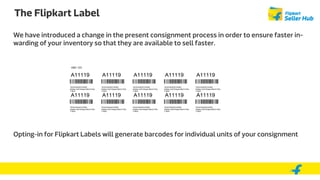
Opting-in for Flipkart Barcode Labels will generate barcodes for individual units of your consignment
Note: This is an additional barcode that you need to paste on the Product/Unit along with other required labels
E.g. the Product label which contains product attributes & legal metrology requirements
The Flipkart Barcode Labels
Product label which contains
product attributes & legal
metrology requirements
Flipkart Barcode Label
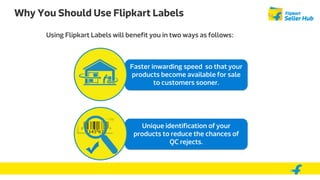
Using Flipkart Barcode will benefit you in two ways as follows:
Why You Should Use Flipkart Barcode Labels
Faster inwarding speed so that your
products become available for sale
to customers sooner.
Accurate identification of your
products to reduce the chances of
QC rejects & Mis-shipment.
You can generate Flipkart Barcode while scheduling consignments, in the following manner:
How You Can Generate Flipkart Barcode Labels
Login to Seller Portal Select Flipkart Fulfilment View List Of Consignments
Scheduling Card pops up
Go Ahead and Schedule
Select Address
Print Flipkart Barcode
Labels, Box Labels & STN
Schedule Consignment
S
T
E
P
S
O
N
P
O
P
U
P
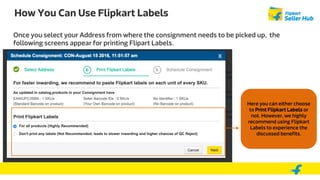
Once you select your Address from where the consignment needs to be picked up, the
following screens appear for printing Flipart Barcode Labels .
How You Generate Use Flipkart Barcode Labels
Here you can either choose
to Print Flipkart Barcode
Labels or not. However, we
highly recommend using
Flipkart Labels to
experience the discussed
benefits.
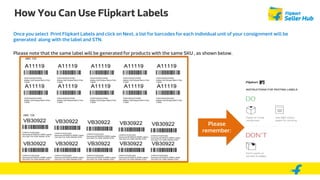
Once you select Print Flipkart Barcode Labels and click on Next, a list for barcodes for each individual unit of your consignment will be
generated along with the Box label and STN.
Please note that the same label will be generated for products with the same SKU , as shown below.
How You Can Use Flipkart Barcode Labels
Please
remember:
How To Reprint Flipkart Barcode Labels
Step 1: Click on
“Consignments” tab
Step 2: Click on
“Scheduled”
Step 3: Click on “Reprint
labels and STNs”. Flipkart
Labels will be reprinted
along with Box label and
STN
Please ensure that you:
• Paste the right barcode on the right product
to avoid mismatches and QC rejects
• Use the exact Barcode labels generated
since the same barcode is generated for
products with the same SKU
• Paste the labels appropriately so that they
can be scanned
– Paste them on the most visible part
– Use light colour paper for printing
– Don’t paste them on corners and edges
Key Points to Remember
Thank You

Flipkart labels

  • 1.
    Flipkart Barcode Labels Explorethe benefits of using Flipkart Barcode Labels along with product labels for faster inwarding.
  • 2.
    In this tutorial,you will learn:  How Flipkart Barcode Labels will benefit you  How to print Flipkart Barcode Labels Learning Objectives
  • 3.
    We have introducedan additional step to the present consignment process in order to ensure quicker in-warding of your inventory so that they are available to sell faster. Opting-in for Flipkart Barcode Labels will generate barcodes for individual units of your consignment Note: This is an additional barcode that you need to paste on the Product/Unit along with other required labels E.g. the Product label which contains product attributes & legal metrology requirements The Flipkart Barcode Labels Product label which contains product attributes & legal metrology requirements Flipkart Barcode Label
  • 4.
    Using Flipkart Barcodewill benefit you in two ways as follows: Why You Should Use Flipkart Barcode Labels Faster inwarding speed so that your products become available for sale to customers sooner. Accurate identification of your products to reduce the chances of QC rejects & Mis-shipment.
  • 5.
    You can generateFlipkart Barcode while scheduling consignments, in the following manner: How You Can Generate Flipkart Barcode Labels Login to Seller Portal Select Flipkart Fulfilment View List Of Consignments Scheduling Card pops up Go Ahead and Schedule Select Address Print Flipkart Barcode Labels, Box Labels & STN Schedule Consignment S T E P S O N P O P U P
  • 6.
    Once you selectyour Address from where the consignment needs to be picked up, the following screens appear for printing Flipart Barcode Labels . How You Generate Use Flipkart Barcode Labels Here you can either choose to Print Flipkart Barcode Labels or not. However, we highly recommend using Flipkart Labels to experience the discussed benefits.
  • 7.
    Once you selectPrint Flipkart Barcode Labels and click on Next, a list for barcodes for each individual unit of your consignment will be generated along with the Box label and STN. Please note that the same label will be generated for products with the same SKU , as shown below. How You Can Use Flipkart Barcode Labels Please remember:
  • 8.
    How To ReprintFlipkart Barcode Labels Step 1: Click on “Consignments” tab Step 2: Click on “Scheduled” Step 3: Click on “Reprint labels and STNs”. Flipkart Labels will be reprinted along with Box label and STN
  • 9.
    Please ensure thatyou: • Paste the right barcode on the right product to avoid mismatches and QC rejects • Use the exact Barcode labels generated since the same barcode is generated for products with the same SKU • Paste the labels appropriately so that they can be scanned – Paste them on the most visible part – Use light colour paper for printing – Don’t paste them on corners and edges Key Points to Remember
  • 10.