Processing New Orders
Learn how to manage your new orders right from receiving them to delivering to the customer
[Non-FA Orders]
Learning Objectives
In this tutorial, we will take you through:
● Importance of managing your orders
● Viewing new orders for your products on seller portal
● Packing orders before marking them as ready to
dispatch
● Dispatching and handing over orders
● Tracking orders
Importance of Order Management
● When a customer places an order, it is your
responsibility to pack the right products and keep
them ready for dispatch
● Packing and dispatching the wrong products will
lead to customer returns
● High rate of customer returns will affect your
seller rating negatively and also give rise to
unsatisfactory customer experience
● You must pack your orders and keep them ready
for dispatch as per the SLA timeline, set by you, in
order to reduce chances of pick-up reattempts
Viewing New Orders
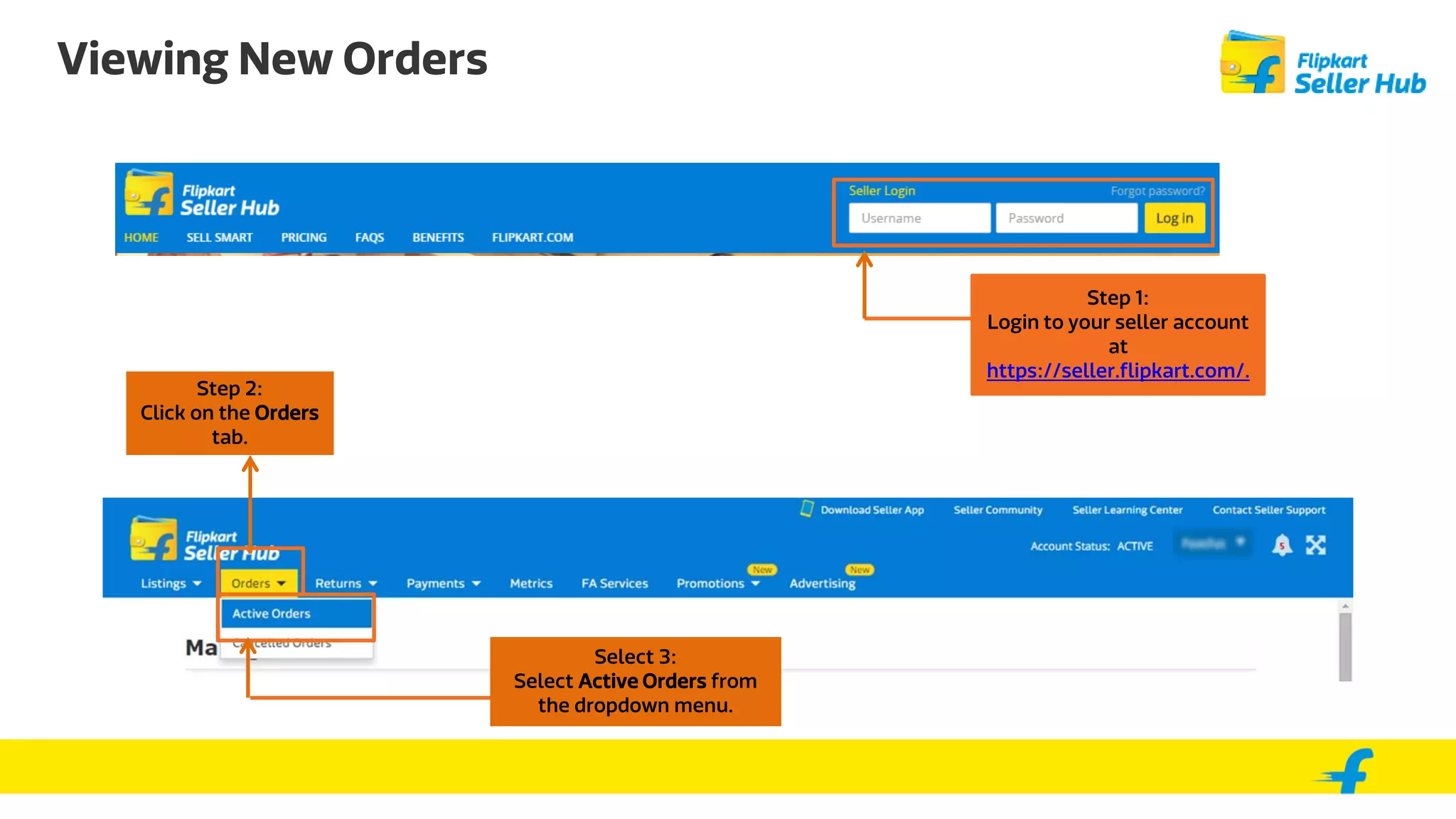
Step 1:
Login to your seller account
at
https://seller.flipkart.com/.
Step 2:
Click on the Orders
tab.
Select 3:
Select Active Orders from
the dropdown menu.
The Active Orders Tab
Step 1:
The Active Orders tab
has two section - New
Orders and Track Order.
Step 2:
Select the New Orders
sub-tab.
This tells you the Order
Status. You need to take
action only on ‘Approved’
orders.
These are your order
and Buyer Details.
New Orders Sub-tab
This sub-tab also tells you the number of
Upcoming orders, number of orders To pack,
To dispatch and To handover as well.
Here you will find
the Time slot for
the next pickup by
the logistics
partner.
You can view your
orders basis any
of these filters.
New Orders Sub-tab - Upcoming Orders
Click on Upcoming Orders to view this
sub-tab.
The orders in this tab can be either in
Approved or On Hold status. However, by
default the tab will show you only the
Approved orders. In order to view the On
Hold orders, you will have to filter the
orders by On Hold status.
These are orders which
will become actionable
after the ‘Dispatch After’
date when it moves to
the To Pack tab.
Click on Export Future
Orders to download the
Excel sheet containing
the list of all your
upcoming Approved
orders to keep track of
them reduce chances of
pick-up reattempts. This
will help you in keeping
your inventory ready for
seamless order
fulfillment.
New Orders Sub-tab - Packing Orders
These are orders which need to be marked as To Pack. Once the orders are marked, shipping label
and invoice will be generated.
Please remember that you perform this action only once you have picked and packed your orders.
You can use the Packing List to help you in picking and packing orders.
Step 1 (a):
You can pack single
orders by selecting the
orders and clicking here.
Step 1 (b):
You can also pack bulk
orders downloading the
.CSV file from Download for
Bulk Action and filling in
your order details. After
that click Upload Bulk File
and upload your .CSV file
with the list of orders.
Download Packing List to
keep a check on your
inventory and avoid mis-
shipments.
This strip will tell you the logistics form that
needs to be filled. If you click on the form
name, you will be taken to the government
website where you can fill it.
New Orders Sub-tab - Packing Orders
Step 2:
Once you select Pack Orders,
the Shipment Record card
opens up.
Fill up the VAT/CST rate and
link on Download & Print to
download your invoices.
Once you fill the VAT/CST for
any particular product, the
same rate is saved and
applied to all future orders
on the same product.
Please note that for products
like Mobile Phones,
IMEI/Serial Number will also
need to be filled.
New Orders Sub-tab - Dispatching Orders
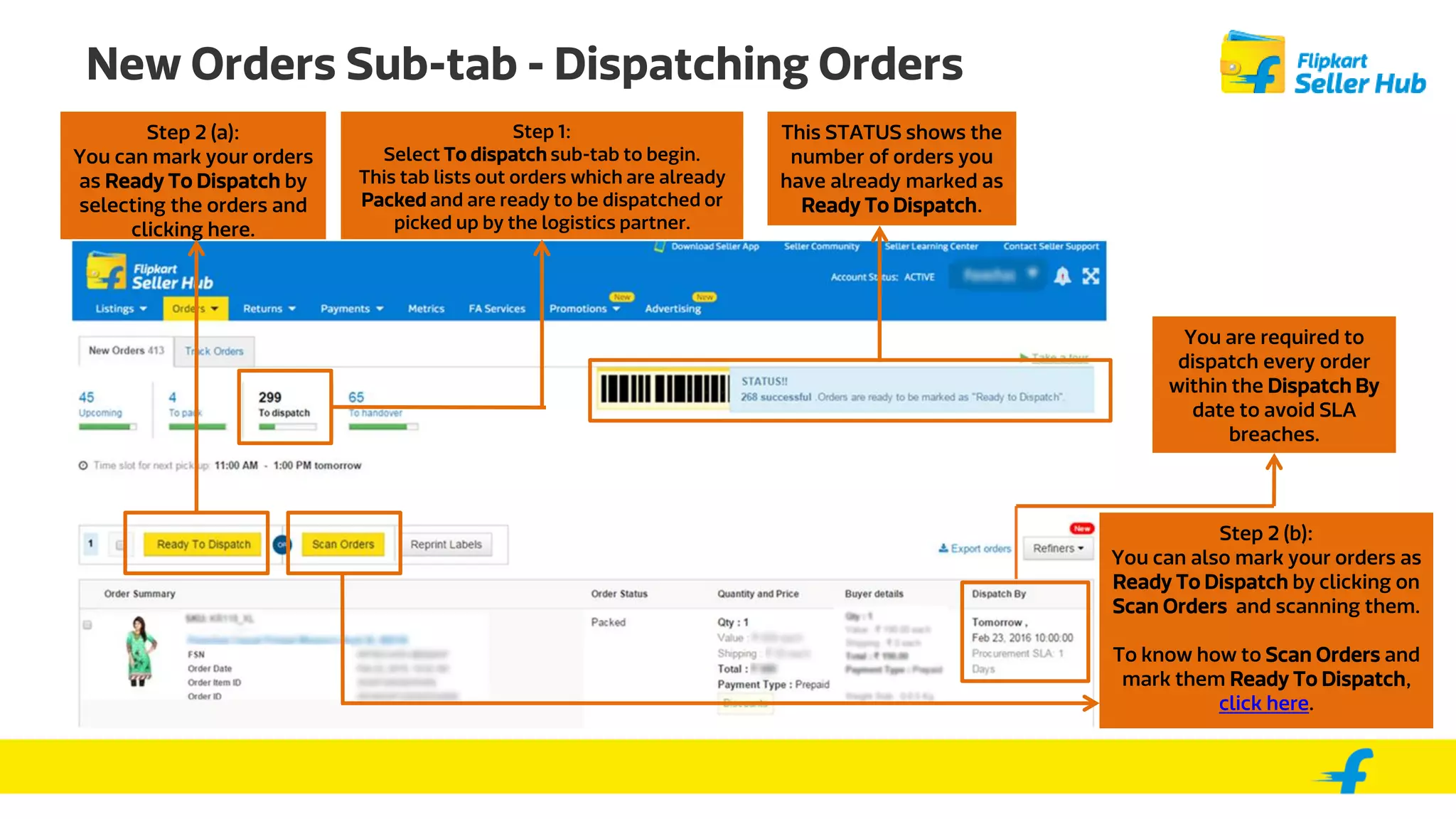
Step 1:
Select To dispatch sub-tab to begin.
This tab lists out orders which are already
Packed and are ready to be dispatched or
picked up by the logistics partner.
This STATUS shows the
number of orders you
have already marked as
Ready To Dispatch.
Step 2 (a):
You can mark your orders
as Ready To Dispatch by
selecting the orders and
clicking here.
Step 2 (b):
You can also mark your orders as
Ready To Dispatch by clicking on
Scan Orders and scanning them.
You are required to
dispatch every order
within the Dispatch By
date to avoid SLA
breaches.
New Orders Sub-tab - Handing Over Orders
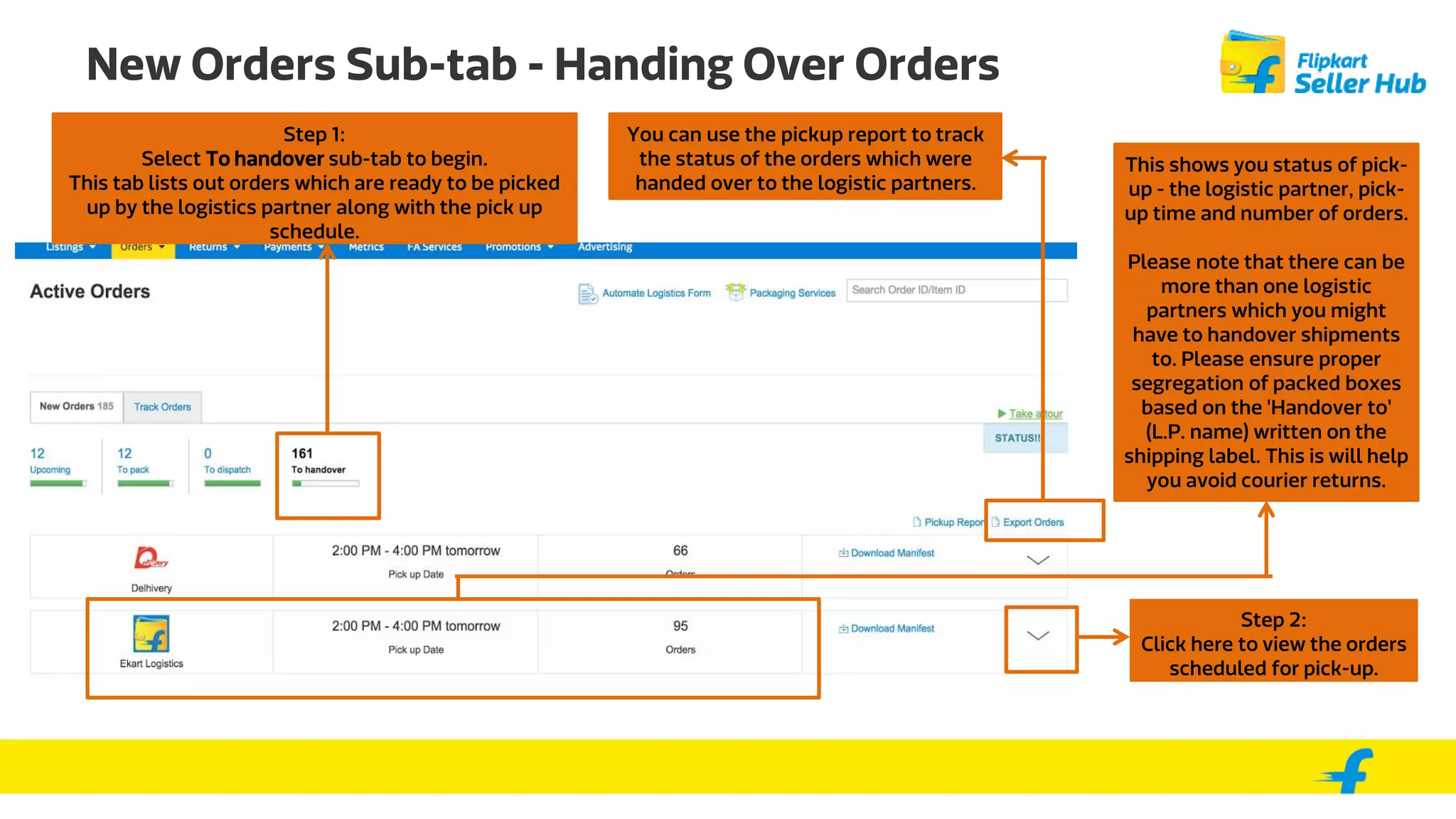
Step 1:
Select To handover sub-tab to begin.
This tab lists out orders which are ready to be picked
up by the logistics partner along with the pick up
schedule.
This shows you status of pick-
up - the logistic partner, pick-
up time and number of orders.
Please note that there can be
more than one logistic
partners which you might
have to handover shipments
to. Please ensure proper
segregation of packed boxes
based on the 'Handover to'
(L.P. name) written on the
shipping label. This is will help
you avoid courier returns.
Step 2:
Click here to view the orders
scheduled for pick-up.
You can use the pickup report to track
the status of the orders which were
handed over to the logistic partners.
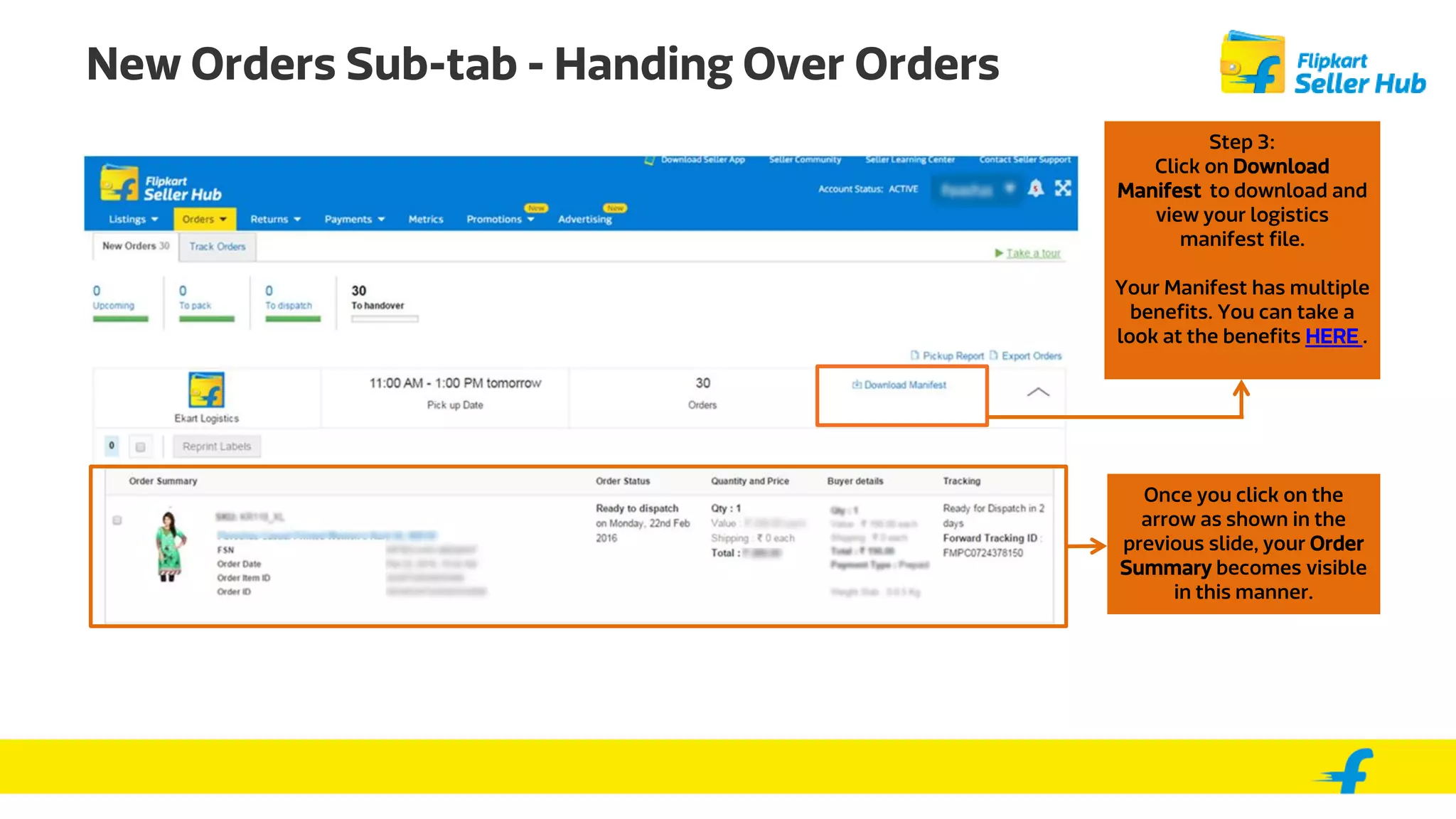
New Orders Sub-tab - Handing Over Orders
Once you click on the
arrow as shown in the
previous slide, your Order
Summary becomes visible
in this manner.
Step 3:
Click on Download
Manifest to download and
view your logistics
manifest file.
.
New Orders Sub-tab - Importance of the
Downloadable Manifest
Downloading the manifest will help in many ways, such as:
● Getting better control over dispatching of orders
● Reducing the number of reattempts as you know what
needs to be given for dispatch and when
● Arranging for dispatch of all items marked as ‘Ready to
Dispatch’ in a day
● Delivering orders on time
Track Orders Sub-tab - Tracking Your In Transit
Orders
Step 1:
Select the Track
Orders sub-tab to
track your orders that
you have already
dispatched.
Step 2:
Select the In Transit sub-
tab to view and track your
orders which are on the way
to being delivered.
Track Orders Sub-tab - Tracking Your In Transit
Orders
Step 3:
If you hover your
mouse over
Forward Tracking
ID, you will be
able to track your
order and view
your delivery
status.
Track Orders Sub-tab - Tracking Your Delivered
Orders
Click on Delivered sub-tab to
view your orders which have
already been delivered.
Thank You

Order management for non fa sellers

  • 1.
    Processing New Orders Learnhow to manage your new orders right from receiving them to delivering to the customer [Non-FA Orders]
  • 2.
    Learning Objectives In thistutorial, we will take you through: ● Importance of managing your orders ● Viewing new orders for your products on seller portal ● Packing orders before marking them as ready to dispatch ● Dispatching and handing over orders ● Tracking orders
  • 3.
    Importance of OrderManagement ● When a customer places an order, it is your responsibility to pack the right products and keep them ready for dispatch ● Packing and dispatching the wrong products will lead to customer returns ● High rate of customer returns will affect your seller rating negatively and also give rise to unsatisfactory customer experience ● You must pack your orders and keep them ready for dispatch as per the SLA timeline, set by you, in order to reduce chances of pick-up reattempts
  • 4.
    Viewing New Orders Step1: Login to your seller account at https://seller.flipkart.com/. Step 2: Click on the Orders tab. Select 3: Select Active Orders from the dropdown menu.
  • 5.
    The Active OrdersTab Step 1: The Active Orders tab has two section - New Orders and Track Order. Step 2: Select the New Orders sub-tab. This tells you the Order Status. You need to take action only on ‘Approved’ orders. These are your order and Buyer Details.
  • 6.
    New Orders Sub-tab Thissub-tab also tells you the number of Upcoming orders, number of orders To pack, To dispatch and To handover as well. Here you will find the Time slot for the next pickup by the logistics partner. You can view your orders basis any of these filters.
  • 7.
    New Orders Sub-tab- Upcoming Orders Click on Upcoming Orders to view this sub-tab. The orders in this tab can be either in Approved or On Hold status. However, by default the tab will show you only the Approved orders. In order to view the On Hold orders, you will have to filter the orders by On Hold status. These are orders which will become actionable after the ‘Dispatch After’ date when it moves to the To Pack tab. Click on Export Future Orders to download the Excel sheet containing the list of all your upcoming Approved orders to keep track of them reduce chances of pick-up reattempts. This will help you in keeping your inventory ready for seamless order fulfillment.
  • 8.
    New Orders Sub-tab- Packing Orders These are orders which need to be marked as To Pack. Once the orders are marked, shipping label and invoice will be generated. Please remember that you perform this action only once you have picked and packed your orders. You can use the Packing List to help you in picking and packing orders. Step 1 (a): You can pack single orders by selecting the orders and clicking here. Step 1 (b): You can also pack bulk orders downloading the .CSV file from Download for Bulk Action and filling in your order details. After that click Upload Bulk File and upload your .CSV file with the list of orders. Download Packing List to keep a check on your inventory and avoid mis- shipments. This strip will tell you the logistics form that needs to be filled. If you click on the form name, you will be taken to the government website where you can fill it.
  • 9.
    New Orders Sub-tab- Packing Orders Step 2: Once you select Pack Orders, the Shipment Record card opens up. Fill up the VAT/CST rate and link on Download & Print to download your invoices. Once you fill the VAT/CST for any particular product, the same rate is saved and applied to all future orders on the same product. Please note that for products like Mobile Phones, IMEI/Serial Number will also need to be filled.
  • 10.
    New Orders Sub-tab- Dispatching Orders Step 1: Select To dispatch sub-tab to begin. This tab lists out orders which are already Packed and are ready to be dispatched or picked up by the logistics partner. This STATUS shows the number of orders you have already marked as Ready To Dispatch. Step 2 (a): You can mark your orders as Ready To Dispatch by selecting the orders and clicking here. Step 2 (b): You can also mark your orders as Ready To Dispatch by clicking on Scan Orders and scanning them. You are required to dispatch every order within the Dispatch By date to avoid SLA breaches.
  • 11.
    New Orders Sub-tab- Handing Over Orders Step 1: Select To handover sub-tab to begin. This tab lists out orders which are ready to be picked up by the logistics partner along with the pick up schedule. This shows you status of pick- up - the logistic partner, pick- up time and number of orders. Please note that there can be more than one logistic partners which you might have to handover shipments to. Please ensure proper segregation of packed boxes based on the 'Handover to' (L.P. name) written on the shipping label. This is will help you avoid courier returns. Step 2: Click here to view the orders scheduled for pick-up. You can use the pickup report to track the status of the orders which were handed over to the logistic partners.
  • 12.
    New Orders Sub-tab- Handing Over Orders Once you click on the arrow as shown in the previous slide, your Order Summary becomes visible in this manner. Step 3: Click on Download Manifest to download and view your logistics manifest file. .
  • 13.
    New Orders Sub-tab- Importance of the Downloadable Manifest Downloading the manifest will help in many ways, such as: ● Getting better control over dispatching of orders ● Reducing the number of reattempts as you know what needs to be given for dispatch and when ● Arranging for dispatch of all items marked as ‘Ready to Dispatch’ in a day ● Delivering orders on time
  • 14.
    Track Orders Sub-tab- Tracking Your In Transit Orders Step 1: Select the Track Orders sub-tab to track your orders that you have already dispatched. Step 2: Select the In Transit sub- tab to view and track your orders which are on the way to being delivered.
  • 15.
    Track Orders Sub-tab- Tracking Your In Transit Orders Step 3: If you hover your mouse over Forward Tracking ID, you will be able to track your order and view your delivery status.
  • 16.
    Track Orders Sub-tab- Tracking Your Delivered Orders Click on Delivered sub-tab to view your orders which have already been delivered.
  • 17.