Fulfillment center-
Creation and tracking of
consignment
In this module we will discuss :-
1. What is the procedure to send products to FC?
2. How to check the details of payments and returns on seller panel?
What is the procedure to send products to FC?
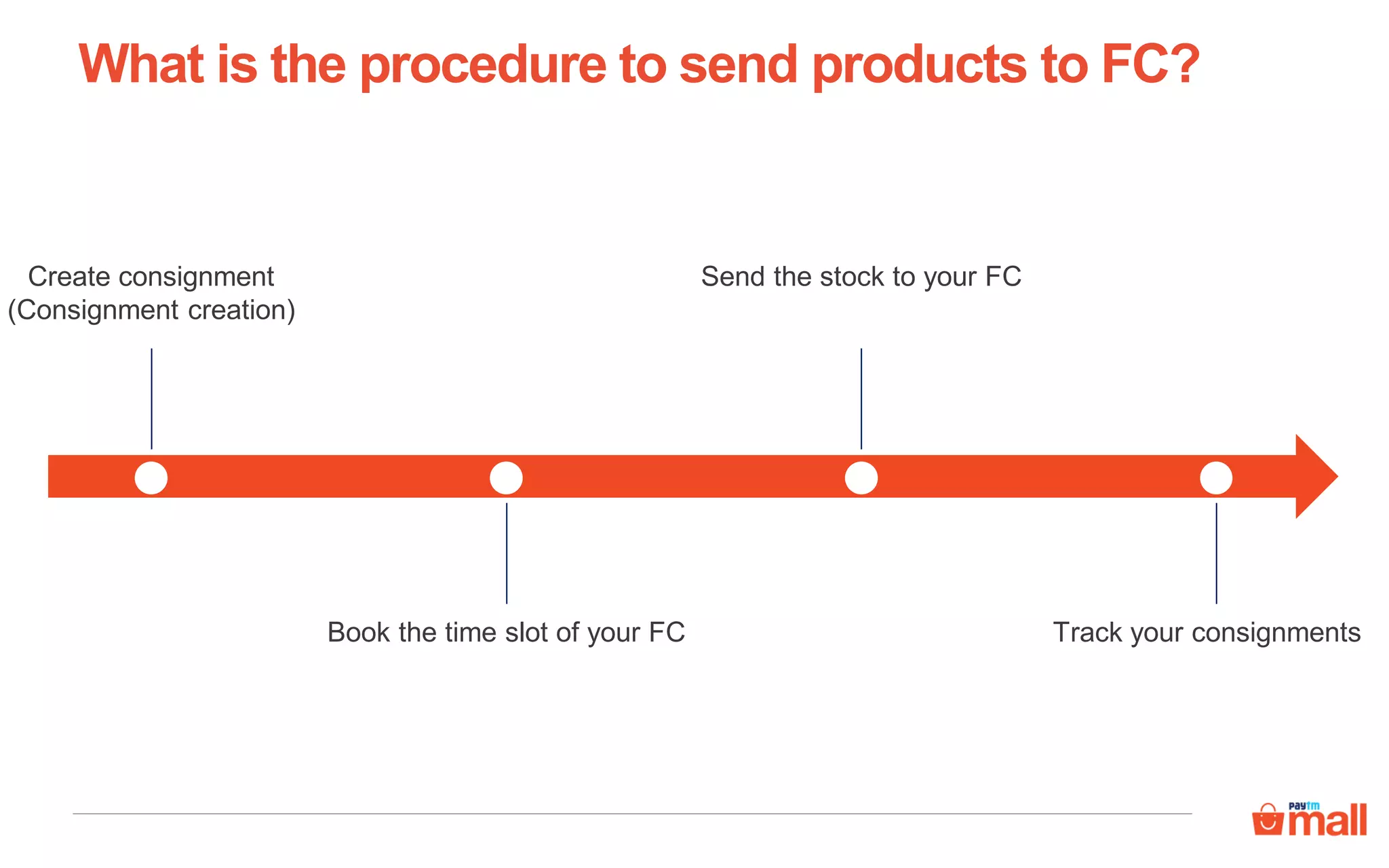
Create consignment
(Consignment creation)
Book the time slot of your FC
Send the stock to your FC
Track your consignments
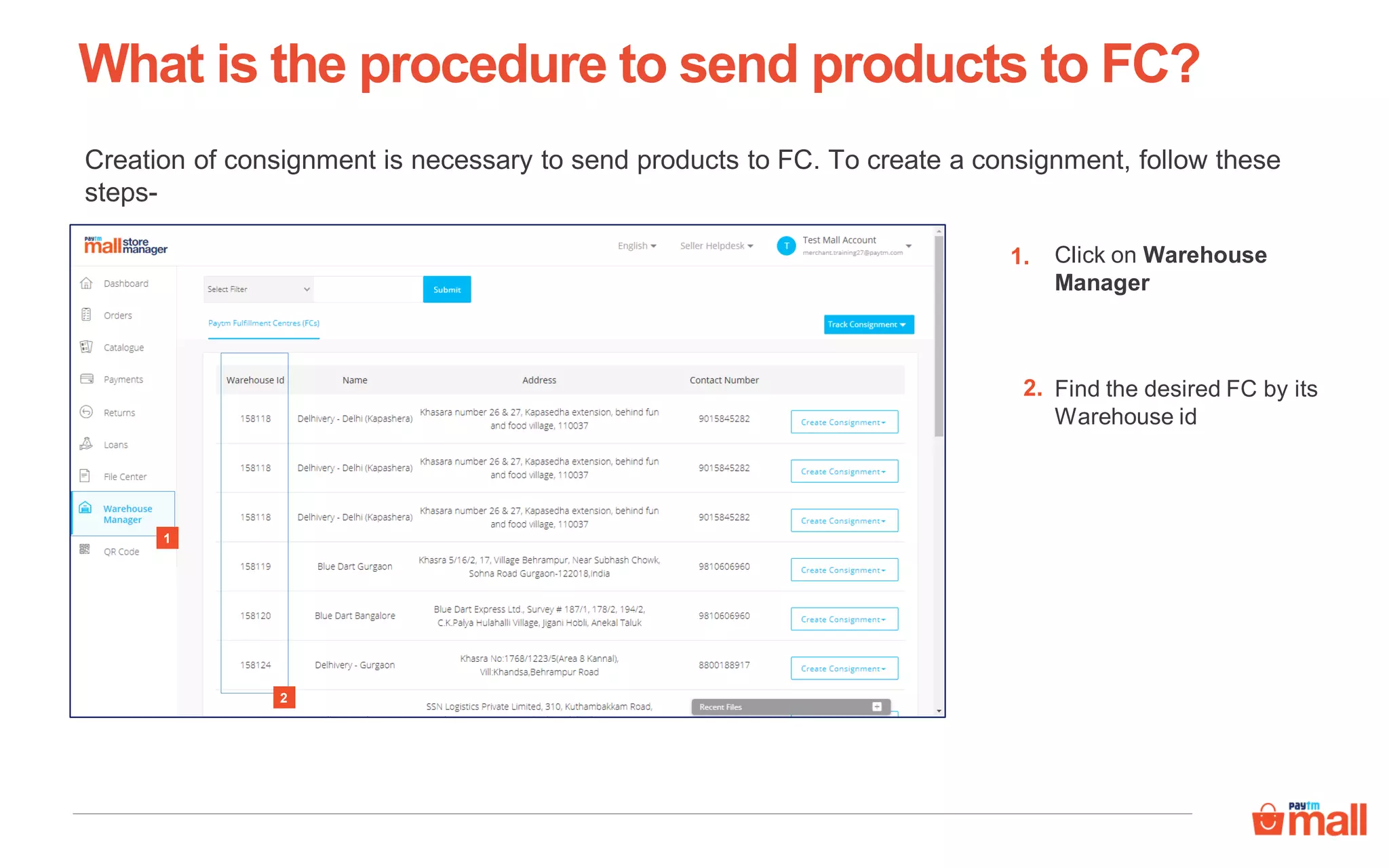
Creation of consignment is necessary to send products to FC. To create a consignment, follow these
steps-
1.
1
Click on Warehouse
Manager
What is the procedure to send products to FC?
2
Find the desired FC by its
Warehouse id
2.
3.
3
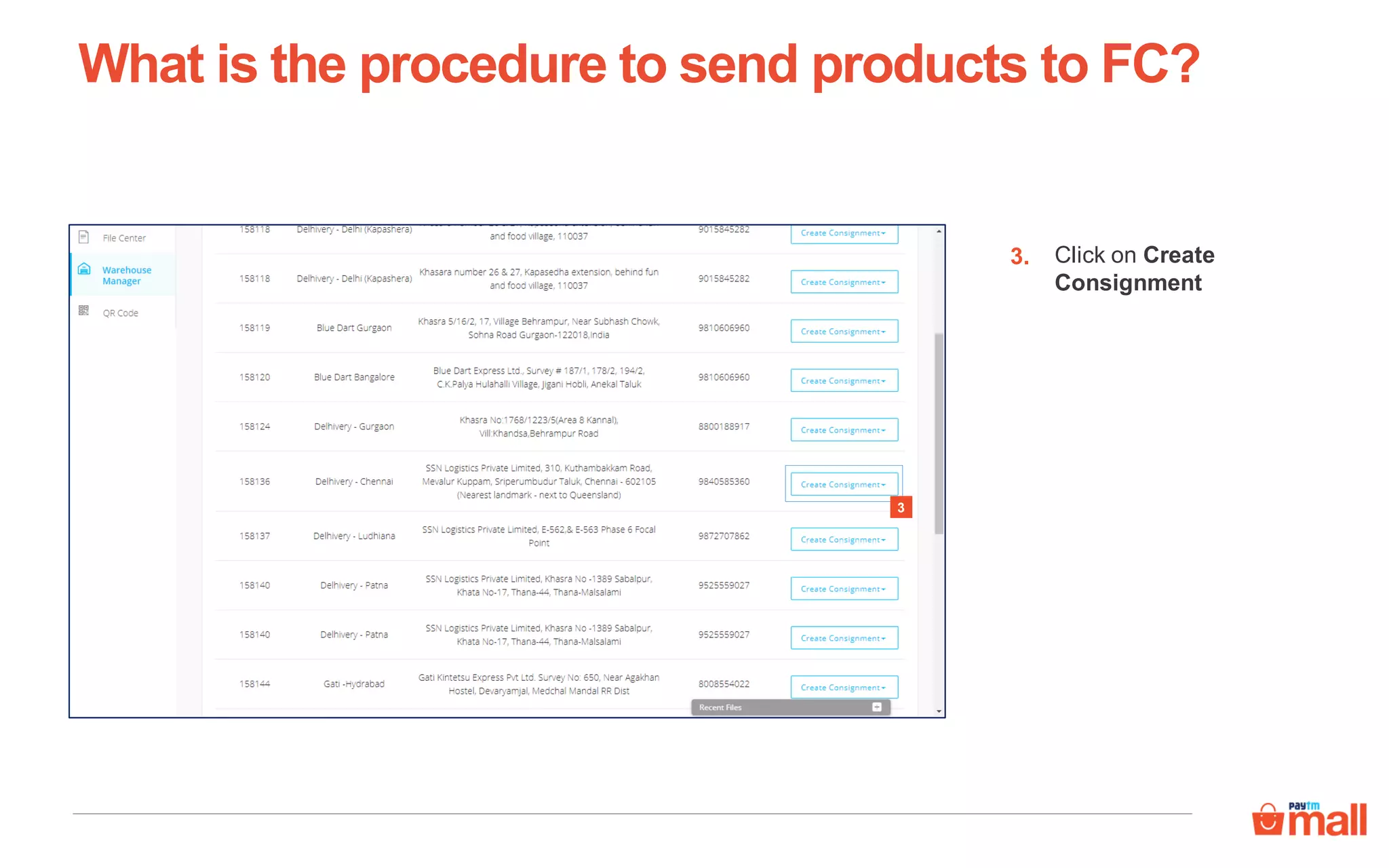
Click on Create
Consignment
What is the procedure to send products to FC?
5
What is the procedure to send products to FC?
6
4
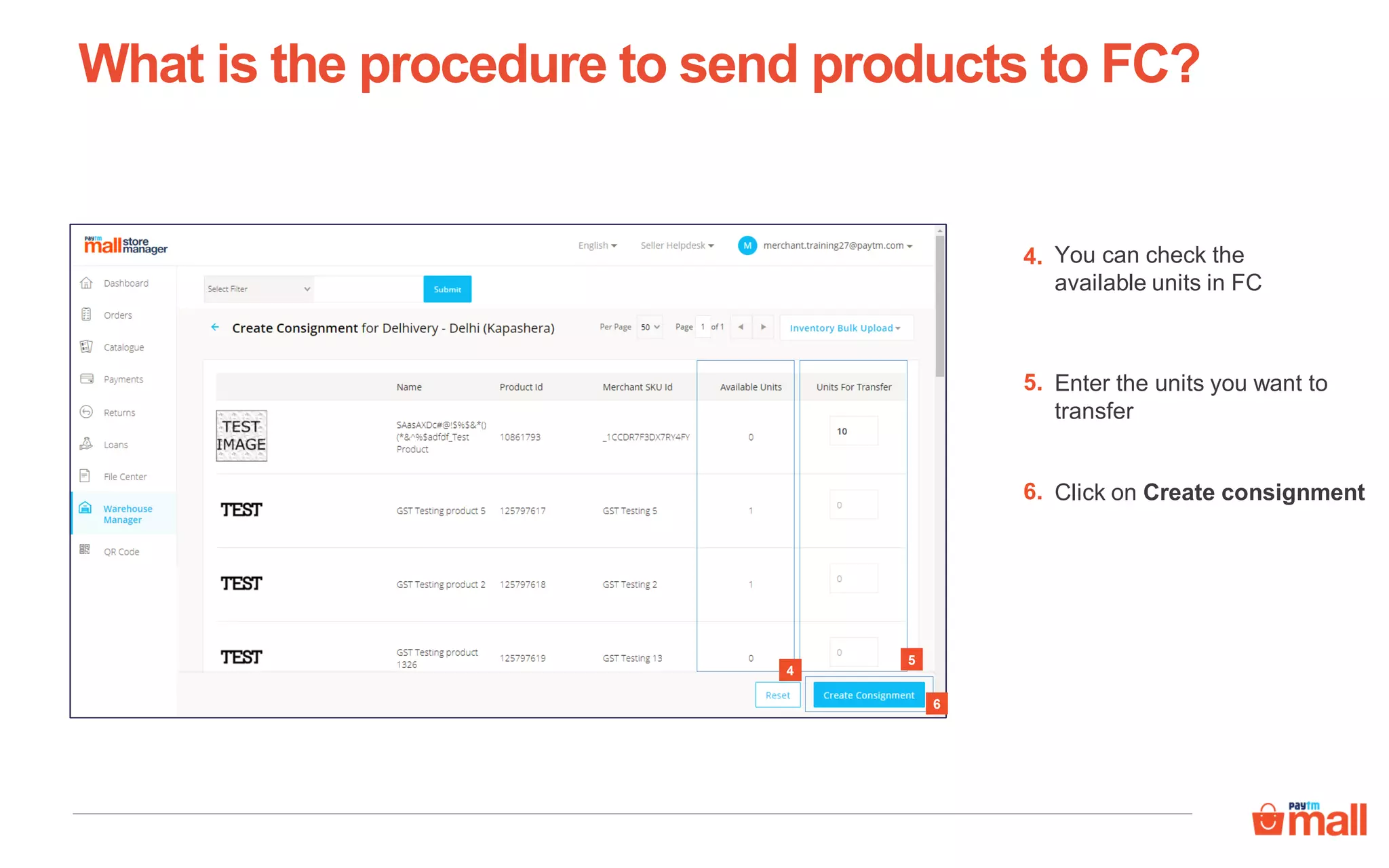
You can check the
available units in FC
4.
Enter the units you want to
transfer
5.
Click on Create consignment6.
7
What is the procedure to send products to FC?
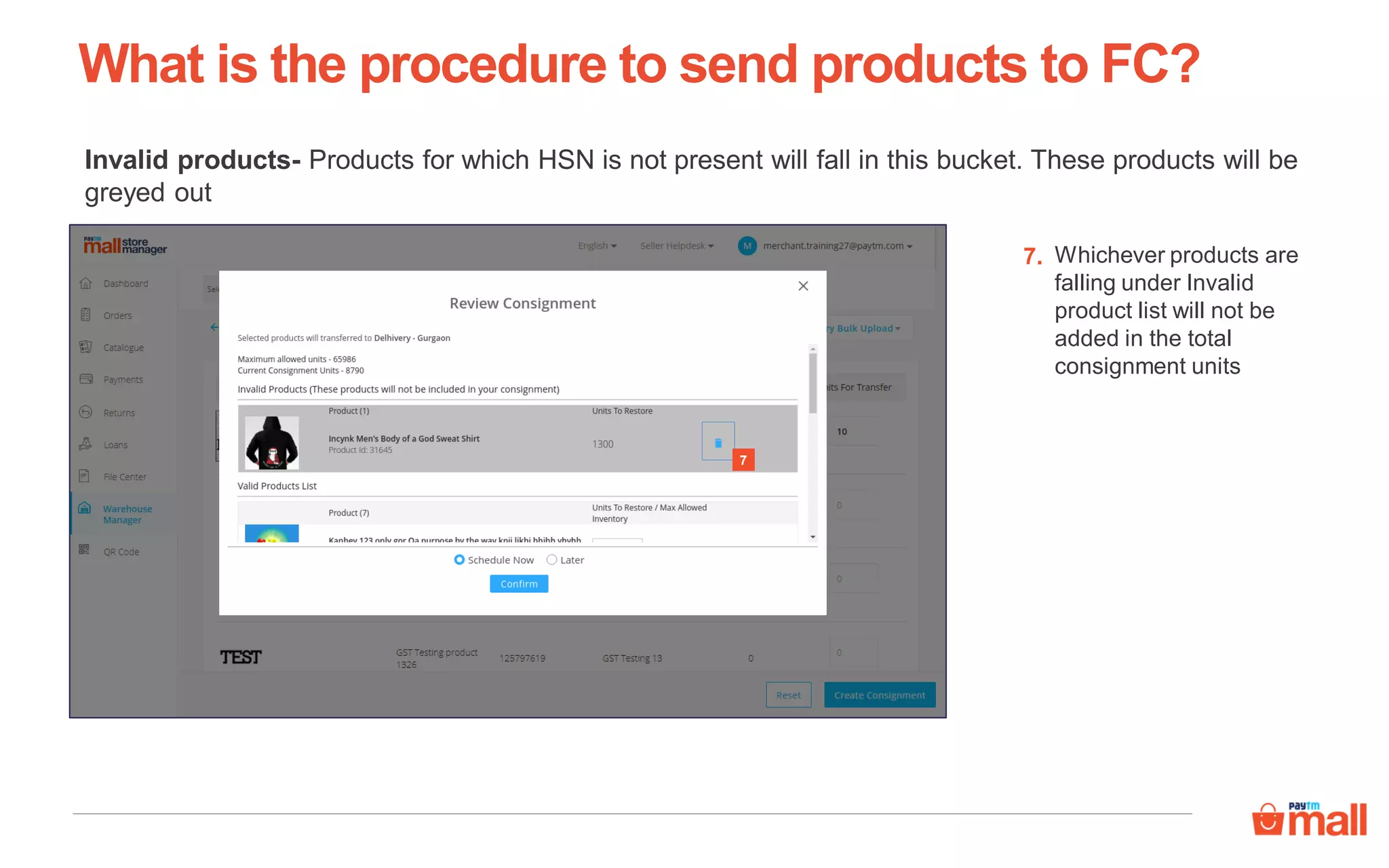
Whichever products are
falling under Invalid
product list will not be
added in the total
consignment units
7.
Invalid products- Products for which HSN is not present will fall in this bucket. These products will be
greyed out
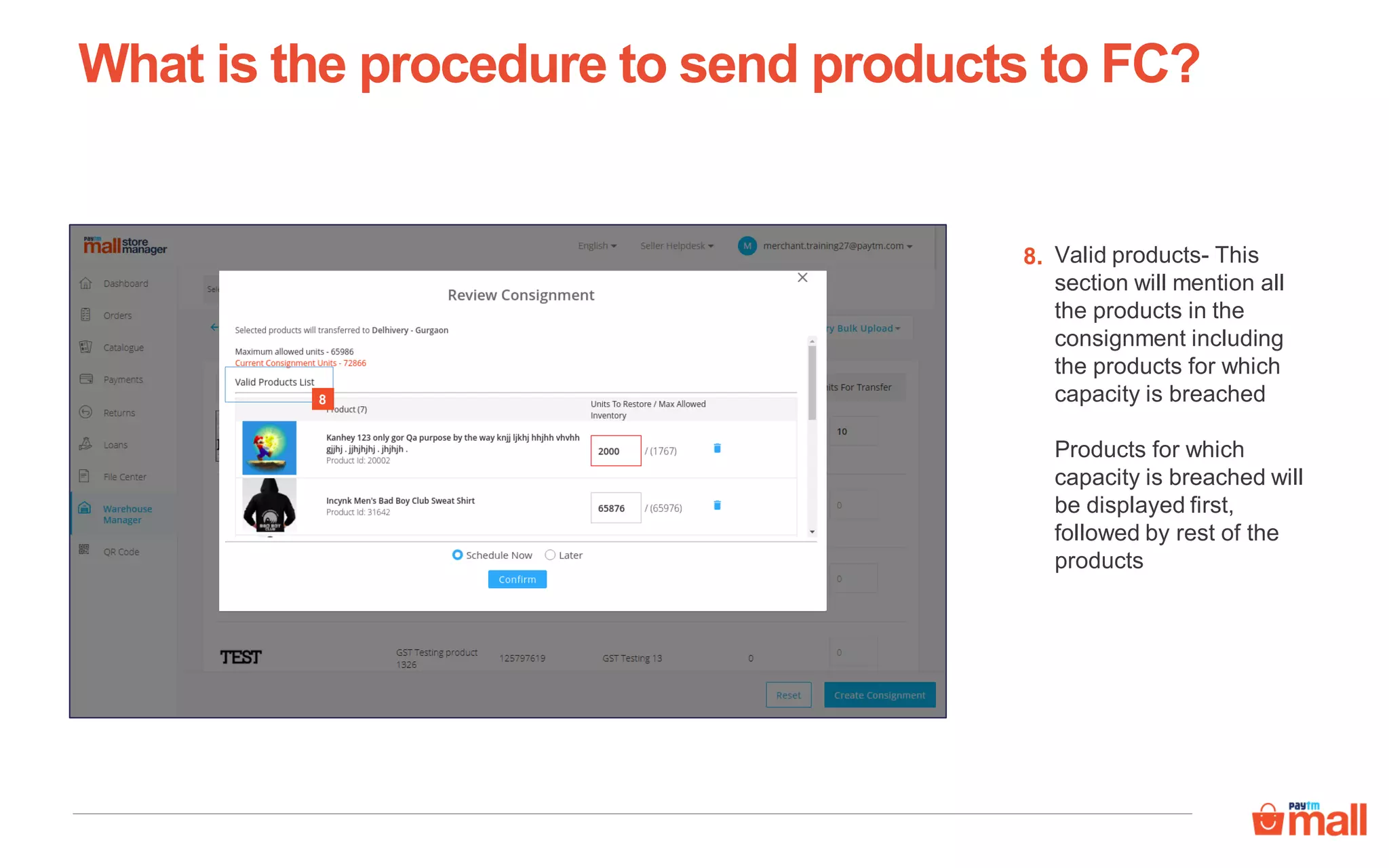
Valid products- This
section will mention all
the products in the
consignment including
the products for which
capacity is breached
Products for which
capacity is breached will
be displayed first,
followed by rest of the
products
8
What is the procedure to send products to FC?
8.
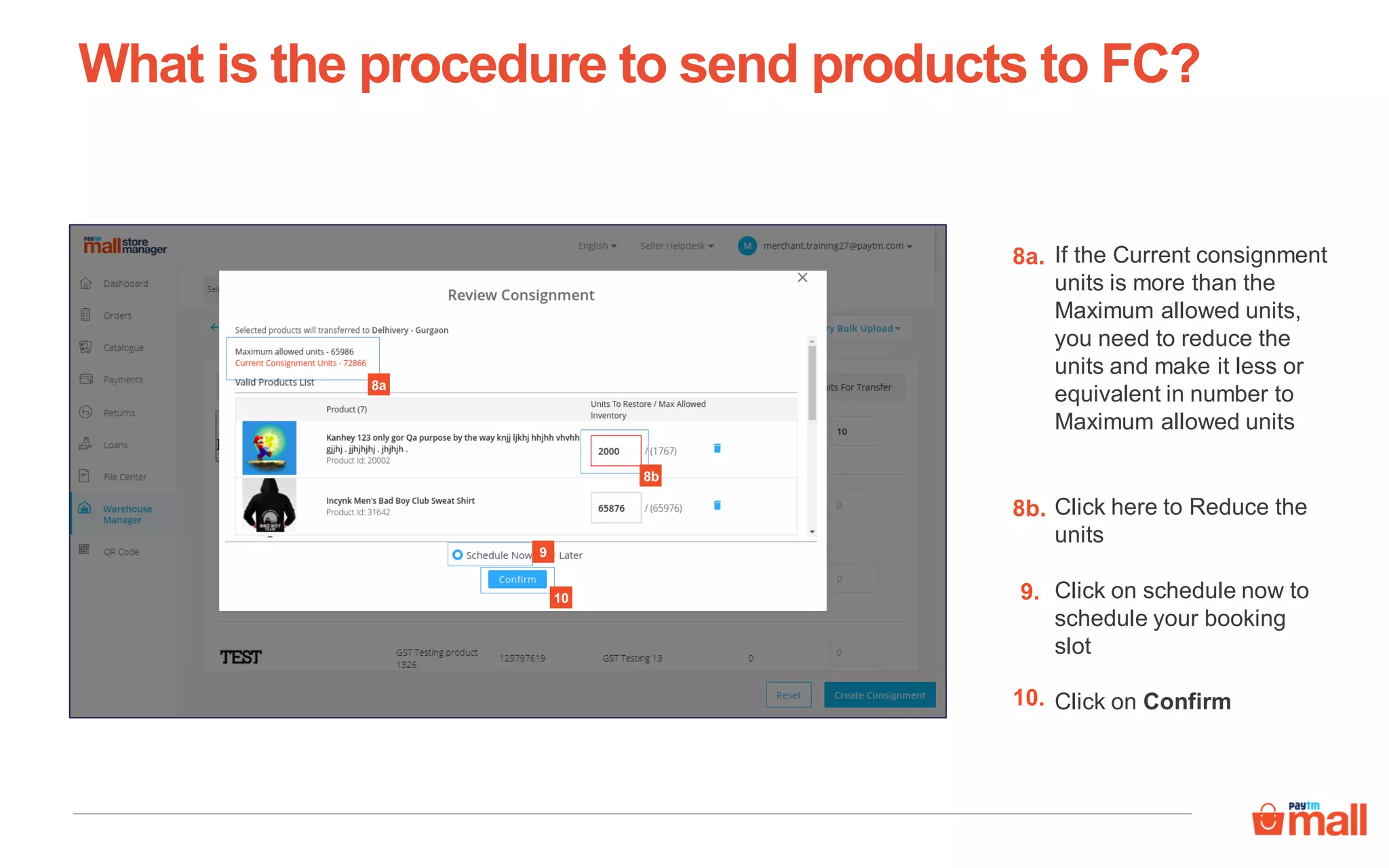
If the Current consignment
units is more than the
Maximum allowed units,
you need to reduce the
units and make it less or
equivalent in number to
Maximum allowed units
What is the procedure to send products to FC?
8a.
8a
8b
Click here to Reduce the
units
8b.
Click on schedule now to
schedule your booking
slot
Click on Confirm
10
9
9.
10.
11
What is the procedure to send products to FC?
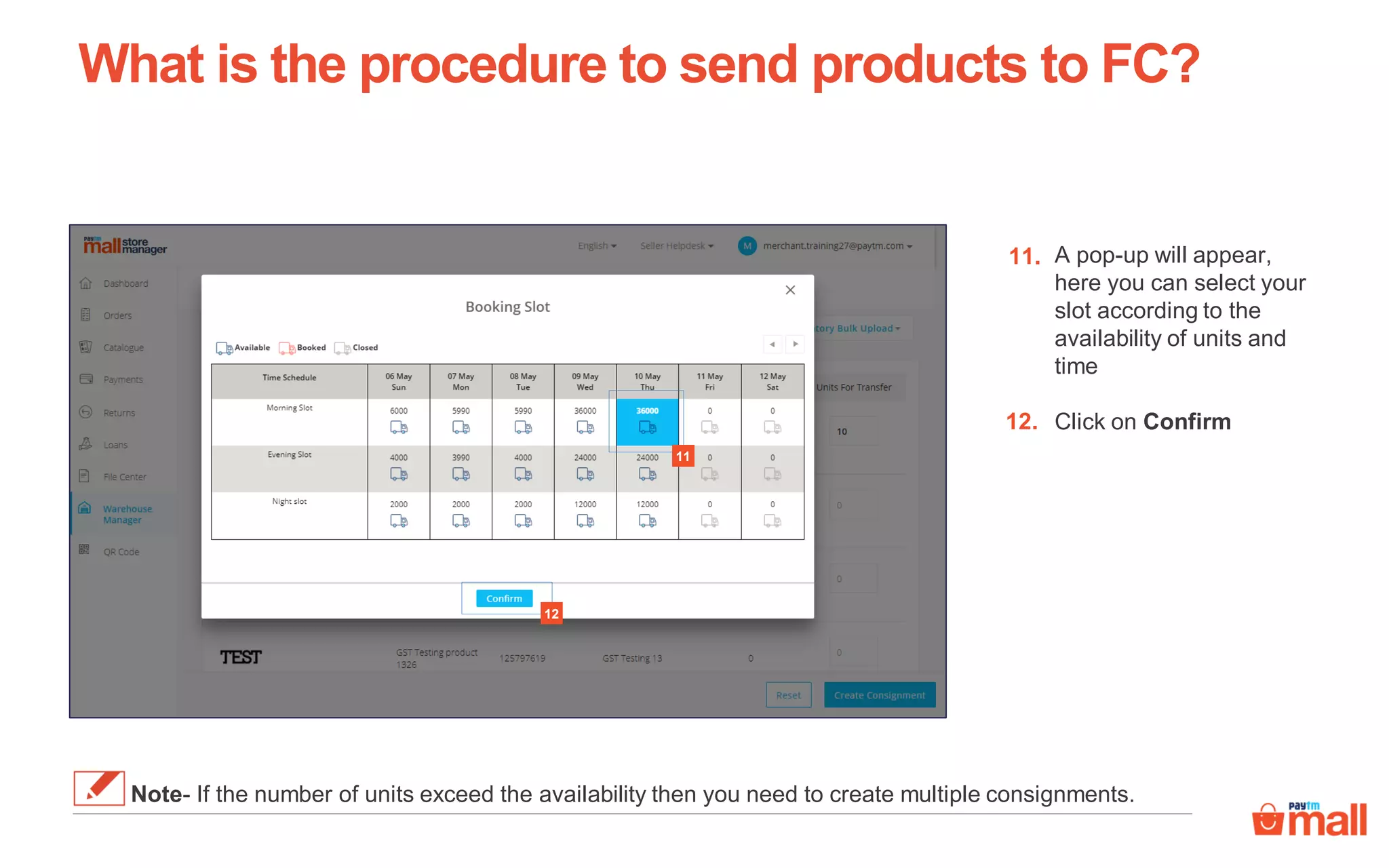
A pop-up will appear,
here you can select your
slot according to the
availability of units and
time
Click on Confirm
11.
12.
12
Note- If the number of units exceed the availability then you need to create multiple consignments.
What is the procedure to send products to FC?
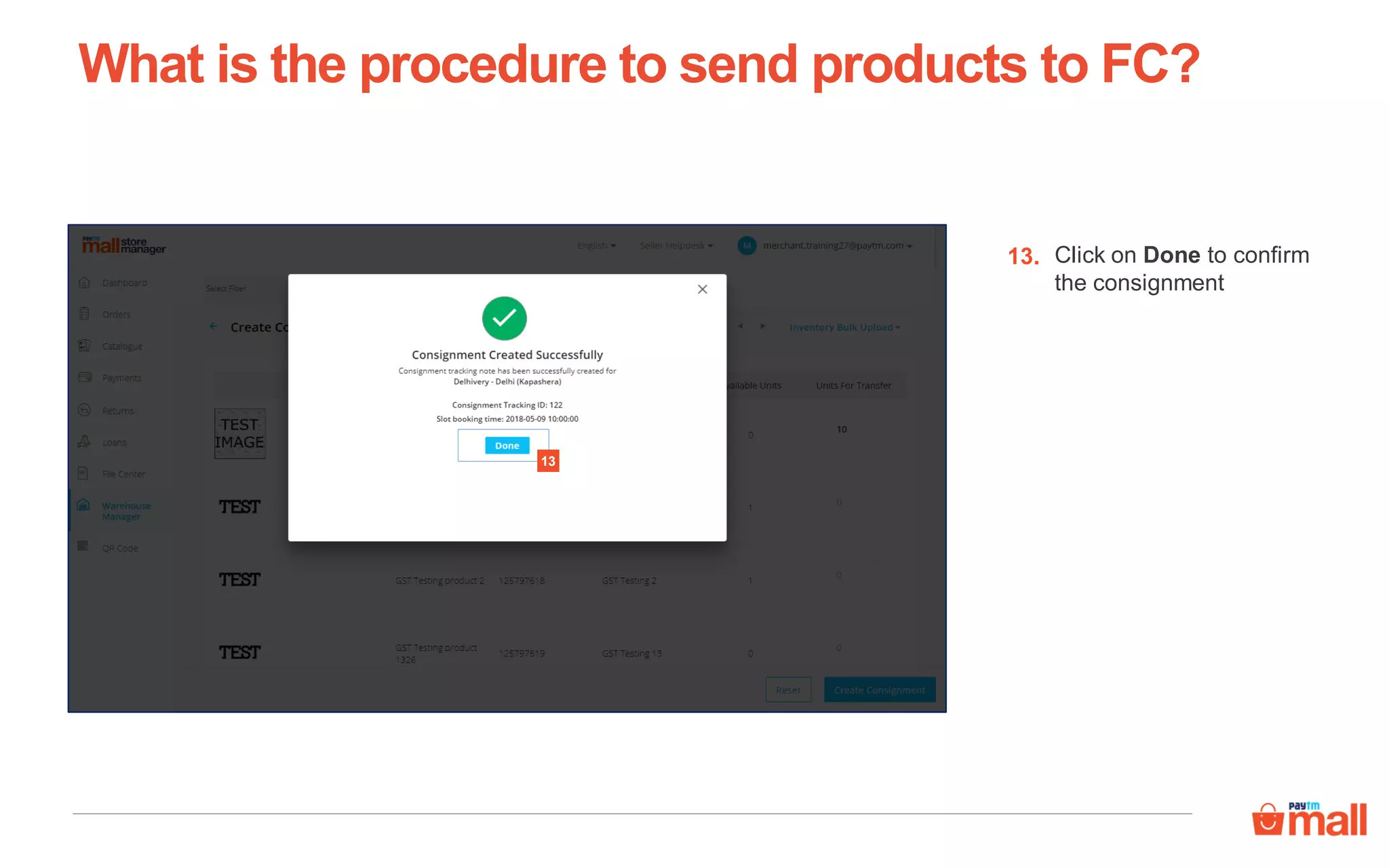
Click on Done to confirm
the consignment
13.
13
What is the procedure to send products to FC?
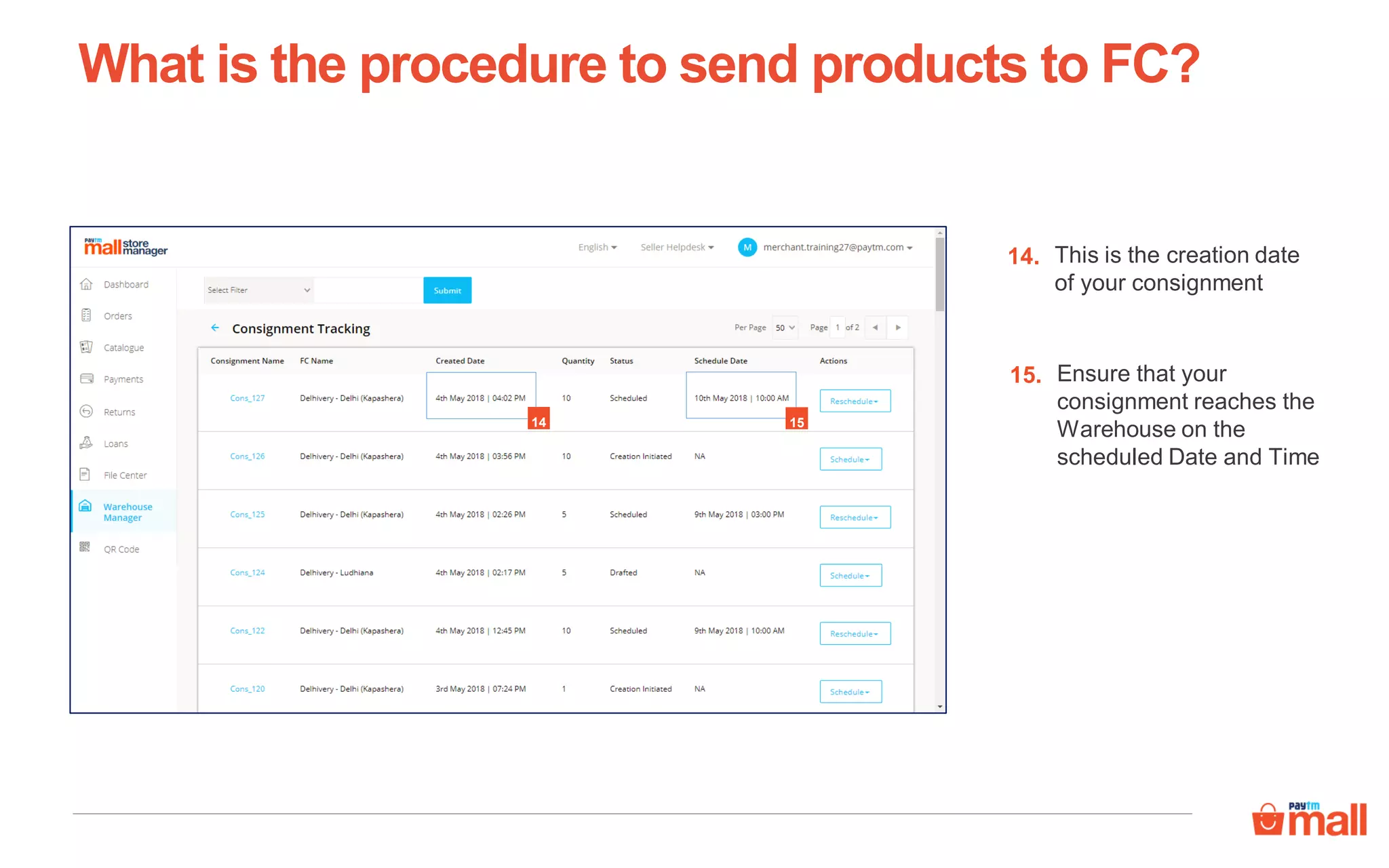
This is the creation date
of your consignment
14.
Ensure that your
consignment reaches the
Warehouse on the
scheduled Date and Time
15.
14 15
What is the procedure to send products to FC?
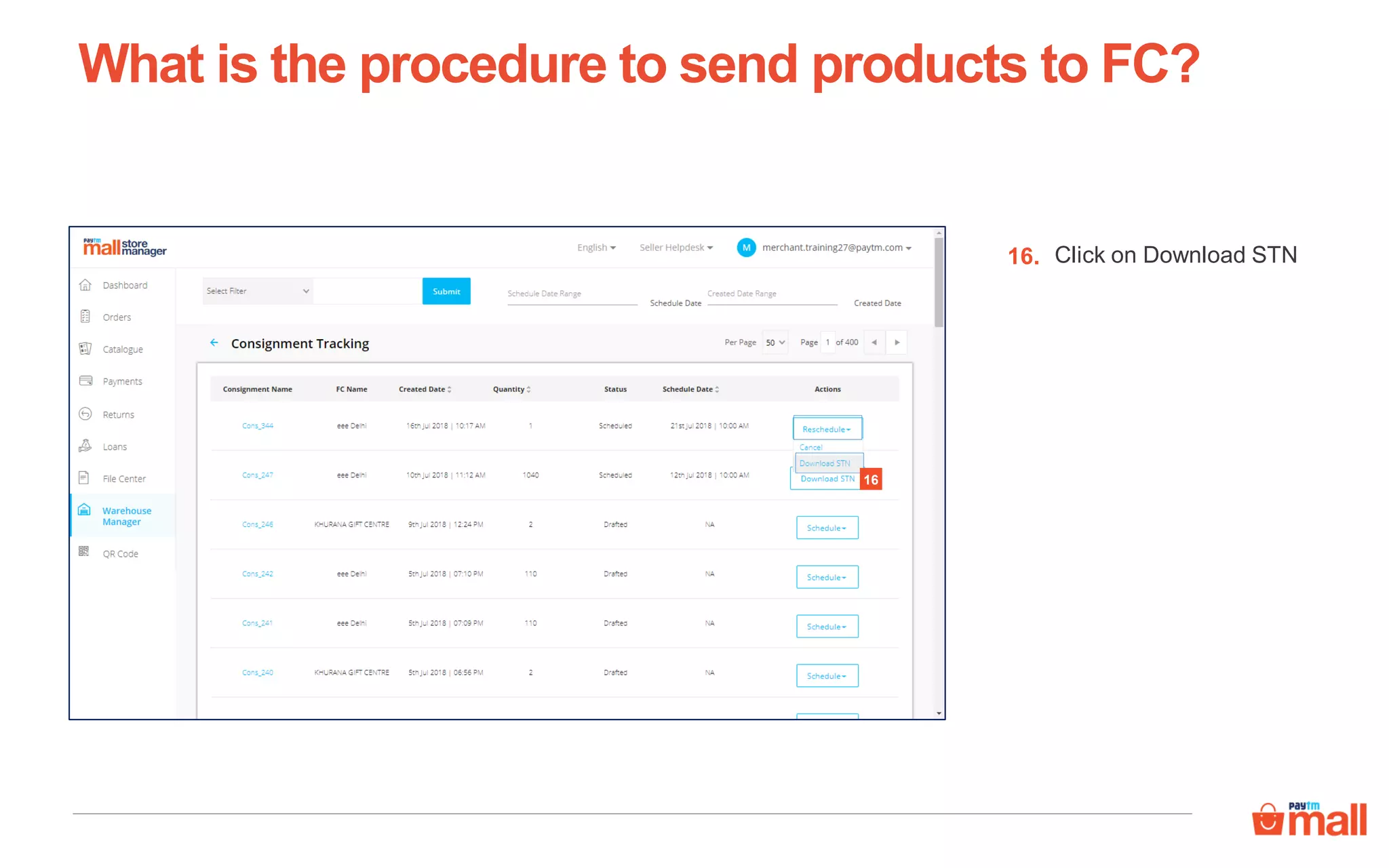
Click on Download STN16.
16
What is the procedure to send products to FC?
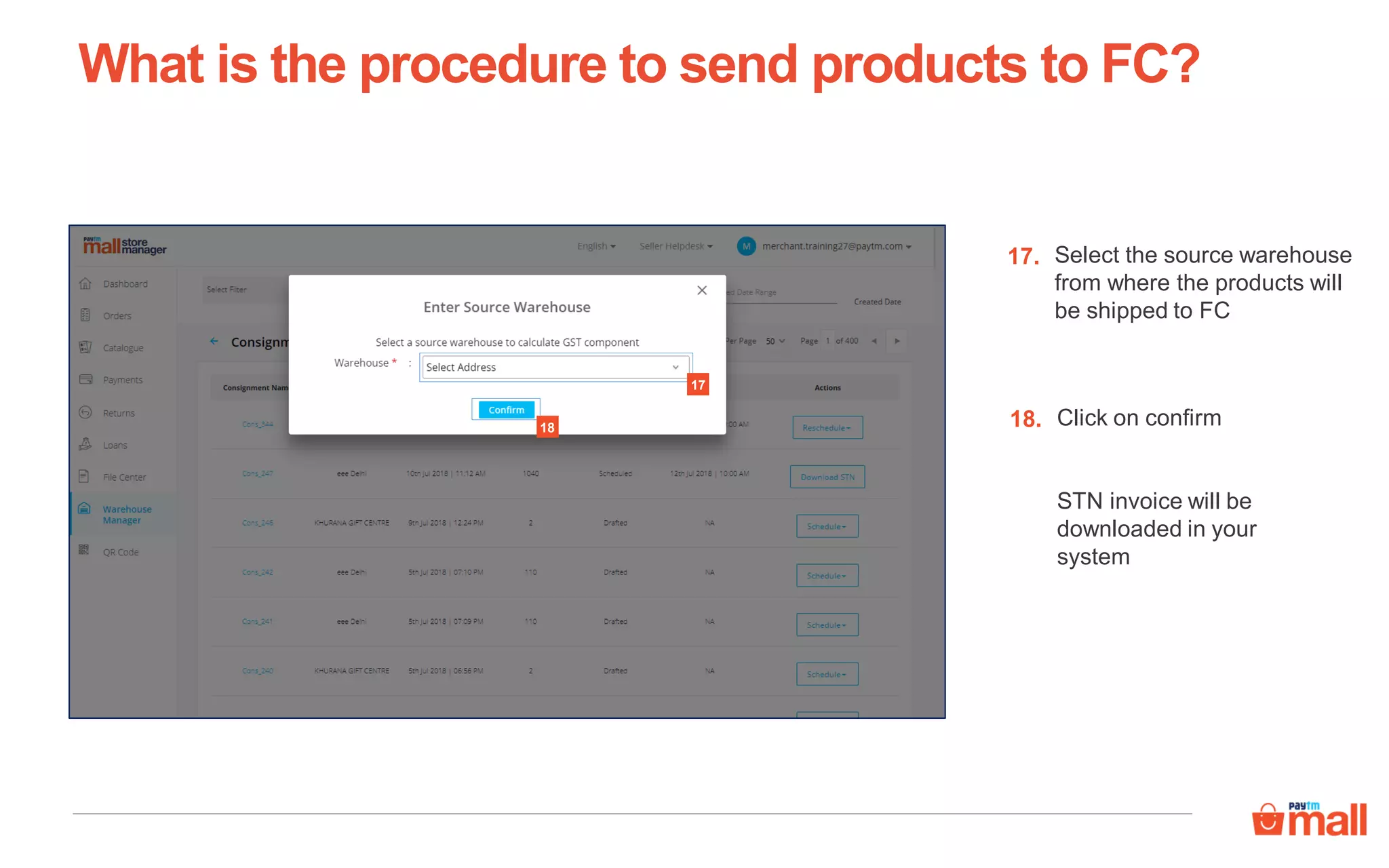
18
17
Select the source warehouse
from where the products will
be shipped to FC
17.
Click on confirm
STN invoice will be
downloaded in your
system
18.
What is the procedure to send products to FC?
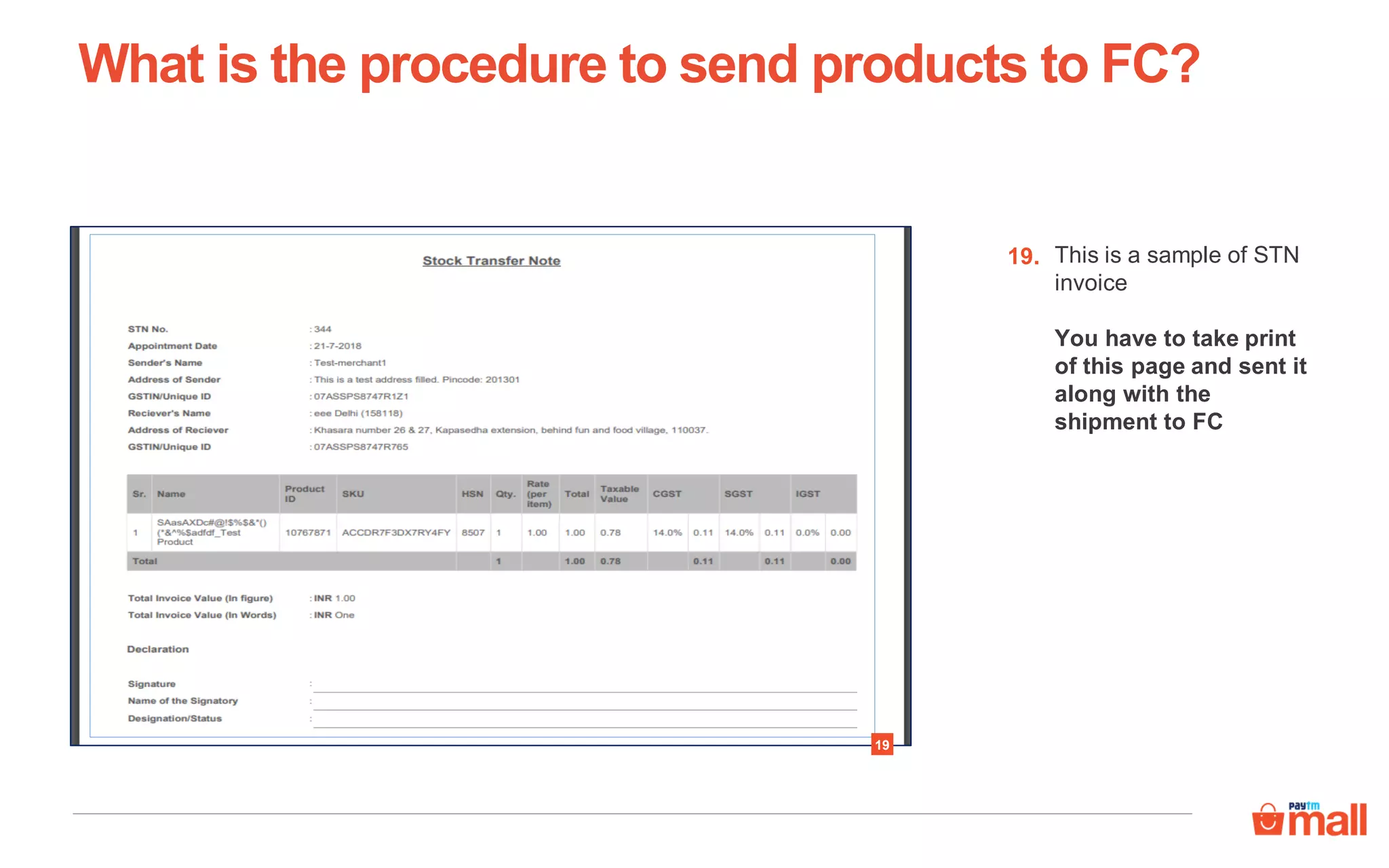
This is a sample of STN
invoice
You have to take print
of this page and sent it
along with the
shipment to FC
19.
19
What is the procedure to send products to FC?
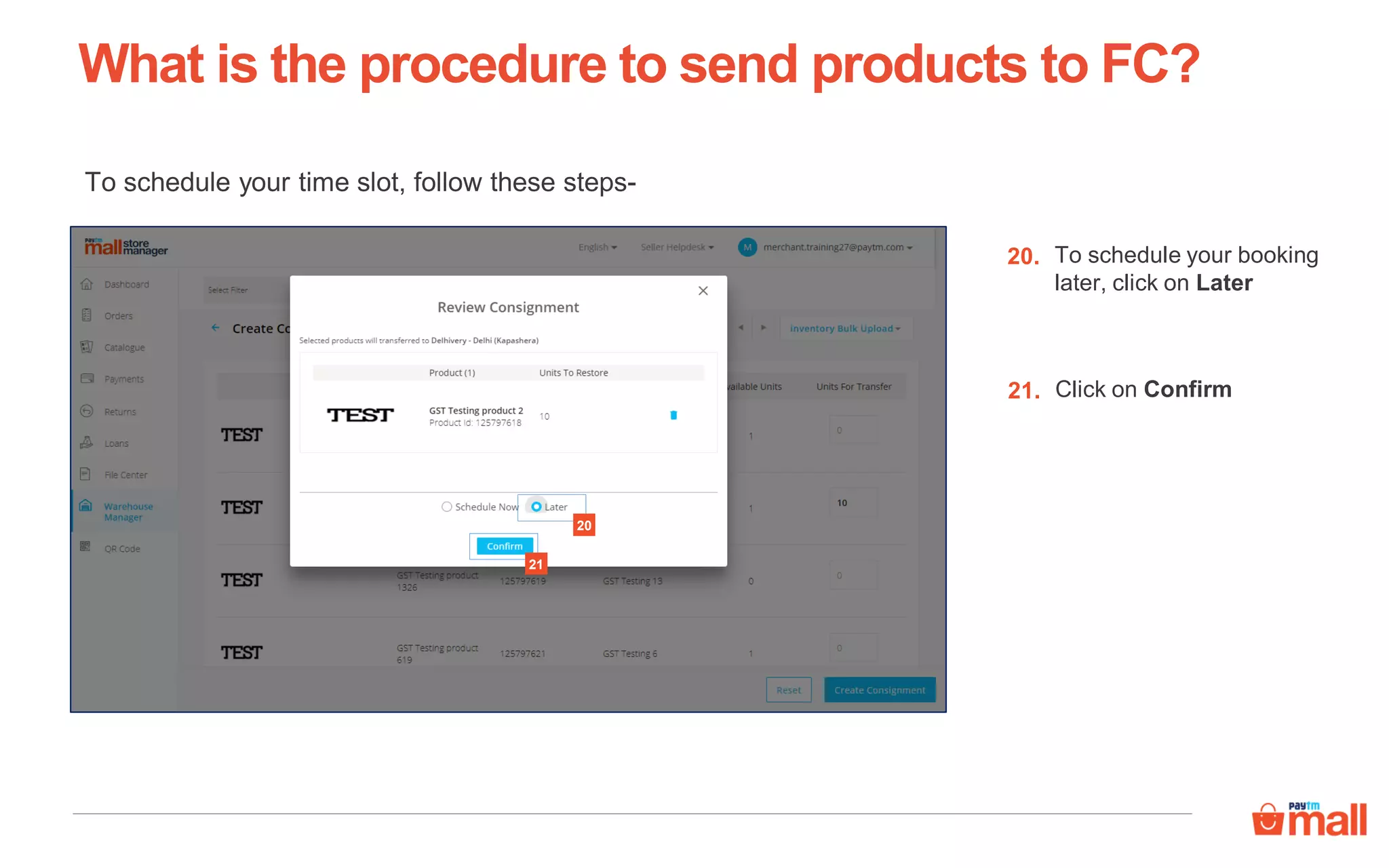
To schedule your booking
later, click on Later
20.
20
Click on Confirm21.
21
To schedule your time slot, follow these steps-
What is the procedure to send products to FC?
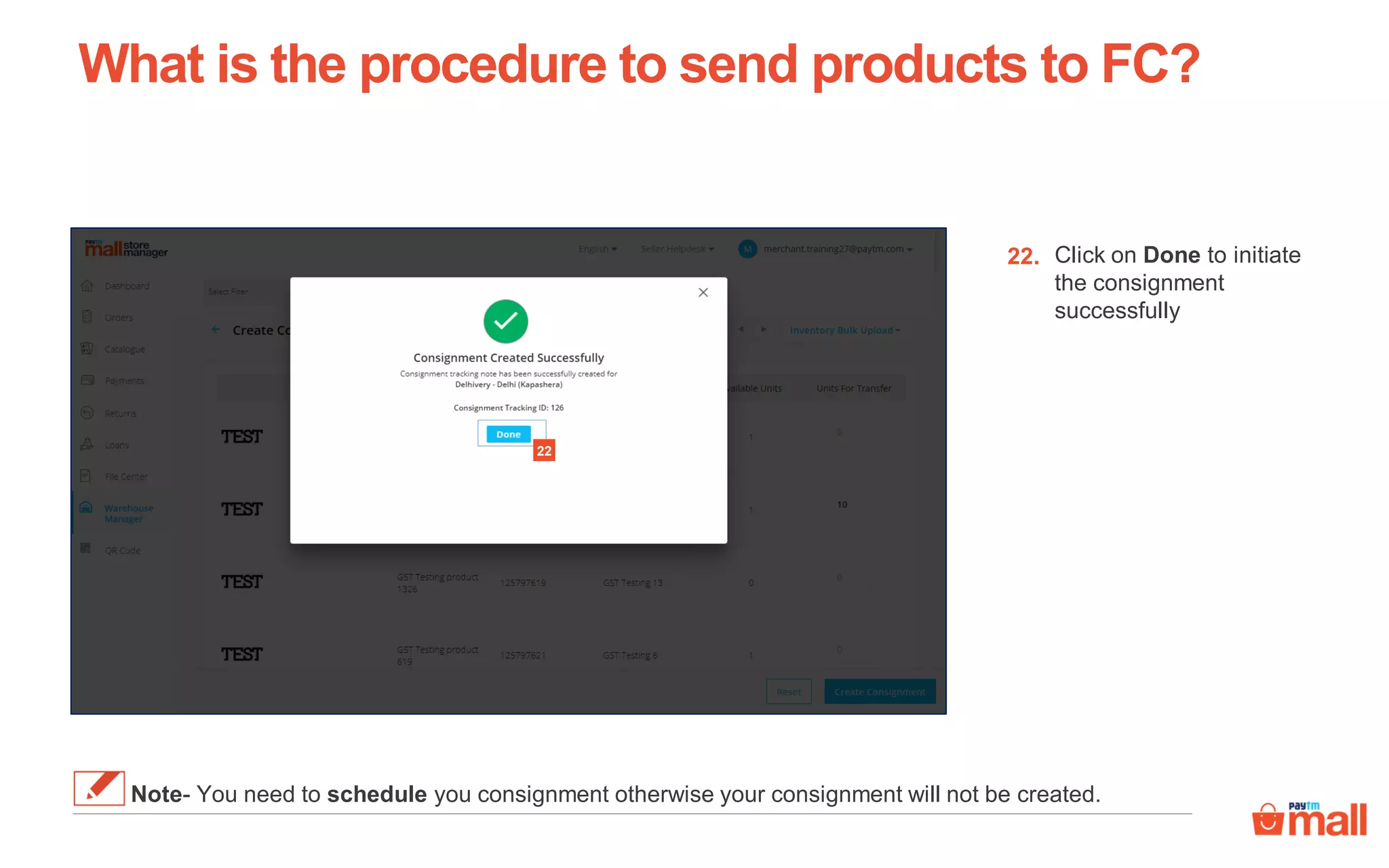
Click on Done to initiate
the consignment
successfully
22.
22
Note- You need to schedule you consignment otherwise your consignment will not be created.
What is the procedure to send products to FC?
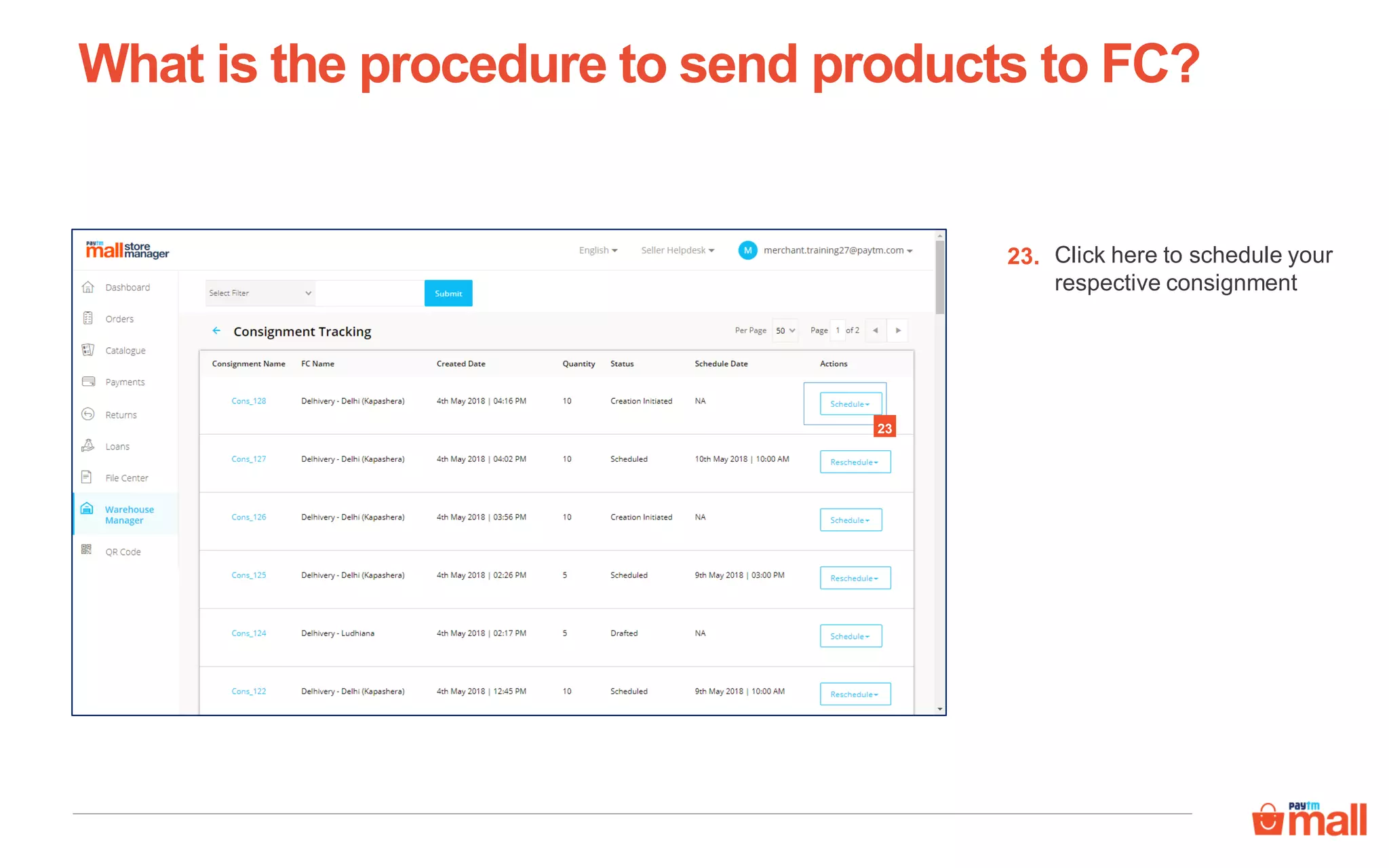
Click here to schedule your
respective consignment
23.
23
24
What is the procedure to send products to FC?
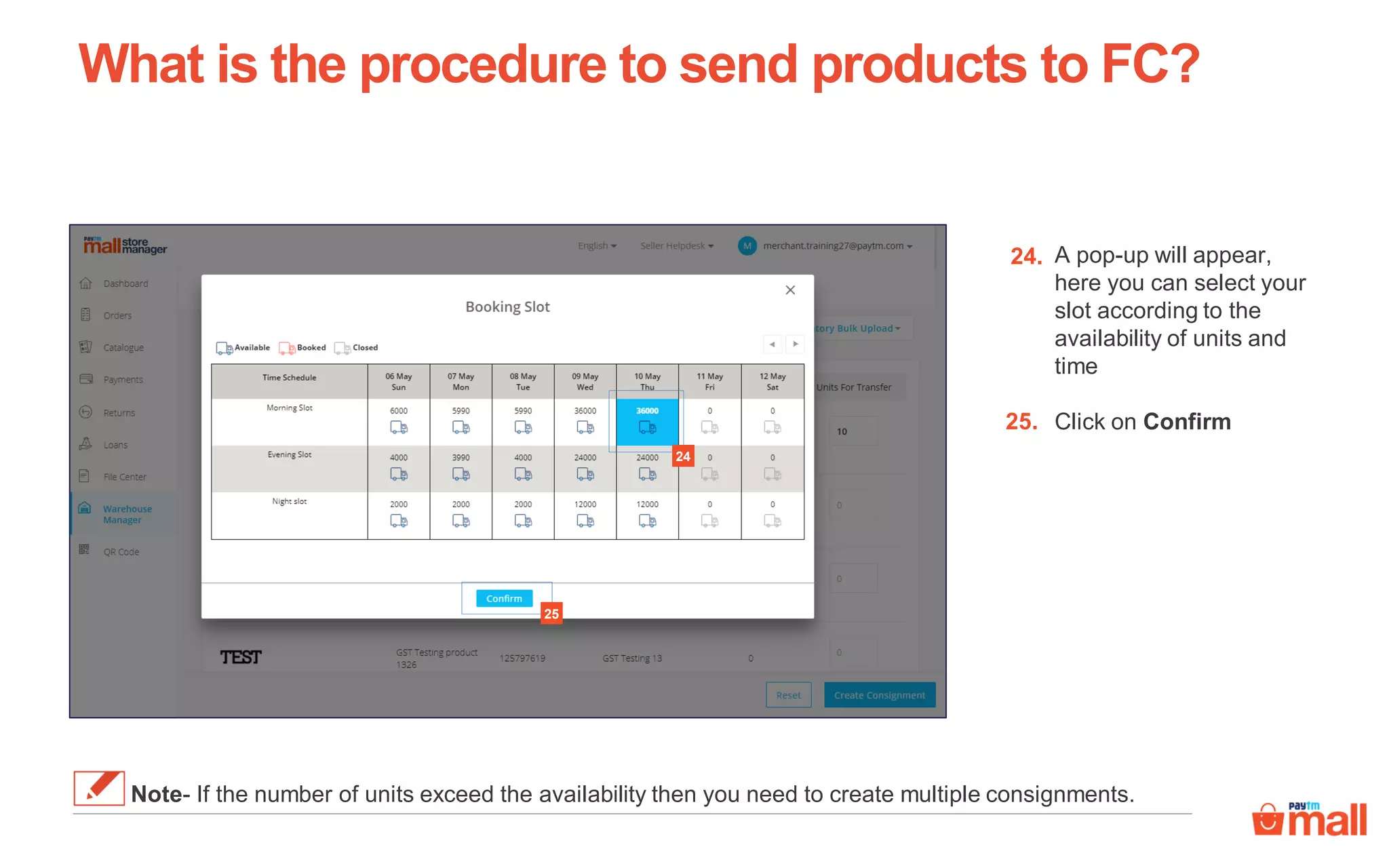
A pop-up will appear,
here you can select your
slot according to the
availability of units and
time
Click on Confirm
24.
25.
25
Note- If the number of units exceed the availability then you need to create multiple consignments.
What is the procedure to send products to FC?
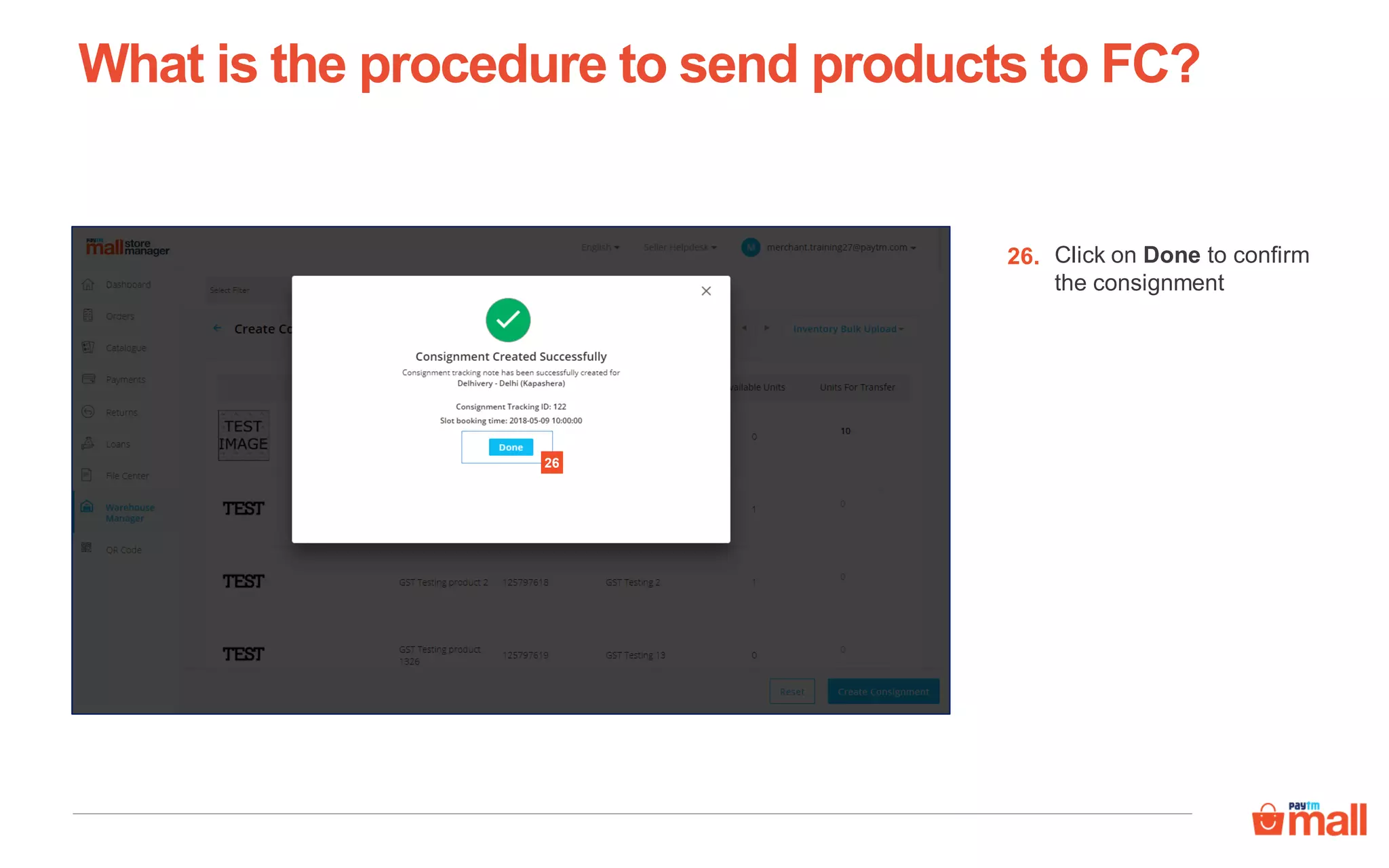
Click on Done to confirm
the consignment
26.
26
What is the procedure to send products to FC?
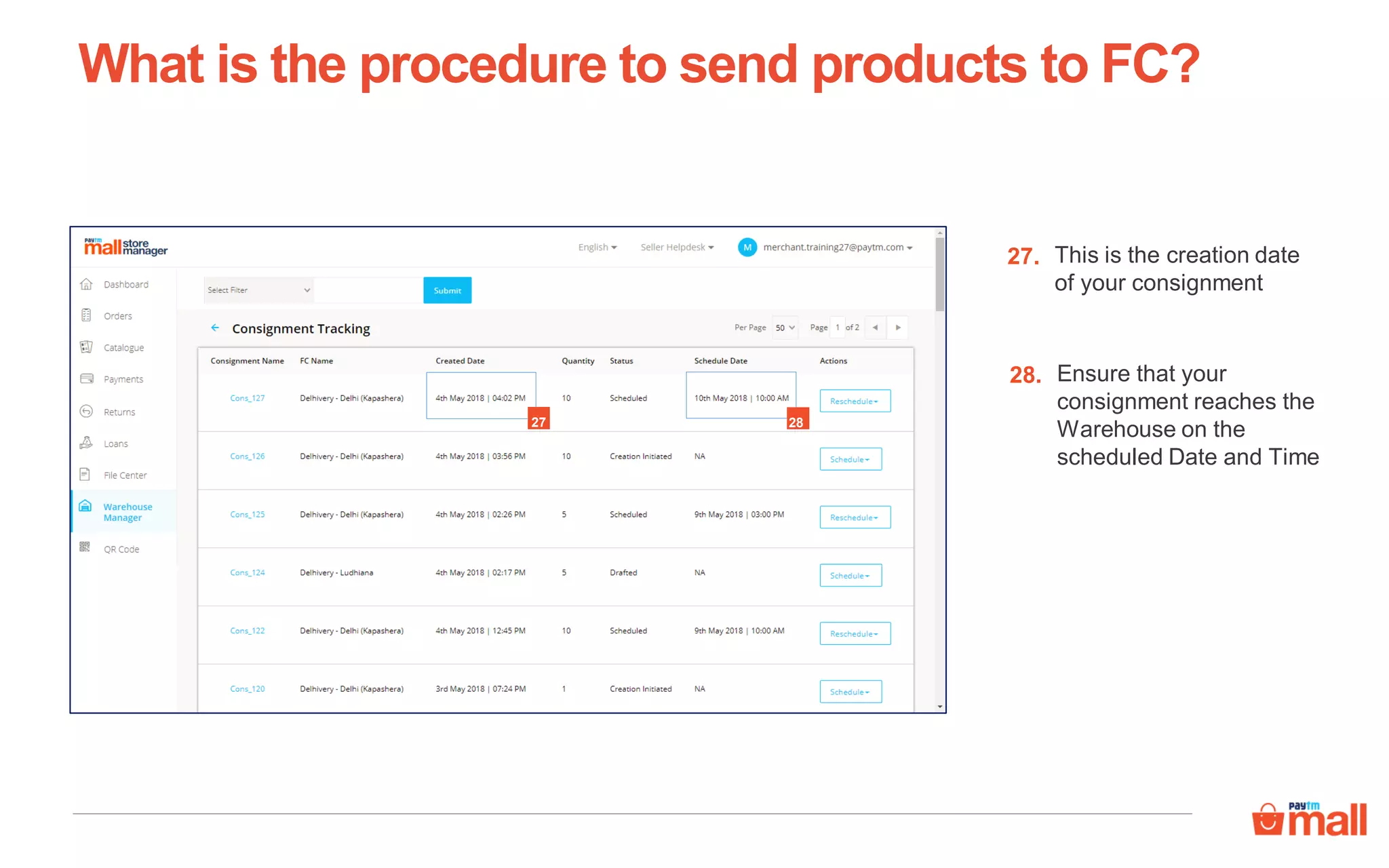
This is the creation date
of your consignment
27.
Ensure that your
consignment reaches the
Warehouse on the
scheduled Date and Time
28.
27 28
How can you track your consignment?
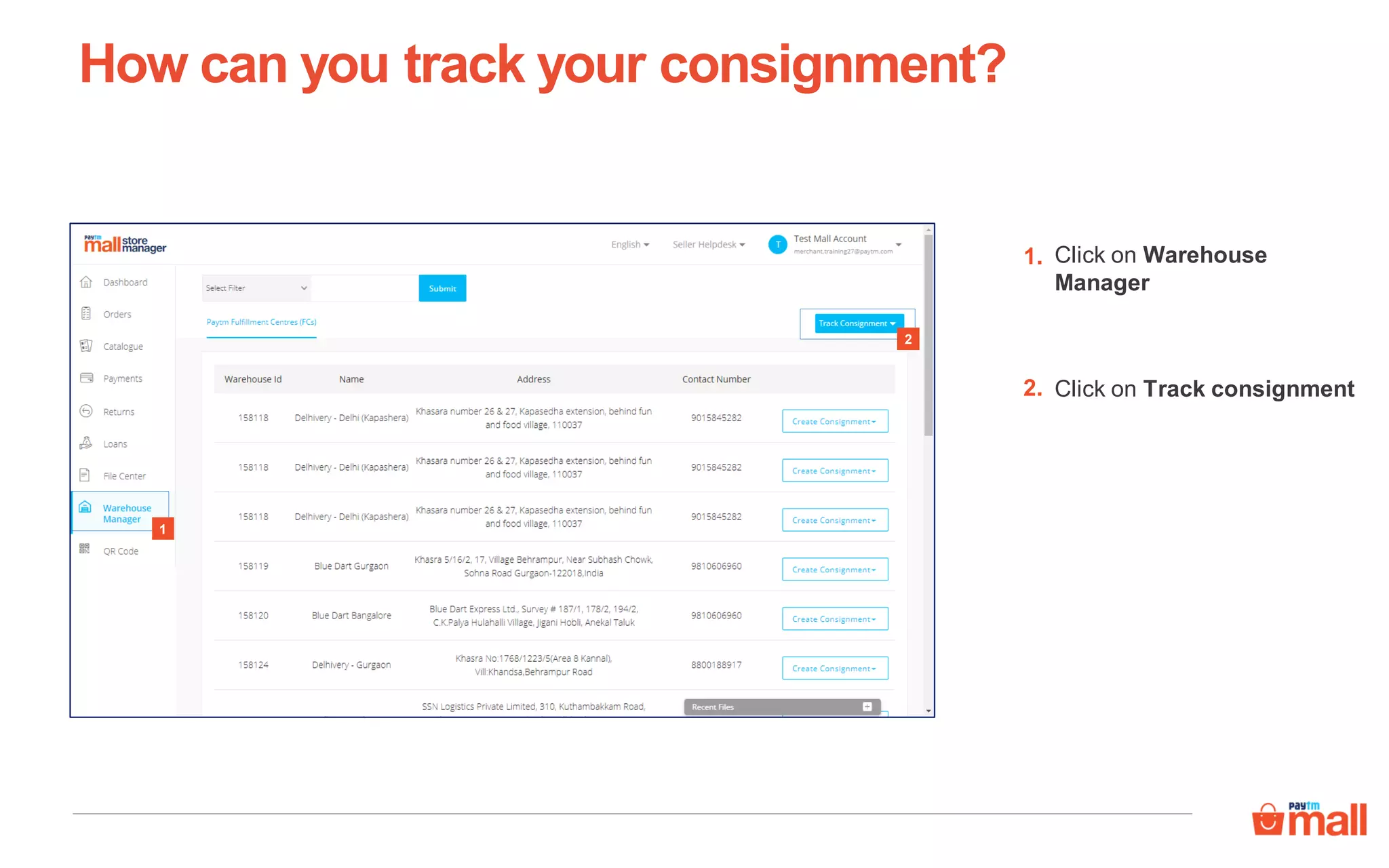
2
1
Click on Warehouse
Manager
1.
Click on Track consignment2.
How can you track your consignment?
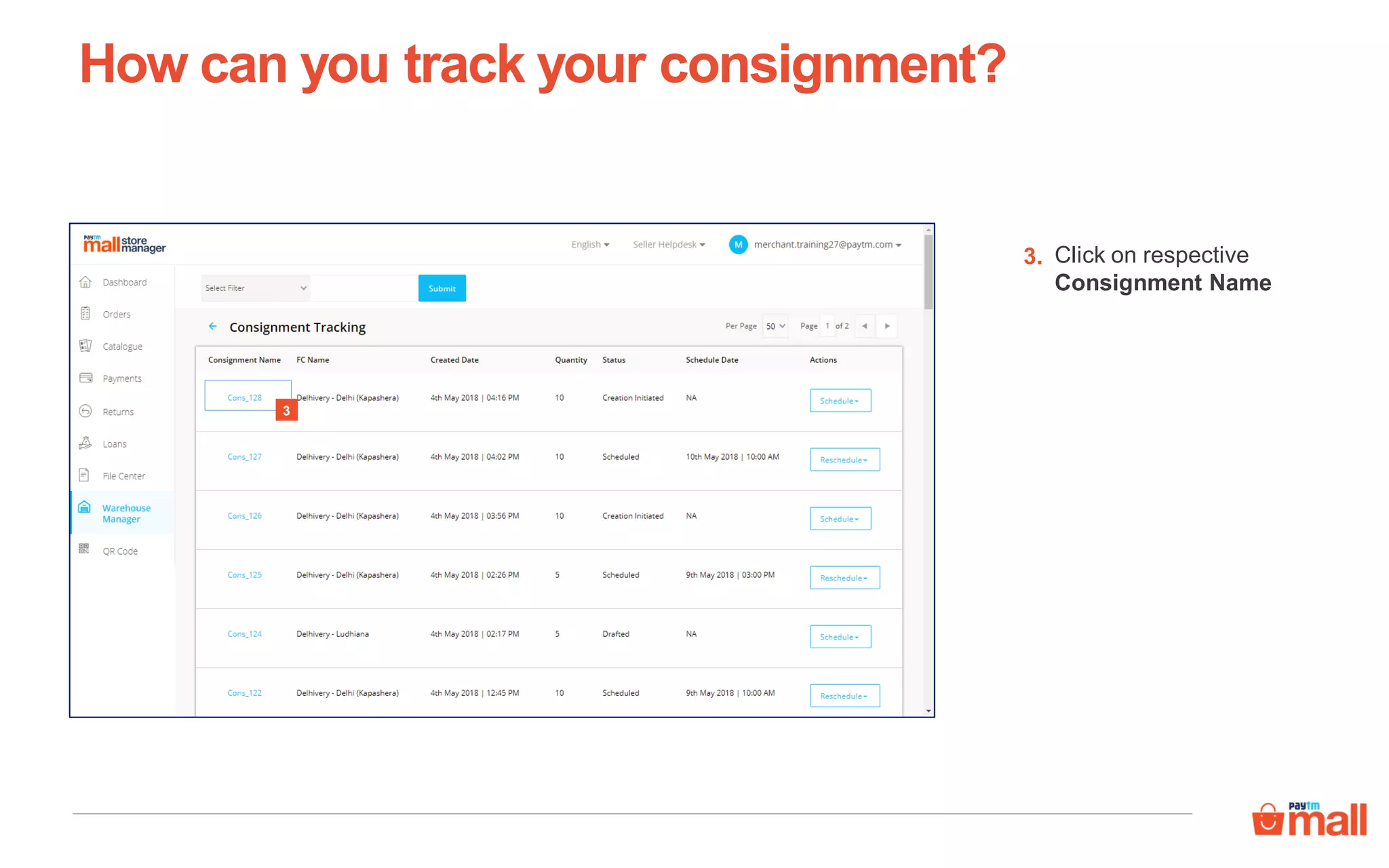
3
Click on respective
Consignment Name
3.
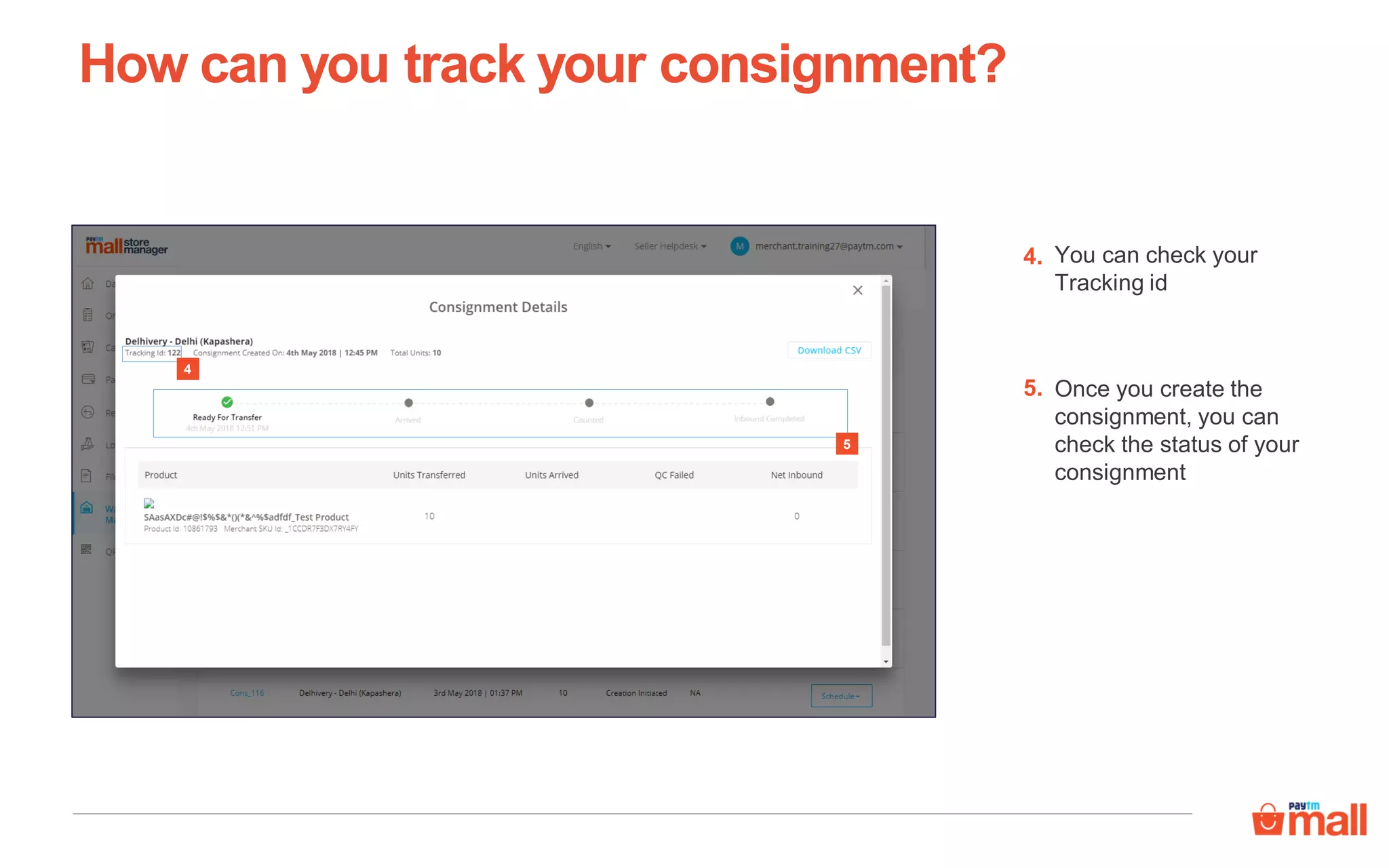
5
4
You can check your
Tracking id
4.
Once you create the
consignment, you can
check the status of your
consignment
5.
How can you track your consignment?
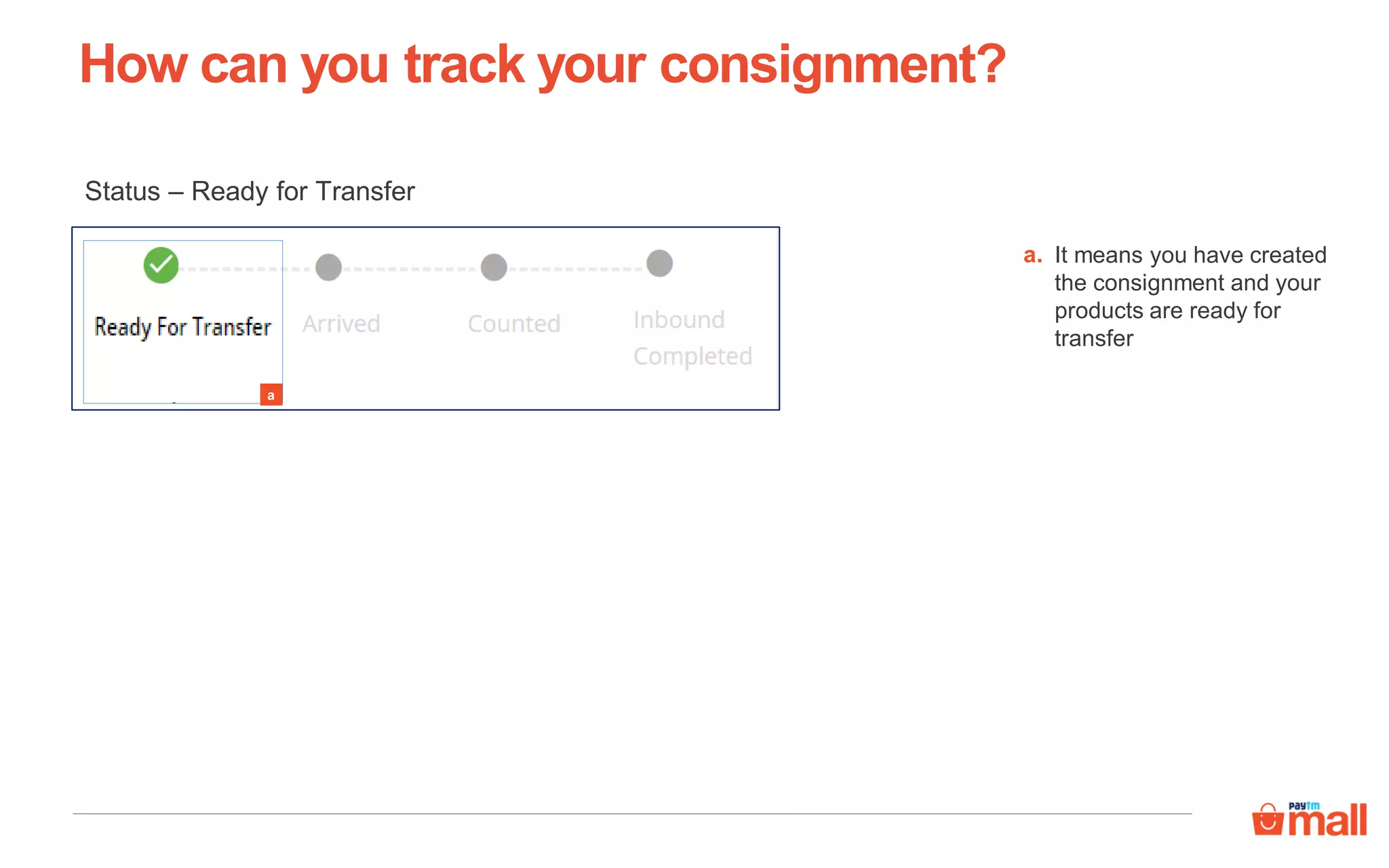
It means you have created
the consignment and your
products are ready for
transfer
a.
Status – Ready for Transfer
a
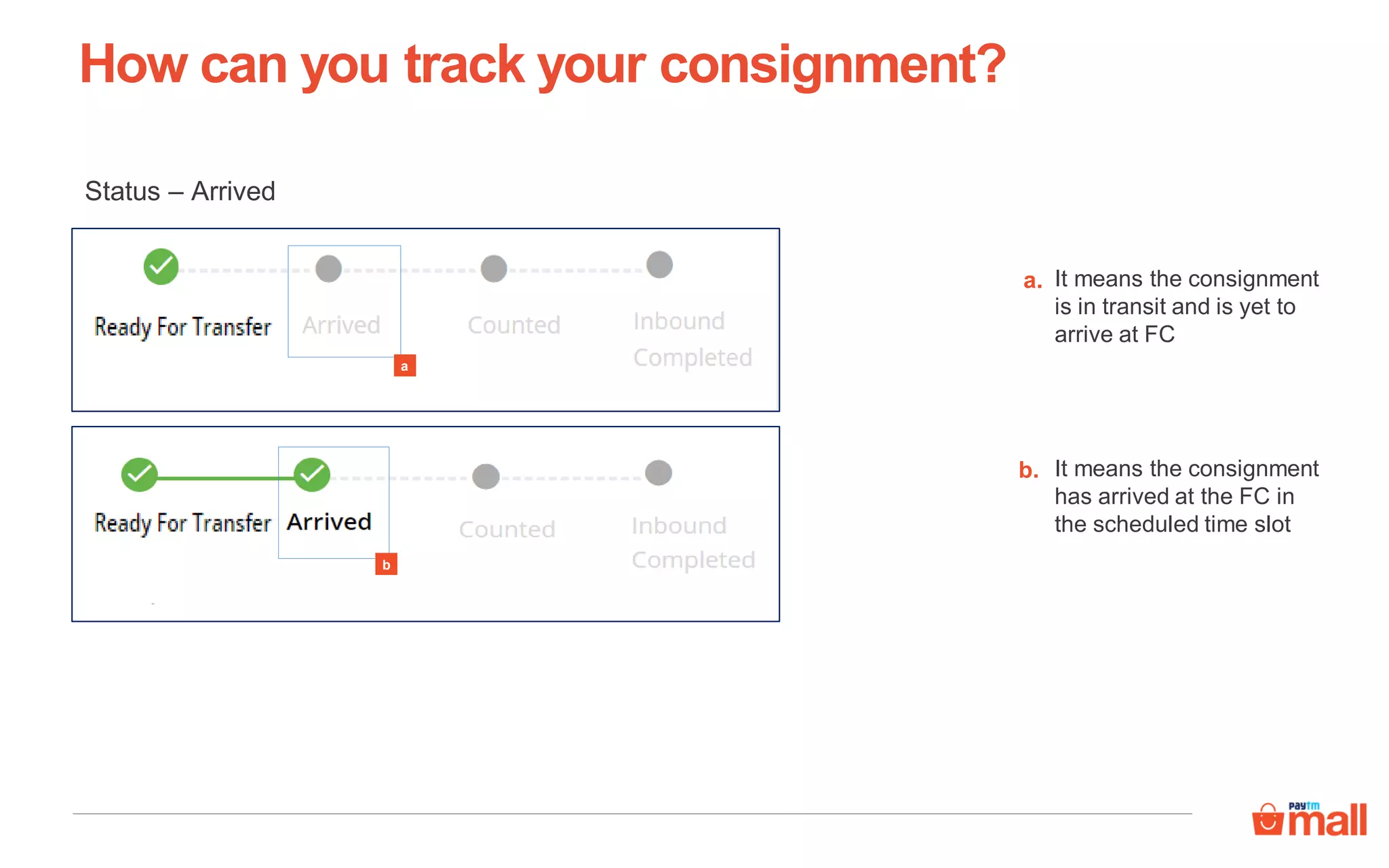
How can you track your consignment?
It means the consignment
is in transit and is yet to
arrive at FC
a.
It means the consignment
has arrived at the FC in
the scheduled time slot
b.
a
Status – Arrived
b
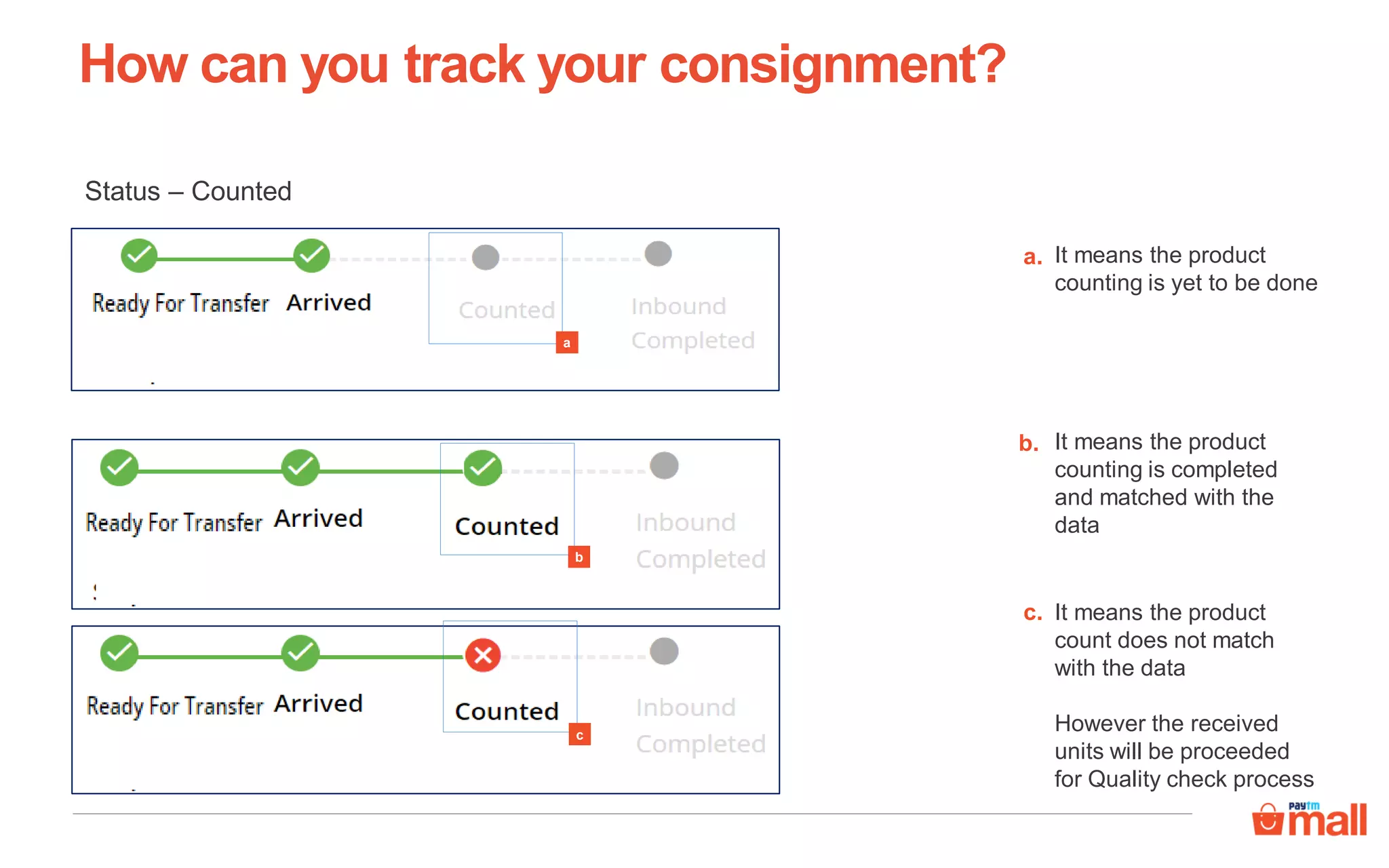
How can you track your consignment?
It means the product
counting is yet to be done
It means the product
counting is completed
and matched with the
data
It means the product
count does not match
with the data
However the received
units will be proceeded
for Quality check process
c.
a.
b.
a
b
c
Status – Counted
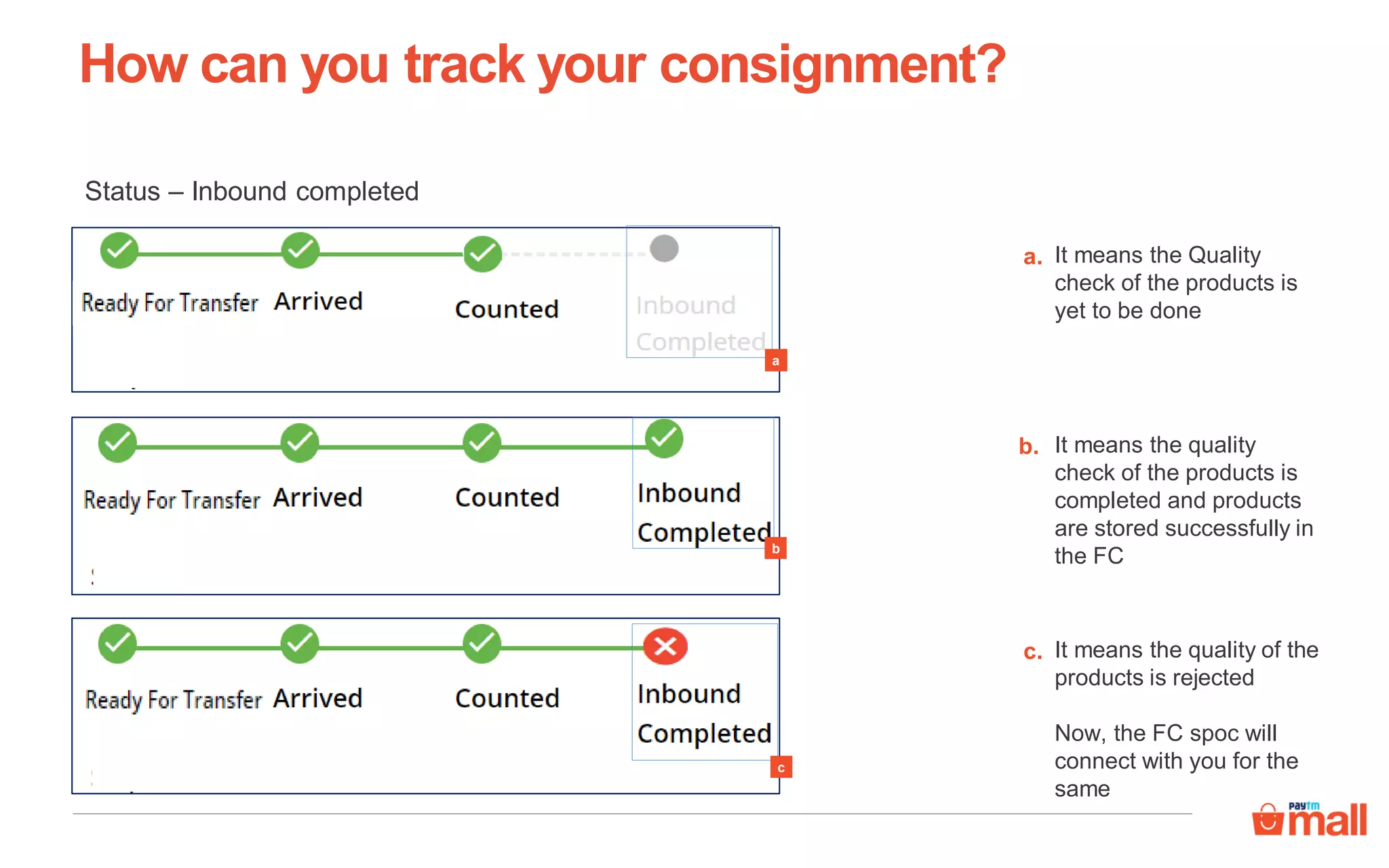
How can you track your consignment?
b
a
c
It means the Quality
check of the products is
yet to be done
It means the quality
check of the products is
completed and products
are stored successfully in
the FC
It means the quality of the
products is rejected
Now, the FC spoc will
connect with you for the
same
c.
a.
b.
Status – Inbound completed
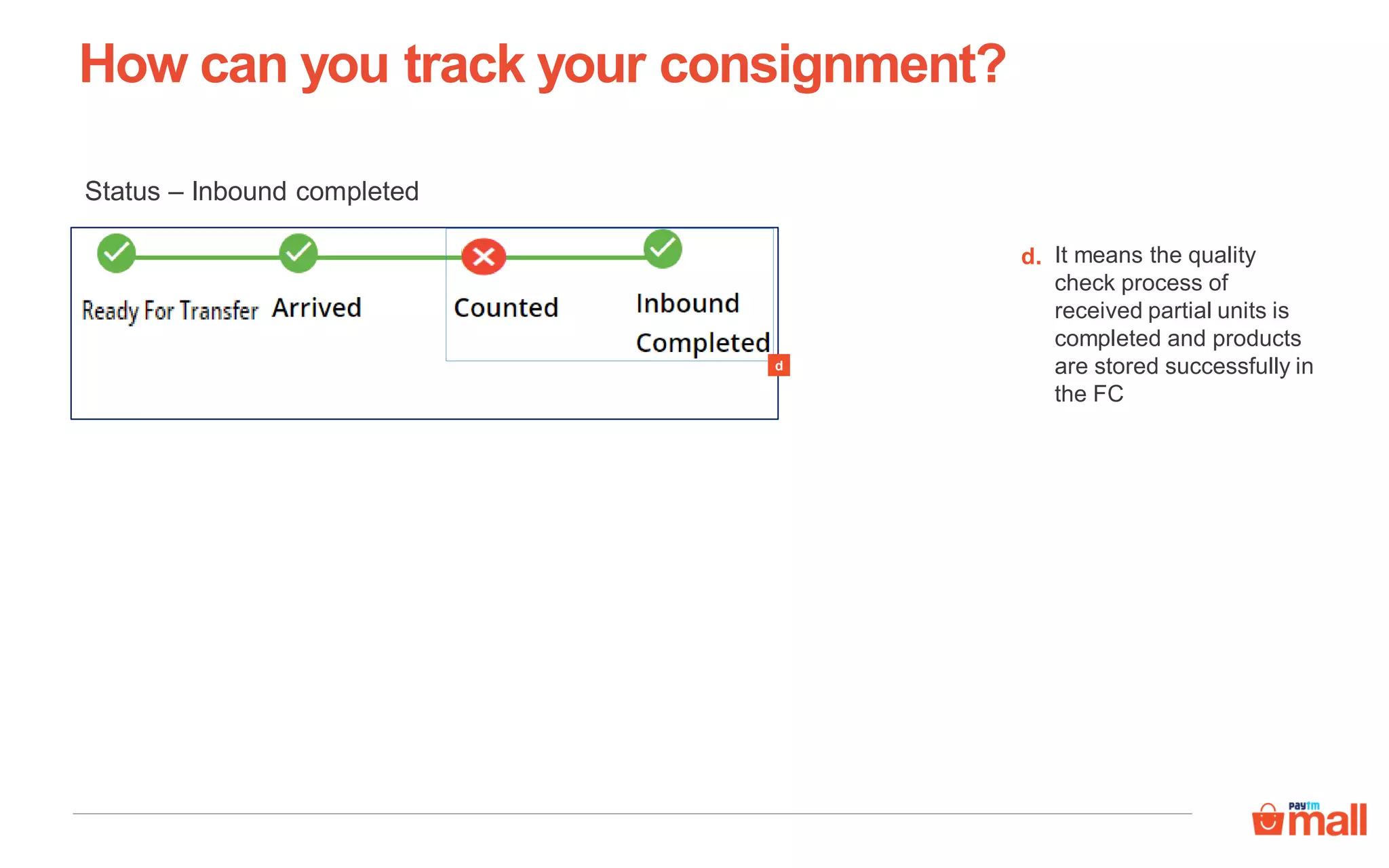
How can you track your consignment?
d
It means the quality
check process of
received partial units is
completed and products
are stored successfully in
the FC
d.
Status – Inbound completed
How can you track your consignment?
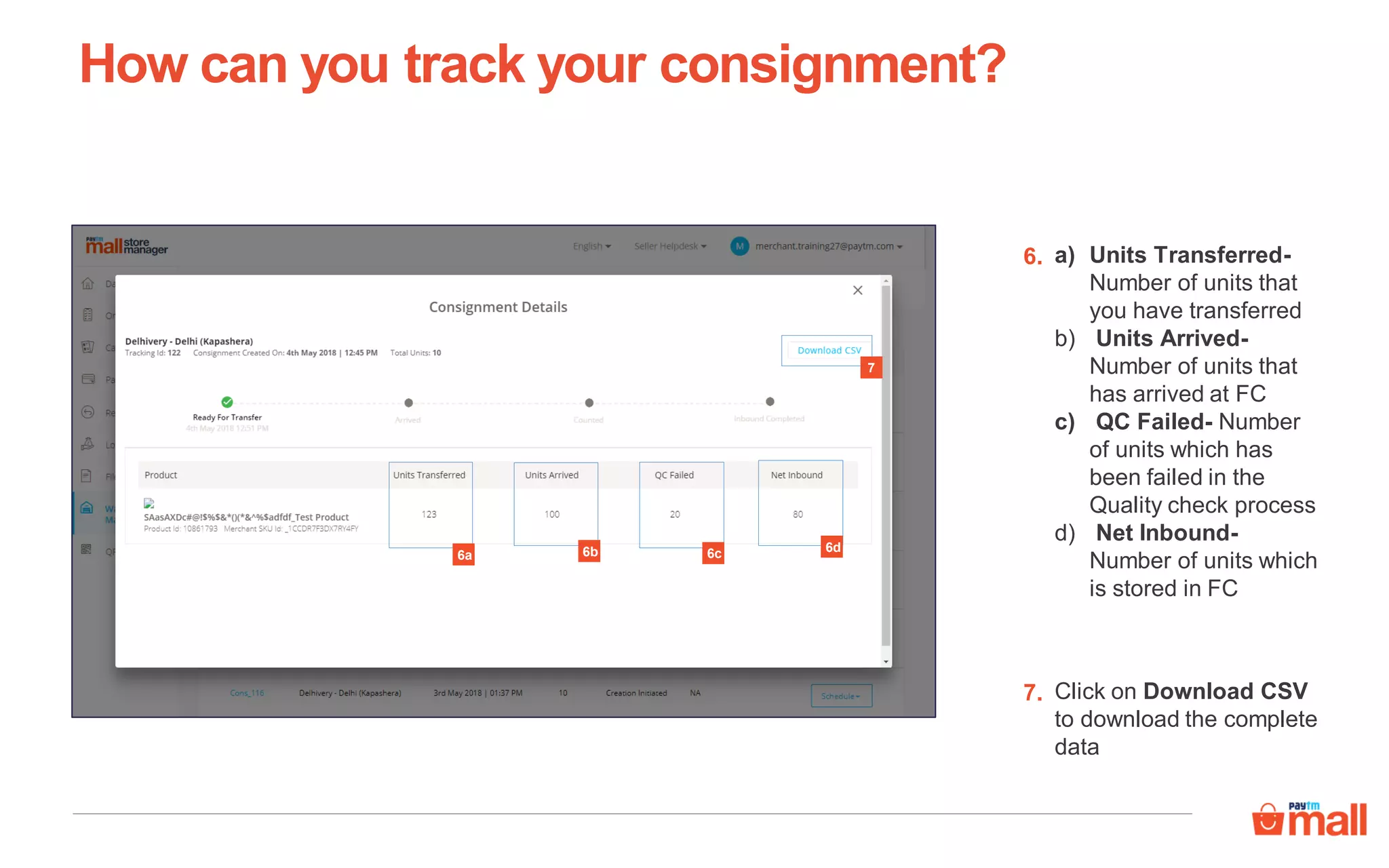
a) Units Transferred-
Number of units that
you have transferred
b) Units Arrived-
Number of units that
has arrived at FC
c) QC Failed- Number
of units which has
been failed in the
Quality check process
d) Net Inbound-
Number of units which
is stored in FC
6.
7
Click on Download CSV
to download the complete
data
7.
How can you track your consignment?
6a 6b 6c 6d
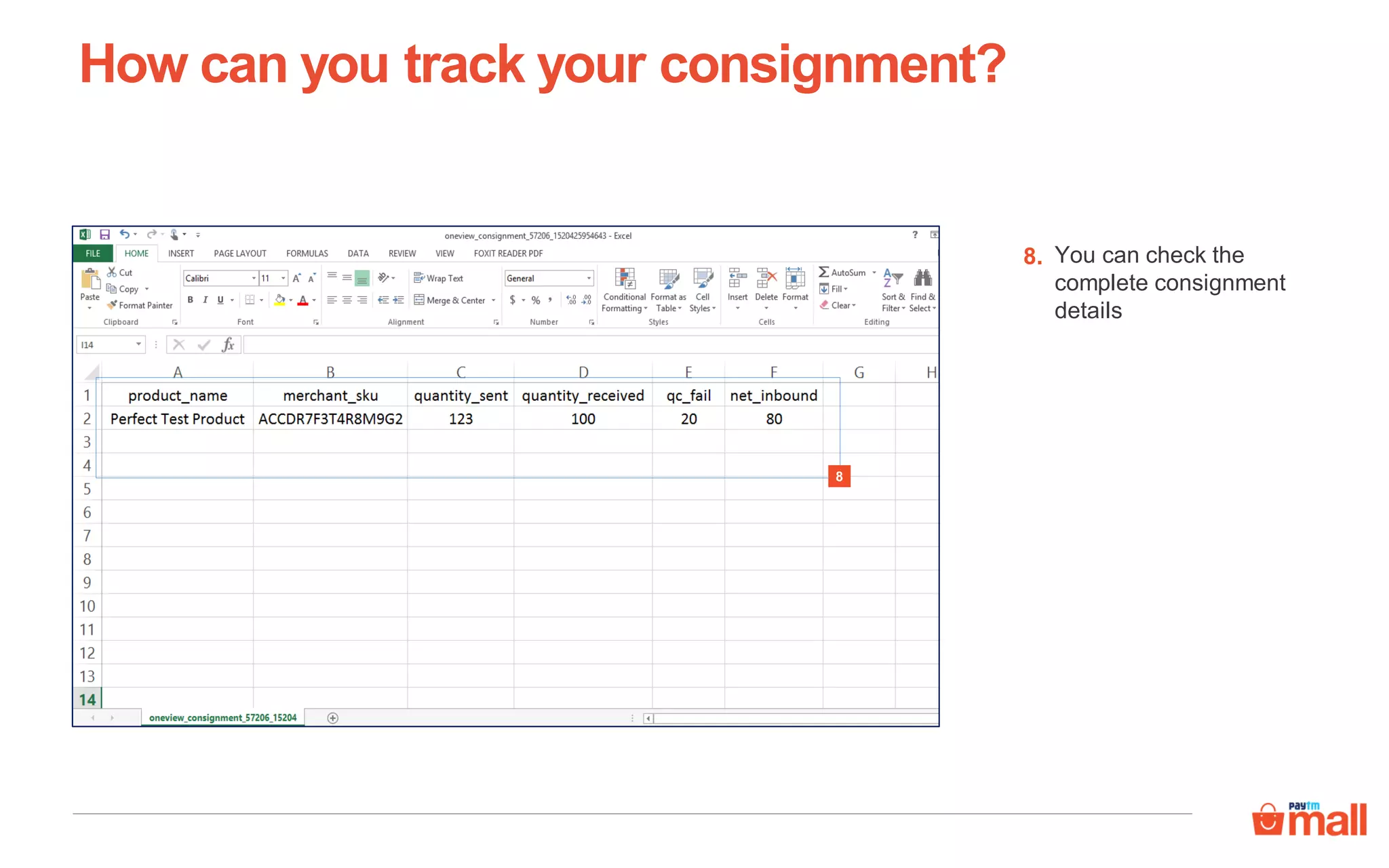
You can check the
complete consignment
details
8.
8
How can you track your consignment?
Thanks everyone!
For any query please raise a ticket on support

FC- creation and tracking of consignment

  • 1.
    Fulfillment center- Creation andtracking of consignment In this module we will discuss :- 1. What is the procedure to send products to FC? 2. How to check the details of payments and returns on seller panel?
  • 2.
    What is theprocedure to send products to FC? Create consignment (Consignment creation) Book the time slot of your FC Send the stock to your FC Track your consignments
  • 3.
    Creation of consignmentis necessary to send products to FC. To create a consignment, follow these steps- 1. 1 Click on Warehouse Manager What is the procedure to send products to FC? 2 Find the desired FC by its Warehouse id 2.
  • 4.
    3. 3 Click on Create Consignment Whatis the procedure to send products to FC?
  • 5.
    5 What is theprocedure to send products to FC? 6 4 You can check the available units in FC 4. Enter the units you want to transfer 5. Click on Create consignment6.
  • 6.
    7 What is theprocedure to send products to FC? Whichever products are falling under Invalid product list will not be added in the total consignment units 7. Invalid products- Products for which HSN is not present will fall in this bucket. These products will be greyed out
  • 7.
    Valid products- This sectionwill mention all the products in the consignment including the products for which capacity is breached Products for which capacity is breached will be displayed first, followed by rest of the products 8 What is the procedure to send products to FC? 8.
  • 8.
    If the Currentconsignment units is more than the Maximum allowed units, you need to reduce the units and make it less or equivalent in number to Maximum allowed units What is the procedure to send products to FC? 8a. 8a 8b Click here to Reduce the units 8b. Click on schedule now to schedule your booking slot Click on Confirm 10 9 9. 10.
  • 9.
    11 What is theprocedure to send products to FC? A pop-up will appear, here you can select your slot according to the availability of units and time Click on Confirm 11. 12. 12 Note- If the number of units exceed the availability then you need to create multiple consignments.
  • 10.
    What is theprocedure to send products to FC? Click on Done to confirm the consignment 13. 13
  • 11.
    What is theprocedure to send products to FC? This is the creation date of your consignment 14. Ensure that your consignment reaches the Warehouse on the scheduled Date and Time 15. 14 15
  • 12.
    What is theprocedure to send products to FC? Click on Download STN16. 16
  • 13.
    What is theprocedure to send products to FC? 18 17 Select the source warehouse from where the products will be shipped to FC 17. Click on confirm STN invoice will be downloaded in your system 18.
  • 14.
    What is theprocedure to send products to FC? This is a sample of STN invoice You have to take print of this page and sent it along with the shipment to FC 19. 19
  • 15.
    What is theprocedure to send products to FC? To schedule your booking later, click on Later 20. 20 Click on Confirm21. 21 To schedule your time slot, follow these steps-
  • 16.
    What is theprocedure to send products to FC? Click on Done to initiate the consignment successfully 22. 22 Note- You need to schedule you consignment otherwise your consignment will not be created.
  • 17.
    What is theprocedure to send products to FC? Click here to schedule your respective consignment 23. 23
  • 18.
    24 What is theprocedure to send products to FC? A pop-up will appear, here you can select your slot according to the availability of units and time Click on Confirm 24. 25. 25 Note- If the number of units exceed the availability then you need to create multiple consignments.
  • 19.
    What is theprocedure to send products to FC? Click on Done to confirm the consignment 26. 26
  • 20.
    What is theprocedure to send products to FC? This is the creation date of your consignment 27. Ensure that your consignment reaches the Warehouse on the scheduled Date and Time 28. 27 28
  • 21.
    How can youtrack your consignment? 2 1 Click on Warehouse Manager 1. Click on Track consignment2.
  • 22.
    How can youtrack your consignment? 3 Click on respective Consignment Name 3.
  • 23.
    5 4 You can checkyour Tracking id 4. Once you create the consignment, you can check the status of your consignment 5. How can you track your consignment?
  • 24.
    It means youhave created the consignment and your products are ready for transfer a. Status – Ready for Transfer a How can you track your consignment?
  • 25.
    It means theconsignment is in transit and is yet to arrive at FC a. It means the consignment has arrived at the FC in the scheduled time slot b. a Status – Arrived b How can you track your consignment?
  • 26.
    It means theproduct counting is yet to be done It means the product counting is completed and matched with the data It means the product count does not match with the data However the received units will be proceeded for Quality check process c. a. b. a b c Status – Counted How can you track your consignment?
  • 27.
    b a c It means theQuality check of the products is yet to be done It means the quality check of the products is completed and products are stored successfully in the FC It means the quality of the products is rejected Now, the FC spoc will connect with you for the same c. a. b. Status – Inbound completed How can you track your consignment?
  • 28.
    d It means thequality check process of received partial units is completed and products are stored successfully in the FC d. Status – Inbound completed How can you track your consignment?
  • 29.
    a) Units Transferred- Numberof units that you have transferred b) Units Arrived- Number of units that has arrived at FC c) QC Failed- Number of units which has been failed in the Quality check process d) Net Inbound- Number of units which is stored in FC 6. 7 Click on Download CSV to download the complete data 7. How can you track your consignment? 6a 6b 6c 6d
  • 30.
    You can checkthe complete consignment details 8. 8 How can you track your consignment?
  • 31.
    Thanks everyone! For anyquery please raise a ticket on support