Catalogue: Upload a new
product(s)
In this module we will discuss :-
1. How to create a new product ?
2. How to create new products in bulk ?
3. What is quality check ?
Overview of catalogue tab in seller panel
Search- It enables you to
search your products
1.
Products (all) – These
tabs help you to view your
all active and inactive
products
2.
Add new product- You
can use it to add a new
product
3.
Filter- It enables you to
filter your all your products
aligned to different
warehouses
4.
Edit price & MRP- you
can use it to edit your
product’s price & MRP
5.
Social share- You can
use share feature to share
your catalogue on social
sites
6.
1
2
3
4
5
6
Create a new product- You can upload a new product in these simple steps
Click on catalogue
Click on add new
product in seller panel
How to create a new product?
1.
2.
2
1
(1/16)
Click on create a new
product in seller panel
How to create a new product?
3
3.
(2/16)
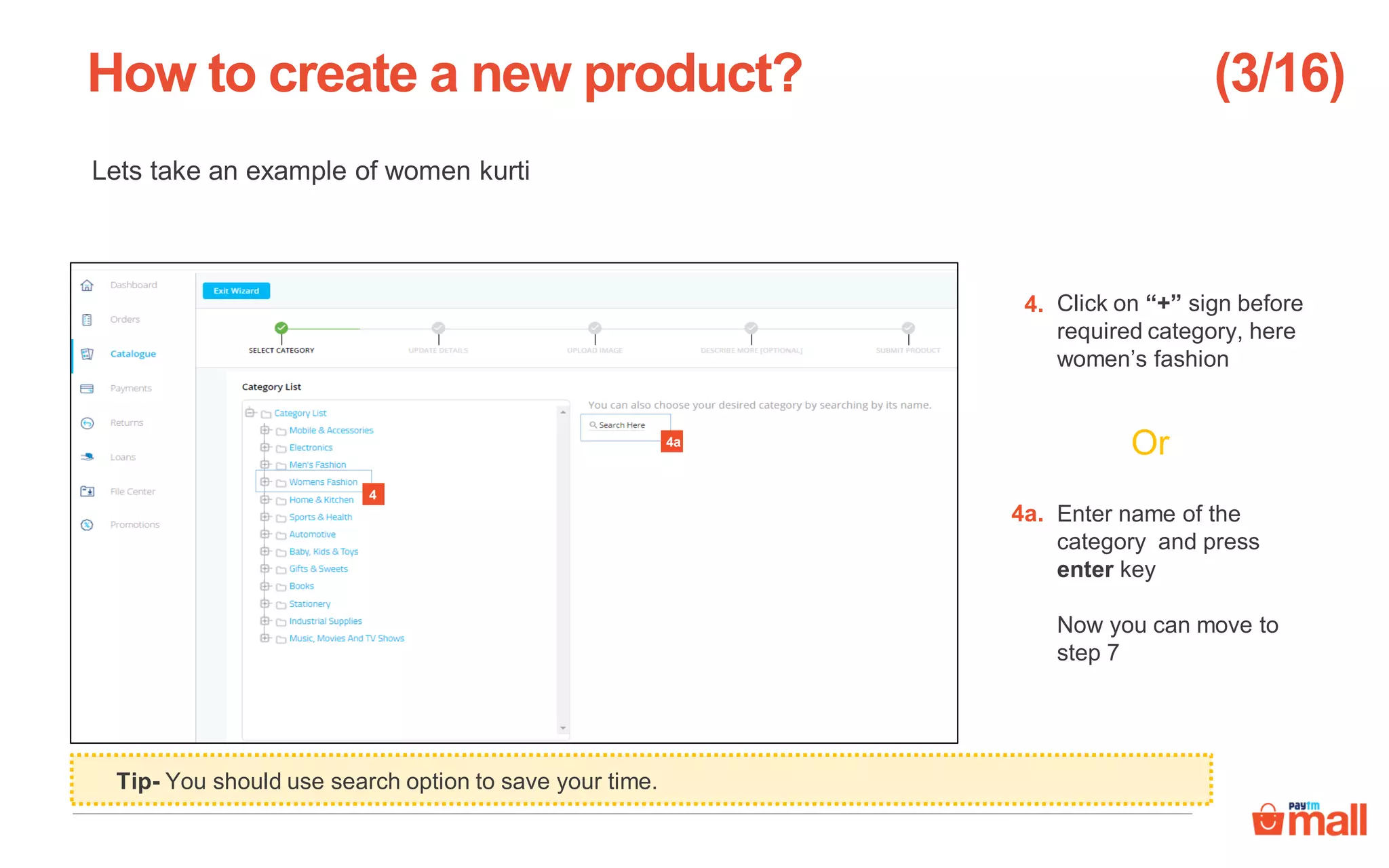
Lets take an example of women kurti
Click on “+” sign before
required category, here
women’s fashion
Enter name of the
category and press
enter key
Now you can move to
step 7
Or
How to create a new product?
4
4a
4.
4a.
(3/16)
Tip- You should use search option to save your time.
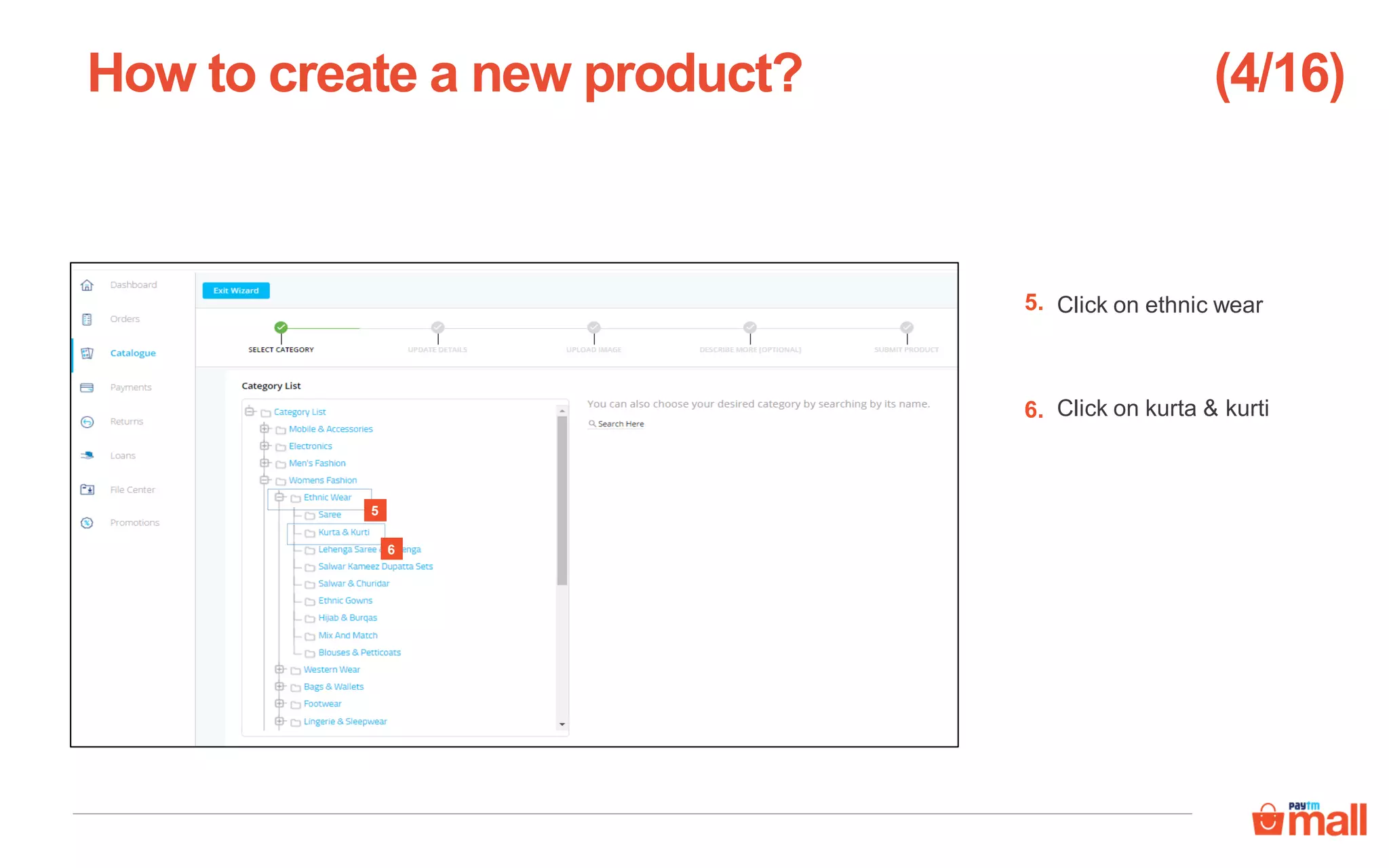
Click on ethnic wear
Click on kurta & kurti
How to create a new product?
5
6
5.
6.
(4/16)
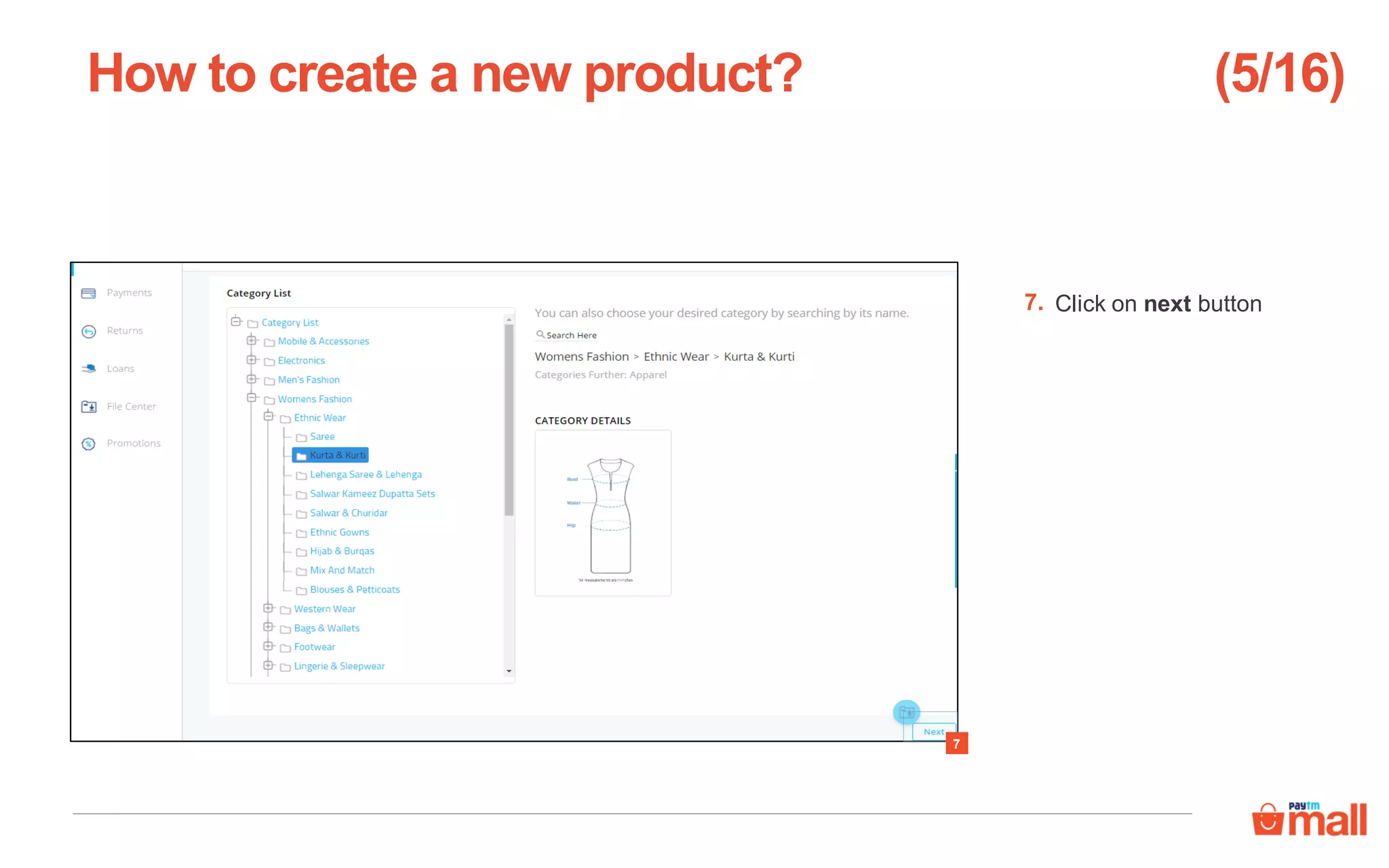
Click on next button
How to create a new product?
7
7.
(5/16)
Fill in required details of
mandatory product
attributes
How to create a new product?
8
8.
(6/16)
Note- Brand name is a mandatory attribute.
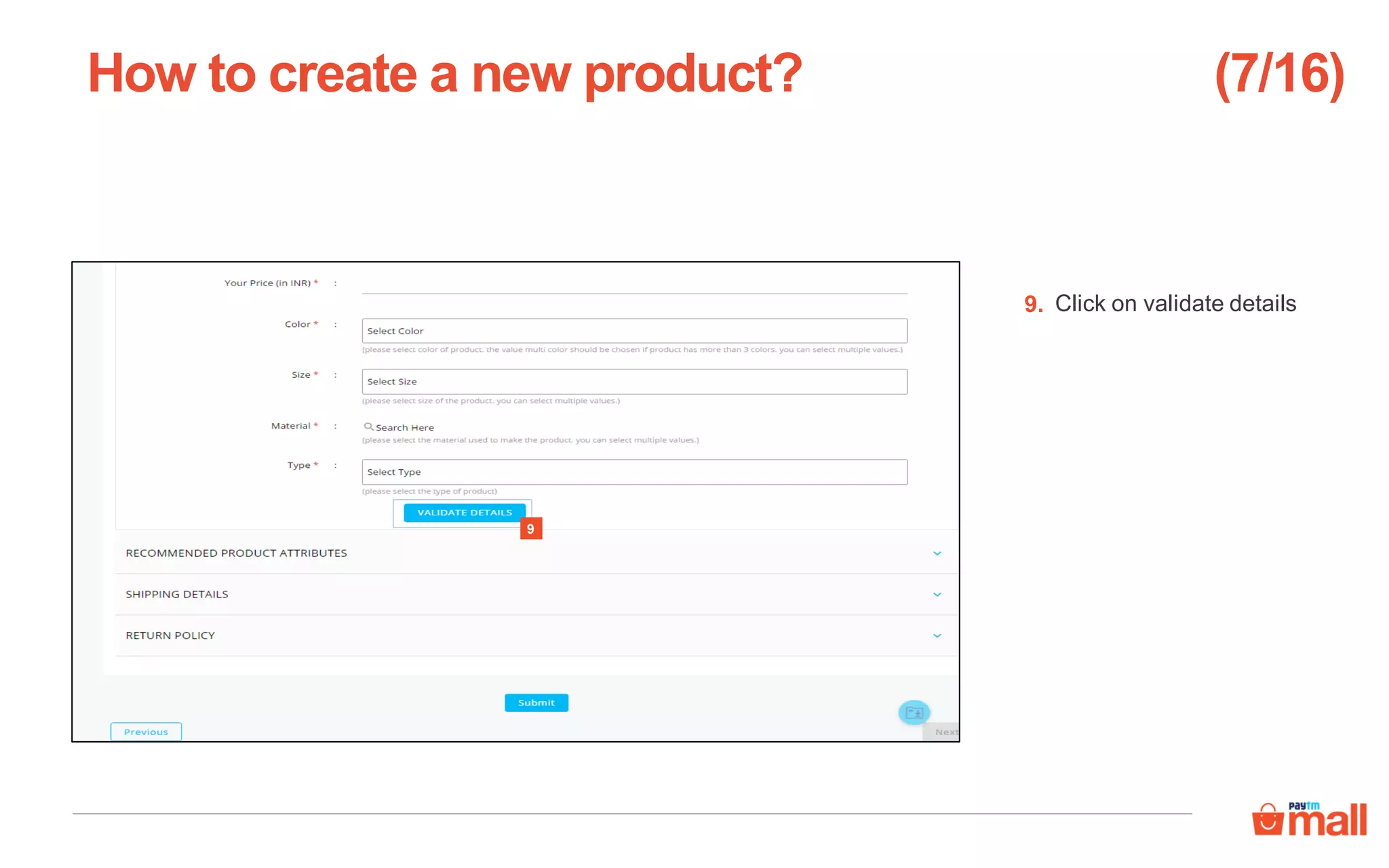
Click on validate details
How to create a new product?
9
9.
(7/16)
Fill in details under
recommended product
attributes
Click on validate details
How to create a new product?
11
10
10.
11.
(8/16)
Note- All recommended product attributes are optional but these help a customer to make a informed purchase
decision
Fill in required details of
packaging dimensions
Click on validate details
How to create a new product?
13
12
12.
13.
(9/16)
Note- These attributes are optional.
Click on submit button
after filling up the
details
How to create a new product?
14
14.
(10/16)
Note- Return policy will be managed by Paytm Mall according to category of the product.
Click on select image to
upload your product’s
image
How to create a new product?
15
15.
(11/16)
Note- Minimum resolution of images should be 500X500 pixels and maximum image file size should be 2MB.
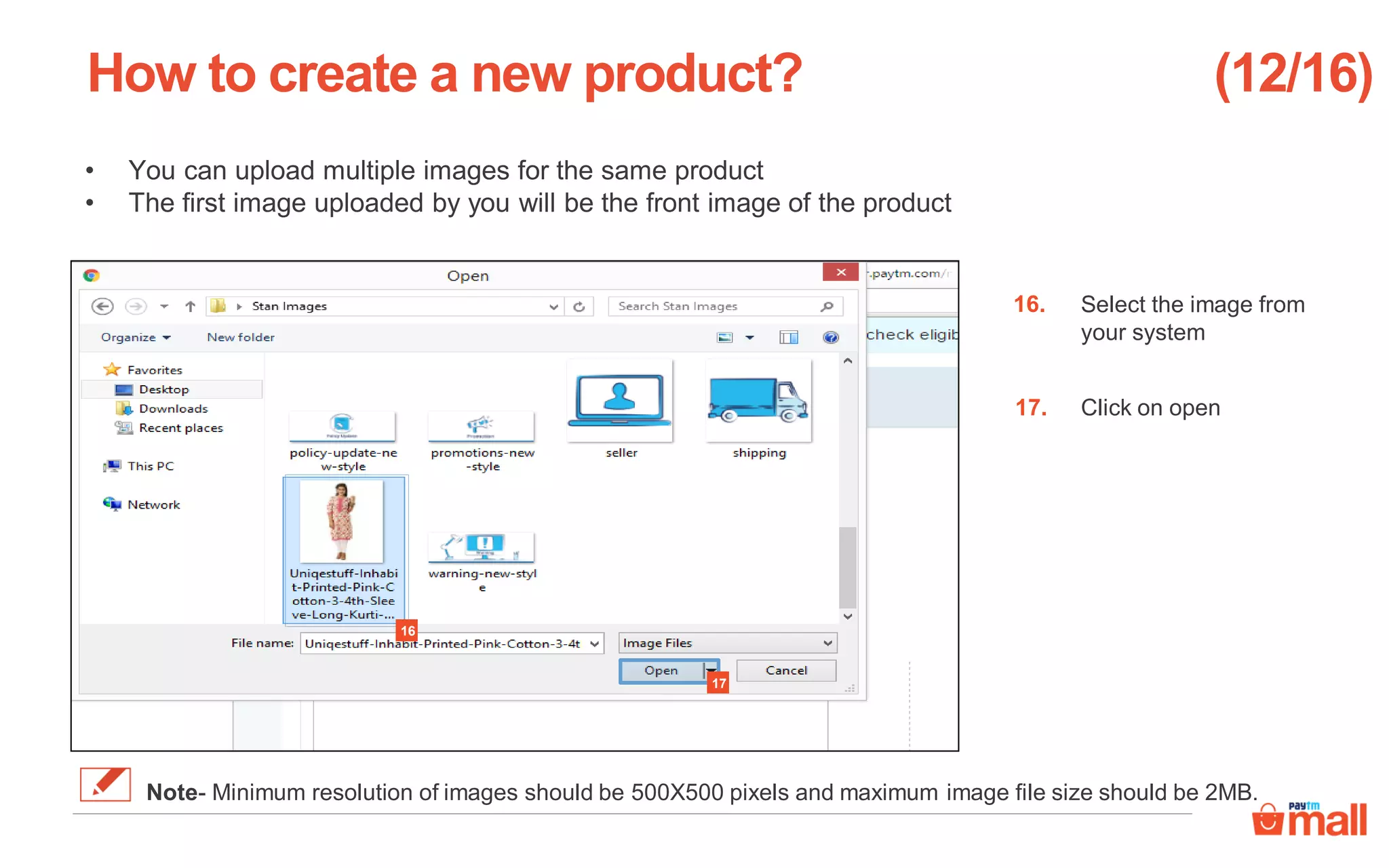
Select the image from
your system
Click on open
• You can upload multiple images for the same product
• The first image uploaded by you will be the front image of the product
How to create a new product?
17
16
16.
17.
(12/16)
Note- Minimum resolution of images should be 500X500 pixels and maximum image file size should be 2MB.
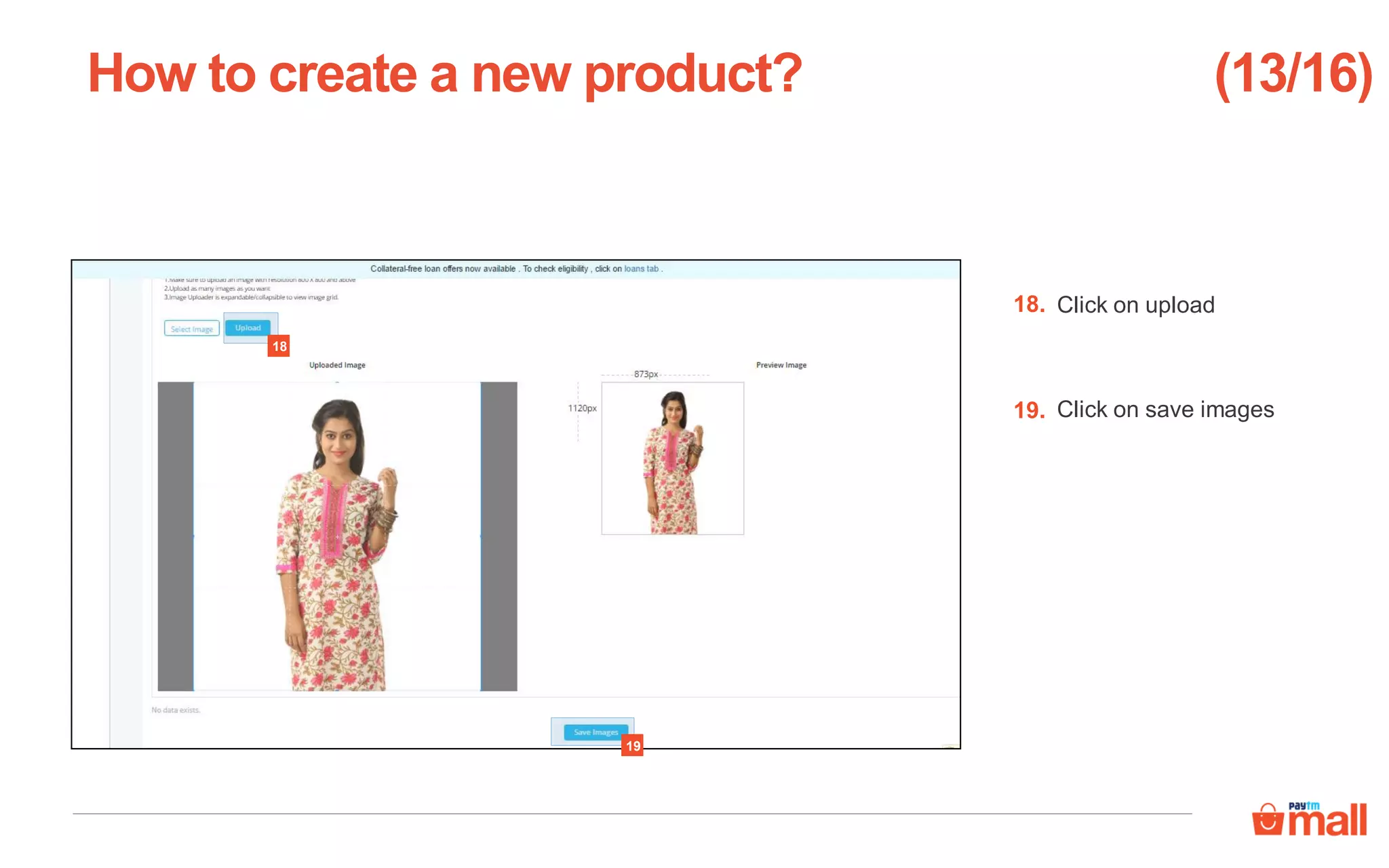
Click on save images
Click on upload
How to create a new product?
19
18
18.
19.
(13/16)
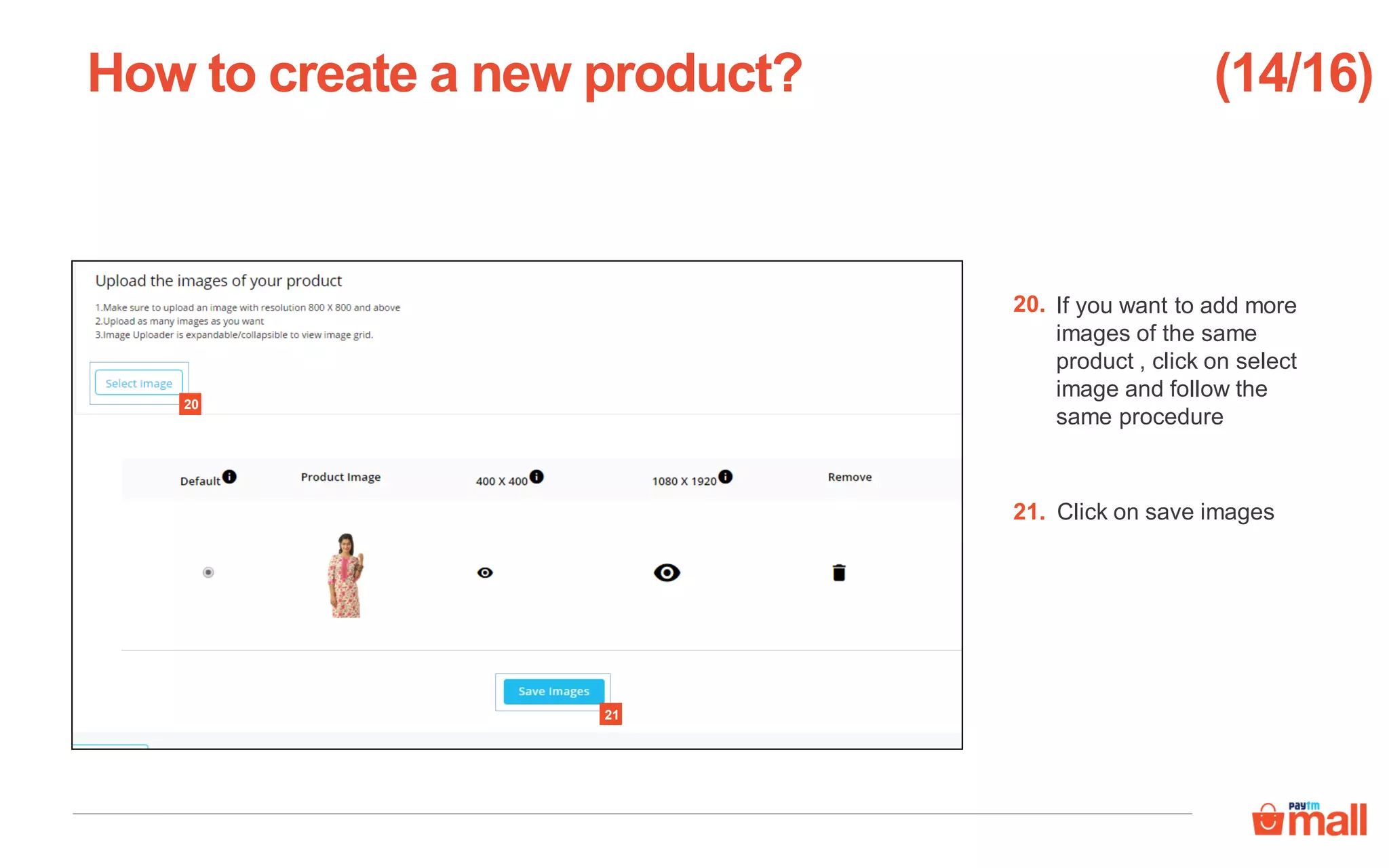
If you want to add more
images of the same
product , click on select
image and follow the
same procedure
Click on save images
How to create a new product?
21
20
20.
21.
(14/16)
Click on submit button
to complete the
uploading process
Here you can add title
and describe your
product
Here you can review your product details
How to create a new product?
23
22
22.
23.
(15/16)
Note- If you click on add attributes you can add more attributes of the product
Preview your products
& click on submit &
exit
Here you can review your product details
How to create a new product?
24
24.
(16/16)
Create new products in bulk- You can now create multiple new products in one go
Click on Create a new
product in bulk in
seller panel
How to create new products in bulk?
1
1.
(1/16)
To create new products in bulk, kindly follow these steps
Choose the desired
category and sub
categories
Enter name of the
category and press
enter key
Or
How to create new products in bulk?
2
2a
2a.
2.
(2/16)
Tip- You should use search option to save your time.
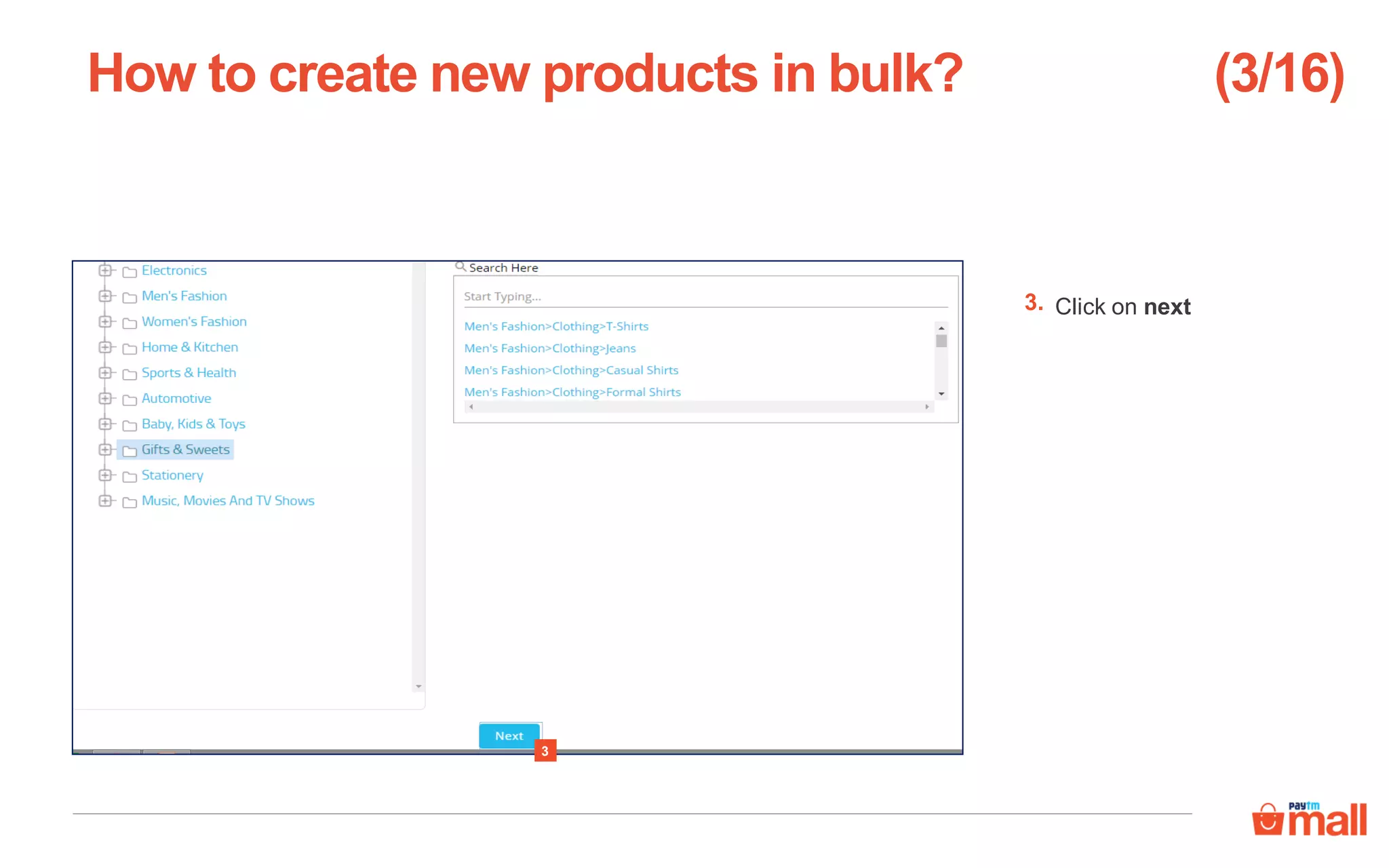
Click on next
How to create new products in bulk?
3
3.
(3/16)
Click on select &
upload images to
select images from your
system
• You can upload multiple images for the same product
• The first image uploaded by you will be the front image of the product
How to create new products in bulk?
4
4.
(4/16)
Note- Minimum resolution of images should be 500X500 pixels and maximum image file size should be 2MB.
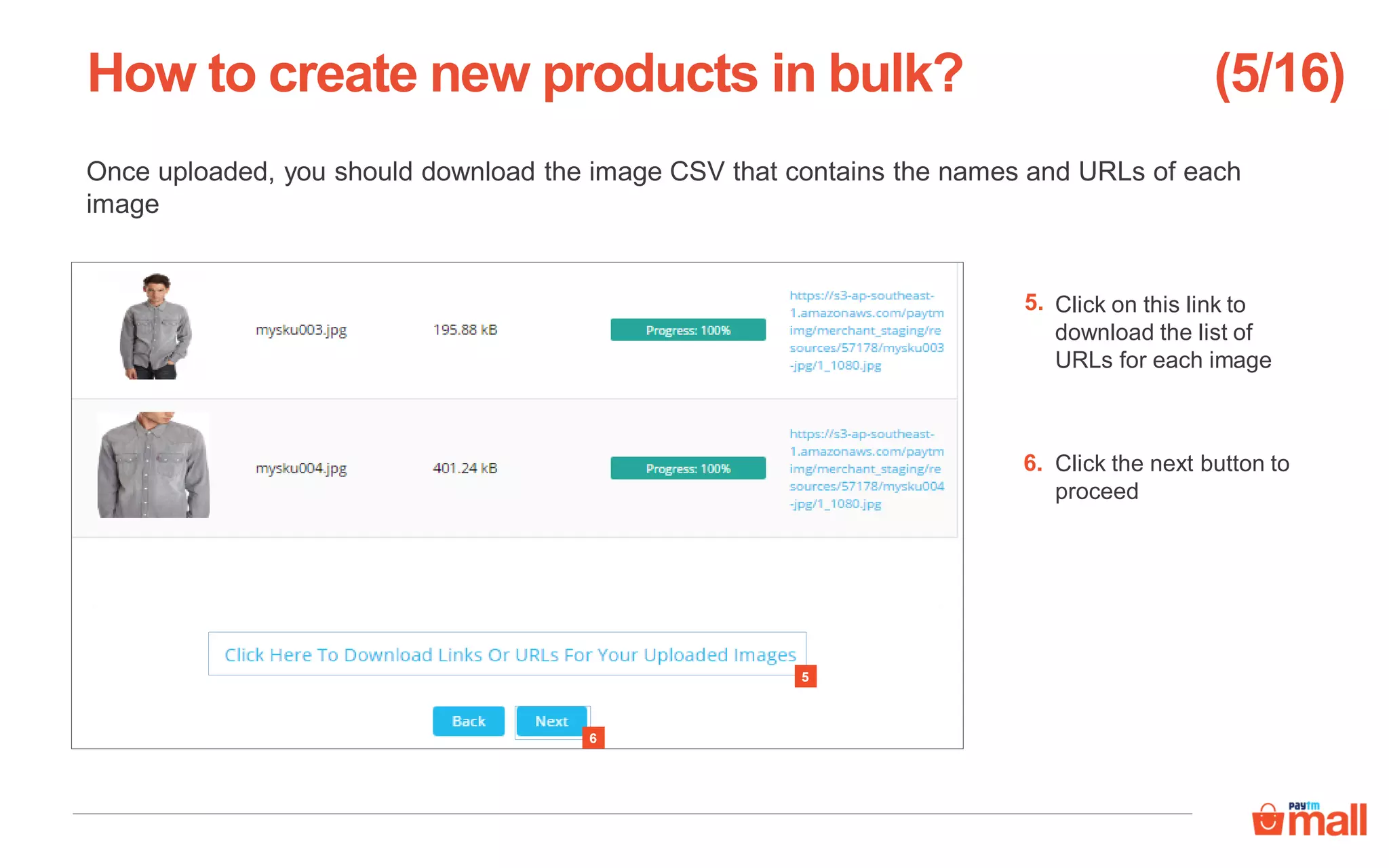
Once uploaded, you should download the image CSV that contains the names and URLs of each
image
Click on this link to
download the list of
URLs for each image
Click the next button to
proceed
How to create new products in bulk?
6
5
5.
6.
(5/16)
This is how the image CSV will look. In the next section you would be required to copy each of these
image URLs from the CSV and add it in the product details template
How to create new products in bulk? (6/16)
Click on select brand,
you can select one or
more brands that are
already listed in Paytm
Mall
How to create new products in bulk?
7.
(7/16)
Note- Brand name is a mandatory attribute.
7
Click search here
Search and select the
brand(s) you wish to
select
How to create new products in bulk? (8/16)
Tip- Do not write the complete name of the product just put 2-3 alphabets
9
8
8.
9.
Click on download
product details
template
How to create new products in bulk?
10.
(9/16)
10
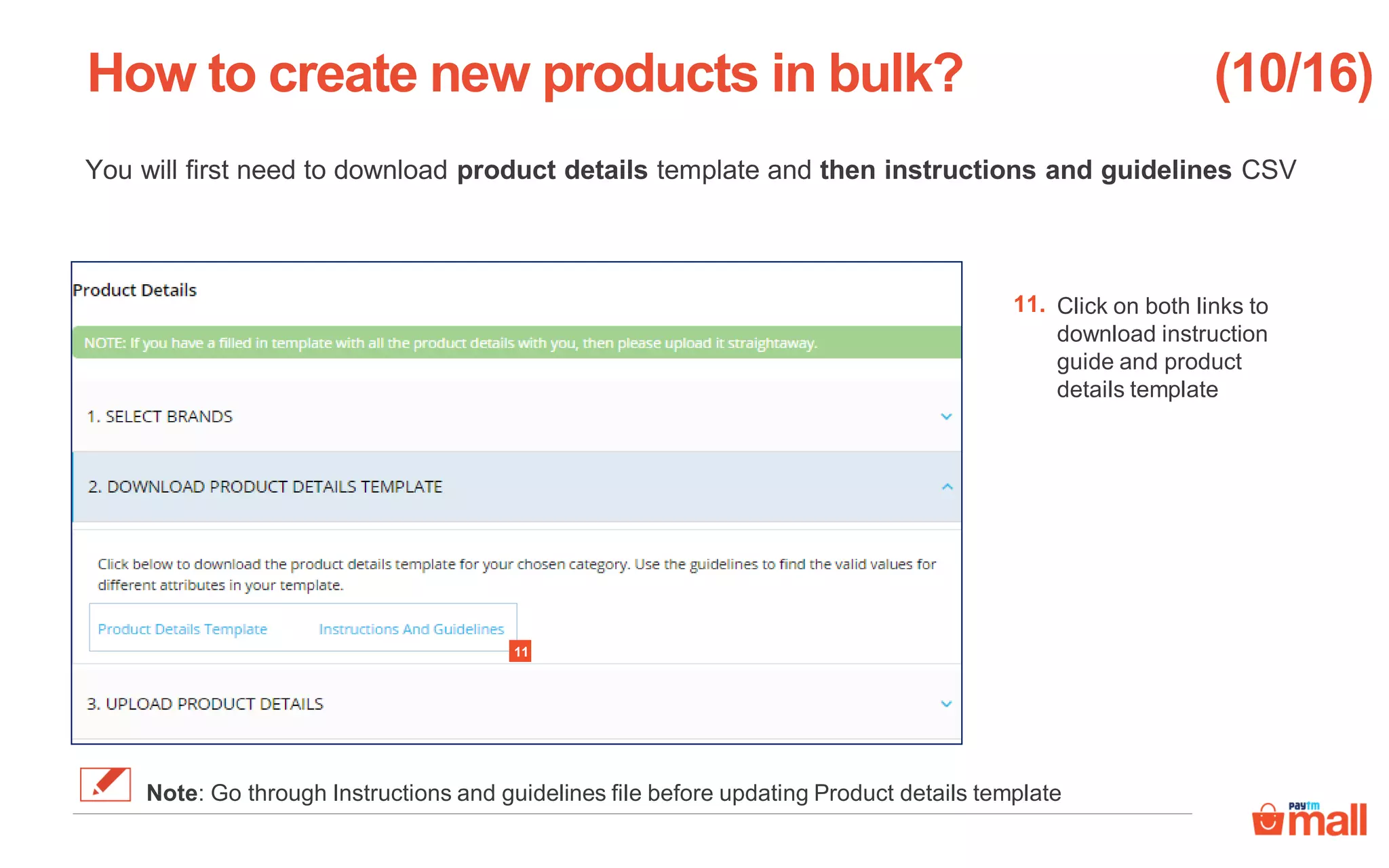
You will first need to download product details template and then instructions and guidelines CSV
Click on both links to
download instruction
guide and product
details template
How to create new products in bulk?
11.
(10/16)
Note: Go through Instructions and guidelines file before updating Product details template
11
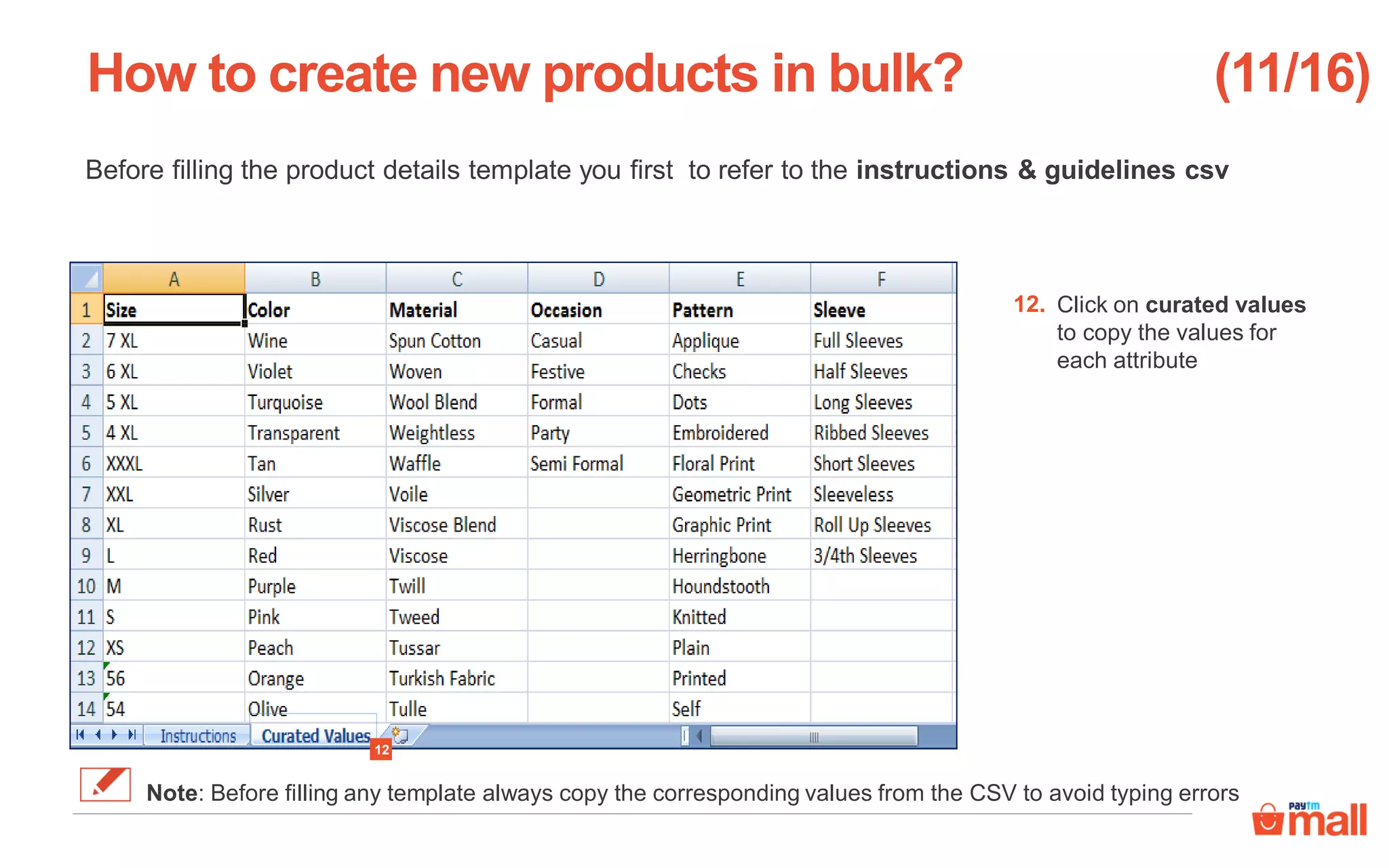
Before filling the product details template you first to refer to the instructions & guidelines csv
Click on curated values
to copy the values for
each attribute
How to create new products in bulk?
12
12.
(11/16)
Note: Before filling any template always copy the corresponding values from the CSV to avoid typing errors
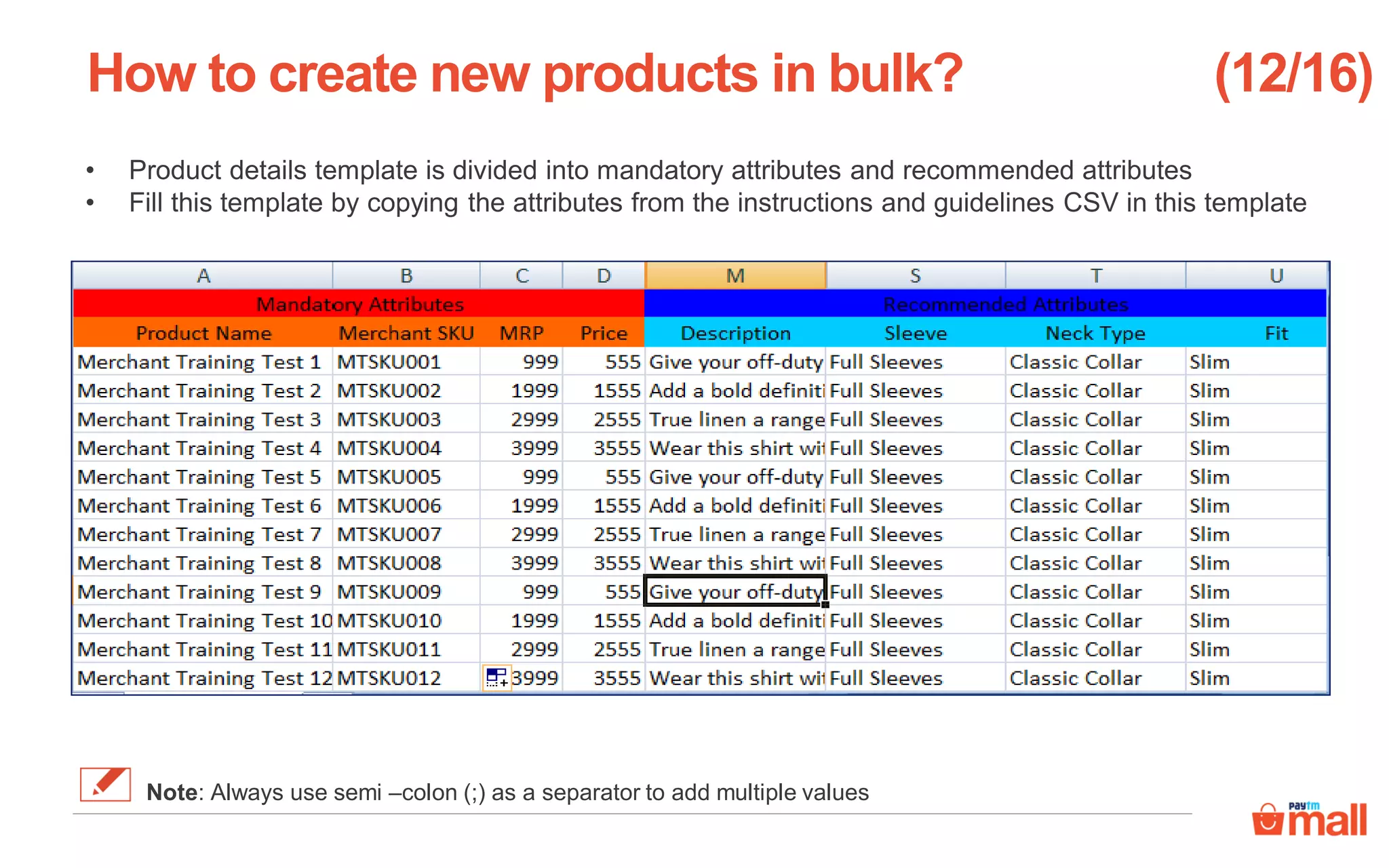
• Product details template is divided into mandatory attributes and recommended attributes
• Fill this template by copying the attributes from the instructions and guidelines CSV in this template
How to create new products in bulk? (12/16)
Note: Always use semi –colon (;) as a separator to add multiple values
• Paste link of main image in column of main image from the image path file downloaded before
• For other images, you need to paste link in images column as shown in the below picture
How to create new products in bulk? (13/16)
Note: Always use semi –colon (;) as a separator to add multiple images other attributes if its more that one.
Brand
XYZ
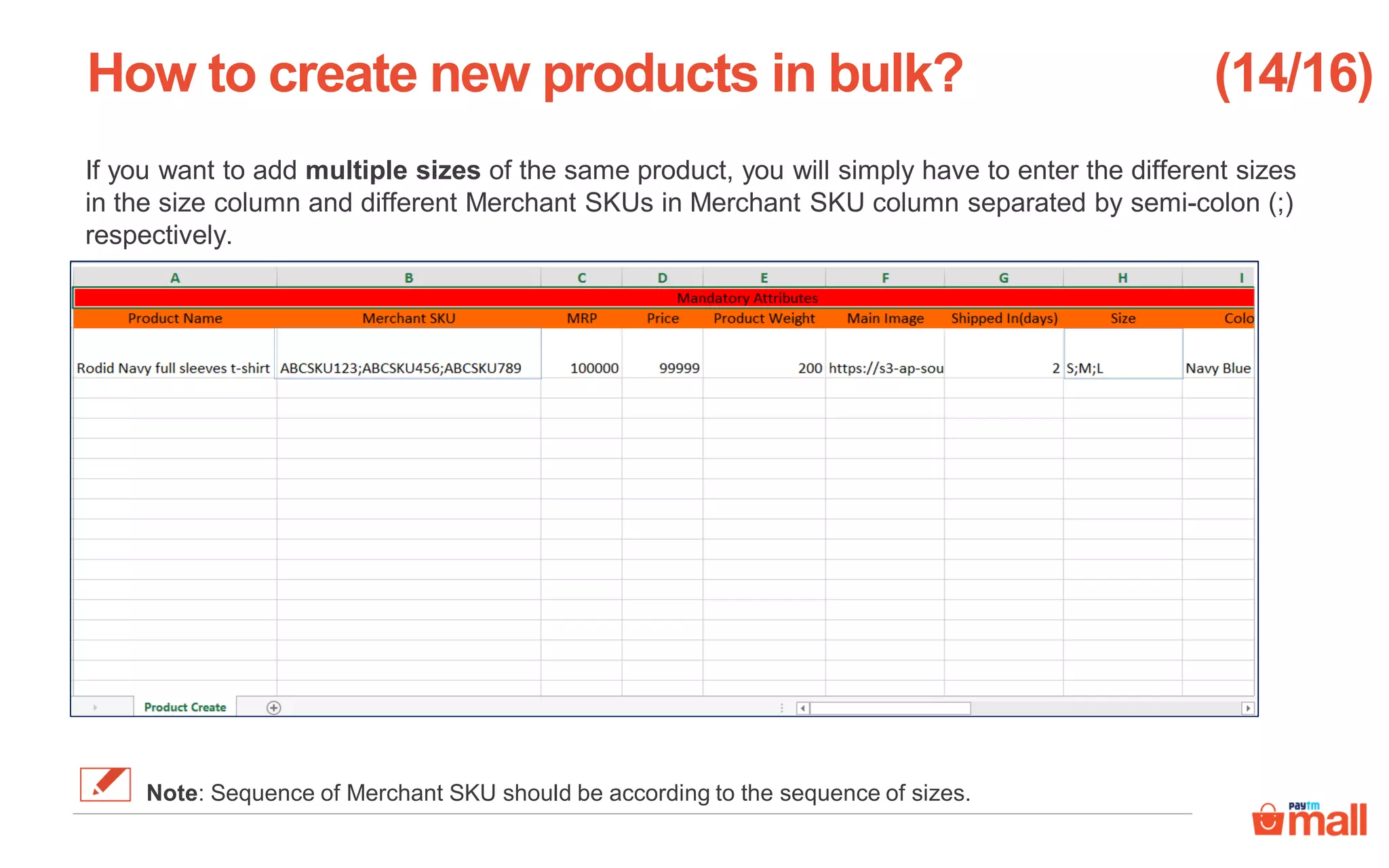
If you want to add multiple sizes of the same product, you will simply have to enter the different sizes
in the size column and different Merchant SKUs in Merchant SKU column separated by semi-colon (;)
respectively.
How to create new products in bulk? (14/16)
Note: Sequence of Merchant SKU should be according to the sequence of sizes.
Click on upload
product details
How to create new products in bulk?
13.
(15/16)
13
Click the select file
button to upload the
filled product details
template
Click on submit and
exit button
How to create new products in bulk?
14.
15.
(16/16)
Note: File format of the excel sheet should be dot(.) xls
14
15
Quality check is a process of verifying product details that you have uploaded
There are three stages, which are as follows:-
What is a quality check?
Stage 1:
Under quality check
Stage 3:
Quality check rejected
Stage 2:
Quality check approved
Compliance failed
Quality check rejected
for other reasons
What is Non-live products under quality check
tab?
2
(1/4)
1
Click on catalogue tab
Click on non-live tab
1.
2.
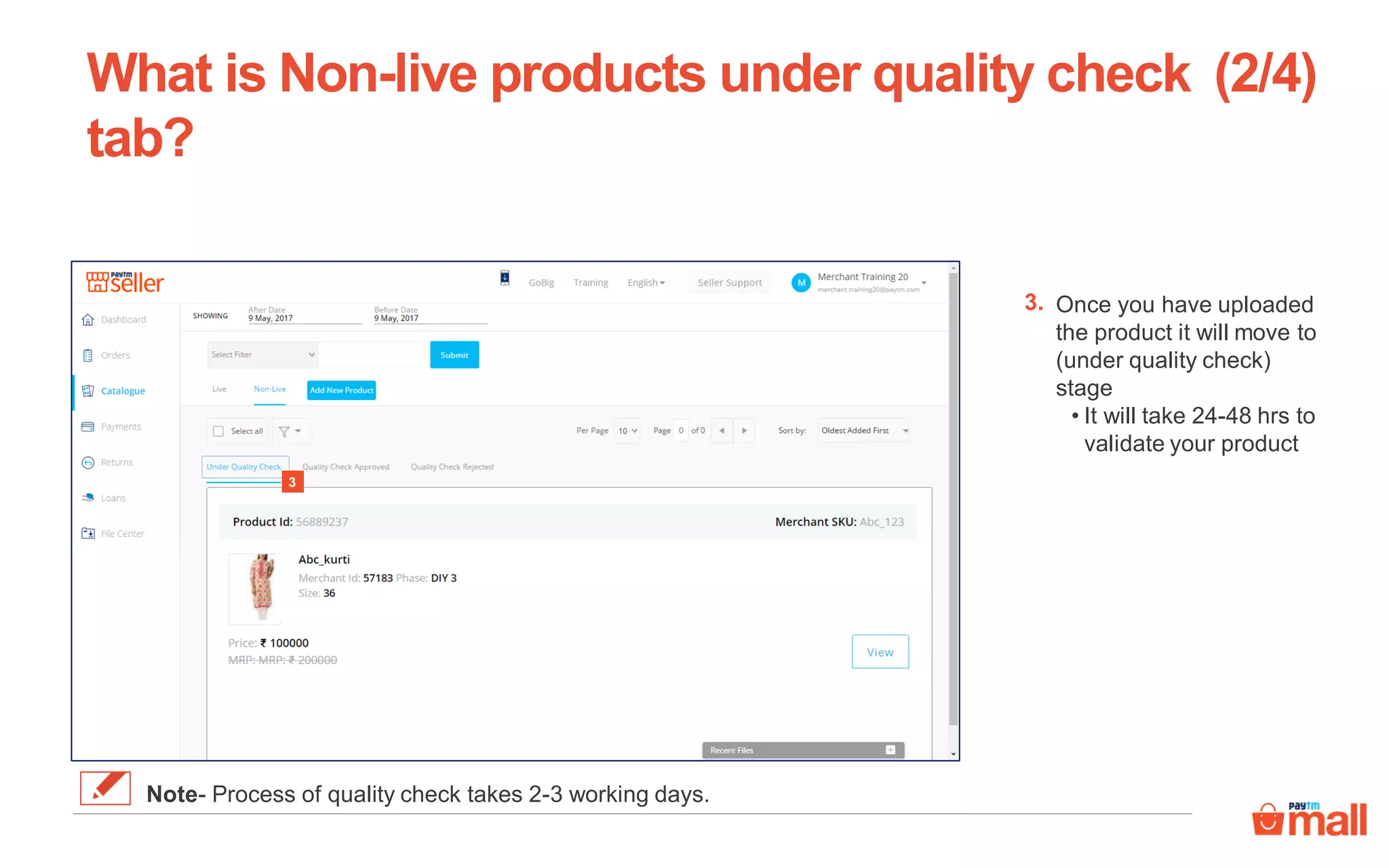
Once you have uploaded
the product it will move to
(under quality check)
stage
• It will take 24-48 hrs to
validate your product
What is Non-live products under quality check
tab?
3
3.
(2/4)
Note- Process of quality check takes 2-3 working days.
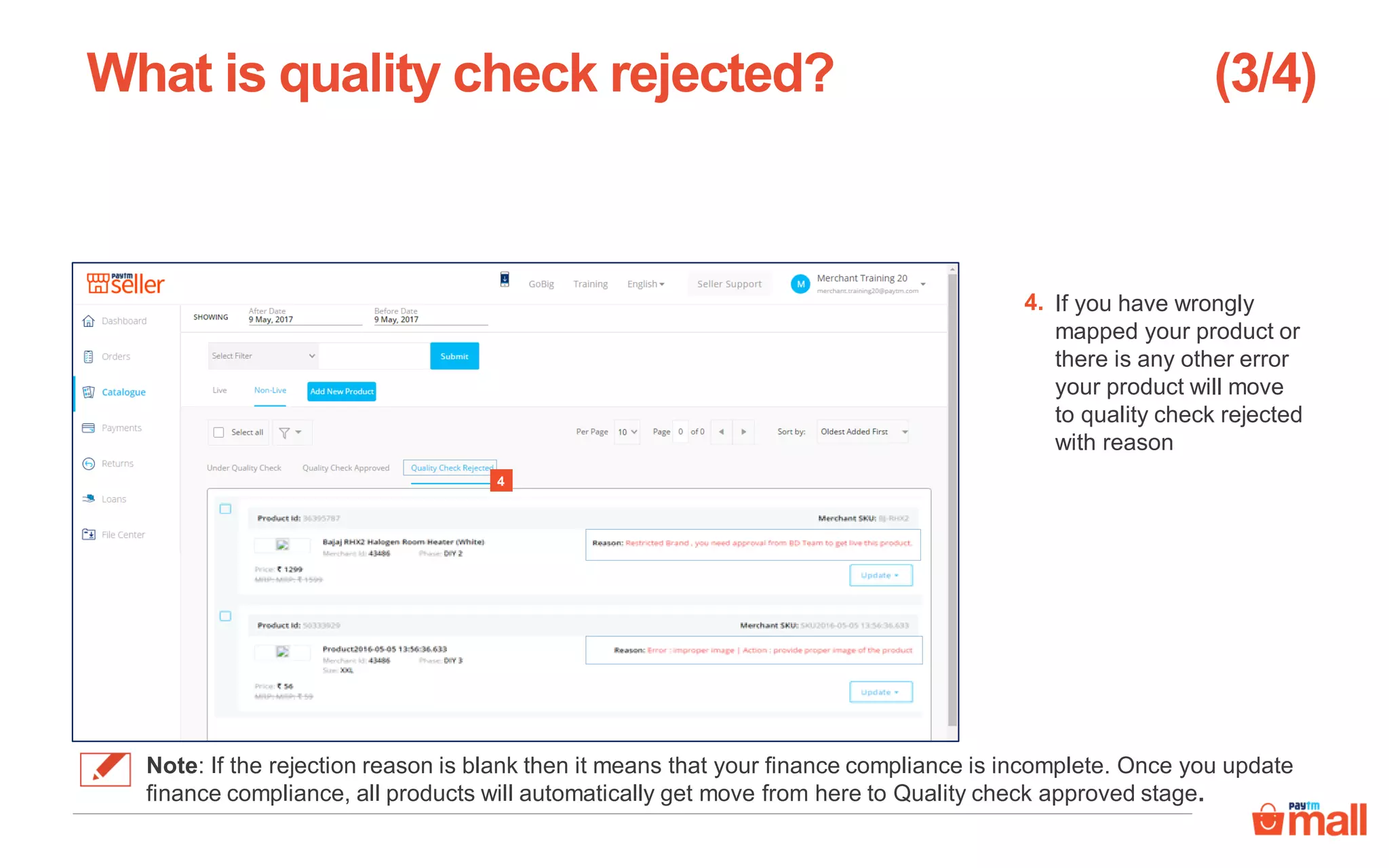
If you have wrongly
mapped your product or
there is any other error
your product will move
to quality check rejected
with reason
What is quality check rejected?
4
4.
(3/4)
Note: If the rejection reason is blank then it means that your finance compliance is incomplete. Once you update
finance compliance, all products will automatically get move from here to Quality check approved stage.
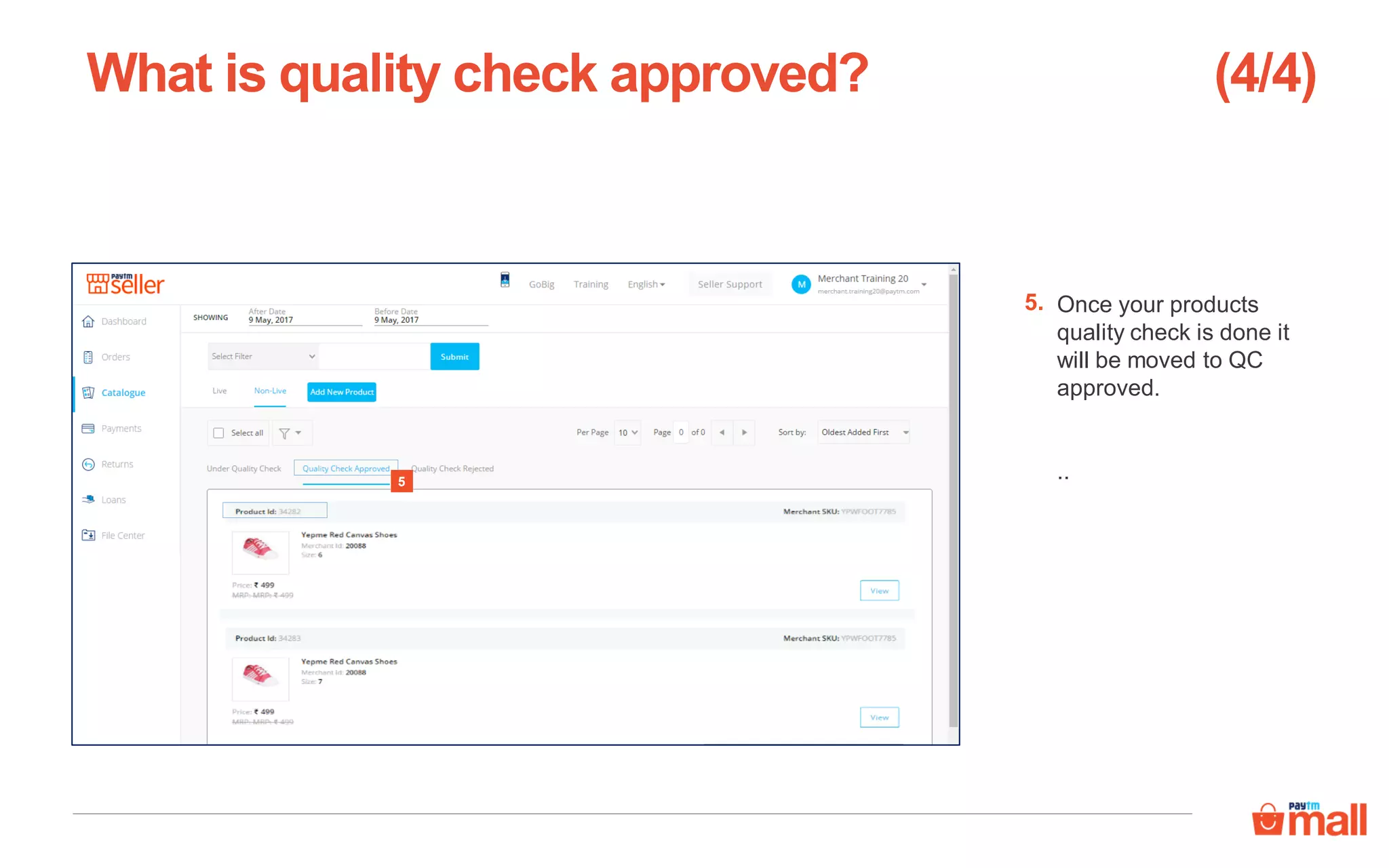
Once your products
quality check is done it
will be moved to QC
approved.
..
What is quality check approved?
5.
(4/4)
5
Thanks everyone!
For any query please raise a ticket on support

Create new product(s)

  • 1.
    Catalogue: Upload anew product(s) In this module we will discuss :- 1. How to create a new product ? 2. How to create new products in bulk ? 3. What is quality check ?
  • 2.
    Overview of cataloguetab in seller panel Search- It enables you to search your products 1. Products (all) – These tabs help you to view your all active and inactive products 2. Add new product- You can use it to add a new product 3. Filter- It enables you to filter your all your products aligned to different warehouses 4. Edit price & MRP- you can use it to edit your product’s price & MRP 5. Social share- You can use share feature to share your catalogue on social sites 6. 1 2 3 4 5 6
  • 3.
    Create a newproduct- You can upload a new product in these simple steps Click on catalogue Click on add new product in seller panel How to create a new product? 1. 2. 2 1 (1/16)
  • 4.
    Click on createa new product in seller panel How to create a new product? 3 3. (2/16)
  • 5.
    Lets take anexample of women kurti Click on “+” sign before required category, here women’s fashion Enter name of the category and press enter key Now you can move to step 7 Or How to create a new product? 4 4a 4. 4a. (3/16) Tip- You should use search option to save your time.
  • 6.
    Click on ethnicwear Click on kurta & kurti How to create a new product? 5 6 5. 6. (4/16)
  • 7.
    Click on nextbutton How to create a new product? 7 7. (5/16)
  • 8.
    Fill in requireddetails of mandatory product attributes How to create a new product? 8 8. (6/16) Note- Brand name is a mandatory attribute.
  • 9.
    Click on validatedetails How to create a new product? 9 9. (7/16)
  • 10.
    Fill in detailsunder recommended product attributes Click on validate details How to create a new product? 11 10 10. 11. (8/16) Note- All recommended product attributes are optional but these help a customer to make a informed purchase decision
  • 11.
    Fill in requireddetails of packaging dimensions Click on validate details How to create a new product? 13 12 12. 13. (9/16) Note- These attributes are optional.
  • 12.
    Click on submitbutton after filling up the details How to create a new product? 14 14. (10/16) Note- Return policy will be managed by Paytm Mall according to category of the product.
  • 13.
    Click on selectimage to upload your product’s image How to create a new product? 15 15. (11/16) Note- Minimum resolution of images should be 500X500 pixels and maximum image file size should be 2MB.
  • 14.
    Select the imagefrom your system Click on open • You can upload multiple images for the same product • The first image uploaded by you will be the front image of the product How to create a new product? 17 16 16. 17. (12/16) Note- Minimum resolution of images should be 500X500 pixels and maximum image file size should be 2MB.
  • 15.
    Click on saveimages Click on upload How to create a new product? 19 18 18. 19. (13/16)
  • 16.
    If you wantto add more images of the same product , click on select image and follow the same procedure Click on save images How to create a new product? 21 20 20. 21. (14/16)
  • 17.
    Click on submitbutton to complete the uploading process Here you can add title and describe your product Here you can review your product details How to create a new product? 23 22 22. 23. (15/16) Note- If you click on add attributes you can add more attributes of the product
  • 18.
    Preview your products &click on submit & exit Here you can review your product details How to create a new product? 24 24. (16/16)
  • 19.
    Create new productsin bulk- You can now create multiple new products in one go Click on Create a new product in bulk in seller panel How to create new products in bulk? 1 1. (1/16)
  • 20.
    To create newproducts in bulk, kindly follow these steps Choose the desired category and sub categories Enter name of the category and press enter key Or How to create new products in bulk? 2 2a 2a. 2. (2/16) Tip- You should use search option to save your time.
  • 21.
    Click on next Howto create new products in bulk? 3 3. (3/16)
  • 22.
    Click on select& upload images to select images from your system • You can upload multiple images for the same product • The first image uploaded by you will be the front image of the product How to create new products in bulk? 4 4. (4/16) Note- Minimum resolution of images should be 500X500 pixels and maximum image file size should be 2MB.
  • 23.
    Once uploaded, youshould download the image CSV that contains the names and URLs of each image Click on this link to download the list of URLs for each image Click the next button to proceed How to create new products in bulk? 6 5 5. 6. (5/16)
  • 24.
    This is howthe image CSV will look. In the next section you would be required to copy each of these image URLs from the CSV and add it in the product details template How to create new products in bulk? (6/16)
  • 25.
    Click on selectbrand, you can select one or more brands that are already listed in Paytm Mall How to create new products in bulk? 7. (7/16) Note- Brand name is a mandatory attribute. 7
  • 26.
    Click search here Searchand select the brand(s) you wish to select How to create new products in bulk? (8/16) Tip- Do not write the complete name of the product just put 2-3 alphabets 9 8 8. 9.
  • 27.
    Click on download productdetails template How to create new products in bulk? 10. (9/16) 10
  • 28.
    You will firstneed to download product details template and then instructions and guidelines CSV Click on both links to download instruction guide and product details template How to create new products in bulk? 11. (10/16) Note: Go through Instructions and guidelines file before updating Product details template 11
  • 29.
    Before filling theproduct details template you first to refer to the instructions & guidelines csv Click on curated values to copy the values for each attribute How to create new products in bulk? 12 12. (11/16) Note: Before filling any template always copy the corresponding values from the CSV to avoid typing errors
  • 30.
    • Product detailstemplate is divided into mandatory attributes and recommended attributes • Fill this template by copying the attributes from the instructions and guidelines CSV in this template How to create new products in bulk? (12/16) Note: Always use semi –colon (;) as a separator to add multiple values
  • 31.
    • Paste linkof main image in column of main image from the image path file downloaded before • For other images, you need to paste link in images column as shown in the below picture How to create new products in bulk? (13/16) Note: Always use semi –colon (;) as a separator to add multiple images other attributes if its more that one. Brand XYZ
  • 32.
    If you wantto add multiple sizes of the same product, you will simply have to enter the different sizes in the size column and different Merchant SKUs in Merchant SKU column separated by semi-colon (;) respectively. How to create new products in bulk? (14/16) Note: Sequence of Merchant SKU should be according to the sequence of sizes.
  • 33.
    Click on upload productdetails How to create new products in bulk? 13. (15/16) 13
  • 34.
    Click the selectfile button to upload the filled product details template Click on submit and exit button How to create new products in bulk? 14. 15. (16/16) Note: File format of the excel sheet should be dot(.) xls 14 15
  • 35.
    Quality check isa process of verifying product details that you have uploaded There are three stages, which are as follows:- What is a quality check? Stage 1: Under quality check Stage 3: Quality check rejected Stage 2: Quality check approved Compliance failed Quality check rejected for other reasons
  • 36.
    What is Non-liveproducts under quality check tab? 2 (1/4) 1 Click on catalogue tab Click on non-live tab 1. 2.
  • 37.
    Once you haveuploaded the product it will move to (under quality check) stage • It will take 24-48 hrs to validate your product What is Non-live products under quality check tab? 3 3. (2/4) Note- Process of quality check takes 2-3 working days.
  • 38.
    If you havewrongly mapped your product or there is any other error your product will move to quality check rejected with reason What is quality check rejected? 4 4. (3/4) Note: If the rejection reason is blank then it means that your finance compliance is incomplete. Once you update finance compliance, all products will automatically get move from here to Quality check approved stage.
  • 39.
    Once your products qualitycheck is done it will be moved to QC approved. .. What is quality check approved? 5. (4/4) 5
  • 40.
    Thanks everyone! For anyquery please raise a ticket on support