D. Divya,
M. Pharmacy
 Basic excel knowledge is necessary at work
place so that it saves the time.
 The following are some of the excel short cut
keys which are very useful for beginners.
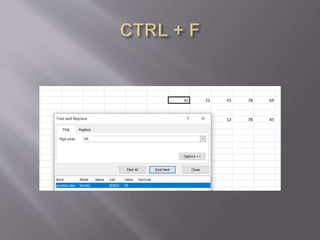
 CTRL + F ------ This is for finding any letter or
symbol. Press CTRL + F you will get a box in
that type which letter or word or number you
want to find then click on find option it will
bring you to the cell that contain particular
number or letter or word.
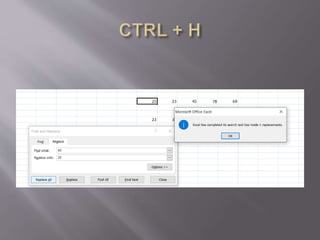
 CTRL + H ------This is for replacing any letter
or word or number.
 I have replaced 65 with 25 by clicking on
replace all or replace.
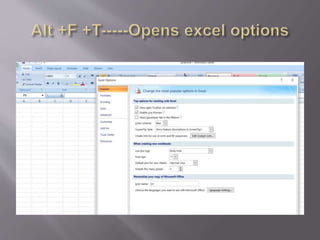
 Alt + H ----- For home section.
 Alt + F+S or CTRL +S ----Saves the document.
 Alt + A ------Opens the data section in the
ribbon.
 Alt + W-----Opens the view section.
 Alt + P ------ For page layout.
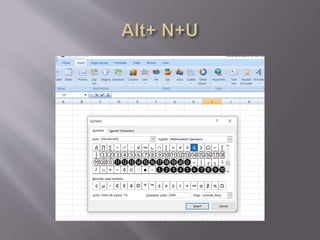
 Alt+ N + U----Opens the window to insert a
symbol or click on the insert section and then
click on the symbol option.
 Alt + H+ F+C----For changing the font color.
 Alt+ H+H -----For changing the background
color.
 Alt+ W+V+G -----To remove gridlines in excel.
 Shift +right arrow and down arrow----- For
selecting the multiple cells.
 CTRL+ Space bar ----- For selecting the entire
column.
 Shift+ Space bar ----For selecting the entire
row.
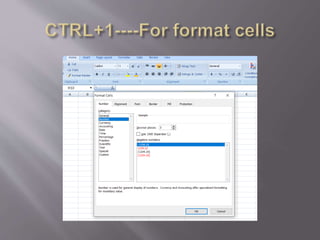
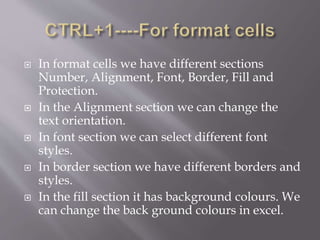
 In format cells we have different sections
Number, Alignment, Font, Border, Fill and
Protection.
 In the Alignment section we can change the
text orientation.
 In font section we can select different font
styles.
 In border section we have different borders and
styles.
 In the fill section it has background colours. We
can change the back ground colours in excel.
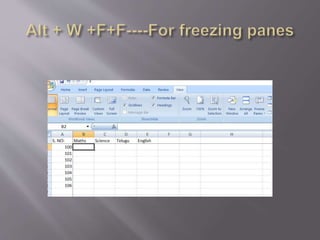
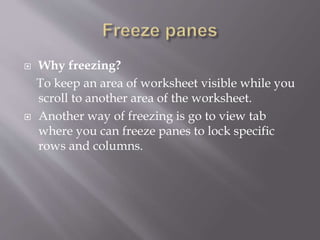
 Why freezing?
To keep an area of worksheet visible while you
scroll to another area of the worksheet.
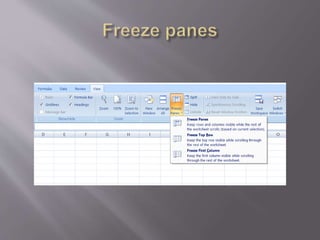
 Another way of freezing is go to view tab
where you can freeze panes to lock specific
rows and columns.
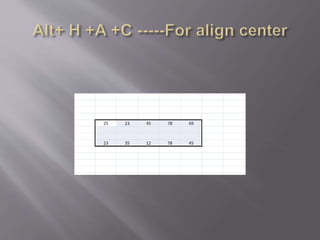
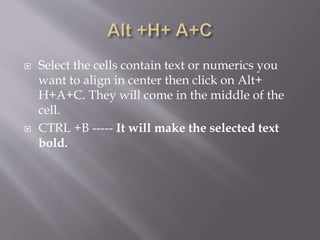
 Select the cells contain text or numerics you
want to align in center then click on Alt+
H+A+C. They will come in the middle of the
cell.
 CTRL +B ----- It will make the selected text
bold.
 For getting date _ =today() and press enter we
will get today’s date.
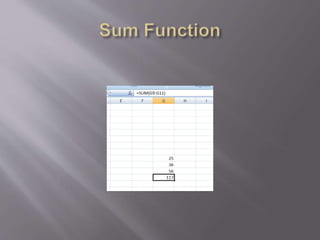
 Sum function---- =sum(G9:G11) or
=G9+G10+G11 and enter we
will get sum of these cells.
 Arithmetic mean also referred to as average.
The mean is calculated by adding up a group
of numbers and then dividing the sum by the
count of those numbers.
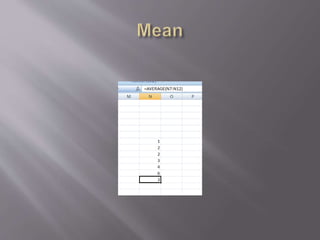
 For example to calculate the mean of numbers
(1,2,2,3,4,6) add them up and then divide the
sum by 6 which yields 3.
 In Excel the mean can be calculated by simple
formula.
=Average(N7:N12).
 The median function returns the middle
number in a group of supplied numbers.
 When the total number of supplied numbers is
odd, the median is calculated as the middle
number in the group.
 When the total number of supplied numbers is
even, the median is calculated as the average of
the two numbers in the middle.
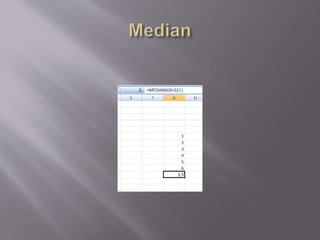
 Median formula--- =median(G6:G11) and press
enter key.

 Minimum function finds the lowest number by
using the below formula.
=min(G2:G6) and press enter key.
 Maximum function finds the highest number
from C1 to C100.
=max(C1:C100).
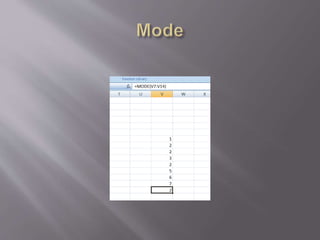
 Mode is the most frequently occurring value in
the dataset. A mode value can be found simply
by counting the number of times each value
occurs.
 For example the mode of the set of values
(1,2,2,3,2,5,6,7) is 2.
 Formula----- =Mode(V7:V14).
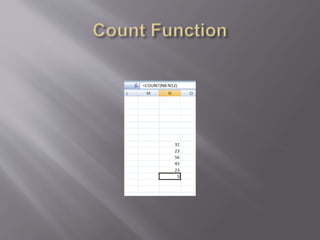
 Count function is for counting the cells where
there are numbers.
=Count(N8:N12).
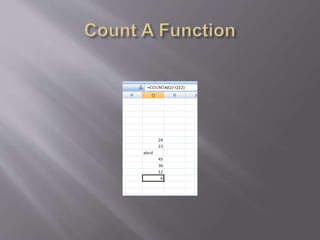
 Count A function will count the number cells
containing characters also.
=Count A (Q7:Q12).
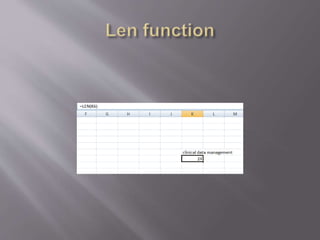
 Len function counts the number of characters
in a cell. It includes spaces.
=Len(K6) and press enter key.
 After clicking the enter button we will get the
number of characters in the cell is 24.
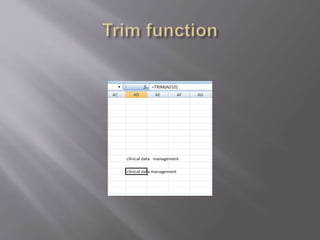
 Trim function removes the extra spaces in a
cell that is in between the words or at
beginning.
=Trim (Text) and press enter.
 Lower function converts text to lower case.
Formula----- =Lower (text).
 Upper function converts text to upper case.
Formula----- =Upper (text).
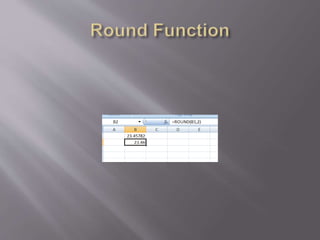
 Round function rounds a number to a specified
number of digits.
 Example: If cell B1 contains 23.45782 and you
want to round that value to 2 decimal places,
you can use the following formula.
=Round (B1,2)
 The result of this function is 23.46.
Excel shortcut keys and formulas

Excel shortcut keys and formulas

  • 1.
  • 2.
     Basic excelknowledge is necessary at work place so that it saves the time.  The following are some of the excel short cut keys which are very useful for beginners.  CTRL + F ------ This is for finding any letter or symbol. Press CTRL + F you will get a box in that type which letter or word or number you want to find then click on find option it will bring you to the cell that contain particular number or letter or word.
  • 4.
     CTRL +H ------This is for replacing any letter or word or number.  I have replaced 65 with 25 by clicking on replace all or replace.
  • 6.
     Alt +H ----- For home section.  Alt + F+S or CTRL +S ----Saves the document.  Alt + A ------Opens the data section in the ribbon.  Alt + W-----Opens the view section.  Alt + P ------ For page layout.  Alt+ N + U----Opens the window to insert a symbol or click on the insert section and then click on the symbol option.
  • 8.
     Alt +H+ F+C----For changing the font color.  Alt+ H+H -----For changing the background color.  Alt+ W+V+G -----To remove gridlines in excel.  Shift +right arrow and down arrow----- For selecting the multiple cells.  CTRL+ Space bar ----- For selecting the entire column.  Shift+ Space bar ----For selecting the entire row.
  • 10.
     In formatcells we have different sections Number, Alignment, Font, Border, Fill and Protection.  In the Alignment section we can change the text orientation.  In font section we can select different font styles.  In border section we have different borders and styles.  In the fill section it has background colours. We can change the back ground colours in excel.
  • 14.
     Why freezing? Tokeep an area of worksheet visible while you scroll to another area of the worksheet.  Another way of freezing is go to view tab where you can freeze panes to lock specific rows and columns.
  • 17.
     Select thecells contain text or numerics you want to align in center then click on Alt+ H+A+C. They will come in the middle of the cell.  CTRL +B ----- It will make the selected text bold.
  • 18.
     For gettingdate _ =today() and press enter we will get today’s date.  Sum function---- =sum(G9:G11) or =G9+G10+G11 and enter we will get sum of these cells.
  • 20.
     Arithmetic meanalso referred to as average. The mean is calculated by adding up a group of numbers and then dividing the sum by the count of those numbers.  For example to calculate the mean of numbers (1,2,2,3,4,6) add them up and then divide the sum by 6 which yields 3.  In Excel the mean can be calculated by simple formula. =Average(N7:N12).
  • 22.
     The medianfunction returns the middle number in a group of supplied numbers.  When the total number of supplied numbers is odd, the median is calculated as the middle number in the group.  When the total number of supplied numbers is even, the median is calculated as the average of the two numbers in the middle.  Median formula--- =median(G6:G11) and press enter key.
  • 24.
     Minimum functionfinds the lowest number by using the below formula. =min(G2:G6) and press enter key.  Maximum function finds the highest number from C1 to C100. =max(C1:C100).
  • 25.
     Mode isthe most frequently occurring value in the dataset. A mode value can be found simply by counting the number of times each value occurs.  For example the mode of the set of values (1,2,2,3,2,5,6,7) is 2.  Formula----- =Mode(V7:V14).
  • 27.
     Count functionis for counting the cells where there are numbers. =Count(N8:N12).  Count A function will count the number cells containing characters also. =Count A (Q7:Q12).
  • 30.
     Len functioncounts the number of characters in a cell. It includes spaces. =Len(K6) and press enter key.  After clicking the enter button we will get the number of characters in the cell is 24.
  • 32.
     Trim functionremoves the extra spaces in a cell that is in between the words or at beginning. =Trim (Text) and press enter.
  • 34.
     Lower functionconverts text to lower case. Formula----- =Lower (text).  Upper function converts text to upper case. Formula----- =Upper (text).
  • 35.
     Round functionrounds a number to a specified number of digits.  Example: If cell B1 contains 23.45782 and you want to round that value to 2 decimal places, you can use the following formula. =Round (B1,2)  The result of this function is 23.46.