This document discusses various formatting and editing features in Microsoft Excel including:
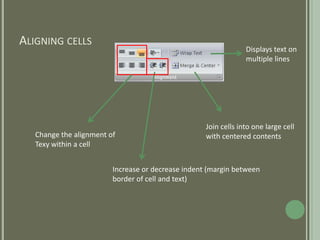
1) Aligning and joining cells, changing text indentation.
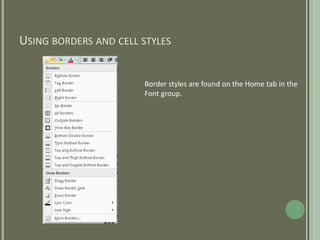
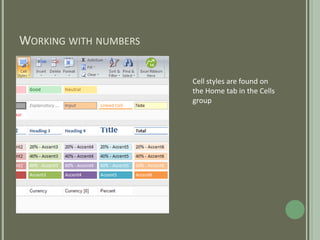
2) Applying border styles and cell styles found on the Home tab.
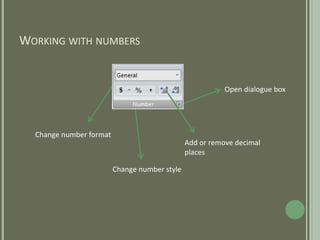
3) Working with numbers by changing formats, adding/removing decimals, and changing number styles.
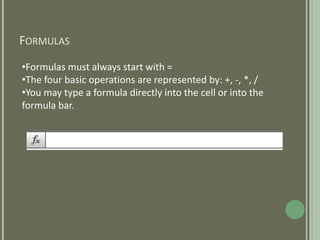
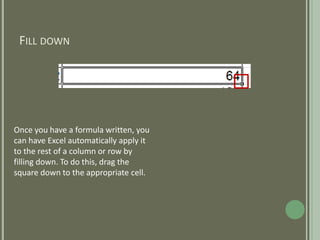
4) Using formulas starting with "=", the basic math operations, and filling formulas down a column.
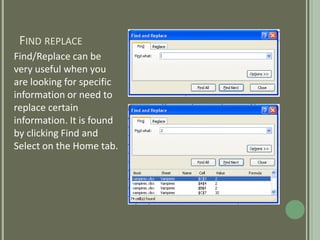
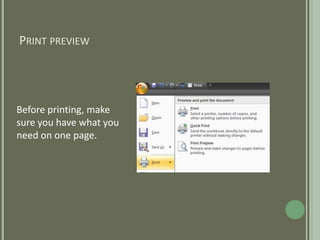
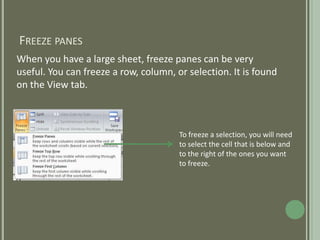
5) Finding and replacing information, printing preview, and freezing panes to view portions of a large sheet.