1
Microsoft Excel
2
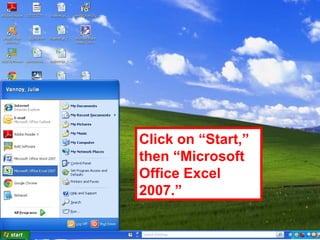
Click on “Start,”
then “Microsoft
Office Excel
2007.”
3
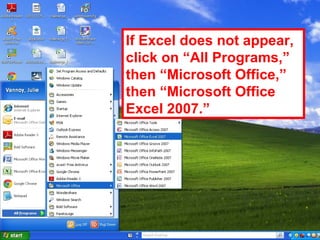
If Excel does not appear,
click on “All Programs,”
then “Microsoft Office,”
then “Microsoft Office
Excel 2007.”
4
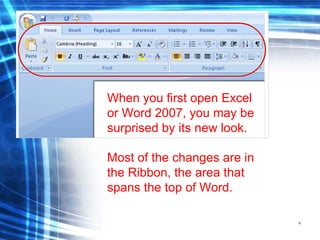
When you first open Excel
or Word 2007, you may be
surprised by its new look.
Most of the changes are in
the Ribbon, the area that
spans the top of Word.
5
1
2
3
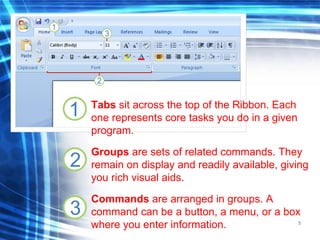
Tabs sit across the top of the Ribbon. Each
one represents core tasks you do in a given
program.
Groups are sets of related commands. They
remain on display and readily available, giving
you rich visual aids.
Commands are arranged in groups. A
command can be a button, a menu, or a box
where you enter information.
6
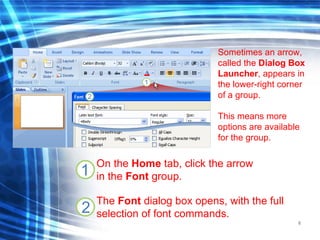
Sometimes an arrow,
called the Dialog Box
Launcher, appears in
the lower-right corner
of a group.
This means more
options are available
for the group.
1
2
On the Home tab, click the arrow
in the Font group.
The Font dialog box opens, with the full
selection of font commands.
7
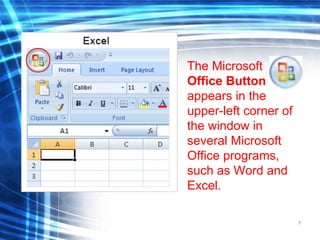
The Microsoft
Office Button
appears in the
upper-left corner of
the window in
several Microsoft
Office programs,
such as Word and
Excel.
8
Let’s examine the
different areas of
the Excel
worksheet
9
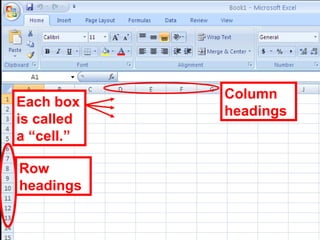
Each box
is called
a “cell.”
Column
headings
Row
headings
10
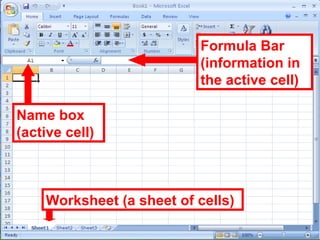
Name box
(active cell)
Formula Bar
(information in
the active cell)
Worksheet (a sheet of cells)
11
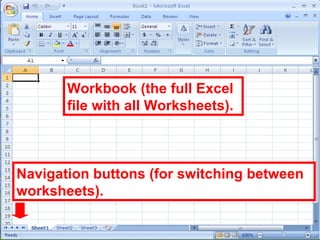
Workbook (the full Excel
file with all Worksheets).
Navigation buttons (for switching between
worksheets).
12
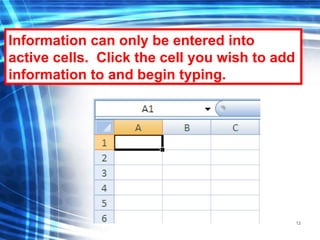
Information can only be entered into
active cells. Click the cell you wish to add
information to and begin typing.
13
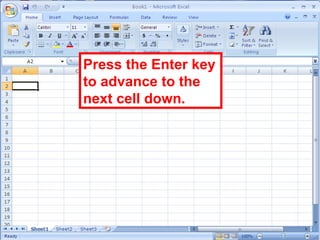
Press the Enter key
to advance to the
next cell down.
14
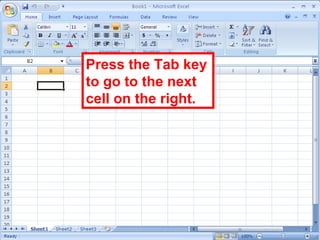
Press the Tab key
to go to the next
cell on the right.
15
**Hitting enter and tab are
actually time savers. When
there is any action that you
can accomplish without taking
your hands off the keyboard,
you are actually saving a little
bit of time.
16
•First, click on the little button
where the left side of column
A and the top of row 1 meet.
This will highlight your whole
sheet.
•Now go to your formatting
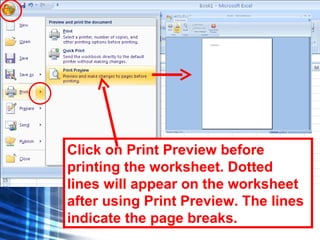
dropdown menu and choose
the NUMBER format.
17
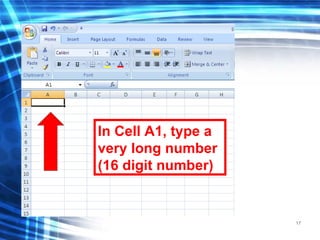
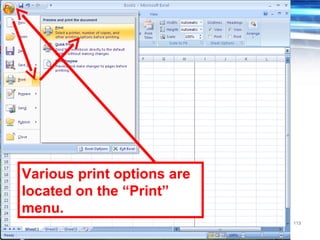
In Cell A1, type a
very long number
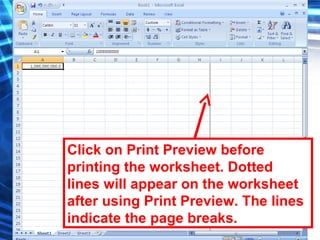
(16 digit number)
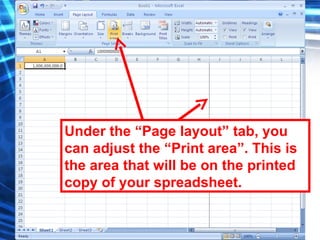
18
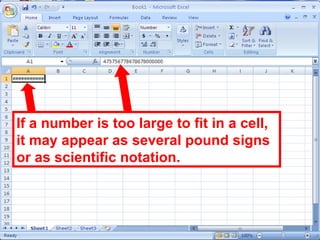
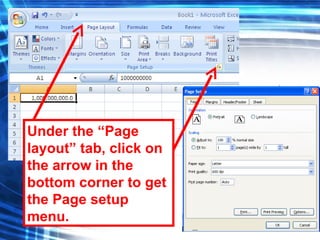
If a number is too large to fit in a cell,
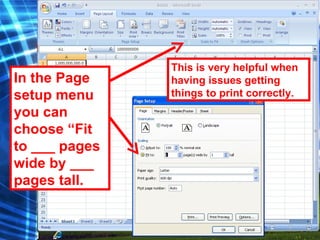
it may appear as several pound signs
or as scientific notation.
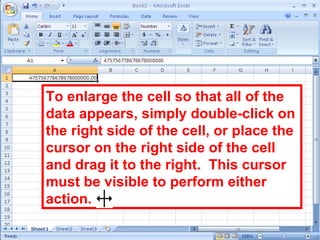
19
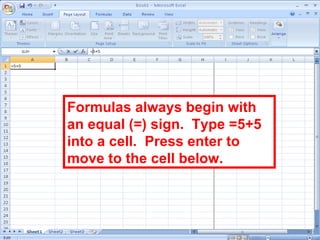
To enlarge the cell so that all of the
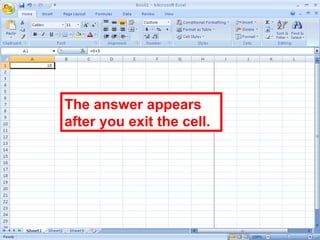
data appears, simply double-click on
the right side of the cell, or place the
cursor on the right side of the cell
and drag it to the right. This cursor
must be visible to perform either
action.
20
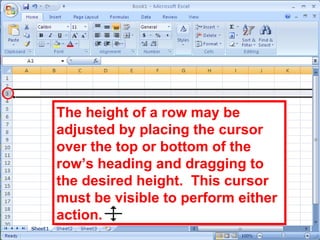
The height of a row may be
adjusted by placing the cursor
over the top or bottom of the
row’s heading and dragging to
the desired height. This cursor
must be visible to perform either
action.
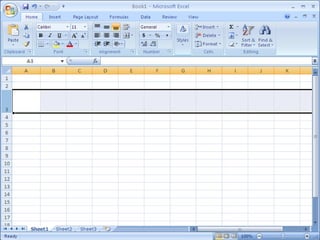
21
22
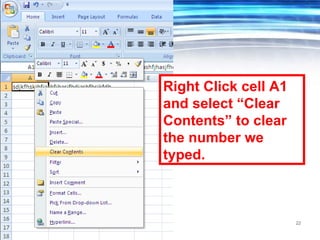
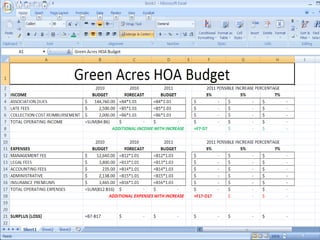
Right Click cell A1
and select “Clear
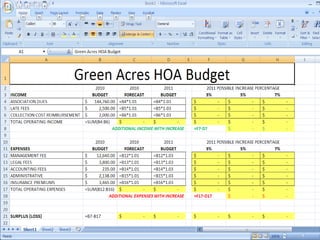
Contents” to clear
the number we
typed.
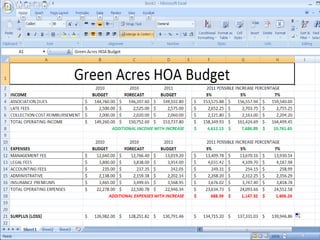
23
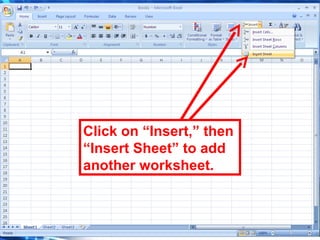
Click on “Insert,” then
“Insert Sheet” to add
another worksheet.
24
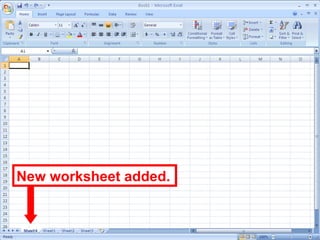
New worksheet added.
25
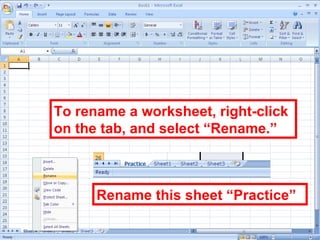
To rename a worksheet, right-click
on the tab, and select “Rename.”
Rename this sheet “Practice”
26
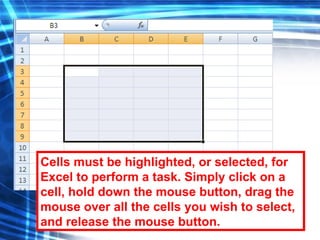
Cells must be highlighted, or selected, for
Excel to perform a task. Simply click on a
cell, hold down the mouse button, drag the
mouse over all the cells you wish to select,
and release the mouse button.
27
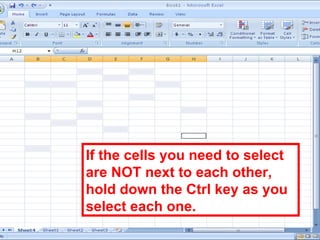
If the cells you need to select
are NOT next to each other,
hold down the Ctrl key as you
select each one.
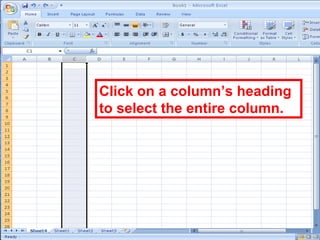
28
Click on a column’s heading
to select the entire column.
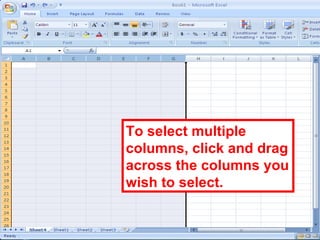
29
To select multiple
columns, click and drag
across the columns you
wish to select.
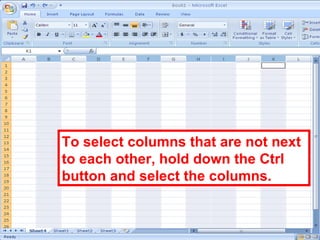
30
To select columns that are not next
to each other, hold down the Ctrl
button and select the columns.
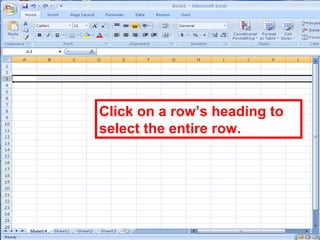
31
Click on a row’s heading to
select the entire row.
32
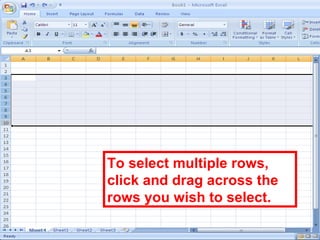
To select multiple rows,
click and drag across the
rows you wish to select.
33
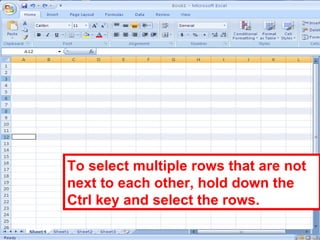
To select multiple rows that are not
next to each other, hold down the
Ctrl key and select the rows.
34
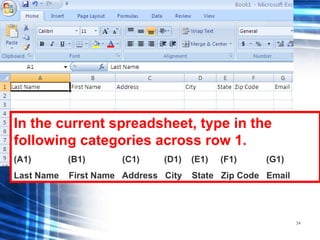
In the current spreadsheet, type in the
following categories across row 1.
(A1) (B1) (C1) (D1) (E1) (F1) (G1)
Last Name First Name Address City State Zip Code Email
35
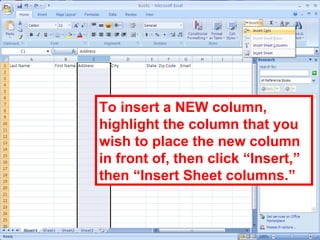
To insert a NEW column,
highlight the column that you
wish to place the new column
in front of, then click “Insert,”
then “Insert Sheet columns.”
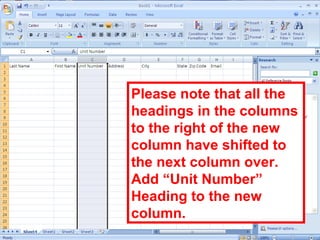
36
Please note that all the
headings in the columns
to the right of the new
column have shifted to
the next column over.
Add “Unit Number”
Heading to the new
column.
37
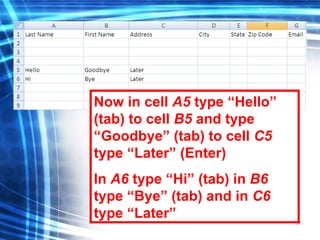
Now in cell A5 type “Hello”
(tab) to cell B5 and type
“Goodbye” (tab) to cell C5
type “Later” (Enter)
In A6 type “Hi” (tab) in B6
type “Bye” (tab) and in C6
type “Later”
38
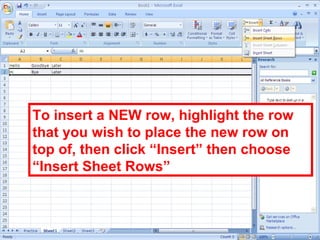
To insert a NEW row, highlight the row
that you wish to place the new row on
top of, then click “Insert” then choose
“Insert Sheet Rows”
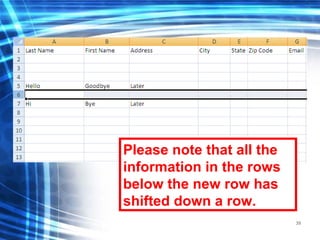
39
Please note that all the
information in the rows
below the new row has
shifted down a row.
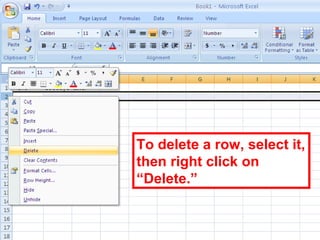
40
To delete a row, select it,
then right click on
“Delete.”
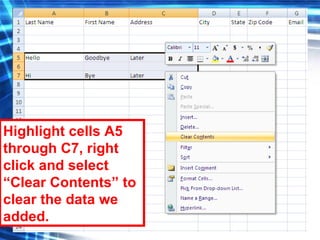
41
Highlight cells A5
through C7, right
click and select
“Clear Contents” to
clear the data we
added.
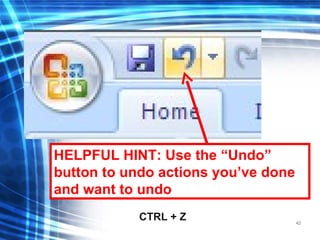
42
HELPFUL HINT: Use the “Undo”
button to undo actions you’ve done
and want to undo
CTRL + Z
43
Data can be moved around or
copied by using Cut, Copy, and
Paste.
44
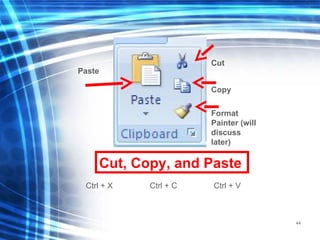
Cut, Copy, and Paste
Ctrl + X Ctrl + C Ctrl + V
Cut
Format
Painter (will
discuss
later)
Paste
Copy
45
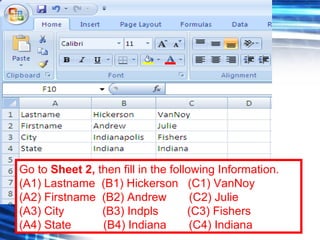
Go to Sheet 2, then fill in the following Information.
(A1) Lastname (B1) Hickerson (C1) VanNoy
(A2) Firstname (B2) Andrew (C2) Julie
(A3) City (B3) Indpls (C3) Fishers
(A4) State (B4) Indiana (C4) Indiana
46
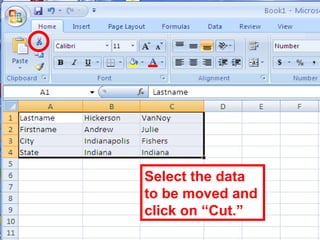
Select the data
to be moved and
click on “Cut.”
47
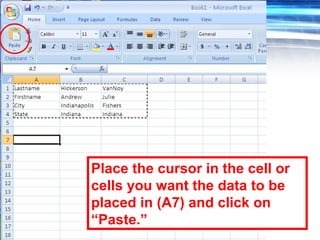
Place the cursor in the cell or
cells you want the data to be
placed in (A7) and click on
“Paste.”
48
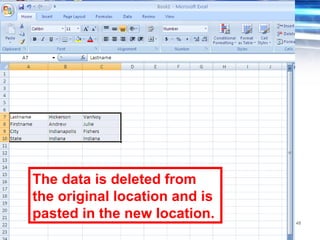
The data is deleted from
the original location and is
pasted in the new location.
49
Now try to cut and paste again
replacing the info in the original
spot.
50
Using “Copy” and “Paste”
does not delete the data
from the original location,
but instead keeps the
original and the replica.
51
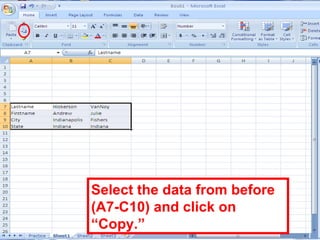
Select the data from before
(A7-C10) and click on
“Copy.”
52
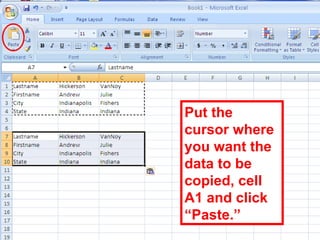
Put the
cursor where
you want the
data to be
copied, cell
A1 and click
“Paste.”
53
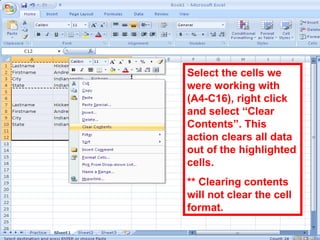
Select the cells we
were working with
(A4-C16), right click
and select “Clear
Contents”. This
action clears all data
out of the highlighted
cells.
** Clearing contents
will not clear the cell
format.
54
Using Autofill
55
Using AutoFill can save
work by copying data or
repeating patterns.
56
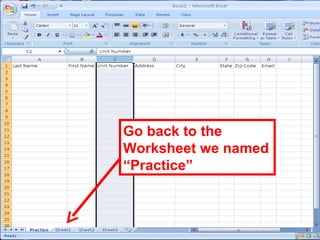
Go back to the
Worksheet we named
“Practice”
57
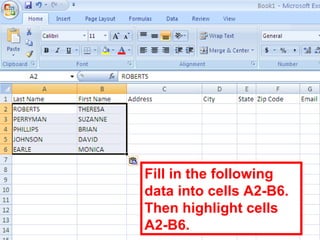
Fill in the following
data into cells A2-B6.
Then highlight cells
A2-B6.
58
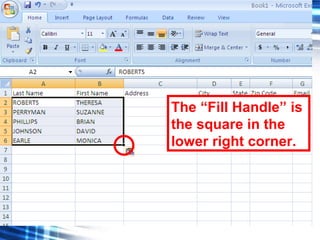
The “Fill Handle” is
the square in the
lower right corner.
59
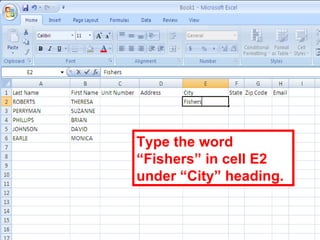
Type the word
“Fishers” in cell E2
under “City” heading.
60
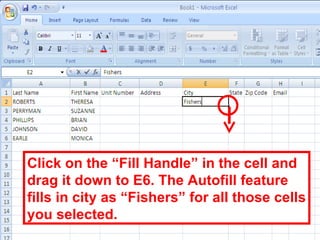
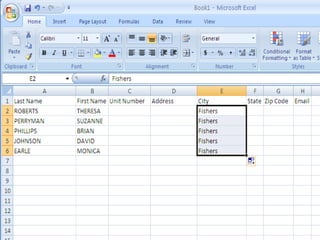
Click on the “Fill Handle” in the cell and
drag it down to E6. The Autofill feature
fills in city as “Fishers” for all those cells
you selected.
61
62
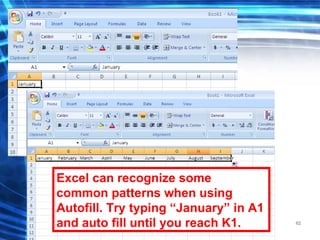
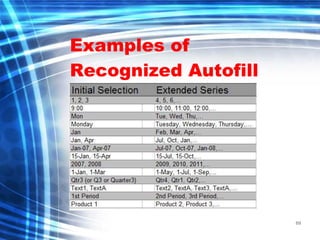
Excel can recognize some
common patterns when using
Autofill. Try typing “January” in A1
and auto fill until you reach K1.
63
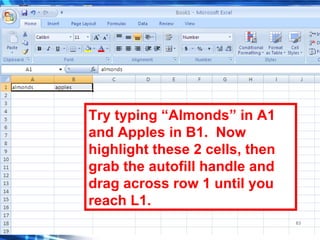
Try typing “Almonds” in A1
and Apples in B1. Now
highlight these 2 cells, then
grab the autofill handle and
drag across row 1 until you
reach L1.
64
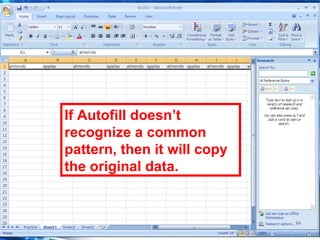
If Autofill doesn’t
recognize a common
pattern, then it will copy
the original data.
65
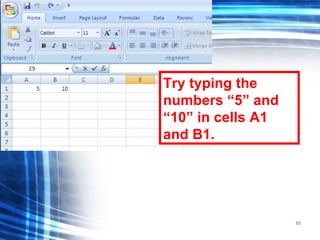
Try typing the
numbers “5” and
“10” in cells A1
and B1.
66
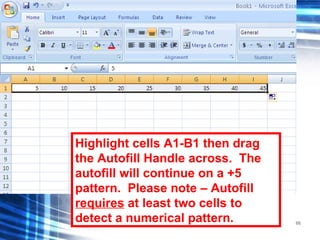
Highlight cells A1-B1 then drag
the Autofill Handle across. The
autofill will continue on a +5
pattern. Please note – Autofill
requires at least two cells to
detect a numerical pattern.
67
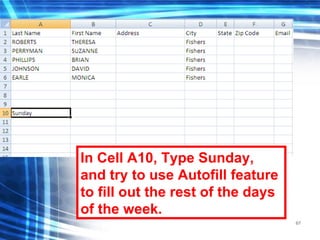
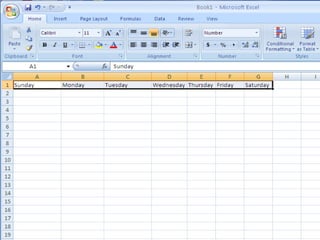
In Cell A10, Type Sunday,
and try to use Autofill feature
to fill out the rest of the days
of the week.
68
69
Examples of
Recognized Autofill
70
Now take a minute and try to autofill
on your own.
Any Questions?
71
Formatting
72
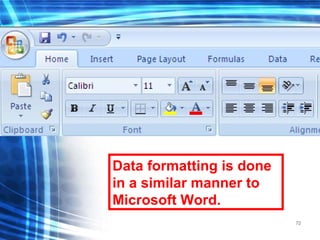
Data formatting is done
in a similar manner to
Microsoft Word.
73
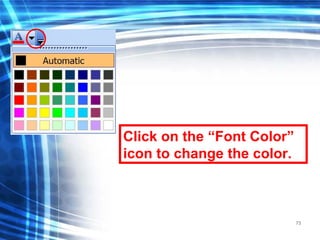
Click on the “Font Color”
icon to change the color.
74
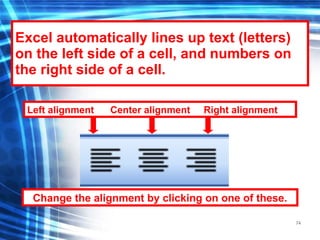
Excel automatically lines up text (letters)
on the left side of a cell, and numbers on
the right side of a cell.
Change the alignment by clicking on one of these.
Left alignment Center alignment Right alignment
75
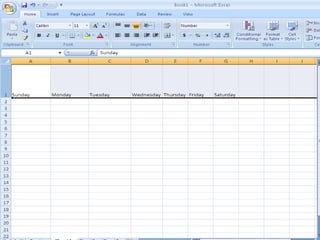
Resize Row 1 to 100 pixels. If
you have any questions,
please ask.
LET’S TRY:
REMEMBER HOW TO?
76
77
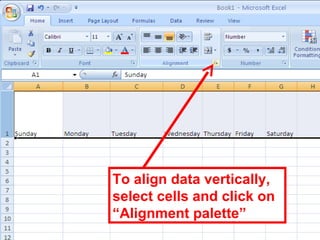
To align data vertically,
select cells and click on
“Alignment palette”
78
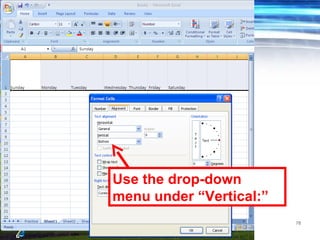
Use the drop-down
menu under “Vertical:”
79
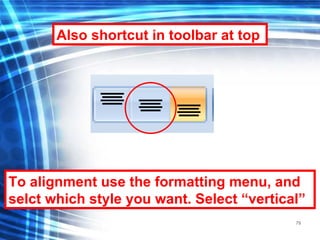
To alignment use the formatting menu, and
selct which style you want. Select “vertical”
Also shortcut in toolbar at top
80
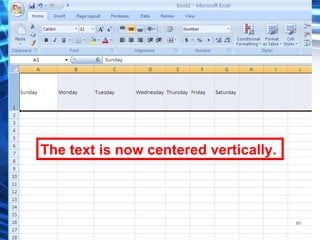
The text is now centered vertically.
81
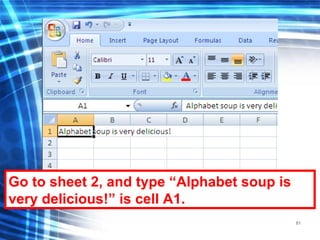
Go to sheet 2, and type “Alphabet soup is
very delicious!” is cell A1.
82
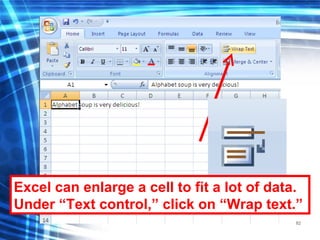
Excel can enlarge a cell to fit a lot of data.
Under “Text control,” click on “Wrap text.”
83
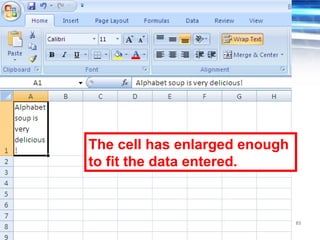
The cell has enlarged enough
to fit the data entered.
84
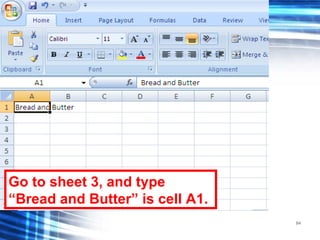
Go to sheet 3, and type
“Bread and Butter” is cell A1.
85
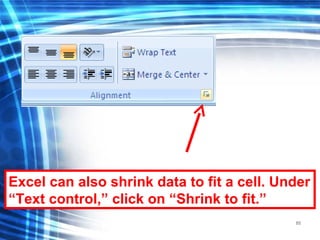
Excel can also shrink data to fit a cell. Under
“Text control,” click on “Shrink to fit.”
86
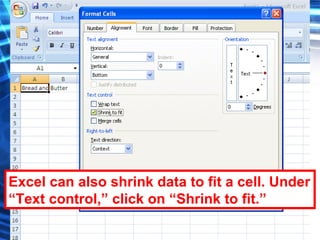
Excel can also shrink data to fit a cell. Under
“Text control,” click on “Shrink to fit.”
87
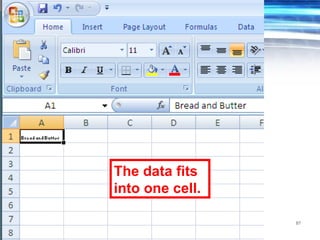
The data fits
into one cell.
88
Add a new worksheet open it.
Now type January in cell A1 and
autofill across until L1.
Next resize row 1 to 100 pixels.
LET’S TRY:
REMEMBER HOW TO?
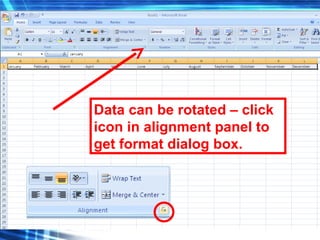
89
Data can be rotated – click
icon in alignment panel to
get format dialog box.
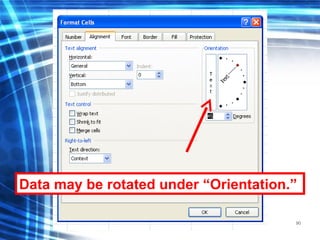
90
Data may be rotated under “Orientation.”
91
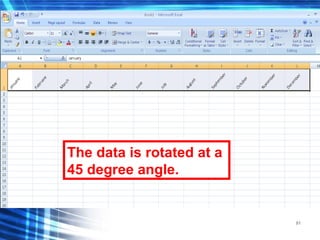
The data is rotated at a
45 degree angle.
92
Click undo until you have a
blank worksheet.
Type “Kirkpatrick Document
Management System” in cell A1.
Resize the font to size 36.
LET’S TRY:
REMEMBER HOW TO?
93
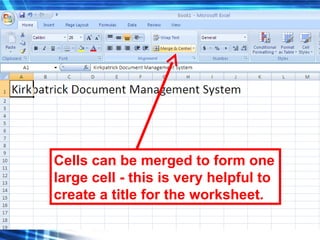
Cells can be merged to form one
large cell - this is very helpful to
create a title for the worksheet.
94
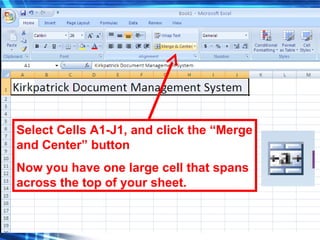
Select Cells A1-J1, and click the “Merge
and Center” button
Now you have one large cell that spans
across the top of your sheet.
95
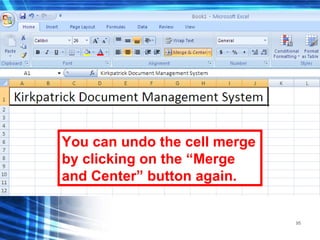
You can undo the cell merge
by clicking on the “Merge
and Center” button again.
96
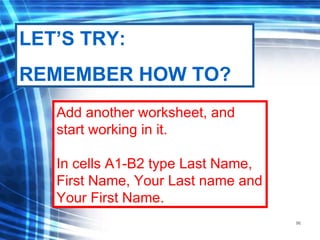
Add another worksheet, and
start working in it.
In cells A1-B2 type Last Name,
First Name, Your Last name and
Your First Name.
LET’S TRY:
REMEMBER HOW TO?
97
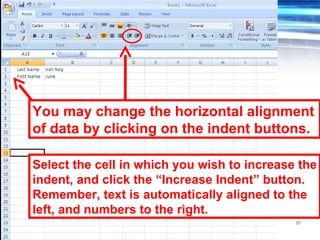
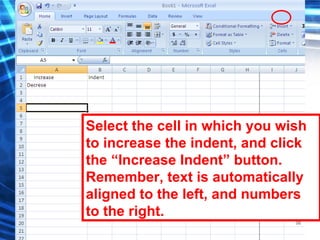
You may change the horizontal alignment
of data by clicking on the indent buttons.
Select the cell in which you wish to increase the
indent, and click the “Increase Indent” button.
Remember, text is automatically aligned to the
left, and numbers to the right.
98
Select the cell in which you wish
to increase the indent, and click
the “Increase Indent” button.
Remember, text is automatically
aligned to the left, and numbers
to the right.
99
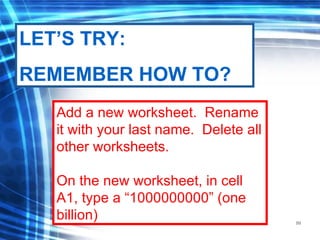
Add a new worksheet. Rename
it with your last name. Delete all
other worksheets.
On the new worksheet, in cell
A1, type a “1000000000” (one
billion)
LET’S TRY:
REMEMBER HOW TO?
100
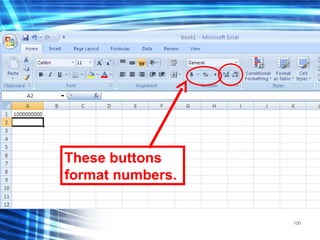
These buttons
format numbers.
101
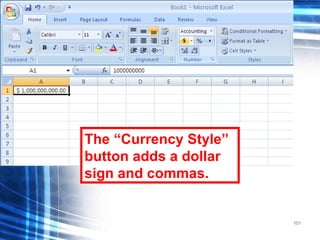
The “Currency Style”
button adds a dollar
sign and commas.
102
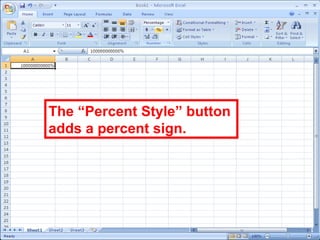
The “Percent Style” button
adds a percent sign.
103
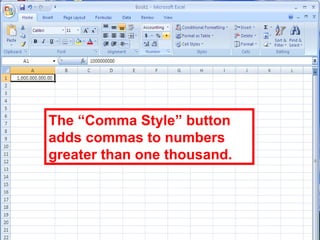
The “Comma Style” button
adds commas to numbers
greater than one thousand.
104
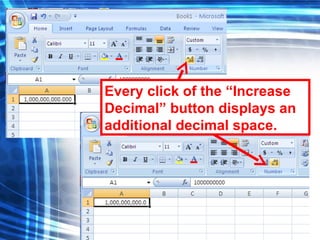
Every click of the “Increase
Decimal” button displays an
additional decimal space.
105
Now in cells A1-B4 type in a 4
digit number in each cell.
LET’S TRY:
REMEMBER HOW TO?
106
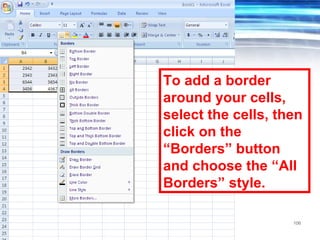
To add a border
around your cells,
select the cells, then
click on the
“Borders” button
and choose the “All
Borders” style.
107
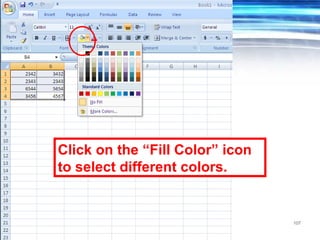
Click on the “Fill Color” icon
to select different colors.
108
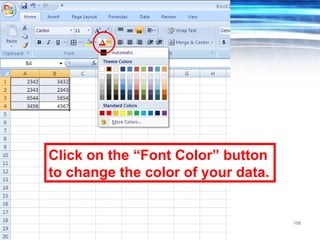
Click on the “Font Color” button
to change the color of your data.
109
Adjusting spreadsheets
110
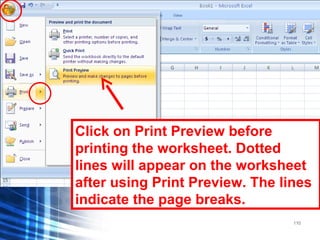
Click on Print Preview before
printing the worksheet. Dotted
lines will appear on the worksheet
after using Print Preview. The lines
indicate the page breaks.
111
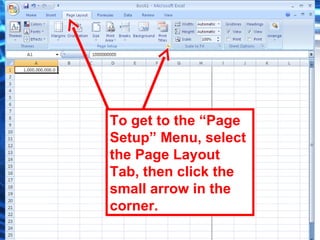
To get to the “Page
Setup” Menu, select
the Page Layout
Tab, then click the
small arrow in the
corner.
112
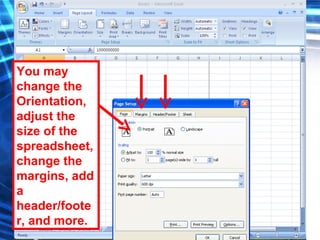
You may
change the
Orientation,
adjust the
size of the
spreadsheet,
change the
margins, add
a
header/foote
r, and more.
113
Various print options are
located on the “Print”
menu.
114
Click on Print Preview before
printing the worksheet. Dotted
lines will appear on the worksheet
after using Print Preview. The lines
indicate the page breaks.
115
Click on Print Preview before
printing the worksheet. Dotted
lines will appear on the worksheet
after using Print Preview. The lines
indicate the page breaks.
116
Under the “Page layout” tab, you
can adjust the “Print area”. This is
the area that will be on the printed
copy of your spreadsheet.
117
Under the “Page
layout” tab, click on
the arrow in the
bottom corner to get
the Page setup
menu.
118
This is very helpful when
having issues getting
things to print correctly.
In the Page
setup menu
you can
choose “Fit
to ___ pages
wide by ___
pages tall.
119
Basic Formulas
120
Delete everything out of cells
A1-B4 so that you are working
from a blank worksheet.
121
Formulas always begin with
an equal (=) sign. Type =5+5
into a cell. Press enter to
move to the cell below.
122
The answer appears
after you exit the cell.
123
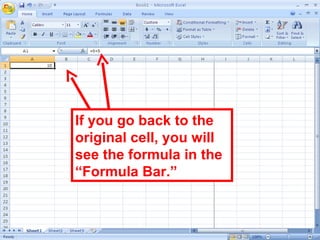
If you go back to the
original cell, you will
see the formula in the
“Formula Bar.”
124
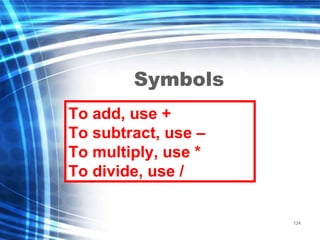
Symbols
To add, use +
To subtract, use –
To multiply, use *
To divide, use /
125
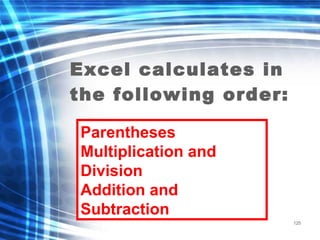
Excel calculates in
the following order:
Parentheses
Multiplication and
Division
Addition and
Subtraction
126
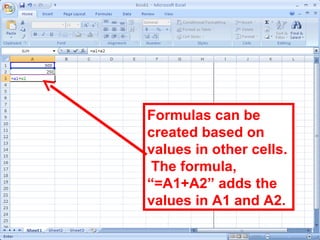
Formulas can be
created based on
values in other cells.
The formula,
“=A1+A2” adds the
values in A1 and A2.
127
128
AutoSum
129
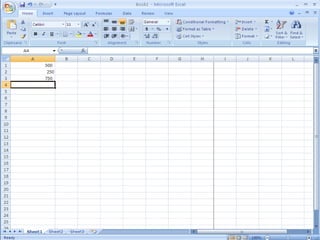
In cells A1-A7 type a 3
digit number in each cell.
130
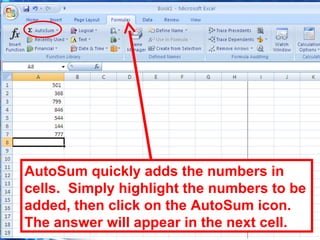
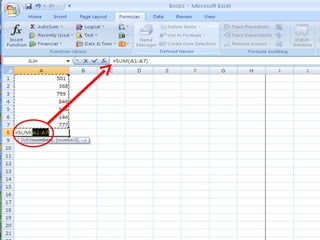
AutoSum quickly adds the numbers in
cells. Simply highlight the numbers to be
added, then click on the AutoSum icon.
The answer will appear in the next cell.
131
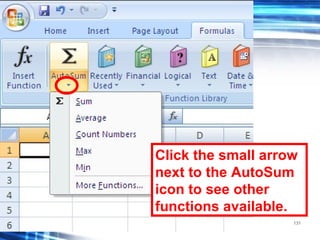
Click the small arrow
next to the AutoSum
icon to see other
functions available.
132
133
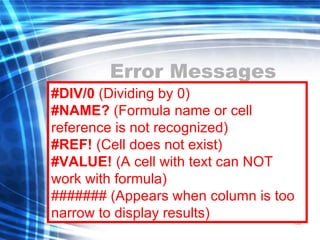
Error Messages
#DIV/0 (Dividing by 0)
#NAME? (Formula name or cell
reference is not recognized)
#REF! (Cell does not exist)
#VALUE! (A cell with text can NOT
work with formula)
####### (Appears when column is too
narrow to display results)
134
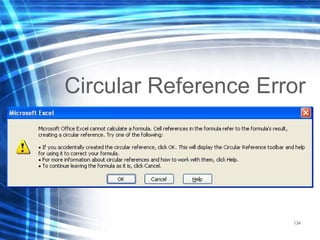
Circular Reference Error
135
The “Circular
Reference” error
appears when a
formula or function
refers to its own cell.
136
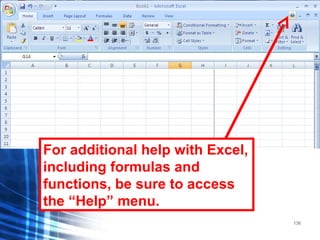
For additional help with Excel,
including formulas and
functions, be sure to access
the “Help” menu.
137
Practice Test
138
Let’s create a fake budget for
a fake community.
Copy the following
information and try to get
formatting to match.
139
140
Now try to create the
formulas needed to
finish the spreadsheet.
141
You will use”
=SUM( ) and XX*##
142
143
All highlighted cells need to
be solved with basic formulas.

microsoft ecexl

  • 1.
  • 2.
    2 Click on “Start,” then“Microsoft Office Excel 2007.”
  • 3.
    3 If Excel doesnot appear, click on “All Programs,” then “Microsoft Office,” then “Microsoft Office Excel 2007.”
  • 4.
    4 When you firstopen Excel or Word 2007, you may be surprised by its new look. Most of the changes are in the Ribbon, the area that spans the top of Word.
  • 5.
    5 1 2 3 Tabs sit acrossthe top of the Ribbon. Each one represents core tasks you do in a given program. Groups are sets of related commands. They remain on display and readily available, giving you rich visual aids. Commands are arranged in groups. A command can be a button, a menu, or a box where you enter information.
  • 6.
    6 Sometimes an arrow, calledthe Dialog Box Launcher, appears in the lower-right corner of a group. This means more options are available for the group. 1 2 On the Home tab, click the arrow in the Font group. The Font dialog box opens, with the full selection of font commands.
  • 7.
    7 The Microsoft Office Button appearsin the upper-left corner of the window in several Microsoft Office programs, such as Word and Excel.
  • 8.
    8 Let’s examine the differentareas of the Excel worksheet
  • 9.
    9 Each box is called a“cell.” Column headings Row headings
  • 10.
    10 Name box (active cell) FormulaBar (information in the active cell) Worksheet (a sheet of cells)
  • 11.
    11 Workbook (the fullExcel file with all Worksheets). Navigation buttons (for switching between worksheets).
  • 12.
    12 Information can onlybe entered into active cells. Click the cell you wish to add information to and begin typing.
  • 13.
    13 Press the Enterkey to advance to the next cell down.
  • 14.
    14 Press the Tabkey to go to the next cell on the right.
  • 15.
    15 **Hitting enter andtab are actually time savers. When there is any action that you can accomplish without taking your hands off the keyboard, you are actually saving a little bit of time.
  • 16.
    16 •First, click onthe little button where the left side of column A and the top of row 1 meet. This will highlight your whole sheet. •Now go to your formatting dropdown menu and choose the NUMBER format.
  • 17.
    17 In Cell A1,type a very long number (16 digit number)
  • 18.
    18 If a numberis too large to fit in a cell, it may appear as several pound signs or as scientific notation.
  • 19.
    19 To enlarge thecell so that all of the data appears, simply double-click on the right side of the cell, or place the cursor on the right side of the cell and drag it to the right. This cursor must be visible to perform either action.
  • 20.
    20 The height ofa row may be adjusted by placing the cursor over the top or bottom of the row’s heading and dragging to the desired height. This cursor must be visible to perform either action.
  • 21.
  • 22.
    22 Right Click cellA1 and select “Clear Contents” to clear the number we typed.
  • 23.
    23 Click on “Insert,”then “Insert Sheet” to add another worksheet.
  • 24.
  • 25.
    25 To rename aworksheet, right-click on the tab, and select “Rename.” Rename this sheet “Practice”
  • 26.
    26 Cells must behighlighted, or selected, for Excel to perform a task. Simply click on a cell, hold down the mouse button, drag the mouse over all the cells you wish to select, and release the mouse button.
  • 27.
    27 If the cellsyou need to select are NOT next to each other, hold down the Ctrl key as you select each one.
  • 28.
    28 Click on acolumn’s heading to select the entire column.
  • 29.
    29 To select multiple columns,click and drag across the columns you wish to select.
  • 30.
    30 To select columnsthat are not next to each other, hold down the Ctrl button and select the columns.
  • 31.
    31 Click on arow’s heading to select the entire row.
  • 32.
    32 To select multiplerows, click and drag across the rows you wish to select.
  • 33.
    33 To select multiplerows that are not next to each other, hold down the Ctrl key and select the rows.
  • 34.
    34 In the currentspreadsheet, type in the following categories across row 1. (A1) (B1) (C1) (D1) (E1) (F1) (G1) Last Name First Name Address City State Zip Code Email
  • 35.
    35 To insert aNEW column, highlight the column that you wish to place the new column in front of, then click “Insert,” then “Insert Sheet columns.”
  • 36.
    36 Please note thatall the headings in the columns to the right of the new column have shifted to the next column over. Add “Unit Number” Heading to the new column.
  • 37.
    37 Now in cellA5 type “Hello” (tab) to cell B5 and type “Goodbye” (tab) to cell C5 type “Later” (Enter) In A6 type “Hi” (tab) in B6 type “Bye” (tab) and in C6 type “Later”
  • 38.
    38 To insert aNEW row, highlight the row that you wish to place the new row on top of, then click “Insert” then choose “Insert Sheet Rows”
  • 39.
    39 Please note thatall the information in the rows below the new row has shifted down a row.
  • 40.
    40 To delete arow, select it, then right click on “Delete.”
  • 41.
    41 Highlight cells A5 throughC7, right click and select “Clear Contents” to clear the data we added.
  • 42.
    42 HELPFUL HINT: Usethe “Undo” button to undo actions you’ve done and want to undo CTRL + Z
  • 43.
    43 Data can bemoved around or copied by using Cut, Copy, and Paste.
  • 44.
    44 Cut, Copy, andPaste Ctrl + X Ctrl + C Ctrl + V Cut Format Painter (will discuss later) Paste Copy
  • 45.
    45 Go to Sheet2, then fill in the following Information. (A1) Lastname (B1) Hickerson (C1) VanNoy (A2) Firstname (B2) Andrew (C2) Julie (A3) City (B3) Indpls (C3) Fishers (A4) State (B4) Indiana (C4) Indiana
  • 46.
    46 Select the data tobe moved and click on “Cut.”
  • 47.
    47 Place the cursorin the cell or cells you want the data to be placed in (A7) and click on “Paste.”
  • 48.
    48 The data isdeleted from the original location and is pasted in the new location.
  • 49.
    49 Now try tocut and paste again replacing the info in the original spot.
  • 50.
    50 Using “Copy” and“Paste” does not delete the data from the original location, but instead keeps the original and the replica.
  • 51.
    51 Select the datafrom before (A7-C10) and click on “Copy.”
  • 52.
    52 Put the cursor where youwant the data to be copied, cell A1 and click “Paste.”
  • 53.
    53 Select the cellswe were working with (A4-C16), right click and select “Clear Contents”. This action clears all data out of the highlighted cells. ** Clearing contents will not clear the cell format.
  • 54.
  • 55.
    55 Using AutoFill cansave work by copying data or repeating patterns.
  • 56.
    56 Go back tothe Worksheet we named “Practice”
  • 57.
    57 Fill in thefollowing data into cells A2-B6. Then highlight cells A2-B6.
  • 58.
    58 The “Fill Handle”is the square in the lower right corner.
  • 59.
    59 Type the word “Fishers”in cell E2 under “City” heading.
  • 60.
    60 Click on the“Fill Handle” in the cell and drag it down to E6. The Autofill feature fills in city as “Fishers” for all those cells you selected.
  • 61.
  • 62.
    62 Excel can recognizesome common patterns when using Autofill. Try typing “January” in A1 and auto fill until you reach K1.
  • 63.
    63 Try typing “Almonds”in A1 and Apples in B1. Now highlight these 2 cells, then grab the autofill handle and drag across row 1 until you reach L1.
  • 64.
    64 If Autofill doesn’t recognizea common pattern, then it will copy the original data.
  • 65.
    65 Try typing the numbers“5” and “10” in cells A1 and B1.
  • 66.
    66 Highlight cells A1-B1then drag the Autofill Handle across. The autofill will continue on a +5 pattern. Please note – Autofill requires at least two cells to detect a numerical pattern.
  • 67.
    67 In Cell A10,Type Sunday, and try to use Autofill feature to fill out the rest of the days of the week.
  • 68.
  • 69.
  • 70.
    70 Now take aminute and try to autofill on your own. Any Questions?
  • 71.
  • 72.
    72 Data formatting isdone in a similar manner to Microsoft Word.
  • 73.
    73 Click on the“Font Color” icon to change the color.
  • 74.
    74 Excel automatically linesup text (letters) on the left side of a cell, and numbers on the right side of a cell. Change the alignment by clicking on one of these. Left alignment Center alignment Right alignment
  • 75.
    75 Resize Row 1to 100 pixels. If you have any questions, please ask. LET’S TRY: REMEMBER HOW TO?
  • 76.
  • 77.
    77 To align datavertically, select cells and click on “Alignment palette”
  • 78.
    78 Use the drop-down menuunder “Vertical:”
  • 79.
    79 To alignment usethe formatting menu, and selct which style you want. Select “vertical” Also shortcut in toolbar at top
  • 80.
    80 The text isnow centered vertically.
  • 81.
    81 Go to sheet2, and type “Alphabet soup is very delicious!” is cell A1.
  • 82.
    82 Excel can enlargea cell to fit a lot of data. Under “Text control,” click on “Wrap text.”
  • 83.
    83 The cell hasenlarged enough to fit the data entered.
  • 84.
    84 Go to sheet3, and type “Bread and Butter” is cell A1.
  • 85.
    85 Excel can alsoshrink data to fit a cell. Under “Text control,” click on “Shrink to fit.”
  • 86.
    86 Excel can alsoshrink data to fit a cell. Under “Text control,” click on “Shrink to fit.”
  • 87.
  • 88.
    88 Add a newworksheet open it. Now type January in cell A1 and autofill across until L1. Next resize row 1 to 100 pixels. LET’S TRY: REMEMBER HOW TO?
  • 89.
    89 Data can berotated – click icon in alignment panel to get format dialog box.
  • 90.
    90 Data may berotated under “Orientation.”
  • 91.
    91 The data isrotated at a 45 degree angle.
  • 92.
    92 Click undo untilyou have a blank worksheet. Type “Kirkpatrick Document Management System” in cell A1. Resize the font to size 36. LET’S TRY: REMEMBER HOW TO?
  • 93.
    93 Cells can bemerged to form one large cell - this is very helpful to create a title for the worksheet.
  • 94.
    94 Select Cells A1-J1,and click the “Merge and Center” button Now you have one large cell that spans across the top of your sheet.
  • 95.
    95 You can undothe cell merge by clicking on the “Merge and Center” button again.
  • 96.
    96 Add another worksheet,and start working in it. In cells A1-B2 type Last Name, First Name, Your Last name and Your First Name. LET’S TRY: REMEMBER HOW TO?
  • 97.
    97 You may changethe horizontal alignment of data by clicking on the indent buttons. Select the cell in which you wish to increase the indent, and click the “Increase Indent” button. Remember, text is automatically aligned to the left, and numbers to the right.
  • 98.
    98 Select the cellin which you wish to increase the indent, and click the “Increase Indent” button. Remember, text is automatically aligned to the left, and numbers to the right.
  • 99.
    99 Add a newworksheet. Rename it with your last name. Delete all other worksheets. On the new worksheet, in cell A1, type a “1000000000” (one billion) LET’S TRY: REMEMBER HOW TO?
  • 100.
  • 101.
    101 The “Currency Style” buttonadds a dollar sign and commas.
  • 102.
    102 The “Percent Style”button adds a percent sign.
  • 103.
    103 The “Comma Style”button adds commas to numbers greater than one thousand.
  • 104.
    104 Every click ofthe “Increase Decimal” button displays an additional decimal space.
  • 105.
    105 Now in cellsA1-B4 type in a 4 digit number in each cell. LET’S TRY: REMEMBER HOW TO?
  • 106.
    106 To add aborder around your cells, select the cells, then click on the “Borders” button and choose the “All Borders” style.
  • 107.
    107 Click on the“Fill Color” icon to select different colors.
  • 108.
    108 Click on the“Font Color” button to change the color of your data.
  • 109.
  • 110.
    110 Click on PrintPreview before printing the worksheet. Dotted lines will appear on the worksheet after using Print Preview. The lines indicate the page breaks.
  • 111.
    111 To get tothe “Page Setup” Menu, select the Page Layout Tab, then click the small arrow in the corner.
  • 112.
    112 You may change the Orientation, adjustthe size of the spreadsheet, change the margins, add a header/foote r, and more.
  • 113.
    113 Various print optionsare located on the “Print” menu.
  • 114.
    114 Click on PrintPreview before printing the worksheet. Dotted lines will appear on the worksheet after using Print Preview. The lines indicate the page breaks.
  • 115.
    115 Click on PrintPreview before printing the worksheet. Dotted lines will appear on the worksheet after using Print Preview. The lines indicate the page breaks.
  • 116.
    116 Under the “Pagelayout” tab, you can adjust the “Print area”. This is the area that will be on the printed copy of your spreadsheet.
  • 117.
    117 Under the “Page layout”tab, click on the arrow in the bottom corner to get the Page setup menu.
  • 118.
    118 This is veryhelpful when having issues getting things to print correctly. In the Page setup menu you can choose “Fit to ___ pages wide by ___ pages tall.
  • 119.
  • 120.
    120 Delete everything outof cells A1-B4 so that you are working from a blank worksheet.
  • 121.
    121 Formulas always beginwith an equal (=) sign. Type =5+5 into a cell. Press enter to move to the cell below.
  • 122.
    122 The answer appears afteryou exit the cell.
  • 123.
    123 If you goback to the original cell, you will see the formula in the “Formula Bar.”
  • 124.
    124 Symbols To add, use+ To subtract, use – To multiply, use * To divide, use /
  • 125.
    125 Excel calculates in thefollowing order: Parentheses Multiplication and Division Addition and Subtraction
  • 126.
    126 Formulas can be createdbased on values in other cells. The formula, “=A1+A2” adds the values in A1 and A2.
  • 127.
  • 128.
  • 129.
    129 In cells A1-A7type a 3 digit number in each cell.
  • 130.
    130 AutoSum quickly addsthe numbers in cells. Simply highlight the numbers to be added, then click on the AutoSum icon. The answer will appear in the next cell.
  • 131.
    131 Click the smallarrow next to the AutoSum icon to see other functions available.
  • 132.
  • 133.
    133 Error Messages #DIV/0 (Dividingby 0) #NAME? (Formula name or cell reference is not recognized) #REF! (Cell does not exist) #VALUE! (A cell with text can NOT work with formula) ####### (Appears when column is too narrow to display results)
  • 134.
  • 135.
    135 The “Circular Reference” error appearswhen a formula or function refers to its own cell.
  • 136.
    136 For additional helpwith Excel, including formulas and functions, be sure to access the “Help” menu.
  • 137.
  • 138.
    138 Let’s create afake budget for a fake community. Copy the following information and try to get formatting to match.
  • 139.
  • 140.
    140 Now try tocreate the formulas needed to finish the spreadsheet.
  • 141.
  • 142.
  • 143.
    143 All highlighted cellsneed to be solved with basic formulas.