Microsoft Excel 2007  - Illustrated   Automating Worksheet Tasks
Plan a macro Enable a macro Record a macro Run a macro Edit a macro Objectives Microsoft Office Excel 2007 - Illustrated
Use shortcut keys with macros Use the Personal Macro Workbook Assign a macro to a button Objectives Microsoft Office Excel 2007 - Illustrated
Unit Introduction A  macro  is a set of instructions that performs tasks in the order you specify Create macros to automate frequently performed tasks that require a series of steps Microsoft Office Excel 2007 - Illustrated
Plan a Macro Create macros for tasks that you perform on a regular basis To create a macro, you record the series of actions in a special programming language The sequence of actions is important, so a macro needs to be carefully planned Microsoft Office Excel 2007 - Illustrated
Plan a Macro (cont.) Macro planning guidelines Assign the macro a name Write out the steps the macro will perform Decide how you will perform the actions Practice the steps you want Excel to record and write them down Decide where to locate the description of the macro and the macro itself Microsoft Office Excel 2007 - Illustrated
Enable a Macro (cont.) Macro and viruses Macros can contain viruses which can damage your computer Always disable macros if you are not working with them. Microsoft Office Excel 2007 - Illustrated
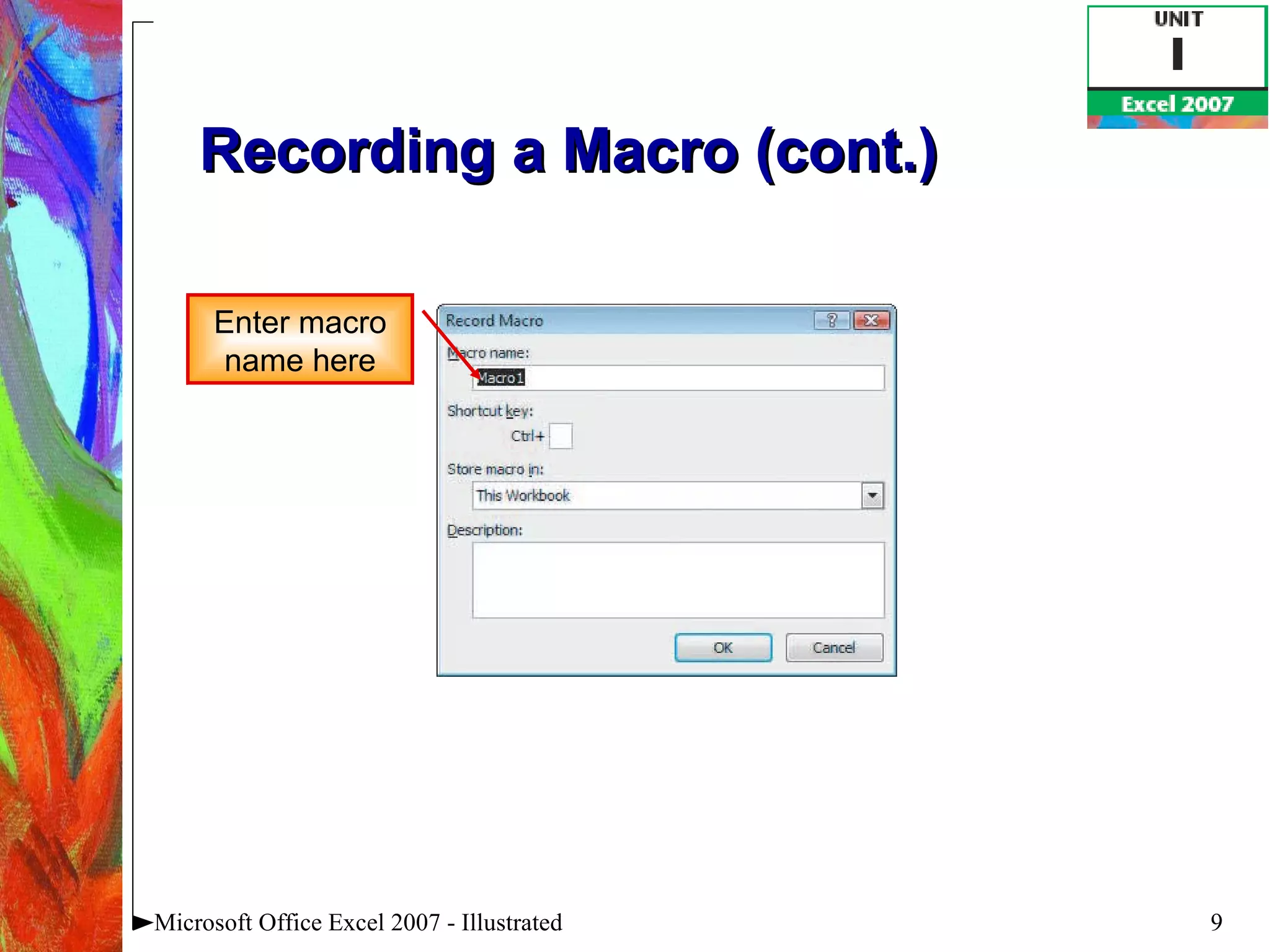
Recording a Macro Use the Excel Macro Recorder to create a macro Click the Record Macro button  Name the macro Enter the keystrokes and select the commands you want Click the Stop Recording button Each action you record is translated into program code Microsoft Office Excel 2007 - Illustrated
Recording a Macro (cont.) Microsoft Office Excel 2007 - Illustrated Enter macro name here
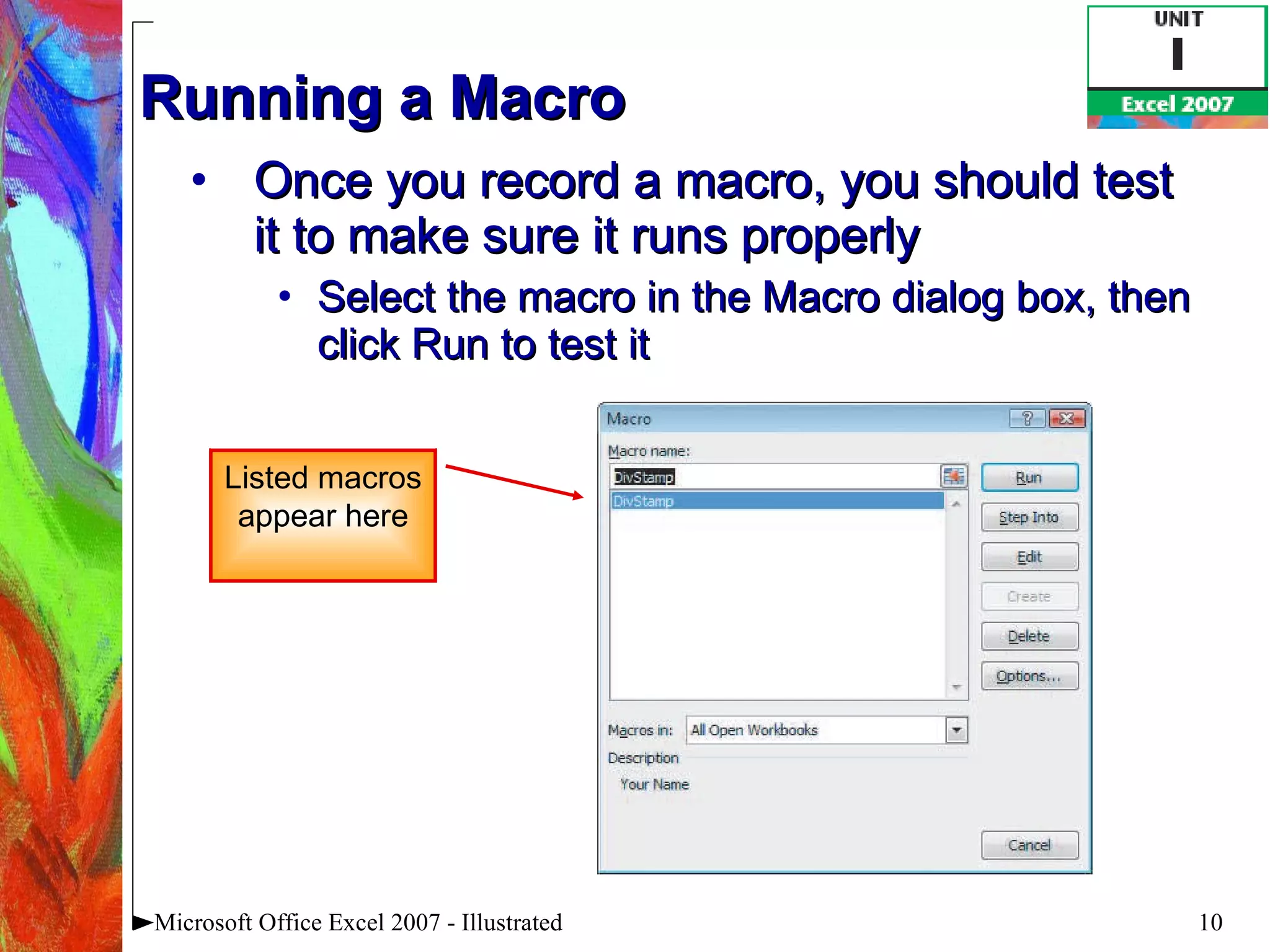
Running a Macro Once you record a macro, you should test it to make sure it runs properly Select the macro in the Macro dialog box, then click Run to test it Microsoft Office Excel 2007 - Illustrated Listed macros appear here
Editing a Macro The program instructions of a macro, called  program code , are automatically recorded in the Visual Basic for Applications (VBA) programming language Each macro is stored as a  module , or program code container attached to the workbook Edit a macro with the Visual Basic Editor Microsoft Office Excel 2007 - Illustrated
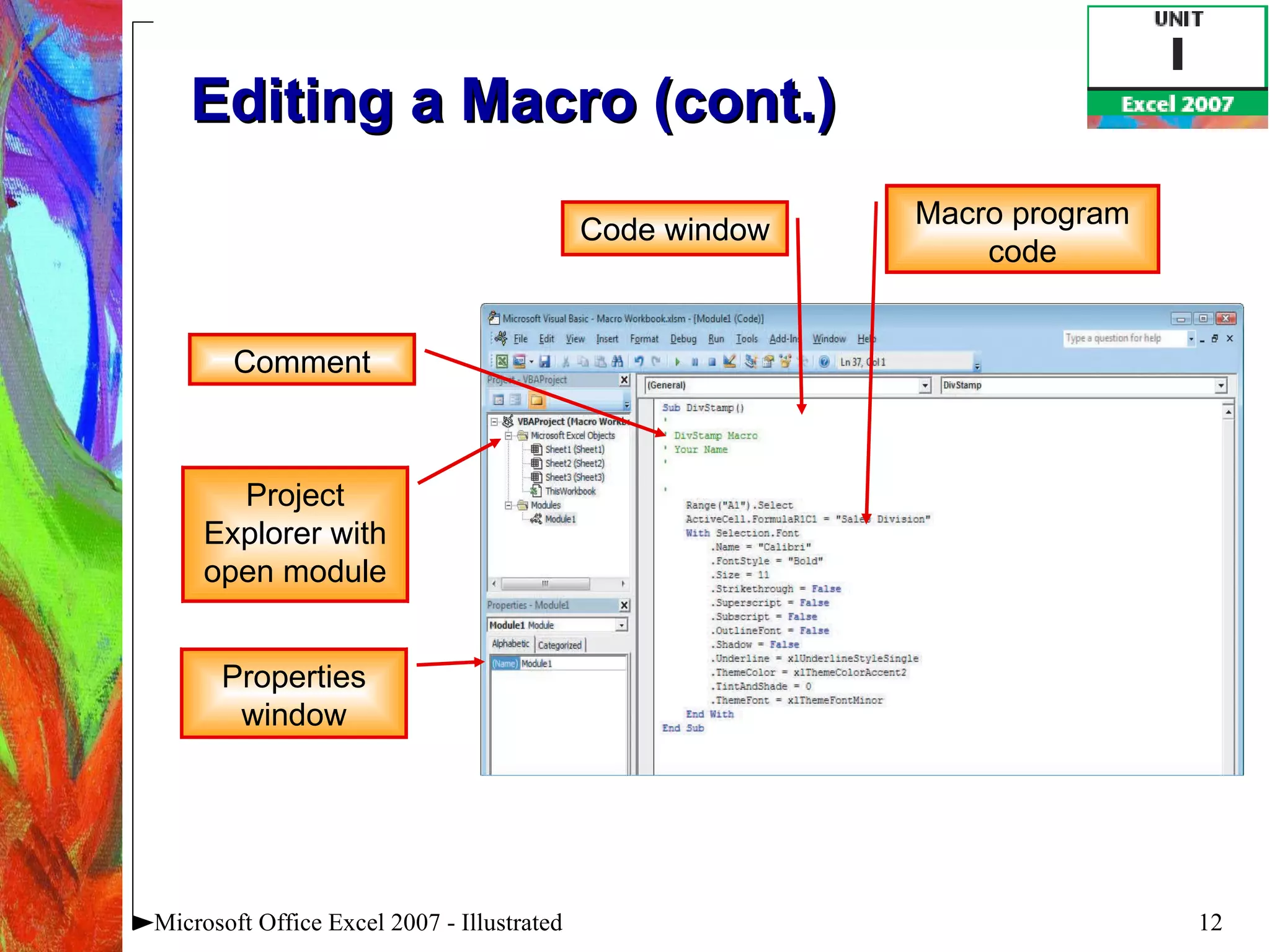
Editing a Macro (cont.)   Microsoft Office Excel 2007 - Illustrated Comment Code window Project Explorer with open module Properties window Macro program code
Editing a Macro (cont.)   Adding comments to Visual Basic code You can explain macro code by adding comments Comments are explanatory text added to the lines of code A comment must be preceded by an apostrophe Microsoft Office Excel 2007 - Illustrated
Using Shortcut Keys  with Macros Assign a shortcut key combination to run a macro Reduces the number of steps it takes to run a macro Assign a shortcut key combination in the Record Macro dialog box Microsoft Office Excel 2007 - Illustrated
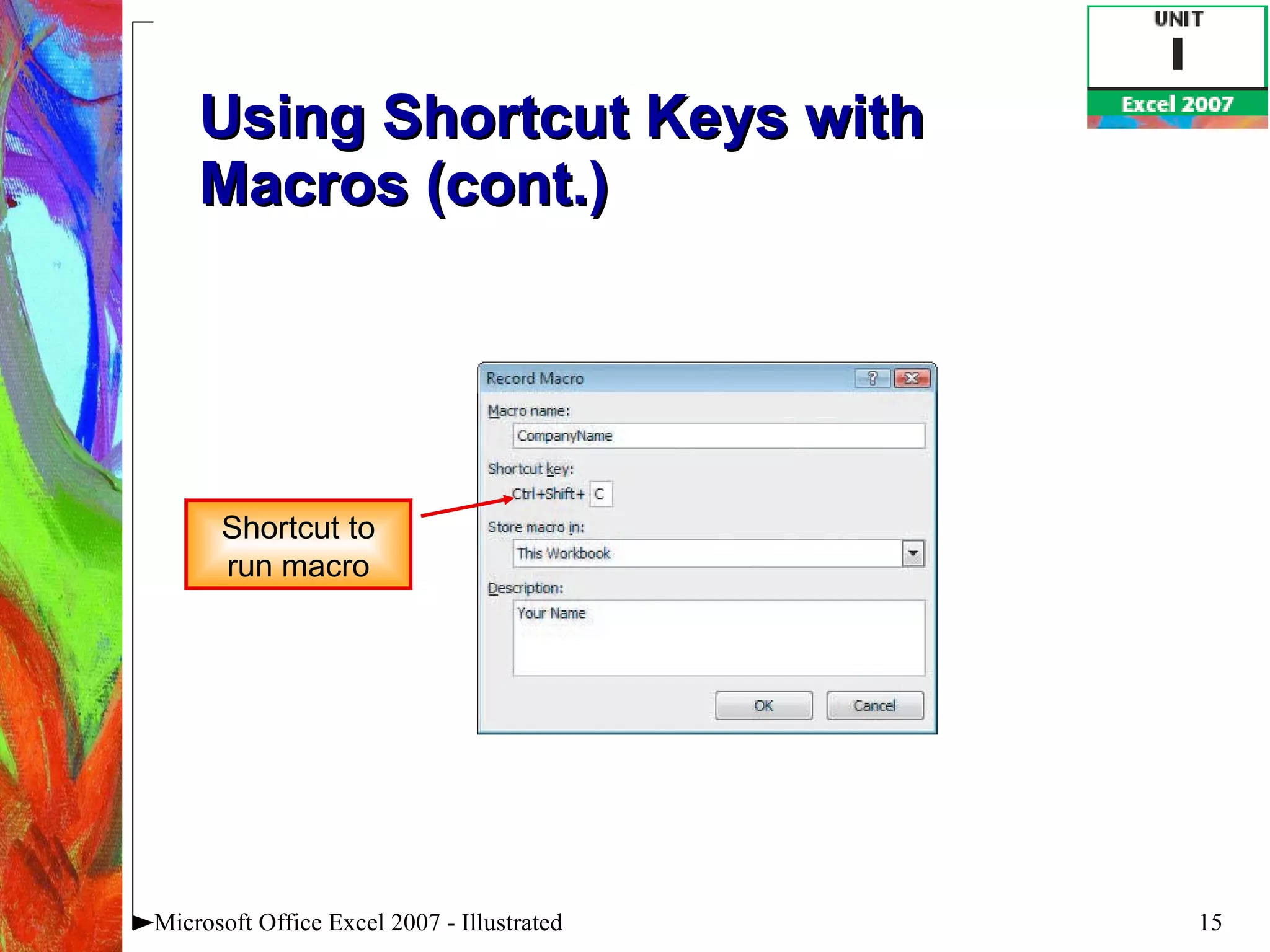
Using Shortcut Keys with Macros (cont.) Microsoft Office Excel 2007 - Illustrated Shortcut to run macro
Using the Personal  Macro Workbook Store commonly used macros in a  Personal Macro Workbook The Personal Macro Workbook is always available no matter which workbook is open Created the first time you store a macro Microsoft Office Excel 2007 - Illustrated
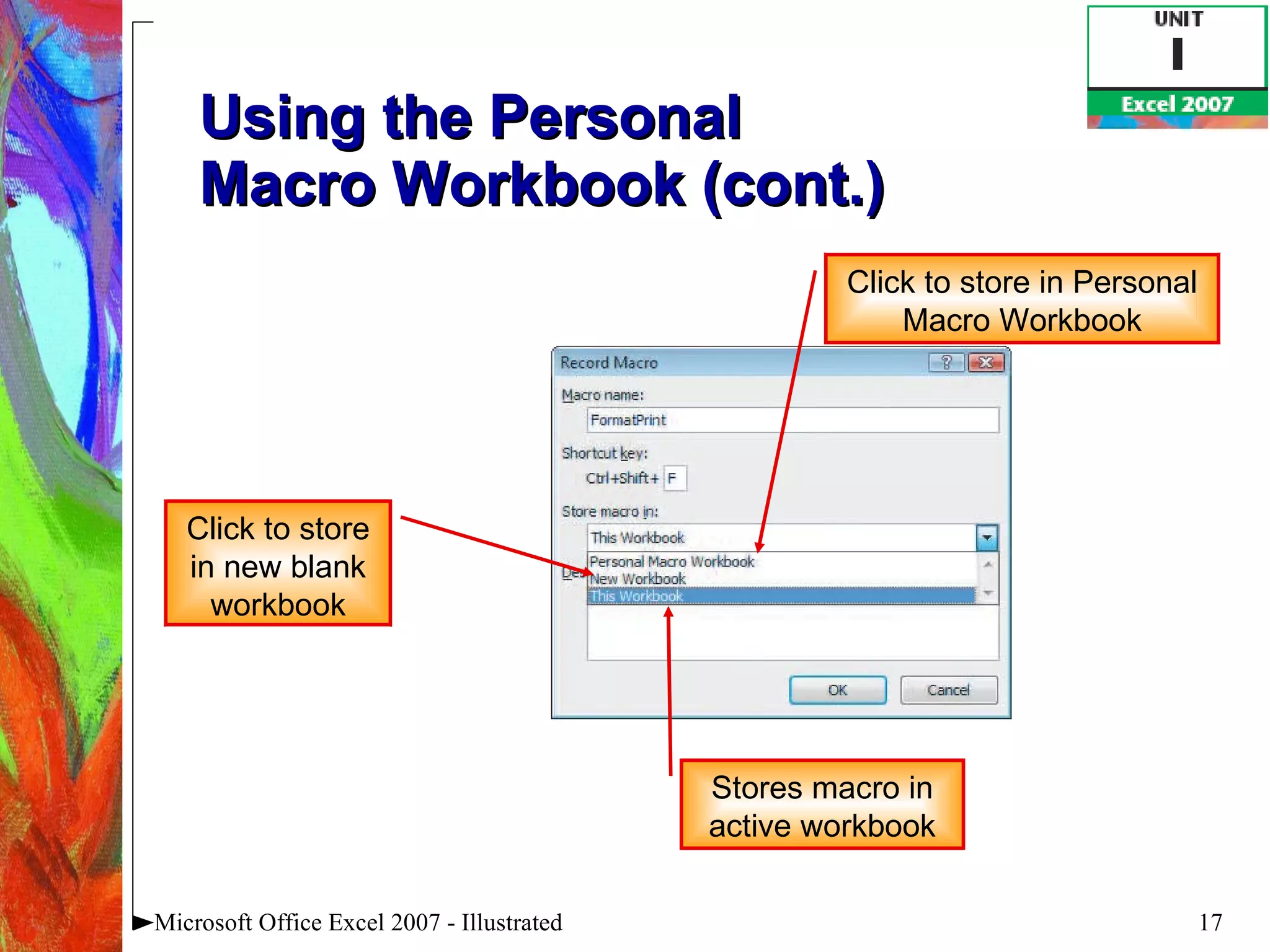
Using the Personal  Macro Workbook (cont.) Microsoft Office Excel 2007 - Illustrated Click to store in new blank workbook Stores macro in active workbook Click to store in Personal Macro Workbook
Using the Personal  Macro Workbook (cont.) Working with the Personal Macro Workbook By default the Personal Macro Workbook is hidden as a precautionary measure so you don’t accidentally delete anything from it Microsoft Office Excel 2007 - Illustrated
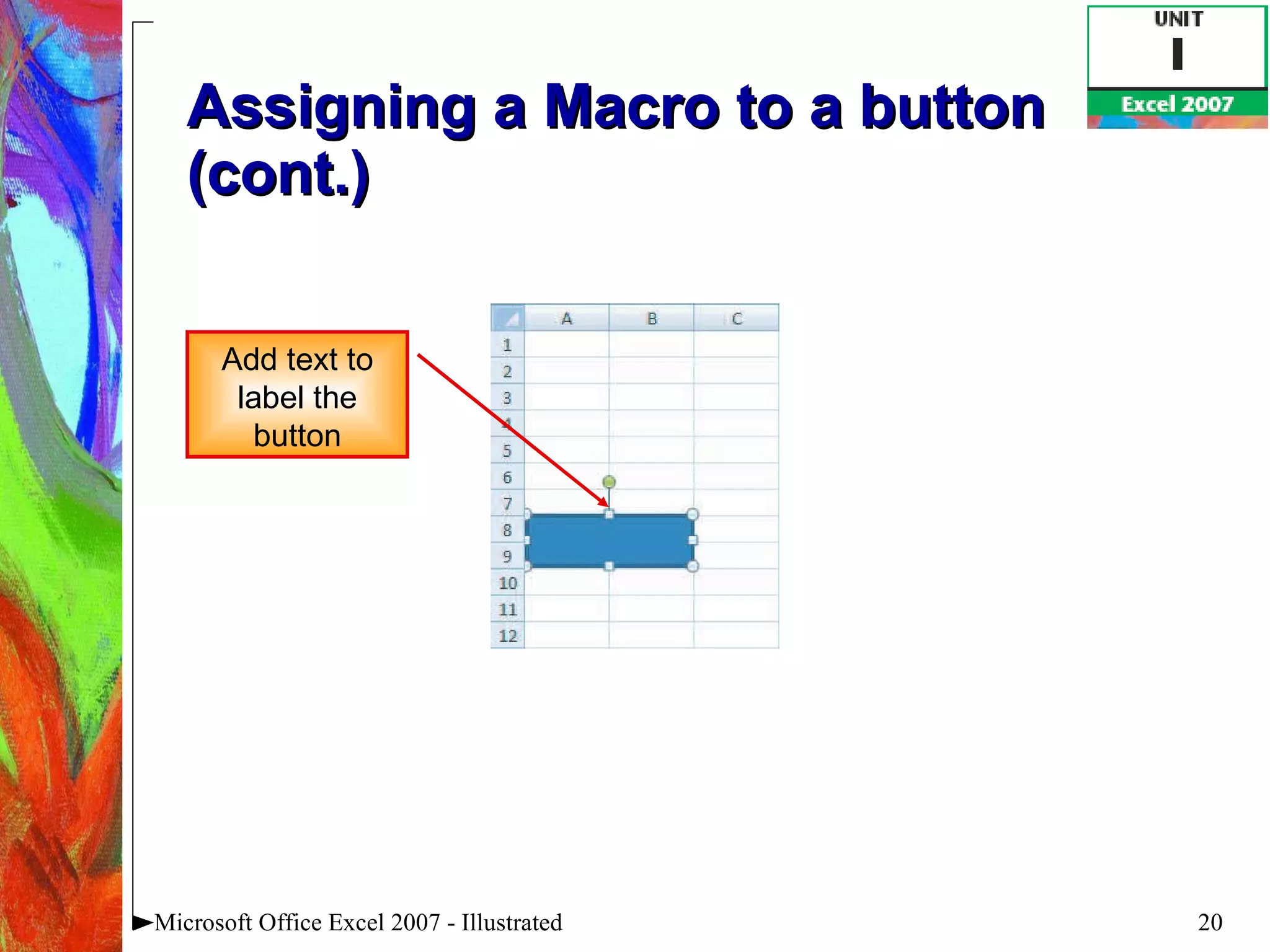
Assign a Macro to a button You can run a macro by assigning it to a button on your worksheet.  When you click the button the macro will run. Microsoft Office Excel 2007 - Illustrated
Assigning a Macro to a button (cont.) Microsoft Office Excel 2007 - Illustrated Add text to label the button
Summary Use Excel Macro Recorder to create a macro Run a macro to test it Use the Visual Basic Editor to edit a macro Use shortcut keys with macros Use the Personal Macro Workbook Microsoft Office Excel 2007 - Illustrated

Excel 2007 Unit I

  • 1.
    Microsoft Excel 2007 - Illustrated Automating Worksheet Tasks
  • 2.
    Plan a macroEnable a macro Record a macro Run a macro Edit a macro Objectives Microsoft Office Excel 2007 - Illustrated
  • 3.
    Use shortcut keyswith macros Use the Personal Macro Workbook Assign a macro to a button Objectives Microsoft Office Excel 2007 - Illustrated
  • 4.
    Unit Introduction A macro is a set of instructions that performs tasks in the order you specify Create macros to automate frequently performed tasks that require a series of steps Microsoft Office Excel 2007 - Illustrated
  • 5.
    Plan a MacroCreate macros for tasks that you perform on a regular basis To create a macro, you record the series of actions in a special programming language The sequence of actions is important, so a macro needs to be carefully planned Microsoft Office Excel 2007 - Illustrated
  • 6.
    Plan a Macro(cont.) Macro planning guidelines Assign the macro a name Write out the steps the macro will perform Decide how you will perform the actions Practice the steps you want Excel to record and write them down Decide where to locate the description of the macro and the macro itself Microsoft Office Excel 2007 - Illustrated
  • 7.
    Enable a Macro(cont.) Macro and viruses Macros can contain viruses which can damage your computer Always disable macros if you are not working with them. Microsoft Office Excel 2007 - Illustrated
  • 8.
    Recording a MacroUse the Excel Macro Recorder to create a macro Click the Record Macro button Name the macro Enter the keystrokes and select the commands you want Click the Stop Recording button Each action you record is translated into program code Microsoft Office Excel 2007 - Illustrated
  • 9.
    Recording a Macro(cont.) Microsoft Office Excel 2007 - Illustrated Enter macro name here
  • 10.
    Running a MacroOnce you record a macro, you should test it to make sure it runs properly Select the macro in the Macro dialog box, then click Run to test it Microsoft Office Excel 2007 - Illustrated Listed macros appear here
  • 11.
    Editing a MacroThe program instructions of a macro, called program code , are automatically recorded in the Visual Basic for Applications (VBA) programming language Each macro is stored as a module , or program code container attached to the workbook Edit a macro with the Visual Basic Editor Microsoft Office Excel 2007 - Illustrated
  • 12.
    Editing a Macro(cont.) Microsoft Office Excel 2007 - Illustrated Comment Code window Project Explorer with open module Properties window Macro program code
  • 13.
    Editing a Macro(cont.) Adding comments to Visual Basic code You can explain macro code by adding comments Comments are explanatory text added to the lines of code A comment must be preceded by an apostrophe Microsoft Office Excel 2007 - Illustrated
  • 14.
    Using Shortcut Keys with Macros Assign a shortcut key combination to run a macro Reduces the number of steps it takes to run a macro Assign a shortcut key combination in the Record Macro dialog box Microsoft Office Excel 2007 - Illustrated
  • 15.
    Using Shortcut Keyswith Macros (cont.) Microsoft Office Excel 2007 - Illustrated Shortcut to run macro
  • 16.
    Using the Personal Macro Workbook Store commonly used macros in a Personal Macro Workbook The Personal Macro Workbook is always available no matter which workbook is open Created the first time you store a macro Microsoft Office Excel 2007 - Illustrated
  • 17.
    Using the Personal Macro Workbook (cont.) Microsoft Office Excel 2007 - Illustrated Click to store in new blank workbook Stores macro in active workbook Click to store in Personal Macro Workbook
  • 18.
    Using the Personal Macro Workbook (cont.) Working with the Personal Macro Workbook By default the Personal Macro Workbook is hidden as a precautionary measure so you don’t accidentally delete anything from it Microsoft Office Excel 2007 - Illustrated
  • 19.
    Assign a Macroto a button You can run a macro by assigning it to a button on your worksheet. When you click the button the macro will run. Microsoft Office Excel 2007 - Illustrated
  • 20.
    Assigning a Macroto a button (cont.) Microsoft Office Excel 2007 - Illustrated Add text to label the button
  • 21.
    Summary Use ExcelMacro Recorder to create a macro Run a macro to test it Use the Visual Basic Editor to edit a macro Use shortcut keys with macros Use the Personal Macro Workbook Microsoft Office Excel 2007 - Illustrated