Microsoft Office 2007 - Illustrated  Using Formulas Analyzing Data
Format data using text functions Sum a data range of based on conditions Consolidate data using a formula Check formulas for errors Objectives Microsoft Office 2007 - Illustrated
Construct formulas using named ranges Build a logical formula with the IF function Build a logical formula with the AND function Calculate payments with the PMT function Objectives Microsoft Office 2007 - Illustrated
Formatting Data Using Text Functions  Conversion tools and text functions automatically format  a cell range Convert Text to Columns breaks data fields in one column into separate columns Data elements should be separated by a  delimiter  or separator, such as a space, comma, or semicolon.  PROPER capitalizes first letter in a string of text Microsoft Office 2007 - Illustrated
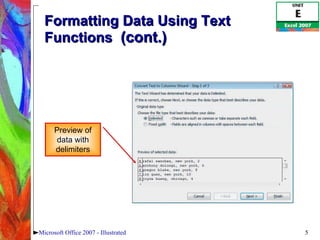
Formatting Data Using Text Functions  (cont.) Microsoft Office 2007 - Illustrated Preview of data with delimiters
Formatting Data Using Text Functions  (cont.) CONCATENATE function joins two or more strings into one text string.  You must use quotation marks around text.  Microsoft Office 2007 - Illustrated
Sum a Data Range Based on Conditions SUMIF function Conditionally totals cells in a sum range that meet given criteria.  COUNTIF function Counts cells in a range based on a specified condition. AVERAGEIF function averages cells in a range based on a specified condition. Microsoft Office 2007 - Illustrated
Sum a Data Range Based on Conditions (cont.) SUMIF(range, criteria, [sum_range]) Microsoft Office 2007 - Illustrated The range where the cells that meet the condition will be totaled The condition that must be satisfied in the range The range the function searches Format of SUMIF Function
Consolidate Data Using a Formula Consolidate: Summarizes similar data that exists in different sheets or workbooks.  Use cell references to the various sheets on a consolidation, or summary, sheet.  These references effectively create another dimension in the workbook and are called  3-D references.   Microsoft Office 2007 - Illustrated
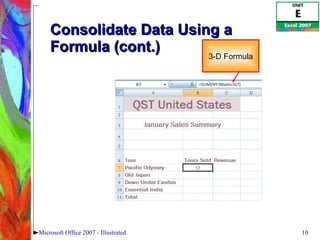
Consolidate Data Using a Formula (cont.) Microsoft Office 2007 - Illustrated 3-D Formula
Check Formulas for Errors IFERROR function Simplifies the error-checking process for your worksheets.  Displays a message or value that you specify, rather than the one automatically generated by Excel, if there is an error in a formula. Microsoft Office 2007 - Illustrated
Checking Formulas for Errors (cont.) Correcting circular references A cell with a circular reference contains a formula that refers to its own cell location If you accidentally enter a formula with a circular reference, a warning box alerts you to the problem Microsoft Office 2007 - Illustrated
Constructing Formulas Using Named Ranges Assigning names to cells and ranges can reduce errors and make the worksheet easier to understand Names used in formulas become absolute cell references by default Names can use uppercase or lowercase letters as well as digits After a cell or range is named, you can use the name on any sheet The name moves with the cell or range Microsoft Office 2007 - Illustrated
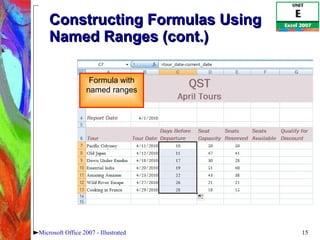
Constructing Formulas Using Named Ranges (cont.) Microsoft Office 2007 - Illustrated Formula with named ranges
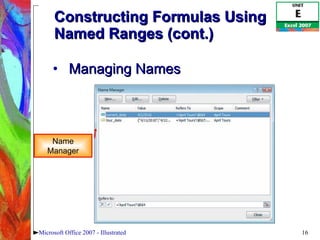
Constructing Formulas Using Named Ranges (cont.) Managing Names Microsoft Office 2007 - Illustrated Name Manager
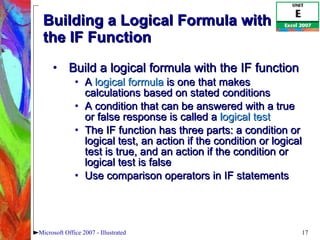
Building a Logical Formula with the IF Function Build a logical formula with the IF function A  logical formula  is one that makes calculations based on stated conditions A condition that can be answered with a true or false response is called a  logical test The IF function has three parts: a condition or logical test, an action if the condition or logical test is true, and an action if the condition or logical test is false Use comparison operators in IF statements Microsoft Office 2007 - Illustrated
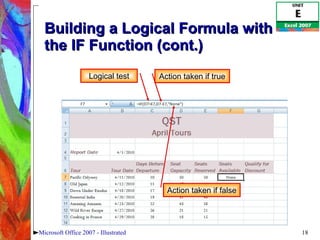
Building a Logical Formula with the IF Function (cont.) Microsoft Office 2007 - Illustrated Logical test Action taken if true Action taken if false
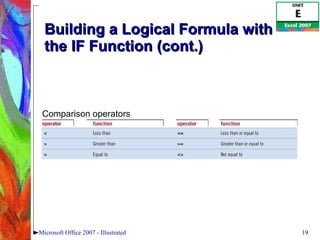
Building a Logical Formula with the IF Function (cont.) Microsoft Office 2007 - Illustrated Comparison operators
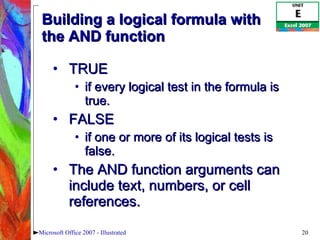
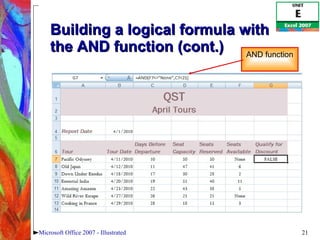
Building a logical formula with the AND function TRUE  if every logical test in the formula is true.  FALSE  if one or more of its logical tests is false.  The AND function arguments can include text, numbers, or cell references.  Microsoft Office 2007 - Illustrated
Building a logical formula with the AND function (cont.) Microsoft Office 2007 - Illustrated AND function
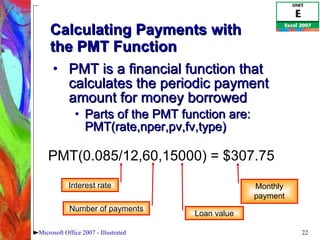
Calculating Payments with  the PMT Function PMT is a financial function that calculates the periodic payment amount for money borrowed Parts of the PMT function are: PMT(rate,nper,pv,fv,type) Microsoft Office 2007 - Illustrated Interest rate Number of payments Loan value Monthly payment PMT(0.085/12,60,15000) = $307.75
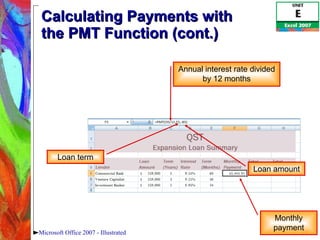
Calculating Payments with  the PMT Function (cont.) Microsoft Office 2007 - Illustrated Annual interest rate divided by 12 months Loan term Loan amount Monthly payment
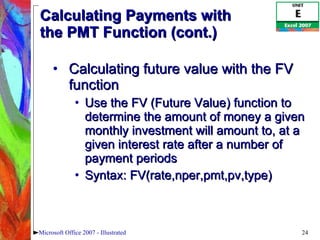
Calculating Payments with  the PMT Function (cont.) Calculating future value with the FV function Use the FV (Future Value) function to determine the amount of money a given monthly investment will amount to, at a given interest rate after a number of payment periods Syntax: FV(rate,nper,pmt,pv,type) Microsoft Office 2007 - Illustrated
Summary Use text functions to format data Check formulas for errors Use names in formulas Use dates in calculations Build logical formulas using IF and AND functions Microsoft Office 2007 - Illustrated

Excel 2007 Unit E

  • 1.
    Microsoft Office 2007- Illustrated Using Formulas Analyzing Data
  • 2.
    Format data usingtext functions Sum a data range of based on conditions Consolidate data using a formula Check formulas for errors Objectives Microsoft Office 2007 - Illustrated
  • 3.
    Construct formulas usingnamed ranges Build a logical formula with the IF function Build a logical formula with the AND function Calculate payments with the PMT function Objectives Microsoft Office 2007 - Illustrated
  • 4.
    Formatting Data UsingText Functions Conversion tools and text functions automatically format a cell range Convert Text to Columns breaks data fields in one column into separate columns Data elements should be separated by a delimiter or separator, such as a space, comma, or semicolon. PROPER capitalizes first letter in a string of text Microsoft Office 2007 - Illustrated
  • 5.
    Formatting Data UsingText Functions (cont.) Microsoft Office 2007 - Illustrated Preview of data with delimiters
  • 6.
    Formatting Data UsingText Functions (cont.) CONCATENATE function joins two or more strings into one text string. You must use quotation marks around text. Microsoft Office 2007 - Illustrated
  • 7.
    Sum a DataRange Based on Conditions SUMIF function Conditionally totals cells in a sum range that meet given criteria. COUNTIF function Counts cells in a range based on a specified condition. AVERAGEIF function averages cells in a range based on a specified condition. Microsoft Office 2007 - Illustrated
  • 8.
    Sum a DataRange Based on Conditions (cont.) SUMIF(range, criteria, [sum_range]) Microsoft Office 2007 - Illustrated The range where the cells that meet the condition will be totaled The condition that must be satisfied in the range The range the function searches Format of SUMIF Function
  • 9.
    Consolidate Data Usinga Formula Consolidate: Summarizes similar data that exists in different sheets or workbooks. Use cell references to the various sheets on a consolidation, or summary, sheet. These references effectively create another dimension in the workbook and are called 3-D references. Microsoft Office 2007 - Illustrated
  • 10.
    Consolidate Data Usinga Formula (cont.) Microsoft Office 2007 - Illustrated 3-D Formula
  • 11.
    Check Formulas forErrors IFERROR function Simplifies the error-checking process for your worksheets. Displays a message or value that you specify, rather than the one automatically generated by Excel, if there is an error in a formula. Microsoft Office 2007 - Illustrated
  • 12.
    Checking Formulas forErrors (cont.) Correcting circular references A cell with a circular reference contains a formula that refers to its own cell location If you accidentally enter a formula with a circular reference, a warning box alerts you to the problem Microsoft Office 2007 - Illustrated
  • 13.
    Checking Formulas forErrors (cont.) Correcting circular references A cell with a circular reference contains a formula that refers to its own cell location If you accidentally enter a formula with a circular reference, a warning box alerts you to the problem Microsoft Office 2007 - Illustrated
  • 14.
    Constructing Formulas UsingNamed Ranges Assigning names to cells and ranges can reduce errors and make the worksheet easier to understand Names used in formulas become absolute cell references by default Names can use uppercase or lowercase letters as well as digits After a cell or range is named, you can use the name on any sheet The name moves with the cell or range Microsoft Office 2007 - Illustrated
  • 15.
    Constructing Formulas UsingNamed Ranges (cont.) Microsoft Office 2007 - Illustrated Formula with named ranges
  • 16.
    Constructing Formulas UsingNamed Ranges (cont.) Managing Names Microsoft Office 2007 - Illustrated Name Manager
  • 17.
    Building a LogicalFormula with the IF Function Build a logical formula with the IF function A logical formula is one that makes calculations based on stated conditions A condition that can be answered with a true or false response is called a logical test The IF function has three parts: a condition or logical test, an action if the condition or logical test is true, and an action if the condition or logical test is false Use comparison operators in IF statements Microsoft Office 2007 - Illustrated
  • 18.
    Building a LogicalFormula with the IF Function (cont.) Microsoft Office 2007 - Illustrated Logical test Action taken if true Action taken if false
  • 19.
    Building a LogicalFormula with the IF Function (cont.) Microsoft Office 2007 - Illustrated Comparison operators
  • 20.
    Building a logicalformula with the AND function TRUE if every logical test in the formula is true. FALSE if one or more of its logical tests is false. The AND function arguments can include text, numbers, or cell references. Microsoft Office 2007 - Illustrated
  • 21.
    Building a logicalformula with the AND function (cont.) Microsoft Office 2007 - Illustrated AND function
  • 22.
    Calculating Payments with the PMT Function PMT is a financial function that calculates the periodic payment amount for money borrowed Parts of the PMT function are: PMT(rate,nper,pv,fv,type) Microsoft Office 2007 - Illustrated Interest rate Number of payments Loan value Monthly payment PMT(0.085/12,60,15000) = $307.75
  • 23.
    Calculating Payments with the PMT Function (cont.) Microsoft Office 2007 - Illustrated Annual interest rate divided by 12 months Loan term Loan amount Monthly payment
  • 24.
    Calculating Payments with the PMT Function (cont.) Calculating future value with the FV function Use the FV (Future Value) function to determine the amount of money a given monthly investment will amount to, at a given interest rate after a number of payment periods Syntax: FV(rate,nper,pmt,pv,type) Microsoft Office 2007 - Illustrated
  • 25.
    Summary Use textfunctions to format data Check formulas for errors Use names in formulas Use dates in calculations Build logical formulas using IF and AND functions Microsoft Office 2007 - Illustrated