WORKING WITH MACROS
Session Taught by Jennifer Garbett and Zahra Khushbakht
MACROS:
AN EXTREMELY USEFUL TOOL
Macros can make your work more efficient:
 Apply style and formatting.
 Manipulate data and text.
 Communicate with data sources (database, text files, etc.).
 Create entirely new documents.
 Any combination, in any order, of any of the above.
 Essentially… it can make your work easier and save you time! 
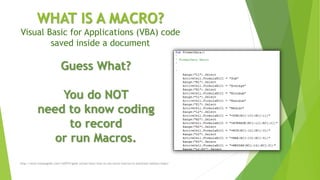
WHAT IS A MACRO?
Visual Basic for Applications (VBA) code
saved inside a document
http://www.howtogeek.com/162975/geek-school-learn-how-to-use-excel-macros-to-automate-tedious-tasks/
Guess What?
You do NOT
need to know coding
to record
or run Macros.
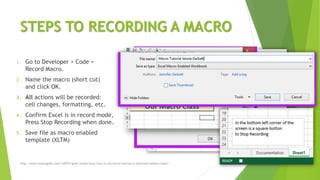
STEPS TO RECORDING A MACRO
1. Go to Developer > Code >
Record Macro.
2. Name the macro (short cut)
and click OK.
3. All actions will be recorded:
cell changes, formatting, etc.
4. Confirm Excel is in record mode,
Press Stop Recording when done.
5. Save file as macro enabled
template (XLTM)
http://www.howtogeek.com/162975/geek-school-learn-how-to-use-excel-macros-to-automate-tedious-tasks/
HOW TO RUN A MACRO
1. Go to Developer > Code > Macros >
Select Macro from List Names > Run.
2. OR You can use the short cut that
you chose to name your Macro with.
Example: [Ctrl] [Shift] [K]
3. You should see the results of your
Macro on the worksheet
TIPS AND TRICKS
 Don’t record one giant macro
 Record macros in small steps:
Easier to edit and manage
 Then include all macros together
WHY?
 If one part of the macro doesn’t
work, or needs to be updated…
 Just re-record that one part
 Easy Peasy!
 Press [Alt] [ 8] to view your Macros
 You can make a shortcut key to
easily access your Macro
NOW TRY IT YOURSELF…
Request your free Macro exercise: email Jennifer
 smiles4jenn@gmail.com
For extra practice:
 Try a simple skill-building exercise
 Created with step by step instructions
 Designed to successfully guide you through
 Feedback and support are available through
email or LinkedIn mail
ADDITIONAL RESOURCES
 http://chandoo.org/wp/2014/10/09/cp022-whats-a-macro-introduction-to-
excel-vba-macros-automation/
 http://www.howtogeek.com/162975/geek-school-learn-how-to-use-excel-
macros-to-automate-tedious-tasks/
Helpful Videos:
 https://www.youtube.com/watch?v=8HX2l5xeMjc
Helpful Websites for reviewing Excel Macros:
THANKS FOR JOINING US!

Working with Excel Macros

  • 1.
    WORKING WITH MACROS SessionTaught by Jennifer Garbett and Zahra Khushbakht
  • 2.
    MACROS: AN EXTREMELY USEFULTOOL Macros can make your work more efficient:  Apply style and formatting.  Manipulate data and text.  Communicate with data sources (database, text files, etc.).  Create entirely new documents.  Any combination, in any order, of any of the above.  Essentially… it can make your work easier and save you time! 
  • 3.
    WHAT IS AMACRO? Visual Basic for Applications (VBA) code saved inside a document http://www.howtogeek.com/162975/geek-school-learn-how-to-use-excel-macros-to-automate-tedious-tasks/ Guess What? You do NOT need to know coding to record or run Macros.
  • 4.
    STEPS TO RECORDINGA MACRO 1. Go to Developer > Code > Record Macro. 2. Name the macro (short cut) and click OK. 3. All actions will be recorded: cell changes, formatting, etc. 4. Confirm Excel is in record mode, Press Stop Recording when done. 5. Save file as macro enabled template (XLTM) http://www.howtogeek.com/162975/geek-school-learn-how-to-use-excel-macros-to-automate-tedious-tasks/
  • 5.
    HOW TO RUNA MACRO 1. Go to Developer > Code > Macros > Select Macro from List Names > Run. 2. OR You can use the short cut that you chose to name your Macro with. Example: [Ctrl] [Shift] [K] 3. You should see the results of your Macro on the worksheet
  • 6.
    TIPS AND TRICKS Don’t record one giant macro  Record macros in small steps: Easier to edit and manage  Then include all macros together WHY?  If one part of the macro doesn’t work, or needs to be updated…  Just re-record that one part  Easy Peasy!  Press [Alt] [ 8] to view your Macros  You can make a shortcut key to easily access your Macro
  • 7.
    NOW TRY ITYOURSELF… Request your free Macro exercise: email Jennifer  smiles4jenn@gmail.com For extra practice:  Try a simple skill-building exercise  Created with step by step instructions  Designed to successfully guide you through  Feedback and support are available through email or LinkedIn mail
  • 8.
    ADDITIONAL RESOURCES  http://chandoo.org/wp/2014/10/09/cp022-whats-a-macro-introduction-to- excel-vba-macros-automation/ http://www.howtogeek.com/162975/geek-school-learn-how-to-use-excel- macros-to-automate-tedious-tasks/ Helpful Videos:  https://www.youtube.com/watch?v=8HX2l5xeMjc Helpful Websites for reviewing Excel Macros:
  • 9.