Events and Listeners
Ilio Catallo, Eleonora Ciceri – Politecnico di Milano
ilio.catallo@polimi.it, eleonora.ciceri@polimi.it
The starting point
Wrap-up and TakeNotes v2 basic implementation
2
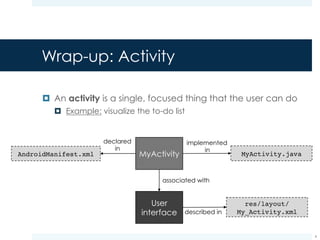
Wrap-up: Activity
¤ An activity is a single, focused thing that the user can do
¤ Example: visualize the to-do list
3
declared
in
implemented
in
described in
associated with
Wrap-up: View
¤ The view is the basic building block for user interface
components
¤ A view can be seen as a widget which has an
appearance on the screen
¤ Examples: buttons, textboxes
¤ A view is responsible for:
¤ Drawing a piece of user interface
¤ Handling the events performed by the user (on itself)
4
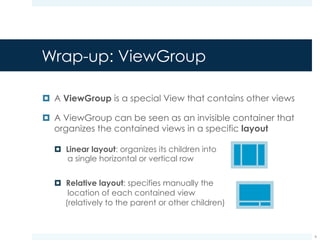
Wrap-up: ViewGroup
¤ A ViewGroup is a special View that contains other views
¤ A ViewGroup can be seen as an invisible container that
organizes the contained views in a specific layout
¤ Linear layout: organizes its children into
a single horizontal or vertical row
¤ Relative layout: specifies manually the
location of each contained view
(relatively to the parent or other children)
5
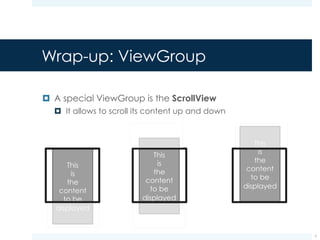
Wrap-up: ViewGroup
¤ A special ViewGroup is the ScrollView
¤ It allows to scroll its content up and down
6
The starting point:
ToDoListActivity
7
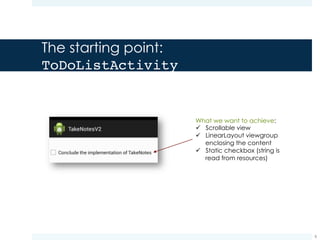
What we want to achieve:
ü Scrollable view
ü LinearLayout viewgroup
enclosing the content
ü Static checkbox (string is
read from resources)
The starting point: User interface
¤ We need to define the user interface elements:
¤ Scrollable view
¤ LinearLayout viewgroup
¤ Static checkbox
¤ The definition of these elements is located in:
8
The starting point: User interface
¤ We need to define the user interface elements:
¤ Scrollable view
¤ LinearLayout viewgroup
¤ Static checkbox
¤ The definition of these elements is located in:
res/layout/activity_to_do_list.xml
(description of the activity layout)
9
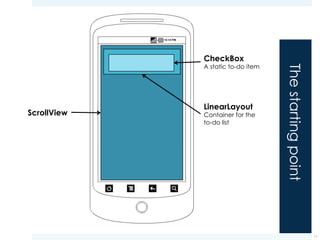
Thestartingpoint
10
ScrollView
LinearLayout
Container for the
to-do list
CheckBox
A static to-do item
The starting point:
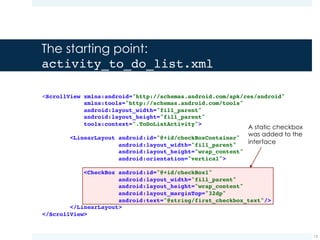
activity_to_do_list.xml
11
<ScrollView xmlns:android="http://schemas.android.com/apk/res/android"
xmlns:tools="http://schemas.android.com/tools"
android:layout_width="fill_parent"
android:layout_height="fill_parent"
tools:context=".ToDoListActivity">
<LinearLayout android:id="@+id/checkBoxContainer"
android:layout_width="fill_parent"
android:layout_height="wrap_content"
android:orientation="vertical">
<CheckBox android:id="@+id/checkBox1"
android:layout_width="fill_parent"
android:layout_height="wrap_content"
android:layout_marginTop="32dp"
android:text="@string/first_checkbox_text"/>
</LinearLayout>
</ScrollView>
A static checkbox
was added to the
interface
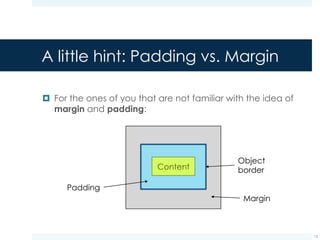
A little hint: Padding vs. Margin
¤ For those of you that are not familiar with the idea of
margin and padding:
12
Object
border
Margin
Padding
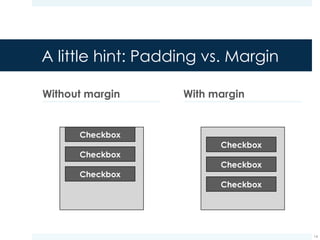
A little hint: Padding vs. Margin
Without margin With margin
13
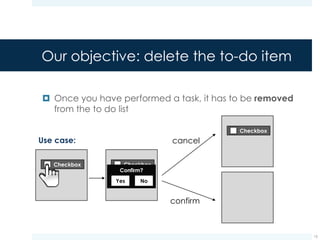
Our objective: delete the to-do item
¤ Once you have performed a task, it has to be removed
from the to do list
14
cancel
confirm
Use case:
Handling user interaction
15
Events
¤ User interacts with the interface so as to execute specific
tasks
¤ Every action the user performs while interacting with the
user interface triggers an event
¤ Examples: click, hardware key press, touch
¤ The application captures the event and consequently
adopts a specific behavior in response of that event
¤ A note for the Web developers: the approach is totally
similar to the one that you adopt when using JavaScript
16
Handling events
¤ Each action is performed on a specific element of the
user interface
¤ Example: the action of clicking on a button
¤ Hence, each View is responsible for handling those
events resulting from the interaction between the user
and the View itself
¤ Example: the button, when clicked, starts the procedure for
handling the event
17
Handling events
¤ Two possible ways of handling events:
¤ Callback methods: each View class provides public
methods meant to handle user interaction, e.g.,
onTouchEvent()
¤ Event listeners: the View delegates the event handling
responsibility to dedicated event listeners
18
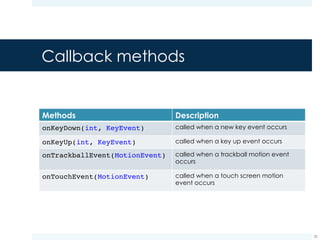
Callback methods
Methods Description
onKeyDown(int, KeyEvent) called when a new key event occurs
onKeyUp(int, KeyEvent) called when a key up event occurs
onTrackballEvent(MotionEvent) called when a trackball motion event
occurs
onTouchEvent(MotionEvent) called when a touch screen motion
event occurs
19
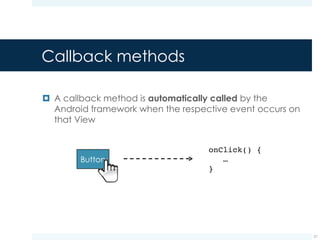
Callback methods
¤ A callback method is automatically called by the
Android framework when the related event occurs on
that View
20
onClick() {
…
}
Callback methods
¤ Problem: to use the callback method approach, you
have to extend the View class of interest and override
those methods
¤ It may be the case that you want to extend a View class
for some reason
¤ Example: perhaps you want to extend the Button class to
make something fancier
21
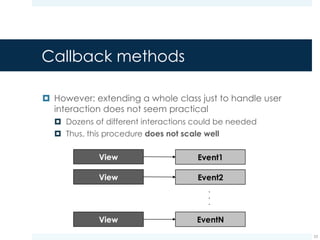
Callback methods
¤ However, extending a whole class just to handle user
interaction does not seem practical
¤ Dozens of different interactions could be needed
¤ Thus, this procedure does not scale well
22
.
.
.
Event listeners
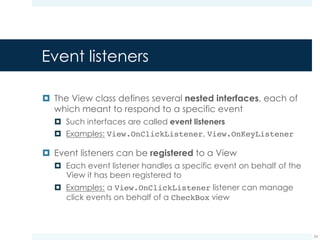
¤ The View class defines several nested interfaces, each of
which meant to respond to a specific event
¤ Such interfaces are called event listeners
¤ Examples: View.OnClickListener, View.OnKeyListener
¤ Event listeners can be registered to a View
¤ Each event listener handles a specific event on behalf of the
View it has been registered to
¤ Examples: a View.OnClickListenerlistener can manage
click events on behalf of a CheckBox view
23
Event listeners
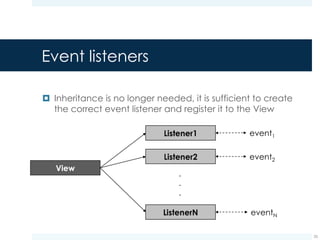
¤ Inheritance is no longer needed, it is sufficient to create
the correct event listener and register it to the View
24
.
.
.
event1
event2
eventN
Event listeners
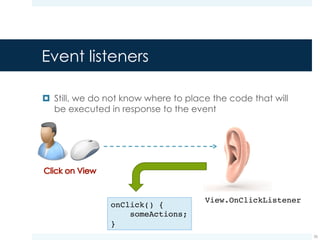
¤ Still, we do not know where to place the code that will
be executed in response to the event
25
View.OnClickListener
onClick() {
someActions;
}
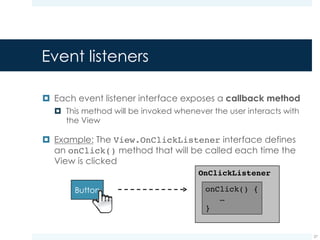
¤ Each event listener interface exposes a callback method
¤ This method will be invoked whenever the user interacts with
the View
¤ Example: The View.OnClickListener interface defines
an onClick() method that will be called each time the
View is clicked
Event listeners
26
onClick() {
…
}
Handling events with event listeners
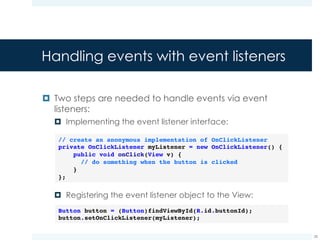
¤ Two steps are needed to handle events via event
listeners:
¤ Implementing the event listener interface:
¤ Registering the event listener object to the View:
27
// create an anonymous implementation of OnClickListener
private OnClickListener myListener = new OnClickListener() {
public void onClick(View v) {
// do something when the button is clicked
}
};
Button button = (Button)findViewById(R.id.buttonId);
button.setOnClickListener(myListener);
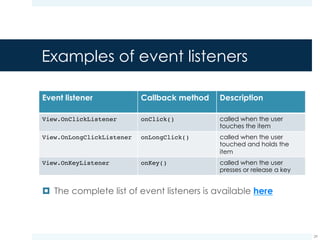
Examples of event listeners
Event listener Callback method Description
View.OnClickListener onClick() called when the user
touches the item
View.OnLongClickListener onLongClick() called when the user
touched and holds the
item
View.OnKeyListener onKey() called when the user
presses or release a key
28
¤ The complete list of event listeners is available here
Alternative event handling
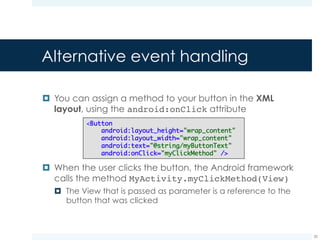
¤ You can assign a method to your button in the XML
layout, using the android:onClick attribute
¤ When the user clicks the button, the Android framework
calls the method MyActivity.myClickMethod(View)
¤ The View that is passed as parameter is a reference to the
button that was clicked
29
<Button
android:layout_height="wrap_content"
android:layout_width="wrap_content"
android:text="@string/myButtonText"
android:onClick="myClickMethod" />
Alternative event handling
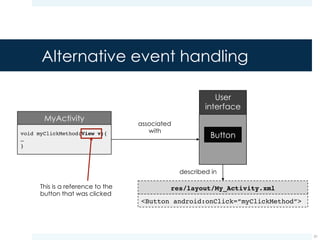
30
associated
with
described in
This is a reference to the
button that was clicked
TakeNotes v2: delete a checkbox
31
TakeNotes v2: create onClick
listeners
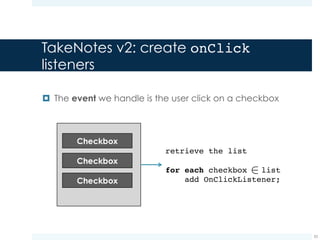
¤ The event we handle is the user click on a checkbox
32
retrieve the list
for each checkbox list
add OnClickListener;
2
TakeNotes v2: create onClick
listeners
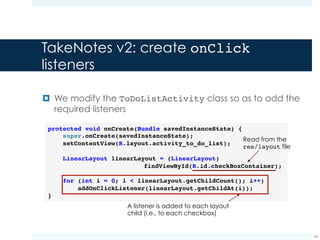
¤ We modify the ToDoListActivity class so as to add the
required listeners
33
protected void onCreate(Bundle savedInstanceState) {
super.onCreate(savedInstanceState);
setContentView(R.layout.activity_to_do_list);
LinearLayout linearLayout = (LinearLayout)
findViewById(R.id.checkBoxContainer);
for (int i = 0; i < linearLayout.getChildCount(); i++)
addOnClickListener(linearLayout.getChildAt(i));
}
A listener is added to each layout
child (i.e., to each checkbox)
Read from the
res/layout file
TakeNotes v2: create onClick
listeners
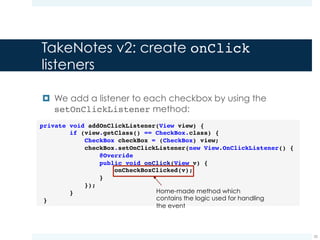
¤ We add a listener to each checkbox by using the
setOnClickListener method:
34
private void addOnClickListener(View view) {
if (view.getClass() == CheckBox.class) {
CheckBox checkBox = (CheckBox) view;
checkBox.setOnClickListener(new View.OnClickListener() {
@Override
public void onClick(View v) {
onCheckBoxClicked(v);
}
});
}
}
Home-made method which
contains the logic used for handling
the event
TakeNotes v2: how to handle the
click?
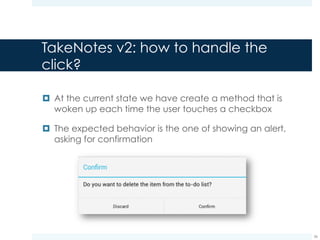
¤ At the current state we have create a method that is
woken up each time the user touches a checkbox
¤ The expected behavior is the one of showing an alert,
asking for confirmation
35
TakeNotes v2: how to handle the
click?
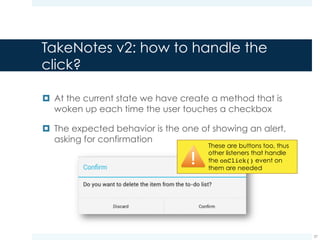
¤ At the current state we have create a method that is
woken up each time the user touches a checkbox
¤ The expected behavior is the one of showing an alert,
asking for confirmation
36
These are buttons too, thus
other listeners that handle
the onClick() event on
them are needed
ConfirmDialogListener for
confirming an action
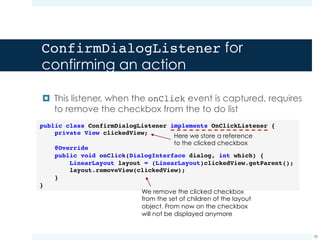
¤ This listener, when the onClick event is captured,
requires to remove the checkbox from the to do list
37
public class ConfirmDialogListener implements OnClickListener {
private View clickedView;
@Override
public void onClick(DialogInterface dialog, int which) {
LinearLayout layout = (LinearLayout)clickedView.getParent();
layout.removeView(clickedView);
}
}
Here we store a reference
to the clicked checkbox
We remove the clicked checkbox
from the set of children of the layout
object. From now on the checkbox
will not be displayed anymore
ConfirmDialogListener for
confirming an action
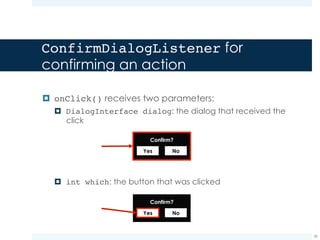
¤ onClick() receives two parameters:
¤ DialogInterface dialog: the dialog that received the
click
¤ int which: the button that was clicked
38
DiscardDialogListener for
canceling the action
¤ This listener, when the onClick event is captured, restores
the check status on the clicked checkbox
39
public class DiscardDialogListener implements OnClickListener {
private View clickedView;
@Override
public void onClick(DialogInterface dialog, int which) {
if (clickedView.getClass() == CheckBox.class) {
CheckBox checkBox = (CheckBox)clickedView;
checkBox.setChecked(false);
}
}
}
Here we store a reference
to the clicked checkbox
Since the user clicked on the checkbox, its state is
“checked”. However, the to do item was not
performed, so we need to remove the check from
the checkbox by restoring the “not checked” state
TakeNotes v2: answering to the to do
deletion request
40
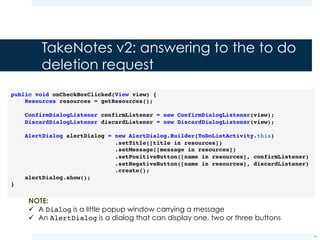
public void onCheckBoxClicked(View view) {
Resources resources = getResources();
ConfirmDialogListener confirmListener = new ConfirmDialogListener(view);
DiscardDialogListener discardListener = new DiscardDialogListener(view);
AlertDialog alertDialog = new AlertDialog.Builder(ToDoListActivity.this)
.setTitle([title in resources])
.setMessage([message in resources])
.setPositiveButton([name in resources], confirmListener)
.setNegativeButton([name in resources], discardListener)
.create();
alertDialog.show();
}
NOTE:
ü A Dialog is a little popup window carrying a message
ü An AlertDialog is a dialog that can display one, two or three buttons
Event handling vs. layout file
41
Event handling vs. layout file
Callback methods
¤ Already present in the
View class
Event listeners
¤ Nested interfaces +
Customized implementation
42
.
.
.
.
.
.
Event handling vs. layout file
¤ Sometimes there are views that do not need to change
during run-time
43
The “+” button
ü Used to add new items to the list
ü It is loaded at runtime
ü Its behavior remains unchanged
during the execution
ü Its aspect remains unchanged
during the execution
Event handling vs. layout file
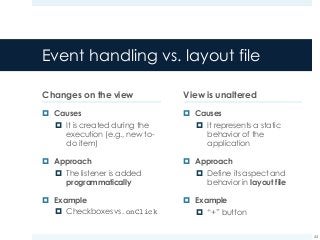
Changes on the view
¤ Causes
¤ It is created during the
execution (e.g., new to-
do item)
¤ Approach
¤ The listener is added
programmatically
¤ Example
¤ Checkboxes vs. onClick
View is unaltered
¤ Causes
¤ It represents a static
behavior of the
application
¤ Approach
¤ Define its aspect and
behavior in layout file
¤ Example
¤ “+” button
44
Event handling vs. layout file
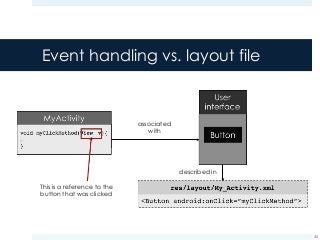
45
associated
with
described in
This is a reference to the
button that was clicked
Event handling vs. layout file
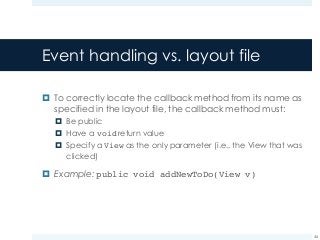
¤ To correctly locate the callback method from its name as
specified in the layout file, the callback method must:
¤ Be public
¤ Have a void return value
¤ Specify a View as the only parameter (i.e., the View that was
clicked)
¤ Example: public void addNewToDo(View v)
46
TakeNotes v3: add a new item
¤ In the previous TakeNotes version we have seen how to
delete an item from the to do list
¤ We are now going to add a new item to the do to list
¤ Use case:
¤ The user presses the + button
¤ A form appears, requiring the item description
¤ The user inserts the text and confirms the action
¤ The new checkbox appears in the to do list
47
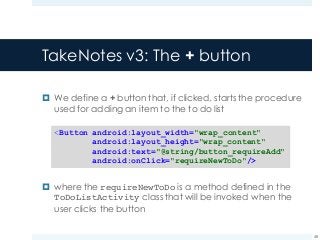
TakeNotes v3: The + button
¤ We define a + button that, if clicked, starts the procedure
used for adding an item to the to do list
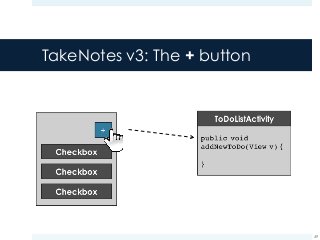
¤ where the requireNewToDo is a method defined in the
ToDoListActivity class that will be invoked when the
user clicks the button
48
<Button android:layout_width="wrap_content"
android:layout_height="wrap_content"
android:text="@string/button_requireAdd"
android:onClick="requireNewToDo"/>
TakeNotes v3: The + button
49
References
50
References
¤ Android API Guides, Input Events
http://developer.android.com/guide/topics/ui/ui-
events.html
51

Events and Listeners in Android

  • 1.
    Events and Listeners IlioCatallo, Eleonora Ciceri – Politecnico di Milano ilio.catallo@polimi.it, eleonora.ciceri@polimi.it
  • 2.
    The starting point Wrap-upand TakeNotes v2 basic implementation 2
  • 3.
    Wrap-up: Activity ¤ Anactivity is a single, focused thing that the user can do ¤ Example: visualize the to-do list 3 declared in implemented in described in associated with
  • 4.
    Wrap-up: View ¤ Theview is the basic building block for user interface components ¤ A view can be seen as a widget which has an appearance on the screen ¤ Examples: buttons, textboxes ¤ A view is responsible for: ¤ Drawing a piece of user interface ¤ Handling the events performed by the user (on itself) 4
  • 5.
    Wrap-up: ViewGroup ¤ AViewGroup is a special View that contains other views ¤ A ViewGroup can be seen as an invisible container that organizes the contained views in a specific layout ¤ Linear layout: organizes its children into a single horizontal or vertical row ¤ Relative layout: specifies manually the location of each contained view (relatively to the parent or other children) 5
  • 6.
    Wrap-up: ViewGroup ¤ Aspecial ViewGroup is the ScrollView ¤ It allows to scroll its content up and down 6
  • 7.
    The starting point: ToDoListActivity 7 Whatwe want to achieve: ü Scrollable view ü LinearLayout viewgroup enclosing the content ü Static checkbox (string is read from resources)
  • 8.
    The starting point:User interface ¤ We need to define the user interface elements: ¤ Scrollable view ¤ LinearLayout viewgroup ¤ Static checkbox ¤ The definition of these elements is located in: 8
  • 9.
    The starting point:User interface ¤ We need to define the user interface elements: ¤ Scrollable view ¤ LinearLayout viewgroup ¤ Static checkbox ¤ The definition of these elements is located in: res/layout/activity_to_do_list.xml (description of the activity layout) 9
  • 10.
  • 11.
    The starting point: activity_to_do_list.xml 11 <ScrollViewxmlns:android="http://schemas.android.com/apk/res/android" xmlns:tools="http://schemas.android.com/tools" android:layout_width="fill_parent" android:layout_height="fill_parent" tools:context=".ToDoListActivity"> <LinearLayout android:id="@+id/checkBoxContainer" android:layout_width="fill_parent" android:layout_height="wrap_content" android:orientation="vertical"> <CheckBox android:id="@+id/checkBox1" android:layout_width="fill_parent" android:layout_height="wrap_content" android:layout_marginTop="32dp" android:text="@string/first_checkbox_text"/> </LinearLayout> </ScrollView> A static checkbox was added to the interface
  • 12.
    A little hint:Padding vs. Margin ¤ For those of you that are not familiar with the idea of margin and padding: 12 Object border Margin Padding
  • 13.
    A little hint:Padding vs. Margin Without margin With margin 13
  • 14.
    Our objective: deletethe to-do item ¤ Once you have performed a task, it has to be removed from the to do list 14 cancel confirm Use case:
  • 15.
  • 16.
    Events ¤ User interactswith the interface so as to execute specific tasks ¤ Every action the user performs while interacting with the user interface triggers an event ¤ Examples: click, hardware key press, touch ¤ The application captures the event and consequently adopts a specific behavior in response of that event ¤ A note for the Web developers: the approach is totally similar to the one that you adopt when using JavaScript 16
  • 17.
    Handling events ¤ Eachaction is performed on a specific element of the user interface ¤ Example: the action of clicking on a button ¤ Hence, each View is responsible for handling those events resulting from the interaction between the user and the View itself ¤ Example: the button, when clicked, starts the procedure for handling the event 17
  • 18.
    Handling events ¤ Twopossible ways of handling events: ¤ Callback methods: each View class provides public methods meant to handle user interaction, e.g., onTouchEvent() ¤ Event listeners: the View delegates the event handling responsibility to dedicated event listeners 18
  • 19.
    Callback methods Methods Description onKeyDown(int,KeyEvent) called when a new key event occurs onKeyUp(int, KeyEvent) called when a key up event occurs onTrackballEvent(MotionEvent) called when a trackball motion event occurs onTouchEvent(MotionEvent) called when a touch screen motion event occurs 19
  • 20.
    Callback methods ¤ Acallback method is automatically called by the Android framework when the related event occurs on that View 20 onClick() { … }
  • 21.
    Callback methods ¤ Problem:to use the callback method approach, you have to extend the View class of interest and override those methods ¤ It may be the case that you want to extend a View class for some reason ¤ Example: perhaps you want to extend the Button class to make something fancier 21
  • 22.
    Callback methods ¤ However,extending a whole class just to handle user interaction does not seem practical ¤ Dozens of different interactions could be needed ¤ Thus, this procedure does not scale well 22 . . .
  • 23.
    Event listeners ¤ TheView class defines several nested interfaces, each of which meant to respond to a specific event ¤ Such interfaces are called event listeners ¤ Examples: View.OnClickListener, View.OnKeyListener ¤ Event listeners can be registered to a View ¤ Each event listener handles a specific event on behalf of the View it has been registered to ¤ Examples: a View.OnClickListenerlistener can manage click events on behalf of a CheckBox view 23
  • 24.
    Event listeners ¤ Inheritanceis no longer needed, it is sufficient to create the correct event listener and register it to the View 24 . . . event1 event2 eventN
  • 25.
    Event listeners ¤ Still,we do not know where to place the code that will be executed in response to the event 25 View.OnClickListener onClick() { someActions; }
  • 26.
    ¤ Each eventlistener interface exposes a callback method ¤ This method will be invoked whenever the user interacts with the View ¤ Example: The View.OnClickListener interface defines an onClick() method that will be called each time the View is clicked Event listeners 26 onClick() { … }
  • 27.
    Handling events withevent listeners ¤ Two steps are needed to handle events via event listeners: ¤ Implementing the event listener interface: ¤ Registering the event listener object to the View: 27 // create an anonymous implementation of OnClickListener private OnClickListener myListener = new OnClickListener() { public void onClick(View v) { // do something when the button is clicked } }; Button button = (Button)findViewById(R.id.buttonId); button.setOnClickListener(myListener);
  • 28.
    Examples of eventlisteners Event listener Callback method Description View.OnClickListener onClick() called when the user touches the item View.OnLongClickListener onLongClick() called when the user touched and holds the item View.OnKeyListener onKey() called when the user presses or release a key 28 ¤ The complete list of event listeners is available here
  • 29.
    Alternative event handling ¤You can assign a method to your button in the XML layout, using the android:onClick attribute ¤ When the user clicks the button, the Android framework calls the method MyActivity.myClickMethod(View) ¤ The View that is passed as parameter is a reference to the button that was clicked 29 <Button android:layout_height="wrap_content" android:layout_width="wrap_content" android:text="@string/myButtonText" android:onClick="myClickMethod" />
  • 30.
    Alternative event handling 30 associated with describedin This is a reference to the button that was clicked
  • 31.
    TakeNotes v2: deletea checkbox 31
  • 32.
    TakeNotes v2: createonClick listeners ¤ The event we handle is the user click on a checkbox 32 retrieve the list for each checkbox list add OnClickListener; 2
  • 33.
    TakeNotes v2: createonClick listeners ¤ We modify the ToDoListActivity class so as to add the required listeners 33 protected void onCreate(Bundle savedInstanceState) { super.onCreate(savedInstanceState); setContentView(R.layout.activity_to_do_list); LinearLayout linearLayout = (LinearLayout) findViewById(R.id.checkBoxContainer); for (int i = 0; i < linearLayout.getChildCount(); i++) addOnClickListener(linearLayout.getChildAt(i)); } A listener is added to each layout child (i.e., to each checkbox) Read from the res/layout file
  • 34.
    TakeNotes v2: createonClick listeners ¤ We add a listener to each checkbox by using the setOnClickListener method: 34 private void addOnClickListener(View view) { if (view.getClass() == CheckBox.class) { CheckBox checkBox = (CheckBox) view; checkBox.setOnClickListener(new View.OnClickListener() { @Override public void onClick(View v) { onCheckBoxClicked(v); } }); } } Home-made method which contains the logic used for handling the event
  • 35.
    TakeNotes v2: howto handle the click? ¤ At the current state we have create a method that is woken up each time the user touches a checkbox ¤ The expected behavior is the one of showing an alert, asking for confirmation 35
  • 36.
    TakeNotes v2: howto handle the click? ¤ At the current state we have create a method that is woken up each time the user touches a checkbox ¤ The expected behavior is the one of showing an alert, asking for confirmation 36 These are buttons too, thus other listeners that handle the onClick() event on them are needed
  • 37.
    ConfirmDialogListener for confirming anaction ¤ This listener, when the onClick event is captured, requires to remove the checkbox from the to do list 37 public class ConfirmDialogListener implements OnClickListener { private View clickedView; @Override public void onClick(DialogInterface dialog, int which) { LinearLayout layout = (LinearLayout)clickedView.getParent(); layout.removeView(clickedView); } } Here we store a reference to the clicked checkbox We remove the clicked checkbox from the set of children of the layout object. From now on the checkbox will not be displayed anymore
  • 38.
    ConfirmDialogListener for confirming anaction ¤ onClick() receives two parameters: ¤ DialogInterface dialog: the dialog that received the click ¤ int which: the button that was clicked 38
  • 39.
    DiscardDialogListener for canceling theaction ¤ This listener, when the onClick event is captured, restores the check status on the clicked checkbox 39 public class DiscardDialogListener implements OnClickListener { private View clickedView; @Override public void onClick(DialogInterface dialog, int which) { if (clickedView.getClass() == CheckBox.class) { CheckBox checkBox = (CheckBox)clickedView; checkBox.setChecked(false); } } } Here we store a reference to the clicked checkbox Since the user clicked on the checkbox, its state is “checked”. However, the to do item was not performed, so we need to remove the check from the checkbox by restoring the “not checked” state
  • 40.
    TakeNotes v2: answeringto the to do deletion request 40 public void onCheckBoxClicked(View view) { Resources resources = getResources(); ConfirmDialogListener confirmListener = new ConfirmDialogListener(view); DiscardDialogListener discardListener = new DiscardDialogListener(view); AlertDialog alertDialog = new AlertDialog.Builder(ToDoListActivity.this) .setTitle([title in resources]) .setMessage([message in resources]) .setPositiveButton([name in resources], confirmListener) .setNegativeButton([name in resources], discardListener) .create(); alertDialog.show(); } NOTE: ü A Dialog is a little popup window carrying a message ü An AlertDialog is a dialog that can display one, two or three buttons
  • 41.
    Event handling vs.layout file 41
  • 42.
    Event handling vs.layout file Callback methods ¤ Already present in the View class Event listeners ¤ Nested interfaces + Customized implementation 42 . . . . . .
  • 43.
    Event handling vs.layout file ¤ Sometimes there are views that do not need to change during run-time 43 The “+” button ü Used to add new items to the list ü It is loaded at runtime ü Its behavior remains unchanged during the execution ü Its aspect remains unchanged during the execution
  • 44.
    Event handling vs.layout file Changes on the view ¤ Causes ¤ It is created during the execution (e.g., new to- do item) ¤ Approach ¤ The listener is added programmatically ¤ Example ¤ Checkboxes vs. onClick View is unaltered ¤ Causes ¤ It represents a static behavior of the application ¤ Approach ¤ Define its aspect and behavior in layout file ¤ Example ¤ “+” button 44
  • 45.
    Event handling vs.layout file 45 associated with described in This is a reference to the button that was clicked
  • 46.
    Event handling vs.layout file ¤ To correctly locate the callback method from its name as specified in the layout file, the callback method must: ¤ Be public ¤ Have a void return value ¤ Specify a View as the only parameter (i.e., the View that was clicked) ¤ Example: public void addNewToDo(View v) 46
  • 47.
    TakeNotes v3: adda new item ¤ In the previous TakeNotes version we have seen how to delete an item from the to do list ¤ We are now going to add a new item to the do to list ¤ Use case: ¤ The user presses the + button ¤ A form appears, requiring the item description ¤ The user inserts the text and confirms the action ¤ The new checkbox appears in the to do list 47
  • 48.
    TakeNotes v3: The+ button ¤ We define a + button that, if clicked, starts the procedure used for adding an item to the to do list ¤ where the requireNewToDo is a method defined in the ToDoListActivity class that will be invoked when the user clicks the button 48 <Button android:layout_width="wrap_content" android:layout_height="wrap_content" android:text="@string/button_requireAdd" android:onClick="requireNewToDo"/>
  • 49.
    TakeNotes v3: The+ button 49
  • 50.
  • 51.
    References ¤ Android APIGuides, Input Events http://developer.android.com/guide/topics/ui/ui- events.html 51