#AskMeAnything
Building interactive app
Senior Android Developer
Omar Albelbaisy
Bio
Omar got his bachelor’s degree in Computer Science
from IUG university in 2014 and has been working as an
Android developer since that time.
He worked in many organizations and companies as
well as a freelancer developer.
He earned the Top Rated badge on Upwork freelancing
platform in 2017.
He also worked as an Android Trainer in many training
centers and colleges.
Omar is currently working as a Content Developer at
Coded and a Mentor at Udacity.
Introduction
© 2019 Udacity. All rights reserved.
❖ The first thing you did was building the user interface using XML code.
❖ You have added buttons and other UI elements to your app's main
screen, but currently, these UI elements does not interact with the user.
Introduction
© 2019 Udacity. All rights reserved.
❖ Most apps need to respond to the user in some way.
Introduction
© 2019 Udacity. All rights reserved.
❖ In this lecture you will learn how you can get your app to do something
in response to the user, and how to get your activity and layout talking
to each other like best buddies.
❖ Along the way, we’ll know how Android actually works by introducing the
R class, which is the hidden gem that glues everything together.
Introduction
© 2019 Udacity. All rights reserved.
What you'll learn
❖ How to use onClick attribute.
❖ How to find a view by its ID.
❖ How to set and get property values of a view.
❖ How to add a listener for a View using Java code.
Getting Started!
© 2019 Udacity. All rights reserved.
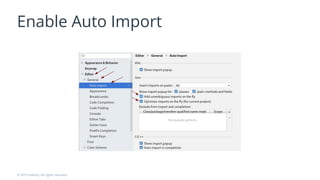
Enable Auto Import
© 2019 Udacity. All rights reserved.
❖ Before adding behavior to your buttons, It’s recommended to enable
auto-imports so that Android Studio automatically imports any classes
that are needed by the Java code.
Enable Auto Import
© 2019 Udacity. All rights reserved.
Enable Auto Import
© 2019 Udacity. All rights reserved.
XML to Java
© 2019 Udacity. All rights reserved.
Workflow
© 2019 Udacity. All rights reserved.
❖ Typically, developers define UI in XML files (e.g., the activity_main.xml file
located in the res/layout folder).
❖ During build time, XML layout file is compiled into compiled resource.
❖ During run time, android inflate the compiled resource into java objects
when setContentView() method is called.
❖ After inflation Android will measure the size and position of each
View/ViewGroup and then draw the result on the screen.
Workflow
© 2019 Udacity. All rights reserved.
XML
Compiled
Resources
View
Objects
MainActivity.java
© 2019 Udacity. All rights reserved.
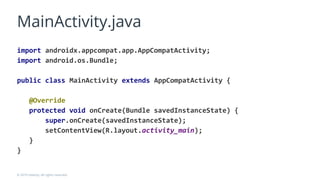
❖ This class has at least one method which is onCreate().
❖ The onCreate() method executes when the activity gets initiated.
❖ In the first line, we call super.onCreate() method which is defined in the
original super class to build the basic window for us to show our layout.
❖ In the next line we call setContentView to set the layout of the activity to
activity_main.xml.
MainActivity.java
© 2019 Udacity. All rights reserved.
import androidx.appcompat.app.AppCompatActivity;
import android.os.Bundle;
public class MainActivity extends AppCompatActivity {
@Override
protected void onCreate(Bundle savedInstanceState) {
super.onCreate(savedInstanceState);
setContentView(R.layout.activity_main);
}
}
Add simple interaction
© 2019 Udacity. All rights reserved.
Use onClick attribute
© 2019 Udacity. All rights reserved.
To use onClick attribute you need to:-
❖ Define the method that implement the desired click behavior in the
activity class.
❖ This method must be public, return void, and take a single argument
of View (This is the view that receives the click event).
❖ Set the method name as the value of the onClick attribute of the view.
Use onClick attribute
© 2019 Udacity. All rights reserved.
❖ Now we will show a message to the user when the button pressed.
❖ To do this we will use something called Toast
❖ Toast is a short message that appears at the bottom of the screen.
Show a Toast
© 2019 Udacity. All rights reserved.
❖ First, we will add a new method call showToast to the MainActivity.java
❖ Inside this method we will use Toast class to show the message to the
user as follow.
public void showToast(View view) {
Toast toast = Toast.makeText(this, "Hello World!", Toast.LENGTH_SHORT);
toast.show();
}
Show a Toast
© 2019 Udacity. All rights reserved.
❖ Then, we will move to activity_main.xml and set onClick property to point
to showToast method so that method will be called when the button
clicked by the user.
❖ Run the app!
Update views properties
© 2019 Udacity. All rights reserved.
R class
© 2019 Udacity. All rights reserved.
❖ The method that shows the toast is very simple; it does not interact with
any other views in the layout.
❖ The next step is to find and update other views.
❖ But before that, we should give ids to our view in XML code so we can
access them later from Java!
❖ The connector between XML and Java is called the R class.
R class
© 2019 Udacity. All rights reserved.
❖ The R class is the glue between the world of Java and resources.
❖ R.java is an automatically generated from project resources (such as
strings, layouts, drawables, colors etc).
❖ It contains assigned numeric constants to identify each resource.
❖ You can use these constants to access resource from your code.
❖ It basically makes the connection between the XML files and Java.
R class
© 2019 Udacity. All rights reserved.
❖ R class recreated every time you change anything in the res directory,
For example, when you add an image or XML file or change an id.
❖ If you attempt to make changes directly in it, they will be erased when
you build your project.
R class
© 2019 Udacity. All rights reserved.
R.resource_type.name_or_id
findViewById
© 2019 Udacity. All rights reserved.
❖ To retrieve the view from layout resources we use findViewById method
defined in the Activity class.
❖ This method searches for the view with the given id in the view objects
hierarchy and return it.
❖ After we get the view we can store it in a new variable to be able to
modify its properties in other parts of the code.
findViewById
© 2019 Udacity. All rights reserved.
activity_main.xml
<TextView
android:id="@+id/textView"
android:layout_width="wrap_content"
android:layout_height="wrap_content" />
MainActivity.java
TextView textView = findViewById(R.id.textView);
Update and get properties
© 2019 Udacity. All rights reserved.
TextView textView = findViewById(R.id.textView);
…
textView.setText(String.valueOf(counter));
textView.setTextSize(counter);
textView.setTextColor(Color.RED);
…
textView.getText();
Add OnClickListener
© 2019 Udacity. All rights reserved.
Why we need Listeners ?
© 2019 Udacity. All rights reserved.
❖ Sometimes, onClick attribute is not enough!
❖ OnClick attribute is suitable for simple event handling in an Activity.
❖ But if you would like to dynamically change event handling or you would
like to handle event in fragments or in adapters or if you want to handle
different types of events rather than onClick then you need to add a
listener for the View from Java code.
What is the Listener ?!
© 2019 Udacity. All rights reserved.
❖ A listener watches for an event to be fired.
❖ When the event fired, the listener will be notified.
❖ Then we can handle that event and perform the operation we want.
❖ There are multiple events that we can listen to.
➢ Examples:- Clicks, LongClicks, Check, Drag, etc ..
❖ For each event we can attach a listener!
What is the Listener ?!
© 2019 Udacity. All rights reserved.
Add OnClickListener
© 2019 Udacity. All rights reserved.
❖ To add onClickListener for a View we use setOnClickListener method.
❖ This method receives a parameter of OnClickListener type.
❖ To create an OnClickListener we have to implement View.OnClickListener
interface and override onClick method.
Add OnClickListener #1
© 2019 Udacity. All rights reserved.
public class MainActivity extends AppCompatActivity implements
View.OnClickListener {
…
@Override
public void onClick(View view) {
// Handle events here
}
}
…
Button button = findViewById(R.id.button);
button.setOnClickListener(this);
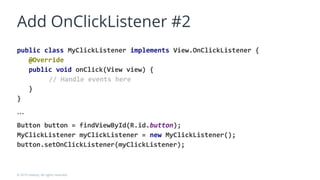
Add OnClickListener #2
© 2019 Udacity. All rights reserved.
public class MyClickListener implements View.OnClickListener {
@Override
public void onClick(View view) {
// Handle events here
}
}
…
Button button = findViewById(R.id.button);
MyClickListener myClickListener = new MyClickListener();
button.setOnClickListener(myClickListener);
Add OnClickListener #3
© 2019 Udacity. All rights reserved.
Button button = findViewById(R.id.button);
View.OnClickListener myClickListener = new View.OnClickListener() {
@Override
public void onClick(View view) {
// Handle events here
}
};
button.setOnClickListener(myClickListener);
Add OnClickListener #4!
© 2019 Udacity. All rights reserved.
Button button = findViewById(R.id.button);
button.setOnClickListener(new View.OnClickListener() {
@Override
public void onClick(View view) {
// Handle events here
}
});
To recap ..
Let's build a simple interactive app
© 2019 Udacity. All rights reserved.
Ask Me Anything.
Q&As
© 2019 Udacity. All rights reserved.
© 2017 Udacity. All rights reserved.
Be in Demand
© 2019 Udacity. All rights reserved.

Building interactive app

  • 1.
  • 2.
    Senior Android Developer OmarAlbelbaisy Bio Omar got his bachelor’s degree in Computer Science from IUG university in 2014 and has been working as an Android developer since that time. He worked in many organizations and companies as well as a freelancer developer. He earned the Top Rated badge on Upwork freelancing platform in 2017. He also worked as an Android Trainer in many training centers and colleges. Omar is currently working as a Content Developer at Coded and a Mentor at Udacity.
  • 3.
    Introduction © 2019 Udacity.All rights reserved. ❖ The first thing you did was building the user interface using XML code. ❖ You have added buttons and other UI elements to your app's main screen, but currently, these UI elements does not interact with the user.
  • 4.
    Introduction © 2019 Udacity.All rights reserved. ❖ Most apps need to respond to the user in some way.
  • 5.
    Introduction © 2019 Udacity.All rights reserved. ❖ In this lecture you will learn how you can get your app to do something in response to the user, and how to get your activity and layout talking to each other like best buddies. ❖ Along the way, we’ll know how Android actually works by introducing the R class, which is the hidden gem that glues everything together.
  • 6.
    Introduction © 2019 Udacity.All rights reserved. What you'll learn ❖ How to use onClick attribute. ❖ How to find a view by its ID. ❖ How to set and get property values of a view. ❖ How to add a listener for a View using Java code.
  • 7.
    Getting Started! © 2019Udacity. All rights reserved.
  • 8.
    Enable Auto Import ©2019 Udacity. All rights reserved. ❖ Before adding behavior to your buttons, It’s recommended to enable auto-imports so that Android Studio automatically imports any classes that are needed by the Java code.
  • 9.
    Enable Auto Import ©2019 Udacity. All rights reserved.
  • 10.
    Enable Auto Import ©2019 Udacity. All rights reserved.
  • 11.
    XML to Java ©2019 Udacity. All rights reserved.
  • 12.
    Workflow © 2019 Udacity.All rights reserved. ❖ Typically, developers define UI in XML files (e.g., the activity_main.xml file located in the res/layout folder). ❖ During build time, XML layout file is compiled into compiled resource. ❖ During run time, android inflate the compiled resource into java objects when setContentView() method is called. ❖ After inflation Android will measure the size and position of each View/ViewGroup and then draw the result on the screen.
  • 13.
    Workflow © 2019 Udacity.All rights reserved. XML Compiled Resources View Objects
  • 14.
    MainActivity.java © 2019 Udacity.All rights reserved. ❖ This class has at least one method which is onCreate(). ❖ The onCreate() method executes when the activity gets initiated. ❖ In the first line, we call super.onCreate() method which is defined in the original super class to build the basic window for us to show our layout. ❖ In the next line we call setContentView to set the layout of the activity to activity_main.xml.
  • 15.
    MainActivity.java © 2019 Udacity.All rights reserved. import androidx.appcompat.app.AppCompatActivity; import android.os.Bundle; public class MainActivity extends AppCompatActivity { @Override protected void onCreate(Bundle savedInstanceState) { super.onCreate(savedInstanceState); setContentView(R.layout.activity_main); } }
  • 16.
    Add simple interaction ©2019 Udacity. All rights reserved.
  • 17.
    Use onClick attribute ©2019 Udacity. All rights reserved. To use onClick attribute you need to:- ❖ Define the method that implement the desired click behavior in the activity class. ❖ This method must be public, return void, and take a single argument of View (This is the view that receives the click event). ❖ Set the method name as the value of the onClick attribute of the view.
  • 18.
    Use onClick attribute ©2019 Udacity. All rights reserved. ❖ Now we will show a message to the user when the button pressed. ❖ To do this we will use something called Toast ❖ Toast is a short message that appears at the bottom of the screen.
  • 19.
    Show a Toast ©2019 Udacity. All rights reserved. ❖ First, we will add a new method call showToast to the MainActivity.java ❖ Inside this method we will use Toast class to show the message to the user as follow. public void showToast(View view) { Toast toast = Toast.makeText(this, "Hello World!", Toast.LENGTH_SHORT); toast.show(); }
  • 20.
    Show a Toast ©2019 Udacity. All rights reserved. ❖ Then, we will move to activity_main.xml and set onClick property to point to showToast method so that method will be called when the button clicked by the user. ❖ Run the app!
  • 21.
    Update views properties ©2019 Udacity. All rights reserved.
  • 22.
    R class © 2019Udacity. All rights reserved. ❖ The method that shows the toast is very simple; it does not interact with any other views in the layout. ❖ The next step is to find and update other views. ❖ But before that, we should give ids to our view in XML code so we can access them later from Java! ❖ The connector between XML and Java is called the R class.
  • 23.
    R class © 2019Udacity. All rights reserved. ❖ The R class is the glue between the world of Java and resources. ❖ R.java is an automatically generated from project resources (such as strings, layouts, drawables, colors etc). ❖ It contains assigned numeric constants to identify each resource. ❖ You can use these constants to access resource from your code. ❖ It basically makes the connection between the XML files and Java.
  • 24.
    R class © 2019Udacity. All rights reserved. ❖ R class recreated every time you change anything in the res directory, For example, when you add an image or XML file or change an id. ❖ If you attempt to make changes directly in it, they will be erased when you build your project.
  • 25.
    R class © 2019Udacity. All rights reserved. R.resource_type.name_or_id
  • 26.
    findViewById © 2019 Udacity.All rights reserved. ❖ To retrieve the view from layout resources we use findViewById method defined in the Activity class. ❖ This method searches for the view with the given id in the view objects hierarchy and return it. ❖ After we get the view we can store it in a new variable to be able to modify its properties in other parts of the code.
  • 27.
    findViewById © 2019 Udacity.All rights reserved. activity_main.xml <TextView android:id="@+id/textView" android:layout_width="wrap_content" android:layout_height="wrap_content" /> MainActivity.java TextView textView = findViewById(R.id.textView);
  • 28.
    Update and getproperties © 2019 Udacity. All rights reserved. TextView textView = findViewById(R.id.textView); … textView.setText(String.valueOf(counter)); textView.setTextSize(counter); textView.setTextColor(Color.RED); … textView.getText();
  • 29.
    Add OnClickListener © 2019Udacity. All rights reserved.
  • 30.
    Why we needListeners ? © 2019 Udacity. All rights reserved. ❖ Sometimes, onClick attribute is not enough! ❖ OnClick attribute is suitable for simple event handling in an Activity. ❖ But if you would like to dynamically change event handling or you would like to handle event in fragments or in adapters or if you want to handle different types of events rather than onClick then you need to add a listener for the View from Java code.
  • 31.
    What is theListener ?! © 2019 Udacity. All rights reserved. ❖ A listener watches for an event to be fired. ❖ When the event fired, the listener will be notified. ❖ Then we can handle that event and perform the operation we want. ❖ There are multiple events that we can listen to. ➢ Examples:- Clicks, LongClicks, Check, Drag, etc .. ❖ For each event we can attach a listener!
  • 32.
    What is theListener ?! © 2019 Udacity. All rights reserved.
  • 33.
    Add OnClickListener © 2019Udacity. All rights reserved. ❖ To add onClickListener for a View we use setOnClickListener method. ❖ This method receives a parameter of OnClickListener type. ❖ To create an OnClickListener we have to implement View.OnClickListener interface and override onClick method.
  • 34.
    Add OnClickListener #1 ©2019 Udacity. All rights reserved. public class MainActivity extends AppCompatActivity implements View.OnClickListener { … @Override public void onClick(View view) { // Handle events here } } … Button button = findViewById(R.id.button); button.setOnClickListener(this);
  • 35.
    Add OnClickListener #2 ©2019 Udacity. All rights reserved. public class MyClickListener implements View.OnClickListener { @Override public void onClick(View view) { // Handle events here } } … Button button = findViewById(R.id.button); MyClickListener myClickListener = new MyClickListener(); button.setOnClickListener(myClickListener);
  • 36.
    Add OnClickListener #3 ©2019 Udacity. All rights reserved. Button button = findViewById(R.id.button); View.OnClickListener myClickListener = new View.OnClickListener() { @Override public void onClick(View view) { // Handle events here } }; button.setOnClickListener(myClickListener);
  • 37.
    Add OnClickListener #4! ©2019 Udacity. All rights reserved. Button button = findViewById(R.id.button); button.setOnClickListener(new View.OnClickListener() { @Override public void onClick(View view) { // Handle events here } });
  • 38.
    To recap .. Let'sbuild a simple interactive app © 2019 Udacity. All rights reserved.
  • 39.
    Ask Me Anything. Q&As ©2019 Udacity. All rights reserved.
  • 40.
    © 2017 Udacity.All rights reserved. Be in Demand © 2019 Udacity. All rights reserved.