Binding Views and
Handling Actions
Contents
● Binding views
● Handling actions
● Common event listeners
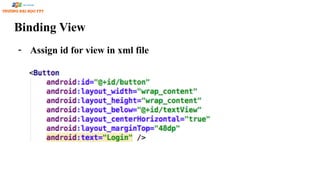
Binding View
- Assign id for view in xml file
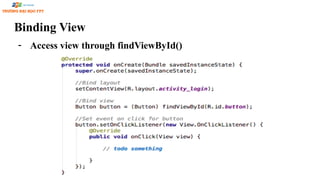
Binding View
- Access view through findViewById()
Handling Action
● An UI event is an action that is triggered by the user interacting
with the UI
○ A button pressed or released
○ A key is pressed or released
○ An area of a touch screen is touched, etc.
○ Gesture
■ long touch
■ double-tap
■ Fling
 Drag
 Scroll
 pinch
Handling Action – 1st
way
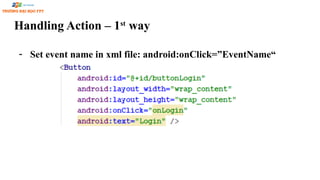
- Set event name in xml file: android:onClick=”EventName“
Handling Action – 1st
way
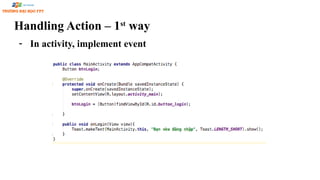
- In activity, implement event
Handling Action – 2nd
way
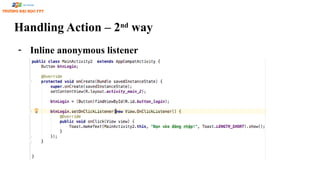
- Inline anonymous listener
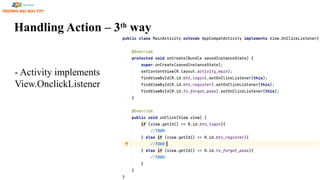
Handling Action – 3th
way
- Activity implements
View.OnclickListener
View is base class for input controls
● The View class is the basic building block for all UI components,
including input controls
● View is the base class for classes that provide interactive UI components
● View provides basic interaction through android:onClick
10
View Event listeners
● setOnClickListener - Callback when the view is clicked
● setOnDragListener - Callback when the view is dragged
● setOnFocusChangeListener - Callback when the view changes focus
● setOnGenericMotionListener - Callback for arbitrary gestures
● setOnHoverListener - Callback for hovering over the view
● setOnKeyListener - Callback for pressing a hardware key when view
has focus
● setOnLongClickListener - Callback for pressing and holding a view
● setOnTouchListener - Callback for touching down or up on a view
AdapterView Event Listeners
● setOnItemClickListener - Callback when an item contained is clicked
● setOnItemLongClickListener - Callback when an item contained is
clicked and held
● setOnItemSelectedListener - Callback when an item is selected
EditText Common Listeners
● addTextChangedListener - Fires each time the text in the field is being
changed
● setOnEditorActionListener - Fires when an "action" button on the soft
keyboard is pressed
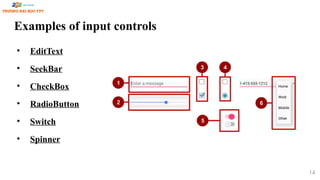
Examples of input controls
• EditText
• SeekBar
• CheckBox
• RadioButton
• Switch
• Spinner
14
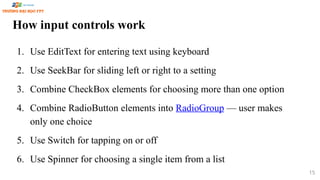
How input controls work
1. Use EditText for entering text using keyboard
2. Use SeekBar for sliding left or right to a setting
3. Combine CheckBox elements for choosing more than one option
4. Combine RadioButton elements into RadioGroup — user makes
only one choice
5. Use Switch for tapping on or off
6. Use Spinner for choosing a single item from a list
15
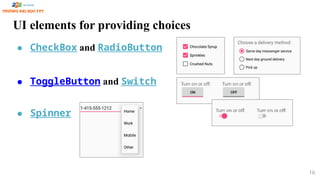
UI elements for providing choices
● CheckBox and RadioButton
● ToggleButton and Switch
● Spinner
16
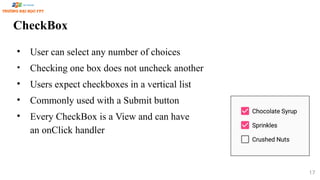
CheckBox
• User can select any number of choices
• Checking one box does not uncheck another
• Users expect checkboxes in a vertical list
• Commonly used with a Submit button
• Every CheckBox is a View and can have
an onClick handler
17
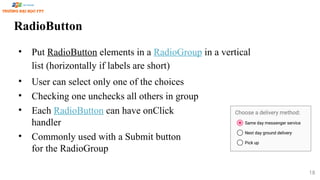
RadioButton
• Put RadioButton elements in a RadioGroup in a vertical
list (horizontally if labels are short)
• User can select only one of the choices
• Checking one unchecks all others in group
• Each RadioButton can have onClick
handler
• Commonly used with a Submit button
for the RadioGroup
18
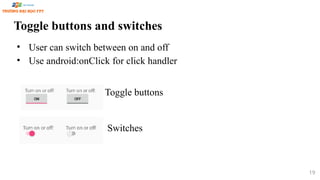
Toggle buttons and switches
• User can switch between on and off
• Use android:onClick for click handler
Toggle buttons
Switches
19
Classwork
● On Login screen, when click Login button:
○ If username is admin and password is 123456 => show “Login
successfully”
○ Otherwise, show “Login failed”
References
● https://google-developer-training.github.io/android-developer-fundam
entals-course-concepts-v2/

6.Binding Views and Handling Actions.pptx

  • 1.
  • 2.
    Contents ● Binding views ●Handling actions ● Common event listeners
  • 3.
    Binding View - Assignid for view in xml file
  • 4.
    Binding View - Accessview through findViewById()
  • 5.
    Handling Action ● AnUI event is an action that is triggered by the user interacting with the UI ○ A button pressed or released ○ A key is pressed or released ○ An area of a touch screen is touched, etc. ○ Gesture ■ long touch ■ double-tap ■ Fling  Drag  Scroll  pinch
  • 6.
    Handling Action –1st way - Set event name in xml file: android:onClick=”EventName“
  • 7.
    Handling Action –1st way - In activity, implement event
  • 8.
    Handling Action –2nd way - Inline anonymous listener
  • 9.
    Handling Action –3th way - Activity implements View.OnclickListener
  • 10.
    View is baseclass for input controls ● The View class is the basic building block for all UI components, including input controls ● View is the base class for classes that provide interactive UI components ● View provides basic interaction through android:onClick 10
  • 11.
    View Event listeners ●setOnClickListener - Callback when the view is clicked ● setOnDragListener - Callback when the view is dragged ● setOnFocusChangeListener - Callback when the view changes focus ● setOnGenericMotionListener - Callback for arbitrary gestures ● setOnHoverListener - Callback for hovering over the view ● setOnKeyListener - Callback for pressing a hardware key when view has focus ● setOnLongClickListener - Callback for pressing and holding a view ● setOnTouchListener - Callback for touching down or up on a view
  • 12.
    AdapterView Event Listeners ●setOnItemClickListener - Callback when an item contained is clicked ● setOnItemLongClickListener - Callback when an item contained is clicked and held ● setOnItemSelectedListener - Callback when an item is selected
  • 13.
    EditText Common Listeners ●addTextChangedListener - Fires each time the text in the field is being changed ● setOnEditorActionListener - Fires when an "action" button on the soft keyboard is pressed
  • 14.
    Examples of inputcontrols • EditText • SeekBar • CheckBox • RadioButton • Switch • Spinner 14
  • 15.
    How input controlswork 1. Use EditText for entering text using keyboard 2. Use SeekBar for sliding left or right to a setting 3. Combine CheckBox elements for choosing more than one option 4. Combine RadioButton elements into RadioGroup — user makes only one choice 5. Use Switch for tapping on or off 6. Use Spinner for choosing a single item from a list 15
  • 16.
    UI elements forproviding choices ● CheckBox and RadioButton ● ToggleButton and Switch ● Spinner 16
  • 17.
    CheckBox • User canselect any number of choices • Checking one box does not uncheck another • Users expect checkboxes in a vertical list • Commonly used with a Submit button • Every CheckBox is a View and can have an onClick handler 17
  • 18.
    RadioButton • Put RadioButtonelements in a RadioGroup in a vertical list (horizontally if labels are short) • User can select only one of the choices • Checking one unchecks all others in group • Each RadioButton can have onClick handler • Commonly used with a Submit button for the RadioGroup 18
  • 19.
    Toggle buttons andswitches • User can switch between on and off • Use android:onClick for click handler Toggle buttons Switches 19
  • 20.
    Classwork ● On Loginscreen, when click Login button: ○ If username is admin and password is 123456 => show “Login successfully” ○ Otherwise, show “Login failed”
  • 21.