Evaluation – Question 6
    What have you learnt about
 technologies from the process of
    constructing this product?
What was Photoshop used for?
Photoshop was used for the front cover and
contents page of my media products and parts
of the double page spread although most was
constructed on Microsoft Publisher. It was
crucial to use Photoshop to create and edit
images, text and features within the products to
create a conventional and professional looking
magazine.
When using the quick selection tool on
Quick Selection Tool       Photoshop, it allows the image to be cut
                           out of it’s background. The is easy to do
                           and helps create images that can be used
                           on background colours of choice.


                                   Image used on final double
                                   page spread.


Before             After
It’s important to duplicate the
                                   original image so if you go
                                   wrong when editing there is a
                                   back up. The quick selection
                                   tool is located at the side of
                                   the screen.


By clicking and slowly dragging
the mouse over the area you
want to remove, the area is
highlighted and then by clicking
delete, it shows a grey
chequered background.
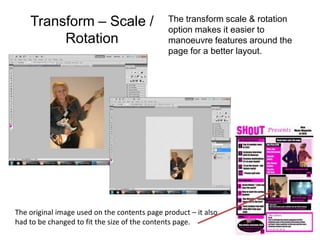
Transform – Scale /                       The transform scale & rotation
                                              option makes it easier to
         Rotation                             manoeuvre features around the
                                              page for a better layout.


The original image used on the contents page product – it also
had to be changed to fit the size of the contents page.
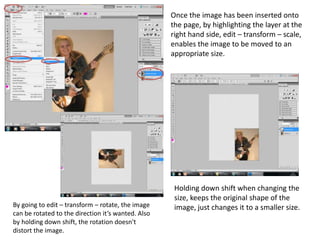
Once the image has been inserted onto
                                                    the page, by highlighting the layer at the
                                                    right hand side, edit – transform – scale,
                                                    enables the image to be moved to an
                                                    appropriate size.


                                                     Holding down shift when changing the
                                                     size, keeps the original shape of the
By going to edit – transform – rotate, the image     image, just changes it to a smaller size.
can be rotated to the direction it’s wanted. Also
by holding down shift, the rotation doesn't
distort the image.
The character tool allows text to be placed onto the
Character                   page.


By using the character tool at the side
of the screen, text can be used and
edited. The colours, font and size are
all editable and can be changed each
time.
                                                    Text used on all of the media
                                                    products – shown here on the
                                                    contents page.
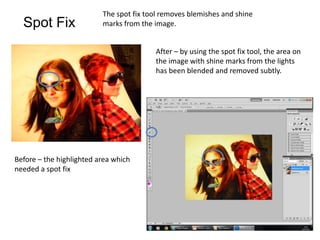
The spot fix tool removes blemishes and shine
  Spot Fix                marks from the image.


                                         After – by using the spot fix tool, the area on
                                         the image with shine marks from the lights
                                         has been blended and removed subtly.


Before – the highlighted area which
needed a spot fix
Layering enables text/images to be placed on top of
  Layering                backgrounds and colour blocks.


                                              After – the text has been layered on top of
                                              the coloured blocks and background
                                              image. It is easier to see and shows clearly
                                              when alternating the colour scheme.


Before – the page before any text had been
placed on to it. The panel beside the page
shows the order in which features appear
on to the products. To get the layer on top
of another, it must be above the feature it
needs to be on top of

Evaluation – Question 6

  • 1.
    Evaluation – Question6 What have you learnt about technologies from the process of constructing this product?
  • 2.
    What was Photoshopused for? Photoshop was used for the front cover and contents page of my media products and parts of the double page spread although most was constructed on Microsoft Publisher. It was crucial to use Photoshop to create and edit images, text and features within the products to create a conventional and professional looking magazine.
  • 3.
    When using thequick selection tool on Quick Selection Tool Photoshop, it allows the image to be cut out of it’s background. The is easy to do and helps create images that can be used on background colours of choice. Image used on final double page spread. Before After
  • 4.
    It’s important toduplicate the original image so if you go wrong when editing there is a back up. The quick selection tool is located at the side of the screen. By clicking and slowly dragging the mouse over the area you want to remove, the area is highlighted and then by clicking delete, it shows a grey chequered background.
  • 5.
    Transform – Scale/ The transform scale & rotation option makes it easier to Rotation manoeuvre features around the page for a better layout. The original image used on the contents page product – it also had to be changed to fit the size of the contents page.
  • 6.
    Once the imagehas been inserted onto the page, by highlighting the layer at the right hand side, edit – transform – scale, enables the image to be moved to an appropriate size. Holding down shift when changing the size, keeps the original shape of the By going to edit – transform – rotate, the image image, just changes it to a smaller size. can be rotated to the direction it’s wanted. Also by holding down shift, the rotation doesn't distort the image.
  • 7.
    The character toolallows text to be placed onto the Character page. By using the character tool at the side of the screen, text can be used and edited. The colours, font and size are all editable and can be changed each time. Text used on all of the media products – shown here on the contents page.
  • 8.
    The spot fixtool removes blemishes and shine Spot Fix marks from the image. After – by using the spot fix tool, the area on the image with shine marks from the lights has been blended and removed subtly. Before – the highlighted area which needed a spot fix
  • 9.
    Layering enables text/imagesto be placed on top of Layering backgrounds and colour blocks. After – the text has been layered on top of the coloured blocks and background image. It is easier to see and shows clearly when alternating the colour scheme. Before – the page before any text had been placed on to it. The panel beside the page shows the order in which features appear on to the products. To get the layer on top of another, it must be above the feature it needs to be on top of