■
How to Create the
Slidecast Intercultural Guide
Table of Contents
About Slidecasts 3-4
Slidecasting Tool Options 5-10
Decide How to Work 11
Writing the Script 12-16
Designing the Slideshow 17-27
2
get
awestruck
~ • 4 ' ' ~ • .
- --- - - - --
 J'l )U,11 •
 .C J;l,S
~
~
.. "I ~!f,~~'.~""=,:tk,
~ ~.~.~-...._...11!19' ::_ 1.,r,,,:,..
l ti ....:it::.:~rn......,....,
·- - ·-
•
WHYTOBECOME
ATEACHER?►
•••••l·•••"'"· ,, .. ,
... ' ...- ...,.. •-••· .
About Slidecasts
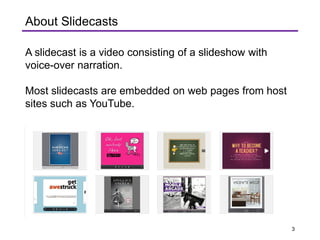
A slidecast is a video consisting of a slideshow with
voice-over narration.
Most slidecasts are embedded on web pages from host
sites such as YouTube.
3
How slidecasts are used in the workplace.
• Promote products or services,
• Provide instructions to users,
• Present test results to project team members who are
at different locations.
These are just a few of the ways they can be used.
4
Slidecasting Tool Options
• You will need a microphone, and the one in your
computer will be fine for this project.
• You will need to decide how you will create the
slidecast from the following options.
• Please note the warnings.
5
Option 1: Knovio
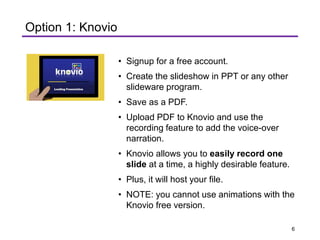
• Signup for a free account.
• Create the slideshow in PPT or any other
slideware program.
• Save as a PDF.
• Upload PDF to Knovio and use the
recording feature to add the voice-over
narration.
• Knovio allows you to easily record one
slide at a time, a highly desirable feature.
• Plus, it will host your file.
• NOTE: you cannot use animations with the
Knovio free version.
6
Option 2: PowerPoint (PC users only)
• Create a PowerPoint slideshow.
• Use the recording feature to add voice-
over narration.
• Save as a movie file and upload to a host
site such as YouTube or Vimeo.
• WARNING to Mac Users. PPT has a bug
in it that will strip your audio out when
saving as a movie file. So, you can’t use it
to record the voice-over. There is no
solution to-date.
7
r
Option 3: Keynote (Mac users only)
• Keynote will work the same way
PPT does for PC users, but it’s not
free ($19.99).
8
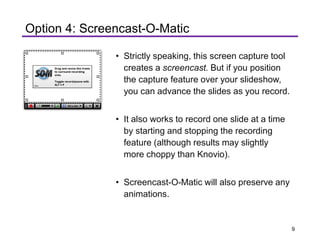
Hide
Drag and resize this frame
to surround recording
area.
Toggle record /pause with
ALT+P
□'I
! I
f □ D D'
L--------------------------------1
Option 4: Screencast-O-Matic
• Strictly speaking, this screen capture tool
creates a screencast. But if you position
the capture feature over your slideshow,
you can advance the slides as you record.
• It also works to record one slide at a time
by starting and stopping the recording
feature (although results may slightly
more choppy than Knovio).
• Screencast-O-Matic will also preserve any
animations.
9
Your file must be hosted.
• Remember, this course does not accept
video files (mp4, mov, etc.).
• Here’s why. You are practicing how to
create and share these types of files as
they are shared in workplace settings.
• So, if you choose to create a video file on
your computer, be certain it is uploaded
to a host site and will play without a user
needing to download the file.
10
. ..
T
Decide how to work.
• Some students like to write the script for
the voice-over narration first and then
design the slideshow.
• Others prefer to do the slideshow first
and then write the script.
• Still others, work by alternating between
slides and script.
Do the process that works best for you.
11
--
-
- -
Writing the Script
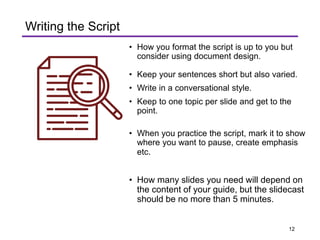
• How you format the script is up to you but
consider using document design.
• Keep your sentences short but also varied.
• Write in a conversational style.
• Keep to one topic per slide and get to the
point.
• When you practice the script, mark it to show
where you want to pause, create emphasis
etc.
• How many slides you need will depend on
the content of your guide, but the slidecast
should be no more than 5 minutes.
12
Introduction
There are many ways to write the introduction. Whether
you chose option 1 or 2 for the slidecast, it's a good idea
create an engaging opening.
Example:
• Usability testing is a methodology that reveals how a
user experiences your product or service. Achieving
usability is a lot like world peace. We all want it, but it’s
hard to achieve.
13
l~ SIGN I
POST~
'
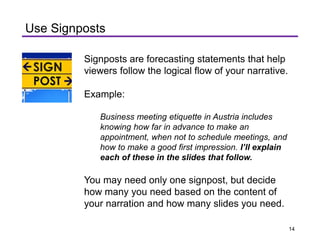
Use Signposts
Signposts are forecasting statements that help
viewers follow the logical flow of your narrative.
Example:
Business meeting etiquette in Austria includes
knowing how far in advance to make an
appointment, when not to schedule meetings, and
how to make a good first impression. I’ll explain
each of these in the slides that follow.
You may need only one signpost, but decide
how many you need based on the content of
your narration and how many slides you need.
14
Closing
Have a clear conclusion.
As in the podcast, you could
direct the viewer to sources of
additional information.
Remember to thank the
audience for listening.
15
Bibliography
• The final slide will need to be a bibliography of your source
images.
• You may use any standard documentation style for the
bibliography.
• And it should not be narrated.
16
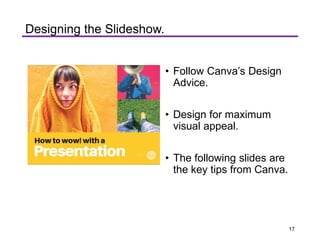
How to wow! with a
Designing the Slideshow.
• Follow Canva’s Design
Advice.
• Design for maximum
visual appeal.
• The following slides are
the key tips from Canva.
17
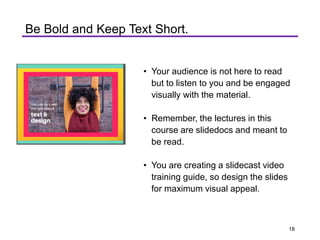
Be Bold and Keep Text Short.
• Your audience is not here to read
but to listen to you and be engaged
visually with the material.
• Remember, the lectures in this
course are slidedocs and meant to
be read.
• You are creating a slidecast video
training guide, so design the slides
for maximum visual appeal.
18
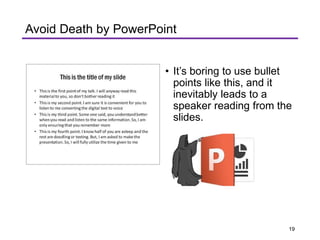
Thisisthetitleofmyslide
• This is the first point of my talk. I w ill anvway read this
mater ial 10 Yo'J, so don· 1bother reading it
• Thisismy second point I am sure it isconvenient for youto
listen to me convert ;ngthe digita l text to voice
This ismy tlfrd point.Some one said, you understand better
when yoc , read and lister,to the ~•me info rmation. S:>,I am
onlyensuring that you remember more
Thisismy fourth point. I know half of you are asleep and the
rest are dood ling or texting. But, I am asked to make the
presentation. So,I will fully utiliz e the time given to me
Avoid Death by PowerPoint
• It’s boring to use bullet
points like this, and it
inevitably leads to a
speaker reading from the
slides.
19
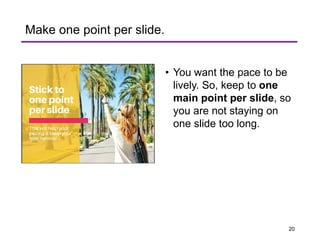
Make one point per slide.
• You want the pace to be
lively. So, keep to one
main point per slide, so
you are not staying on
one slide too long.
20
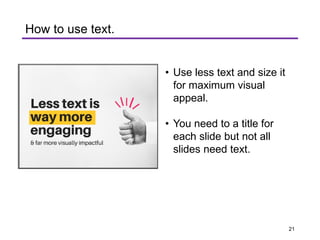
Less text is ,1//
waymore
•
engaging
& far more visually impactful
How to use text.
• Use less text and size it
for maximum visual
appeal.
• You need to a title for
each slide but not all
slides need text.
21
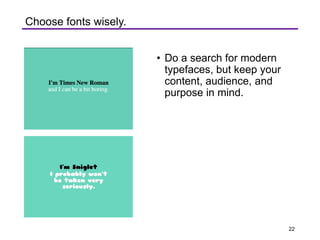
I'm Times New Roman
l'M l•i9le+
Choose fonts wisely.
• Do a search for modern
typefaces, but keep your
content, audience, and
purpose in mind.
22
.
·······················································-·····
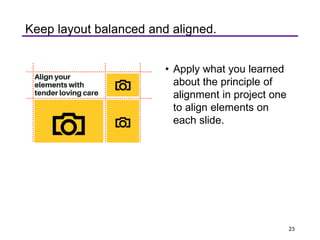
~Align your
.
~ elements with
:tender loving care. . ................................... , ................ , ......
Keep layout balanced and aligned.
• Apply what you learned
about the principle of
alignment in project one
to align elements on
each slide.
23
Color and Contrast
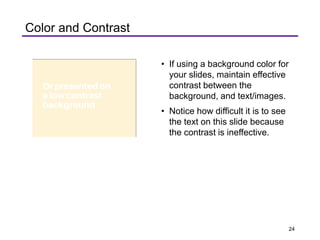
• If using a background color for
your slides, maintain effective
contrast between the
background, and text/images.
• Notice how difficult it is to see
the text on this slide because
the contrast is ineffective.
24
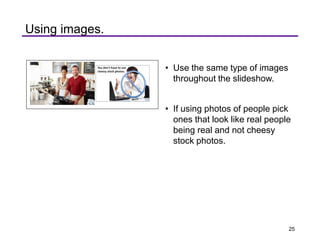
Using images.
• Use the same type of images
throughout the slideshow.
• If using photos of people pick
ones that look like real people
being real and not cheesy
stock photos.
25
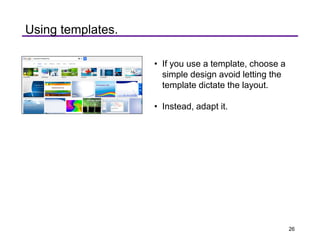
Using templates.
• If you use a template, choose a
simple design avoid letting the
template dictate the layout.
• Instead, adapt it.
26
VariantsCUstomizeDesign
kle~s
OtSiC)f'ltr
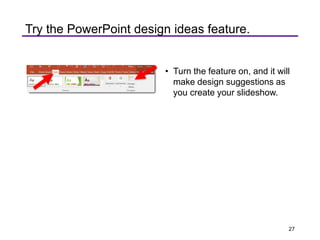
Try the PowerPoint design ideas feature.
• Turn the feature on, and it will
make design suggestions as
you create your slideshow.
27

Engl 313 ADA Project 3 Slidedoc 2

  • 1.
    ■ How to Createthe Slidecast Intercultural Guide
  • 2.
    Table of Contents AboutSlidecasts 3-4 Slidecasting Tool Options 5-10 Decide How to Work 11 Writing the Script 12-16 Designing the Slideshow 17-27 2
  • 3.
    get awestruck ~ • 4' ' ~ • . - --- - - - -- J'l )U,11 • .C J;l,S ~ ~ .. "I ~!f,~~'.~""=,:tk, ~ ~.~.~-...._...11!19' ::_ 1.,r,,,:,.. l ti ....:it::.:~rn......,...., ·- - ·- • WHYTOBECOME ATEACHER?► •••••l·•••"'"· ,, .. , ... ' ...- ...,.. •-••· . About Slidecasts A slidecast is a video consisting of a slideshow with voice-over narration. Most slidecasts are embedded on web pages from host sites such as YouTube. 3
  • 4.
    How slidecasts areused in the workplace. • Promote products or services, • Provide instructions to users, • Present test results to project team members who are at different locations. These are just a few of the ways they can be used. 4
  • 5.
    Slidecasting Tool Options •You will need a microphone, and the one in your computer will be fine for this project. • You will need to decide how you will create the slidecast from the following options. • Please note the warnings. 5
  • 6.
    Option 1: Knovio •Signup for a free account. • Create the slideshow in PPT or any other slideware program. • Save as a PDF. • Upload PDF to Knovio and use the recording feature to add the voice-over narration. • Knovio allows you to easily record one slide at a time, a highly desirable feature. • Plus, it will host your file. • NOTE: you cannot use animations with the Knovio free version. 6
  • 7.
    Option 2: PowerPoint(PC users only) • Create a PowerPoint slideshow. • Use the recording feature to add voice- over narration. • Save as a movie file and upload to a host site such as YouTube or Vimeo. • WARNING to Mac Users. PPT has a bug in it that will strip your audio out when saving as a movie file. So, you can’t use it to record the voice-over. There is no solution to-date. 7
  • 8.
    r Option 3: Keynote(Mac users only) • Keynote will work the same way PPT does for PC users, but it’s not free ($19.99). 8
  • 9.
    Hide Drag and resizethis frame to surround recording area. Toggle record /pause with ALT+P □'I ! I f □ D D' L--------------------------------1 Option 4: Screencast-O-Matic • Strictly speaking, this screen capture tool creates a screencast. But if you position the capture feature over your slideshow, you can advance the slides as you record. • It also works to record one slide at a time by starting and stopping the recording feature (although results may slightly more choppy than Knovio). • Screencast-O-Matic will also preserve any animations. 9
  • 10.
    Your file mustbe hosted. • Remember, this course does not accept video files (mp4, mov, etc.). • Here’s why. You are practicing how to create and share these types of files as they are shared in workplace settings. • So, if you choose to create a video file on your computer, be certain it is uploaded to a host site and will play without a user needing to download the file. 10
  • 11.
    . .. T Decide howto work. • Some students like to write the script for the voice-over narration first and then design the slideshow. • Others prefer to do the slideshow first and then write the script. • Still others, work by alternating between slides and script. Do the process that works best for you. 11
  • 12.
    -- - - - Writing theScript • How you format the script is up to you but consider using document design. • Keep your sentences short but also varied. • Write in a conversational style. • Keep to one topic per slide and get to the point. • When you practice the script, mark it to show where you want to pause, create emphasis etc. • How many slides you need will depend on the content of your guide, but the slidecast should be no more than 5 minutes. 12
  • 13.
    Introduction There are manyways to write the introduction. Whether you chose option 1 or 2 for the slidecast, it's a good idea create an engaging opening. Example: • Usability testing is a methodology that reveals how a user experiences your product or service. Achieving usability is a lot like world peace. We all want it, but it’s hard to achieve. 13
  • 14.
    l~ SIGN I POST~ ' UseSignposts Signposts are forecasting statements that help viewers follow the logical flow of your narrative. Example: Business meeting etiquette in Austria includes knowing how far in advance to make an appointment, when not to schedule meetings, and how to make a good first impression. I’ll explain each of these in the slides that follow. You may need only one signpost, but decide how many you need based on the content of your narration and how many slides you need. 14
  • 15.
    Closing Have a clearconclusion. As in the podcast, you could direct the viewer to sources of additional information. Remember to thank the audience for listening. 15
  • 16.
    Bibliography • The finalslide will need to be a bibliography of your source images. • You may use any standard documentation style for the bibliography. • And it should not be narrated. 16
  • 17.
    How to wow!with a Designing the Slideshow. • Follow Canva’s Design Advice. • Design for maximum visual appeal. • The following slides are the key tips from Canva. 17
  • 18.
    Be Bold andKeep Text Short. • Your audience is not here to read but to listen to you and be engaged visually with the material. • Remember, the lectures in this course are slidedocs and meant to be read. • You are creating a slidecast video training guide, so design the slides for maximum visual appeal. 18
  • 19.
    Thisisthetitleofmyslide • This isthe first point of my talk. I w ill anvway read this mater ial 10 Yo'J, so don· 1bother reading it • Thisismy second point I am sure it isconvenient for youto listen to me convert ;ngthe digita l text to voice This ismy tlfrd point.Some one said, you understand better when yoc , read and lister,to the ~•me info rmation. S:>,I am onlyensuring that you remember more Thisismy fourth point. I know half of you are asleep and the rest are dood ling or texting. But, I am asked to make the presentation. So,I will fully utiliz e the time given to me Avoid Death by PowerPoint • It’s boring to use bullet points like this, and it inevitably leads to a speaker reading from the slides. 19
  • 20.
    Make one pointper slide. • You want the pace to be lively. So, keep to one main point per slide, so you are not staying on one slide too long. 20
  • 21.
    Less text is,1// waymore • engaging & far more visually impactful How to use text. • Use less text and size it for maximum visual appeal. • You need to a title for each slide but not all slides need text. 21
  • 22.
    I'm Times NewRoman l'M l•i9le+ Choose fonts wisely. • Do a search for modern typefaces, but keep your content, audience, and purpose in mind. 22
  • 23.
    . ·······················································-····· ~Align your . ~ elementswith :tender loving care. . ................................... , ................ , ...... Keep layout balanced and aligned. • Apply what you learned about the principle of alignment in project one to align elements on each slide. 23
  • 24.
    Color and Contrast •If using a background color for your slides, maintain effective contrast between the background, and text/images. • Notice how difficult it is to see the text on this slide because the contrast is ineffective. 24
  • 25.
    Using images. • Usethe same type of images throughout the slideshow. • If using photos of people pick ones that look like real people being real and not cheesy stock photos. 25
  • 26.
    Using templates. • Ifyou use a template, choose a simple design avoid letting the template dictate the layout. • Instead, adapt it. 26
  • 27.
    VariantsCUstomizeDesign kle~s OtSiC)f'ltr Try the PowerPointdesign ideas feature. • Turn the feature on, and it will make design suggestions as you create your slideshow. 27