Year 7 Guide to presenting for a formal audience
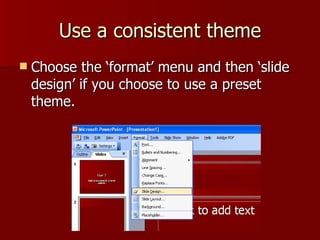
Use a consistent theme Choose the ‘format’ menu and then ‘slide design’ if you choose to use a preset theme.
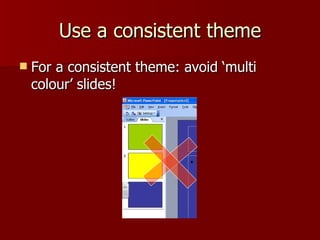
Use a consistent theme For a consistent theme: avoid ‘multi colour’ slides!
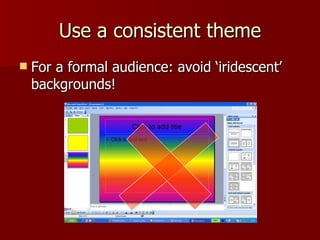
Use a consistent theme For a formal audience: avoid ‘iridescent’ backgrounds!
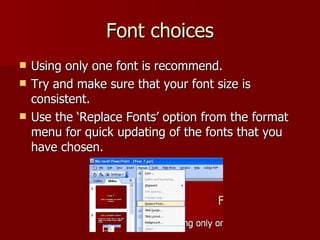
Font choices Using only one font is recommend. Try and make sure that your font size is consistent. Use the ‘Replace Fonts’ option from the format menu for quick updating of the fonts that you have chosen.
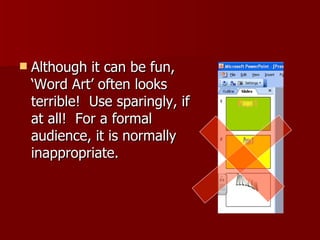
Although it can be fun, ‘Word Art’ often looks terrible!  Use sparingly, if at all!  For a formal audience, it is normally inappropriate.
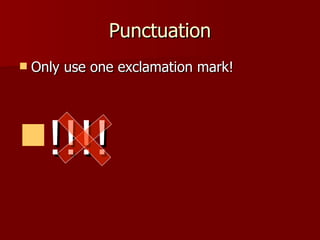
Punctuation Only use one exclamation mark! !!!!
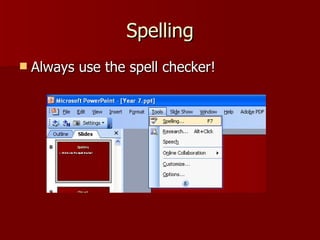
Spelling Always use the spell checker!
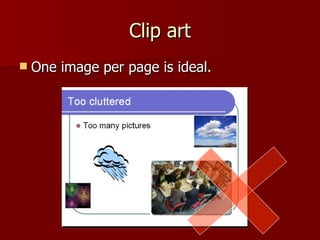
Clip art One image per page is ideal.
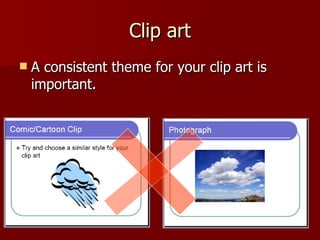
Clip art A consistent theme for your clip art is important.
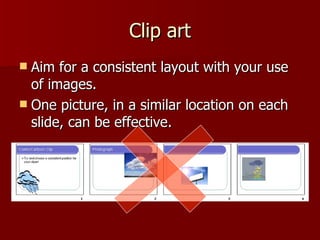
Clip art Aim for a consistent layout with your use of images. One picture, in a similar location on each slide, can be effective.
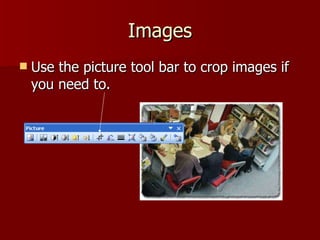
Images Use the picture tool bar to crop images if you need to.
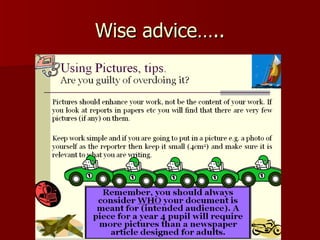
Wise advice…..
Choice of colour scheme Keep your colour scheme consistent. Avoid clashing colours. Ask yourself: how clear and easy to read is my presentation? Think about the intended audience:  primary school children would probably love lots of different bright colours; older children and adults would probably prefer simple, but effective, colour schemes.
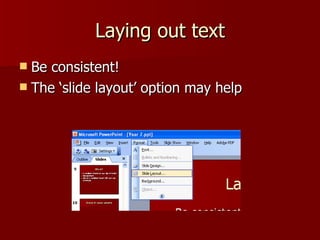
Laying out text Be consistent! The ‘slide layout’ option may help
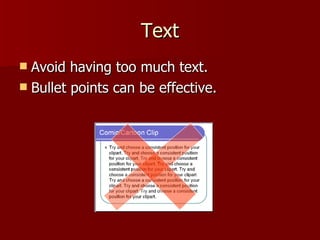
Text Avoid having too much text. Bullet points can be effective.
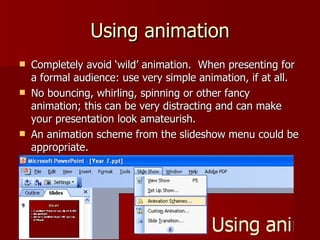
Using animation Completely avoid ‘wild’ animation.  When presenting for a formal audience: use very simple animation, if at all. No bouncing, whirling, spinning or other fancy animation; this can be very distracting and can make your presentation look amateurish. An animation scheme from the slideshow menu could be appropriate.
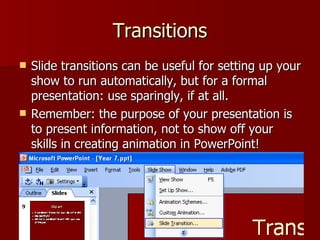
Transitions Slide transitions can be useful for setting up your show to run automatically, but for a formal presentation: use sparingly, if at all. Remember: the purpose of your presentation is to present information, not to show off your skills in creating animation in PowerPoint!
Using sound For a formal presentation: sound will probably be inappropriate. If you must use sound: choose your effects wisely. Do not use sound just for the sake of it!

Year 7

  • 1.
    Year 7 Guideto presenting for a formal audience
  • 2.
    Use a consistenttheme Choose the ‘format’ menu and then ‘slide design’ if you choose to use a preset theme.
  • 3.
    Use a consistenttheme For a consistent theme: avoid ‘multi colour’ slides!
  • 4.
    Use a consistenttheme For a formal audience: avoid ‘iridescent’ backgrounds!
  • 5.
    Font choices Usingonly one font is recommend. Try and make sure that your font size is consistent. Use the ‘Replace Fonts’ option from the format menu for quick updating of the fonts that you have chosen.
  • 6.
    Although it canbe fun, ‘Word Art’ often looks terrible! Use sparingly, if at all! For a formal audience, it is normally inappropriate.
  • 7.
    Punctuation Only useone exclamation mark! !!!!
  • 8.
    Spelling Always usethe spell checker!
  • 9.
    Clip art Oneimage per page is ideal.
  • 10.
    Clip art Aconsistent theme for your clip art is important.
  • 11.
    Clip art Aimfor a consistent layout with your use of images. One picture, in a similar location on each slide, can be effective.
  • 12.
    Images Use thepicture tool bar to crop images if you need to.
  • 13.
  • 14.
    Choice of colourscheme Keep your colour scheme consistent. Avoid clashing colours. Ask yourself: how clear and easy to read is my presentation? Think about the intended audience: primary school children would probably love lots of different bright colours; older children and adults would probably prefer simple, but effective, colour schemes.
  • 15.
    Laying out textBe consistent! The ‘slide layout’ option may help
  • 16.
    Text Avoid havingtoo much text. Bullet points can be effective.
  • 17.
    Using animation Completelyavoid ‘wild’ animation. When presenting for a formal audience: use very simple animation, if at all. No bouncing, whirling, spinning or other fancy animation; this can be very distracting and can make your presentation look amateurish. An animation scheme from the slideshow menu could be appropriate.
  • 18.
    Transitions Slide transitionscan be useful for setting up your show to run automatically, but for a formal presentation: use sparingly, if at all. Remember: the purpose of your presentation is to present information, not to show off your skills in creating animation in PowerPoint!
  • 19.
    Using sound Fora formal presentation: sound will probably be inappropriate. If you must use sound: choose your effects wisely. Do not use sound just for the sake of it!