ENDNOTE FOR WINDOWS
UCT Libraries
2015
Outline
• Download & install
• Setting preferences (Recommended)
• EndNote features
• Create an EndNote Library
• Import references (Google Scholar, Web of Science & EBSCO Academic Search Premier)
Download & install
• Go to - ICTS Download @
https://www.icts.uct.ac.za/modules.php?name=Your_Account&page=Downloads
&pageop=AddDownload
• Download Endnote from the Windows Applications icon
• Open the Endnote icon on the Desktop
• Go to the File menu, select New and save a new library, e.g. ‘My Endnote Library’
Edit Settings
Go to the Edit menu choose Preferences to customize the recommended settings:
• Find Full-text
Search the Web for full-text.
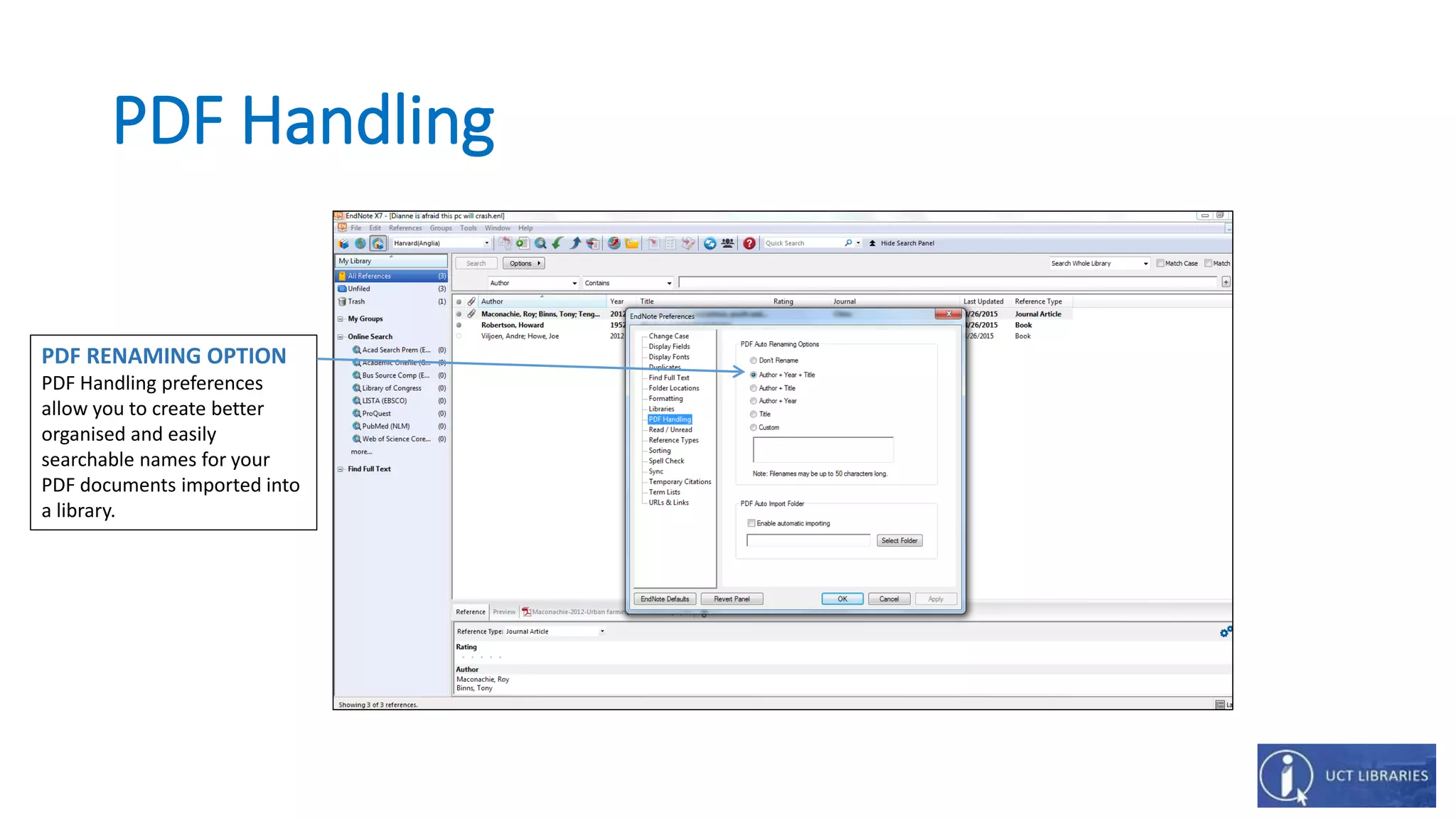
• PDF Handling
Automatic renaming of PDF files, e.g. author, year, title.
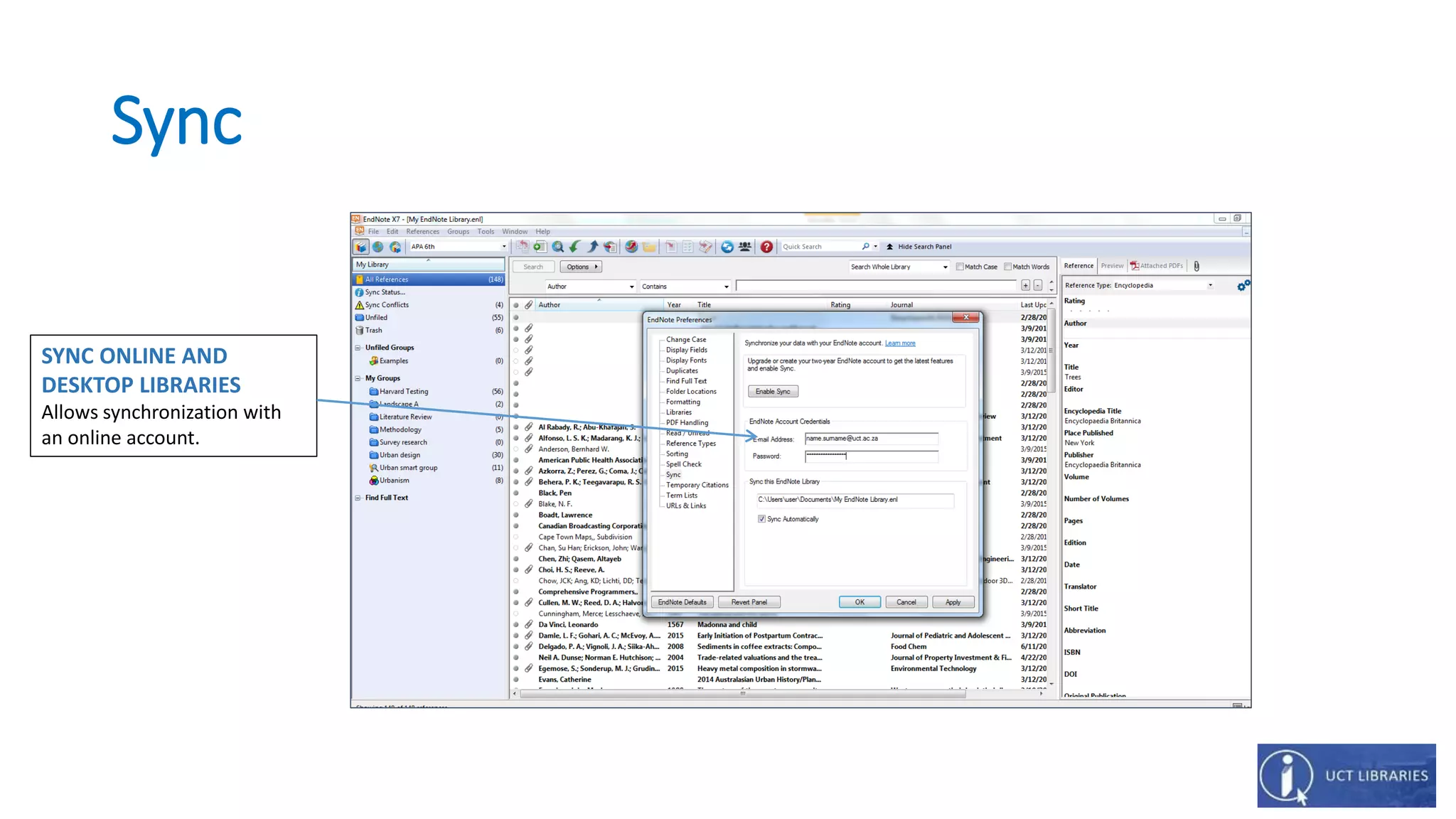
• Sync
Allows synchronization with an online account. Set preferences and save a
username and password. Enable Sync button to activate the online account.
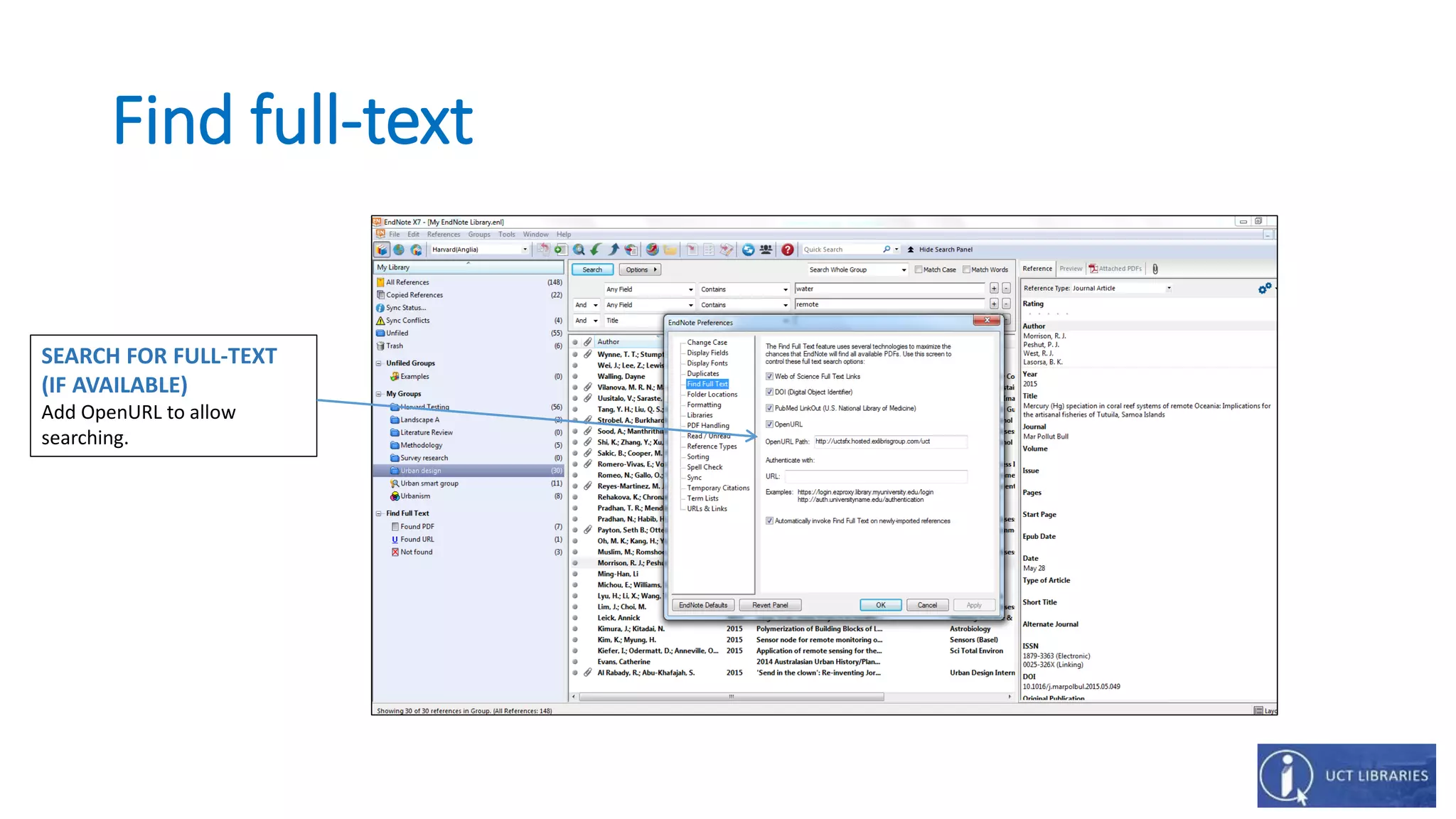
Find full-text
SEARCH FOR FULL-TEXT
(IF AVAILABLE)
Add OpenURL to allow
searching.
PDF Handling
PDF RENAMING OPTION
PDF Handling preferences
allow you to create better
organised and easily
searchable names for your
PDF documents imported into
a library.
Sync
SYNC ONLINE AND
DESKTOP LIBRARIES
Allows synchronization with
an online account.
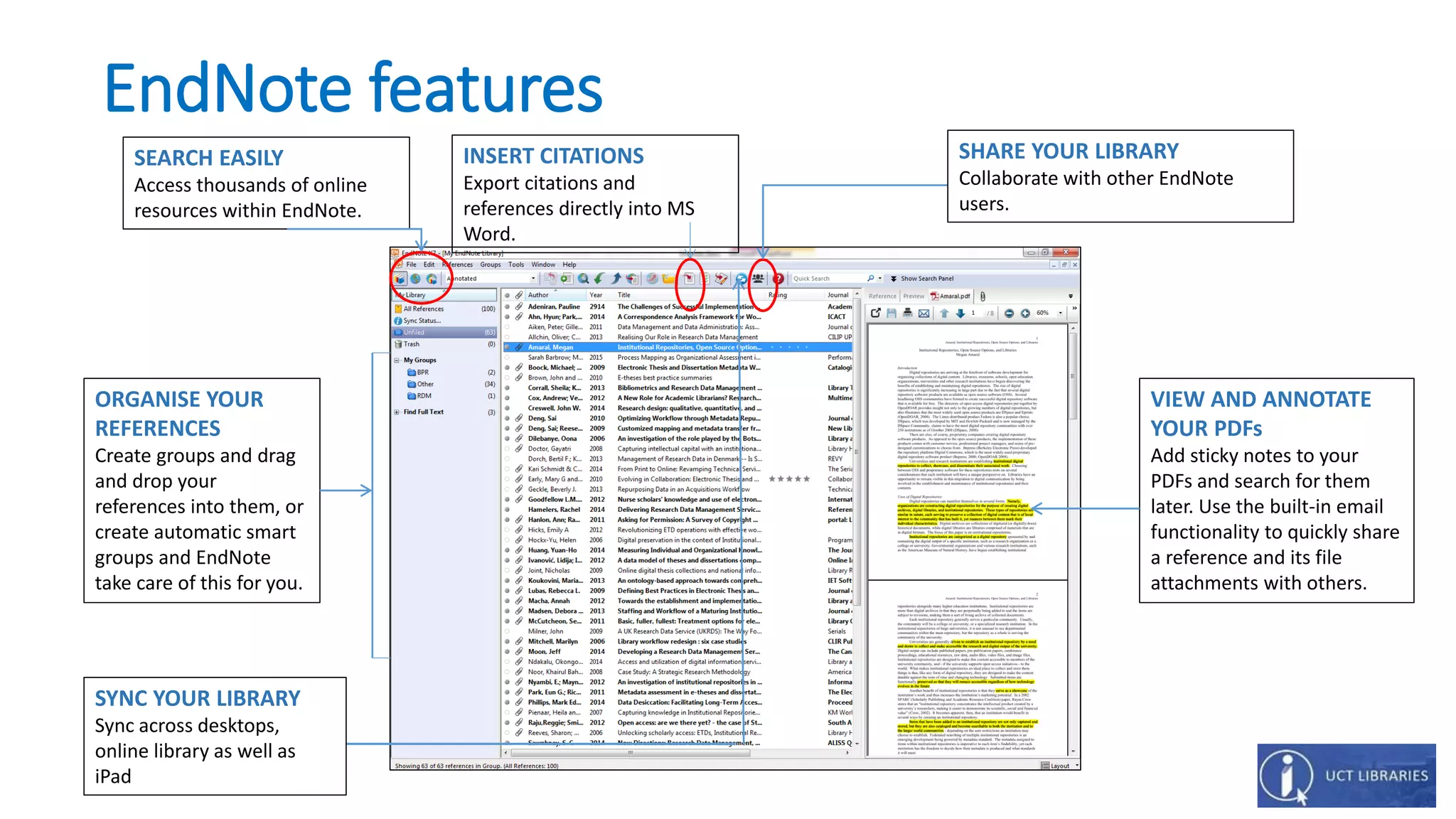
EndNote features
SHARE YOUR LIBRARY
Collaborate with other EndNote
users.
INSERT CITATIONS
Export citations and
references directly into MS
Word.
SEARCH EASILY
Access thousands of online
resources within EndNote.
ORGANISE YOUR
REFERENCES
Create groups and drag
and drop your
references into them, or
create automatic smart
groups and EndNote
take care of this for you.
VIEW AND ANNOTATE
YOUR PDFs
Add sticky notes to your
PDFs and search for them
later. Use the built-in email
functionality to quickly share
a reference and its file
attachments with others.
SYNC YOUR LIBRARY
Sync across desktops,
online library as well as
iPad
How to get references into an EndNote Library
• Import PDF files or folders.
• Export from Google Scholar and databases, e.g. Web of Science.
• Search from within EndNote and import records.
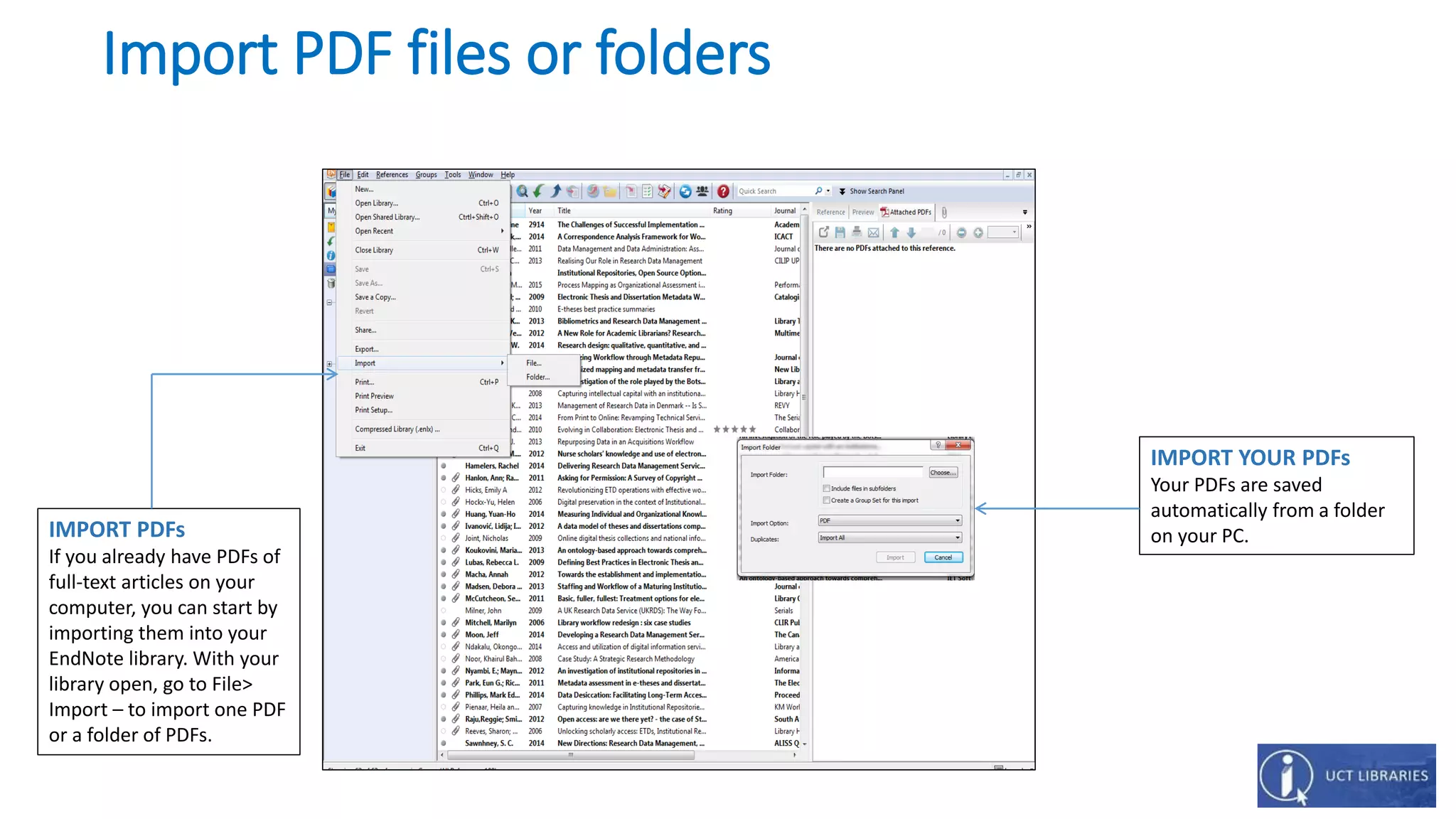
Import PDF files or folders
IMPORT YOUR PDFs
Your PDFs are saved
automatically from a folder
on your PC.IMPORT PDFs
If you already have PDFs of
full-text articles on your
computer, you can start by
importing them into your
EndNote library. With your
library open, go to File>
Import – to import one PDF
or a folder of PDFs.
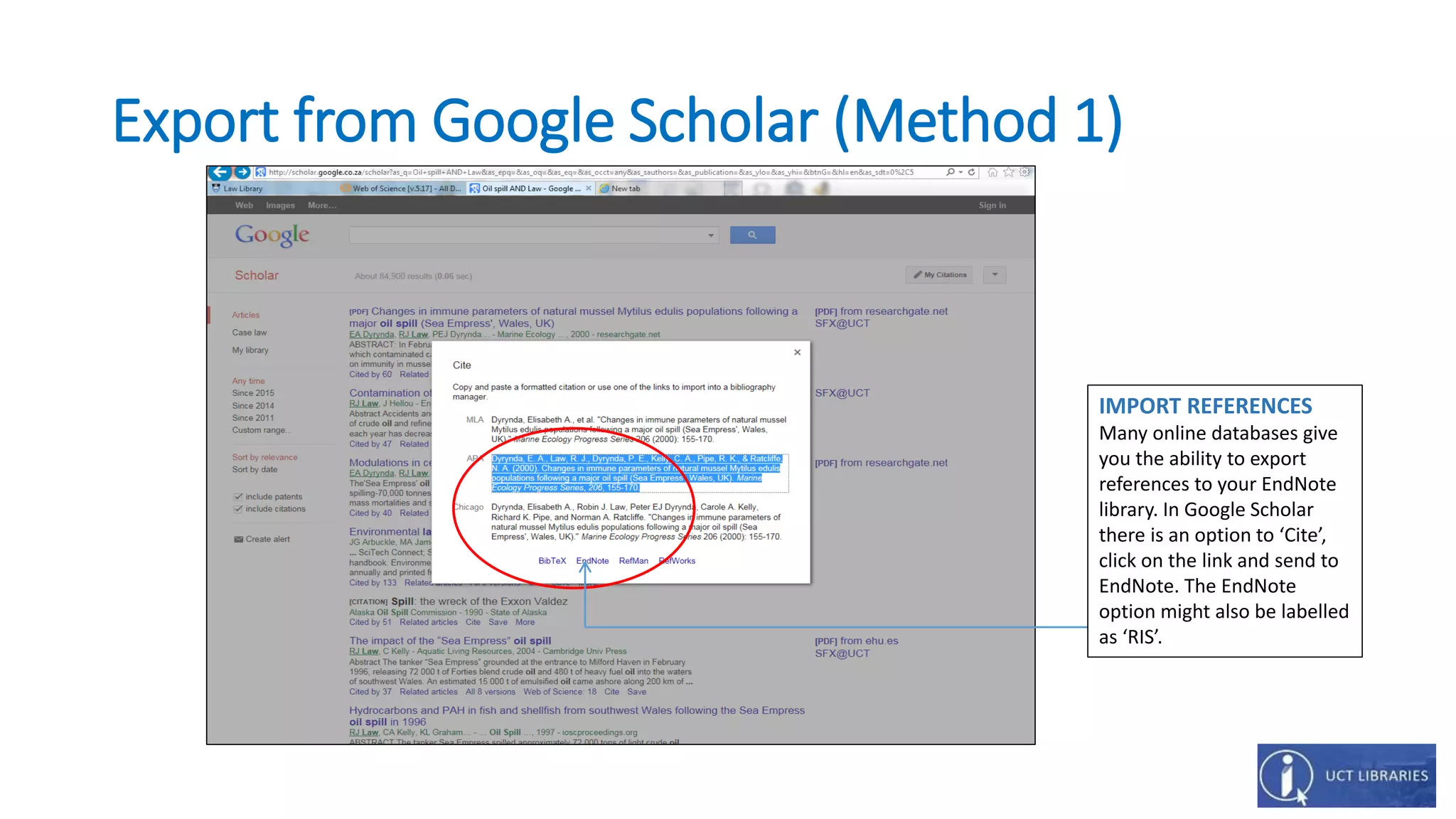
Export from Google Scholar (Method 1)
IMPORT REFERENCES
Many online databases give
you the ability to export
references to your EndNote
library. In Google Scholar
there is an option to ‘Cite’,
click on the link and send to
EndNote. The EndNote
option might also be labelled
as ‘RIS’.
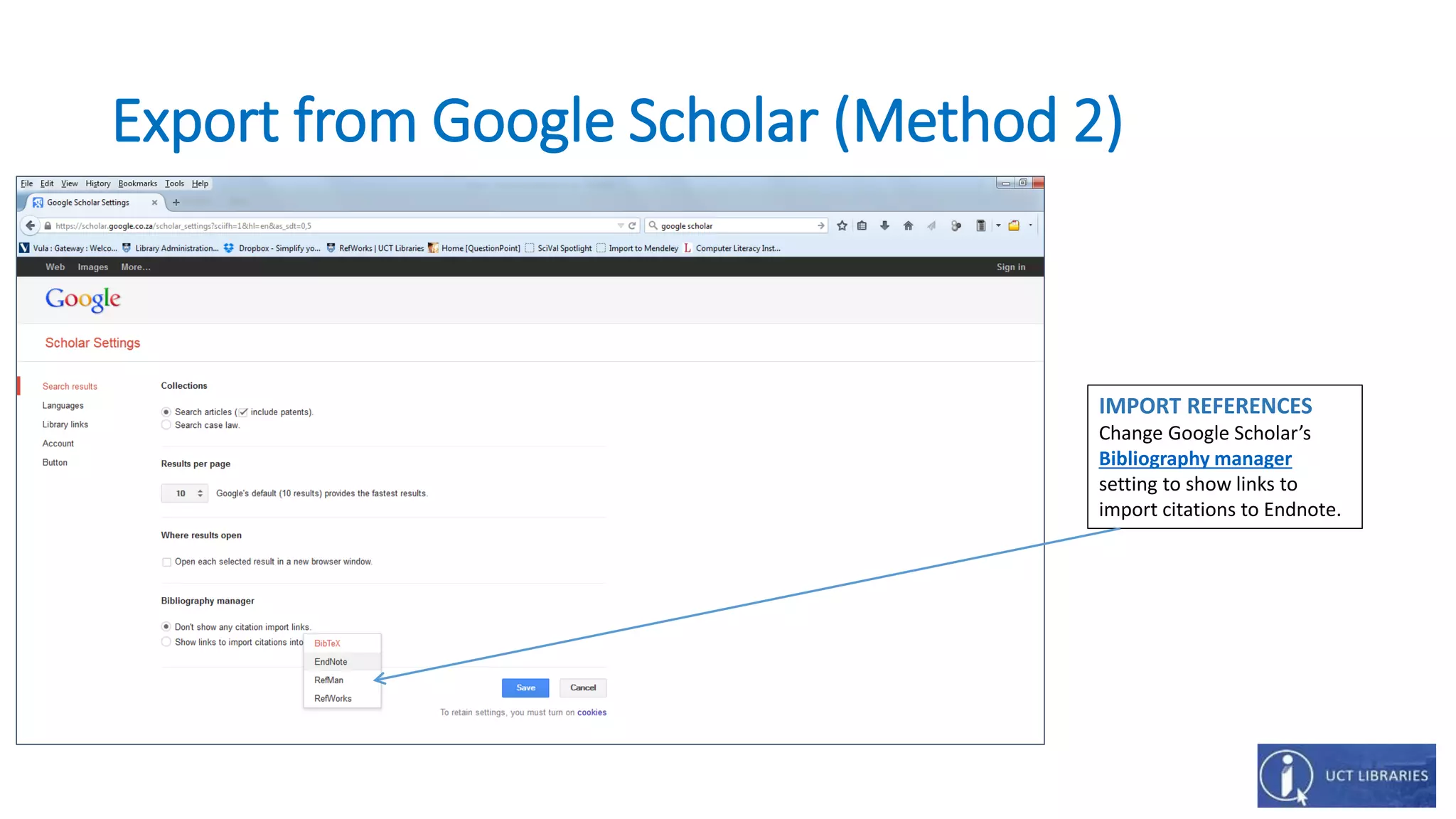
Export from Google Scholar (Method 2)
IMPORT REFERENCES
Change Google Scholar’s
Bibliography manager
setting to show links to
import citations to Endnote.
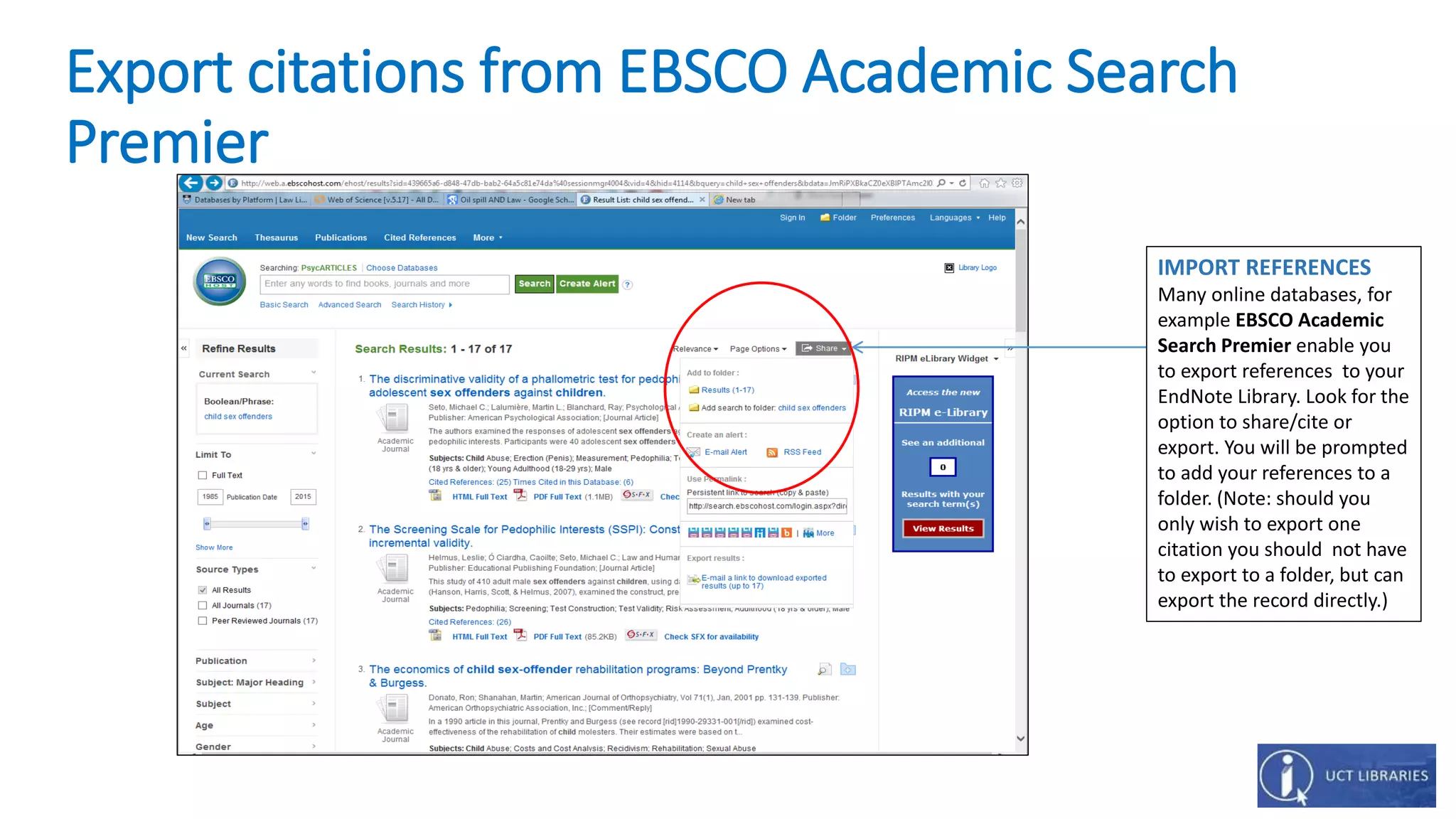
Export citations from EBSCO Academic Search
Premier
IMPORT REFERENCES
Many online databases, for
example EBSCO Academic
Search Premier enable you
to export references to your
EndNote Library. Look for the
option to share/cite or
export. You will be prompted
to add your references to a
folder. (Note: should you
only wish to export one
citation you should not have
to export to a folder, but can
export the record directly.)
Export citations from EBSCO Academic Search
Premier
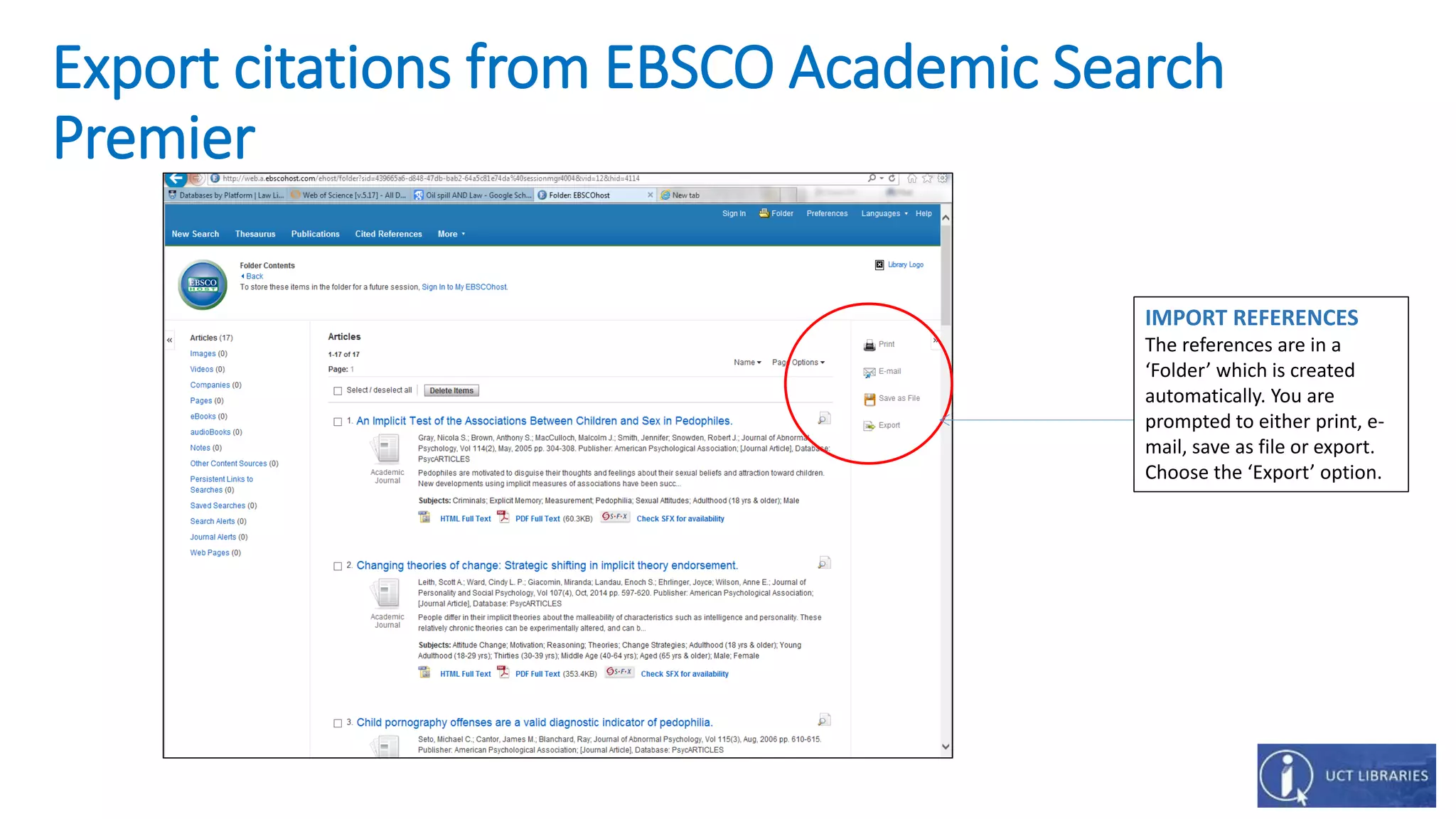
IMPORT REFERENCES
The references are in a
‘Folder’ which is created
automatically. You are
prompted to either print, e-
mail, save as file or export.
Choose the ‘Export’ option.
Export citations from EBSCO Academic Search
Premier
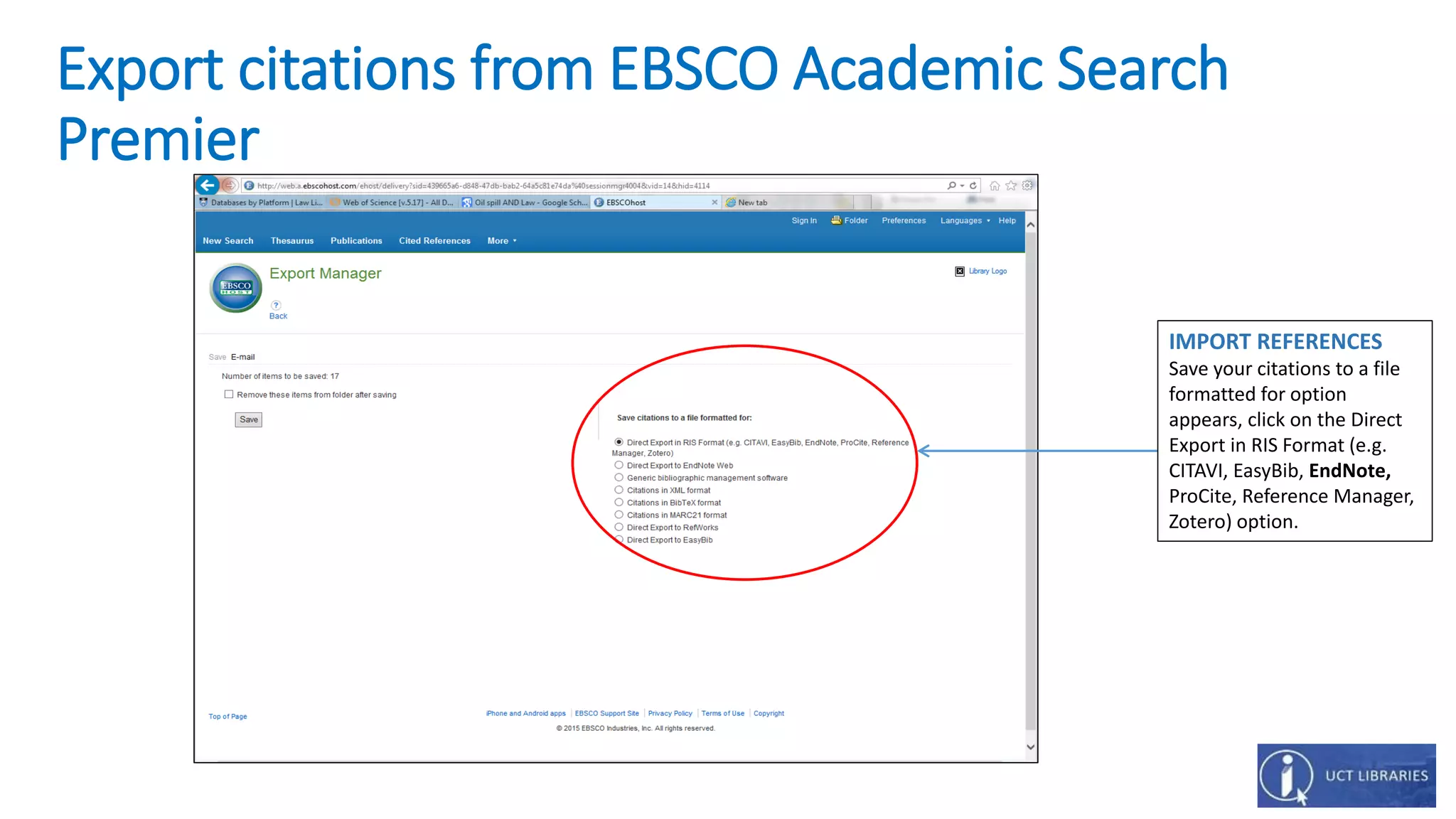
IMPORT REFERENCES
Save your citations to a file
formatted for option
appears, click on the Direct
Export in RIS Format (e.g.
CITAVI, EasyBib, EndNote,
ProCite, Reference Manager,
Zotero) option.
Results from EBSCO Academic - exported to EndNote
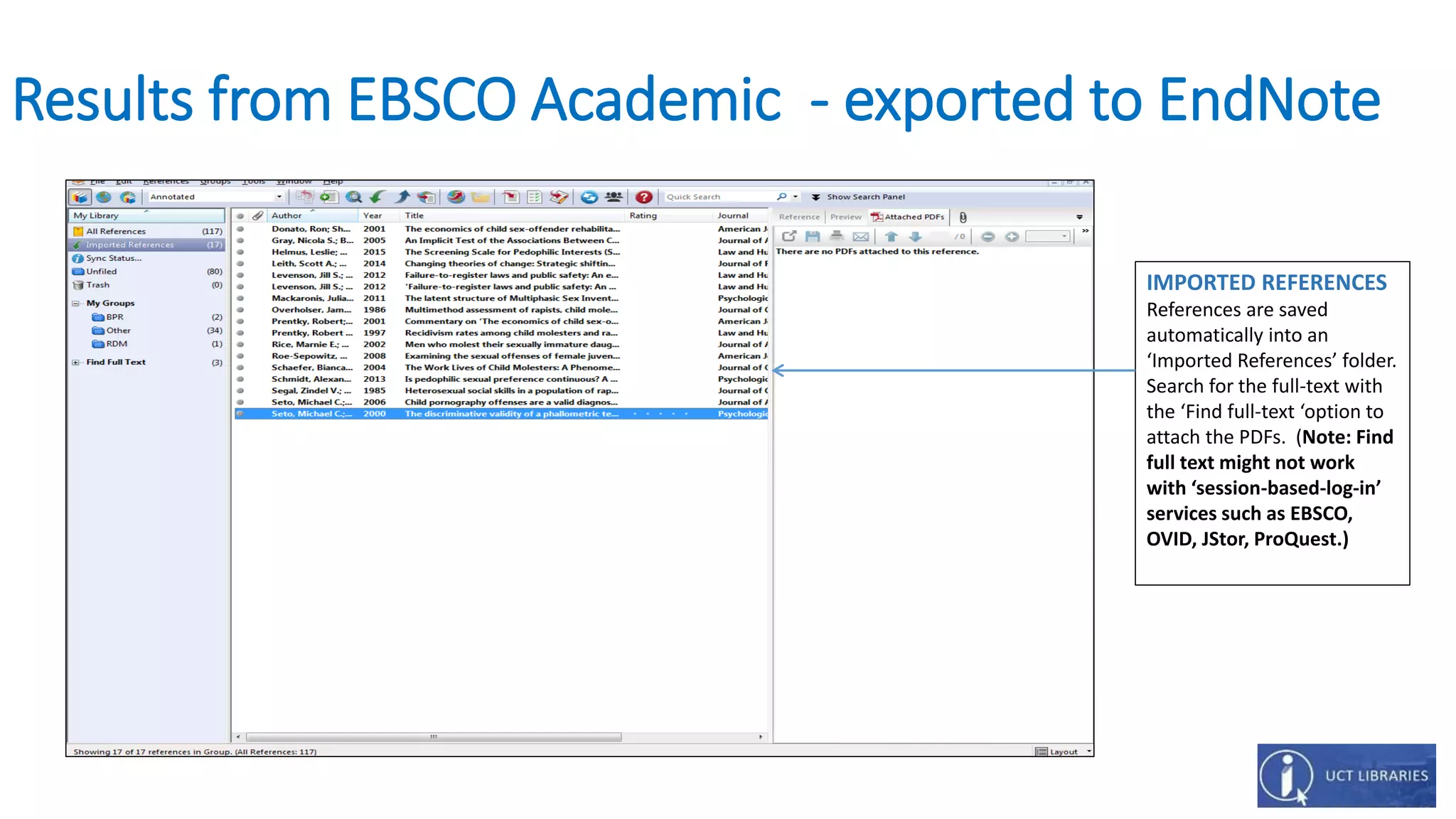
IMPORTED REFERENCES
References are saved
automatically into an
‘Imported References’ folder.
Search for the full-text with
the ‘Find full-text ‘option to
attach the PDFs. (Note: Find
full text might not work
with ‘session-based-log-in’
services such as EBSCO,
OVID, JStor, ProQuest.)
Export citations from Web of Science (Thompson
Reuters)
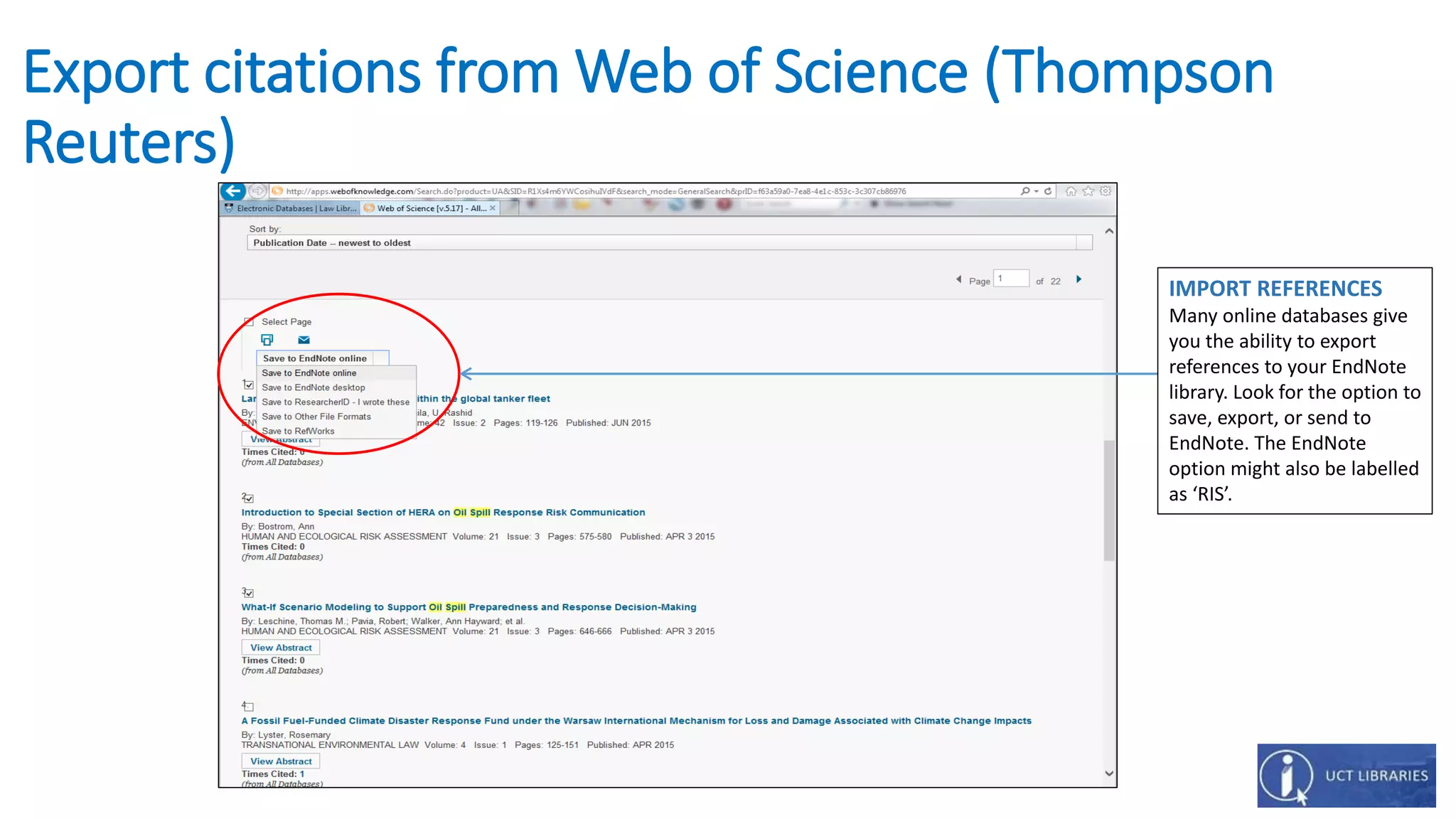
IMPORT REFERENCES
Many online databases give
you the ability to export
references to your EndNote
library. Look for the option to
save, export, or send to
EndNote. The EndNote
option might also be labelled
as ‘RIS’.
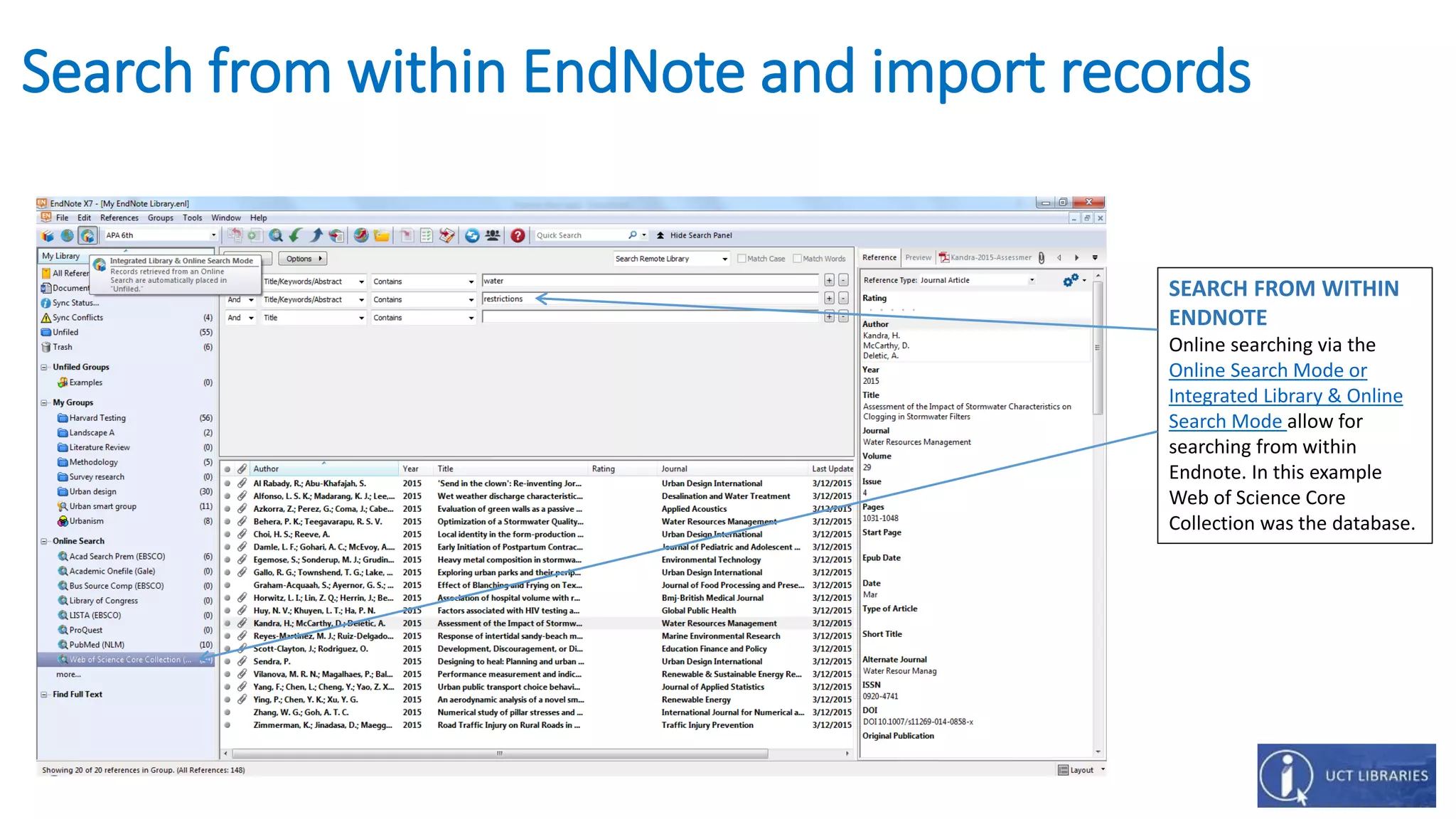
Search from within EndNote and import records
SEARCH FROM WITHIN
ENDNOTE
Online searching via the
Online Search Mode or
Integrated Library & Online
Search Mode allow for
searching from within
Endnote. In this example
Web of Science Core
Collection was the database.
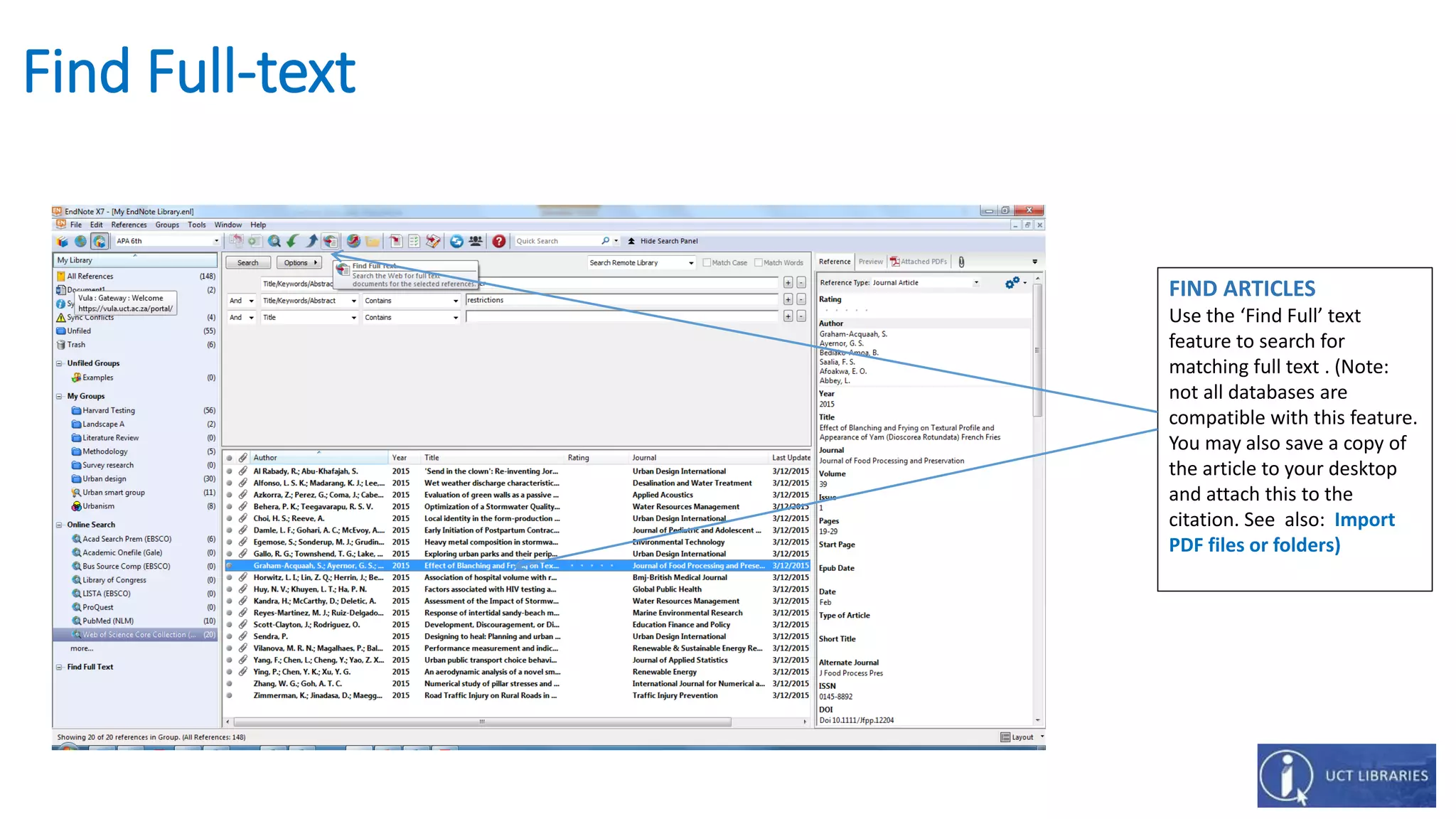
Find Full-text
FIND ARTICLES
Use the ‘Find Full’ text
feature to search for
matching full text . (Note:
not all databases are
compatible with this feature.
You may also save a copy of
the article to your desktop
and attach this to the
citation. See also: Import
PDF files or folders)
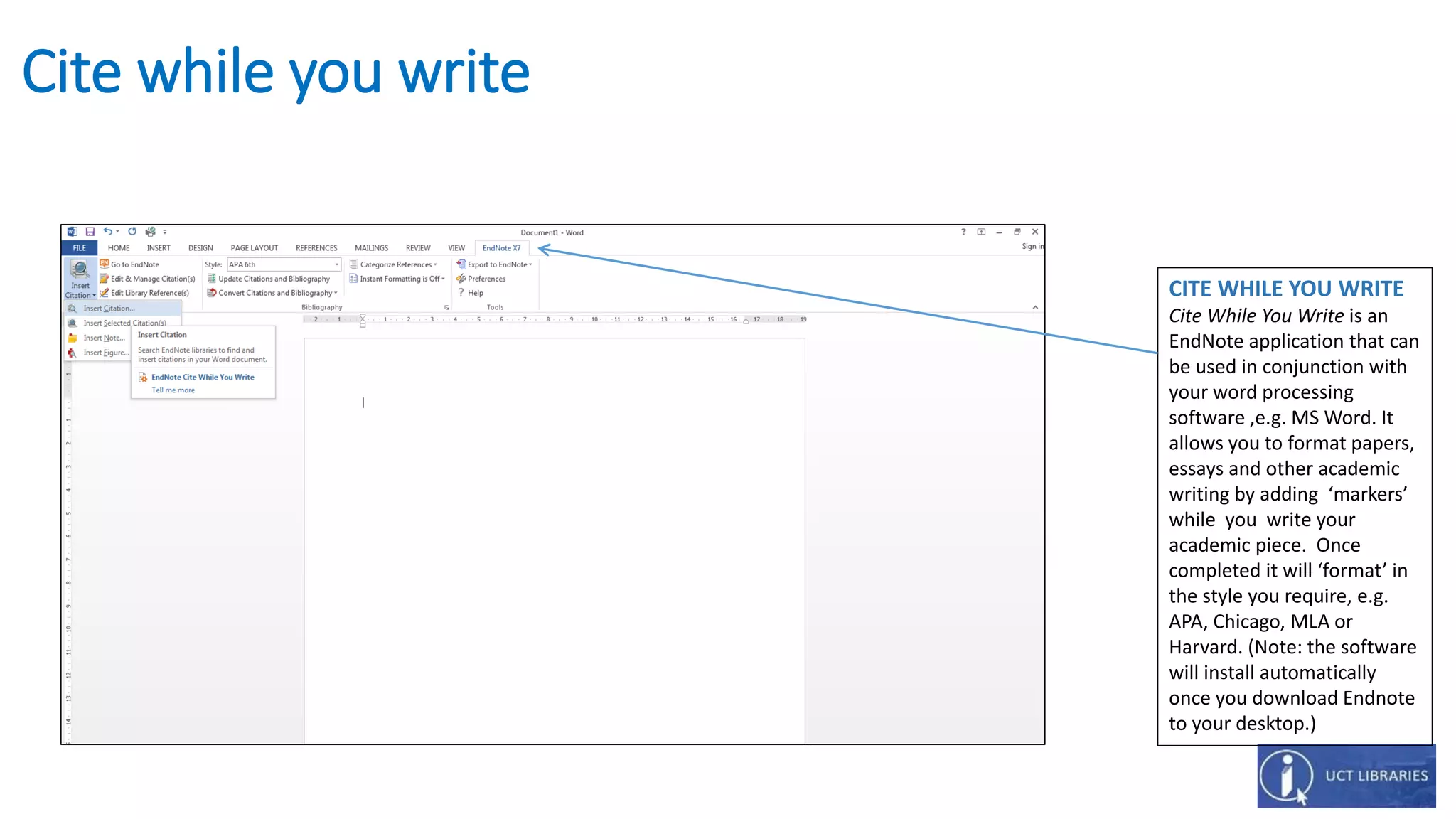
Cite while you write
CITE WHILE YOU WRITE
Cite While You Write is an
EndNote application that can
be used in conjunction with
your word processing
software ,e.g. MS Word. It
allows you to format papers,
essays and other academic
writing by adding ‘markers’
while you write your
academic piece. Once
completed it will ‘format’ in
the style you require, e.g.
APA, Chicago, MLA or
Harvard. (Note: the software
will install automatically
once you download Endnote
to your desktop.)
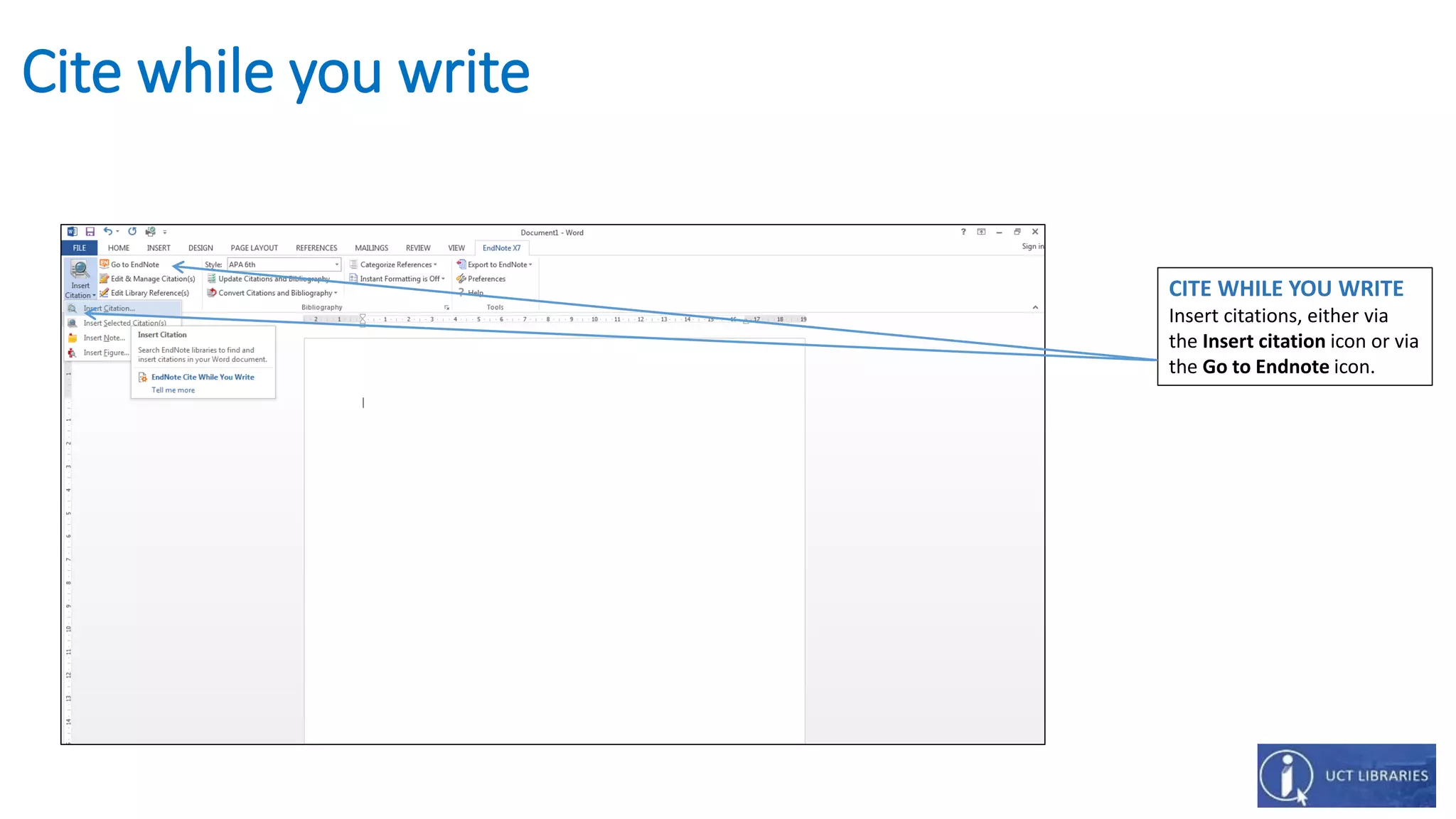
Cite while you write
CITE WHILE YOU WRITE
Insert citations, either via
the Insert citation icon or via
the Go to Endnote icon.
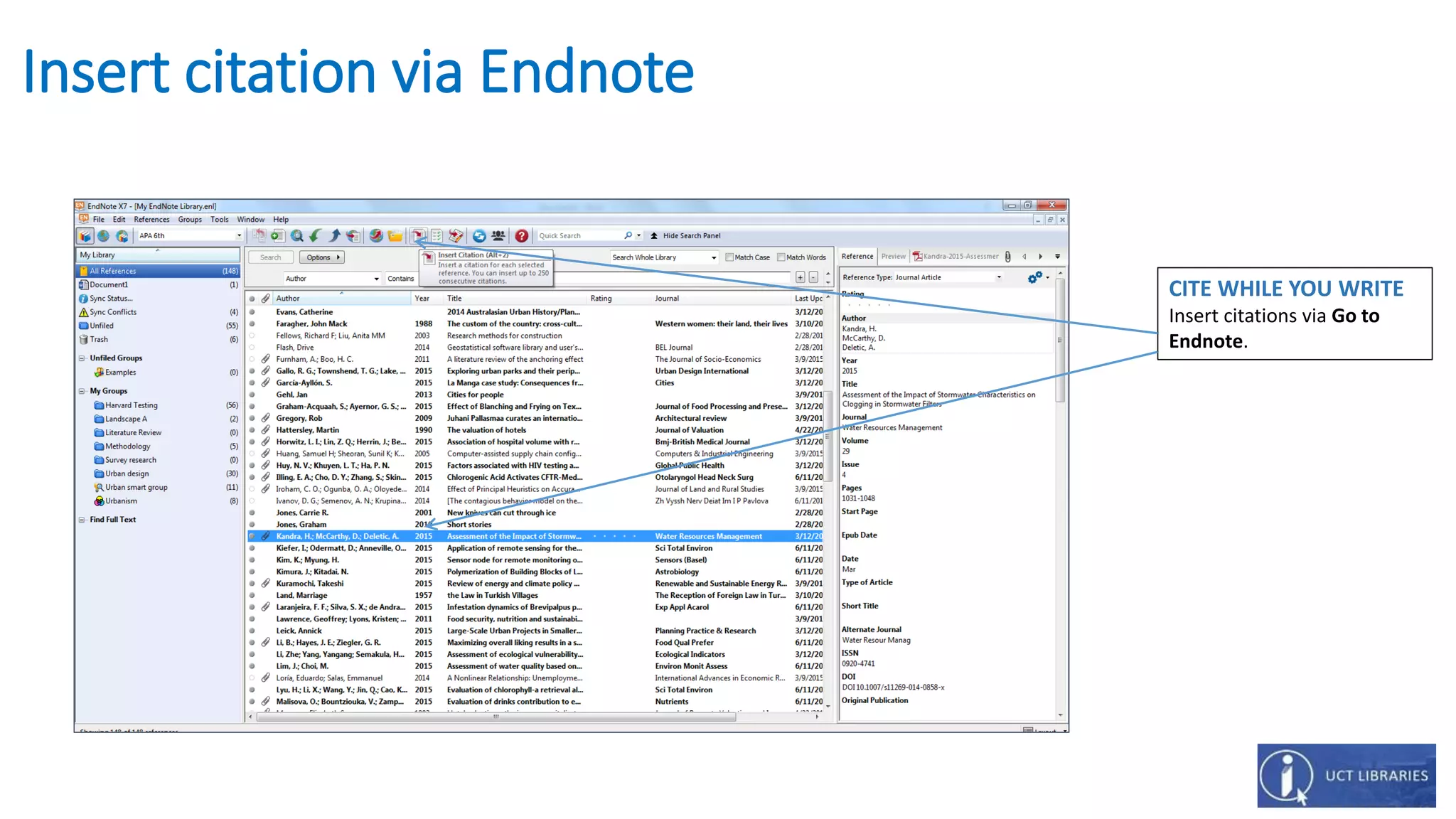
Insert citation via Endnote
CITE WHILE YOU WRITE
Insert citations via Go to
Endnote.
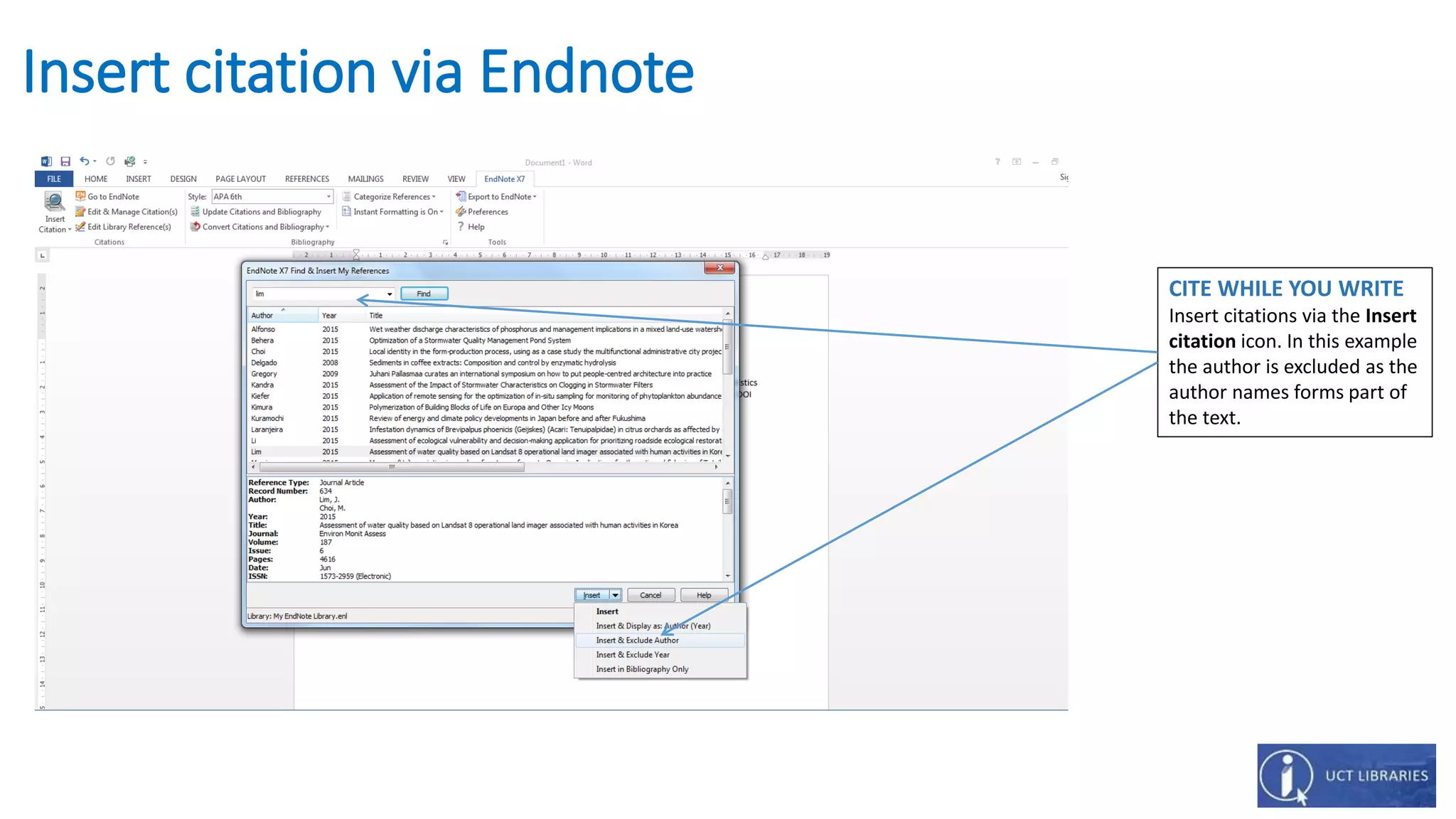
Insert citation via Endnote
CITE WHILE YOU WRITE
Insert citations via the Insert
citation icon. In this example
the author is excluded as the
author names forms part of
the text.
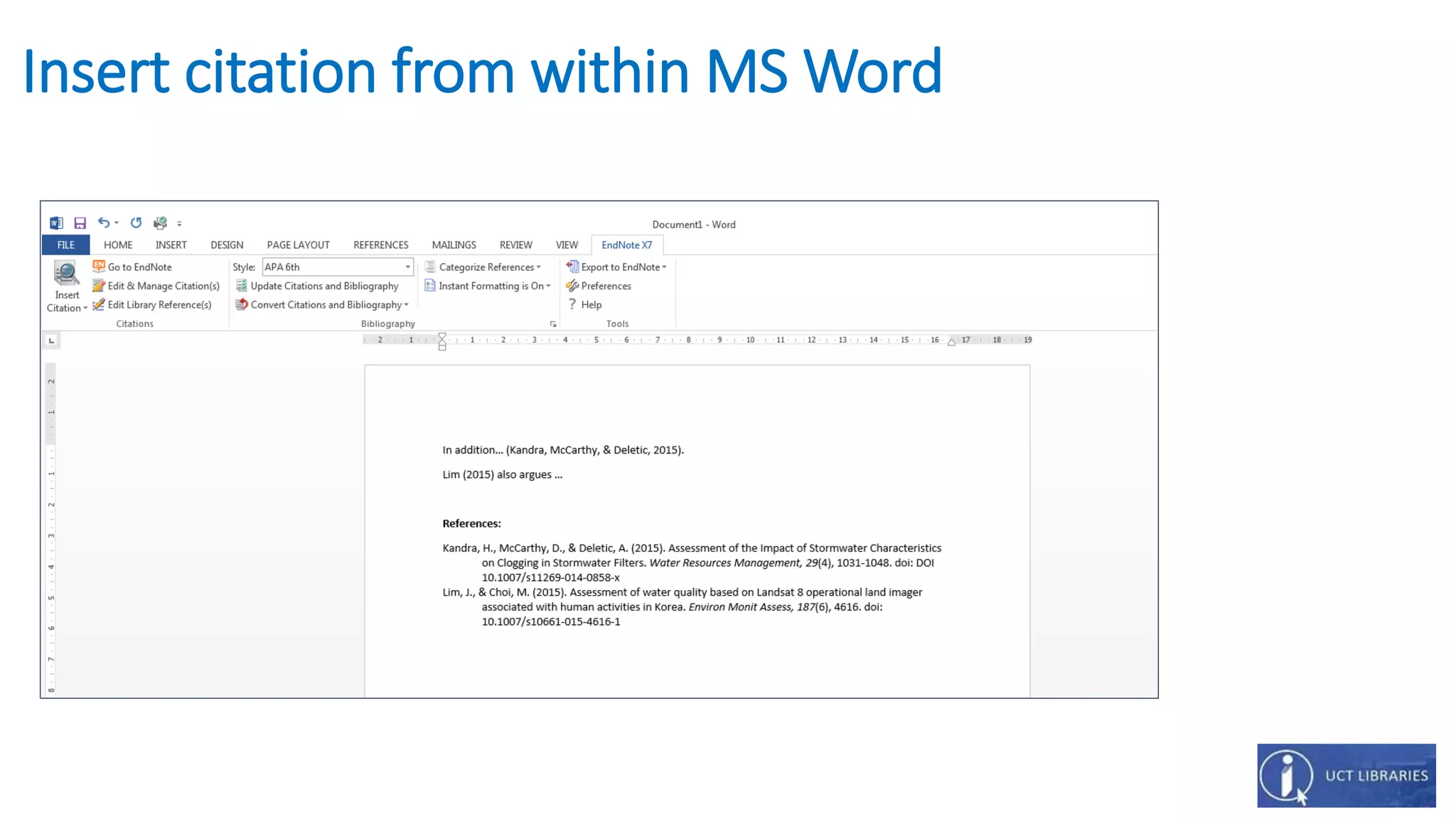
Insert citation from within MS Word
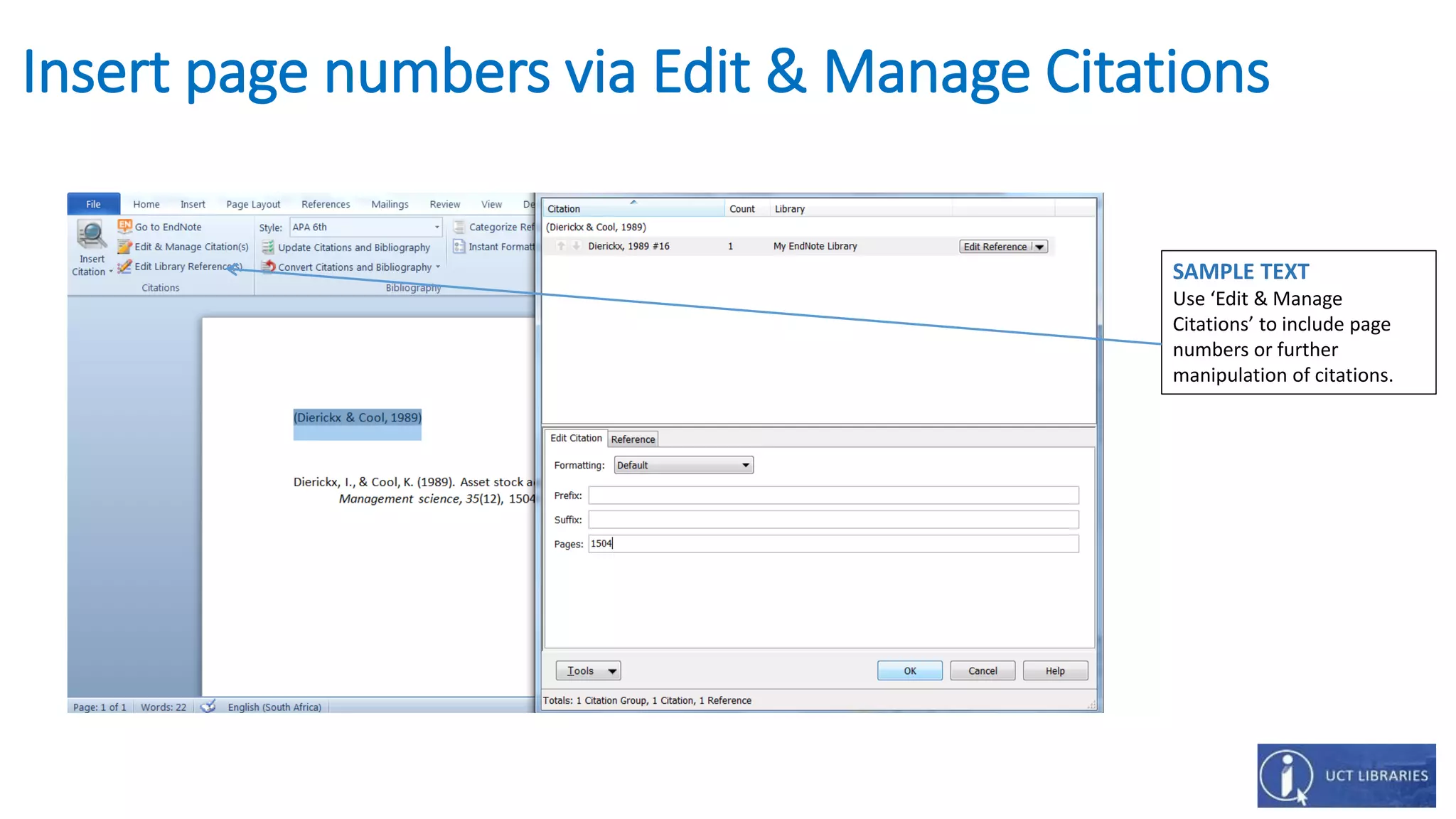
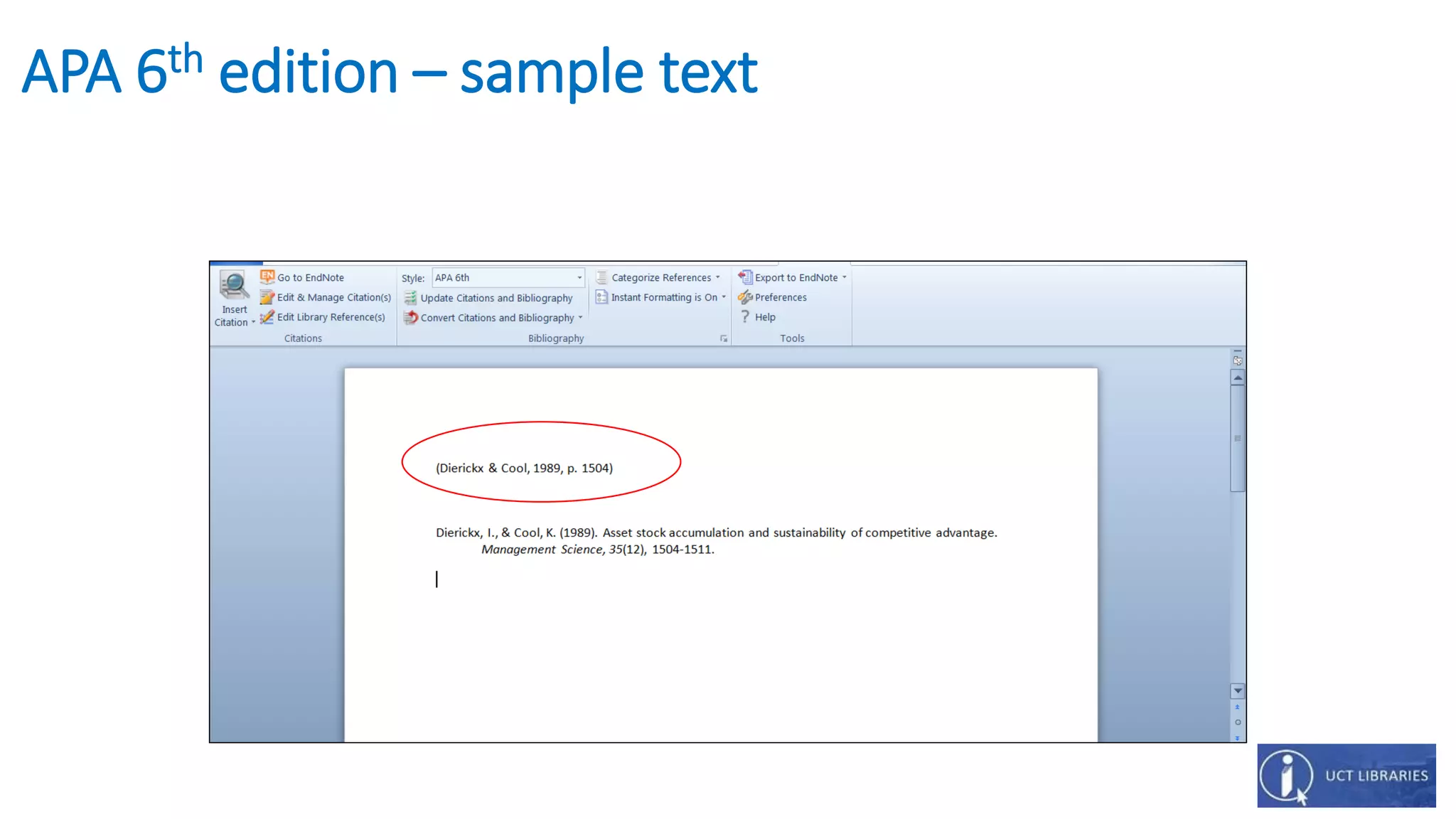
Insert page numbers via Edit & Manage Citations
SAMPLE TEXT
Use ‘Edit & Manage
Citations’ to include page
numbers or further
manipulation of citations.
APA 6th edition – sample text
Back-up
Three recommended back-up methods:
• Back-up of ‘My Library’ by synchronizing to the Online/Web Library.
• From the ’File’ menu, select ’Compressed Library’ (.enlx) and then ’Create’ a back-up. Use the
file dialogue to save to an ‘EndNote Compressed Library’ (filename.enlx) to a location other
than your local drive, e.g. Dropbox.
• With a library open, choose ’Save a Copy’ from the ’File’ menu. Name the new library and
choose a location other than your local drive, e.g. Dropbox. Click ’Save’ and ‘EndNote’ will
create a copy of the library.
Additional help
• UCT Libraries Endnote information
• UCT Libraries Endnote Library Guide
• Endnote Training Guides

Endnote basic for Windows by Dianne Steele

  • 1.
  • 2.
    Outline • Download &install • Setting preferences (Recommended) • EndNote features • Create an EndNote Library • Import references (Google Scholar, Web of Science & EBSCO Academic Search Premier)
  • 3.
    Download & install •Go to - ICTS Download @ https://www.icts.uct.ac.za/modules.php?name=Your_Account&page=Downloads &pageop=AddDownload • Download Endnote from the Windows Applications icon • Open the Endnote icon on the Desktop • Go to the File menu, select New and save a new library, e.g. ‘My Endnote Library’
  • 4.
    Edit Settings Go tothe Edit menu choose Preferences to customize the recommended settings: • Find Full-text Search the Web for full-text. • PDF Handling Automatic renaming of PDF files, e.g. author, year, title. • Sync Allows synchronization with an online account. Set preferences and save a username and password. Enable Sync button to activate the online account.
  • 5.
    Find full-text SEARCH FORFULL-TEXT (IF AVAILABLE) Add OpenURL to allow searching.
  • 6.
    PDF Handling PDF RENAMINGOPTION PDF Handling preferences allow you to create better organised and easily searchable names for your PDF documents imported into a library.
  • 7.
    Sync SYNC ONLINE AND DESKTOPLIBRARIES Allows synchronization with an online account.
  • 8.
    EndNote features SHARE YOURLIBRARY Collaborate with other EndNote users. INSERT CITATIONS Export citations and references directly into MS Word. SEARCH EASILY Access thousands of online resources within EndNote. ORGANISE YOUR REFERENCES Create groups and drag and drop your references into them, or create automatic smart groups and EndNote take care of this for you. VIEW AND ANNOTATE YOUR PDFs Add sticky notes to your PDFs and search for them later. Use the built-in email functionality to quickly share a reference and its file attachments with others. SYNC YOUR LIBRARY Sync across desktops, online library as well as iPad
  • 9.
    How to getreferences into an EndNote Library • Import PDF files or folders. • Export from Google Scholar and databases, e.g. Web of Science. • Search from within EndNote and import records.
  • 10.
    Import PDF filesor folders IMPORT YOUR PDFs Your PDFs are saved automatically from a folder on your PC.IMPORT PDFs If you already have PDFs of full-text articles on your computer, you can start by importing them into your EndNote library. With your library open, go to File> Import – to import one PDF or a folder of PDFs.
  • 11.
    Export from GoogleScholar (Method 1) IMPORT REFERENCES Many online databases give you the ability to export references to your EndNote library. In Google Scholar there is an option to ‘Cite’, click on the link and send to EndNote. The EndNote option might also be labelled as ‘RIS’.
  • 12.
    Export from GoogleScholar (Method 2) IMPORT REFERENCES Change Google Scholar’s Bibliography manager setting to show links to import citations to Endnote.
  • 13.
    Export citations fromEBSCO Academic Search Premier IMPORT REFERENCES Many online databases, for example EBSCO Academic Search Premier enable you to export references to your EndNote Library. Look for the option to share/cite or export. You will be prompted to add your references to a folder. (Note: should you only wish to export one citation you should not have to export to a folder, but can export the record directly.)
  • 14.
    Export citations fromEBSCO Academic Search Premier IMPORT REFERENCES The references are in a ‘Folder’ which is created automatically. You are prompted to either print, e- mail, save as file or export. Choose the ‘Export’ option.
  • 15.
    Export citations fromEBSCO Academic Search Premier IMPORT REFERENCES Save your citations to a file formatted for option appears, click on the Direct Export in RIS Format (e.g. CITAVI, EasyBib, EndNote, ProCite, Reference Manager, Zotero) option.
  • 16.
    Results from EBSCOAcademic - exported to EndNote IMPORTED REFERENCES References are saved automatically into an ‘Imported References’ folder. Search for the full-text with the ‘Find full-text ‘option to attach the PDFs. (Note: Find full text might not work with ‘session-based-log-in’ services such as EBSCO, OVID, JStor, ProQuest.)
  • 17.
    Export citations fromWeb of Science (Thompson Reuters) IMPORT REFERENCES Many online databases give you the ability to export references to your EndNote library. Look for the option to save, export, or send to EndNote. The EndNote option might also be labelled as ‘RIS’.
  • 18.
    Search from withinEndNote and import records SEARCH FROM WITHIN ENDNOTE Online searching via the Online Search Mode or Integrated Library & Online Search Mode allow for searching from within Endnote. In this example Web of Science Core Collection was the database.
  • 19.
    Find Full-text FIND ARTICLES Usethe ‘Find Full’ text feature to search for matching full text . (Note: not all databases are compatible with this feature. You may also save a copy of the article to your desktop and attach this to the citation. See also: Import PDF files or folders)
  • 20.
    Cite while youwrite CITE WHILE YOU WRITE Cite While You Write is an EndNote application that can be used in conjunction with your word processing software ,e.g. MS Word. It allows you to format papers, essays and other academic writing by adding ‘markers’ while you write your academic piece. Once completed it will ‘format’ in the style you require, e.g. APA, Chicago, MLA or Harvard. (Note: the software will install automatically once you download Endnote to your desktop.)
  • 21.
    Cite while youwrite CITE WHILE YOU WRITE Insert citations, either via the Insert citation icon or via the Go to Endnote icon.
  • 22.
    Insert citation viaEndnote CITE WHILE YOU WRITE Insert citations via Go to Endnote.
  • 23.
    Insert citation viaEndnote CITE WHILE YOU WRITE Insert citations via the Insert citation icon. In this example the author is excluded as the author names forms part of the text.
  • 24.
    Insert citation fromwithin MS Word
  • 25.
    Insert page numbersvia Edit & Manage Citations SAMPLE TEXT Use ‘Edit & Manage Citations’ to include page numbers or further manipulation of citations.
  • 26.
    APA 6th edition– sample text
  • 27.
    Back-up Three recommended back-upmethods: • Back-up of ‘My Library’ by synchronizing to the Online/Web Library. • From the ’File’ menu, select ’Compressed Library’ (.enlx) and then ’Create’ a back-up. Use the file dialogue to save to an ‘EndNote Compressed Library’ (filename.enlx) to a location other than your local drive, e.g. Dropbox. • With a library open, choose ’Save a Copy’ from the ’File’ menu. Name the new library and choose a location other than your local drive, e.g. Dropbox. Click ’Save’ and ‘EndNote’ will create a copy of the library.
  • 28.
    Additional help • UCTLibraries Endnote information • UCT Libraries Endnote Library Guide • Endnote Training Guides