Svetla Baykoucheva [email_address] 301.405.9080 Introduction to EndNote Web
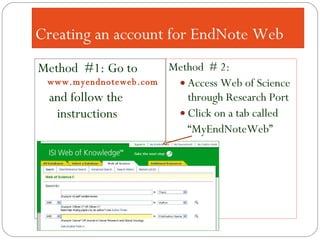
Creating an account for EndNote Web Method  #1: Go to  www.myendnoteweb.com and follow the instructions  Method  # 2: Access Web of Science through Research Port Click on a tab called “ MyEndNoteWeb”
What does EndNote Web allow you to do? Collect and organize references found online Store up to 10,000 references Transfer references from other programs Access your references from anywhere Share references with other users (groups) Format records into a bibliography Capture citations from web pages Cite While You Write (CWYW)
This session will help you learn how to Collect, format, and manage citations Cite references while writing a document Transfer references from other bibliographic management programs Share citations with other people Teach EndNote Web to others
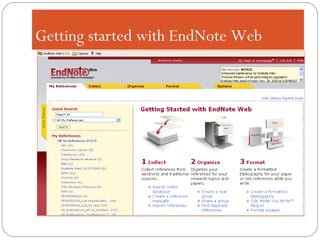
Getting started with EndNote Web
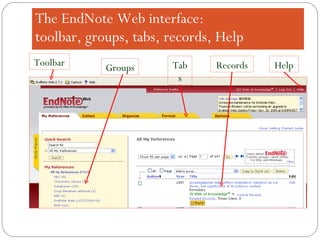
The EndNote Web interface:  toolbar, groups, tabs, records, Help Toolbar Tabs Groups Help Records
EndNote Web basics Creating an account Installing the EndNote tool bar for browsers and the Microsoft Word plug-in Collecting References Organizing references Formatting references Working with others /Creating and using groups Cite While You Write
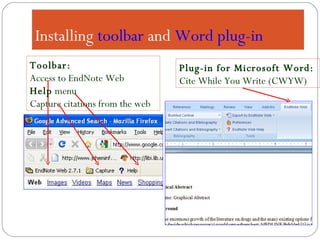
Installing  toolbar  and  Word   plug-in Plug-in for Microsoft Word:  Cite While You Write (CWYW) Toolbar: Access to EndNote Web Help  menu Capture citations from the web
Collecting  References Online Search  from EndNote Web Download  from databases and import the downloaded references into EndNote Web Capture  references from web sites and import them into EndNote Web Manually create new references  that were not retrieved electronically
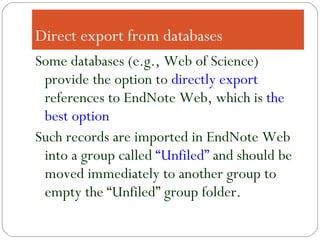
Direct export from databases Some databases (e.g., Web of Science) provide the option to  directly export  references to EndNote Web, which is  the best option Such records are imported in EndNote Web into a group called  “Unfiled”  and should be moved immediately to another group to empty the “Unfiled” group folder.
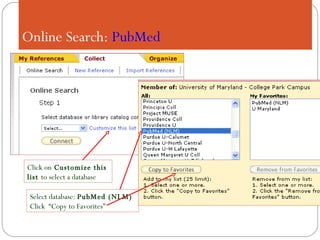
  Online Search:  PubMed Select database:  PubMed (NLM) Click  “Copy to Favorites” Click on  Customize this list  to select a database
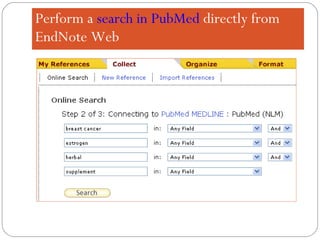
Perform a  search in PubMed  directly from EndNote Web
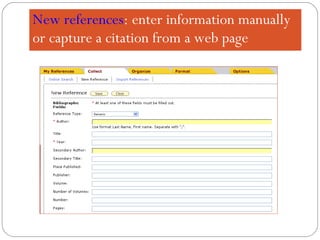
New references : enter information manually or capture a citation from a web page
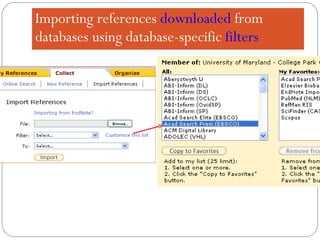
Importing references  downloaded  from databases using database-specific  filters
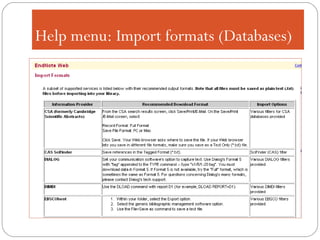
Help menu: Import formats (Databases)
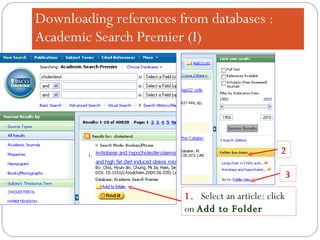
Downloading references from databases : Academic Search Premier (I) 1.  Select an article: click on  Add to Folder 2 3
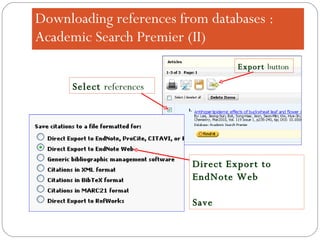
Downloading references from databases : Academic Search Premier (II) Select  references Direct Export to EndNote Web  Save Export  button
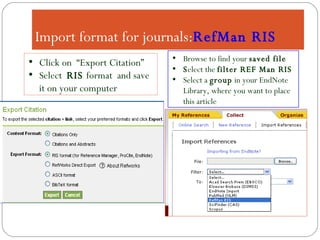
Import format for journals: RefMan RIS Browse to find your  saved file S elect the  filter REF Man RIS Select a  group  in your EndNote Library, where you want to place this article Click on  “Export Citation”  Select  RIS  format  and save it on your computer
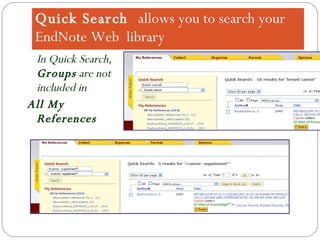
Quick Search  allows you to search your EndNote Web  library In Quick Search,  Groups  are not included in  All My References
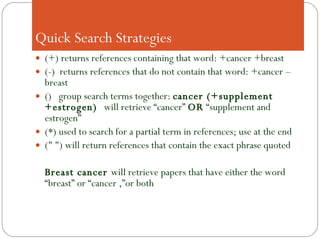
  Quick Search Strategies (+) returns references containing that word: +cancer +breast (-)  returns references that do not contain that word: +cancer –breast ()  group search terms together:  cancer (+supplement +estrogen)  will retrieve “cancer”  OR  “supplement and estrogen” (*) used to search for a partial term in references; use at the end (" ") will return references that contain the exact phrase quoted Breast cancer  will retrieve papers that have either the word “breast” or “cancer ,”or both
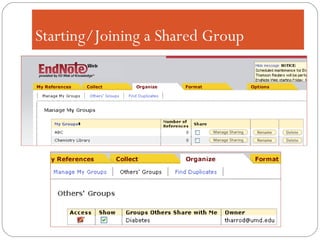
Sharing Groups Organize--Manage My Groups Create a new group or find the group you wish to share; check the  Share  checkbox. Click on the  Manage Sharing  button. Enter e-mail addresses
Starting/Joining a Shared Group
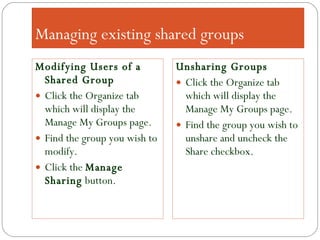
Managing existing shared groups Modifying Users of a Shared Group Click the Organize tab which will display the Manage My Groups page. Find the group you wish to modify. Click the  Manage Sharing  button. Unsharing Groups Click the Organize tab which will display the Manage My Groups page. Find the group you wish to unshare and uncheck the Share checkbox.
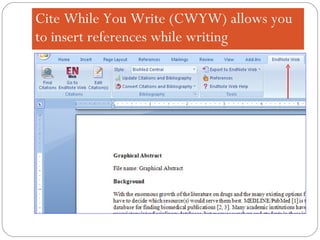
Cite While You Write (CWYW) allows you to insert references while writing
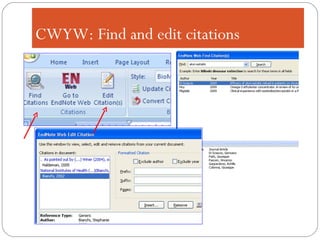
CWYW: Find and edit citations

Introduction to EndNote Web

  • 1.
    Svetla Baykoucheva [email_address]301.405.9080 Introduction to EndNote Web
  • 2.
    Creating an accountfor EndNote Web Method #1: Go to www.myendnoteweb.com and follow the instructions Method # 2: Access Web of Science through Research Port Click on a tab called “ MyEndNoteWeb”
  • 3.
    What does EndNoteWeb allow you to do? Collect and organize references found online Store up to 10,000 references Transfer references from other programs Access your references from anywhere Share references with other users (groups) Format records into a bibliography Capture citations from web pages Cite While You Write (CWYW)
  • 4.
    This session willhelp you learn how to Collect, format, and manage citations Cite references while writing a document Transfer references from other bibliographic management programs Share citations with other people Teach EndNote Web to others
  • 5.
  • 6.
    The EndNote Webinterface: toolbar, groups, tabs, records, Help Toolbar Tabs Groups Help Records
  • 7.
    EndNote Web basicsCreating an account Installing the EndNote tool bar for browsers and the Microsoft Word plug-in Collecting References Organizing references Formatting references Working with others /Creating and using groups Cite While You Write
  • 8.
    Installing toolbar and Word plug-in Plug-in for Microsoft Word: Cite While You Write (CWYW) Toolbar: Access to EndNote Web Help menu Capture citations from the web
  • 9.
    Collecting ReferencesOnline Search from EndNote Web Download from databases and import the downloaded references into EndNote Web Capture references from web sites and import them into EndNote Web Manually create new references that were not retrieved electronically
  • 10.
    Direct export fromdatabases Some databases (e.g., Web of Science) provide the option to directly export references to EndNote Web, which is the best option Such records are imported in EndNote Web into a group called “Unfiled” and should be moved immediately to another group to empty the “Unfiled” group folder.
  • 11.
      Online Search: PubMed Select database: PubMed (NLM) Click “Copy to Favorites” Click on Customize this list to select a database
  • 12.
    Perform a search in PubMed directly from EndNote Web
  • 13.
    New references :enter information manually or capture a citation from a web page
  • 14.
    Importing references downloaded from databases using database-specific filters
  • 15.
    Help menu: Importformats (Databases)
  • 16.
    Downloading references fromdatabases : Academic Search Premier (I) 1. Select an article: click on Add to Folder 2 3
  • 17.
    Downloading references fromdatabases : Academic Search Premier (II) Select references Direct Export to EndNote Web Save Export button
  • 18.
    Import format forjournals: RefMan RIS Browse to find your saved file S elect the filter REF Man RIS Select a group in your EndNote Library, where you want to place this article Click on “Export Citation” Select RIS format and save it on your computer
  • 19.
    Quick Search allows you to search your EndNote Web library In Quick Search, Groups are not included in All My References
  • 20.
      Quick SearchStrategies (+) returns references containing that word: +cancer +breast (-) returns references that do not contain that word: +cancer –breast () group search terms together: cancer (+supplement +estrogen) will retrieve “cancer” OR “supplement and estrogen” (*) used to search for a partial term in references; use at the end (" ") will return references that contain the exact phrase quoted Breast cancer will retrieve papers that have either the word “breast” or “cancer ,”or both
  • 21.
    Sharing Groups Organize--ManageMy Groups Create a new group or find the group you wish to share; check the Share checkbox. Click on the Manage Sharing button. Enter e-mail addresses
  • 22.
  • 23.
    Managing existing sharedgroups Modifying Users of a Shared Group Click the Organize tab which will display the Manage My Groups page. Find the group you wish to modify. Click the Manage Sharing button. Unsharing Groups Click the Organize tab which will display the Manage My Groups page. Find the group you wish to unshare and uncheck the Share checkbox.
  • 24.
    Cite While YouWrite (CWYW) allows you to insert references while writing
  • 25.
    CWYW: Find andedit citations

Editor's Notes

  • #22 You can also provide a text file containing e-mail addresses separated by commas using the Browse button.