Exporting
references -
EBSCOhost
Knowledge Base
Library
EndNote
EndNote Basic is a free online reference management tool, which the
Library can offer support for should you need it
Users can create an account by signing up through Web of Science –
this provides additional citation styles and attachment storage
We recommend using a personal email address to register, so that
access to the account continues after graduation
There is also an optional “Cite While You Write” plug-in for Microsoft
Word (PC or Mac), which will insert citations and references into a
document by linking directly to the online EndNote Basic account
There are different procedures for getting references into EndNote
depending on which database you are using
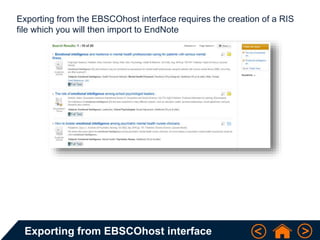
Exporting from EBSCOhost interface
Exporting from the EBSCOhost interface requires the creation of a RIS
file which you will then import to EndNote
Exporting from EBSCOhost interface
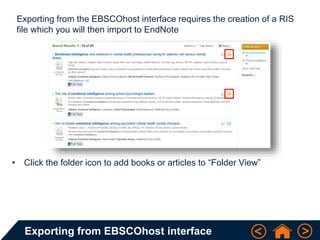
Exporting from the EBSCOhost interface requires the creation of a RIS
file which you will then import to EndNote
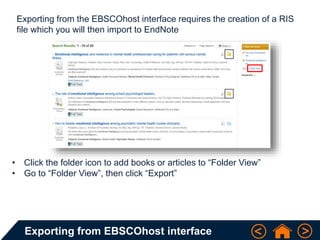
• Click the folder icon to add books or articles to “Folder View”
Exporting from EBSCOhost interface
Exporting from the EBSCOhost interface requires the creation of a RIS
file which you will then import to EndNote
• Click the folder icon to add books or articles to “Folder View”
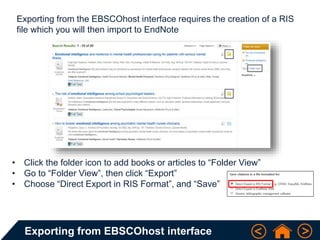
• Go to “Folder View”, then click “Export”
Exporting from EBSCOhost interface
Exporting from the EBSCOhost interface requires the creation of a RIS
file which you will then import to EndNote
• Click the folder icon to add books or articles to “Folder View”
• Go to “Folder View”, then click “Export”
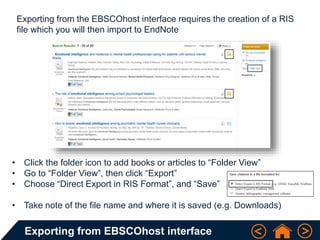
• Choose “Direct Export in RIS Format”, and “Save”
Exporting from EBSCOhost interface
Exporting from the EBSCOhost interface requires the creation of a RIS
file which you will then import to EndNote
• Click the folder icon to add books or articles to “Folder View”
• Go to “Folder View”, then click “Export”
• Choose “Direct Export in RIS Format”, and “Save”
• Take note of the file name and where it is saved (e.g. Downloads)
Importing citations into EndNote
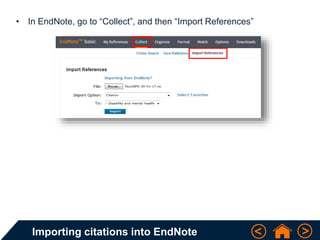
• In EndNote, go to “Collect”, and then “Import References”
Importing citations into EndNote
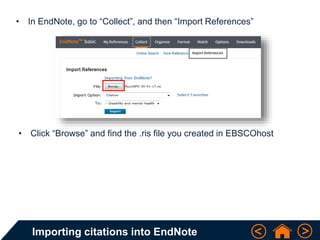
• In EndNote, go to “Collect”, and then “Import References”
• Click “Browse” and find the .ris file you created in EBSCOhost
Importing citations into EndNote
• In EndNote, go to “Collect”, and then “Import References”
• Click “Browse” and find the .ris file you created in EBSCOhost
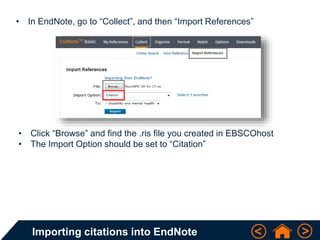
• The Import Option should be set to “Citation”
Importing citations into EndNote
• In EndNote, go to “Collect”, and then “Import References”
• Click “Browse” and find the .ris file you created in EBSCOhost
• The Import Option should be set to “Citation”
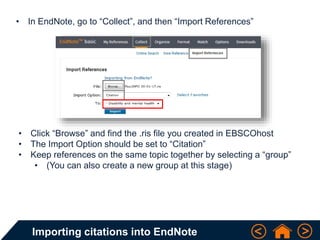
• Keep references on the same topic together by selecting a “group”
• (You can also create a new group at this stage)
Importing citations into EndNote
• In EndNote, go to “Collect”, and then “Import References”
• Click “Browse” and find the .ris file you created in EBSCOhost
• The Import Option should be set to “Citation”
• Keep references on the same topic together by selecting a “group”
• (You can also create a new group at this stage)
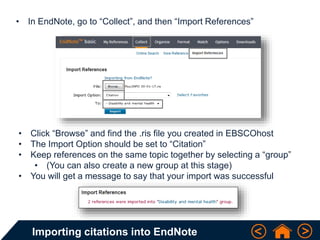
• You will get a message to say that your import was successful
Library
Knowledge Base
Thank you, this presentation is
complete

Exporting references - EBSCOhost - Knowledge Base

  • 1.
  • 2.
    EndNote EndNote Basic isa free online reference management tool, which the Library can offer support for should you need it Users can create an account by signing up through Web of Science – this provides additional citation styles and attachment storage We recommend using a personal email address to register, so that access to the account continues after graduation There is also an optional “Cite While You Write” plug-in for Microsoft Word (PC or Mac), which will insert citations and references into a document by linking directly to the online EndNote Basic account There are different procedures for getting references into EndNote depending on which database you are using
  • 3.
    Exporting from EBSCOhostinterface Exporting from the EBSCOhost interface requires the creation of a RIS file which you will then import to EndNote
  • 4.
    Exporting from EBSCOhostinterface Exporting from the EBSCOhost interface requires the creation of a RIS file which you will then import to EndNote • Click the folder icon to add books or articles to “Folder View”
  • 5.
    Exporting from EBSCOhostinterface Exporting from the EBSCOhost interface requires the creation of a RIS file which you will then import to EndNote • Click the folder icon to add books or articles to “Folder View” • Go to “Folder View”, then click “Export”
  • 6.
    Exporting from EBSCOhostinterface Exporting from the EBSCOhost interface requires the creation of a RIS file which you will then import to EndNote • Click the folder icon to add books or articles to “Folder View” • Go to “Folder View”, then click “Export” • Choose “Direct Export in RIS Format”, and “Save”
  • 7.
    Exporting from EBSCOhostinterface Exporting from the EBSCOhost interface requires the creation of a RIS file which you will then import to EndNote • Click the folder icon to add books or articles to “Folder View” • Go to “Folder View”, then click “Export” • Choose “Direct Export in RIS Format”, and “Save” • Take note of the file name and where it is saved (e.g. Downloads)
  • 8.
    Importing citations intoEndNote • In EndNote, go to “Collect”, and then “Import References”
  • 9.
    Importing citations intoEndNote • In EndNote, go to “Collect”, and then “Import References” • Click “Browse” and find the .ris file you created in EBSCOhost
  • 10.
    Importing citations intoEndNote • In EndNote, go to “Collect”, and then “Import References” • Click “Browse” and find the .ris file you created in EBSCOhost • The Import Option should be set to “Citation”
  • 11.
    Importing citations intoEndNote • In EndNote, go to “Collect”, and then “Import References” • Click “Browse” and find the .ris file you created in EBSCOhost • The Import Option should be set to “Citation” • Keep references on the same topic together by selecting a “group” • (You can also create a new group at this stage)
  • 12.
    Importing citations intoEndNote • In EndNote, go to “Collect”, and then “Import References” • Click “Browse” and find the .ris file you created in EBSCOhost • The Import Option should be set to “Citation” • Keep references on the same topic together by selecting a “group” • (You can also create a new group at this stage) • You will get a message to say that your import was successful
  • 13.
    Library Knowledge Base Thank you,this presentation is complete

Editor's Notes

  • #3 Main body: Arial, 16 – 20 pt Slide title: Arial, Bold, 24 pt
  • #4 Main body: Arial, 16 – 20 pt Slide title: Arial, Bold, 24 pt
  • #5 Main body: Arial, 16 – 20 pt Slide title: Arial, Bold, 24 pt
  • #6 Main body: Arial, 16 – 20 pt Slide title: Arial, Bold, 24 pt
  • #7 Main body: Arial, 16 – 20 pt Slide title: Arial, Bold, 24 pt
  • #8 Main body: Arial, 16 – 20 pt Slide title: Arial, Bold, 24 pt
  • #9 Main body: Arial, 16 – 20 pt Slide title: Arial, Bold, 24 pt
  • #10 Main body: Arial, 16 – 20 pt Slide title: Arial, Bold, 24 pt
  • #11 Main body: Arial, 16 – 20 pt Slide title: Arial, Bold, 24 pt
  • #12 Main body: Arial, 16 – 20 pt Slide title: Arial, Bold, 24 pt
  • #13 Main body: Arial, 16 – 20 pt Slide title: Arial, Bold, 24 pt