

Library Instruction Workshop for ELL
Hilary Ho
Email: libris@nie.edu.sg
Phone: 6219-6114
Media & Instructional Services
NIE LIBRIS
1
Wed 27 Aug 2014
10.30a.m. – 12nn
ELL Journal Room
Outline
I. EndNote
1. How to Download & Install EndNote
2. How to Build EndNote Library More Effectively
• Import from databases, library catalogues, LibDiscover!, Google Scholar
• Add PDF documents
II. Locating Journal Articles that are Not Available in NIE Library
1. Available in NTU Libraries
a. A-Z List for NTU e-Journals
b. NTU WebOPAC for NTU print journals
2. Available from Other Online Sources
a. FindIT@NIE
b. LibDiscover!
c. Google Scholar
d. NLB e-Resources
III. Tools and Tricks (optional)
1. Bookmarklet
2. LibX
2
1. How to Download & Install EndNote - 1
• Uninstall previous versions. Restart your computer.
• Use only Internet Explorer to download.
• Download EndNoteX7.zip from:
a. NTU: http://www.ntu.edu.sg/library/Lip/endnote/Pages/download.aspx
OR
b. NIE Library Portal (http://libris.nie.edu.sg) > Quick Links (footer), EndNote >
EndNote, Download EndNote
• Save EndNoteX7.zip folder on your Desktop.
Note: Do not double-click to open the downloaded file. Unzip it first.
• Right-click EndNoteX7.zip folder to extract the files to Desktop.
• Open the unzipped folder to find 2 files inside: ENX7Inst.msi & License.dat. To
install, double left-click ENX7Inst.msi icon. Follow on-screen menu to install
EndNoteX7. (You do not need to open the License.dat file.)
I. EndNote
1. How to Download & Install EndNote - 2
• Online guide with detailed instructions:
http://libris.nie.edu.sg/sites/default/files/EndNoteX7_Downloading&Installing.
pdf
• Online videos:
How to Download EndNote (2:56 min)
(http://videoweb.nie.edu.sg/videos/1373/endnote_download)
How to Install EndNote (2:08 min)
(http://videoweb.nie.edu.sg/videos/1374/endnote_install)
I. EndNote
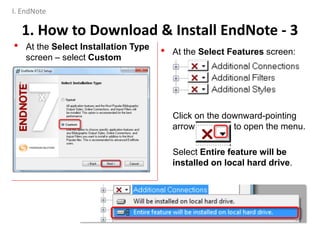
• At the Select Features screen:
Click on the downward-pointing
arrow to open the menu.
Select Entire feature will be
installed on local hard drive.
• At the Select Installation Type
screen – select Custom
5
1. How to Download & Install EndNote - 3
I. EndNote
A. Add or Import References
B. Add PDF Full Text Documents
6
2. How to Build EndNote Library More Effectively – 1
I. EndNote
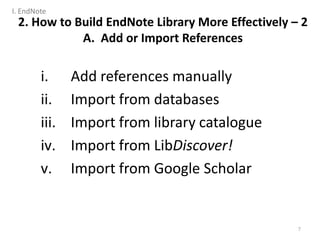
i. Add references manually
ii. Import from databases
iii. Import from library catalogue
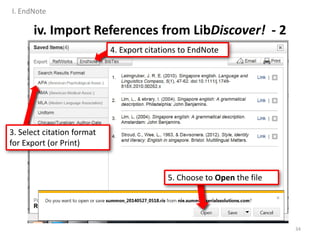
iv. Import from LibDiscover!
v. Import from Google Scholar
7
2. How to Build EndNote Library More Effectively – 2
A. Add or Import References
I. EndNote
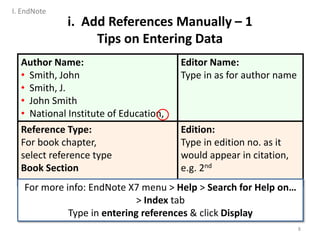
Author Name:
• Smith, John
• Smith, J.
• John Smith
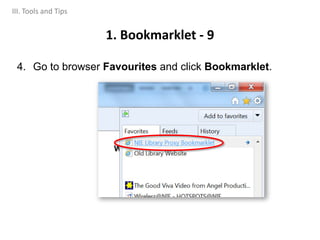
• National Institute of Education,
Editor Name:
Type in as for author name
Reference Type:
For book chapter,
select reference type
Book Section
Edition:
Type in edition no. as it
would appear in citation,
e.g. 2nd
For more info: EndNote X7 menu > Help > Search for Help on…
> Index tab
Type in entering references & click Display
i. Add References Manually – 1
Tips on Entering Data
8
I. EndNote
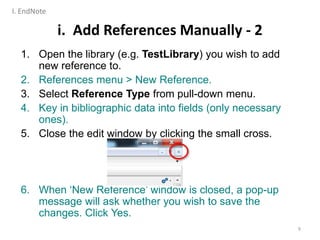
i. Add References Manually - 2
1. Open the library (e.g. TestLibrary) you wish to add
new reference to.
2. References menu > New Reference.
3. Select Reference Type from pull-down menu.
4. Key in bibliographic data into fields (only necessary
ones).
5. Close the edit window by clicking the small cross.
6. When ‘New Reference’ window is closed, a pop-up
message will ask whether you wish to save the
changes. Click Yes.
9
I. EndNote
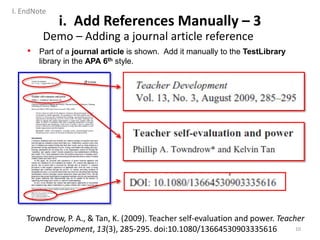
• Part of a journal article is shown. Add it manually to the TestLibrary
library in the APA 6th style.
Towndrow, P. A., & Tan, K. (2009). Teacher self-evaluation and power. Teacher
Development, 13(3), 285-295. doi:10.1080/13664530903335616
i. Add References Manually – 3
Demo – Adding a journal article reference
10
I. EndNote
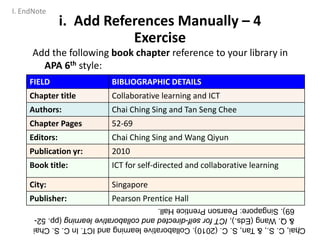
Add the following book chapter reference to your library in
APA 6th style:
FIELD BIBLIOGRAPHIC DETAILS
Chapter title Collaborative learning and ICT
Authors: Chai Ching Sing and Tan Seng Chee
Chapter Pages 52-69
Editors: Chai Ching Sing and Wang Qiyun
Publication yr: 2010
Book title: ICT for self-directed and collaborative learning
City: Singapore
Publisher: Pearson Prentice Hall
Chai,C.S.,&Tan,S.C.(2010).CollaborativelearningandICT.InC.S.Chai
&Q.Wang(Eds.),ICTforself-directedandcollaborativelearning(pp.52-
69).Singapore:PearsonPrenticeHall.
Adding References Manually (7)
11
i. Add References Manually – 4
Exercise
I. EndNote
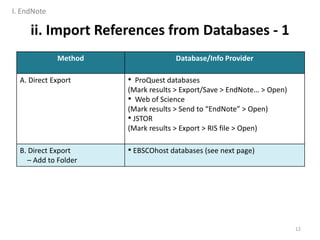
ii. Import References from Databases - 1
Method Database/Info Provider
A. Direct Export • ProQuest databases
(Mark results > Export/Save > EndNote… > Open)
• Web of Science
(Mark results > Send to “EndNote” > Open)
• JSTOR
(Mark results > Export > RIS file > Open)
B. Direct Export
– Add to Folder
• EBSCOhost databases (see next page)
12
I. EndNote
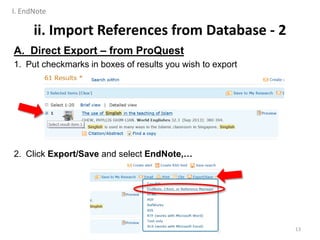
A. Direct Export – from ProQuest
1. Put checkmarks in boxes of results you wish to export
2. Click Export/Save and select EndNote,…
ii. Import References from Database - 2
13
I. EndNote
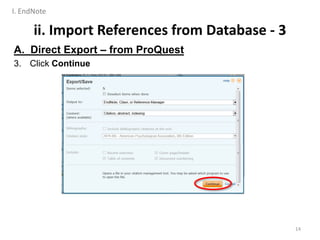
ii. Import References from Database - 3
A. Direct Export – from ProQuest
3. Click Continue
14
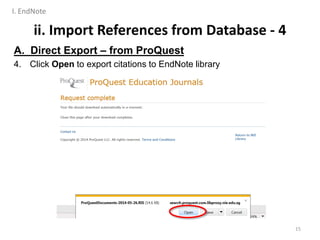
I. EndNote
ii. Import References from Database - 4
A. Direct Export – from ProQuest
4. Click Open to export citations to EndNote library
15
I. EndNote
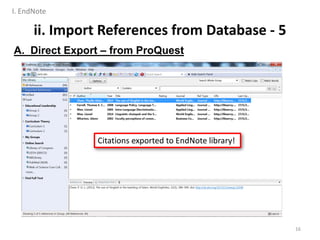
ii. Import References from Database - 5
A. Direct Export – from ProQuest
16
Citations exported to EndNote library!
I. EndNote
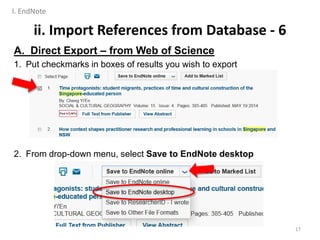
A. Direct Export – from Web of Science
1. Put checkmarks in boxes of results you wish to export
2. From drop-down menu, select Save to EndNote desktop
ii. Import References from Database - 6
17
I. EndNote
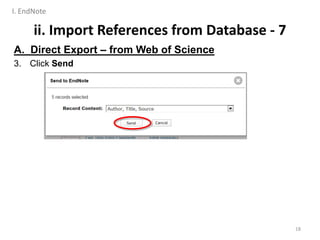
ii. Import References from Database - 7
A. Direct Export – from Web of Science
3. Click Send
18
I. EndNote
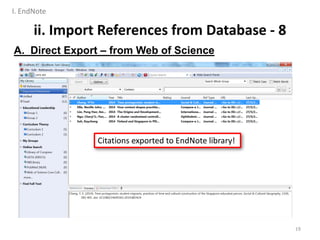
ii. Import References from Database - 8
A. Direct Export – from Web of Science
19
Citations exported to EndNote library!
I. EndNote
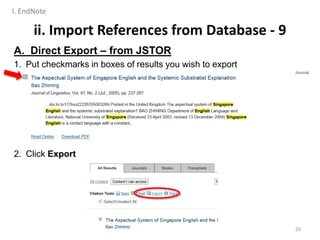
A. Direct Export – from JSTOR
1. Put checkmarks in boxes of results you wish to export
2. Click Export
ii. Import References from Database - 9
20
I. EndNote
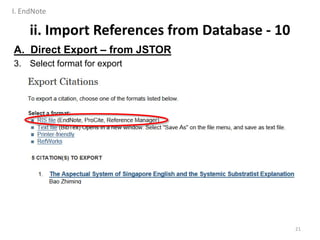
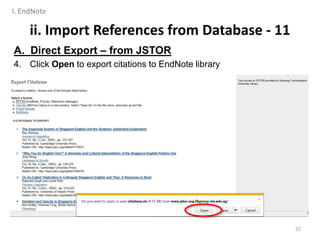
ii. Import References from Database - 10
A. Direct Export – from JSTOR
3. Select format for export
21
I. EndNote
ii. Import References from Database - 11
A. Direct Export – from JSTOR
4. Click Open to export citations to EndNote library
22
I. EndNote
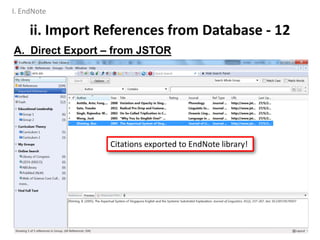
ii. Import References from Database - 12
A. Direct Export – from JSTOR
23
Citations exported to EndNote library!
I. EndNote
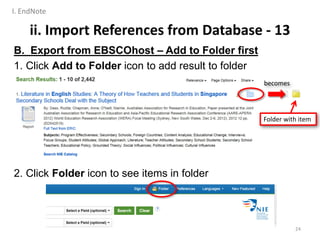
ii. Import References from Database - 13
B. Export from EBSCOhost – Add to Folder first
1. Click Add to Folder icon to add result to folder
2. Click Folder icon to see items in folder
24
Folder with item
becomes
I. EndNote
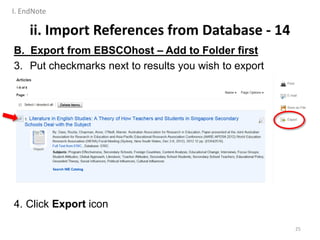
ii. Import References from Database - 14
B. Export from EBSCOhost – Add to Folder first
3. Put checkmarks next to results you wish to export
4. Click Export icon
25
I. EndNote
ii. Import References from Database - 15
B. Export from EBSCOhost – Add to Folder first
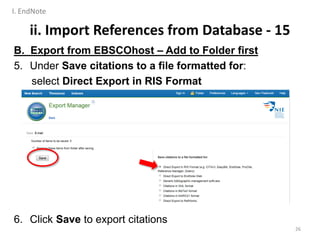
5. Under Save citations to a file formatted for:
select Direct Export in RIS Format
6. Click Save to export citations
26
I. EndNote
ii. Import References from Database - 16
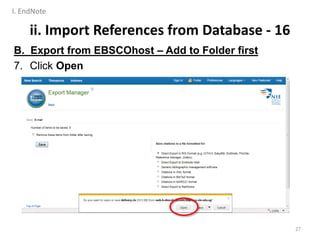
B. Export from EBSCOhost – Add to Folder first
7. Click Open
27
I. EndNote
ii. Import References from Database - 17
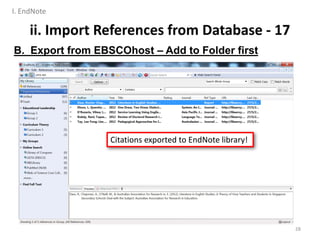
B. Export from EBSCOhost – Add to Folder first
28
Citations exported to EndNote library!
I. EndNote
iii. Import References from Library Catalogue - 1
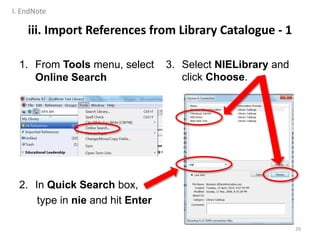
1. From Tools menu, select
Online Search
2. In Quick Search box,
type in nie and hit Enter
3. Select NIELibrary and
click Choose.
29
I. EndNote
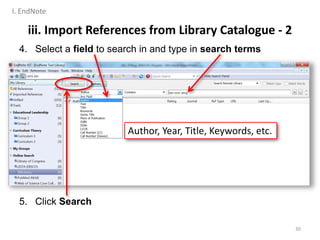
4. Select a field to search in and type in search terms
5. Click Search
30
Author, Year, Title, Keywords, etc.
iii. Import References from Library Catalogue - 2
I. EndNote
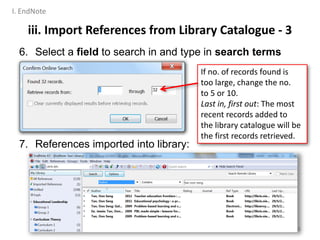
6. Select a field to search in and type in search terms
7. References imported into library:
31
If no. of records found is
too large, change the no.
to 5 or 10.
Last in, first out: The most
recent records added to
the library catalogue will be
the first records retrieved.
iii. Import References from Library Catalogue - 3
I. EndNote
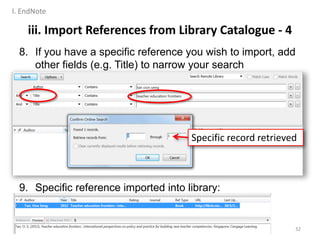
8. If you have a specific reference you wish to import, add
other fields (e.g. Title) to narrow your search
9. Specific reference imported into library:
32
Specific record retrieved
iii. Import References from Library Catalogue - 4
I. EndNote
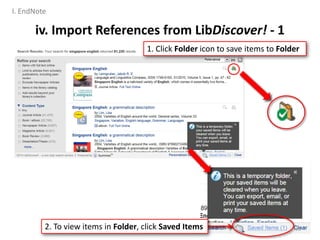
2. To view items in Folder, click Saved Items
iv. Import References from LibDiscover! - 1
1. Click Folder icon to save items to Folder
33
I. EndNote
34
3. Select citation format
for Export (or Print)
4. Export citations to EndNote
5. Choose to Open the file
iv. Import References from LibDiscover! - 2
I. EndNote
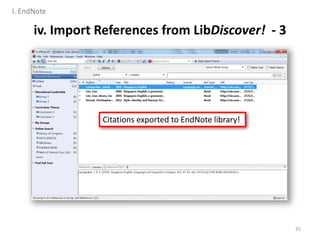
35
Citations exported to EndNote library!
iv. Import References from LibDiscover! - 3
I. EndNote
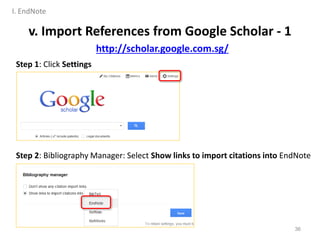
Step 1: Click Settings
Step 2: Bibliography Manager: Select Show links to import citations into EndNote
36
http://scholar.google.com.sg/
v. Import References from Google Scholar - 1
I. EndNote
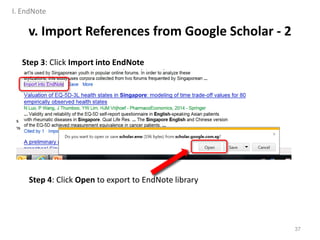
Step 3: Click Import into EndNote
Step 4: Click Open to export to EndNote library
37
v. Import References from Google Scholar - 2
I. EndNote
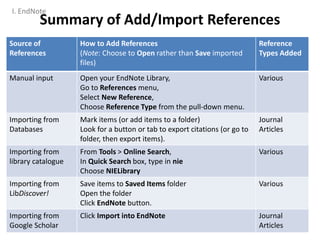
Summary of Add/Import References
38
Source of
References
How to Add References
(Note: Choose to Open rather than Save imported
files)
Reference
Types Added
Manual input Open your EndNote Library,
Go to References menu,
Select New Reference,
Choose Reference Type from the pull-down menu.
Various
Importing from
Databases
Mark items (or add items to a folder)
Look for a button or tab to export citations (or go to
folder, then export items).
Journal
Articles
Importing from
library catalogue
From Tools > Online Search,
In Quick Search box, type in nie
Choose NIELibrary
Various
Importing from
LibDiscover!
Save items to Saved Items folder
Open the folder
Click EndNote button.
Various
Importing from
Google Scholar
Click Import into EndNote Journal
Articles
I. EndNote
i. Attach PDF document
ii. Find Full Text using EndNote
39
How to Build EndNote Library More Effectively – 2
B. Add PDF Full Text Document
I. EndNote
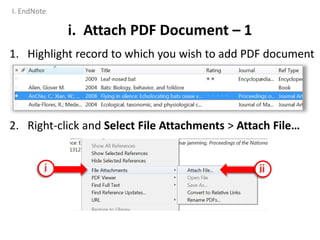
i. Attach PDF Document – 1
1. Highlight record to which you wish to add PDF document
2. Right-click and Select File Attachments > Attach File…
i ii
I. EndNote
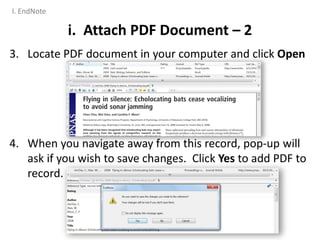
i. Attach PDF Document – 2
3. Locate PDF document in your computer and click Open
4. When you navigate away from this record, pop-up will
ask if you wish to save changes. Click Yes to add PDF to
record.
I. EndNote
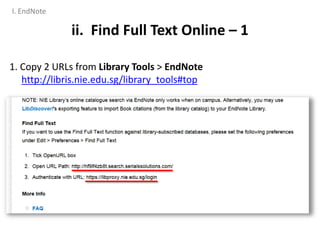
ii. Find Full Text Online – 1
1. Copy 2 URLs from Library Tools > EndNote
http://libris.nie.edu.sg/library_tools#top
I. EndNote
5
43
1
2
3
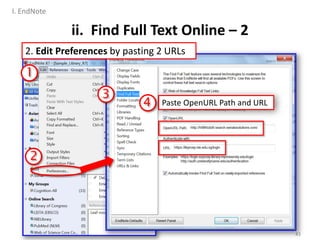
Paste OpenURL Path and URL4
ii. Find Full Text Online – 2
2. Edit Preferences by pasting 2 URLs
I. EndNote
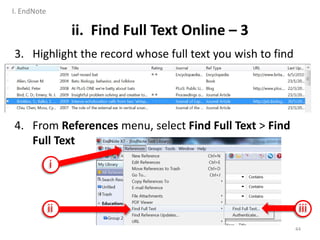
ii. Find Full Text Online – 3
3. Highlight the record whose full text you wish to find
4. From References menu, select Find Full Text > Find
Full Text
44
i
ii iii
I. EndNote
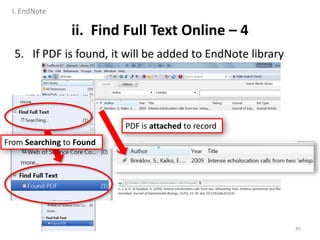
ii. Find Full Text Online – 4
5. If PDF is found, it will be added to EndNote library
45
3
From Searching to Found
PDF is attached to record
I. EndNote
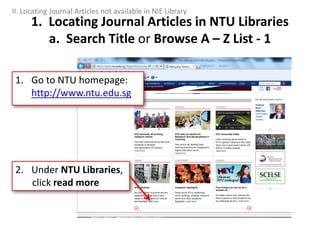
2. Under NTU Libraries,
click read more
1. Go to NTU homepage:
http://www.ntu.edu.sg
II. Locating Journal Articles not available in NIE Library
1. Locating Journal Articles in NTU Libraries
a. Search Title or Browse A – Z List - 1
1. Locating Journal Articles in NTU Libraries
a. Search Title or Browse A – Z List - 2
II. Locating Journal Articles not available in NIE Library
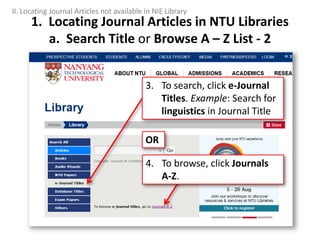
3. To search, click e-Journal
Titles. Example: Search for
linguistics in Journal Title
4. To browse, click Journals
A-Z.
OR
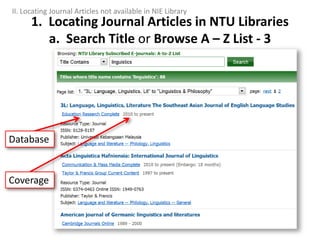
Database
Coverage
II. Locating Journal Articles not available in NIE Library
1. Locating Journal Articles in NTU Libraries
a. Search Title or Browse A – Z List - 3
1. Locating Journal Articles in NTU Libraries
b. NTU WebOPAC for Print Journals - 1
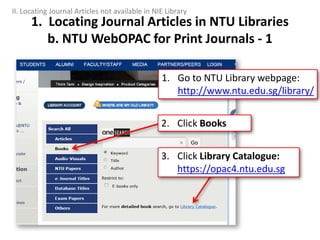
1. Go to NTU Library webpage:
http://www.ntu.edu.sg/library/
3. Click Library Catalogue:
https://opac4.ntu.edu.sg
2. Click Books
II. Locating Journal Articles not available in NIE Library
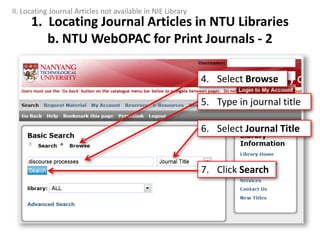
5. Type in journal title
4. Select Browse
6. Select Journal Title
7. Click Search
1. Locating Journal Articles in NTU Libraries
b. NTU WebOPAC for Print Journals - 2
II. Locating Journal Articles not available in NIE Library
1. Locating Journal Articles in NTU Libraries
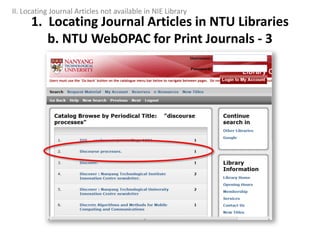
b. NTU WebOPAC for Print Journals - 3
II. Locating Journal Articles not available in NIE Library
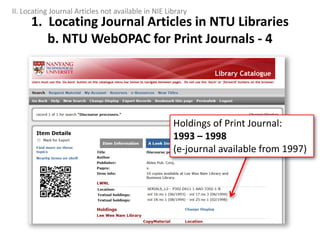
Holdings of Print Journal:
1993 – 1998
(e-journal available from 1997)
1. Locating Journal Articles in NTU Libraries
b. NTU WebOPAC for Print Journals - 4
II. Locating Journal Articles not available in NIE Library
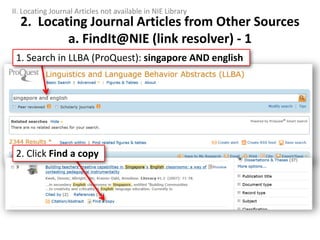
1. Search in LLBA (ProQuest): singapore AND english
2. Locating Journal Articles from Other Sources
a. FindIt@NIE (link resolver) - 1
II. Locating Journal Articles not available in NIE Library
2. Click Find a copy
2. Locating Journal Articles from Other Sources
a. FindIt@NIE (link resolver) - 2
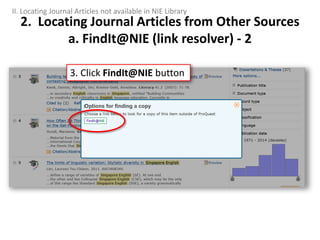
3. Click FindIt@NIE button
II. Locating Journal Articles not available in NIE Library
2. Locating Journal Articles from Other Sources
a. FindIt@NIE (link resolver) - 3
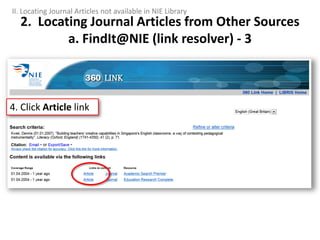
4. Click Article link
II. Locating Journal Articles not available in NIE Library
2. Locating Journal Articles from Other Sources
a. FindIt@NIE (link resolver) - 4
II. Locating Journal Articles not available in NIE Library
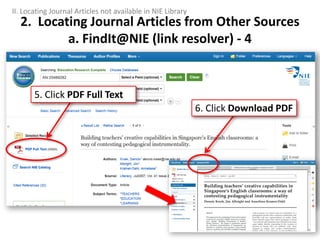
6. Click Download PDF
5. Click PDF Full Text
2. Locating Journal Articles from Other Sources
a. FindIt@NIE (link resolver) - 5
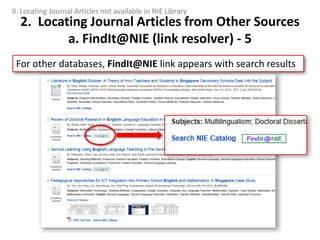
For other databases, FindIt@NIE link appears with search results
II. Locating Journal Articles not available in NIE Library
2. Locating Journal Articles from Other Sources
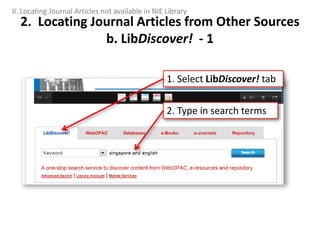
b. LibDiscover! - 1
2. Type in search terms
1. Select LibDiscover! tab
II. Locating Journal Articles not available in NIE Library
2. Locating Journal Articles from Other Sources
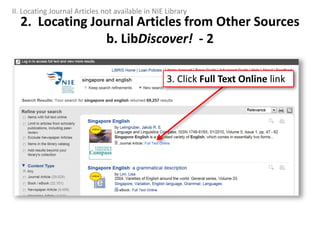
b. LibDiscover! - 2
3. Click Full Text Online link
II. Locating Journal Articles not available in NIE Library
2. Locating Journal Articles from Other Sources
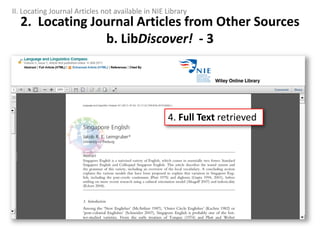
b. LibDiscover! - 3
4. Full Text retrieved
II. Locating Journal Articles not available in NIE Library
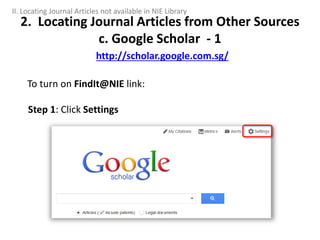
Step 1: Click Settings
http://scholar.google.com.sg/
2. Locating Journal Articles from Other Sources
c. Google Scholar - 1
To turn on FindIt@NIE link:
II. Locating Journal Articles not available in NIE Library
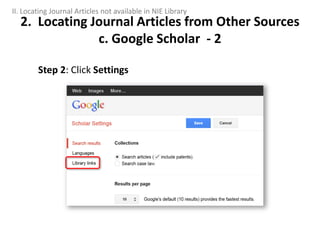
Step 2: Click Settings
2. Locating Journal Articles from Other Sources
c. Google Scholar - 2
II. Locating Journal Articles not available in NIE Library
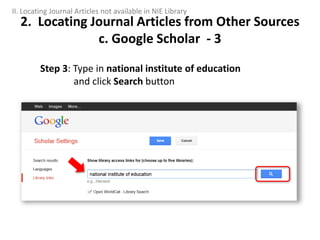
Step 3: Type in national institute of education
and click Search button
2. Locating Journal Articles from Other Sources
c. Google Scholar - 3
II. Locating Journal Articles not available in NIE Library
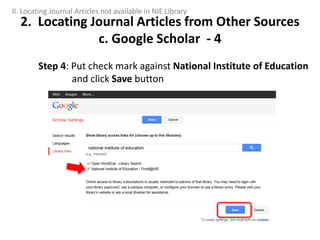
Step 4: Put check mark against National Institute of Education
and click Save button
2. Locating Journal Articles from Other Sources
c. Google Scholar - 4
II. Locating Journal Articles not available in NIE Library
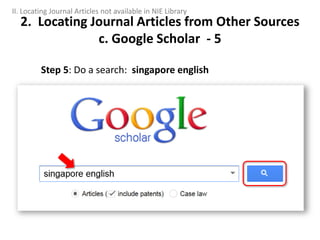
Step 5: Do a search: singapore english
2. Locating Journal Articles from Other Sources
c. Google Scholar - 5
II. Locating Journal Articles not available in NIE Library
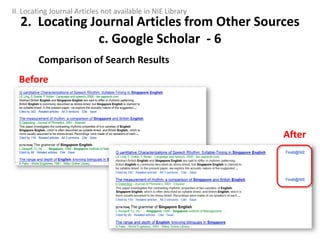
Comparison of Search Results
2. Locating Journal Articles from Other Sources
c. Google Scholar - 6
Before
After
II. Locating Journal Articles not available in NIE Library
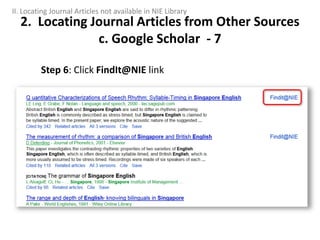
Step 6: Click FindIt@NIE link
2. Locating Journal Articles from Other Sources
c. Google Scholar - 7
II. Locating Journal Articles not available in NIE Library
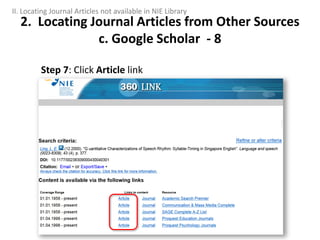
Step 7: Click Article link
2. Locating Journal Articles from Other Sources
c. Google Scholar - 8
II. Locating Journal Articles not available in NIE Library
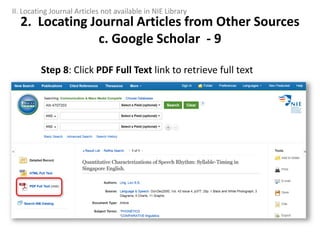
Step 8: Click PDF Full Text link to retrieve full text
2. Locating Journal Articles from Other Sources
c. Google Scholar - 9
II. Locating Journal Articles not available in NIE Library
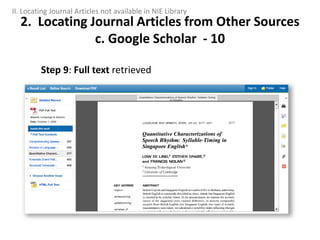
Step 9: Full text retrieved
2. Locating Journal Articles from Other Sources
c. Google Scholar - 10
II. Locating Journal Articles not available in NIE Library
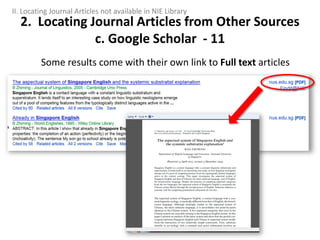
Some results come with their own link to Full text articles
2. Locating Journal Articles from Other Sources
c. Google Scholar - 11
II. Locating Journal Articles not available in NIE Library
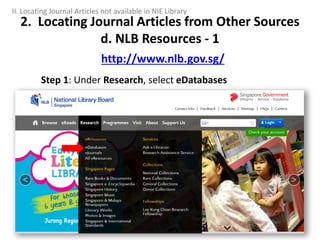
Step 1: Under Research, select eDatabases
2. Locating Journal Articles from Other Sources
d. NLB Resources - 1
http://www.nlb.gov.sg/
II. Locating Journal Articles not available in NIE Library
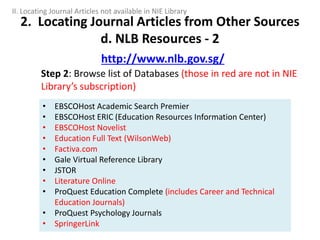
Step 2: Browse list of Databases (those in red are not in NIE
Library’s subscription)
2. Locating Journal Articles from Other Sources
d. NLB Resources - 2
http://www.nlb.gov.sg/
• EBSCOHost Academic Search Premier
• EBSCOHost ERIC (Education Resources Information Center)
• EBSCOHost Novelist
• Education Full Text (WilsonWeb)
• Factiva.com
• Gale Virtual Reference Library
• JSTOR
• Literature Online
• ProQuest Education Complete (includes Career and Technical
Education Journals)
• ProQuest Psychology Journals
• SpringerLink
II. Locating Journal Articles not available in NIE Library
• What is Bookmarklet?
A script (“libproxy.nie.edu.sg”) that re-routes the article URL
through the library’s login so that you may:
‒ Authenticate your status as NIE staff/student, and thus
‒ Be given access to full text article
• How can it help me?
Provides you with a shortcut to authenticate your status
when you come across article URLs in email notifications/
journal websites. Otherwise you will be denied access or
asked to purchase full-text article.
1. Bookmarklet - 1
III. Tools and Tips
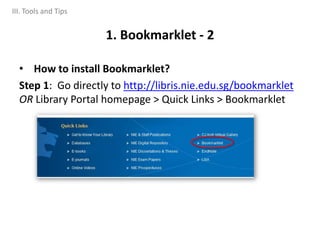
• How to install Bookmarklet?
Step 1: Go directly to http://libris.nie.edu.sg/bookmarklet
OR Library Portal homepage > Quick Links > Bookmarklet
1. Bookmarklet - 2
III. Tools and Tips
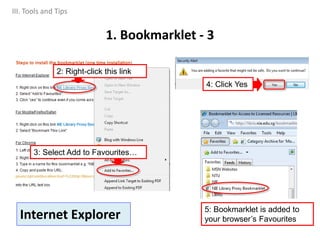
2: Right-click this link
3: Select Add to Favourites…
4: Click Yes
5: Bookmarklet is added to
your browser’s Favourites
1. Bookmarklet - 3
Internet Explorer
III. Tools and Tips
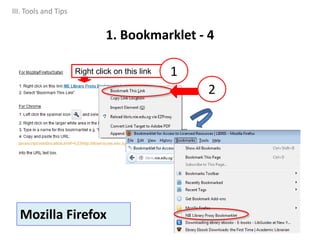
Right click on this link 1
2
1. Bookmarklet - 4
Mozilla Firefox
III. Tools and Tips
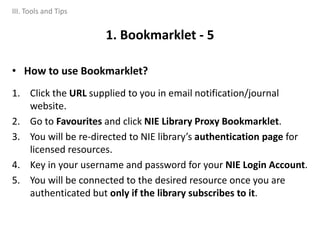
• How to use Bookmarklet?
1. Click the URL supplied to you in email notification/journal
website.
2. Go to Favourites and click NIE Library Proxy Bookmarklet.
3. You will be re-directed to NIE library’s authentication page for
licensed resources.
4. Key in your username and password for your NIE Login Account.
5. You will be connected to the desired resource once you are
authenticated but only if the library subscribes to it.
1. Bookmarklet - 5
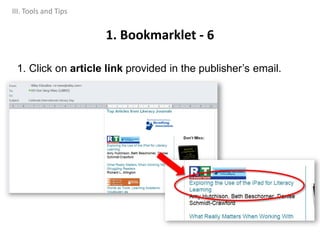
III. Tools and Tips
1. Click on article link provided in the publisher’s email.
1. Bookmarklet - 6
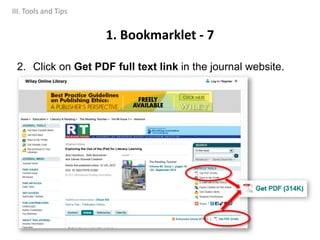
III. Tools and Tips
2. Click on Get PDF full text link in the journal website.
1. Bookmarklet - 7
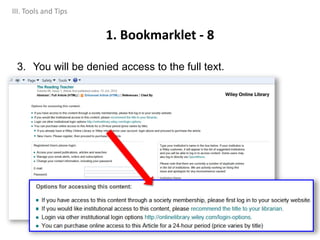
III. Tools and Tips
3. You will be denied access to the full text.
1. Bookmarklet - 8
III. Tools and Tips
4. Go to browser Favourites and click Bookmarklet.
1. Bookmarklet - 9
III. Tools and Tips
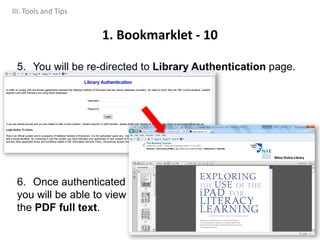
5. You will be re-directed to Library Authentication page.
6. Once authenticated
you will be able to view
the PDF full text.
1. Bookmarklet - 10
III. Tools and Tips
• What is LibX? A browser plug-in that provides
convenient access to library’s resources
• How can it help me?
Gives you faster and easier access to NIE library's
resources within your browser (without having to go
to the Library Portal)
2. LibX – Introduction - 1
III. Tools and Tips
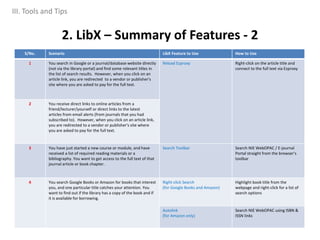
S/No. Scenario LibX Feature to Use How to Use
1 You search in Google or a journal/database website directly
(not via the library portal) and find some relevant titles in
the list of search results. However, when you click on an
article link, you are redirected to a vendor or publisher's
site where you are asked to pay for the full text.
Reload Ezproxy Right-click on the article title and
connect to the full text via Ezproxy
2 You receive direct links to online articles from a
friend/lecturer/yourself or direct links to the latest
articles from email alerts (from journals that you had
subscribed to). However, when you click on an article link,
you are redirected to a vendor or publisher's site where
you are asked to pay for the full text.
3 You have just started a new course or module, and have
received a list of required reading materials or a
bibliography. You want to get access to the full text of that
journal article or book chapter.
Search Toolbar Search NIE WebOPAC / E-journal
Portal straight from the browser’s
toolbar
4 You search Google Books or Amazon for books that interest
you, and one particular title catches your attention. You
want to find out if the library has a copy of the book and if
it is available for borrowing.
Right-click Search
(for Google Books and Amazon)
Highlight book title from the
webpage and right-click for a list of
search options
Autolink
(for Amazon only)
Search NIE WebOPAC using ISBN &
ISSN links
2. LibX – Summary of Features - 2
III. Tools and Tips
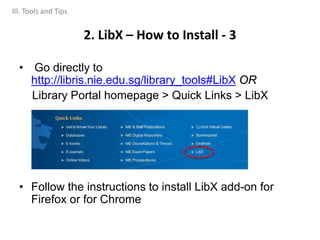
• Go directly to
http://libris.nie.edu.sg/library_tools#LibX OR
Library Portal homepage > Quick Links > LibX
• Follow the instructions to install LibX add-on for
Firefox or for Chrome
2. LibX – How to Install - 3
III. Tools and Tips
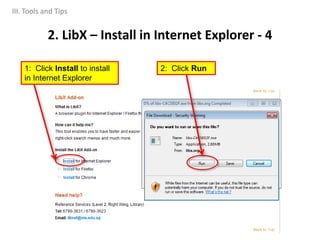
1: Click Install to install
in Internet Explorer
2. LibX – Install in Internet Explorer - 4
2: Click Run
III. Tools and Tips
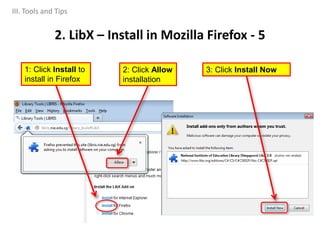
1: Click Install to
install in Firefox
2. LibX – Install in Mozilla Firefox - 5
2: Click Allow
installation
3: Click Install Now
III. Tools and Tips
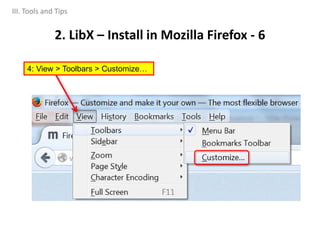
2. LibX – Install in Mozilla Firefox - 6
III. Tools and Tips
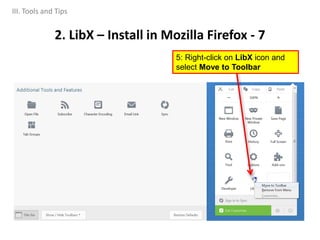
4: View > Toolbars > Customize…
2. LibX – Install in Mozilla Firefox - 7
III. Tools and Tips
5: Right-click on LibX icon and
select Move to Toolbar
2. LibX – Install in Mozilla Firefox - 8
III. Tools and Tips
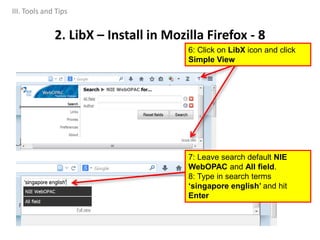
6: Click on LibX icon and click
Simple View
7: Leave search default NIE
WebOPAC and All field.
8: Type in search terms
‘singapore english’ and hit
Enter
2. LibX – Search WebOPAC in Firefox - 9
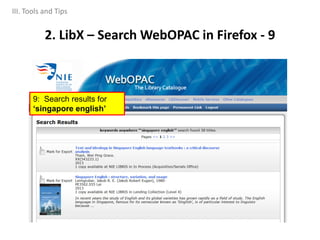
9: Search results for
‘singapore english’
III. Tools and Tips
2. LibX – Search e-Journal Portal in Firefox - 10
III. Tools and Tips
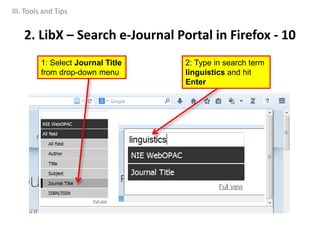
2: Type in search term
linguistics and hit
Enter
1: Select Journal Title
from drop-down menu
2. LibX – Search e-Journal Portal in Firefox - 11
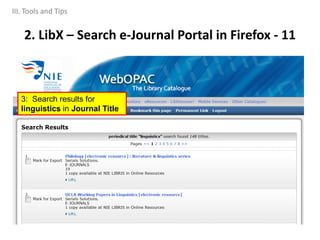
3: Search results for
linguistics in Journal Title
III. Tools and Tips
2. LibX – Right-Click Search for Full Text - 12
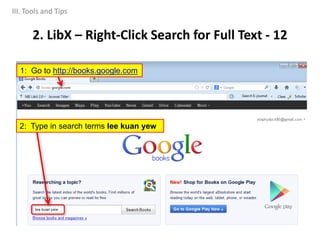
1: Go to http://books.google.com
2: Type in search terms lee kuan yew
III. Tools and Tips
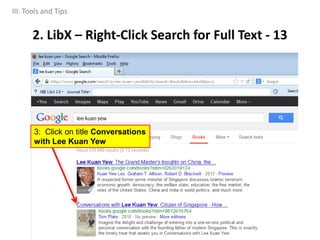
3: Click on title Conversations
with Lee Kuan Yew
2. LibX – Right-Click Search for Full Text - 13
III. Tools and Tips
2. LibX – Right-Click Search for Full Text - 14
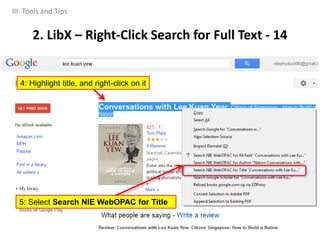
4: Highlight title, and right-click on it
5: Select Search NIE WebOPAC for Title
III. Tools and Tips
2. LibX – Right-Click Search for Full Text - 15
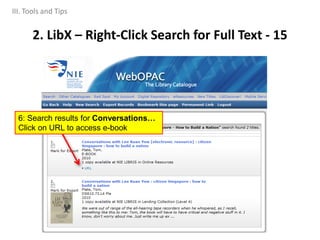
6: Search results for Conversations…
Click on URL to access e-book
III. Tools and Tips
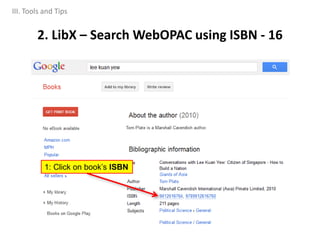
1: Click on book’s ISBN
2. LibX – Search WebOPAC using ISBN - 16
III. Tools and Tips
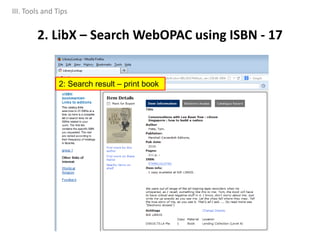
2. LibX – Search WebOPAC using ISBN - 17
2: Search result – print book
III. Tools and Tips
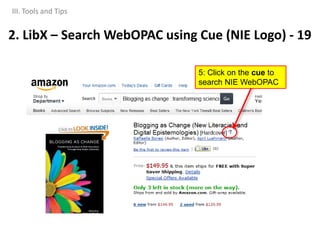
2. LibX – Search WebOPAC using Cue (NIE Logo) - 18
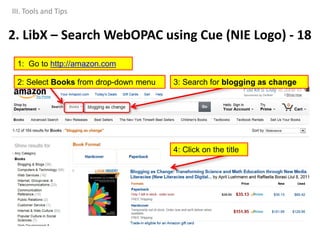
1: Go to http://amazon.com
2: Select Books from drop-down menu 3: Search for blogging as change
4: Click on the title
III. Tools and Tips
5: Click on the cue to
search NIE WebOPAC
III. Tools and Tips
2. LibX – Search WebOPAC using Cue (NIE Logo) - 19
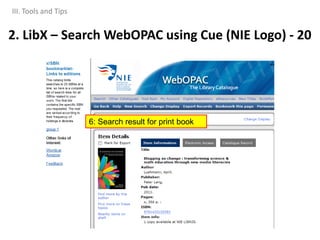
6: Search result for print book
III. Tools and Tips
2. LibX – Search WebOPAC using Cue (NIE Logo) - 20
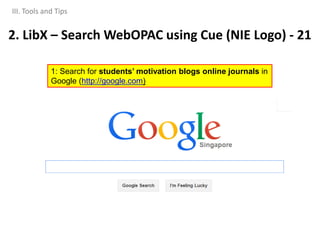
1: Search for students’ motivation blogs online journals in
Google (http://google.com)
III. Tools and Tips
2. LibX – Search WebOPAC using Cue (NIE Logo) - 21
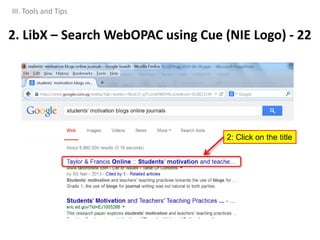
2: Click on the title
III. Tools and Tips
2. LibX – Search WebOPAC using Cue (NIE Logo) - 22
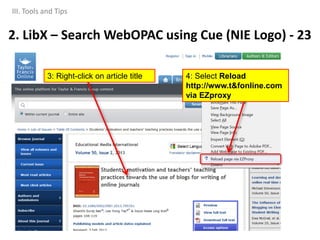
4: Select Reload
http://www.t&fonline.com
via EZproxy
3: Right-click on article title
III. Tools and Tips
2. LibX – Search WebOPAC using Cue (NIE Logo) - 23
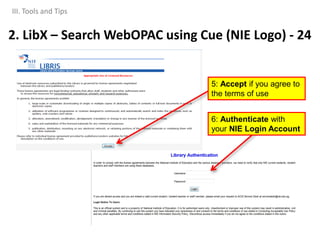
5: Accept if you agree to
the terms of use
6: Authenticate with
your NIE Login Account
III. Tools and Tips
2. LibX – Search WebOPAC using Cue (NIE Logo) - 24
III. Tools and Tips
2. LibX – Search WebOPAC using Cue (NIE Logo) - 25
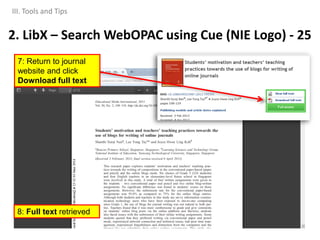
7: Return to journal
website and click
Download full text
8: Full text retrieved
Thank you
& Best wishes
109

NIE ELL/Library Endnote briefing slides (27.08.14)

  • 1.
    Library Instruction Workshopfor ELL Hilary Ho Email: libris@nie.edu.sg Phone: 6219-6114 Media & Instructional Services NIE LIBRIS 1 Wed 27 Aug 2014 10.30a.m. – 12nn ELL Journal Room
  • 2.
    Outline I. EndNote 1. Howto Download & Install EndNote 2. How to Build EndNote Library More Effectively • Import from databases, library catalogues, LibDiscover!, Google Scholar • Add PDF documents II. Locating Journal Articles that are Not Available in NIE Library 1. Available in NTU Libraries a. A-Z List for NTU e-Journals b. NTU WebOPAC for NTU print journals 2. Available from Other Online Sources a. FindIT@NIE b. LibDiscover! c. Google Scholar d. NLB e-Resources III. Tools and Tricks (optional) 1. Bookmarklet 2. LibX 2
  • 3.
    1. How toDownload & Install EndNote - 1 • Uninstall previous versions. Restart your computer. • Use only Internet Explorer to download. • Download EndNoteX7.zip from: a. NTU: http://www.ntu.edu.sg/library/Lip/endnote/Pages/download.aspx OR b. NIE Library Portal (http://libris.nie.edu.sg) > Quick Links (footer), EndNote > EndNote, Download EndNote • Save EndNoteX7.zip folder on your Desktop. Note: Do not double-click to open the downloaded file. Unzip it first. • Right-click EndNoteX7.zip folder to extract the files to Desktop. • Open the unzipped folder to find 2 files inside: ENX7Inst.msi & License.dat. To install, double left-click ENX7Inst.msi icon. Follow on-screen menu to install EndNoteX7. (You do not need to open the License.dat file.) I. EndNote
  • 4.
    1. How toDownload & Install EndNote - 2 • Online guide with detailed instructions: http://libris.nie.edu.sg/sites/default/files/EndNoteX7_Downloading&Installing. pdf • Online videos: How to Download EndNote (2:56 min) (http://videoweb.nie.edu.sg/videos/1373/endnote_download) How to Install EndNote (2:08 min) (http://videoweb.nie.edu.sg/videos/1374/endnote_install) I. EndNote
  • 5.
    • At theSelect Features screen: Click on the downward-pointing arrow to open the menu. Select Entire feature will be installed on local hard drive. • At the Select Installation Type screen – select Custom 5 1. How to Download & Install EndNote - 3 I. EndNote
  • 6.
    A. Add orImport References B. Add PDF Full Text Documents 6 2. How to Build EndNote Library More Effectively – 1 I. EndNote
  • 7.
    i. Add referencesmanually ii. Import from databases iii. Import from library catalogue iv. Import from LibDiscover! v. Import from Google Scholar 7 2. How to Build EndNote Library More Effectively – 2 A. Add or Import References I. EndNote
  • 8.
    Author Name: • Smith,John • Smith, J. • John Smith • National Institute of Education, Editor Name: Type in as for author name Reference Type: For book chapter, select reference type Book Section Edition: Type in edition no. as it would appear in citation, e.g. 2nd For more info: EndNote X7 menu > Help > Search for Help on… > Index tab Type in entering references & click Display i. Add References Manually – 1 Tips on Entering Data 8 I. EndNote
  • 9.
    i. Add ReferencesManually - 2 1. Open the library (e.g. TestLibrary) you wish to add new reference to. 2. References menu > New Reference. 3. Select Reference Type from pull-down menu. 4. Key in bibliographic data into fields (only necessary ones). 5. Close the edit window by clicking the small cross. 6. When ‘New Reference’ window is closed, a pop-up message will ask whether you wish to save the changes. Click Yes. 9 I. EndNote
  • 10.
    • Part ofa journal article is shown. Add it manually to the TestLibrary library in the APA 6th style. Towndrow, P. A., & Tan, K. (2009). Teacher self-evaluation and power. Teacher Development, 13(3), 285-295. doi:10.1080/13664530903335616 i. Add References Manually – 3 Demo – Adding a journal article reference 10 I. EndNote
  • 11.
    Add the followingbook chapter reference to your library in APA 6th style: FIELD BIBLIOGRAPHIC DETAILS Chapter title Collaborative learning and ICT Authors: Chai Ching Sing and Tan Seng Chee Chapter Pages 52-69 Editors: Chai Ching Sing and Wang Qiyun Publication yr: 2010 Book title: ICT for self-directed and collaborative learning City: Singapore Publisher: Pearson Prentice Hall Chai,C.S.,&Tan,S.C.(2010).CollaborativelearningandICT.InC.S.Chai &Q.Wang(Eds.),ICTforself-directedandcollaborativelearning(pp.52- 69).Singapore:PearsonPrenticeHall. Adding References Manually (7) 11 i. Add References Manually – 4 Exercise I. EndNote
  • 12.
    ii. Import Referencesfrom Databases - 1 Method Database/Info Provider A. Direct Export • ProQuest databases (Mark results > Export/Save > EndNote… > Open) • Web of Science (Mark results > Send to “EndNote” > Open) • JSTOR (Mark results > Export > RIS file > Open) B. Direct Export – Add to Folder • EBSCOhost databases (see next page) 12 I. EndNote
  • 13.
    A. Direct Export– from ProQuest 1. Put checkmarks in boxes of results you wish to export 2. Click Export/Save and select EndNote,… ii. Import References from Database - 2 13 I. EndNote
  • 14.
    ii. Import Referencesfrom Database - 3 A. Direct Export – from ProQuest 3. Click Continue 14 I. EndNote
  • 15.
    ii. Import Referencesfrom Database - 4 A. Direct Export – from ProQuest 4. Click Open to export citations to EndNote library 15 I. EndNote
  • 16.
    ii. Import Referencesfrom Database - 5 A. Direct Export – from ProQuest 16 Citations exported to EndNote library! I. EndNote
  • 17.
    A. Direct Export– from Web of Science 1. Put checkmarks in boxes of results you wish to export 2. From drop-down menu, select Save to EndNote desktop ii. Import References from Database - 6 17 I. EndNote
  • 18.
    ii. Import Referencesfrom Database - 7 A. Direct Export – from Web of Science 3. Click Send 18 I. EndNote
  • 19.
    ii. Import Referencesfrom Database - 8 A. Direct Export – from Web of Science 19 Citations exported to EndNote library! I. EndNote
  • 20.
    A. Direct Export– from JSTOR 1. Put checkmarks in boxes of results you wish to export 2. Click Export ii. Import References from Database - 9 20 I. EndNote
  • 21.
    ii. Import Referencesfrom Database - 10 A. Direct Export – from JSTOR 3. Select format for export 21 I. EndNote
  • 22.
    ii. Import Referencesfrom Database - 11 A. Direct Export – from JSTOR 4. Click Open to export citations to EndNote library 22 I. EndNote
  • 23.
    ii. Import Referencesfrom Database - 12 A. Direct Export – from JSTOR 23 Citations exported to EndNote library! I. EndNote
  • 24.
    ii. Import Referencesfrom Database - 13 B. Export from EBSCOhost – Add to Folder first 1. Click Add to Folder icon to add result to folder 2. Click Folder icon to see items in folder 24 Folder with item becomes I. EndNote
  • 25.
    ii. Import Referencesfrom Database - 14 B. Export from EBSCOhost – Add to Folder first 3. Put checkmarks next to results you wish to export 4. Click Export icon 25 I. EndNote
  • 26.
    ii. Import Referencesfrom Database - 15 B. Export from EBSCOhost – Add to Folder first 5. Under Save citations to a file formatted for: select Direct Export in RIS Format 6. Click Save to export citations 26 I. EndNote
  • 27.
    ii. Import Referencesfrom Database - 16 B. Export from EBSCOhost – Add to Folder first 7. Click Open 27 I. EndNote
  • 28.
    ii. Import Referencesfrom Database - 17 B. Export from EBSCOhost – Add to Folder first 28 Citations exported to EndNote library! I. EndNote
  • 29.
    iii. Import Referencesfrom Library Catalogue - 1 1. From Tools menu, select Online Search 2. In Quick Search box, type in nie and hit Enter 3. Select NIELibrary and click Choose. 29 I. EndNote
  • 30.
    4. Select afield to search in and type in search terms 5. Click Search 30 Author, Year, Title, Keywords, etc. iii. Import References from Library Catalogue - 2 I. EndNote
  • 31.
    6. Select afield to search in and type in search terms 7. References imported into library: 31 If no. of records found is too large, change the no. to 5 or 10. Last in, first out: The most recent records added to the library catalogue will be the first records retrieved. iii. Import References from Library Catalogue - 3 I. EndNote
  • 32.
    8. If youhave a specific reference you wish to import, add other fields (e.g. Title) to narrow your search 9. Specific reference imported into library: 32 Specific record retrieved iii. Import References from Library Catalogue - 4 I. EndNote
  • 33.
    2. To viewitems in Folder, click Saved Items iv. Import References from LibDiscover! - 1 1. Click Folder icon to save items to Folder 33 I. EndNote
  • 34.
    34 3. Select citationformat for Export (or Print) 4. Export citations to EndNote 5. Choose to Open the file iv. Import References from LibDiscover! - 2 I. EndNote
  • 35.
    35 Citations exported toEndNote library! iv. Import References from LibDiscover! - 3 I. EndNote
  • 36.
    Step 1: ClickSettings Step 2: Bibliography Manager: Select Show links to import citations into EndNote 36 http://scholar.google.com.sg/ v. Import References from Google Scholar - 1 I. EndNote
  • 37.
    Step 3: ClickImport into EndNote Step 4: Click Open to export to EndNote library 37 v. Import References from Google Scholar - 2 I. EndNote
  • 38.
    Summary of Add/ImportReferences 38 Source of References How to Add References (Note: Choose to Open rather than Save imported files) Reference Types Added Manual input Open your EndNote Library, Go to References menu, Select New Reference, Choose Reference Type from the pull-down menu. Various Importing from Databases Mark items (or add items to a folder) Look for a button or tab to export citations (or go to folder, then export items). Journal Articles Importing from library catalogue From Tools > Online Search, In Quick Search box, type in nie Choose NIELibrary Various Importing from LibDiscover! Save items to Saved Items folder Open the folder Click EndNote button. Various Importing from Google Scholar Click Import into EndNote Journal Articles I. EndNote
  • 39.
    i. Attach PDFdocument ii. Find Full Text using EndNote 39 How to Build EndNote Library More Effectively – 2 B. Add PDF Full Text Document I. EndNote
  • 40.
    i. Attach PDFDocument – 1 1. Highlight record to which you wish to add PDF document 2. Right-click and Select File Attachments > Attach File… i ii I. EndNote
  • 41.
    i. Attach PDFDocument – 2 3. Locate PDF document in your computer and click Open 4. When you navigate away from this record, pop-up will ask if you wish to save changes. Click Yes to add PDF to record. I. EndNote
  • 42.
    ii. Find FullText Online – 1 1. Copy 2 URLs from Library Tools > EndNote http://libris.nie.edu.sg/library_tools#top I. EndNote
  • 43.
    5 43 1 2 3 Paste OpenURL Pathand URL4 ii. Find Full Text Online – 2 2. Edit Preferences by pasting 2 URLs I. EndNote
  • 44.
    ii. Find FullText Online – 3 3. Highlight the record whose full text you wish to find 4. From References menu, select Find Full Text > Find Full Text 44 i ii iii I. EndNote
  • 45.
    ii. Find FullText Online – 4 5. If PDF is found, it will be added to EndNote library 45 3 From Searching to Found PDF is attached to record I. EndNote
  • 46.
    2. Under NTULibraries, click read more 1. Go to NTU homepage: http://www.ntu.edu.sg II. Locating Journal Articles not available in NIE Library 1. Locating Journal Articles in NTU Libraries a. Search Title or Browse A – Z List - 1
  • 47.
    1. Locating JournalArticles in NTU Libraries a. Search Title or Browse A – Z List - 2 II. Locating Journal Articles not available in NIE Library 3. To search, click e-Journal Titles. Example: Search for linguistics in Journal Title 4. To browse, click Journals A-Z. OR
  • 48.
    Database Coverage II. Locating JournalArticles not available in NIE Library 1. Locating Journal Articles in NTU Libraries a. Search Title or Browse A – Z List - 3
  • 49.
    1. Locating JournalArticles in NTU Libraries b. NTU WebOPAC for Print Journals - 1 1. Go to NTU Library webpage: http://www.ntu.edu.sg/library/ 3. Click Library Catalogue: https://opac4.ntu.edu.sg 2. Click Books II. Locating Journal Articles not available in NIE Library
  • 50.
    5. Type injournal title 4. Select Browse 6. Select Journal Title 7. Click Search 1. Locating Journal Articles in NTU Libraries b. NTU WebOPAC for Print Journals - 2 II. Locating Journal Articles not available in NIE Library
  • 51.
    1. Locating JournalArticles in NTU Libraries b. NTU WebOPAC for Print Journals - 3 II. Locating Journal Articles not available in NIE Library
  • 52.
    Holdings of PrintJournal: 1993 – 1998 (e-journal available from 1997) 1. Locating Journal Articles in NTU Libraries b. NTU WebOPAC for Print Journals - 4 II. Locating Journal Articles not available in NIE Library
  • 53.
    1. Search inLLBA (ProQuest): singapore AND english 2. Locating Journal Articles from Other Sources a. FindIt@NIE (link resolver) - 1 II. Locating Journal Articles not available in NIE Library 2. Click Find a copy
  • 54.
    2. Locating JournalArticles from Other Sources a. FindIt@NIE (link resolver) - 2 3. Click FindIt@NIE button II. Locating Journal Articles not available in NIE Library
  • 55.
    2. Locating JournalArticles from Other Sources a. FindIt@NIE (link resolver) - 3 4. Click Article link II. Locating Journal Articles not available in NIE Library
  • 56.
    2. Locating JournalArticles from Other Sources a. FindIt@NIE (link resolver) - 4 II. Locating Journal Articles not available in NIE Library 6. Click Download PDF 5. Click PDF Full Text
  • 57.
    2. Locating JournalArticles from Other Sources a. FindIt@NIE (link resolver) - 5 For other databases, FindIt@NIE link appears with search results II. Locating Journal Articles not available in NIE Library
  • 58.
    2. Locating JournalArticles from Other Sources b. LibDiscover! - 1 2. Type in search terms 1. Select LibDiscover! tab II. Locating Journal Articles not available in NIE Library
  • 59.
    2. Locating JournalArticles from Other Sources b. LibDiscover! - 2 3. Click Full Text Online link II. Locating Journal Articles not available in NIE Library
  • 60.
    2. Locating JournalArticles from Other Sources b. LibDiscover! - 3 4. Full Text retrieved II. Locating Journal Articles not available in NIE Library
  • 61.
    Step 1: ClickSettings http://scholar.google.com.sg/ 2. Locating Journal Articles from Other Sources c. Google Scholar - 1 To turn on FindIt@NIE link: II. Locating Journal Articles not available in NIE Library
  • 62.
    Step 2: ClickSettings 2. Locating Journal Articles from Other Sources c. Google Scholar - 2 II. Locating Journal Articles not available in NIE Library
  • 63.
    Step 3: Typein national institute of education and click Search button 2. Locating Journal Articles from Other Sources c. Google Scholar - 3 II. Locating Journal Articles not available in NIE Library
  • 64.
    Step 4: Putcheck mark against National Institute of Education and click Save button 2. Locating Journal Articles from Other Sources c. Google Scholar - 4 II. Locating Journal Articles not available in NIE Library
  • 65.
    Step 5: Doa search: singapore english 2. Locating Journal Articles from Other Sources c. Google Scholar - 5 II. Locating Journal Articles not available in NIE Library
  • 66.
    Comparison of SearchResults 2. Locating Journal Articles from Other Sources c. Google Scholar - 6 Before After II. Locating Journal Articles not available in NIE Library
  • 67.
    Step 6: ClickFindIt@NIE link 2. Locating Journal Articles from Other Sources c. Google Scholar - 7 II. Locating Journal Articles not available in NIE Library
  • 68.
    Step 7: ClickArticle link 2. Locating Journal Articles from Other Sources c. Google Scholar - 8 II. Locating Journal Articles not available in NIE Library
  • 69.
    Step 8: ClickPDF Full Text link to retrieve full text 2. Locating Journal Articles from Other Sources c. Google Scholar - 9 II. Locating Journal Articles not available in NIE Library
  • 70.
    Step 9: Fulltext retrieved 2. Locating Journal Articles from Other Sources c. Google Scholar - 10 II. Locating Journal Articles not available in NIE Library
  • 71.
    Some results comewith their own link to Full text articles 2. Locating Journal Articles from Other Sources c. Google Scholar - 11 II. Locating Journal Articles not available in NIE Library
  • 72.
    Step 1: UnderResearch, select eDatabases 2. Locating Journal Articles from Other Sources d. NLB Resources - 1 http://www.nlb.gov.sg/ II. Locating Journal Articles not available in NIE Library
  • 73.
    Step 2: Browselist of Databases (those in red are not in NIE Library’s subscription) 2. Locating Journal Articles from Other Sources d. NLB Resources - 2 http://www.nlb.gov.sg/ • EBSCOHost Academic Search Premier • EBSCOHost ERIC (Education Resources Information Center) • EBSCOHost Novelist • Education Full Text (WilsonWeb) • Factiva.com • Gale Virtual Reference Library • JSTOR • Literature Online • ProQuest Education Complete (includes Career and Technical Education Journals) • ProQuest Psychology Journals • SpringerLink II. Locating Journal Articles not available in NIE Library
  • 74.
    • What isBookmarklet? A script (“libproxy.nie.edu.sg”) that re-routes the article URL through the library’s login so that you may: ‒ Authenticate your status as NIE staff/student, and thus ‒ Be given access to full text article • How can it help me? Provides you with a shortcut to authenticate your status when you come across article URLs in email notifications/ journal websites. Otherwise you will be denied access or asked to purchase full-text article. 1. Bookmarklet - 1 III. Tools and Tips
  • 75.
    • How toinstall Bookmarklet? Step 1: Go directly to http://libris.nie.edu.sg/bookmarklet OR Library Portal homepage > Quick Links > Bookmarklet 1. Bookmarklet - 2 III. Tools and Tips
  • 76.
    2: Right-click thislink 3: Select Add to Favourites… 4: Click Yes 5: Bookmarklet is added to your browser’s Favourites 1. Bookmarklet - 3 Internet Explorer III. Tools and Tips
  • 77.
    Right click onthis link 1 2 1. Bookmarklet - 4 Mozilla Firefox III. Tools and Tips
  • 78.
    • How touse Bookmarklet? 1. Click the URL supplied to you in email notification/journal website. 2. Go to Favourites and click NIE Library Proxy Bookmarklet. 3. You will be re-directed to NIE library’s authentication page for licensed resources. 4. Key in your username and password for your NIE Login Account. 5. You will be connected to the desired resource once you are authenticated but only if the library subscribes to it. 1. Bookmarklet - 5 III. Tools and Tips
  • 79.
    1. Click onarticle link provided in the publisher’s email. 1. Bookmarklet - 6 III. Tools and Tips
  • 80.
    2. Click onGet PDF full text link in the journal website. 1. Bookmarklet - 7 III. Tools and Tips
  • 81.
    3. You willbe denied access to the full text. 1. Bookmarklet - 8 III. Tools and Tips
  • 82.
    4. Go tobrowser Favourites and click Bookmarklet. 1. Bookmarklet - 9 III. Tools and Tips
  • 83.
    5. You willbe re-directed to Library Authentication page. 6. Once authenticated you will be able to view the PDF full text. 1. Bookmarklet - 10 III. Tools and Tips
  • 84.
    • What isLibX? A browser plug-in that provides convenient access to library’s resources • How can it help me? Gives you faster and easier access to NIE library's resources within your browser (without having to go to the Library Portal) 2. LibX – Introduction - 1 III. Tools and Tips
  • 85.
    S/No. Scenario LibXFeature to Use How to Use 1 You search in Google or a journal/database website directly (not via the library portal) and find some relevant titles in the list of search results. However, when you click on an article link, you are redirected to a vendor or publisher's site where you are asked to pay for the full text. Reload Ezproxy Right-click on the article title and connect to the full text via Ezproxy 2 You receive direct links to online articles from a friend/lecturer/yourself or direct links to the latest articles from email alerts (from journals that you had subscribed to). However, when you click on an article link, you are redirected to a vendor or publisher's site where you are asked to pay for the full text. 3 You have just started a new course or module, and have received a list of required reading materials or a bibliography. You want to get access to the full text of that journal article or book chapter. Search Toolbar Search NIE WebOPAC / E-journal Portal straight from the browser’s toolbar 4 You search Google Books or Amazon for books that interest you, and one particular title catches your attention. You want to find out if the library has a copy of the book and if it is available for borrowing. Right-click Search (for Google Books and Amazon) Highlight book title from the webpage and right-click for a list of search options Autolink (for Amazon only) Search NIE WebOPAC using ISBN & ISSN links 2. LibX – Summary of Features - 2 III. Tools and Tips
  • 86.
    • Go directlyto http://libris.nie.edu.sg/library_tools#LibX OR Library Portal homepage > Quick Links > LibX • Follow the instructions to install LibX add-on for Firefox or for Chrome 2. LibX – How to Install - 3 III. Tools and Tips
  • 87.
    1: Click Installto install in Internet Explorer 2. LibX – Install in Internet Explorer - 4 2: Click Run III. Tools and Tips
  • 88.
    1: Click Installto install in Firefox 2. LibX – Install in Mozilla Firefox - 5 2: Click Allow installation 3: Click Install Now III. Tools and Tips
  • 89.
    2. LibX –Install in Mozilla Firefox - 6 III. Tools and Tips 4: View > Toolbars > Customize…
  • 90.
    2. LibX –Install in Mozilla Firefox - 7 III. Tools and Tips 5: Right-click on LibX icon and select Move to Toolbar
  • 91.
    2. LibX –Install in Mozilla Firefox - 8 III. Tools and Tips 6: Click on LibX icon and click Simple View 7: Leave search default NIE WebOPAC and All field. 8: Type in search terms ‘singapore english’ and hit Enter
  • 92.
    2. LibX –Search WebOPAC in Firefox - 9 9: Search results for ‘singapore english’ III. Tools and Tips
  • 93.
    2. LibX –Search e-Journal Portal in Firefox - 10 III. Tools and Tips 2: Type in search term linguistics and hit Enter 1: Select Journal Title from drop-down menu
  • 94.
    2. LibX –Search e-Journal Portal in Firefox - 11 3: Search results for linguistics in Journal Title III. Tools and Tips
  • 95.
    2. LibX –Right-Click Search for Full Text - 12 1: Go to http://books.google.com 2: Type in search terms lee kuan yew III. Tools and Tips
  • 96.
    3: Click ontitle Conversations with Lee Kuan Yew 2. LibX – Right-Click Search for Full Text - 13 III. Tools and Tips
  • 97.
    2. LibX –Right-Click Search for Full Text - 14 4: Highlight title, and right-click on it 5: Select Search NIE WebOPAC for Title III. Tools and Tips
  • 98.
    2. LibX –Right-Click Search for Full Text - 15 6: Search results for Conversations… Click on URL to access e-book III. Tools and Tips
  • 99.
    1: Click onbook’s ISBN 2. LibX – Search WebOPAC using ISBN - 16 III. Tools and Tips
  • 100.
    2. LibX –Search WebOPAC using ISBN - 17 2: Search result – print book III. Tools and Tips
  • 101.
    2. LibX –Search WebOPAC using Cue (NIE Logo) - 18 1: Go to http://amazon.com 2: Select Books from drop-down menu 3: Search for blogging as change 4: Click on the title III. Tools and Tips
  • 102.
    5: Click onthe cue to search NIE WebOPAC III. Tools and Tips 2. LibX – Search WebOPAC using Cue (NIE Logo) - 19
  • 103.
    6: Search resultfor print book III. Tools and Tips 2. LibX – Search WebOPAC using Cue (NIE Logo) - 20
  • 104.
    1: Search forstudents’ motivation blogs online journals in Google (http://google.com) III. Tools and Tips 2. LibX – Search WebOPAC using Cue (NIE Logo) - 21
  • 105.
    2: Click onthe title III. Tools and Tips 2. LibX – Search WebOPAC using Cue (NIE Logo) - 22
  • 106.
    4: Select Reload http://www.t&fonline.com viaEZproxy 3: Right-click on article title III. Tools and Tips 2. LibX – Search WebOPAC using Cue (NIE Logo) - 23
  • 107.
    5: Accept ifyou agree to the terms of use 6: Authenticate with your NIE Login Account III. Tools and Tips 2. LibX – Search WebOPAC using Cue (NIE Logo) - 24
  • 108.
    III. Tools andTips 2. LibX – Search WebOPAC using Cue (NIE Logo) - 25 7: Return to journal website and click Download full text 8: Full text retrieved
  • 109.
    Thank you & Bestwishes 109