EMAIL TUTORIAL
B Y K E E RT I K A G A N G WA R
OVERVIEW
•INTRODUCTION
•CREATE EMAIL ACCOUNT
•SENDING RECEIVING AN EMAIL
•REPLY
•FORWARDING A MESSAGE
•EMAIL SECURITY
Email Tutorial By Keertika Gangwar11-01-2016
INTRODUCTION
Email, short for Electronic Mail, consists of messages
which are sent and received using the Internet.
While there are many different email services
available that allow you to create an email account
and send and receive email and attachments.
Email Tutorial By Keertika Gangwar11-01-2016
INTRODUCTION CONT.
How does EmailWork?
 Email travels via the Internet from one computer to another.
 Computers known as mail servers direct outgoing mail and store
incoming mail.
 Once email reaches your mail server, it waits in an electronic mail
box, the "Inbox” for you to collect it.
Email Tutorial By Keertika Gangwar11-01-2016
INTRODUCTION CONT.
Prerequisites:
An user should be comfortable with basic computer
operations.
In addition, very basic Internet experience is recommended.
Must have email address
A computer system with internet connection
Email Tutorial By Keertika Gangwar11-01-2016
INTRODUCTION CONT.
Choosing an email provider
Most common are Hotmail (Microsoft), Gmail (Google),Yahoo Mail
(Yahoo!)
Email Tutorial By Keertika Gangwar11-01-2016
INTRODUCTION CONT.
ThingsYou Can Do with Email
Compose and Send: write an email and send it to others.
Reply: reply to an email that you received.
Forward: pass on an email that you received to others.
Attachment:You can send files with your email such as: pictures, music, software and
documents
Email Tutorial By Keertika Gangwar11-01-2016
INTRODUCTION CONT.
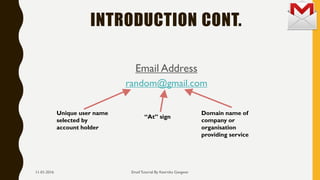
Email Address
random@gmail.com
Email Tutorial By Keertika Gangwar
Unique user name
selected by
account holder
“At” sign
Domain name of
company or
organisation
providing service
11-01-2016
CREATE AN EMAIL ACCOUNT
Setting up an Email account using Google’s Gmail. (Other
email accounts are very similar, if you want to use another
one.)
Click on the browser icon (Internet Explorer, Safari, Mozilla
Firefox) on the desktop to open the Internet
Go to www.gmail.com or google Gmail click first link
Email Tutorial By Keertika Gangwar11-01-2016
CREATE AN EMAIL ACCOUNT CONT.
Email Tutorial By Keertika Gangwar
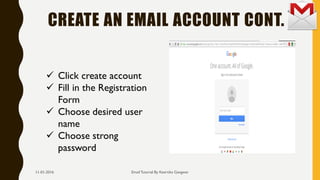
 Click create account
 Fill in the Registration
Form
 Choose desired user
name
 Choose strong
password
11-01-2016
CREATE AN EMAIL ACCOUNT CONT.
Email Tutorial By Keertika Gangwar
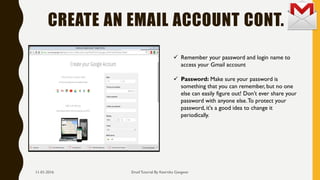
 Remember your password and login name to
access your Gmail account
 Password: Make sure your password is
something that you can remember, but no one
else can easily figure out! Don’t ever share your
password with anyone else.To protect your
password, it's a good idea to change it
periodically.
11-01-2016
CREATE AN EMAIL ACCOUNT CONT.
Tips for creating a secure password:
 Include punctuation marks and/or numbers.
Mix capital and lowercase letters.
Include similar looking substitutions,such as the number zero for
the letter 'O' or '$' for the letter 'S'.
Create a unique acronym.
Email Tutorial By Keertika Gangwar11-01-2016
GETTING REGISTRATION HELP
Gmail provides a registration help section. Click on “Help” at
the bottom of the registration page.
Email Tutorial By Keertika Gangwar11-01-2016
SENDING AND RECEIVING EMAIL
1. Signing in (“Logging In”) to Gmail
2. Sending a message to your partner
3. Reading new messages in your “Inbox”
Email Tutorial By Keertika Gangwar11-01-2016
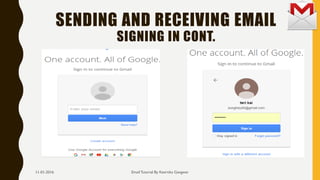
SENDING AND RECEIVING EMAIL
SIGNING IN
Go to www.gmail.com
 Type your Google Login Name click next and
 Enter Password into the box
Click sign in
Email Tutorial By Keertika Gangwar11-01-2016
SENDING AND RECEIVING EMAIL
SIGNING IN CONT.
Email Tutorial By Keertika Gangwar11-01-2016
SENDING AND RECEIVING EMAIL
Email Tutorial By Keertika Gangwar
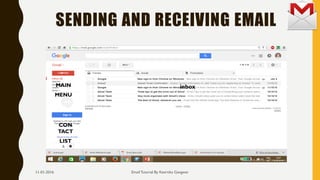
inboxMAIN
MENU
CON
TACT
LIST
11-01-2016
SENDING AND RECEIVING EMAIL
SENDING AN EMAIL
Email Tutorial By Keertika Gangwar
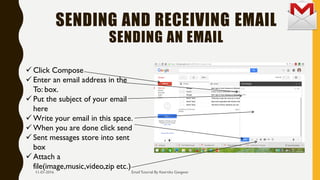
 Click Compose
 Enter an email address in the
To: box.
 Put the subject of your email
here
 Write your email in this space.
 When you are done click send
 Sent messages store into sent
box
 Attach a
file(image,music,video,zip etc.)
11-01-2016
ATTACHING A FILE TO A MESSAGE
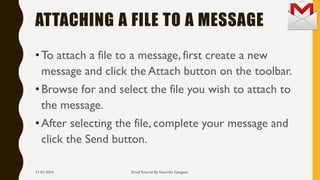
•To attach a file to a message, first create a new
message and click the Attach button on the toolbar.
•Browse for and select the file you wish to attach to
the message.
•After selecting the file, complete your message and
click the Send button.
Email Tutorial By Keertika Gangwar11-01-2016
CHECKING FOR NEW EMAIL MESSAGES
Email Tutorial By Keertika Gangwar
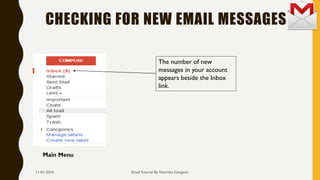
Main Menu
The number of new
messages in your account
appears beside the Inbox
link.
11-01-2016
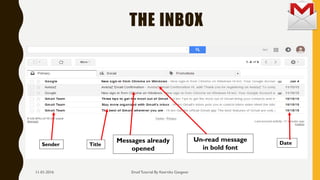
THE INBOX
Email Tutorial By Keertika Gangwar
Messages already
opened
Un-read message
in bold font
Sender DateTitle
11-01-2016
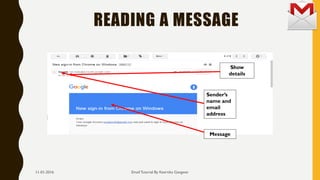
READING A MESSAGE
Email Tutorial By Keertika Gangwar
Show
details
Sender’s
name and
email
address
Message
11-01-2016
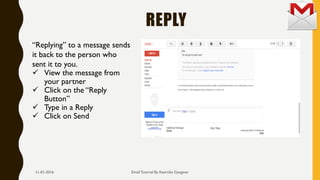
REPLY
Email Tutorial By Keertika Gangwar
“Replying” to a message sends
it back to the person who
sent it to you.
 View the message from
your partner
 Click on the “Reply
Button”
 Type in a Reply
 Click on Send
11-01-2016
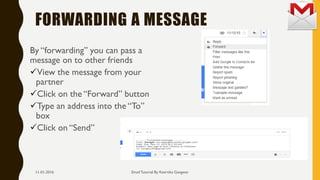
FORWARDING A MESSAGE
By “forwarding” you can pass a
message on to other friends
View the message from your
partner
Click on the “Forward” button
Type an address into the “To”
box
Click on “Send”
Email Tutorial By Keertika Gangwar11-01-2016
EMAIL SECURITY
DO’S AND DON’TS
DO’S
• Always sign out, especially if you are using
a public computer!
• Periodically change your password
• Never tell your password to anyone
• Establish the right tone upfront
• Stay alert and report suspicious activity
DON’TS
• Never send your PIN or bank account
number by email
• Don't use a password that contains
personal information
• Never open attachments from unknown
senders
• Don’t install unauthorized programs on
your work computer
Email Tutorial By Keertika Gangwar11-01-2016
WWW.GMAIL .COM
WWW.SUPPORT.GOOGL E.COM
/MAIL

Email tutorials

  • 1.
    EMAIL TUTORIAL B YK E E RT I K A G A N G WA R
  • 2.
    OVERVIEW •INTRODUCTION •CREATE EMAIL ACCOUNT •SENDINGRECEIVING AN EMAIL •REPLY •FORWARDING A MESSAGE •EMAIL SECURITY Email Tutorial By Keertika Gangwar11-01-2016
  • 3.
    INTRODUCTION Email, short forElectronic Mail, consists of messages which are sent and received using the Internet. While there are many different email services available that allow you to create an email account and send and receive email and attachments. Email Tutorial By Keertika Gangwar11-01-2016
  • 4.
    INTRODUCTION CONT. How doesEmailWork?  Email travels via the Internet from one computer to another.  Computers known as mail servers direct outgoing mail and store incoming mail.  Once email reaches your mail server, it waits in an electronic mail box, the "Inbox” for you to collect it. Email Tutorial By Keertika Gangwar11-01-2016
  • 5.
    INTRODUCTION CONT. Prerequisites: An usershould be comfortable with basic computer operations. In addition, very basic Internet experience is recommended. Must have email address A computer system with internet connection Email Tutorial By Keertika Gangwar11-01-2016
  • 6.
    INTRODUCTION CONT. Choosing anemail provider Most common are Hotmail (Microsoft), Gmail (Google),Yahoo Mail (Yahoo!) Email Tutorial By Keertika Gangwar11-01-2016
  • 7.
    INTRODUCTION CONT. ThingsYou CanDo with Email Compose and Send: write an email and send it to others. Reply: reply to an email that you received. Forward: pass on an email that you received to others. Attachment:You can send files with your email such as: pictures, music, software and documents Email Tutorial By Keertika Gangwar11-01-2016
  • 8.
    INTRODUCTION CONT. Email Address random@gmail.com EmailTutorial By Keertika Gangwar Unique user name selected by account holder “At” sign Domain name of company or organisation providing service 11-01-2016
  • 9.
    CREATE AN EMAILACCOUNT Setting up an Email account using Google’s Gmail. (Other email accounts are very similar, if you want to use another one.) Click on the browser icon (Internet Explorer, Safari, Mozilla Firefox) on the desktop to open the Internet Go to www.gmail.com or google Gmail click first link Email Tutorial By Keertika Gangwar11-01-2016
  • 10.
    CREATE AN EMAILACCOUNT CONT. Email Tutorial By Keertika Gangwar  Click create account  Fill in the Registration Form  Choose desired user name  Choose strong password 11-01-2016
  • 11.
    CREATE AN EMAILACCOUNT CONT. Email Tutorial By Keertika Gangwar  Remember your password and login name to access your Gmail account  Password: Make sure your password is something that you can remember, but no one else can easily figure out! Don’t ever share your password with anyone else.To protect your password, it's a good idea to change it periodically. 11-01-2016
  • 12.
    CREATE AN EMAILACCOUNT CONT. Tips for creating a secure password:  Include punctuation marks and/or numbers. Mix capital and lowercase letters. Include similar looking substitutions,such as the number zero for the letter 'O' or '$' for the letter 'S'. Create a unique acronym. Email Tutorial By Keertika Gangwar11-01-2016
  • 13.
    GETTING REGISTRATION HELP Gmailprovides a registration help section. Click on “Help” at the bottom of the registration page. Email Tutorial By Keertika Gangwar11-01-2016
  • 14.
    SENDING AND RECEIVINGEMAIL 1. Signing in (“Logging In”) to Gmail 2. Sending a message to your partner 3. Reading new messages in your “Inbox” Email Tutorial By Keertika Gangwar11-01-2016
  • 15.
    SENDING AND RECEIVINGEMAIL SIGNING IN Go to www.gmail.com  Type your Google Login Name click next and  Enter Password into the box Click sign in Email Tutorial By Keertika Gangwar11-01-2016
  • 16.
    SENDING AND RECEIVINGEMAIL SIGNING IN CONT. Email Tutorial By Keertika Gangwar11-01-2016
  • 17.
    SENDING AND RECEIVINGEMAIL Email Tutorial By Keertika Gangwar inboxMAIN MENU CON TACT LIST 11-01-2016
  • 18.
    SENDING AND RECEIVINGEMAIL SENDING AN EMAIL Email Tutorial By Keertika Gangwar  Click Compose  Enter an email address in the To: box.  Put the subject of your email here  Write your email in this space.  When you are done click send  Sent messages store into sent box  Attach a file(image,music,video,zip etc.) 11-01-2016
  • 19.
    ATTACHING A FILETO A MESSAGE •To attach a file to a message, first create a new message and click the Attach button on the toolbar. •Browse for and select the file you wish to attach to the message. •After selecting the file, complete your message and click the Send button. Email Tutorial By Keertika Gangwar11-01-2016
  • 20.
    CHECKING FOR NEWEMAIL MESSAGES Email Tutorial By Keertika Gangwar Main Menu The number of new messages in your account appears beside the Inbox link. 11-01-2016
  • 21.
    THE INBOX Email TutorialBy Keertika Gangwar Messages already opened Un-read message in bold font Sender DateTitle 11-01-2016
  • 22.
    READING A MESSAGE EmailTutorial By Keertika Gangwar Show details Sender’s name and email address Message 11-01-2016
  • 23.
    REPLY Email Tutorial ByKeertika Gangwar “Replying” to a message sends it back to the person who sent it to you.  View the message from your partner  Click on the “Reply Button”  Type in a Reply  Click on Send 11-01-2016
  • 24.
    FORWARDING A MESSAGE By“forwarding” you can pass a message on to other friends View the message from your partner Click on the “Forward” button Type an address into the “To” box Click on “Send” Email Tutorial By Keertika Gangwar11-01-2016
  • 25.
    EMAIL SECURITY DO’S ANDDON’TS DO’S • Always sign out, especially if you are using a public computer! • Periodically change your password • Never tell your password to anyone • Establish the right tone upfront • Stay alert and report suspicious activity DON’TS • Never send your PIN or bank account number by email • Don't use a password that contains personal information • Never open attachments from unknown senders • Don’t install unauthorized programs on your work computer Email Tutorial By Keertika Gangwar11-01-2016
  • 26.