Technical Awareness 
on 
Analysis of Email Headers
Agenda 
 Email Headers – A Basic Introduction 
 Viewing Email Headers in Web – Based Email 
Services 
 Viewing Email Headers in Desktop – Based Email 
Client Applications 
 Common Fields Available in Email Headers – A 
Brief Overview 
 How Mail Works on the Internet 
 Investigating an Email Header – Expert Analysis
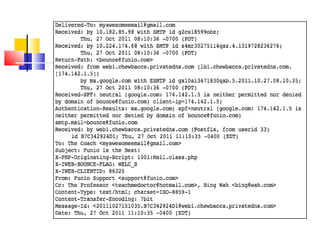
What is Email Header? 
Email Headers are lines of metadata 
(data about data) attached to each 
email that contain lots of useful 
information for a forensic 
investigators.
Web-Based Email Services 
Web-based email allows user to manage 
email via a web browser and sent or receive e-mail 
from anywhere. E-mail is not downloaded 
to a computer, but instead is left on the mail 
server until the user delete it. 
Examples of Web Based Email Client 
Applications are: - 
Gmail 
Yahoo! Mail
 Hotmail 
 Google Apps 
 Google Apps Admin 
 Live Exchange 
 Office 365 
 IMAP
Gmail 
• Log in to your Gmail account. 
• Open the message you want to view 
headers for. 
• Click the Down arrow next to the Reply 
button, located at the top right of the 
message pane. 
• Select Show Original.
Desktop Based Email Services 
Desktop based email clients are mailing 
applications that enable the users to easily 
manage their email accounts and perform 
operations such as sending and receiving 
of emails, managing tasks & calendar 
items, and many more. 
Examples of Desktop Based Email Client 
Applications are: -
 Microsoft Outlook 
 Outlook Express 
 Mozilla Thunderbird 
 The Bat 
 Pocomail 
 Lotus Notes 
 Mailbird 
 Postbox
Microsoft Outlook 
• Open Outlook. 
• Open a message. 
• On the Message tab, located in the 
Tag group, click the Dialog Box 
Launcher icon. 
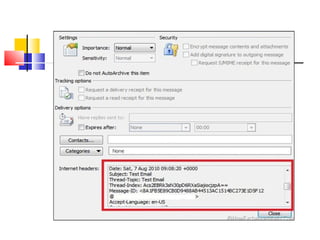
• In the Message Options dialog box, the 
headers will appear in the Internet 
Headers box.
Investigating an Email Header 
Expert Analysis
 Delivery-To filed of email header shows 
the address of automailer. 
 Return-Path of email header used for 
bounces. The mail server will send a 
message to the specified email address if the 
message cannot be delivered. 
 Received-SPF: Sender Policy 
Framework is used to describe what mail 
server is allowed to send messages for a 
domain.
 From: Displays the name of sender. 
However, this information can be easily 
forged and hence, is least reliable. 
 To: Displays the name of receiver. 
 Subject: Represent the subject of the 
email message. 
 Date: Shows the date and time, when the 
email message was composed.
 Message-ID: Every email should have a 
message id field that: "provides a unique 
message identifier that refers to a particular 
version of a particular message. 
 MIME-Version: Multipurpose Internet 
Mail Extensions is an Internet Standard that 
extends the format of email message. 
 Content-Type: Shows the format of the 
message, such as html, plain text, xml.
 X-Mailer: The email client used to send the 
message. 
 Content-Language: Specify language used 
for content of page. 
 X-Antivirus: This states that what the 
sender’s antivirus program is such as Norton, 
AVG, etc. 
 X-Antivirus-Status: It shows that email was 
free or not from any viruses.
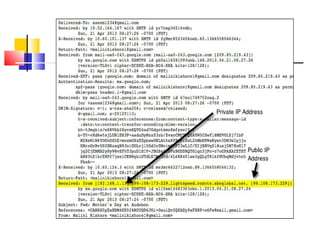
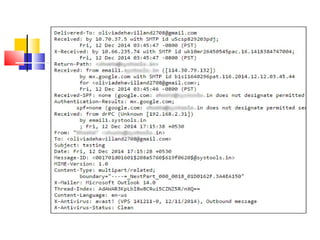
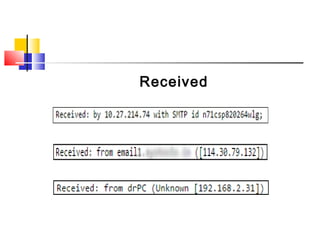
Received
Received is the most essential field of the 
email header. It creates a list of all the mail 
server through which the message traveled in 
order to reach the receiver. 
The best way to read the received 
fields are from bottom to top. 
The bottom “Received” shows the IP 
address of the sender’s mail server.
 The top “Received” shows the IP address 
of receiver mail server. 
 The middle “Received” shows the IP 
address of the mail server through which 
email passes from sender to receiver.
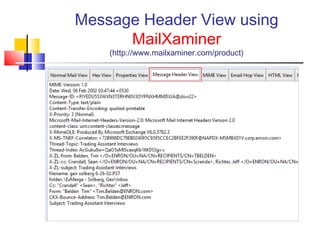
Message Header View using 
MailXaminer 
(http://www.mailxaminer.com/product)
Email Headers – Expert Forensic Analysis

Email Headers – Expert Forensic Analysis

  • 1.
    Technical Awareness on Analysis of Email Headers
  • 2.
    Agenda  EmailHeaders – A Basic Introduction  Viewing Email Headers in Web – Based Email Services  Viewing Email Headers in Desktop – Based Email Client Applications  Common Fields Available in Email Headers – A Brief Overview  How Mail Works on the Internet  Investigating an Email Header – Expert Analysis
  • 3.
    What is EmailHeader? Email Headers are lines of metadata (data about data) attached to each email that contain lots of useful information for a forensic investigators.
  • 5.
    Web-Based Email Services Web-based email allows user to manage email via a web browser and sent or receive e-mail from anywhere. E-mail is not downloaded to a computer, but instead is left on the mail server until the user delete it. Examples of Web Based Email Client Applications are: - Gmail Yahoo! Mail
  • 6.
     Hotmail Google Apps  Google Apps Admin  Live Exchange  Office 365  IMAP
  • 7.
    Gmail • Login to your Gmail account. • Open the message you want to view headers for. • Click the Down arrow next to the Reply button, located at the top right of the message pane. • Select Show Original.
  • 9.
    Desktop Based EmailServices Desktop based email clients are mailing applications that enable the users to easily manage their email accounts and perform operations such as sending and receiving of emails, managing tasks & calendar items, and many more. Examples of Desktop Based Email Client Applications are: -
  • 10.
     Microsoft Outlook  Outlook Express  Mozilla Thunderbird  The Bat  Pocomail  Lotus Notes  Mailbird  Postbox
  • 11.
    Microsoft Outlook •Open Outlook. • Open a message. • On the Message tab, located in the Tag group, click the Dialog Box Launcher icon. • In the Message Options dialog box, the headers will appear in the Internet Headers box.
  • 13.
    Investigating an EmailHeader Expert Analysis
  • 15.
     Delivery-To filedof email header shows the address of automailer.  Return-Path of email header used for bounces. The mail server will send a message to the specified email address if the message cannot be delivered.  Received-SPF: Sender Policy Framework is used to describe what mail server is allowed to send messages for a domain.
  • 16.
     From: Displaysthe name of sender. However, this information can be easily forged and hence, is least reliable.  To: Displays the name of receiver.  Subject: Represent the subject of the email message.  Date: Shows the date and time, when the email message was composed.
  • 17.
     Message-ID: Everyemail should have a message id field that: "provides a unique message identifier that refers to a particular version of a particular message.  MIME-Version: Multipurpose Internet Mail Extensions is an Internet Standard that extends the format of email message.  Content-Type: Shows the format of the message, such as html, plain text, xml.
  • 18.
     X-Mailer: Theemail client used to send the message.  Content-Language: Specify language used for content of page.  X-Antivirus: This states that what the sender’s antivirus program is such as Norton, AVG, etc.  X-Antivirus-Status: It shows that email was free or not from any viruses.
  • 19.
  • 20.
    Received is themost essential field of the email header. It creates a list of all the mail server through which the message traveled in order to reach the receiver. The best way to read the received fields are from bottom to top. The bottom “Received” shows the IP address of the sender’s mail server.
  • 21.
     The top“Received” shows the IP address of receiver mail server.  The middle “Received” shows the IP address of the mail server through which email passes from sender to receiver.
  • 22.
    Message Header Viewusing MailXaminer (http://www.mailxaminer.com/product)