How to creating an Email
account and sending an email
By Kenrick M. Ramsay
What is Email?
Email is a digital messaging system
where people can create and send
messages over the Internet
through any computer with a
connection to the Internet. Each
email is given a specific address
from the sender to the receiver
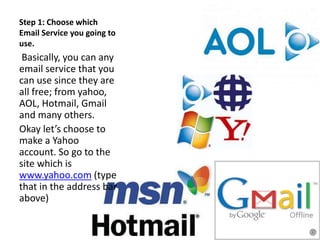
Step 1: Choose which
Email Service you going to
use.
Basically, you can any
email service that you
can use since they are
all free; from yahoo,
AOL, Hotmail, Gmail
and many others.
Okay let’s choose to
make a Yahoo
account. So go to the
site which is
www.yahoo.com (type
that in the address bar
above)
Step 2: Setup an account
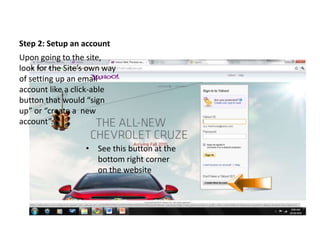
• See this button at the
bottom right corner
on the website
Upon going to the site,
look for the Site’s own way
of setting up an email
account like a click-able
button that would “sign
up” or “create a new
account”.
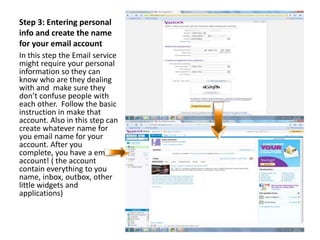
Step 3: Entering personal
info and create the name
for your email account
In this step the Email service
might require your personal
information so they can
know who are they dealing
with and make sure they
don’t confuse people with
each other. Follow the basic
instruction in make that
account. Also in this step can
create whatever name for
you email name for your
account. After you
complete, you have a email
account! ( the account
contain everything to you
name, inbox, outbox, other
little widgets and
applications)
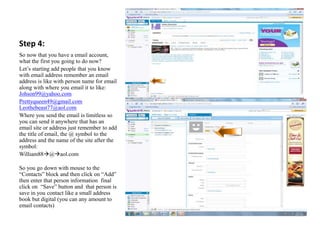
Step 4:
So now that you have a email account,
what the first you going to do now?
Let’s starting add people that you know
with email address remember an email
address is like with person name for email
along with where you email it to like:
Johson99@yahoo.com
Prettyqueen49@gmail.com
Leothebeast77@aol.com
Where you send the email is limitless so
you can send it anywhere that has an
email site or address just remember to add
the title of email, the @ symbol to the
address and the name of the site after the
symbol:
William88@aol.com
So you go down with mouse to the
“Contacts” block and then click on “Add”
then enter that person information final
click on “Save” button and that person is
save in you contact like a small address
book but digital (you can any amount to
email contacts)
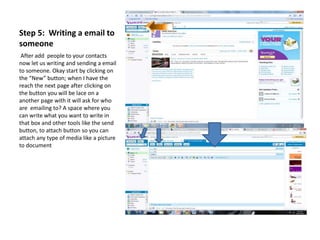
Step 5: Writing a email to
someone
After add people to your contacts
now let us writing and sending a email
to someone. Okay start by clicking on
the “New” button; when I have the
reach the next page after clicking on
the button you will be lace on a
another page with it will ask for who
are emailing to? A space where you
can write what you want to write in
that box and other tools like the send
button, to attach button so you can
attach any type of media like a picture
to document
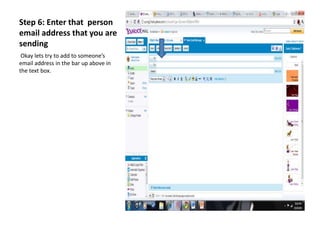
Step 6: Enter that person
email address that you are
sending
Okay lets try to add to someone’s
email address in the bar up above in
the text box.
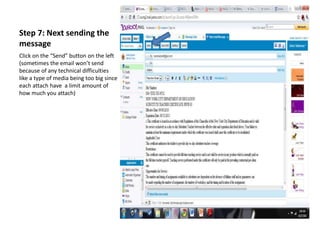
Step 7: Next sending the
message
Click on the “Send” button on the left
(sometimes the email won’t send
because of any technical difficulties
like a type of media being too big since
each attach have a limit amount of
how much you attach)
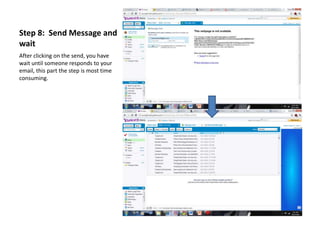
Step 8: Send Message and
wait
After clicking on the send, you have
wait until someone responds to your
email, this part the step is most time
consuming.
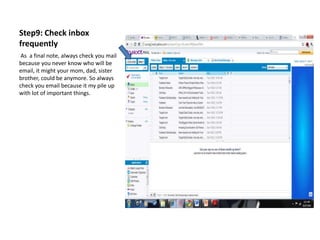
Step9: Check inbox
frequently
As a final note, always check you mail
because you never know who will be
email, it might your mom, dad, sister
brother, could be anymore. So always
check you email because it my pile up
with lot of important things.
What have we learn?
• We learn understand email
– Email is a digital messaging system where people can create and send messages over the Internet
through any computer with a connection to the Internet. Each email is given a specific address from
the sender to the receiver
– Email address are names then @ symbol the final part is the email mail service like AOL, Gmail or any
other email service:
• leo88@yahoo.com
• IamEmo29@aol.com
• HelpmeIamdying@gmail.com
• Using the “send” button to send messages
• Use the “Attach” button to attach of type of media or documents to the email
• We learn how to setup a Email account
• We learn that we had to get in the habit of checking our email frequently because you never know who
might being writing you?

Tutorial power point

  • 1.
    How to creatingan Email account and sending an email By Kenrick M. Ramsay
  • 2.
    What is Email? Emailis a digital messaging system where people can create and send messages over the Internet through any computer with a connection to the Internet. Each email is given a specific address from the sender to the receiver
  • 3.
    Step 1: Choosewhich Email Service you going to use. Basically, you can any email service that you can use since they are all free; from yahoo, AOL, Hotmail, Gmail and many others. Okay let’s choose to make a Yahoo account. So go to the site which is www.yahoo.com (type that in the address bar above)
  • 4.
    Step 2: Setupan account • See this button at the bottom right corner on the website Upon going to the site, look for the Site’s own way of setting up an email account like a click-able button that would “sign up” or “create a new account”.
  • 5.
    Step 3: Enteringpersonal info and create the name for your email account In this step the Email service might require your personal information so they can know who are they dealing with and make sure they don’t confuse people with each other. Follow the basic instruction in make that account. Also in this step can create whatever name for you email name for your account. After you complete, you have a email account! ( the account contain everything to you name, inbox, outbox, other little widgets and applications)
  • 6.
    Step 4: So nowthat you have a email account, what the first you going to do now? Let’s starting add people that you know with email address remember an email address is like with person name for email along with where you email it to like: Johson99@yahoo.com Prettyqueen49@gmail.com Leothebeast77@aol.com Where you send the email is limitless so you can send it anywhere that has an email site or address just remember to add the title of email, the @ symbol to the address and the name of the site after the symbol: William88@aol.com So you go down with mouse to the “Contacts” block and then click on “Add” then enter that person information final click on “Save” button and that person is save in you contact like a small address book but digital (you can any amount to email contacts)
  • 7.
    Step 5: Writinga email to someone After add people to your contacts now let us writing and sending a email to someone. Okay start by clicking on the “New” button; when I have the reach the next page after clicking on the button you will be lace on a another page with it will ask for who are emailing to? A space where you can write what you want to write in that box and other tools like the send button, to attach button so you can attach any type of media like a picture to document
  • 8.
    Step 6: Enterthat person email address that you are sending Okay lets try to add to someone’s email address in the bar up above in the text box.
  • 9.
    Step 7: Nextsending the message Click on the “Send” button on the left (sometimes the email won’t send because of any technical difficulties like a type of media being too big since each attach have a limit amount of how much you attach)
  • 10.
    Step 8: SendMessage and wait After clicking on the send, you have wait until someone responds to your email, this part the step is most time consuming.
  • 11.
    Step9: Check inbox frequently Asa final note, always check you mail because you never know who will be email, it might your mom, dad, sister brother, could be anymore. So always check you email because it my pile up with lot of important things.
  • 12.
    What have welearn? • We learn understand email – Email is a digital messaging system where people can create and send messages over the Internet through any computer with a connection to the Internet. Each email is given a specific address from the sender to the receiver – Email address are names then @ symbol the final part is the email mail service like AOL, Gmail or any other email service: • leo88@yahoo.com • IamEmo29@aol.com • HelpmeIamdying@gmail.com • Using the “send” button to send messages • Use the “Attach” button to attach of type of media or documents to the email • We learn how to setup a Email account • We learn that we had to get in the habit of checking our email frequently because you never know who might being writing you?