Continuous Delivery 
Workshop 
Jirayut Nimsaeng (Dear) 
Docker for DevOps and Continuous Delivery Workshop 
October 11, 2014 @ OSS Festival 2014
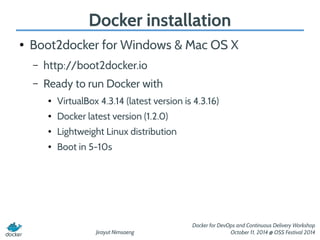
Docker installation 
● Boot2docker for Windows & Mac OS X 
Jirayut Nimsaeng 
Docker for DevOps and Continuous Delivery Workshop 
October 11, 2014 @ OSS Festival 2014 
– http://boot2docker.io 
– Ready to run Docker with 
● VirtualBox 4.3.14 (latest version is 4.3.16) 
● Docker latest version (1.2.0) 
● Lightweight Linux distribution 
● Boot in 5-10s
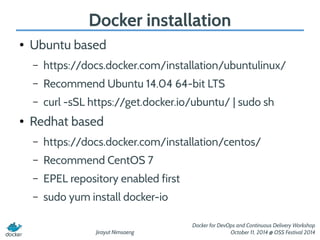
Docker installation 
Jirayut Nimsaeng 
Docker for DevOps and Continuous Delivery Workshop 
October 11, 2014 @ OSS Festival 2014 
● Ubuntu based 
– https://docs.docker.com/installation/ubuntulinux/ 
– Recommend Ubuntu 14.04 64-bit LTS 
– curl -sSL https://get.docker.io/ubuntu/ | sudo sh 
● Redhat based 
– https://docs.docker.com/installation/centos/ 
– Recommend CentOS 7 
– EPEL repository enabled first 
– sudo yum install docker-io
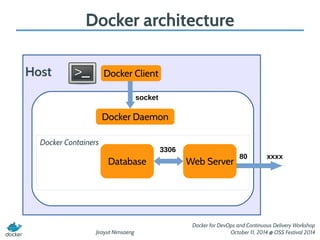
Docker architecture 
Docker Client 
Jirayut Nimsaeng 
Docker for DevOps and Continuous Delivery Workshop 
October 11, 2014 @ OSS Festival 2014 
Host 
socket 
Docker Daemon 
Web Server 80 xxxx 
Docker Containers 
Database 
3306
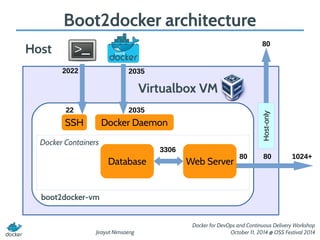
Boot2docker architecture 
2022 2035 
2035 
Jirayut Nimsaeng 
80 
Docker for DevOps and Continuous Delivery Workshop 
October 11, 2014 @ OSS Festival 2014 
Host 
Virtualbox VM 
22 
SSH Docker Daemon 
Web Server 
boot2docker-vm 
80 1024+ 
Docker Containers 
Database 
Host-only 
80 
3306
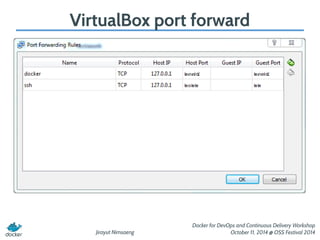
VirtualBox port forward 
Jirayut Nimsaeng 
Docker for DevOps and Continuous Delivery Workshop 
October 11, 2014 @ OSS Festival 2014
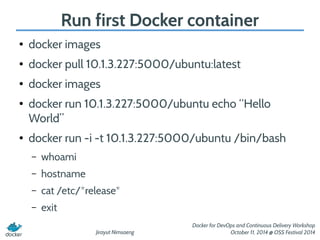
Run first Docker container 
Jirayut Nimsaeng 
Docker for DevOps and Continuous Delivery Workshop 
October 11, 2014 @ OSS Festival 2014 
● docker images 
● docker pull 10.1.3.227:5000/ubuntu:latest 
● docker images 
● docker run 10.1.3.227:5000/ubuntu echo “Hello 
World” 
● docker run -i -t 10.1.3.227:5000/ubuntu /bin/bash 
– whoami 
– hostname 
– cat /etc/*release* 
– exit
Docker basic operations 
Jirayut Nimsaeng 
Docker for DevOps and Continuous Delivery Workshop 
October 11, 2014 @ OSS Festival 2014 
● docker search [name] 
● docker pull [name[:tag]] 
– docker pull centos 
– docker pull ubuntu:latest 
● docker run [-itd] [name[:tag]] [command] 
● docker ps 
● docker ps -a 
● docker rm [name or cid] 
● docker rm [part of cid] 
● docker images 
● docker rmi [name:tag or iid]
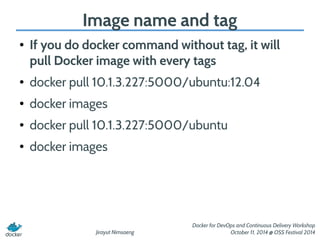
Image name and tag 
● If you do docker command without tag, it will 
pull Docker image with every tags 
● docker pull 10.1.3.227:5000/ubuntu:12.04 
Jirayut Nimsaeng 
Docker for DevOps and Continuous Delivery Workshop 
October 11, 2014 @ OSS Festival 2014 
● docker images 
● docker pull 10.1.3.227:5000/ubuntu 
● docker images
Create your first image 
Jirayut Nimsaeng 
Docker for DevOps and Continuous Delivery Workshop 
October 11, 2014 @ OSS Festival 2014 
● docker run -i -t 10.1.3.227:5000/ubuntu /bin/bash 
– vim 
– echo 'Acquire::http::Proxy "http://10.1.3.227:3142";' > /etc/apt/apt.conf.d/11proxy 
– apt-get update 
– apt-get install vim 
– touch vim-installed 
– ls 
– exit 
● docker ps -a 
● docker commit [cid] ubuntu-vim 
● docker images 
● docker run -i -t ubuntu-vim /bin/bash 
– ls
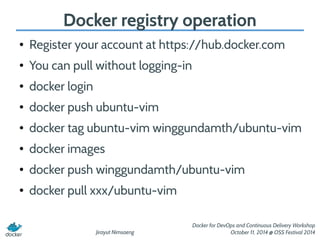
Docker registry operation 
● Register your account at https://hub.docker.com 
Jirayut Nimsaeng 
Docker for DevOps and Continuous Delivery Workshop 
October 11, 2014 @ OSS Festival 2014 
● You can pull without logging-in 
● docker login 
● docker push ubuntu-vim 
● docker tag ubuntu-vim winggundamth/ubuntu-vim 
● docker images 
● docker push winggundamth/ubuntu-vim 
● docker pull xxx/ubuntu-vim
Jirayut Nimsaeng 
Docker for DevOps and Continuous Delivery Workshop 
October 11, 2014 @ OSS Festival 2014 
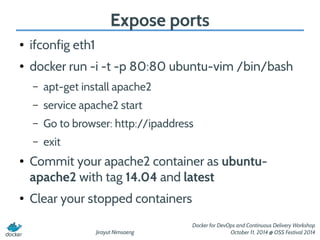
Expose ports 
● ifconfig eth1 
● docker run -i -t -p 80:80 ubuntu-vim /bin/bash 
– apt-get install apache2 
– service apache2 start 
– Go to browser: http://ipaddress 
– exit 
● Commit your apache2 container as ubuntu-apache2 
with tag 14.04 and latest 
● Clear your stopped containers
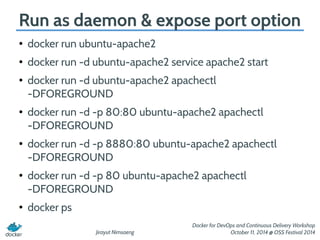
Run as daemon & expose port option 
Jirayut Nimsaeng 
Docker for DevOps and Continuous Delivery Workshop 
October 11, 2014 @ OSS Festival 2014 
● docker run ubuntu-apache2 
● docker run -d ubuntu-apache2 service apache2 start 
● docker run -d ubuntu-apache2 apachectl 
-DFOREGROUND 
● docker run -d -p 80:80 ubuntu-apache2 apachectl 
-DFOREGROUND 
● docker run -d -p 8880:80 ubuntu-apache2 apachectl 
-DFOREGROUND 
● docker run -d -p 80 ubuntu-apache2 apachectl 
-DFOREGROUND 
● docker ps
Docker container operation 
Jirayut Nimsaeng 
Docker for DevOps and Continuous Delivery Workshop 
October 11, 2014 @ OSS Festival 2014 
● docker ps 
● docker stop [container id or name] 
● docker start [container id or name] 
● docker kill [container id or name] 
● docker logs [container id or name] 
● docker diff [container id or name] 
● docker top [container id or name] 
● docker inspect [container id or name]
Jirayut Nimsaeng 
Docker for DevOps and Continuous Delivery Workshop 
October 11, 2014 @ OSS Festival 2014 
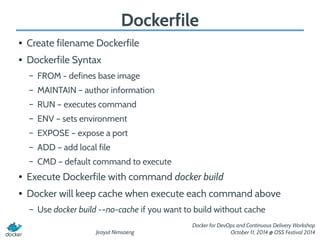
Dockerfile 
● Create filename Dockerfile 
● Dockerfile Syntax 
– FROM - defines base image 
– MAINTAIN – author information 
– RUN – executes command 
– ENV – sets environment 
– EXPOSE – expose a port 
– ADD – add local file 
– CMD – default command to execute 
● Execute Dockerfile with command docker build 
● Docker will keep cache when execute each command above 
– Use docker build -–no-cache if you want to build without cache
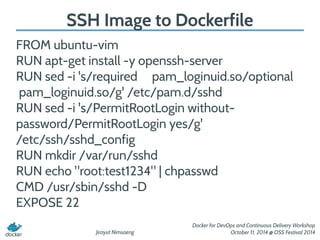
SSH Image to Dockerfile 
FROM ubuntu-vim 
RUN apt-get install -y openssh-server 
RUN sed -i 's/required pam_loginuid.so/optional 
pam_loginuid.so/g' /etc/pam.d/sshd 
RUN sed -i 's/PermitRootLogin without-password/ 
Jirayut Nimsaeng 
Docker for DevOps and Continuous Delivery Workshop 
October 11, 2014 @ OSS Festival 2014 
PermitRootLogin yes/g' 
/etc/ssh/sshd_config 
RUN mkdir /var/run/sshd 
RUN echo "root:test1234" | chpasswd 
CMD /usr/sbin/sshd -D 
EXPOSE 22
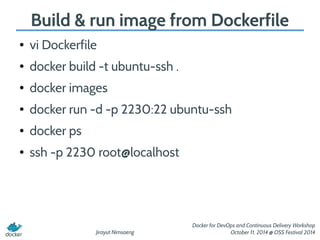
Build & run image from Dockerfile 
Jirayut Nimsaeng 
Docker for DevOps and Continuous Delivery Workshop 
October 11, 2014 @ OSS Festival 2014 
● vi Dockerfile 
● docker build -t ubuntu-ssh . 
● docker images 
● docker run -d -p 2230:22 ubuntu-ssh 
● docker ps 
● ssh -p 2230 root@localhost
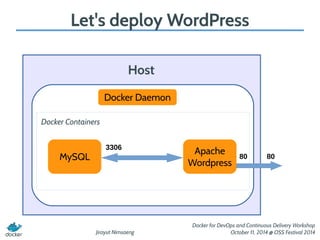
Let's deploy WordPress 
Jirayut Nimsaeng 
Docker for DevOps and Continuous Delivery Workshop 
October 11, 2014 @ OSS Festival 2014 
Host 
Docker Daemon 
Apache 
Wordpress 
80 80 
Docker Containers 
MySQL 
3306
Jirayut Nimsaeng 
Docker for DevOps and Continuous Delivery Workshop 
October 11, 2014 @ OSS Festival 2014 
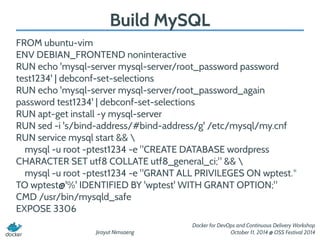
Build MySQL 
FROM ubuntu-vim 
ENV DEBIAN_FRONTEND noninteractive 
RUN echo 'mysql-server mysql-server/root_password password 
test1234' | debconf-set-selections 
RUN echo 'mysql-server mysql-server/root_password_again 
password test1234' | debconf-set-selections 
RUN apt-get install -y mysql-server 
RUN sed -i 's/bind-address/#bind-address/g' /etc/mysql/my.cnf 
RUN service mysql start &&  
mysql -u root -ptest1234 -e "CREATE DATABASE wordpress 
CHARACTER SET utf8 COLLATE utf8_general_ci;" &&  
mysql -u root -ptest1234 -e "GRANT ALL PRIVILEGES ON wptest.* 
TO wptest@'%' IDENTIFIED BY 'wptest' WITH GRANT OPTION;" 
CMD /usr/bin/mysqld_safe 
EXPOSE 3306
Jirayut Nimsaeng 
Docker for DevOps and Continuous Delivery Workshop 
October 11, 2014 @ OSS Festival 2014 
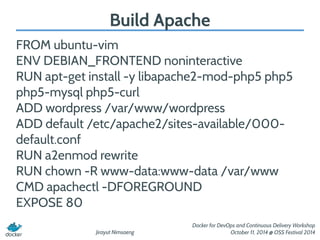
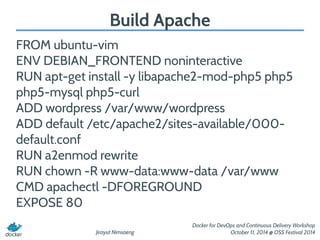
Build Apache 
FROM ubuntu-vim 
ENV DEBIAN_FRONTEND noninteractive 
RUN apt-get install -y libapache2-mod-php5 php5 
php5-mysql php5-curl 
ADD wordpress /var/www/wordpress 
ADD default /etc/apache2/sites-available/000- 
default.conf 
RUN a2enmod rewrite 
RUN chown -R www-data:www-data /var/www 
CMD apachectl -DFOREGROUND 
EXPOSE 80
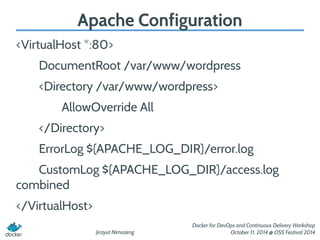
Apache Configuration 
Jirayut Nimsaeng 
Docker for DevOps and Continuous Delivery Workshop 
October 11, 2014 @ OSS Festival 2014 
<VirtualHost *:80> 
DocumentRoot /var/www/wordpress 
<Directory /var/www/wordpress> 
AllowOverride All 
</Directory> 
ErrorLog ${APACHE_LOG_DIR}/error.log 
CustomLog ${APACHE_LOG_DIR}/access.log 
combined 
</VirtualHost>
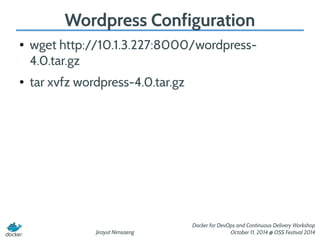
Wordpress Configuration 
● wget http://10.1.3.227:8000/wordpress- 
4.0.tar.gz 
Jirayut Nimsaeng 
Docker for DevOps and Continuous Delivery Workshop 
October 11, 2014 @ OSS Festival 2014 
● tar xvfz wordpress-4.0.tar.gz
Jirayut Nimsaeng 
Docker for DevOps and Continuous Delivery Workshop 
October 11, 2014 @ OSS Festival 2014 
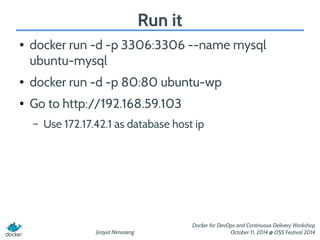
Run it 
● docker run -d -p 3306:3306 --name mysql 
ubuntu-mysql 
● docker run -d -p 80:80 ubuntu-wp 
● Go to http://192.168.59.103 
– Use 172.17.42.1 as database host ip
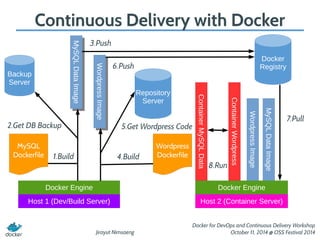
Continuous Delivery with Docker 
5.Get Wordpress Code 
Jirayut Nimsaeng 
MySQL Data Image 
Docker for DevOps and Continuous Delivery Workshop 
October 11, 2014 @ OSS Festival 2014 
MySQL 
Dockerfile 
Data MySQL Data Image 
Docker Engine 
Host 1 (Dev/Build Server) 
Docker 
Registry 
Host 2 (Container Server) 
1.Build 
3.Push 
7.Pull 
8.Run 
Docker Engine 
Container MySQL Data 
Backup 
Server 
2.Get DB Backup 
Repository 
Server 
Wordpress 
4.Build Dockerfile 
Wordpress Image 
6.Push 
Wordpress Image 
Container Wordpress
Jirayut Nimsaeng 
Docker for DevOps and Continuous Delivery Workshop 
October 11, 2014 @ OSS Festival 2014 
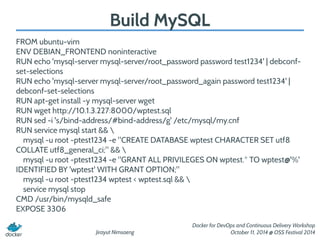
Build MySQL 
FROM ubuntu-vim 
ENV DEBIAN_FRONTEND noninteractive 
RUN echo 'mysql-server mysql-server/root_password password test1234' | debconf-set- 
selections 
RUN echo 'mysql-server mysql-server/root_password_again password test1234' | 
debconf-set-selections 
RUN apt-get install -y mysql-server wget 
RUN wget http://10.1.3.227:8000/wptest.sql 
RUN sed -i 's/bind-address/#bind-address/g' /etc/mysql/my.cnf 
RUN service mysql start &&  
mysql -u root -ptest1234 -e "CREATE DATABASE wptest CHARACTER SET utf8 
COLLATE utf8_general_ci;" &&  
mysql -u root -ptest1234 -e "GRANT ALL PRIVILEGES ON wptest.* TO wptest@'%' 
IDENTIFIED BY 'wptest' WITH GRANT OPTION;" 
mysql -u root -ptest1234 wptest < wptest.sql &&  
service mysql stop 
CMD /usr/bin/mysqld_safe 
EXPOSE 3306
Jirayut Nimsaeng 
Docker for DevOps and Continuous Delivery Workshop 
October 11, 2014 @ OSS Festival 2014 
Build Apache 
FROM ubuntu-vim 
ENV DEBIAN_FRONTEND noninteractive 
RUN apt-get install -y libapache2-mod-php5 php5 
php5-mysql php5-curl 
ADD wordpress /var/www/wordpress 
ADD default /etc/apache2/sites-available/000- 
default.conf 
RUN a2enmod rewrite 
RUN chown -R www-data:www-data /var/www 
CMD apachectl -DFOREGROUND 
EXPOSE 80

Docker Continuous Delivery Workshop

  • 1.
    Continuous Delivery Workshop Jirayut Nimsaeng (Dear) Docker for DevOps and Continuous Delivery Workshop October 11, 2014 @ OSS Festival 2014
  • 2.
    Docker installation ●Boot2docker for Windows & Mac OS X Jirayut Nimsaeng Docker for DevOps and Continuous Delivery Workshop October 11, 2014 @ OSS Festival 2014 – http://boot2docker.io – Ready to run Docker with ● VirtualBox 4.3.14 (latest version is 4.3.16) ● Docker latest version (1.2.0) ● Lightweight Linux distribution ● Boot in 5-10s
  • 3.
    Docker installation JirayutNimsaeng Docker for DevOps and Continuous Delivery Workshop October 11, 2014 @ OSS Festival 2014 ● Ubuntu based – https://docs.docker.com/installation/ubuntulinux/ – Recommend Ubuntu 14.04 64-bit LTS – curl -sSL https://get.docker.io/ubuntu/ | sudo sh ● Redhat based – https://docs.docker.com/installation/centos/ – Recommend CentOS 7 – EPEL repository enabled first – sudo yum install docker-io
  • 4.
    Docker architecture DockerClient Jirayut Nimsaeng Docker for DevOps and Continuous Delivery Workshop October 11, 2014 @ OSS Festival 2014 Host socket Docker Daemon Web Server 80 xxxx Docker Containers Database 3306
  • 5.
    Boot2docker architecture 20222035 2035 Jirayut Nimsaeng 80 Docker for DevOps and Continuous Delivery Workshop October 11, 2014 @ OSS Festival 2014 Host Virtualbox VM 22 SSH Docker Daemon Web Server boot2docker-vm 80 1024+ Docker Containers Database Host-only 80 3306
  • 6.
    VirtualBox port forward Jirayut Nimsaeng Docker for DevOps and Continuous Delivery Workshop October 11, 2014 @ OSS Festival 2014
  • 7.
    Run first Dockercontainer Jirayut Nimsaeng Docker for DevOps and Continuous Delivery Workshop October 11, 2014 @ OSS Festival 2014 ● docker images ● docker pull 10.1.3.227:5000/ubuntu:latest ● docker images ● docker run 10.1.3.227:5000/ubuntu echo “Hello World” ● docker run -i -t 10.1.3.227:5000/ubuntu /bin/bash – whoami – hostname – cat /etc/*release* – exit
  • 8.
    Docker basic operations Jirayut Nimsaeng Docker for DevOps and Continuous Delivery Workshop October 11, 2014 @ OSS Festival 2014 ● docker search [name] ● docker pull [name[:tag]] – docker pull centos – docker pull ubuntu:latest ● docker run [-itd] [name[:tag]] [command] ● docker ps ● docker ps -a ● docker rm [name or cid] ● docker rm [part of cid] ● docker images ● docker rmi [name:tag or iid]
  • 9.
    Image name andtag ● If you do docker command without tag, it will pull Docker image with every tags ● docker pull 10.1.3.227:5000/ubuntu:12.04 Jirayut Nimsaeng Docker for DevOps and Continuous Delivery Workshop October 11, 2014 @ OSS Festival 2014 ● docker images ● docker pull 10.1.3.227:5000/ubuntu ● docker images
  • 10.
    Create your firstimage Jirayut Nimsaeng Docker for DevOps and Continuous Delivery Workshop October 11, 2014 @ OSS Festival 2014 ● docker run -i -t 10.1.3.227:5000/ubuntu /bin/bash – vim – echo 'Acquire::http::Proxy "http://10.1.3.227:3142";' > /etc/apt/apt.conf.d/11proxy – apt-get update – apt-get install vim – touch vim-installed – ls – exit ● docker ps -a ● docker commit [cid] ubuntu-vim ● docker images ● docker run -i -t ubuntu-vim /bin/bash – ls
  • 11.
    Docker registry operation ● Register your account at https://hub.docker.com Jirayut Nimsaeng Docker for DevOps and Continuous Delivery Workshop October 11, 2014 @ OSS Festival 2014 ● You can pull without logging-in ● docker login ● docker push ubuntu-vim ● docker tag ubuntu-vim winggundamth/ubuntu-vim ● docker images ● docker push winggundamth/ubuntu-vim ● docker pull xxx/ubuntu-vim
  • 12.
    Jirayut Nimsaeng Dockerfor DevOps and Continuous Delivery Workshop October 11, 2014 @ OSS Festival 2014 Expose ports ● ifconfig eth1 ● docker run -i -t -p 80:80 ubuntu-vim /bin/bash – apt-get install apache2 – service apache2 start – Go to browser: http://ipaddress – exit ● Commit your apache2 container as ubuntu-apache2 with tag 14.04 and latest ● Clear your stopped containers
  • 13.
    Run as daemon& expose port option Jirayut Nimsaeng Docker for DevOps and Continuous Delivery Workshop October 11, 2014 @ OSS Festival 2014 ● docker run ubuntu-apache2 ● docker run -d ubuntu-apache2 service apache2 start ● docker run -d ubuntu-apache2 apachectl -DFOREGROUND ● docker run -d -p 80:80 ubuntu-apache2 apachectl -DFOREGROUND ● docker run -d -p 8880:80 ubuntu-apache2 apachectl -DFOREGROUND ● docker run -d -p 80 ubuntu-apache2 apachectl -DFOREGROUND ● docker ps
  • 14.
    Docker container operation Jirayut Nimsaeng Docker for DevOps and Continuous Delivery Workshop October 11, 2014 @ OSS Festival 2014 ● docker ps ● docker stop [container id or name] ● docker start [container id or name] ● docker kill [container id or name] ● docker logs [container id or name] ● docker diff [container id or name] ● docker top [container id or name] ● docker inspect [container id or name]
  • 15.
    Jirayut Nimsaeng Dockerfor DevOps and Continuous Delivery Workshop October 11, 2014 @ OSS Festival 2014 Dockerfile ● Create filename Dockerfile ● Dockerfile Syntax – FROM - defines base image – MAINTAIN – author information – RUN – executes command – ENV – sets environment – EXPOSE – expose a port – ADD – add local file – CMD – default command to execute ● Execute Dockerfile with command docker build ● Docker will keep cache when execute each command above – Use docker build -–no-cache if you want to build without cache
  • 16.
    SSH Image toDockerfile FROM ubuntu-vim RUN apt-get install -y openssh-server RUN sed -i 's/required pam_loginuid.so/optional pam_loginuid.so/g' /etc/pam.d/sshd RUN sed -i 's/PermitRootLogin without-password/ Jirayut Nimsaeng Docker for DevOps and Continuous Delivery Workshop October 11, 2014 @ OSS Festival 2014 PermitRootLogin yes/g' /etc/ssh/sshd_config RUN mkdir /var/run/sshd RUN echo "root:test1234" | chpasswd CMD /usr/sbin/sshd -D EXPOSE 22
  • 17.
    Build & runimage from Dockerfile Jirayut Nimsaeng Docker for DevOps and Continuous Delivery Workshop October 11, 2014 @ OSS Festival 2014 ● vi Dockerfile ● docker build -t ubuntu-ssh . ● docker images ● docker run -d -p 2230:22 ubuntu-ssh ● docker ps ● ssh -p 2230 root@localhost
  • 18.
    Let's deploy WordPress Jirayut Nimsaeng Docker for DevOps and Continuous Delivery Workshop October 11, 2014 @ OSS Festival 2014 Host Docker Daemon Apache Wordpress 80 80 Docker Containers MySQL 3306
  • 19.
    Jirayut Nimsaeng Dockerfor DevOps and Continuous Delivery Workshop October 11, 2014 @ OSS Festival 2014 Build MySQL FROM ubuntu-vim ENV DEBIAN_FRONTEND noninteractive RUN echo 'mysql-server mysql-server/root_password password test1234' | debconf-set-selections RUN echo 'mysql-server mysql-server/root_password_again password test1234' | debconf-set-selections RUN apt-get install -y mysql-server RUN sed -i 's/bind-address/#bind-address/g' /etc/mysql/my.cnf RUN service mysql start && mysql -u root -ptest1234 -e "CREATE DATABASE wordpress CHARACTER SET utf8 COLLATE utf8_general_ci;" && mysql -u root -ptest1234 -e "GRANT ALL PRIVILEGES ON wptest.* TO wptest@'%' IDENTIFIED BY 'wptest' WITH GRANT OPTION;" CMD /usr/bin/mysqld_safe EXPOSE 3306
  • 20.
    Jirayut Nimsaeng Dockerfor DevOps and Continuous Delivery Workshop October 11, 2014 @ OSS Festival 2014 Build Apache FROM ubuntu-vim ENV DEBIAN_FRONTEND noninteractive RUN apt-get install -y libapache2-mod-php5 php5 php5-mysql php5-curl ADD wordpress /var/www/wordpress ADD default /etc/apache2/sites-available/000- default.conf RUN a2enmod rewrite RUN chown -R www-data:www-data /var/www CMD apachectl -DFOREGROUND EXPOSE 80
  • 21.
    Apache Configuration JirayutNimsaeng Docker for DevOps and Continuous Delivery Workshop October 11, 2014 @ OSS Festival 2014 <VirtualHost *:80> DocumentRoot /var/www/wordpress <Directory /var/www/wordpress> AllowOverride All </Directory> ErrorLog ${APACHE_LOG_DIR}/error.log CustomLog ${APACHE_LOG_DIR}/access.log combined </VirtualHost>
  • 22.
    Wordpress Configuration ●wget http://10.1.3.227:8000/wordpress- 4.0.tar.gz Jirayut Nimsaeng Docker for DevOps and Continuous Delivery Workshop October 11, 2014 @ OSS Festival 2014 ● tar xvfz wordpress-4.0.tar.gz
  • 23.
    Jirayut Nimsaeng Dockerfor DevOps and Continuous Delivery Workshop October 11, 2014 @ OSS Festival 2014 Run it ● docker run -d -p 3306:3306 --name mysql ubuntu-mysql ● docker run -d -p 80:80 ubuntu-wp ● Go to http://192.168.59.103 – Use 172.17.42.1 as database host ip
  • 24.
    Continuous Delivery withDocker 5.Get Wordpress Code Jirayut Nimsaeng MySQL Data Image Docker for DevOps and Continuous Delivery Workshop October 11, 2014 @ OSS Festival 2014 MySQL Dockerfile Data MySQL Data Image Docker Engine Host 1 (Dev/Build Server) Docker Registry Host 2 (Container Server) 1.Build 3.Push 7.Pull 8.Run Docker Engine Container MySQL Data Backup Server 2.Get DB Backup Repository Server Wordpress 4.Build Dockerfile Wordpress Image 6.Push Wordpress Image Container Wordpress
  • 25.
    Jirayut Nimsaeng Dockerfor DevOps and Continuous Delivery Workshop October 11, 2014 @ OSS Festival 2014 Build MySQL FROM ubuntu-vim ENV DEBIAN_FRONTEND noninteractive RUN echo 'mysql-server mysql-server/root_password password test1234' | debconf-set- selections RUN echo 'mysql-server mysql-server/root_password_again password test1234' | debconf-set-selections RUN apt-get install -y mysql-server wget RUN wget http://10.1.3.227:8000/wptest.sql RUN sed -i 's/bind-address/#bind-address/g' /etc/mysql/my.cnf RUN service mysql start && mysql -u root -ptest1234 -e "CREATE DATABASE wptest CHARACTER SET utf8 COLLATE utf8_general_ci;" && mysql -u root -ptest1234 -e "GRANT ALL PRIVILEGES ON wptest.* TO wptest@'%' IDENTIFIED BY 'wptest' WITH GRANT OPTION;" mysql -u root -ptest1234 wptest < wptest.sql && service mysql stop CMD /usr/bin/mysqld_safe EXPOSE 3306
  • 26.
    Jirayut Nimsaeng Dockerfor DevOps and Continuous Delivery Workshop October 11, 2014 @ OSS Festival 2014 Build Apache FROM ubuntu-vim ENV DEBIAN_FRONTEND noninteractive RUN apt-get install -y libapache2-mod-php5 php5 php5-mysql php5-curl ADD wordpress /var/www/wordpress ADD default /etc/apache2/sites-available/000- default.conf RUN a2enmod rewrite RUN chown -R www-data:www-data /var/www CMD apachectl -DFOREGROUND EXPOSE 80