Ed Tech Workshops
DavidBoin
david.boin@lausd.net
www.edtechworkshops.com
Using DigitalCameras
to Enhance Instruction
David Boin, Instructor
Agenda
July 28
8 am – 4 pm
Course Overview – Requirements
Video introduction to technology in education in the 21st Century
“Lenses, pixels, and sensors – oh, my”!
Sign-in, Introductions, P-Forms
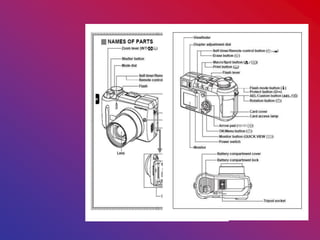
The digital camera – parts and operation
The “Rule of Three” – what makes a good picture?
“Let the clicking begin”
Out of the camera and into the computer
Ease into editing – the software
Create a collage with Microsoft Word – a fun project
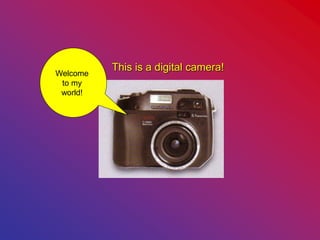
This is a digital camera!

Welcome
to my
world!
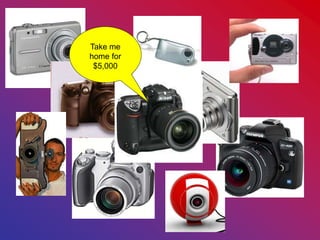
Take me
home for
$5,000
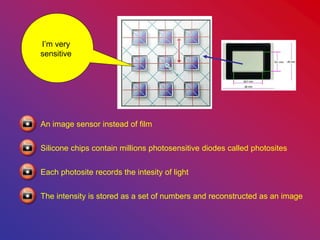
An image sensor instead of film
Silicone chips contain millions photosensitive diodes called photosites
Each photosite records the intesity of light
The intensity is stored as a set of numbers and reconstructed as an image
I’m very
sensitive
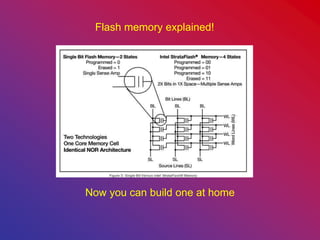
Flash memory explained!
Now you can build one at home
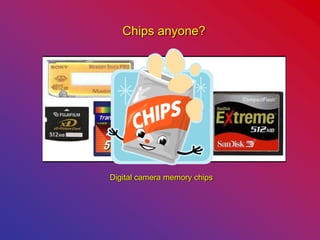
Digital camera memory chips
Chips anyone?
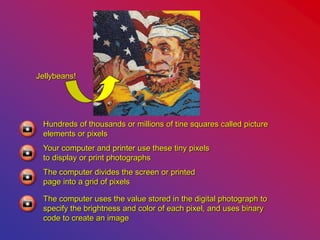
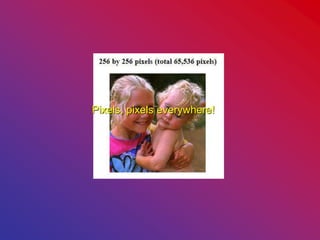
Hundreds of thousands or millions of tine squares called picture
elements or pixels
Your computer and printer use these tiny pixels
to display or print photographs
The computer divides the screen or printed
page into a grid of pixels
The computer uses the value stored in the digital photograph to
specify the brightness and color of each pixel, and uses binary
code to create an image
Jellybeans!
Pixels, pixels everywhere!
Let’s take some pictures!
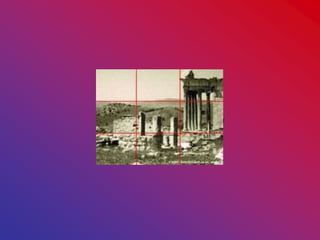
The Rule of Thirds
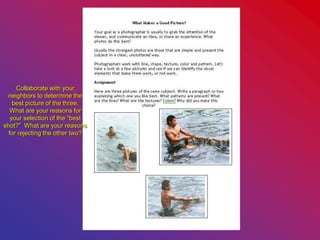
Collaborate with your
neighbors to determine the
best picture of the three.
What are your reasons for
your selection of the “best
shot?” What are your reasons
for rejecting the other two?
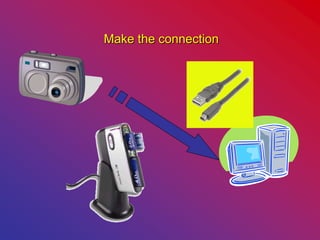
Make the connection
Ladies and Gentlemen – start your cameras!
Your first assignment
Take some pictures – inside, outside, anywhere!
Take some close-ups, medium shots, wide angle
Practice the Rule of Three
Take pictures of people, buildings, trees, anything
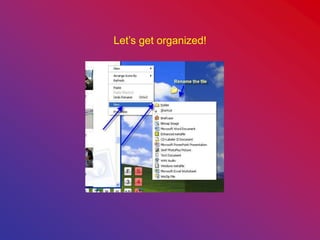
Let’s get organized!
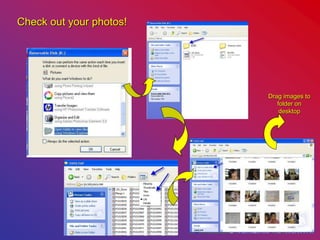
Check out your photos!
Drag images to
folder on
desktop
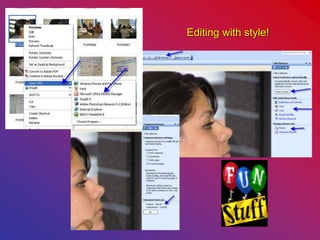
Editing with style!
Tools you may need
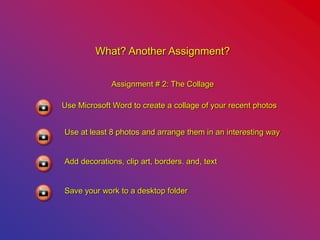
What? Another Assignment?
Assignment # 2: The Collage
Use Microsoft Word to create a collage of your recent photos
Use at least 8 photos and arrange them in an interesting way
Add decorations, clip art, borders. and, text
Save your work to a desktop folder
A
AL
LO
OH
HA
A H
HA
AW
WA
AI
II
I
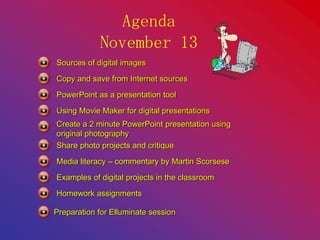
Agenda
November 13
Sources of digital images
Copy and save from Internet sources
PowerPoint as a presentation tool
Using Movie Maker for digital presentations
Create a 2 minute PowerPoint presentation using
original photography
Media literacy – commentary by Martin Scorsese
Share photo projects and critique
Examples of digital projects in the classroom
Homework assignments
Preparation for Elluminate session
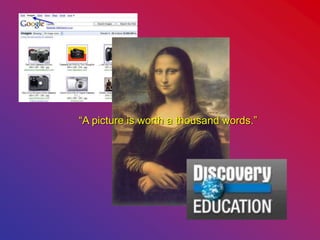
“A picture is worth a thousand words.”
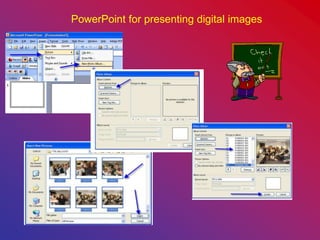
PowerPoint for presenting digital images
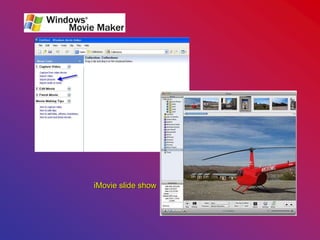
iMovie slide show
“What, me worry”?
Assignment # 3
Use Move Maker or iMovie
Use original images or images from the internet
Create a slide show with a theme
Save your project to a desktop folder
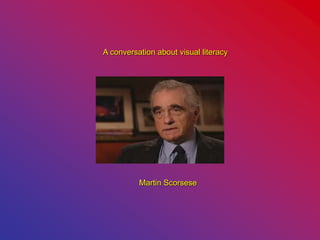
A conversation about visual literacy
Martin Scorsese
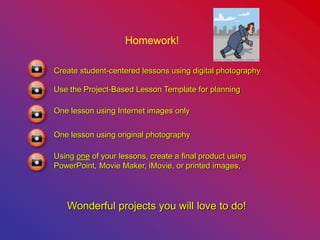
Homework!
Wonderful projects you will love to do!
Create student-centered lessons using digital photography
Use the Project-Based Lesson Template for planning
One lesson using Internet images only
One lesson using original photography
Using one of your lessons, create a final product using
PowerPoint, Movie Maker, iMovie, or printed images,
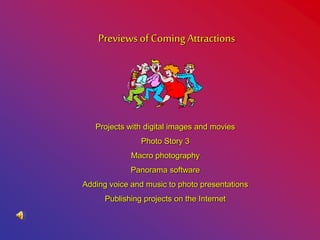
Previews of Coming Attractions
Projects with digital images and movies
Photo Story 3
Macro photography
Panorama software
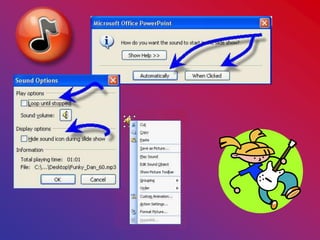
Adding voice and music to photo presentations
Publishing projects on the Internet
Congratulations!
Thanks for your excellent participation.
Using DigitalCameras
to Enhance Instruction
David Boin, Instructor
Click!
Part 2
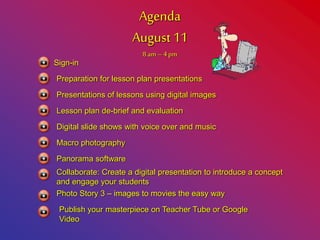
Agenda
August 11
8 am– 4pm
Sign-in
Preparation for lesson plan presentations
Presentations of lessons using digital images
Lesson plan de-brief and evaluation
Digital slide shows with voice over and music
Macro photography
Panorama software
Collaborate: Create a digital presentation to introduce a concept
and engage your students
Photo Story 3 – images to movies the easy way
Publish your masterpiece on Teacher Tube or Google
Video
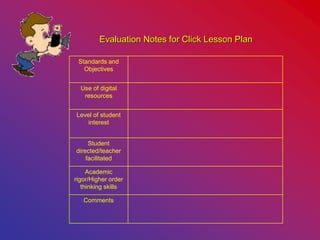
Evaluation Notes for Click Lesson Plan
Standards and
Objectives
Use of digital
resources
Level of student
interest
Student
directed/teacher
facilitated
Academic
rigor/Higher order
thinking skills
Comments
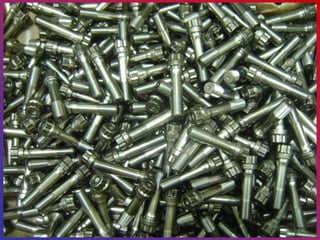
Let’s get real close!
Let’s Get Close
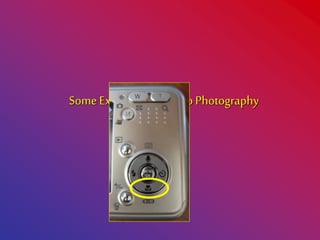
Some Examplesof Macro Photography
Get Close-Up and Personal!
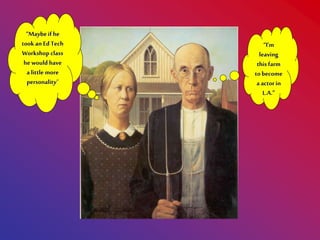
“Maybe if he
took an Ed Tech
Workshop class
he would have
a little more
personality”
“I’m
leaving
this farm
tobecome
a actor in
L.A.”
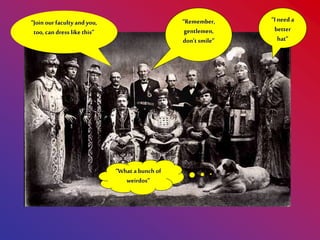
“Remember,
gentlemen,
don’t smile”
“Join our faculty and you,
too, can dress like this”
“What a bunch of
weirdos”
“I need a
better
hat”
Digital cameras power point presentation

Digital cameras power point presentation

  • 1.
  • 2.
    Using DigitalCameras to EnhanceInstruction David Boin, Instructor
  • 3.
    Agenda July 28 8 am– 4 pm Course Overview – Requirements Video introduction to technology in education in the 21st Century “Lenses, pixels, and sensors – oh, my”! Sign-in, Introductions, P-Forms The digital camera – parts and operation The “Rule of Three” – what makes a good picture? “Let the clicking begin” Out of the camera and into the computer Ease into editing – the software Create a collage with Microsoft Word – a fun project
  • 4.
    This is adigital camera! Welcome to my world!
  • 5.
  • 6.
    An image sensorinstead of film Silicone chips contain millions photosensitive diodes called photosites Each photosite records the intesity of light The intensity is stored as a set of numbers and reconstructed as an image I’m very sensitive
  • 7.
    Flash memory explained! Nowyou can build one at home
  • 8.
    Digital camera memorychips Chips anyone?
  • 9.
    Hundreds of thousandsor millions of tine squares called picture elements or pixels Your computer and printer use these tiny pixels to display or print photographs The computer divides the screen or printed page into a grid of pixels The computer uses the value stored in the digital photograph to specify the brightness and color of each pixel, and uses binary code to create an image Jellybeans!
  • 10.
  • 12.
    Let’s take somepictures! The Rule of Thirds
  • 13.
    Collaborate with your neighborsto determine the best picture of the three. What are your reasons for your selection of the “best shot?” What are your reasons for rejecting the other two?
  • 14.
  • 15.
    Ladies and Gentlemen– start your cameras! Your first assignment Take some pictures – inside, outside, anywhere! Take some close-ups, medium shots, wide angle Practice the Rule of Three Take pictures of people, buildings, trees, anything
  • 16.
  • 17.
    Check out yourphotos! Drag images to folder on desktop
  • 18.
  • 19.
  • 20.
    What? Another Assignment? Assignment# 2: The Collage Use Microsoft Word to create a collage of your recent photos Use at least 8 photos and arrange them in an interesting way Add decorations, clip art, borders. and, text Save your work to a desktop folder
  • 21.
  • 22.
    Agenda November 13 Sources ofdigital images Copy and save from Internet sources PowerPoint as a presentation tool Using Movie Maker for digital presentations Create a 2 minute PowerPoint presentation using original photography Media literacy – commentary by Martin Scorsese Share photo projects and critique Examples of digital projects in the classroom Homework assignments Preparation for Elluminate session
  • 23.
    “A picture isworth a thousand words.”
  • 24.
  • 25.
  • 26.
    “What, me worry”? Assignment# 3 Use Move Maker or iMovie Use original images or images from the internet Create a slide show with a theme Save your project to a desktop folder
  • 27.
    A conversation aboutvisual literacy Martin Scorsese
  • 30.
    Homework! Wonderful projects youwill love to do! Create student-centered lessons using digital photography Use the Project-Based Lesson Template for planning One lesson using Internet images only One lesson using original photography Using one of your lessons, create a final product using PowerPoint, Movie Maker, iMovie, or printed images,
  • 31.
    Previews of ComingAttractions Projects with digital images and movies Photo Story 3 Macro photography Panorama software Adding voice and music to photo presentations Publishing projects on the Internet
  • 32.
    Congratulations! Thanks for yourexcellent participation.
  • 33.
    Using DigitalCameras to EnhanceInstruction David Boin, Instructor
  • 34.
  • 35.
    Agenda August 11 8 am–4pm Sign-in Preparation for lesson plan presentations Presentations of lessons using digital images Lesson plan de-brief and evaluation Digital slide shows with voice over and music Macro photography Panorama software Collaborate: Create a digital presentation to introduce a concept and engage your students Photo Story 3 – images to movies the easy way Publish your masterpiece on Teacher Tube or Google Video
  • 36.
    Evaluation Notes forClick Lesson Plan Standards and Objectives Use of digital resources Level of student interest Student directed/teacher facilitated Academic rigor/Higher order thinking skills Comments
  • 41.
    Let’s get realclose! Let’s Get Close
  • 42.
  • 52.
  • 53.
    “Maybe if he tookan Ed Tech Workshop class he would have a little more personality” “I’m leaving this farm tobecome a actor in L.A.”
  • 54.
    “Remember, gentlemen, don’t smile” “Join ourfaculty and you, too, can dress like this” “What a bunch of weirdos” “I need a better hat”