Catalogue: Upload a new product
In this module, we will discuss:
1. How to create a new product ?
2. How to create new products in bulk ?
3. What is quality check ?
Single product creation
Steps to create a new product
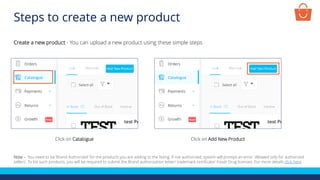
Create a new product - You can upload a new product using these simple steps
Click on Catalogue Click on Add New Product
Note – You need to be ‘Brand Authorized’ for the products you are adding to the listing. If not authorized, system will prompt an error ‘Allowed only for authorized
sellers’. To list such products, you will be required to submit the Brand authorization letter/ trademark certificate/ Food/ Drug licenses. For more details click here
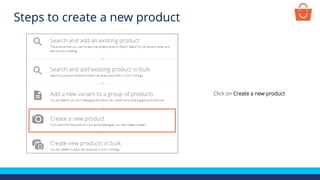
Click on Create a new product
Steps to create a new product
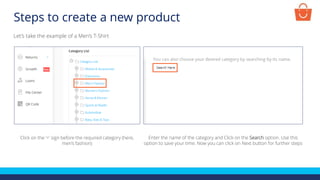
Let’s take the example of a Men’s T-Shirt
Click on the ‘+’ sign before the required category (here,
men’s fashion)
Enter the name of the category and Click on the Search option. Use this
option to save your time. Now you can click on Next button for further steps
Steps to create a new product
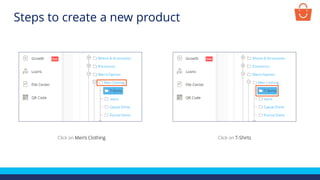
Click on Men’s Clothing Click on T-Shirts
Steps to create a new product
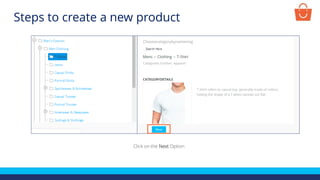
Click on the Next Option
Steps to create a new product
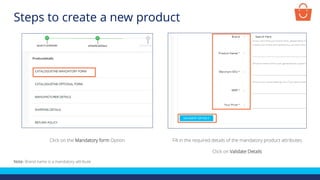
Click on the Mandatory form Option Fill in the required details of the mandatory product attributes
Click on Validate Details
Note- Brand name is a mandatory attribute
Steps to create a new product
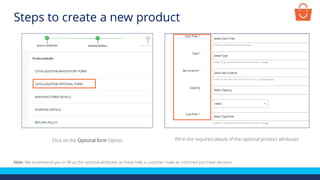
Click on the Optional form Option Fill in the required details of the optional product attributes
Note- We recommend you to fill up the optional attributes as these help a customer make an informed purchase decision
Steps to create a new product
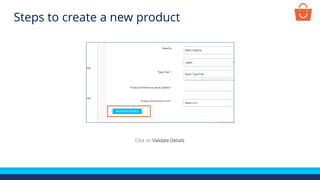
Click on Validate Details
Steps to create a new product
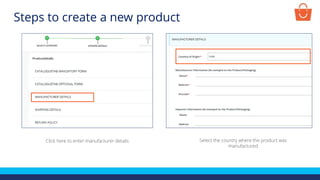
Click here to enter manufacturer details Select the country where the product was
manufactured
Steps to create a new product
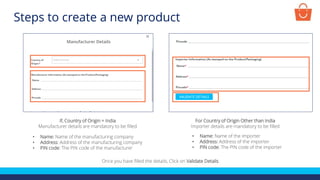
If, Country of Origin = India
Manufacturer details are mandatory to be filled
• Name: Name of the manufacturing company
• Address: Address of the manufacturing company
• PIN code: The PIN code of the manufacturer
For Country of Origin Other than India
Importer details are mandatory to be filled
• Name: Name of the importer
• Address: Address of the importer
• PIN code: The PIN code of the importer
Once you have filled the details, Click on Validate Details
Steps to create a new product
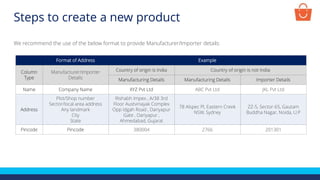
Format of Address Example
Column
Type
Manufacturer/Importer
Details
Country of origin is India Country of origin is not India
Manufacturing Details Manufacturing Details Importer Details
Name Company Name XYZ Pvt Ltd ABC Pvt Ltd JKL Pvt Ltd
Address
Plot/Shop number
Sector/local area address
Any landmark
City
State
Rishabh Impex , A/38 3rd
Floor Austvinayak Complex
Opp Idgah Road , Dariyapur
Gate , Dariyapur ,
Ahmedabad, Gujarat
78 Alspec Pl, Eastern Creek
NSW, Sydney
ZZ-5, Sector-65, Gautam
Buddha Nagar, Noida, U.P
Pincode Pincode 380004 2766 201301
We recommend the use of the below format to provide Manufacturer/Importer details:
Steps to create a new product
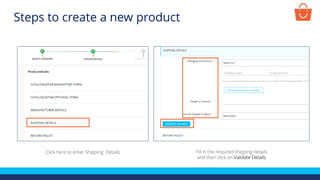
Fill in the required shipping details
and then click on Validate Details
Click here to enter Shipping Details
Steps to create a new product
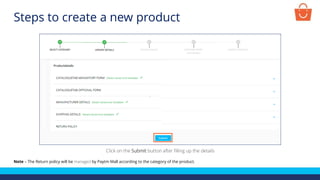
Click on the Submit button after filling up the details
Note – The Return policy will be managed by Paytm Mall according to the category of the product.
Steps to create a new product
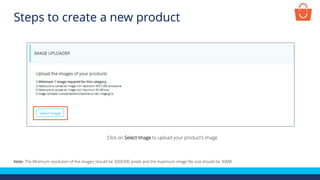
Click on Select Image to upload your product’s image
Note- The Minimum resolution of the images should be 300X300 pixels and the maximum image file size should be 30MB
Steps to create a new product
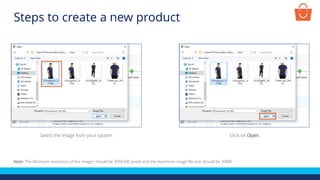
Select the image from your system Click on Open
Note- The Minimum resolution of the images should be 300X300 pixels and the maximum image file size should be 30MB
Steps to create a new product
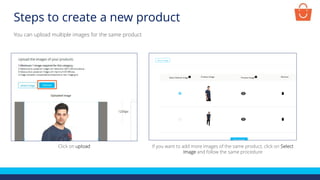
Click on upload If you want to add more images of the same product, click on Select
Image and follow the same procedure
You can upload multiple images for the same product
Steps to create a new product
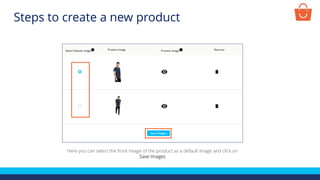
Here you can select the front image of the product as a default image and click on
Save Images
Steps to create a new product
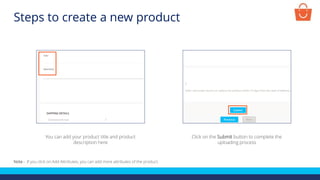
You can add your product title and product
description here
Click on the Submit button to complete the
uploading process
Note - If you click on Add Attributes, you can add more attributes of the product.
Steps to create a new product
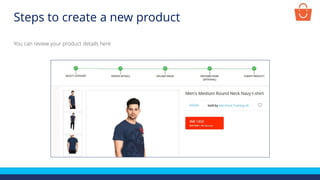
You can review your product details here
Steps to create a new product
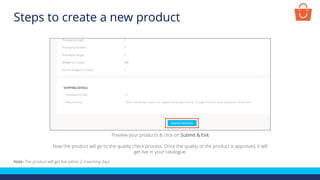
Preview your products & click on Submit & Exit
Now the product will go to the quality check process. Once the quality of the product is approved, it will
get live in your catalogue.
Note- The product will get live within 2-3 working days
Steps to create a new product
Bulk product creation
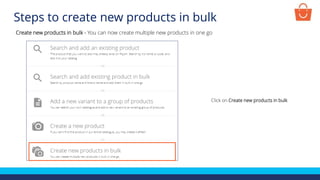
Click on Create new products in bulk
Steps to create new products in bulk
Create new products in bulk - You can now create multiple new products in one go
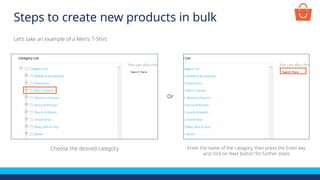
Choose the desired category
Let’s take an example of a Men’s T-Shirt
Enter the name of the category, then press the Enter key
and click on Next button for further steps
Or
Steps to create new products in bulk
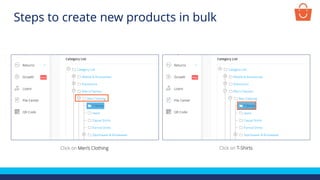
Click on Men’s Clothing Click on T-Shirts
Steps to create new products in bulk
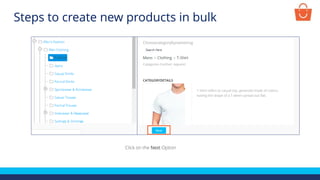
Click on the Next Option
Steps to create new products in bulk
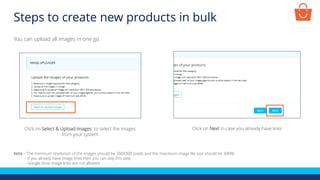
Click on Select & Upload Images to select the images
from your system
You can upload all images in one go
Note - The minimum resolution of the images should be 300X300 pixels and the maximum image file size should be 30MB
- If you already have image links then you can skip this step
- Google drive image links are not allowed
Click on Next in case you already have links
Steps to create new products in bulk
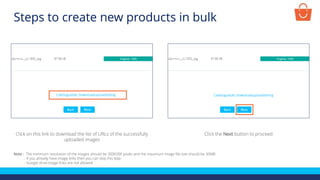
Click on this link to download the list of URLs of the successfully
uploaded images
Click the Next button to proceed
Note - The minimum resolution of the images should be 300X300 pixels and the maximum image file size should be 30MB
- If you already have image links then you can skip this step
- Google drive image links are not allowed
Steps to create new products in bulk
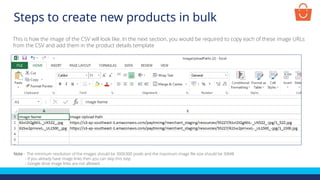
This is how the image of the CSV will look like. In the next section, you would be required to copy each of these image URLs
from the CSV and add them in the product details template
Note - The minimum resolution of the images should be 300X300 pixels and the maximum image file size should be 30MB
- If you already have image links then you can skip this step
- Google drive image links are not allowed
Steps to create new products in bulk
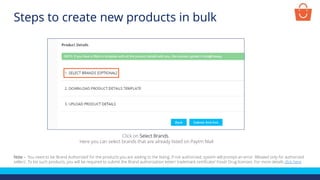
Click on Select Brands.
Here you can select brands that are already listed on Paytm Mall
Note – You need to be ‘Brand Authorized’ for the products you are adding to the listing. If not authorized, system will prompt an error ‘Allowed only for authorized
sellers’. To list such products, you will be required to submit the Brand authorization letter/ trademark certificate/ Food/ Drug licenses. For more details click here
Steps to create new products in bulk
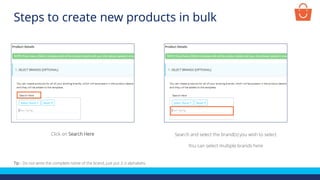
Click on Search Here Search and select the brand(s) you wish to select
You can select multiple brands here
Tip - Do not write the complete name of the brand, just put 2-3 alphabets.
Steps to create new products in bulk
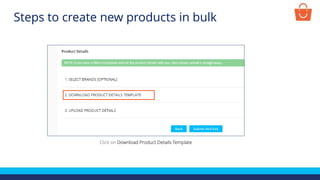
Click on Download Product Details Template
Steps to create new products in bulk
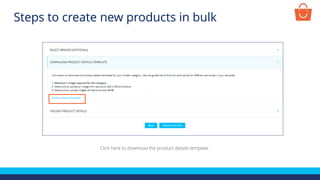
Click here to download the product details template
Steps to create new products in bulk
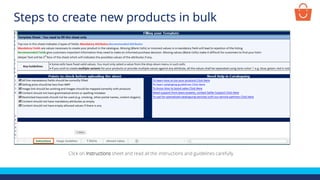
Click on Instructions sheet and read all the instructions and guidelines carefully
Steps to create new products in bulk
T Shirts
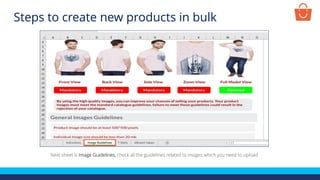
Next sheet is Image Guidelines, check all the guidelines related to images which you need to upload
Steps to create new products in bulk
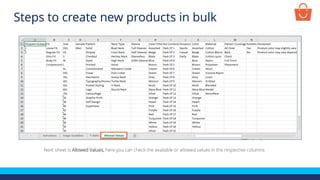
Next sheet is Allowed Values, here you can check the available or allowed values in the respective columns
Steps to create new products in bulk
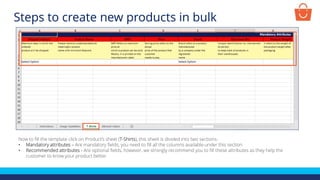
Now to fill the template click on Product’s sheet (T-Shirts), this sheet is divided into two sections-
• Mandatory attributes – Are mandatory fields, you need to fill all the columns available under this section
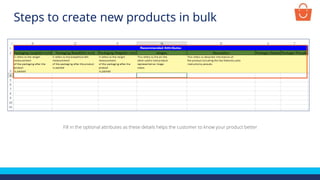
• Recommended attributes - Are optional fields, however, we strongly recommend you to fill these attributes as they help the
customer to know your product better
Steps to create new products in bulk
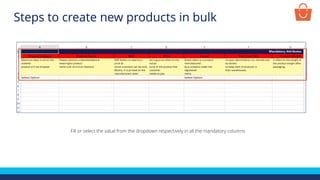
Fill or select the value from the dropdown respectively in all the mandatory columns
Steps to create new products in bulk
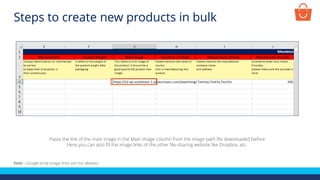
Paste the link of the main image in the Main Image column from the image path file downloaded before
Here you can also fill the image links of the other file-sharing website like Dropbox, etc.
Note - Google drive image links are not allowed
Steps to create new products in bulk
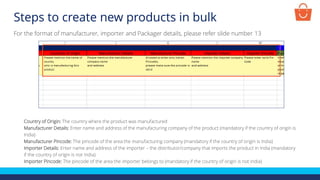
Country of Origin: The country where the product was manufactured
Manufacturer Details: Enter name and address of the manufacturing company of the product (mandatory if the country of origin is
India)
Manufacturer Pincode: The pincode of the area the manufacturing company (mandatory if the country of origin is India)
Importer Details: Enter name and address of the importer – the distributor/company that imports the product in India (mandatory
if the country of origin is not India)
Importer Pincode: The pincode of the area the importer belongs to (mandatory if the country of origin is not India)
For the format of manufacturer, importer and Packager details, please refer slide number 13
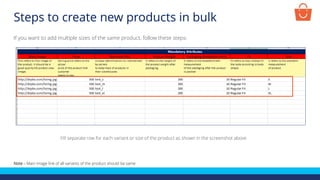
If you want to add multiple sizes of the same product, follow these steps-
Fill separate row for each variant or size of the product as shown in the screenshot above
Note – Main image link of all variants of the product should be same
Steps to create new products in bulk
Fill in the optional attributes as these details helps the customer to know your product better
Steps to create new products in bulk
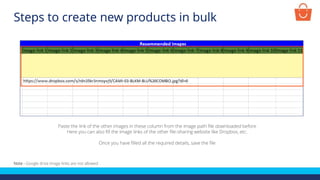
Paste the link of the other images in these column from the image path file downloaded before
Here you can also fill the image links of the other file-sharing website like Dropbox, etc.
Once you have filled all the required details, save the file
Note - Google drive image links are not allowed
Steps to create new products in bulk
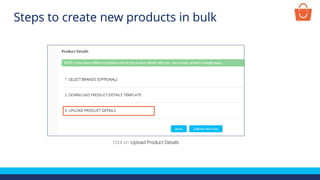
Click on Upload Product Details
Steps to create new products in bulk
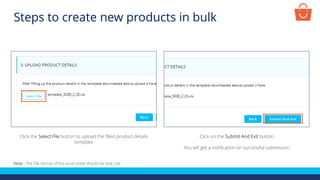
Note - The File format of the excel sheet should be dot(.) xls.
Click the Select File button to upload the filled product details
template
Click on the Submit And Exit button
You will get a notification on successful submission
Steps to create new products in bulk
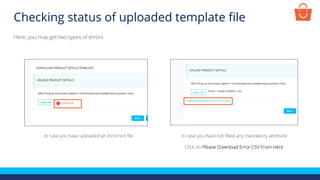
Checking status of uploaded template file
In case you have uploaded an incorrect file
Here, you may get two types of errors
In case you have not filled any mandatory attribute
Click on Please Download Error CSV From Here
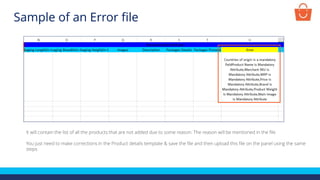
It will contain the list of all the products that are not added due to some reason. The reason will be mentioned in the file
You just need to make corrections in the Product details template & save the file and then upload this file on the panel using the same
steps
Sample of an Error file
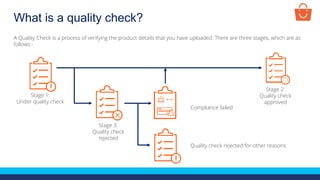
What is a quality check?
A Quality Check is a process of verifying the product details that you have uploaded. There are three stages, which are as
follows:-
Stage 1:
Under quality check
Stage 3:
Quality check
rejected
Stage 2:
Quality check
approved
Compliance failed
Quality check rejected for other reasons
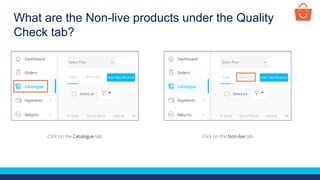
What are the Non-live products under the Quality
Check tab?
Click on the Catalogue tab Click on the Non-live tab
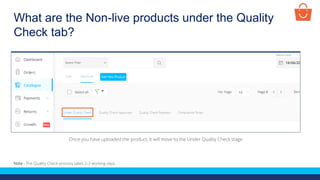
What are the Non-live products under the Quality
Check tab?
Once you have uploaded the product, it will move to the Under Quality Check stage
Note - The Quality Check process takes 2-3 working days.
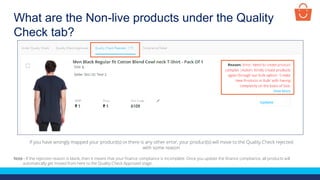
What are the Non-live products under the Quality
Check tab?
Note - If the rejection reason is blank, then it means that your finance compliance is incomplete. Once you update the finance compliance, all products will
automatically get moved from here to the Quality Check Approved stage.
If you have wrongly mapped your product(s) or there is any other error, your product(s) will move to the Quality Check rejected
with some reason
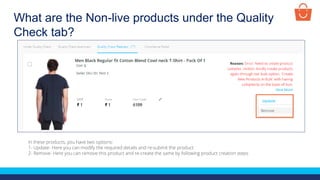
What are the Non-live products under the Quality
Check tab?
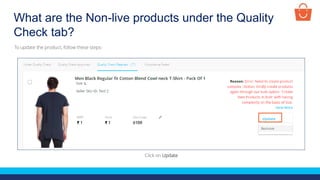
In these products, you have two options:
1- Update- Here you can modify the required details and re-submit the product
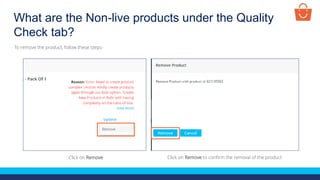
2- Remove- Here you can remove this product and re-create the same by following product creation steps
What are the Non-live products under the Quality
Check tab?
Click on Update
To update the product, follow these steps-
What are the Non-live products under the Quality
Check tab?
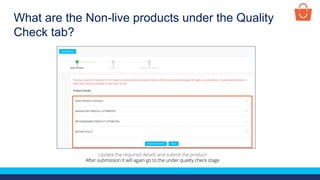
Update the required details and submit the product
After submission it will again go to the under quality check stage
What are the Non-live products under the Quality
Check tab?
Click on Remove Click on Remove to confirm the removal of the product
To remove the product, follow these steps-
What are the Non-live products under the Quality
Check tab?
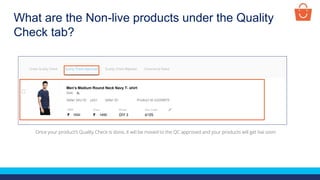
Once your product’s Quality Check is done, it will be moved to the QC approved and your products will get live soon
Test Product
1500 1450
XL
p001
Men’s Medium Round Neck Navy T- shirt
Thanks everyone!
For any query, please raise a ticket using the Seller Helpdesk tab on
your seller panel.

Upload a new product

  • 1.
    Catalogue: Upload anew product In this module, we will discuss: 1. How to create a new product ? 2. How to create new products in bulk ? 3. What is quality check ?
  • 2.
  • 3.
    Steps to createa new product Create a new product - You can upload a new product using these simple steps Click on Catalogue Click on Add New Product Note – You need to be ‘Brand Authorized’ for the products you are adding to the listing. If not authorized, system will prompt an error ‘Allowed only for authorized sellers’. To list such products, you will be required to submit the Brand authorization letter/ trademark certificate/ Food/ Drug licenses. For more details click here
  • 4.
    Click on Createa new product Steps to create a new product
  • 5.
    Let’s take theexample of a Men’s T-Shirt Click on the ‘+’ sign before the required category (here, men’s fashion) Enter the name of the category and Click on the Search option. Use this option to save your time. Now you can click on Next button for further steps Steps to create a new product
  • 6.
    Click on Men’sClothing Click on T-Shirts Steps to create a new product
  • 7.
    Click on theNext Option Steps to create a new product
  • 8.
    Click on theMandatory form Option Fill in the required details of the mandatory product attributes Click on Validate Details Note- Brand name is a mandatory attribute Steps to create a new product
  • 9.
    Click on theOptional form Option Fill in the required details of the optional product attributes Note- We recommend you to fill up the optional attributes as these help a customer make an informed purchase decision Steps to create a new product
  • 10.
    Click on ValidateDetails Steps to create a new product
  • 11.
    Click here toenter manufacturer details Select the country where the product was manufactured Steps to create a new product
  • 12.
    If, Country ofOrigin = India Manufacturer details are mandatory to be filled • Name: Name of the manufacturing company • Address: Address of the manufacturing company • PIN code: The PIN code of the manufacturer For Country of Origin Other than India Importer details are mandatory to be filled • Name: Name of the importer • Address: Address of the importer • PIN code: The PIN code of the importer Once you have filled the details, Click on Validate Details Steps to create a new product
  • 13.
    Format of AddressExample Column Type Manufacturer/Importer Details Country of origin is India Country of origin is not India Manufacturing Details Manufacturing Details Importer Details Name Company Name XYZ Pvt Ltd ABC Pvt Ltd JKL Pvt Ltd Address Plot/Shop number Sector/local area address Any landmark City State Rishabh Impex , A/38 3rd Floor Austvinayak Complex Opp Idgah Road , Dariyapur Gate , Dariyapur , Ahmedabad, Gujarat 78 Alspec Pl, Eastern Creek NSW, Sydney ZZ-5, Sector-65, Gautam Buddha Nagar, Noida, U.P Pincode Pincode 380004 2766 201301 We recommend the use of the below format to provide Manufacturer/Importer details: Steps to create a new product
  • 14.
    Fill in therequired shipping details and then click on Validate Details Click here to enter Shipping Details Steps to create a new product
  • 15.
    Click on theSubmit button after filling up the details Note – The Return policy will be managed by Paytm Mall according to the category of the product. Steps to create a new product
  • 16.
    Click on SelectImage to upload your product’s image Note- The Minimum resolution of the images should be 300X300 pixels and the maximum image file size should be 30MB Steps to create a new product
  • 17.
    Select the imagefrom your system Click on Open Note- The Minimum resolution of the images should be 300X300 pixels and the maximum image file size should be 30MB Steps to create a new product
  • 18.
    Click on uploadIf you want to add more images of the same product, click on Select Image and follow the same procedure You can upload multiple images for the same product Steps to create a new product
  • 19.
    Here you canselect the front image of the product as a default image and click on Save Images Steps to create a new product
  • 20.
    You can addyour product title and product description here Click on the Submit button to complete the uploading process Note - If you click on Add Attributes, you can add more attributes of the product. Steps to create a new product
  • 21.
    You can reviewyour product details here Steps to create a new product
  • 22.
    Preview your products& click on Submit & Exit Now the product will go to the quality check process. Once the quality of the product is approved, it will get live in your catalogue. Note- The product will get live within 2-3 working days Steps to create a new product
  • 23.
  • 24.
    Click on Createnew products in bulk Steps to create new products in bulk Create new products in bulk - You can now create multiple new products in one go
  • 25.
    Choose the desiredcategory Let’s take an example of a Men’s T-Shirt Enter the name of the category, then press the Enter key and click on Next button for further steps Or Steps to create new products in bulk
  • 26.
    Click on Men’sClothing Click on T-Shirts Steps to create new products in bulk
  • 27.
    Click on theNext Option Steps to create new products in bulk
  • 28.
    Click on Select& Upload Images to select the images from your system You can upload all images in one go Note - The minimum resolution of the images should be 300X300 pixels and the maximum image file size should be 30MB - If you already have image links then you can skip this step - Google drive image links are not allowed Click on Next in case you already have links Steps to create new products in bulk
  • 29.
    Click on thislink to download the list of URLs of the successfully uploaded images Click the Next button to proceed Note - The minimum resolution of the images should be 300X300 pixels and the maximum image file size should be 30MB - If you already have image links then you can skip this step - Google drive image links are not allowed Steps to create new products in bulk
  • 30.
    This is howthe image of the CSV will look like. In the next section, you would be required to copy each of these image URLs from the CSV and add them in the product details template Note - The minimum resolution of the images should be 300X300 pixels and the maximum image file size should be 30MB - If you already have image links then you can skip this step - Google drive image links are not allowed Steps to create new products in bulk
  • 31.
    Click on SelectBrands. Here you can select brands that are already listed on Paytm Mall Note – You need to be ‘Brand Authorized’ for the products you are adding to the listing. If not authorized, system will prompt an error ‘Allowed only for authorized sellers’. To list such products, you will be required to submit the Brand authorization letter/ trademark certificate/ Food/ Drug licenses. For more details click here Steps to create new products in bulk
  • 32.
    Click on SearchHere Search and select the brand(s) you wish to select You can select multiple brands here Tip - Do not write the complete name of the brand, just put 2-3 alphabets. Steps to create new products in bulk
  • 33.
    Click on DownloadProduct Details Template Steps to create new products in bulk
  • 34.
    Click here todownload the product details template Steps to create new products in bulk
  • 35.
    Click on Instructionssheet and read all the instructions and guidelines carefully Steps to create new products in bulk T Shirts
  • 36.
    Next sheet isImage Guidelines, check all the guidelines related to images which you need to upload Steps to create new products in bulk
  • 37.
    Next sheet isAllowed Values, here you can check the available or allowed values in the respective columns Steps to create new products in bulk
  • 38.
    Now to fillthe template click on Product’s sheet (T-Shirts), this sheet is divided into two sections- • Mandatory attributes – Are mandatory fields, you need to fill all the columns available under this section • Recommended attributes - Are optional fields, however, we strongly recommend you to fill these attributes as they help the customer to know your product better Steps to create new products in bulk
  • 39.
    Fill or selectthe value from the dropdown respectively in all the mandatory columns Steps to create new products in bulk
  • 40.
    Paste the linkof the main image in the Main Image column from the image path file downloaded before Here you can also fill the image links of the other file-sharing website like Dropbox, etc. Note - Google drive image links are not allowed Steps to create new products in bulk
  • 41.
    Steps to createnew products in bulk Country of Origin: The country where the product was manufactured Manufacturer Details: Enter name and address of the manufacturing company of the product (mandatory if the country of origin is India) Manufacturer Pincode: The pincode of the area the manufacturing company (mandatory if the country of origin is India) Importer Details: Enter name and address of the importer – the distributor/company that imports the product in India (mandatory if the country of origin is not India) Importer Pincode: The pincode of the area the importer belongs to (mandatory if the country of origin is not India) For the format of manufacturer, importer and Packager details, please refer slide number 13
  • 42.
    If you wantto add multiple sizes of the same product, follow these steps- Fill separate row for each variant or size of the product as shown in the screenshot above Note – Main image link of all variants of the product should be same Steps to create new products in bulk
  • 43.
    Fill in theoptional attributes as these details helps the customer to know your product better Steps to create new products in bulk
  • 44.
    Paste the linkof the other images in these column from the image path file downloaded before Here you can also fill the image links of the other file-sharing website like Dropbox, etc. Once you have filled all the required details, save the file Note - Google drive image links are not allowed Steps to create new products in bulk
  • 45.
    Click on UploadProduct Details Steps to create new products in bulk
  • 46.
    Note - TheFile format of the excel sheet should be dot(.) xls. Click the Select File button to upload the filled product details template Click on the Submit And Exit button You will get a notification on successful submission Steps to create new products in bulk
  • 47.
    Checking status ofuploaded template file In case you have uploaded an incorrect file Here, you may get two types of errors In case you have not filled any mandatory attribute Click on Please Download Error CSV From Here
  • 48.
    It will containthe list of all the products that are not added due to some reason. The reason will be mentioned in the file You just need to make corrections in the Product details template & save the file and then upload this file on the panel using the same steps Sample of an Error file
  • 49.
    What is aquality check? A Quality Check is a process of verifying the product details that you have uploaded. There are three stages, which are as follows:- Stage 1: Under quality check Stage 3: Quality check rejected Stage 2: Quality check approved Compliance failed Quality check rejected for other reasons
  • 50.
    What are theNon-live products under the Quality Check tab? Click on the Catalogue tab Click on the Non-live tab
  • 51.
    What are theNon-live products under the Quality Check tab? Once you have uploaded the product, it will move to the Under Quality Check stage Note - The Quality Check process takes 2-3 working days.
  • 52.
    What are theNon-live products under the Quality Check tab? Note - If the rejection reason is blank, then it means that your finance compliance is incomplete. Once you update the finance compliance, all products will automatically get moved from here to the Quality Check Approved stage. If you have wrongly mapped your product(s) or there is any other error, your product(s) will move to the Quality Check rejected with some reason
  • 53.
    What are theNon-live products under the Quality Check tab? In these products, you have two options: 1- Update- Here you can modify the required details and re-submit the product 2- Remove- Here you can remove this product and re-create the same by following product creation steps
  • 54.
    What are theNon-live products under the Quality Check tab? Click on Update To update the product, follow these steps-
  • 55.
    What are theNon-live products under the Quality Check tab? Update the required details and submit the product After submission it will again go to the under quality check stage
  • 56.
    What are theNon-live products under the Quality Check tab? Click on Remove Click on Remove to confirm the removal of the product To remove the product, follow these steps-
  • 57.
    What are theNon-live products under the Quality Check tab? Once your product’s Quality Check is done, it will be moved to the QC approved and your products will get live soon Test Product 1500 1450 XL p001 Men’s Medium Round Neck Navy T- shirt
  • 58.
    Thanks everyone! For anyquery, please raise a ticket using the Seller Helpdesk tab on your seller panel.