Catalogue Overview
In this module, we will discuss:-
1. What is Catalogue?
2. How to list your products on Paytm Mall?
3. How to share your catalogue on social media?
What is catalogue?
Catalogue is a way of showcasing your products to the customers. It consists of product details, brand, images,
and prices
Overview of the Catalogue Tab in the seller panel
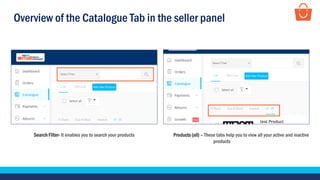
Search Filter- It enables you to search your products Products (all) – These tabs help you to view all your active and inactive
products
Overview of the Catalogue Tab in the seller panel
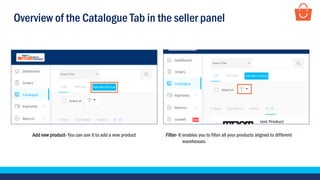
Add new product- You can use it to add a new product Filter- It enables you to filter all your products aligned to different
warehouses
Overview of the Catalogue Tab in the seller panel
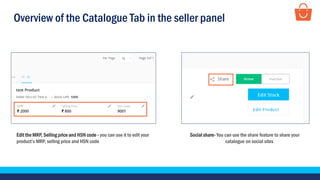
Edit the MRP, Selling price and HSN code - you can use it to edit your
product’s MRP, selling price and HSN code
Social share- You can use the share feature to share your
catalogue on social sites
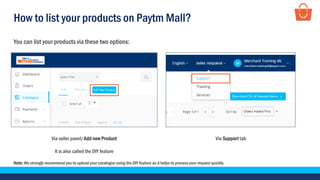
How to list your products on Paytm Mall?
Via seller panel/Add new Product
It is also called the DIY feature
Via Support tab
You can list your products via these two options:
Note: We strongly recommend you to upload your catalogue using the DIY feature as it helps to process your request quickly.
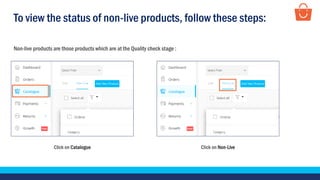
To view the status of non-live products, follow these steps:
Click on Catalogue Click on Non-Live
Non-live products are those products which are at the Quality check stage :
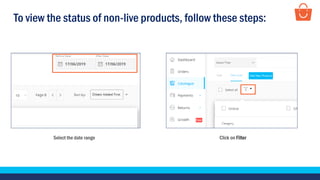
To view the status of non-live products, follow these steps:
Select the date range Click on Filter
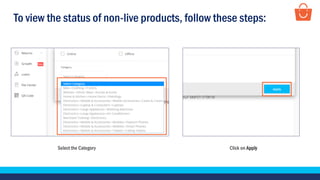
To view the status of non-live products, follow these steps:
Select the Category Click on Apply
To view the status of non-live products, follow these steps:
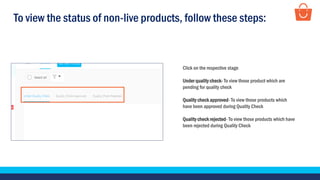
Click on the respective stage
Under quality check- To view those product which are
pending for quality check
Quality check approved- To view those products which
have been approved during Quality Check
Quality check rejected- To view those products which have
been rejected during Quality Check
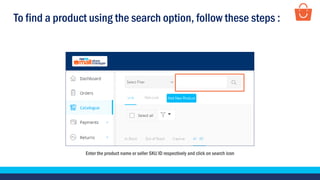
To find a product using the search option, follow these steps :
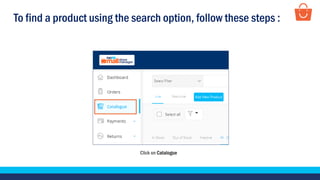
Click on Catalogue
To find a product using the search option, follow these steps :
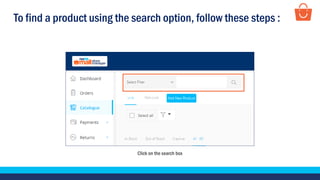
Click on the search box
To find a product using the search option, follow these steps :
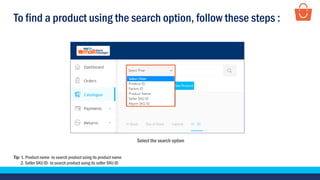
Tip- 1. Product name- to search product using its product name
2. Seller SKU ID- to search product using its seller SKU ID
Select the search option
To find a product using the search option, follow these steps :
Enter the product name or seller SKU ID respectively and click on search icon
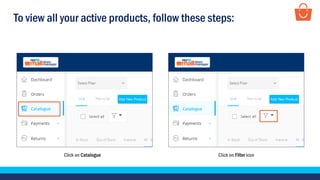
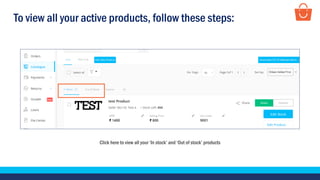
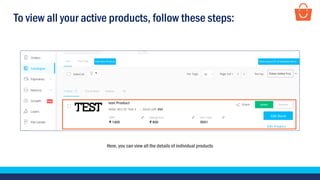
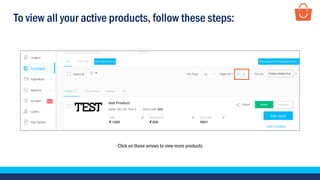
To view all your active products, follow these steps:
Click on Filter iconClick on Catalogue
To view all your active products, follow these steps:
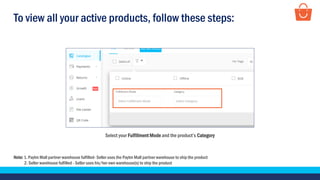
Select your Fulfillment Mode and the product’s Category
Note: 1. Paytm Mall partner warehouse fulfilled- Seller uses the Paytm Mall partner warehouse to ship the product
2. Seller warehouse fulfilled - Seller uses his/her own warehouse(s) to ship the product
To view all your active products, follow these steps:
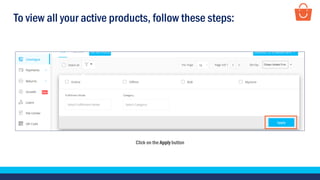
Click on the Apply button
To view all your active products, follow these steps:
Click here to view all your ‘In stock’ and ‘Out of stock’ products
To view all your active products, follow these steps:
Here, you can view all the details of individual products
To view all your active products, follow these steps:
Click on these arrows to view more products
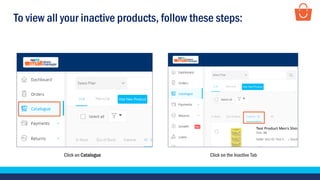
To view all your inactive products, follow these steps:
Click on the Inactive TabClick on Catalogue
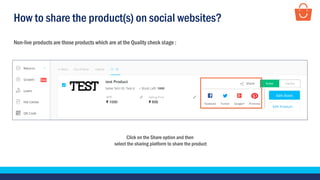
How to share the product(s) on social websites?
Click on the Share option and then
select the sharing platform to share the product
Non-live products are those products which are at the Quality check stage :
Thankseveryone!
For any query, please raise a ticket using the Seller Helpdesk tab on your seller panel.

Catalogue overview

  • 1.
    Catalogue Overview In thismodule, we will discuss:- 1. What is Catalogue? 2. How to list your products on Paytm Mall? 3. How to share your catalogue on social media?
  • 2.
    What is catalogue? Catalogueis a way of showcasing your products to the customers. It consists of product details, brand, images, and prices
  • 3.
    Overview of theCatalogue Tab in the seller panel Search Filter- It enables you to search your products Products (all) – These tabs help you to view all your active and inactive products
  • 4.
    Overview of theCatalogue Tab in the seller panel Add new product- You can use it to add a new product Filter- It enables you to filter all your products aligned to different warehouses
  • 5.
    Overview of theCatalogue Tab in the seller panel Edit the MRP, Selling price and HSN code - you can use it to edit your product’s MRP, selling price and HSN code Social share- You can use the share feature to share your catalogue on social sites
  • 6.
    How to listyour products on Paytm Mall? Via seller panel/Add new Product It is also called the DIY feature Via Support tab You can list your products via these two options: Note: We strongly recommend you to upload your catalogue using the DIY feature as it helps to process your request quickly.
  • 7.
    To view thestatus of non-live products, follow these steps: Click on Catalogue Click on Non-Live Non-live products are those products which are at the Quality check stage :
  • 8.
    To view thestatus of non-live products, follow these steps: Select the date range Click on Filter
  • 9.
    To view thestatus of non-live products, follow these steps: Select the Category Click on Apply
  • 10.
    To view thestatus of non-live products, follow these steps: Click on the respective stage Under quality check- To view those product which are pending for quality check Quality check approved- To view those products which have been approved during Quality Check Quality check rejected- To view those products which have been rejected during Quality Check
  • 11.
    To find aproduct using the search option, follow these steps : Click on Catalogue
  • 12.
    To find aproduct using the search option, follow these steps : Click on the search box
  • 13.
    To find aproduct using the search option, follow these steps : Tip- 1. Product name- to search product using its product name 2. Seller SKU ID- to search product using its seller SKU ID Select the search option
  • 14.
    To find aproduct using the search option, follow these steps : Enter the product name or seller SKU ID respectively and click on search icon
  • 15.
    To view allyour active products, follow these steps: Click on Filter iconClick on Catalogue
  • 16.
    To view allyour active products, follow these steps: Select your Fulfillment Mode and the product’s Category Note: 1. Paytm Mall partner warehouse fulfilled- Seller uses the Paytm Mall partner warehouse to ship the product 2. Seller warehouse fulfilled - Seller uses his/her own warehouse(s) to ship the product
  • 17.
    To view allyour active products, follow these steps: Click on the Apply button
  • 18.
    To view allyour active products, follow these steps: Click here to view all your ‘In stock’ and ‘Out of stock’ products
  • 19.
    To view allyour active products, follow these steps: Here, you can view all the details of individual products
  • 20.
    To view allyour active products, follow these steps: Click on these arrows to view more products
  • 21.
    To view allyour inactive products, follow these steps: Click on the Inactive TabClick on Catalogue
  • 22.
    How to sharethe product(s) on social websites? Click on the Share option and then select the sharing platform to share the product Non-live products are those products which are at the Quality check stage :
  • 23.
    Thankseveryone! For any query,please raise a ticket using the Seller Helpdesk tab on your seller panel.