A VISUAL STEP-BY-STEP GUIDE
by Jaime Cabrera
mr.jaime.aiu@gmail.com Image courtesy of www.profkrg.com
LOG IN
STEP 1
Image courtesy of camskra.com
Go to your website.
• BSP1J (English11: Freshman Skills)
http://bit.ly/1GtRdIj
• BSMT2B (Hum 13 World
Literature) http://bit.ly/1GfoIyZ
• AAPD1BB (Hum 13 World
Literature) http://bit.ly/1K4zlep
• BSMT2C (Hum 13 World
Literature) http://bit.ly/1eAPxHa
Scroll down to the bottom and log in.
Image courtesy of www.jimdo.lcom
If you logged in before on the same
computer, this is what you might see:
Image courtesy of www.jimdo.lcom
Click on LOG IN NOW
Image courtesy of www.jimdo.lcom
IF YOU DO NOT LOG IN
• The page will be in view mode, not in edit
mode.
• You can view the page, but you cannot edit it.
• If you want to edit a page, log in.
WAIT FOR PAGE LOADING
STEP 2
Image courtesy of mvcongressi.onlinecongress.it
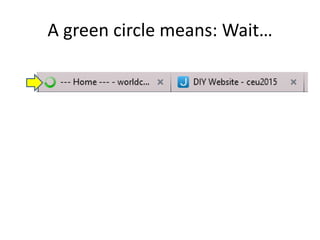
A green circle means: Wait…
When the green circle is gone…
… then the page is fully loaded.
ADD A COLUMN
STEP 2
Image courtesy of www.store.virginmedia.com
Go to your webpage…
Click on + Add Element
Click on Columns
Click on + Add Element
Click on Text
Wait for loading to finish…
Type something…
… and save.
ADD ANOTHER COLUMN
STEP 3
Image courtesy of www.bloomberg.com
Add A Column
• Click on the columns
• When a blue box appears saying EDIT
COLUMNS, click on it.
• Click on the plus sign.
Delete A Column
• Click on the columns
• When a blue box appears saying EDIT
COLUMNS, click on it.
• Click on the trash sign.
ADJUST THE COLUMN WIDTH
STEP 4
Image courtesy of www.istockphoto.com
Adjust Column Width
• Use the slider.
• Click on the slider, and drag to the left or right.
• Save.
FINISHED
• For security reasons, make it a habit to always
log out after working on something online.
• This applies to your class website, to
Facebook, to Google, or to any email.
• If you do not log out, others may be able to
access your website. Strangers may gather
private information about you.
• Always log out when you are done: always.
END OF TUTORIAL
Image courtesy of www.profkrg.com

Create Columns on Your Webpage

  • 1.
    A VISUAL STEP-BY-STEPGUIDE by Jaime Cabrera mr.jaime.aiu@gmail.com Image courtesy of www.profkrg.com
  • 2.
    LOG IN STEP 1 Imagecourtesy of camskra.com
  • 3.
    Go to yourwebsite. • BSP1J (English11: Freshman Skills) http://bit.ly/1GtRdIj • BSMT2B (Hum 13 World Literature) http://bit.ly/1GfoIyZ • AAPD1BB (Hum 13 World Literature) http://bit.ly/1K4zlep • BSMT2C (Hum 13 World Literature) http://bit.ly/1eAPxHa
  • 4.
    Scroll down tothe bottom and log in. Image courtesy of www.jimdo.lcom
  • 5.
    If you loggedin before on the same computer, this is what you might see: Image courtesy of www.jimdo.lcom
  • 6.
    Click on LOGIN NOW Image courtesy of www.jimdo.lcom
  • 7.
    IF YOU DONOT LOG IN • The page will be in view mode, not in edit mode. • You can view the page, but you cannot edit it. • If you want to edit a page, log in.
  • 8.
    WAIT FOR PAGELOADING STEP 2 Image courtesy of mvcongressi.onlinecongress.it
  • 9.
    A green circlemeans: Wait…
  • 10.
    When the greencircle is gone… … then the page is fully loaded.
  • 11.
    ADD A COLUMN STEP2 Image courtesy of www.store.virginmedia.com
  • 12.
    Go to yourwebpage…
  • 13.
    Click on +Add Element
  • 14.
  • 15.
    Click on +Add Element
  • 16.
  • 17.
    Wait for loadingto finish…
  • 18.
  • 19.
    ADD ANOTHER COLUMN STEP3 Image courtesy of www.bloomberg.com
  • 20.
    Add A Column •Click on the columns • When a blue box appears saying EDIT COLUMNS, click on it. • Click on the plus sign.
  • 21.
    Delete A Column •Click on the columns • When a blue box appears saying EDIT COLUMNS, click on it. • Click on the trash sign.
  • 22.
    ADJUST THE COLUMNWIDTH STEP 4 Image courtesy of www.istockphoto.com
  • 23.
    Adjust Column Width •Use the slider. • Click on the slider, and drag to the left or right. • Save.
  • 24.
    FINISHED • For securityreasons, make it a habit to always log out after working on something online. • This applies to your class website, to Facebook, to Google, or to any email. • If you do not log out, others may be able to access your website. Strangers may gather private information about you. • Always log out when you are done: always.
  • 25.
    END OF TUTORIAL Imagecourtesy of www.profkrg.com