Creating
a website
Introductions
Gay	
  Stephenson	
  	
  
Online Communications Manager
gay@peopleforeducation.com	


Jacqui	
  Strachan


Community	
  Development	
  Coordinator	
  
jacqui@peopleforeducation.com


Kristine	
  Garcia	
  
Online Communications Assistant	


kristine@peopleforeducation.com
Orientation
•  Jacqui introductions, shows us how to
   participate in this webinar, fields questions.
•  Gay shows us how, step by step.
•  Kristine answers questions, can give you
   extra support.
You (the participants):
•  Can chat by typing questions, comments
•  Turn on your microphone to speak
•  Use the ✔ or ✖ and J and L faces
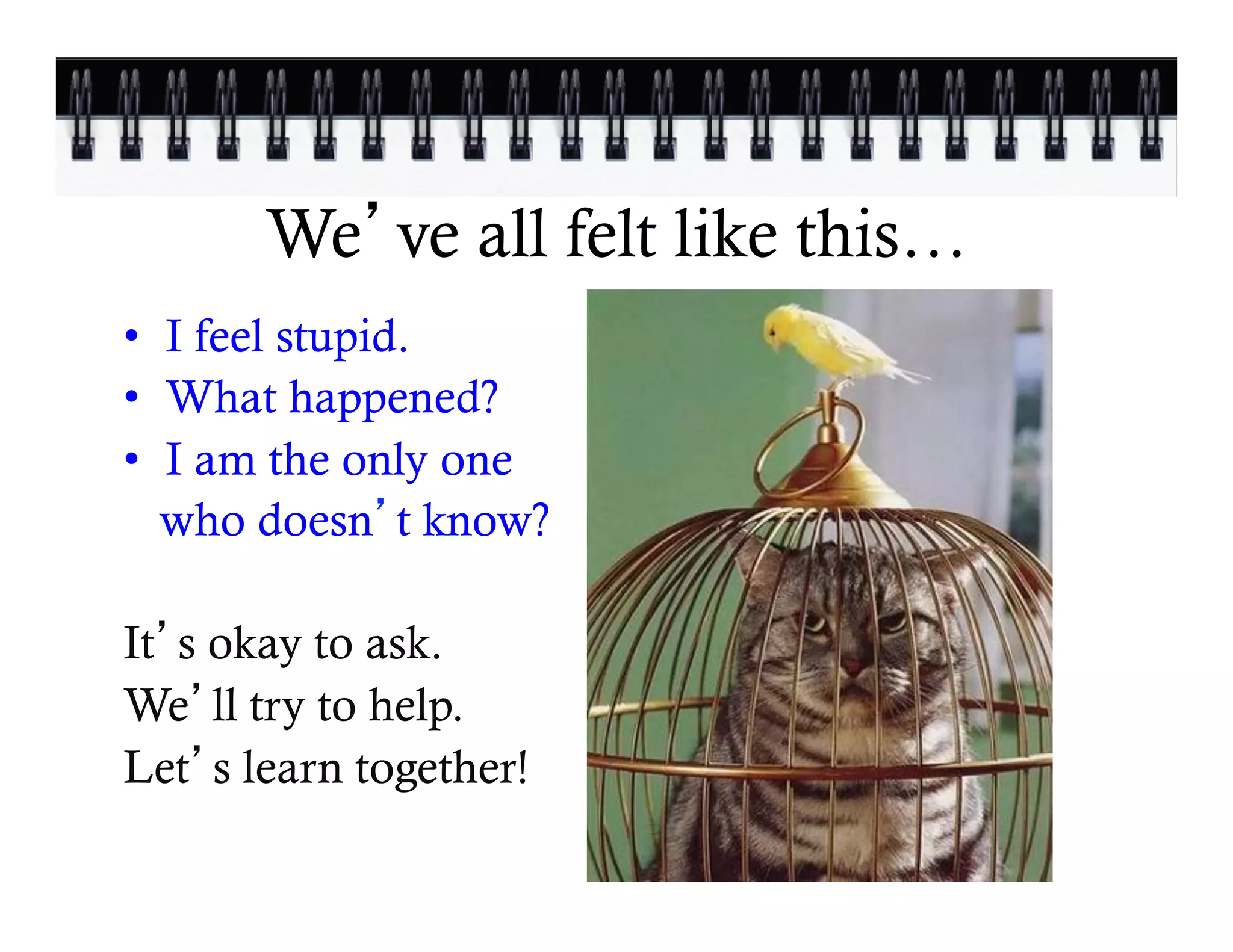
We ve all felt like this…
•  I feel stupid.
•  What happened?
•  I am the only one
   who doesn t know?

It s okay to ask.
We ll try to help.
Let s learn together!
Collaborating with the school
•  For some this is simply a new tool!
•  Protocol already in place
•  If creating a website is a new endeavour:
  –  Open communications with the principal and
     school council
  –  Collaborate
  –  Connect with the school
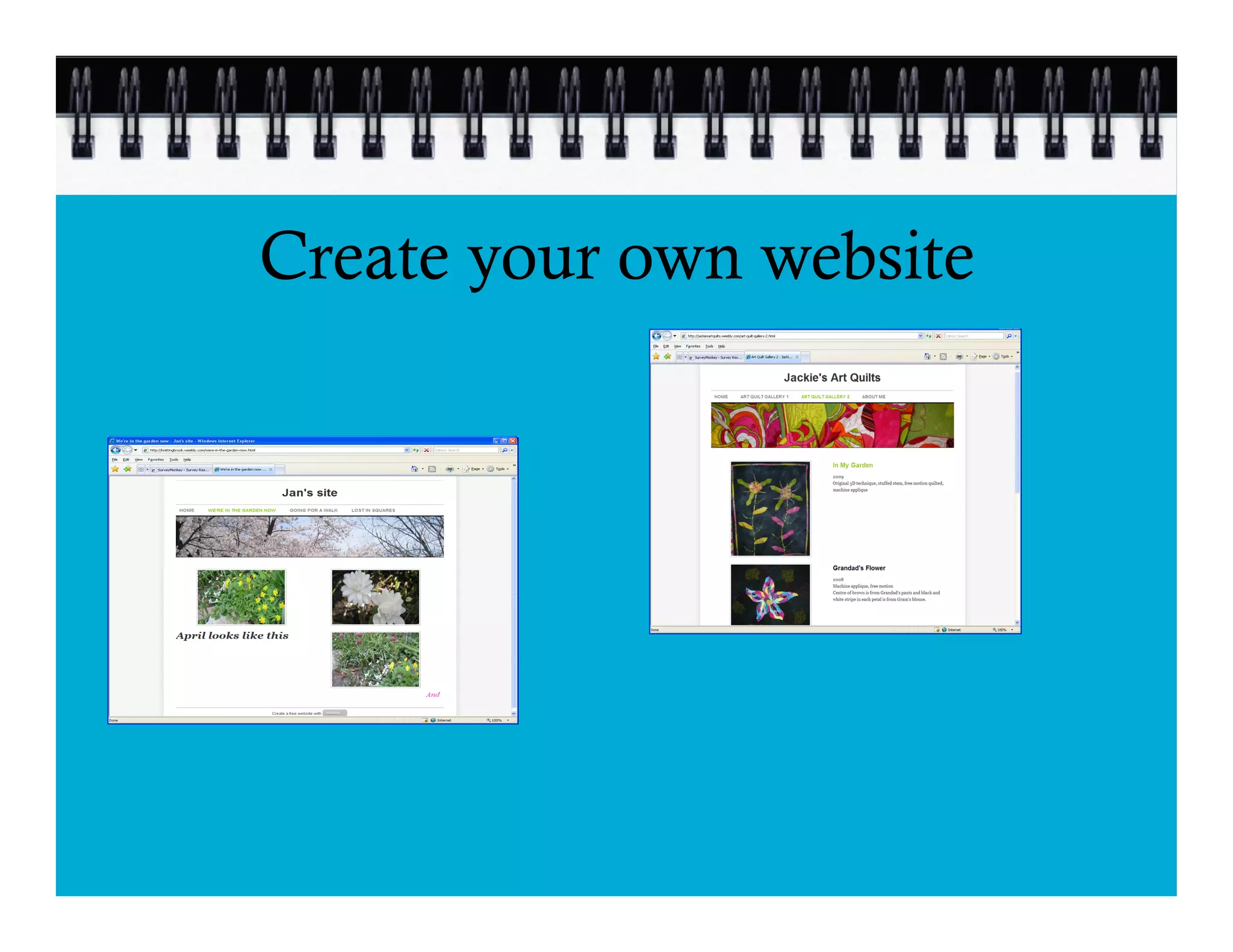
Create your own website
This workshop includes:
þ Signing up for a free website
þ Adding content (your text)
þ Adding pictures
þ Choosing a design for your site
þ Adding pages to your website
þ Publishing your new site to the internet!
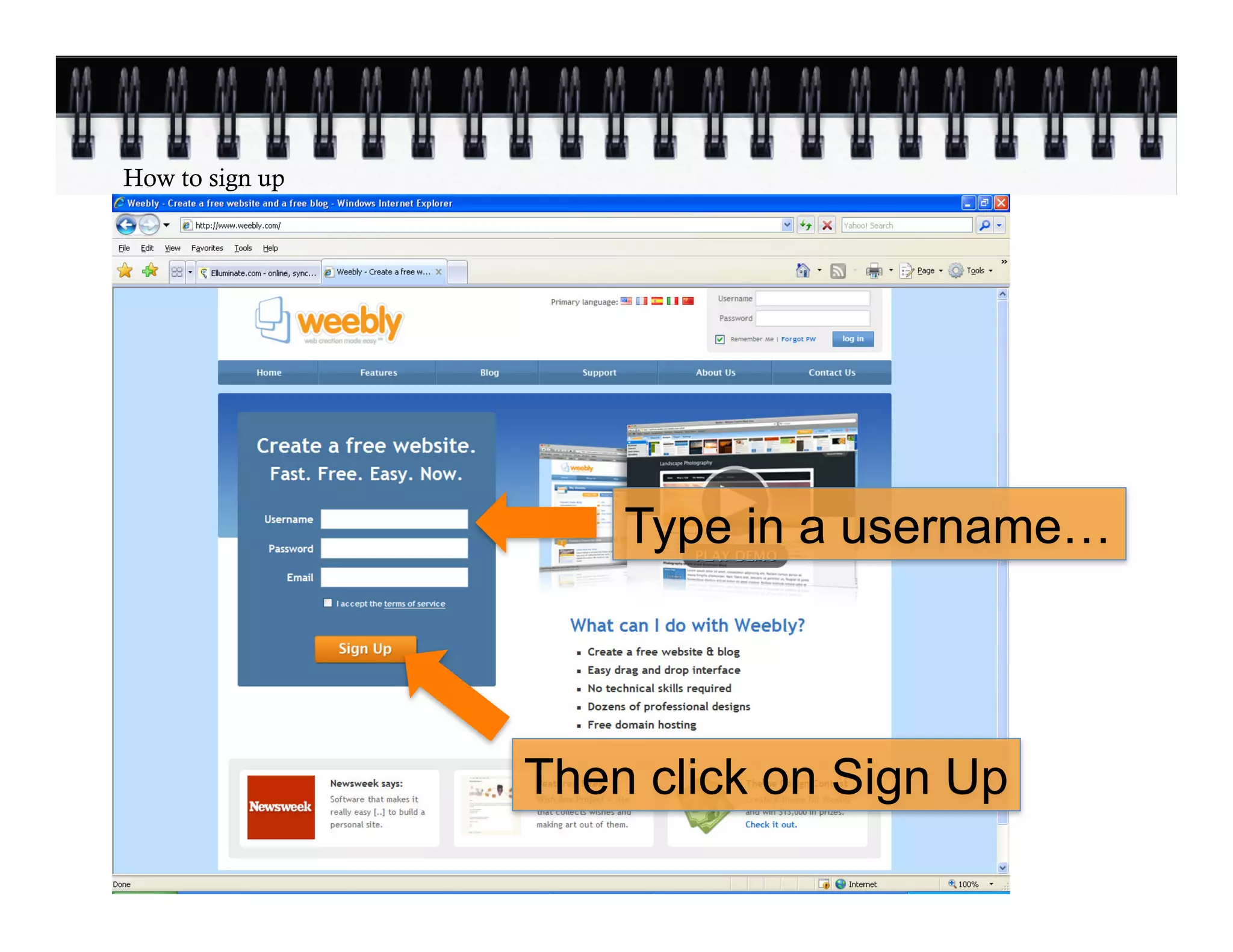
How to sign up


                     Type in a username…


                 Then click on Sign Up
Choose a name for your site


                              Type in a name for your
                              website
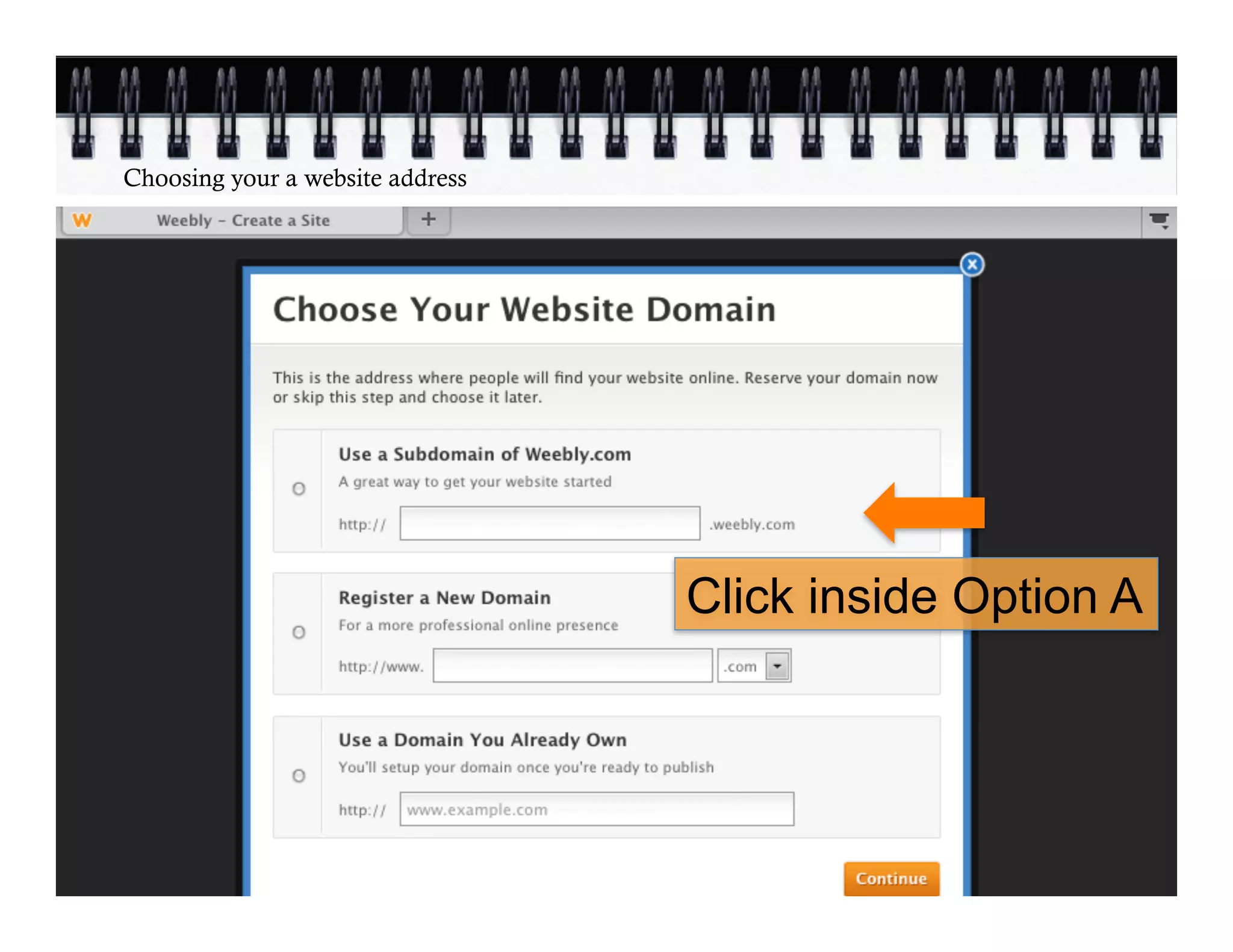
Choosing your a website address


                                  Click inside Option A
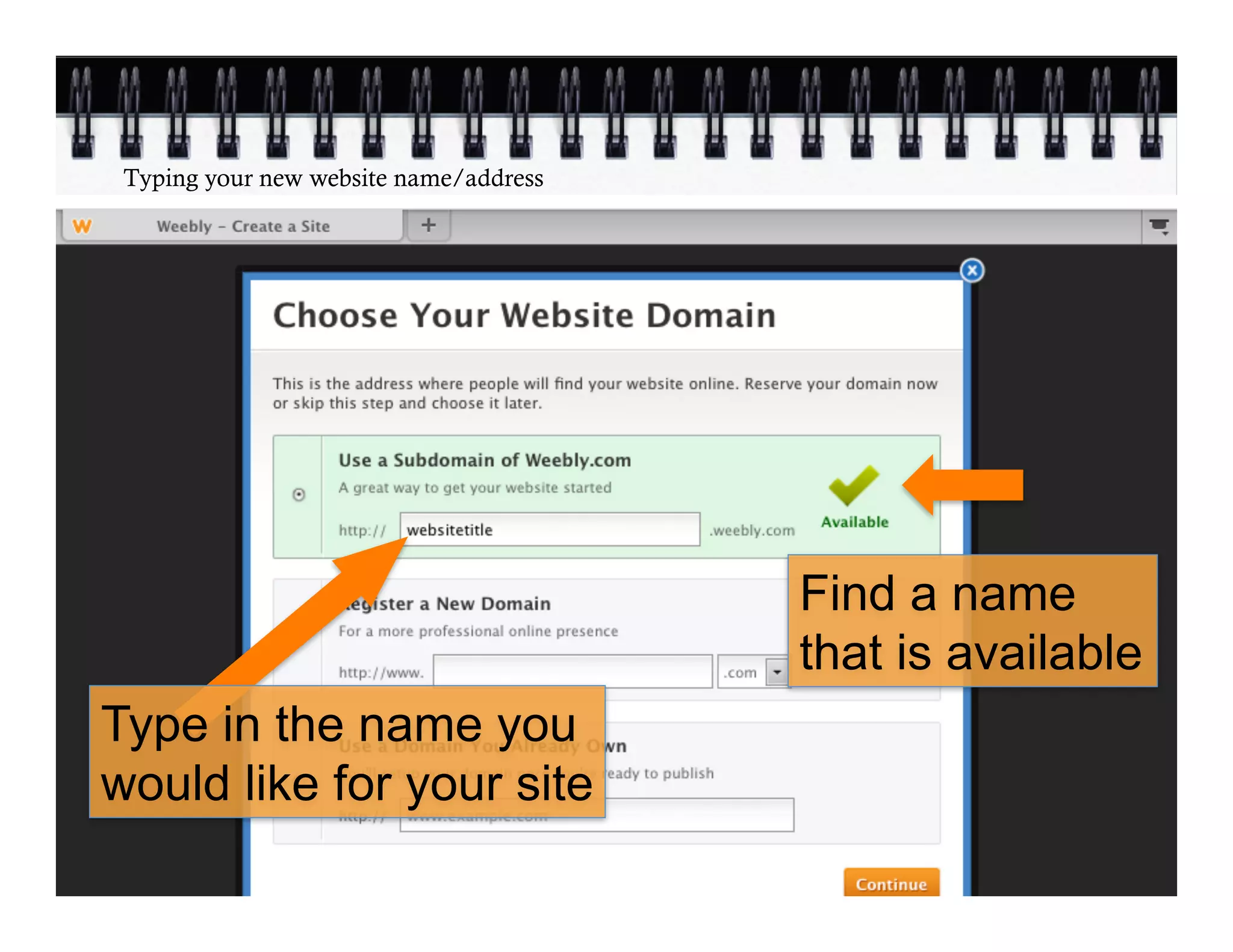
Typing your new website name/address


                                        Find a name
                                        that is available
Type in the name you
would like for your site
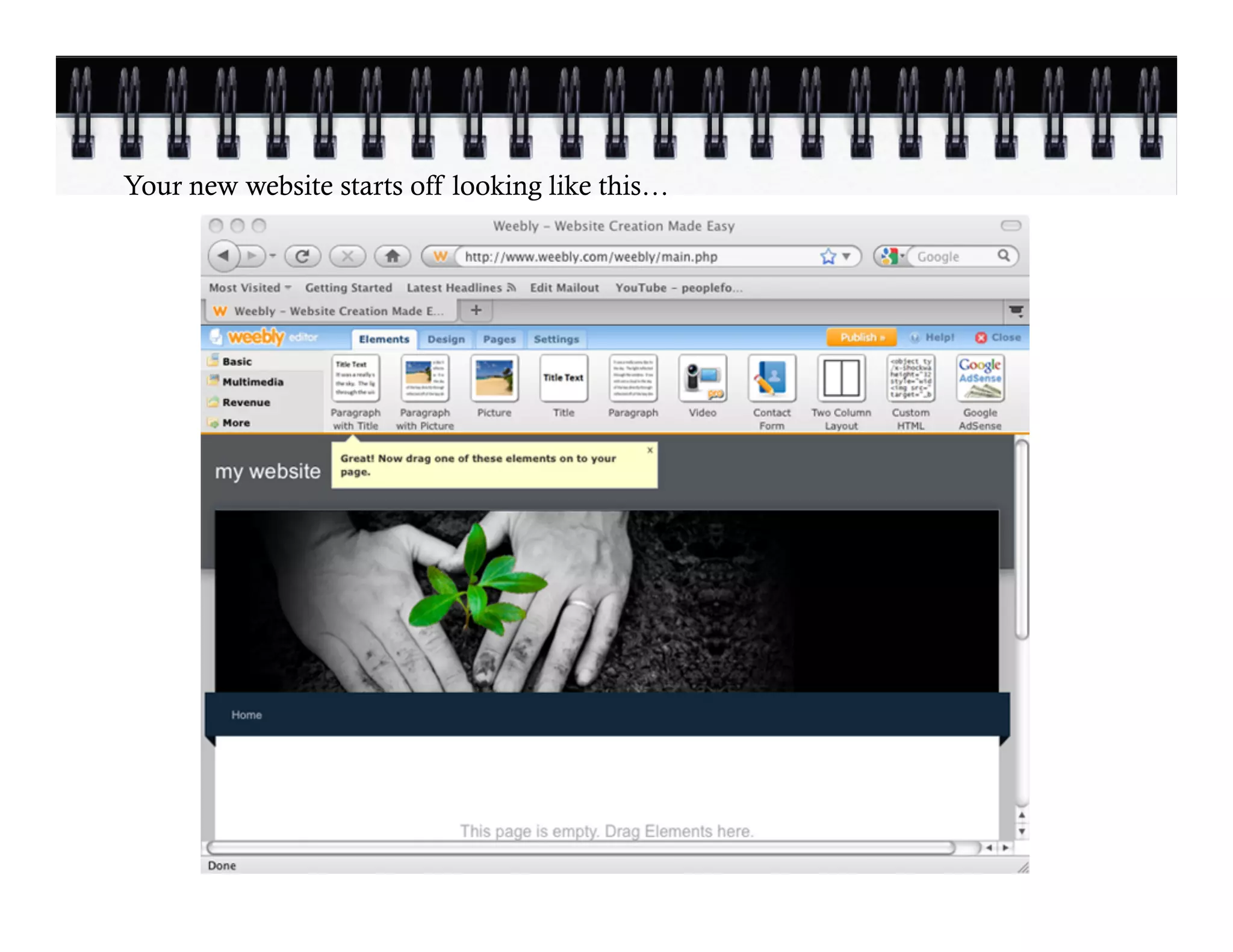
Your new website starts off looking like this…
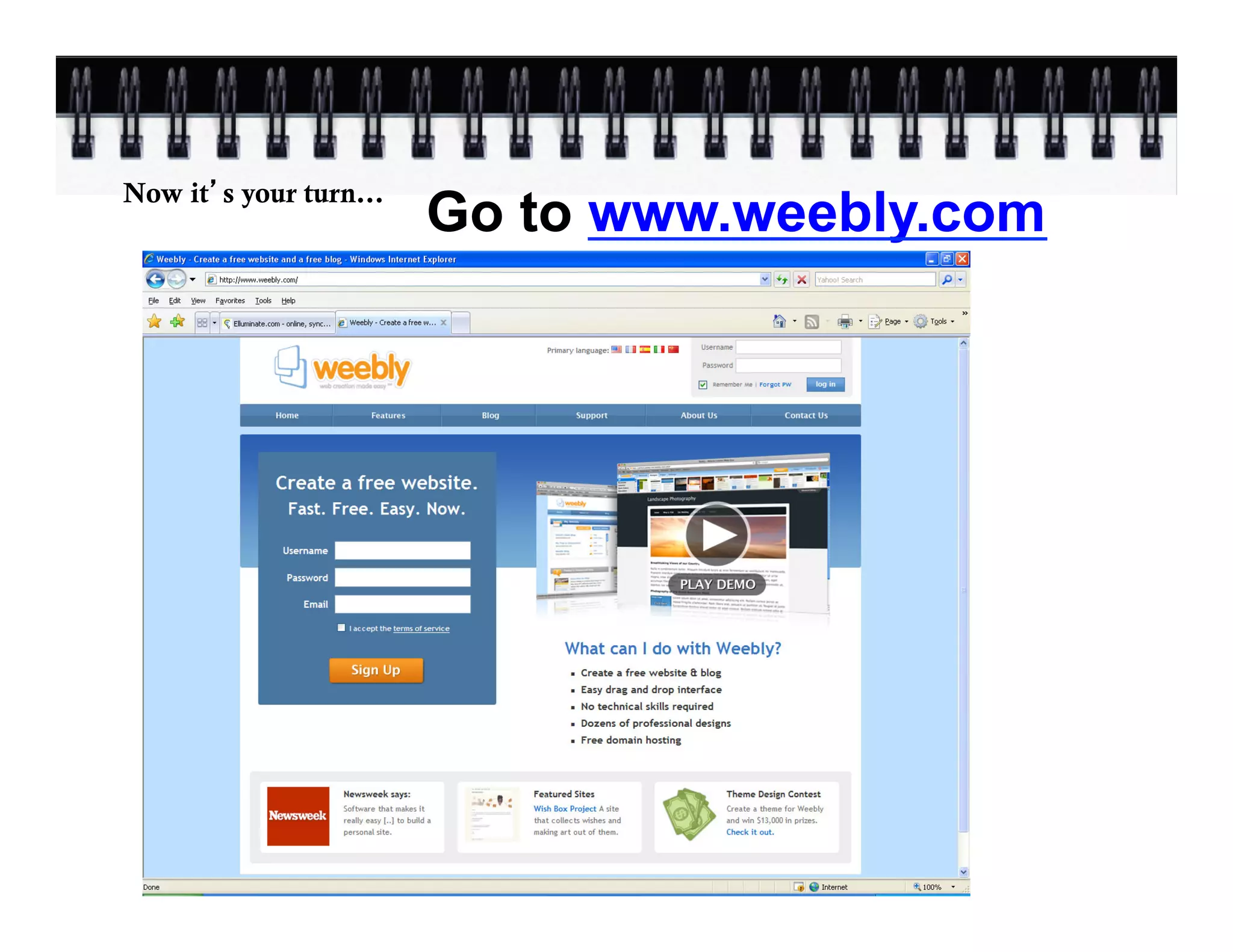
Go to www.weebly.com
Now it s your turn…
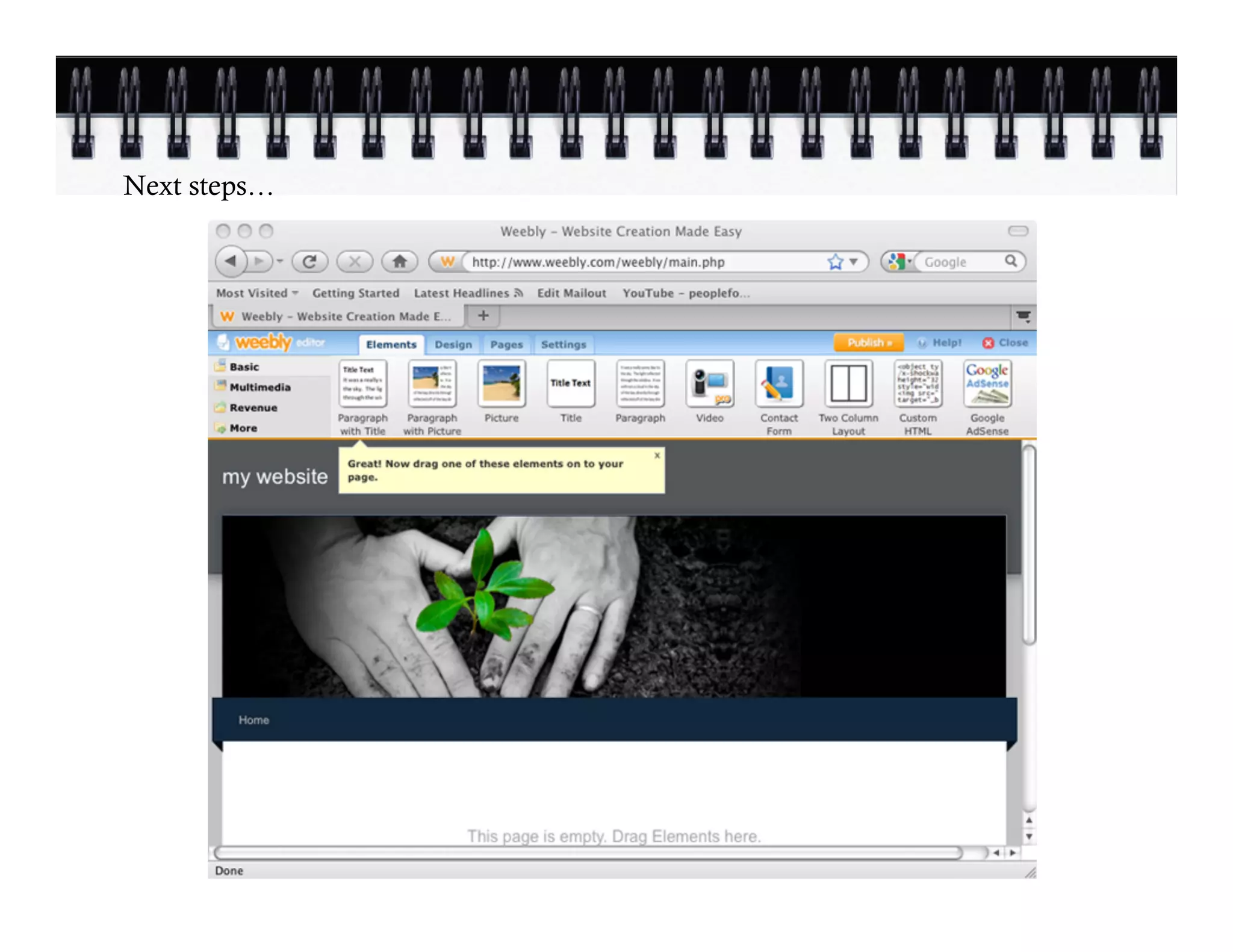
Next steps…
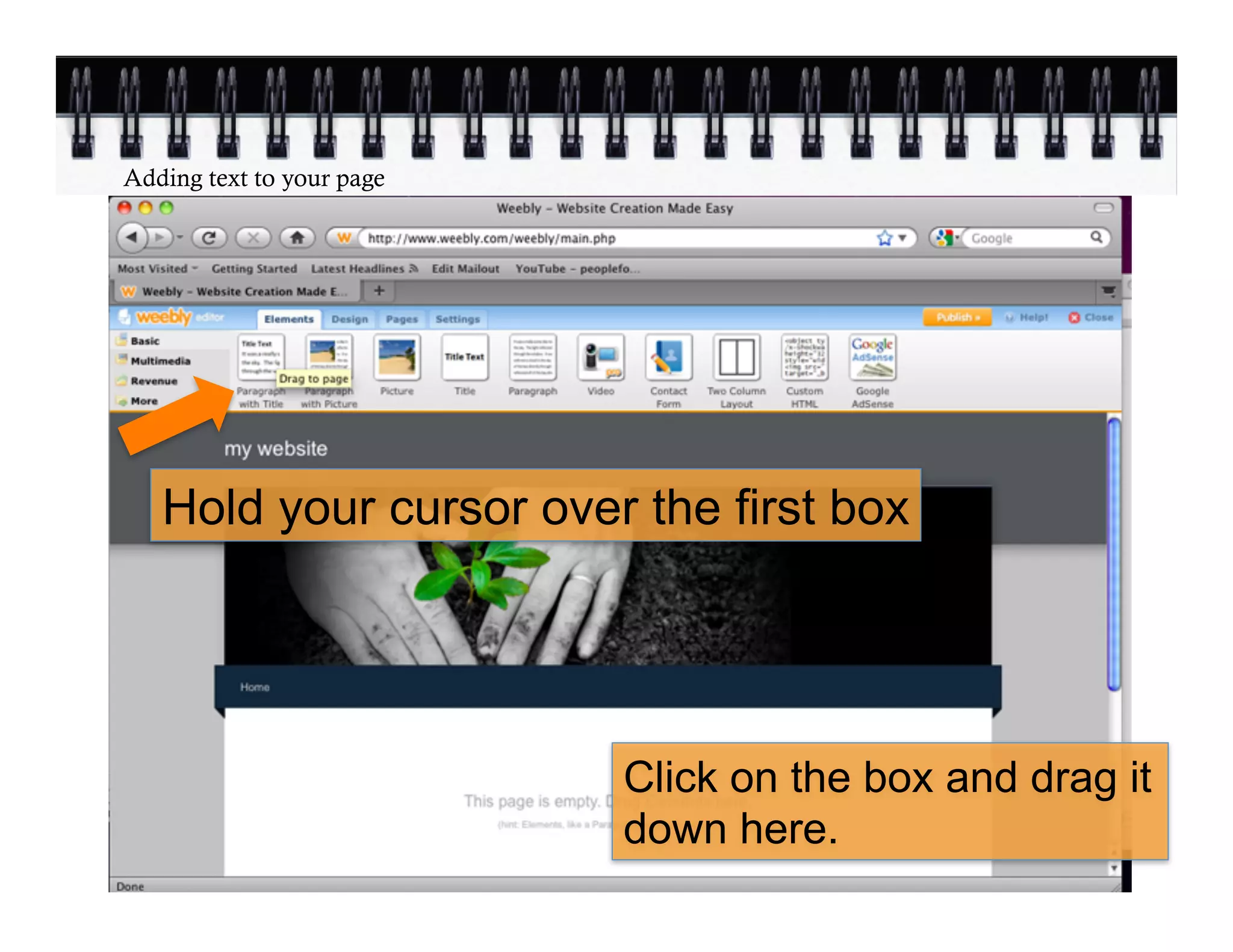
Adding text to your page


   Hold your cursor over the first box


                           Click on the box and drag it
                           down here.
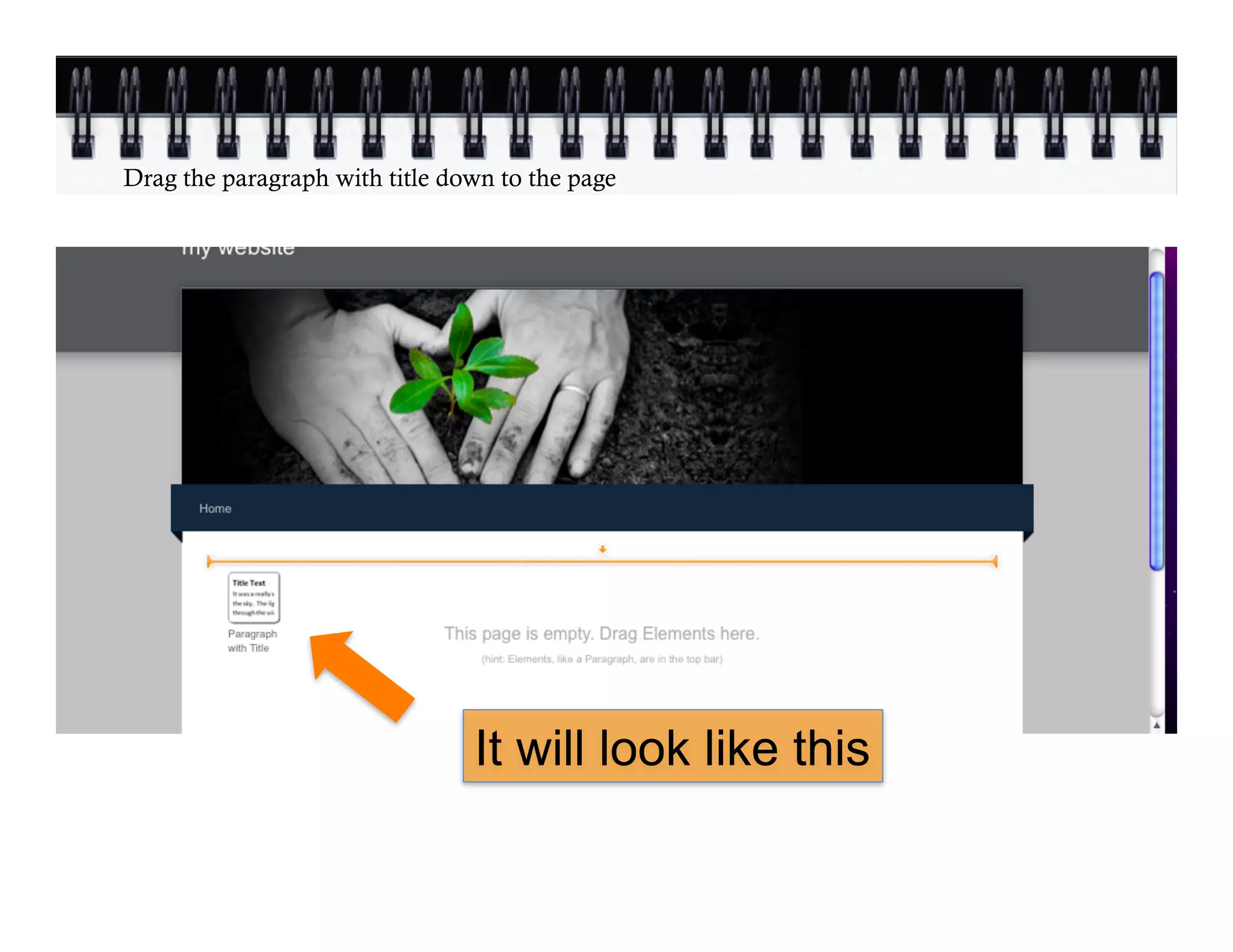
Drag the paragraph with title down to the page


                                It will look like this
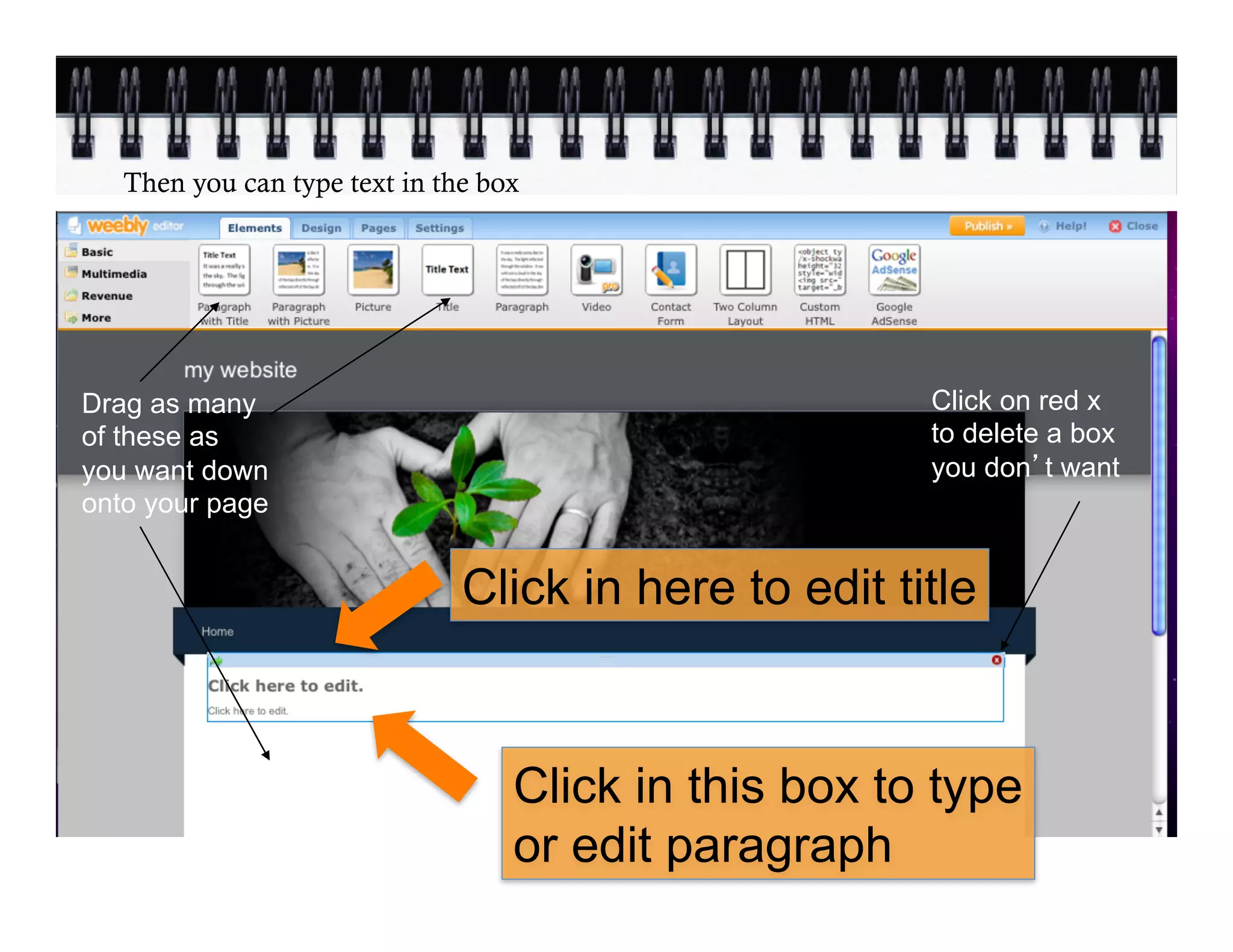
Then you can type text in the box


Drag as many                                           Click on red x
of these as                                            to delete a box
you want down                                          you don t want
onto your page


                               Click in here to edit title


                                   Click in this box to type
                                   or edit paragraph
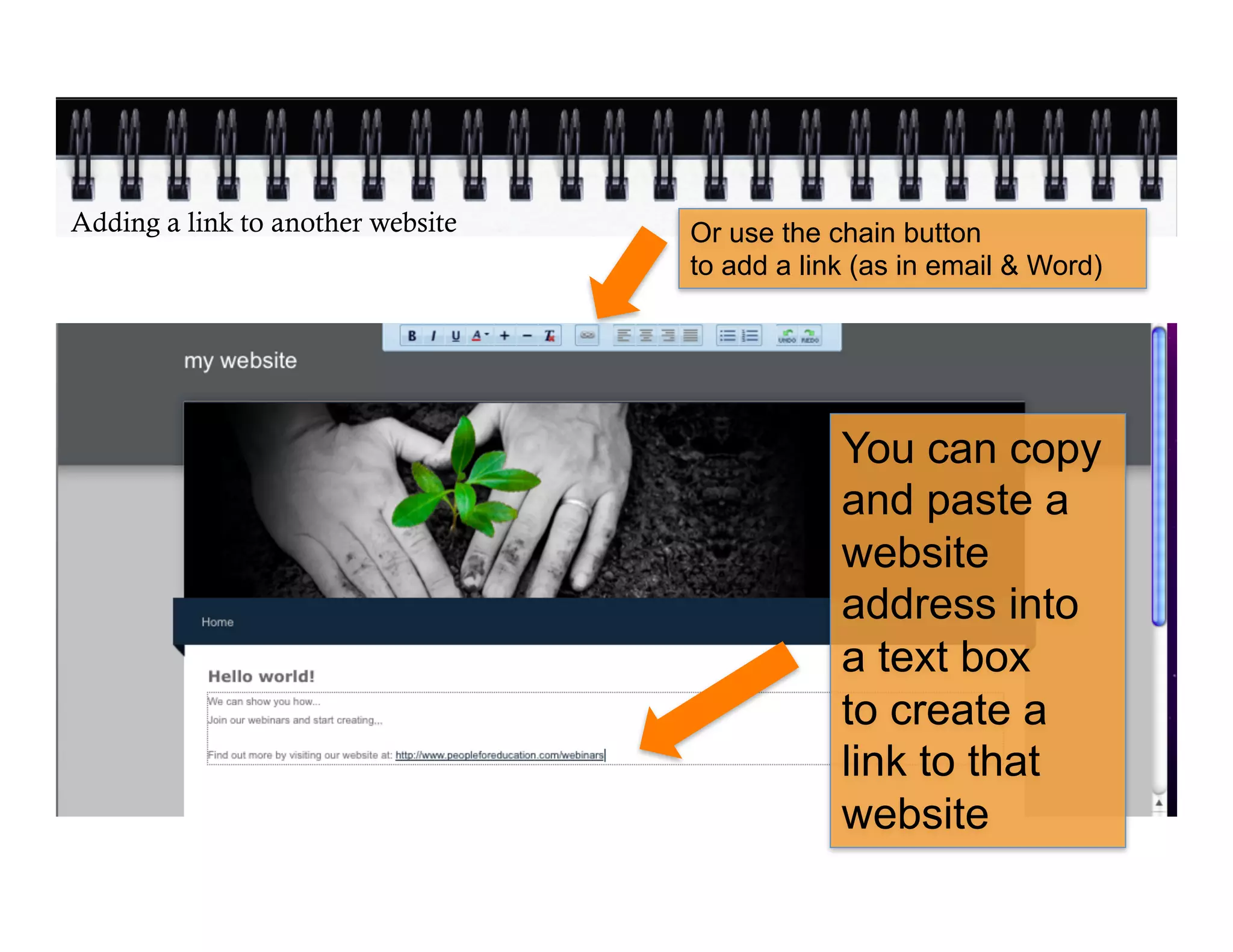
Adding a link to another website   Or use the chain button
                                   to add a link (as in email & Word)


                                               You can copy
                                               and paste a
                                               website
                                               address into
                                               a text box
                                               to create a
                                               link to that
                                               website
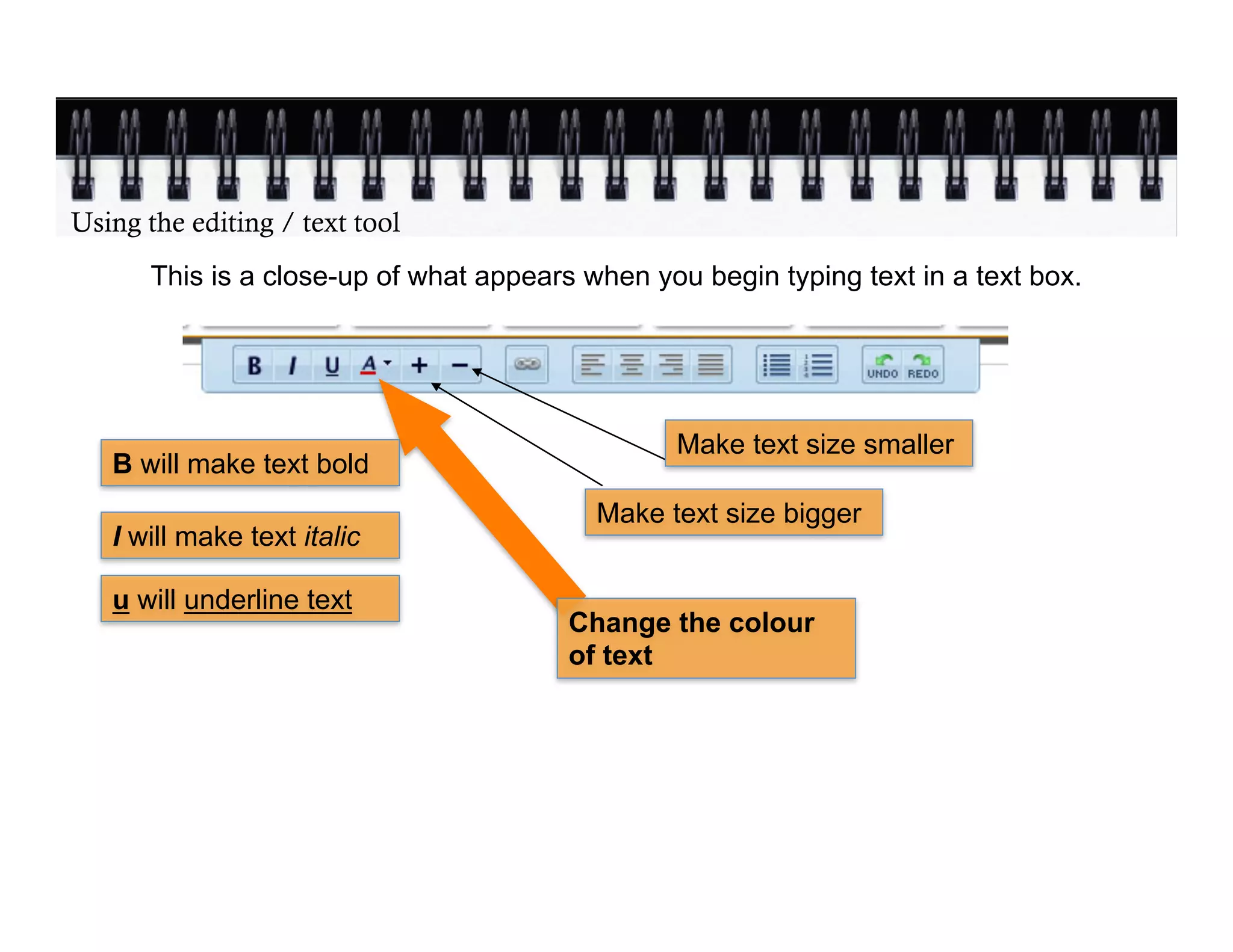
Using the editing / text tool
       This is a close-up of what appears when you begin typing text in a text box.


                                                 Make text size smaller
   B will make text bold
                                           Make text size bigger
   I will make text italic

   u will underline text
                                         Change the colour
                                         of text
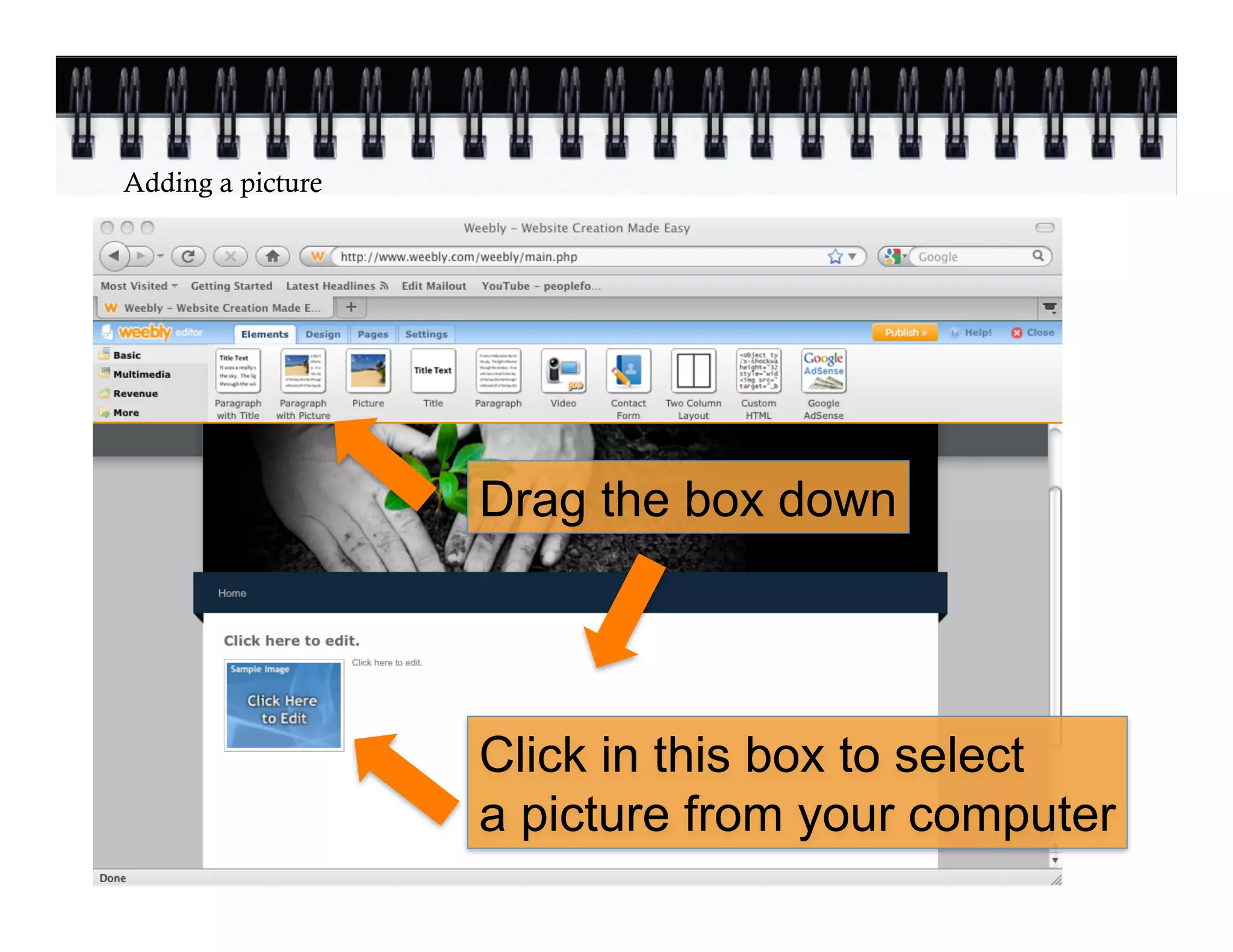
Adding a picture


                   Drag the box down


                   Click in this box to select
                   a picture from your computer
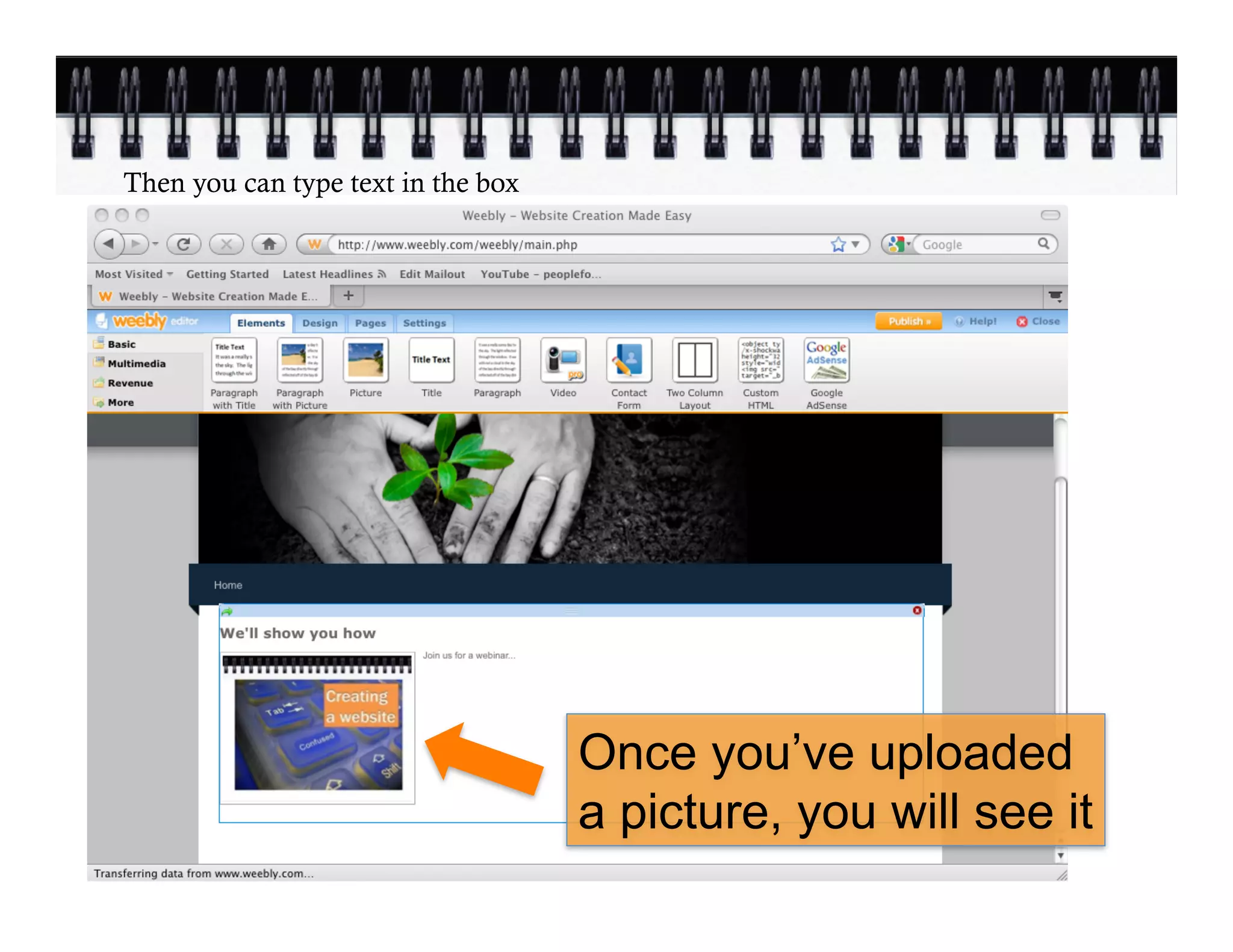
Then you can type text in the box


                                    Once you’ve uploaded
                                    a picture, you will see it
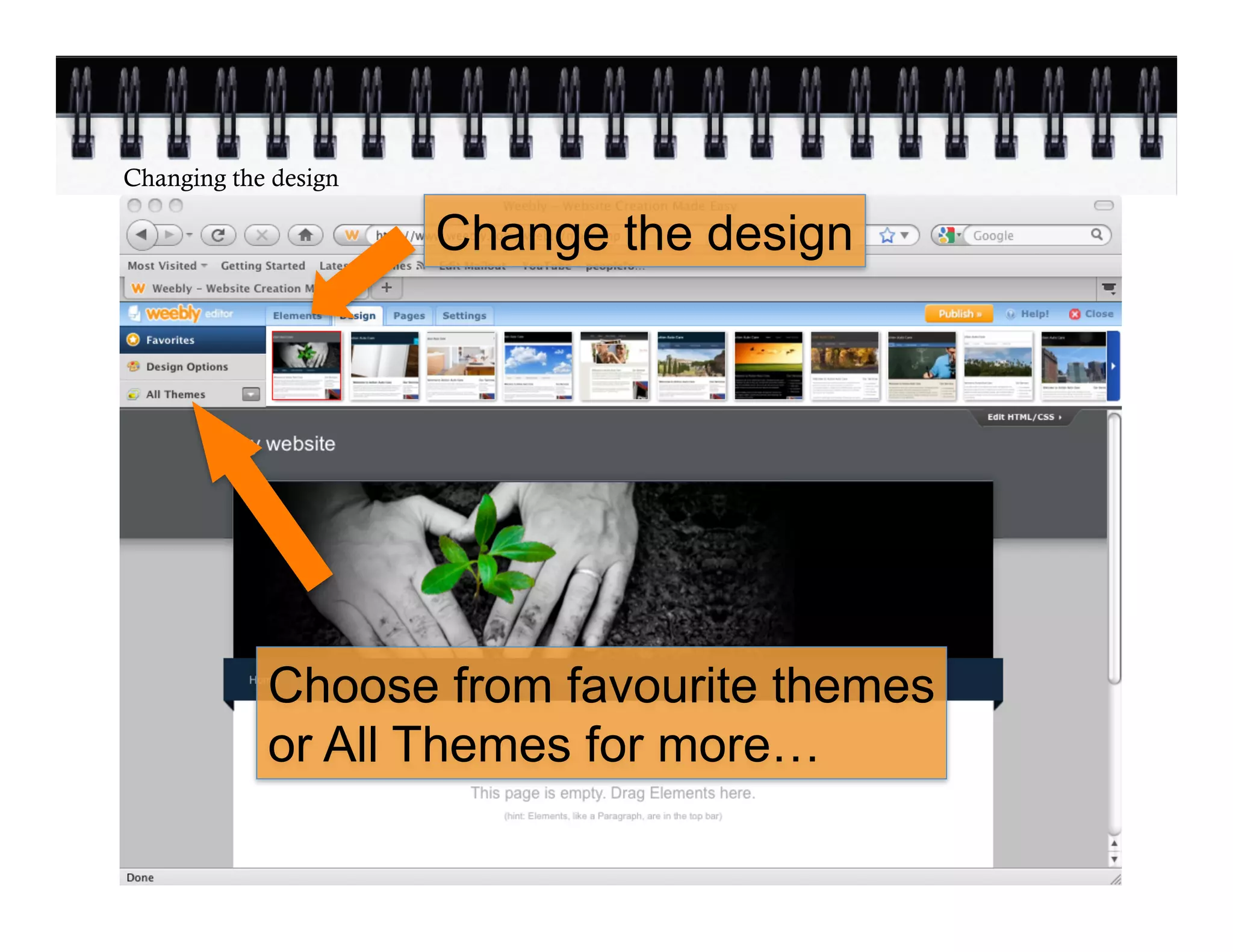
Changing the design

                      Change the design


            Choose from favourite themes
            or All Themes for more…
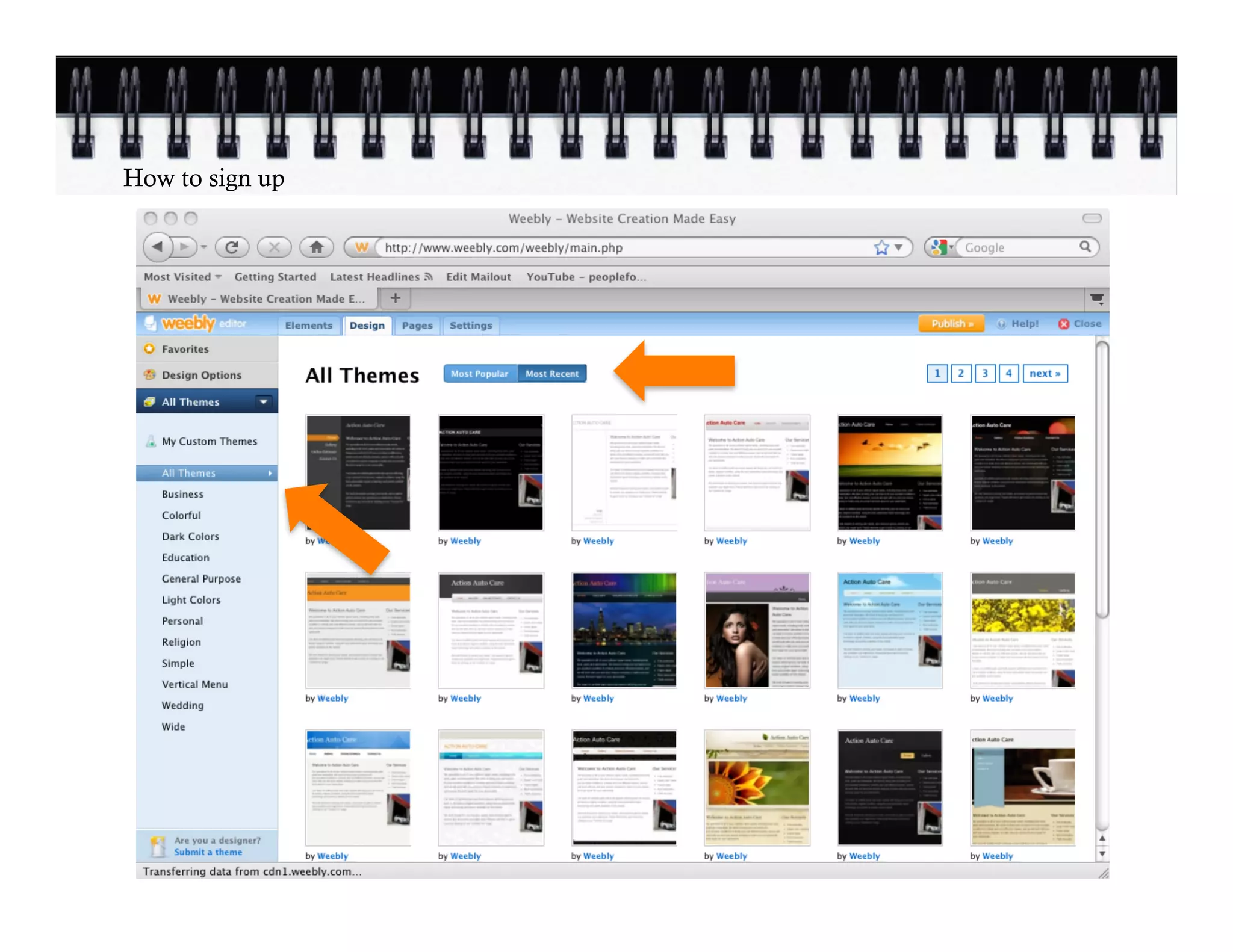
How to sign up
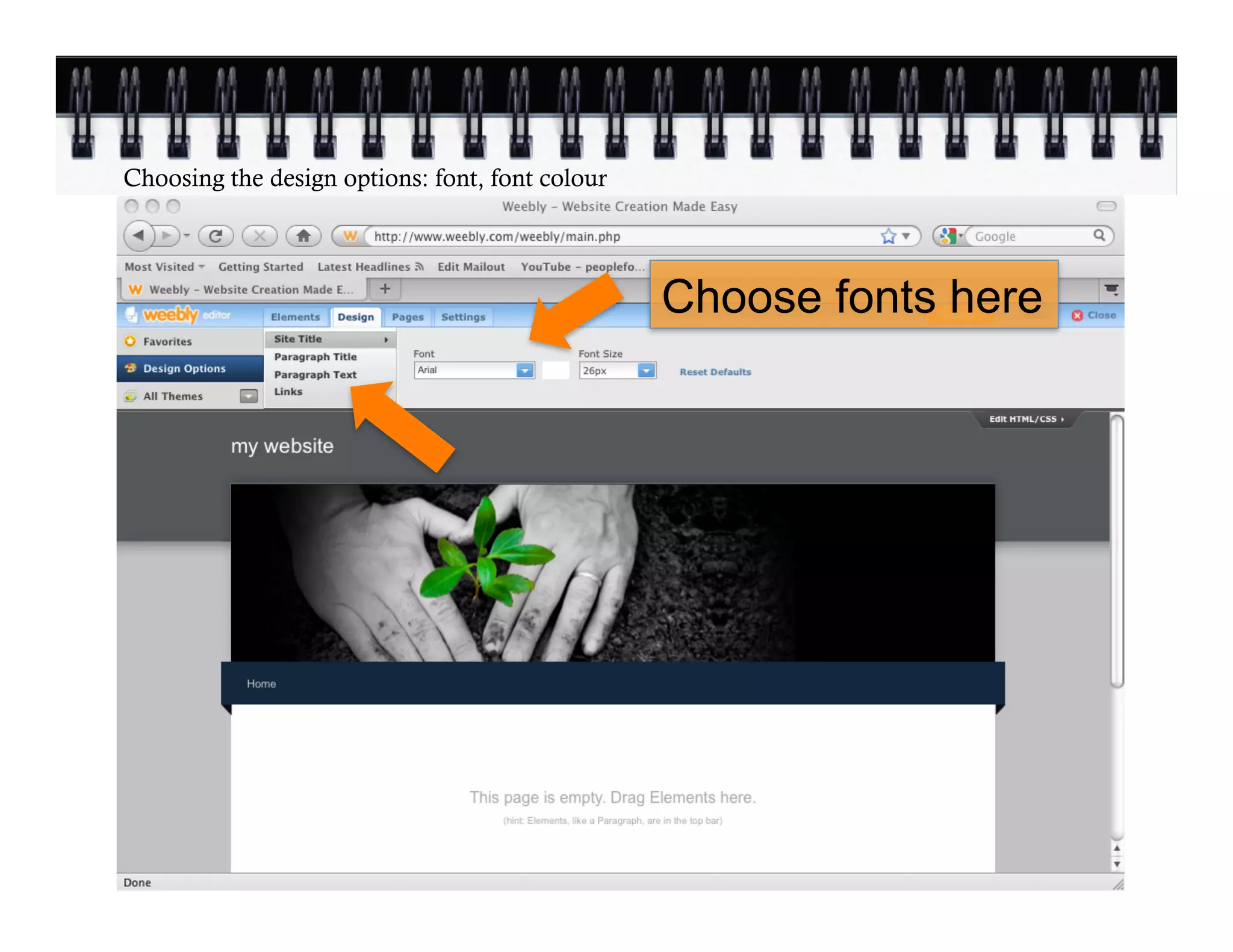
Choosing the design options: font, font colour


                                                 Choose fonts here
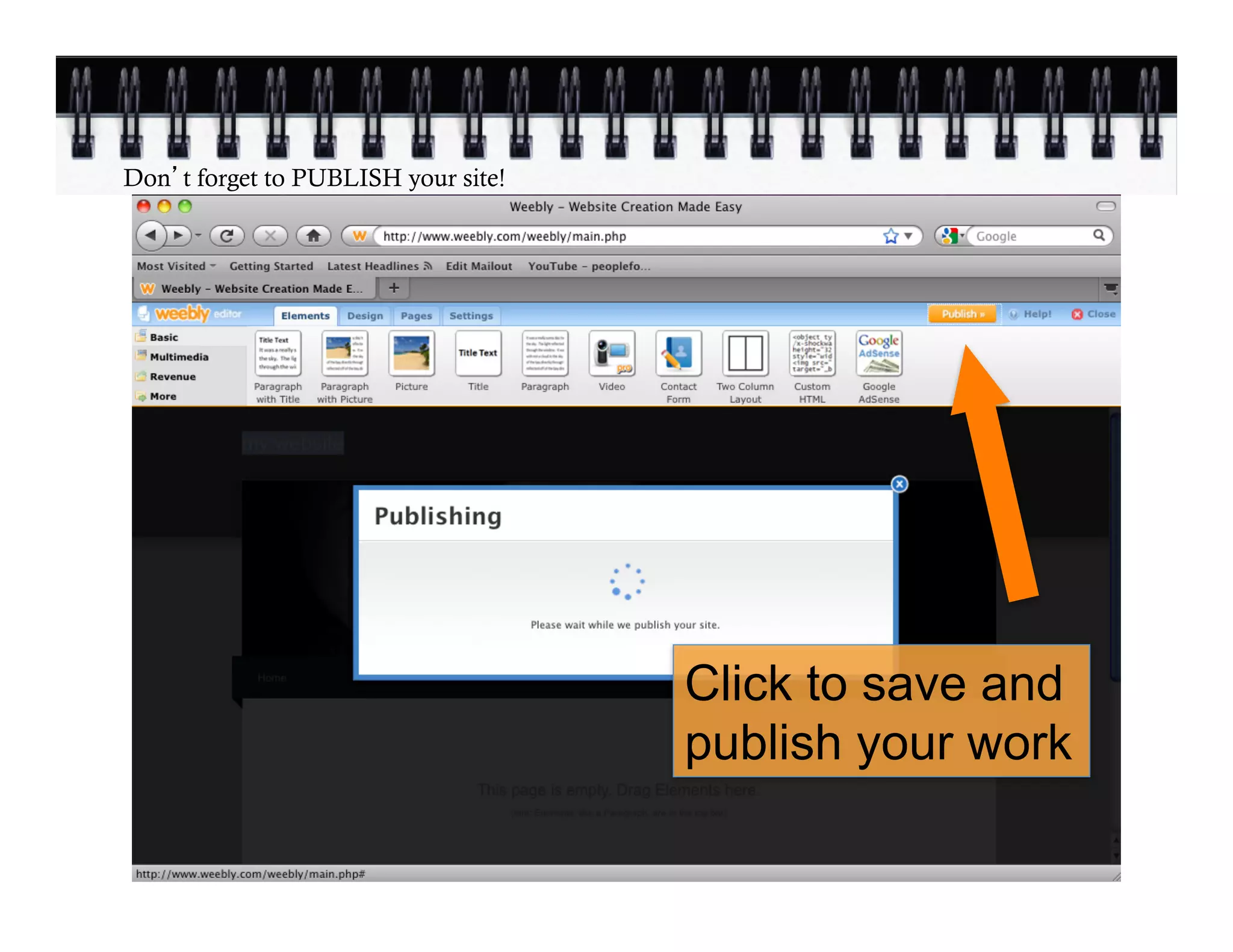
Don t forget to PUBLISH your site!


                                     Click to save and
                                     publish your work
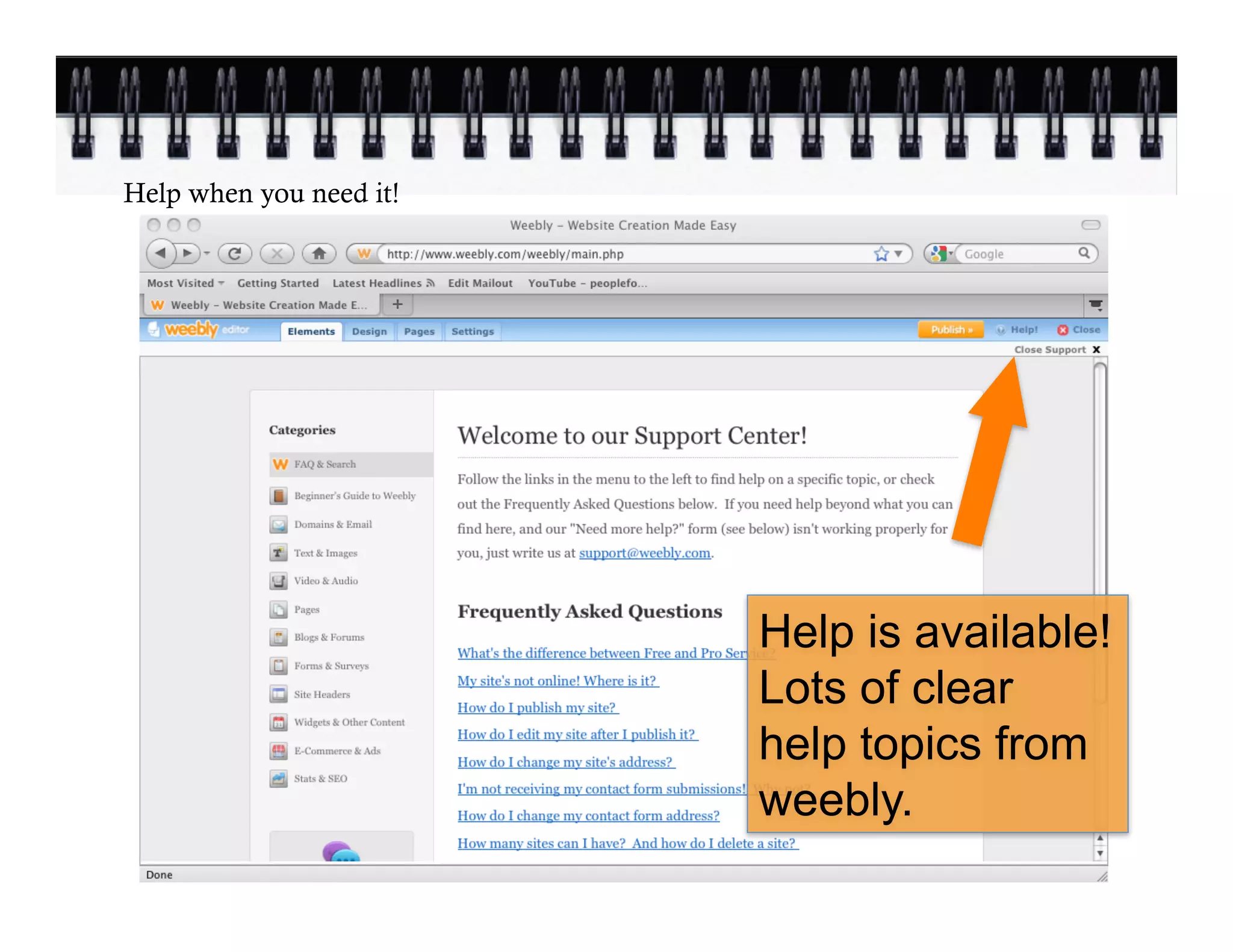
Help when you need it!


                         Help is available!
                         Lots of clear
                         help topics from
                         weebly.
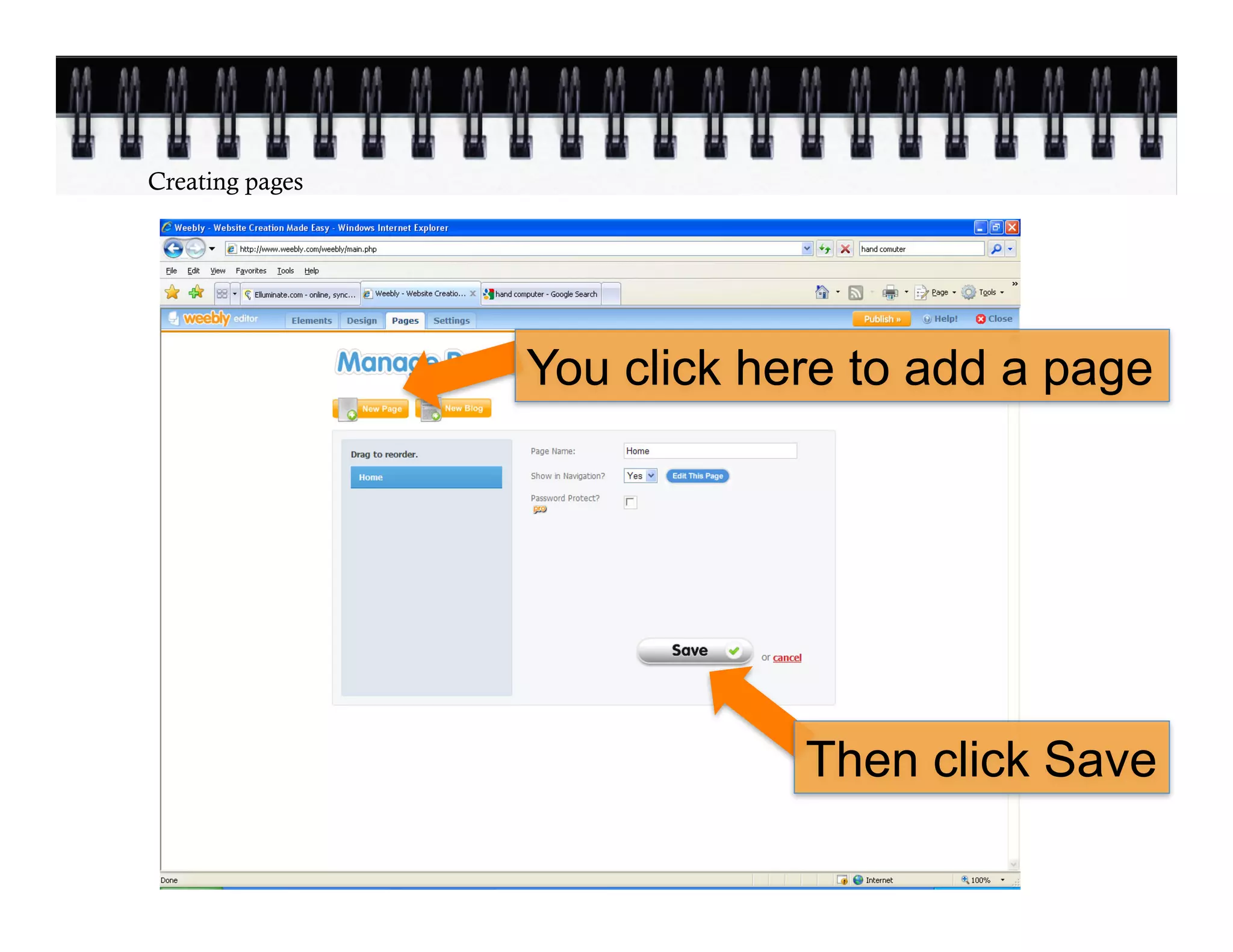
Creating pages


                 You click here to add a page


                             Then click Save
The settings for your website


Change                            Change
the title                         site
of your site                      address
or remove
it from
display.
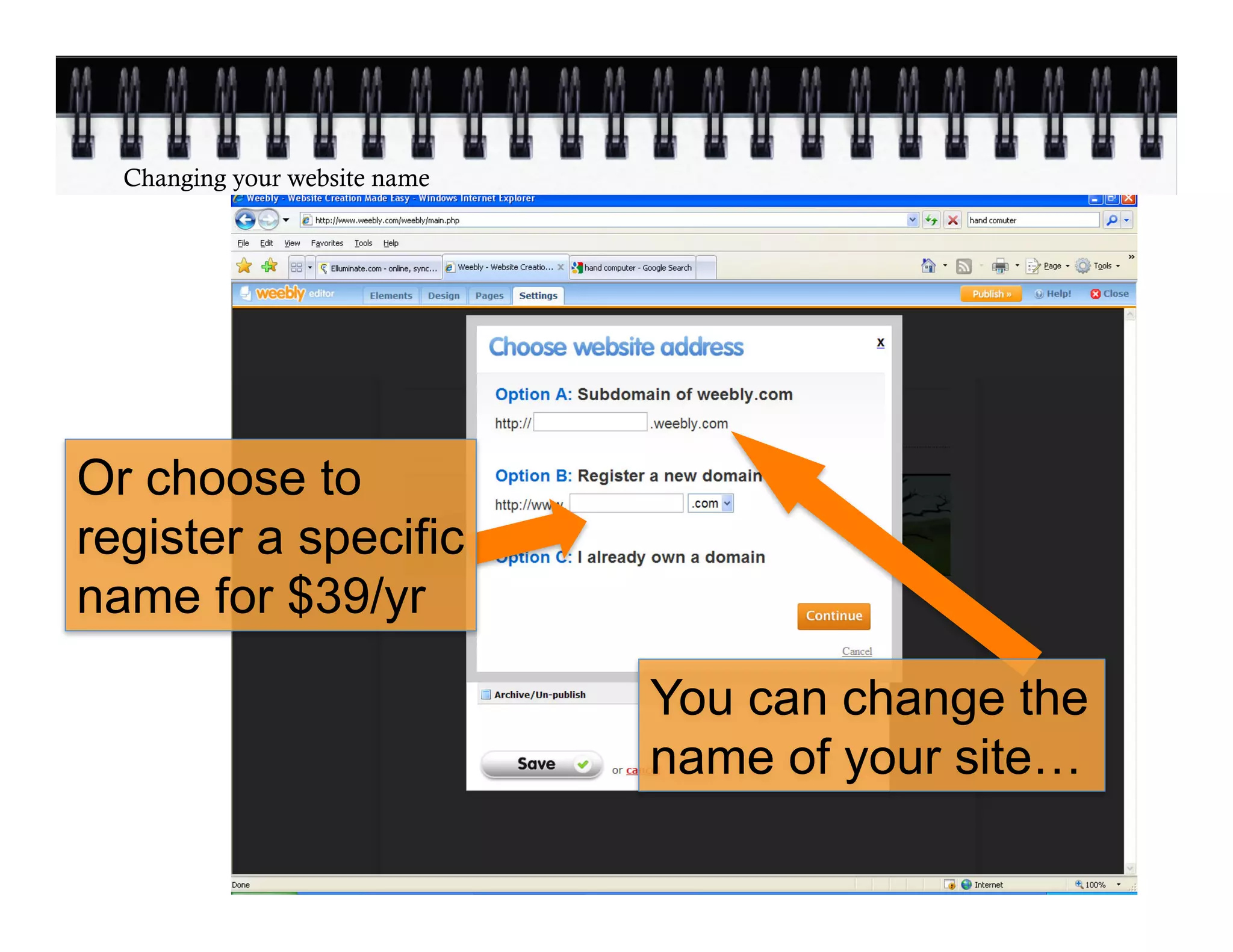
Changing your website name


Or choose to
register a specific
name for $39/yr

                               You can change the
                               name of your site…
Questions?

Gay	
  Stephenson	
  
gay@peopleforeducation.com	


Jacqui	
  Strachan              	
  

jacqui@peopleforeducation.com


Kristine	
  Garcia	
  
kristine@peopleforeducation.com

Or by phone 416-534-0100

Create a Free Website!

  • 1.
  • 2.
    Introductions Gay  Stephenson     Online Communications Manager gay@peopleforeducation.com       Jacqui  Strachan     Community  Development  Coordinator   jacqui@peopleforeducation.com         Kristine  Garcia   Online Communications Assistant     kristine@peopleforeducation.com
  • 3.
    Orientation •  Jacqui introductions,shows us how to participate in this webinar, fields questions. •  Gay shows us how, step by step. •  Kristine answers questions, can give you extra support. You (the participants): •  Can chat by typing questions, comments •  Turn on your microphone to speak •  Use the ✔ or ✖ and J and L faces
  • 4.
    We ve allfelt like this… •  I feel stupid. •  What happened? •  I am the only one who doesn t know? It s okay to ask. We ll try to help. Let s learn together!
  • 5.
    Collaborating with theschool •  For some this is simply a new tool! •  Protocol already in place •  If creating a website is a new endeavour: –  Open communications with the principal and school council –  Collaborate –  Connect with the school
  • 6.
  • 7.
    This workshop includes: þ Signingup for a free website þ Adding content (your text) þ Adding pictures þ Choosing a design for your site þ Adding pages to your website þ Publishing your new site to the internet!
  • 8.
    How to signup Type in a username… Then click on Sign Up
  • 9.
    Choose a namefor your site Type in a name for your website
  • 10.
    Choosing your awebsite address Click inside Option A
  • 11.
    Typing your newwebsite name/address Find a name that is available Type in the name you would like for your site
  • 12.
    Your new websitestarts off looking like this…
  • 13.
    Go to www.weebly.com Nowit s your turn…
  • 14.
  • 15.
    Adding text toyour page Hold your cursor over the first box Click on the box and drag it down here.
  • 16.
    Drag the paragraphwith title down to the page It will look like this
  • 17.
    Then you cantype text in the box Drag as many Click on red x of these as to delete a box you want down you don t want onto your page Click in here to edit title Click in this box to type or edit paragraph
  • 18.
    Adding a linkto another website Or use the chain button to add a link (as in email & Word) You can copy and paste a website address into a text box to create a link to that website
  • 19.
    Using the editing/ text tool This is a close-up of what appears when you begin typing text in a text box. Make text size smaller B will make text bold Make text size bigger I will make text italic u will underline text Change the colour of text
  • 20.
    Adding a picture Drag the box down Click in this box to select a picture from your computer
  • 21.
    Then you cantype text in the box Once you’ve uploaded a picture, you will see it
  • 22.
    Changing the design Change the design Choose from favourite themes or All Themes for more…
  • 23.
  • 24.
    Choosing the designoptions: font, font colour Choose fonts here
  • 25.
    Don t forgetto PUBLISH your site! Click to save and publish your work
  • 26.
    Help when youneed it! Help is available! Lots of clear help topics from weebly.
  • 27.
    Creating pages You click here to add a page Then click Save
  • 28.
    The settings foryour website Change Change the title site of your site address or remove it from display.
  • 29.
    Changing your websitename Or choose to register a specific name for $39/yr You can change the name of your site…
  • 30.
    Questions? Gay  Stephenson   gay@peopleforeducation.com       Jacqui  Strachan   jacqui@peopleforeducation.com         Kristine  Garcia   kristine@peopleforeducation.com Or by phone 416-534-0100