
Create Archive File 
Manually In Outlook 
2010 
 Need to Make Archive PST 
File 
 Simple Manual Steps
Need to Make Archive PST File !! 
Outlook is email-client used to store all user data 
including emails, messages, contacts, task, notes etc. 
The outlook create PST file within where they store 
all related data , as the .pst file exceeded more there 
will be change of Outlook corruption. Backup is an 
necessary safeguard against these data loss due to 
size limit. In similar way one can make archive file 
for backup PST file as vital time period .
Simple Steps to Create Outlook 
Archive file
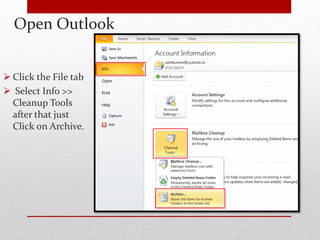
Open Outlook 
 Click the File tab 
 Select Info >> 
Cleanup Tools 
after that just 
Click on Archive.
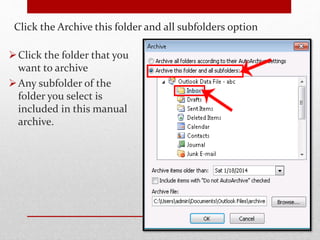
Click the Archive this folder and all subfolders option 
Click the folder that you 
want to archive 
Any subfolder of the 
folder you select is 
included in this manual 
archive.
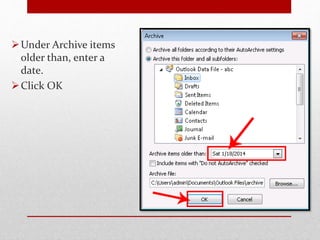
Under Archive items 
older than, enter a 
date. 
Click OK
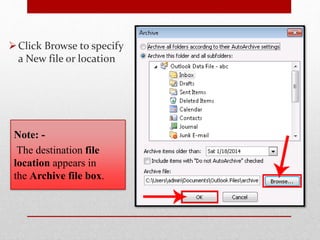
Click Browse to specify 
a New file or location 
Note: - 
The destination file 
location appears in 
the Archive file box.
Thank You  
More Info : 
http://www.msoutlooktools.com/category/security/archive/

Create Archive File Manually In Outlook 2010 !

  • 1.
    Create Archive File Manually In Outlook 2010  Need to Make Archive PST File  Simple Manual Steps
  • 2.
    Need to MakeArchive PST File !! Outlook is email-client used to store all user data including emails, messages, contacts, task, notes etc. The outlook create PST file within where they store all related data , as the .pst file exceeded more there will be change of Outlook corruption. Backup is an necessary safeguard against these data loss due to size limit. In similar way one can make archive file for backup PST file as vital time period .
  • 3.
    Simple Steps toCreate Outlook Archive file
  • 4.
    Open Outlook Click the File tab  Select Info >> Cleanup Tools after that just Click on Archive.
  • 5.
    Click the Archivethis folder and all subfolders option Click the folder that you want to archive Any subfolder of the folder you select is included in this manual archive.
  • 6.
    Under Archive items older than, enter a date. Click OK
  • 7.
    Click Browse tospecify a New file or location Note: - The destination file location appears in the Archive file box.
  • 8.
    Thank You  More Info : http://www.msoutlooktools.com/category/security/archive/