Mostly Outlook users searches for how to create a new 
PST File for last 6 month emails. Yes, many way 
available for this like: 
Archive Outlook PST File 
Export Outlook PST File 
Here we have create new PST file from 6 month old 
email by using Export option of MS Outlook.
How to Use Export Option to Create New PST? 
By using of few easy steps you will easily create a new 
Outlook PST file for old emails without any risk of data 
failure. 
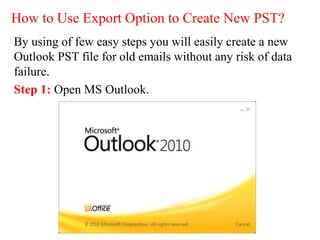
Step 1: Open MS Outlook.
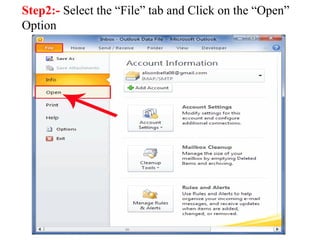
Step2:- Select the “File” tab and Click on the “Open” 
Option
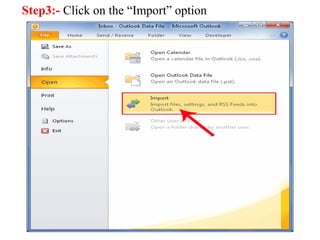
Step3:- Click on the “Import” option
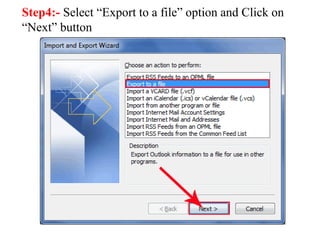
Step4:- Select “Export to a file” option and Click on 
“Next” button
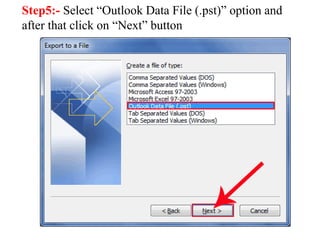
Step5:- Select “Outlook Data File (.pst)” option and 
after that click on “Next” button
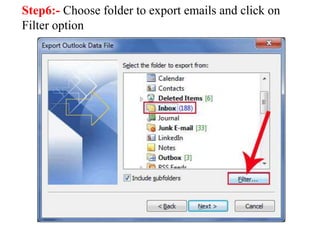
Step6:- Choose folder to export emails and click on 
Filter option
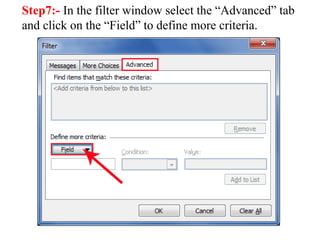
Step7:- In the filter window select the “Advanced” tab 
and click on the “Field” to define more criteria.
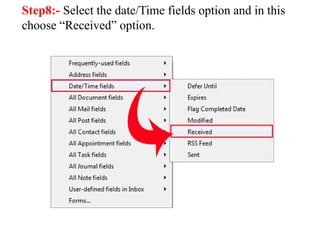
Step8:- Select the date/Time fields option and in this 
choose “Received” option.
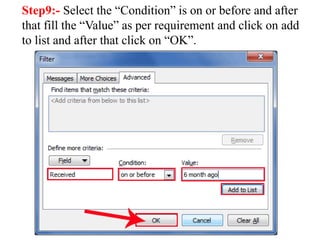
Step9:- Select the “Condition” is on or before and after 
that fill the “Value” as per requirement and click on add 
to list and after that click on “OK”.
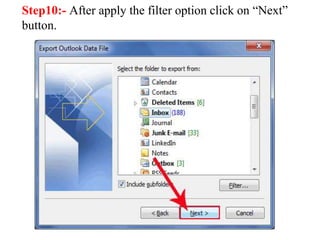
Step10:- After apply the filter option click on “Next” 
button.
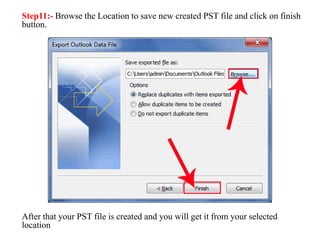
Step11:- Browse the Location to save new created PST file and click on finish 
button. 
After that your PST file is created and you will get it from your selected 
location
http://www.msoutlooktools.com/category/security/transfer-old-emails-to-separate-pst-file.html
How to Create a New PST file from Old Emails?

How to Create a New PST file from Old Emails?