

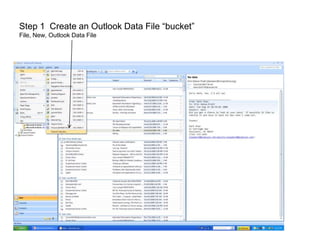
Step 1:  Create an Outlook Data File File, New, Outlook Data File
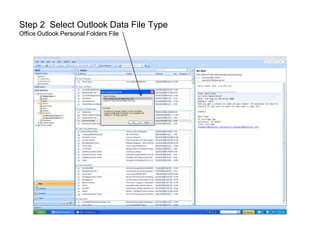
Step 2:  Select Outlook Data File Type Office Outlook Personal Folders File
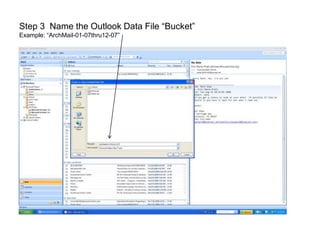
Step 3:  Name the Outlook Data File (.pst file) Example: “ArchMail-01-07thru12-07” (will become: ArchMail-01-07thru12-07.pst )
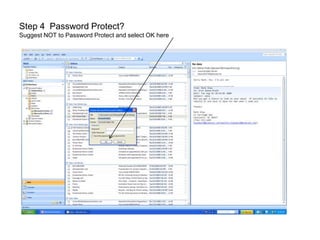
Step 4:  Password Protect? Suggest  NOT  to Password Protect and select OK here
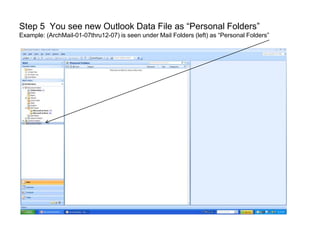
Step 5:  Open Personal Folders The file “ArchMail-01-07thru12-07.pst is displayed under Mail Folders (left) as “Personal Folders”
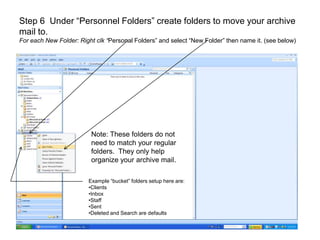
Step 6:  Create folders under “Personal Folders” To create:  Right clk “ Personal Folders” and select “New Folder” then name it (see examples below) Example folders setup here are: Clients Inbox Staff Sent Deleted and Search are defaults
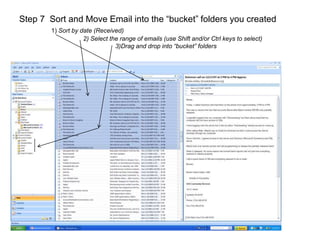
Step 7:  Sort then Move Email into the folders you just created 1)  Sort by date (Received) 2) Select the range of emails (use Shift and/or Ctrl keys to select) 3)Drag and drop into the folders you created in “Personnel folders”
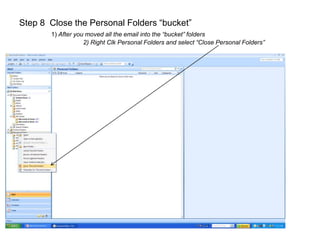
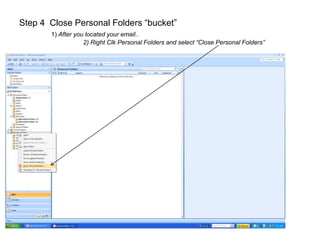
Step 8:  When your finished, Close the Personal Folder  Right Clk Personal Folders and select “Close Personal Folders”
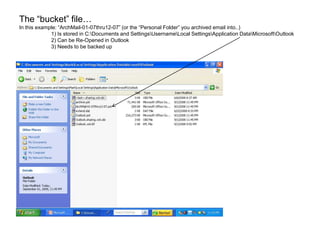
The .pst file… In this example: “ArchMail-01-07thru12-07.pst” (or the “Personal Folder” you moved email into..) 1) Is stored in C:\Documents and Settings\Username\Local Settings\Application Data\Microsoft\Outlook 2) Can be Re-Opened in Outlook 3) Needs to be backed up
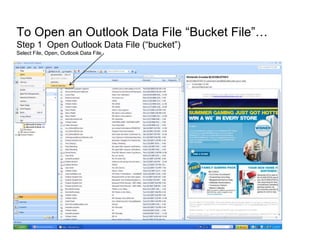
How to re-open the Outlook Data File(s) file you create Step 1:  Open Outlook Data File Select File, Open, Outlook Data File
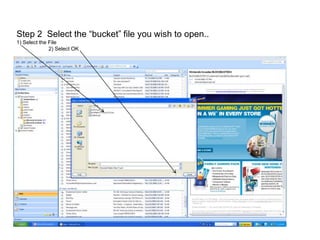
Step 2:  Select the Date Range file you wish to open.. 1) Select the File 2) Select OK
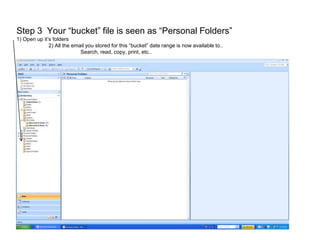
Step 3:  “Personal Folders” is the file you just opened 1) Find the email msg you are looking for and read, copy, print, etc..
Step 4:  When you’re done, Close the Personal Folder Right Clk Personal Folders and select “Close Personal Folders”
Archive Tips Work with one “Personal Folder” at a time Outlook Data Files must be backed up! Makes it easy!  Create a Shortcut on your desktop that takes you right to the directory to backup your email files. Use similar filenames(.pst) “ Jan09thruJul09.pst”  “Aug09thruDec09.pst”

Archiving Email

  • 1.
  • 2.
  • 3.
    Step 1: Create an Outlook Data File File, New, Outlook Data File
  • 4.
    Step 2: Select Outlook Data File Type Office Outlook Personal Folders File
  • 5.
    Step 3: Name the Outlook Data File (.pst file) Example: “ArchMail-01-07thru12-07” (will become: ArchMail-01-07thru12-07.pst )
  • 6.
    Step 4: Password Protect? Suggest NOT to Password Protect and select OK here
  • 7.
    Step 5: Open Personal Folders The file “ArchMail-01-07thru12-07.pst is displayed under Mail Folders (left) as “Personal Folders”
  • 8.
    Step 6: Create folders under “Personal Folders” To create: Right clk “ Personal Folders” and select “New Folder” then name it (see examples below) Example folders setup here are: Clients Inbox Staff Sent Deleted and Search are defaults
  • 9.
    Step 7: Sort then Move Email into the folders you just created 1) Sort by date (Received) 2) Select the range of emails (use Shift and/or Ctrl keys to select) 3)Drag and drop into the folders you created in “Personnel folders”
  • 10.
    Step 8: When your finished, Close the Personal Folder Right Clk Personal Folders and select “Close Personal Folders”
  • 11.
    The .pst file…In this example: “ArchMail-01-07thru12-07.pst” (or the “Personal Folder” you moved email into..) 1) Is stored in C:\Documents and Settings\Username\Local Settings\Application Data\Microsoft\Outlook 2) Can be Re-Opened in Outlook 3) Needs to be backed up
  • 12.
    How to re-openthe Outlook Data File(s) file you create Step 1: Open Outlook Data File Select File, Open, Outlook Data File
  • 13.
    Step 2: Select the Date Range file you wish to open.. 1) Select the File 2) Select OK
  • 14.
    Step 3: “Personal Folders” is the file you just opened 1) Find the email msg you are looking for and read, copy, print, etc..
  • 15.
    Step 4: When you’re done, Close the Personal Folder Right Clk Personal Folders and select “Close Personal Folders”
  • 16.
    Archive Tips Workwith one “Personal Folder” at a time Outlook Data Files must be backed up! Makes it easy! Create a Shortcut on your desktop that takes you right to the directory to backup your email files. Use similar filenames(.pst) “ Jan09thruJul09.pst” “Aug09thruDec09.pst”