www.shsph.blogspot.com
1
Computer Systems
Servicing NC II
Quarter 1
Module 1: Types and Parts of
Computers, Operating Systems, and
Peripheral Devices
11
Source: Luke, HoddeBlack Computer Tower on Brown Wooden
Table, Free Royalty
www. https://unsplash.com/
www.shsph.blogspot.com
2
Computer Systems Servicing NC II - Grade 11
Quarter 1, Module 1
Types and Parts of Computers, Operating Systems and Peripheral Devices
Republic Act 8293, section 176 states that: No copyright shall subsist in any work of the
Government of the Philippines. However, prior approval of the government agency or office wherein
the work is created shall be necessary for exploitation of such work for profit. Such agency or office
may, among other things, impose as a condition the payment of royalties.
Borrowed materials (i.e., songs, stories, poems, pictures, photos, brand names, trademarks, etc.)
included in this book are owned by their respective copyright holders. Every effort has been exerted
to locate and seek permission to use these materials from their respective copyright owners. The
publisher and authors do not represent nor claim ownership over them.
Regional Director: Gilbert T. Sadsad
Assistant Regional Director: Jessie L. Amin
Development Team of the Module
Writer: VELNORCA H. LAVIÑA
Editors: JOEL A. VARGAS / TOMASA FE P. MAÑAGO
Reviewers: DR. NIXON SA. OLFINDO, EPS / DARCY GUY Y. MAÑEBO, EPS
Illustrator: VELNORCA H. LAVIÑA
Layout Artist: VELNORCA H. LAVIÑA
www.shsph.blogspot.com
3
Computer Systems Servicing NC II - Grade 11
Quarter 1 Installing and Configuring Computer Systems (ICCS)
Module 1: Types and Parts of Computers, Operating Systems and Peripheral Devices
To be well acquainted with computer it is important to know its basics such as the parts, its
classifications, the devices that add functionalities and the set of programs that manages computer
hardware resources. This module will give an explanation about the computer’s types, peripherals,
parts and operating system.
For your better understanding of the lesson, here is the list of words and their meanings
Read and understand them carefully
Peripheral Devices
also known as computer peripheral, input-output device, or input/output device, any of various
devices used to enter information and instructions into a computer for storage or processing
and to deliver the processed data.
Input/ Output Devices
An input device sends information to a computer system for processing, and an output device
reproduces or displays the results of that processing.
 Identify the different types, parts and peripheral devices of a computer.
 Define Computer Operating systems
 Enumerate the types, parts, peripheral devices and operating systems of a computer.
 Recognize the basic computer operating systems.
 State the function of types, parts and peripheral devices of a computer.
 Appreciate the importance of types, parts, peripheral ang operating system of a
computer.
At the end of the lesson you are expected to:
www.shsph.blogspot.com
4
Operating Systems
a set of programs that manage computer hardware resources and provide common services for
application software.
MAC
The computer operating system for Apple Computer's MacIntosh line of personal computers
and workstations
Linux
A Unix-like, open source and community-developed operating system for computers, servers,
mainframes
Windows
A series of operating systems developed by Microsoft.
GUI
Stands for "Graphical User Interface" and is pronounced "gooey." It is a user interface that
includes graphical elements, such as windows, icons and buttons.
Solid State Drive (SSD)
A solid-state drive (SSD) is a new generation of storage device used in computers. SSDs
replace traditional mechanical hard disks by using flash-based memory, which is significantly
faster.
Storage Device
The storage device usually enables a user to store large amounts of data in a relatively small
physical space, and makes sharing that information with others easy.
Volatile
It comes from the Latin "volatilis" meaning "to fly". In computers, volatile is used to describe
memory content that is lost when the power is interrupted or switched off.
Software
Software is a set of programs, which is designed to perform a well-defined function.
Hardware
Hardware represents the physical and tangible components of a computer, i.e. the components
that can be seen and touched such as the system unit, mouse and others.
Cortana
www.shsph.blogspot.com
5
Direction: Read the sentence carefully. Encircle the letter of the correct answer from the given
choices. Write your answer in your data notebook.
1. It manages the computer's memory and processes, as well as all of its software and hardware.
A. Application software C. Graphical User Interface
B. Computer Operating System D. Micro Computer
2. It is a type of computer that features both analogue and digital computer?
A. Analogue Computer C. Hybrid Computer
B. Digital Computer D. Micro Computer
3. It is a general-purpose computer that is designed for individual use. It is also known as personal
computer
A. Mainframe C. Minicomputer
B. Microcomputer D. Workstation
4. It is a part of computer performs the calculations needed by a system and can vary in speed? They
are referred to as computer’s brain
A. Central processing Unit C. Random Access Memory
B. Hard Disk Drive D. Video Card
5. It is a part of a computer is also called the display card, graphics card or graphics adapter?
A. Central processing Unit C. Random Access Memory
B. Hard Disk Drive D. Video Card
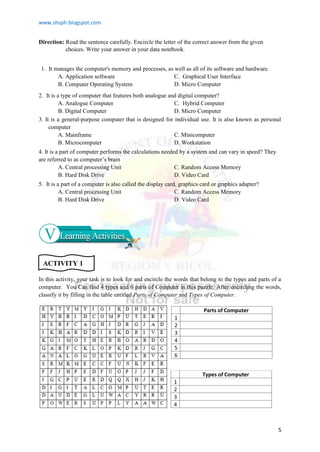
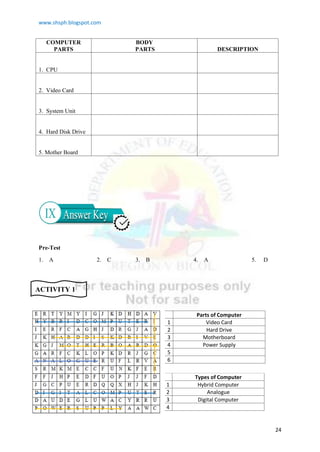
In this activity, your task is to look for and encircle the words that belong to the types and parts of a
computer. You Can find 4 types and 6 parts of Computer in this puzzle. After encircling the words,
classify it by filling in the table entitled Parts of Computer and Types of Computer.
ACTIVITY 1
Parts of Computer
1
2
3
4
5
6
Types of Computer
1
2
3
4
www.shsph.blogspot.com
6
In the first activity, you are given the chance to identify the types and parts of computer. In this
activity, your task is to complete the open-ended statement below with your perception, opinion or
prior knowledge about Computer Operating systems.
Peripheral Devices are _______________________________________________________________
__________________________________________________________________________________
__________________________________________________________________________________
__________________________________________________________________________________
__________________________________________________________________________________
Parts and peripheral devices are not sufficient to make a computer functioning. Operating systems are
the most important software that runs in your computer. For this activity your task is to arrange the
Operating systems from Past to present versions then answer the process questions below.
DOS WINDOWS 8
DOS WITH WINDOWS 3.X WINDOWS 9X
WINDOWS 10 WINDOWS NT
WINDOWS 2000 WINDOWS VISTA
WINDOWS 7 WINDOWS XP
WINDOWS ME
Process Questions:
1. What Operating system mentioned above is the oldest OS?
Newest?
2. What are the 3 biggest developer companies of Computer
Operating Systems?
3. Who are the key persons of these companies?
4. Which of the 3 is commonly used/installed Operating
System? Why?
5. Why is it important to have an Operating system?
6. How will you know if your computer has an operating
system?
ACTIVITY 2
ACTIVITY 3
Windows vs. MacOS vs. Linux: Does your OS affect
your privacy? (2019). [Image]. Https://Medium.Com/.
https://medium.com/@luc_23423/windows-vs-macos-
vs-linux-does-your-os-affect-your-privacy-
4bcaf2253b5d
www.shsph.blogspot.com
7
Let’s Explore!
Did you know
A. Types of Computer
Types of Computers based on data handling capabilities:
1. Analogue Computer- Analogue computers are designed
to process analogue data. Analogue data is continuous data that changes
continuously and cannot have discrete values. We can say that analogue
computers are used where we don't need exact values always such as speed,
temperature, pressure and current. Speedometer and mercury thermometer are
examples of analogue computers.
2. Digital computer - designed to perform calculations
and logical operations at high speed. It accepts the raw data as input in the
form of digits or binary numbers (0 and 1) and processes it with programs
stored in its memory to produce the output. All modern computers like
laptops, desktops including smartphones that we use at home or office are
digital computers.
3. Hybrid Computer - features of both analogue and
digital computer. It is fast like an analogue computer and has memory and
accuracy like digital computers. It can process both continuous and discrete
data. It accepts analogue signals and convert them into digital form before
processing. So, it is widely used in specialized applications where both
analogue and digital data is processed.
Types of Computer based on its Size
1. Supercomputer - the biggest and fastest computers. They are designed to
process huge amount of data. A supercomputer can process trillions of
instructions in a second. It has thousands of interconnected processors.
Supercomputers are particularly used in scientific and engineering
There are lots of terms used to describe different types computers. Most of these words indicate the
size, expected use or capability of the computer. Let’s learn the types of computers according to the
basis of handling capabilities and on the basis of size.
Analogue Computer. (2019). [Image]. https://www.britannica.com/technology/analog-computer
Polish Hybrid computer WAT 1001. (2005). [Image].
https://en.wikipedia.org/wiki/Hybrid_computer#/media/File:WAT_1001.jpg
HANSON, G. R. E. G. O. R. Y. (2020). What is a digital computer? [Image]. https://www.wisegeek.com/what-is-a-digital-computer.htm
Greene, T. (2019, November 18). 0 of the world’s fastest supercomputers [Image].
https://www.networkworld.com/article/3236875/embargo-10-of-the-worlds-fastest-supercomputers.html
www.shsph.blogspot.com
8
applications such as weather forecasting, scientific simulations and nuclear
energy research. The first supercomputer was developed by Roger Cray in
1976.
2. Mainframe computer - designed to support hundreds or thousands of users
simultaneously. They can support multiple programs at the same time. It
means they can execute different processes simultaneously. These features of
mainframe computers make them ideal for big organizations like banking and
telecom sectors, which need to manage and process high volume of data.
3. Miniframe or Minicomputer – a midsize
multiprocessing computer. It consists of two or more processors and can
support 4 to 200 users at one time. Miniframe computers are used in institutes
and departments for tasks such as billing, accounting and inventory
management. A minicomputer lies between the mainframe and
microcomputer as it is smaller than mainframe but larger than a
microcomputer.
4. Workstation - refers to an individual computer,
or group of computers, used by a single user to perform work. It has a
faster microprocessor, a large amount of RAM and high speed graphic
adapters. It generally performs a specific job with great expertise and is
also intended for serious academic or professional computation.
5. Microcomputer - also known as a personal computer. It is a general-purpose computer that is
designed for individual use. It has a microprocessor as a central processing unit, memory, storage
area, input unit and output unit. Laptops and desktop computers are examples of microcomputers.
They are suitable for personal work that may be making an assignment, watching a movie, or at office
for office work.
Types of Micro computers:
 Desktop Computer or Personal
Computer(PC) - A desktop computer is a personal computer designed for
regular use at a single location on or near a desk or table due to its size and
power requirements. It is not very expensive and is suited t the needs of a
single user at home, small business units, and organization.
B. Notebook Computer or Laptop is a small, portable computer and have
all the features of a desktop computer. The advantage of the laptop is that
E.R.R.S.B.A.N.G.E.R. (2020, February 19). Mainframe Computer Definition with their Example, Types, and Uses [Image].
http://digitalthinkerhelp.com/mainframe-computer-definition-with-their-example-types-and-uses/
M.A.L.C.O.L.M.T.A.T.U.M. (2020). What is a Minicomputer? [Image]. https://www.wisegeek.com/what-is-a-minicomputer.htm
J.C.B. (2017, November 13). How to Set Up an Efficient Computer Workstation [Image]. https://www.firealley.net/computer-workstation/
Joel Santo Domingo, Tom Brant. (2020, May 7). The Best Desktop Computers for 2020 [Image].
https://sea.pcmag.com/desktops/7900/the-best-desktop-computers-for-2020
Notebook Computers. (2020). [Image]. https://www.computerhope.com/jargon/n/notebook.htm
www.shsph.blogspot.com
9
it is small in size, so it can be carried anywhere. Notebook computers use
a variety of techniques, known as flat-panel technologies, to produce a
lightweight and non-bulky display screen. Laptops Computers are higher
in cost than the desktop computers
C. Netbook. These are smaller notebooks optimized for low weight and
low cost, and are designed for accessing web-based applications.
Netbooks deliver the performance needed to enjoy popular activities like
streaming videos ort music, e-mailing, web surfing or instant messaging.
D. Tablet A tablet is a wireless, portable personal
computer with a touchscreen interface. The tablet form factor is typically
smaller than a notebook computer, but larger than a smartphone.
E. Handheld Computer or Personal
Digital Assistant(PDA) It is a small computer that can be held on
the top of the palm. It is small in size. PDA uses a pen or a stylus
for input, instead of the keyboard. They have a limited memory
and are less powerful. PDAs can be connected to the internet via
wireless connection.
F. Smart Phones are mobile phone
with highly advanced features. A typical smartphone has a high-
resolution touch screen display, WiFi connectivity, Web browsing
capabilities, and the ability to accept sophisticated applications. The
majority of these devices run on any of these popular mobile
operating systems: Android, Symbian, iOS, BlackBerry OS and
Windows Mobile.
B. PARTS OF COMPUTER and ITS PERIPHERALS
Different types of computer has different functions too which makes each computer
unique. Knowing the Types of computers gave us idea about what computer is used for
a specific purpose. Les us now jump to and learn the parts and peripheral devices of a
computer the different
Notebook Computers. (2020). [Image]. https://www.computerhope.com/jargon/n/notebook.htm
Dan Seifert. (2019, July 31). Samsung’s Galaxy Tab S6 is its latest volley against the iPad Pro [Image].
https://www.theverge.com/2019/7/31/20748387/samsung-galaxy-tab-s6-tablet-announcement-price-specs-features
Personal Digital Assistants for Doctors/Medical Practitioners. (2020). [Image]. https://www.medindia.net/pda/pda_ersuite.asp
PDA. (2019). [Image]. https://www.computerhope.com/jargon/p/pda.htm
Sandeep Sarkar. (2018, December 26). 10 best ultra-premium smartphones of 2018 [Image].
https://www.gizbot.com/mobile/features/10-best-ultra-premium-smartphones-2018-056404.html
www.shsph.blogspot.com
10
Parts of computer can be classified whether internal or external. The external parts of a computer are
those that can be observed with the naked eye without having to open or disarm the device. While the
internal is a term used to describe a device or part that is installed inside the computer.
INTERNAL PARTS OF COMPUTER
 Motherboard or Mobo is a printed circuit board and
foundation of a computer that is the biggest board in a computer chassis. It
allocates power and allows communication to and between the CPU, RAM,
and all other computer hardware components.is the main printed circuit board
in a computer.
 Power Supply powers all other components of the
machine. It usually plugs into the motherboard to power the other parts. The
power supply connects to either an internal battery (on a laptop) or a plug for
an outlet (on a desktop).
 Central Processing Unit (CPU) referred to as a computer's brain. It.
performs most of the processing inside a computer. It processes all
instructions received by software running on the PC and by other hardware
components, and acts as a powerful calculator.
STORAGE DEVICE
referred to as digital storage, storage media, or storage medium. It is any hardware that is capable of
holding information either temporarily or permanently.
 Random Access Memory is a temporary form of
memory. When you open an application in our computer, the computer will
place that application and all its data in the RAM.
 Hard Disk Drive. Since RAM is temporary, your
computer needs a place to store data permanently. That's where the hard
drive comes in. The traditional hard drive consists of several spinning
platters with an arm that physically writes data to the disk. However, these
drives are slow and are starting to be replaced by the faster solid-state
drives.
 Solid State Drive is consist of flash memory,
like your smartphone or flash drive. They are much faster than traditional
hard disk drives, though cost more for the increased efficiency. Both types
of drives come in various sizes to suit different needs.
 Video Card also called a display card,
graphics card, display adapter, or graphics adapter. It is used to
enhance the quality of images showed on a display. It is attached to
Motherboard. (2019). [Image]. Https://Www.Computerhope.Com/.https://www.computerhope.com/jargon/m/mothboar.htm
Source: Igor Schubin Computer Power Supply wire accessories background, Free Royalty www. Pixbay.com
Source: Kerem yucel, Computer Chip, Free Royalty www. freeimages.com
Source: Brandon Blikenberg Free RAM Stock Photo, Free Royalty, www. freeimages.com
Source: Orgg, DVD Drive burner
, Free Royalty www. pixabay.com
What is a Solid-State Drive (SSD)?
(2018). [Image]. https://store.hp.com/
www.shsph.blogspot.com
11
the motherboard and controls and calculates an image's appearance on
the screen engineers.
 Optical Drives. Though less common than
they used to be, many machines still have an optical drive for reading
CDs and DVDs. These can be used to listen to music or watch movies,
place information onto a blank disc , or install software from a disc.
Input and Output Devices Common input devices include mice (touchpads on laptops), keyboards,
and webcams, while output devices consist of monitors, printers, and speakers. Removable media
such as flash drives and SD cards can also be used to transfer data between computers.
External Part of Computer
 A monitor is an output device that displays video images
and text. A monitor is made up of circuitry, a screen, a power supply, buttons to
adjust screen settings, and casing that holds all of these components.
 System Unit also known as a "tower" or "chassis," is the
main part of a desktop computer. It includes the motherboard, CPU, RAM, and
other components.
 Keyboard A computer keyboard is one of the primary input
devices used with a computer. Similar to an electric typewriter, a
keyboard is composed of buttons that create letters, numbers, and
symbols, as well as perform other functions.
 Mouse is a handheld hardware input device that
controls a cursor in a GUI (graphical user interface) and can move and
select text, icons, files, and folders on your computer.
PERIPHERAL DEVICES
Peripherals are connected directly to a computer but it does not contribute to the computer's primary
function, such as computing. It helps end users access and use the functionalities of a computer. It is
commonly divided into three kinds: input devices, output devices, and storage devices.
Fisher, T. (2019). What Is a Video Card? [Image]. https://www.lifewire.com/what-is-a-video-card-2618161
Source: Orgg, DVD Drive burner, Free Royalty www. pixabay.com
Computer mouse. (2020). [Image]. https://www.computerhope.com/jargon/m/mouse.htm
In-text citation
Monitor. (2020). [Image]. https://www.computerhope.com/jargon/m/monitor.htm
6 Basic Components of System Unit | description & functions. (2019).
[Image]. https://www.techchore.com/components-of-system-unit/
Keyboard. (2020). [Image].
https://www.computerhope.com/jargon/k/keyboard.htm
Monitor, System unit, Keyboard and mouse are the basic external parts of computer. However,
there are a lot more devices that we can attach to computer enhance its performance. Let us
learn the peripheral devices that can be attached to a computer.
www.shsph.blogspot.com
12
Input Devices - An input device converts incoming data and instructions into a pattern of electrical
signals in binary code that are comprehensible to a digital computer. It is also used to enter data to a
computer. Input Devices includes:
 Scanner works more like a photocopy machine. It is used
when some information is available on paper and it is to be transferred to the
hard disk of the computer for further manipulation.
 Digitizer is also known as Tablet or Graphics Tablet as it converts graphics
and pictorial data into binary inputs. A graphic tablet as digitizer is used for
fine works of drawing and image manipulation applications.
 Barcode device is used for reading bar coded data (data in the form of light
and dark lines). Bar coded data is generally used in labelling goods,
numbering the books, etc. It may be a handheld scanner or may be embedded
in a stationary scanner.
 Joystick is also a pointing device, which is used to move the cursor position on
a monitor screen. It is a stick having a spherical ball at its both lower and
upper ends. The lower spherical ball moves in a socket. The joystick can be
moved in all four directions.
 The microphone is used for various applications such as
adding sound to a multimedia presentation or for mixing music.
 Mouse is the most popular pointing device. It is a
very famous cursor-control device having a small palm size box with a
round ball at its base, which senses the movement of the mouse and sends
corresponding signals to the CPU when the mouse buttons are pressed.
 Keyboard is the most common and
very popular input device which helps to input data to the computer.
The layout of the keyboard is like that of traditional typewriter,
although there are some additional keys provided for performing
additional functions.
Computer Input Devices. (2020). [Image]. https://www.tutorialspoint.com/computer_fundamentals/computer_input_devices.htm
Computer Input Devices. (2020). [Image].https://www.tutorialspoint.com/computer_fundamentals/computer_input_devices.htm
Keyboard. (2020). [Image]. https://www.computerhope.com/jargon/k/keyboard.htm
Above devices are not the only examples of input devices. There are lots of input devices that is
used along with the computer. These are only some of the input devices. Now, Lets take a look
at the output devices that adds more functions to a computer.
www.shsph.blogspot.com
13
Output Devices are any peripheral that receives data from a computer, usually for display,
projection, or physical reproduction. For example, the image shows an inkjet printer, an output device
that can make a hard copy of anything shown on the monitor. Some of the output devices are as
follows:
 Headphones sometimes referred to as earphones, are a
hardware output device that either plugged into a computer line out or
speakers. Headphones allow you to listen to audio or watch a movie without
disturbing people around you.
 A projector is an output device that can take
images generated by a computer or Blu-ray player and reproduce them by
projection onto a screen, wall, or another surface. In most cases, the
surface projected onto is large, flat, and lightly colored.
 A monitor is made up of circuitry, a screen, a power
supply, buttons to adjust screen settings, and casing that holds all of these
components.
 A printer is an external hardware output device that
takes the electronic data stored on a computer or other device and generates
a hard copy of it. Types of printer includes 3D printer, AIO (all-in-one)
printer, Dot matrix printer
Inkjet printer, Laser printer, LED printer, MFP (multifunction printer)
Plotter, Thermal printer
 Braille reader, also called a braille display, is an electronic device
that allows a blind person to read the text displayed on a computer monitor.
The computer sends the text to the output device, where it's converted to
Braille and "displayed" by raising rounded pins through a flat surface.
 Plotter is a computer hardware device much like a printer
that is used for printing vector graphics. Instead of toner, plotters use a pen, pencil,
marker, or another writing tool to draw multiple , continuous lines onto paper
rather than a series of dots like a traditional printer.
Headphones. (2019). [Image]. https://www.computerhope.com/jargon/h/headphon.htm
Projector. (2017). [Image]. https://www.computerhope.com/jargon/p/projecto.htm
Monitor. (2020). [Image]. https://www.computerhope.com/jargon/m/monitor.htm
Printer. (2019). [Image]. https://www.computerhope.com/jargon/p/printer.htm
Braille Reader. (2020). [Image]. https://www.computerhope.com/jargon/b/braille-reader.htm
GPS. (2020). [Image]. https://www.computerhope.com/jargon/p/plotter.htm
Another classification of Peripheral devices is the Storage. Storage devices are pieces of
computer hardware that is used for saving, carrying and pulling out data. It can keep and
retain information short-term or long-term. Here are the list of storage peripheral devices.
www.shsph.blogspot.com
14
Storage Devices
 A hard disk drive (also known as a hard drive,
HD, or HDD) stores files for the operating system and software programs,
as well as user documents, such as photographs, text files, videos, and
audio. The hard drive uses magnetic storage to record and retrieve digital
information to and from one or more fast-spinning disks.
 Floppy Disk Also know as a diskette, floppy,
or FD, the floppy disk uses magnetic storage technology to store
information. Floppy disks were once a common storage device for
computers and lasted from the mid-1970's through to the start of the 21st
century. The earliest floppies were 8-inch (203 mm) in size, but these were
replaced by 5 1⁄4-inch (13 3 mm) disk drives, and finally a 3 1⁄2 inch (90
mm) version.
 The compact disc, known for short as a CD,
is a form of optical storage, a technology which employs lasers and lights
to read and write data. Initially com pact discs were used purely for music,
but in the late 1980's they began to be also used for computer data storage.
 The DVD (digital versatile disc) and Blu-ray disc (BD)
are formats of digital optical disc data storage which have superseded compa
ct discs, mainly because of their much greater storage capacity. A Blu-ray
disc, for example, can store 25 GB (gigabytes) of data on a single-layer disc
and 50 GB on a dual-layer disc. In comparison, a standard CD is the same
physical size, but only holds 700 MB (megabytes) of digital data
 USB Flash Drive Also known as a thumb
drive, pen drive, flash-drive, memory stick, jump drive, and USB stick, the
USB flash drive is a flash memory data storage device that incorporates an
integrated USB interface. Flash memory is generally more efficient and
reliable than optical media, being smaller, faster, and possessing much
greater storage capacity, as well as being more durable due to a lack of
moving parts.
 Secure Digital Card (SD Card) A common type of memory card, SD
cards are used in multiple electronic devices, including digital cameras
and mobile phones. Although there are different sizes, classes, and
capacities available, they all use a rectangular design with one side
Storage Shift: The Time May Be Right for a New Form Factor. (2020). [Image].
https://www.itprotoday.com/storage/storage-shift-time-may-be-right-new-form-factor
Jowitt, T. (2017, April 7). Tales In Tech History: The Floppy Disk [Image].
https://www.silicon.co.uk/data-storage/storage/tales-tech-history-floppy-disk-209049
Compact Disk (CD). (2020). [Image].
https://searchstorage.techtarget.com/definition/compact-disc
DVD. (2020). [Image]. https://en.wikipedia.org/wiki/DVD
Flash Drive. (2020). [Image]. https://www.philips.com.ph/c-p/FM12FD65B_97/usb-flash-drive
www.shsph.blogspot.com
15
"chipped off" to prevent the card from being inserted into the camera or
other device the wrong way.
 Solid State Drive (SSD) A solid state drive uses flash memory to store
data and is sometimes used in devices such as netbooks, laptop, and desktop
computers instead of a traditional hard disk drive. The advantages of an SSD
over a HDD include a faster read/write speed, noiseless operation, greater
reliability, and lower power consumption. The biggest downside is cost,
with an SSD offering lower capacity than an equivalently priced HDD.
What is an Operating system?
An operating system or OS is a software installed on a computer's hard
drive that enables the computer hardware to communicate and operate
with the computer software. Without a computer operating system, a
computer and software programs would be useless.
Character User Interface or Command-Line User Interface, CUI
When computers were first introduced, the users interacted with them
using a command line interface. Short for character user interface or
command-line user interface, CUI is a way for users to interact with
computer programs. It works by allowing the user (client) to issue
commands as one or more lines of text to a program. Good examples
of CUIs are MS-DOS and the Windows Command Prompt.
Graphical User Interface, or GUI
Modern operating systems use a graphical user interface, or GUI (pronounced gooey). It lets you use
your mouse to click icons, buttons, and menus, and everything is clearly displayed on the screen using
a combination of graphics and text.
GUI overview
Below is a picture of the Windows 7 desktop and an example of a GUI.
Choudhary, S. (2019, June 27). What’s the Difference Between SD and Micro SD Memory Cards? [Image].
https://medium.com/hackernoon/whats-the-difference-between-sd-and-micro-sd-memory-cards-dba4ff23c4f1
Faulkner, C. (2020). Samsung’s new 870 QVO lineup features its first 8TB SSD for consumers
[Image]. https://www.theverge.com/2020/6/30/21306860/samsung-new-870-qvo-ssd-sata-8tb-drive
To make a computer fully functioning it has to have a software that can suppor a computer's
basic functions, such as scheduling tasks, executing applications, and controlling peripherals.
At this section, we are going to learn more about Operating system, its functions and the most
common used/ installed operating system.
GUI. (n.d.). [Image]. https://www.computerhope.com/jargon/g/gui.htm
MS-DOS. (2019). [Image]. https://www.computerhope.com/jargon/m/msdos.htm
What is Operating System? Types of OS & Features.
(n.d.). [Image]. https://www.guru99.com/operating-
system-tutorial.html
www.shsph.blogspot.com
16
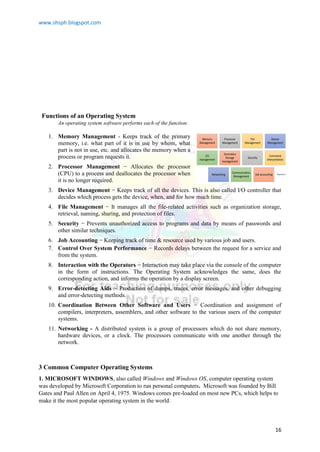
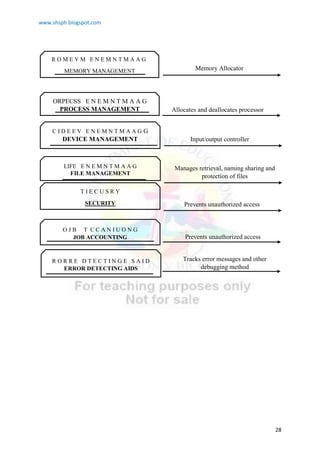
Functions of an Operating System
An operating system software performs each of the function:
1. Memory Management - Keeps track of the primary
memory, i.e. what part of it is in use by whom, what
part is not in use, etc. and allocates the memory when a
process or program requests it.
2. Processor Management − Allocates the processor
(CPU) to a process and deallocates the processor when
it is no longer required.
3. Device Management − Keeps track of all the devices. This is also called I/O controller that
decides which process gets the device, when, and for how much time.
4. File Management − It manages all the file-related activities such as organization storage,
retrieval, naming, sharing, and protection of files.
5. Security − Prevents unauthorized access to programs and data by means of passwords and
other similar techniques.
6. Job Accounting − Keeping track of time & resource used by various job and users.
7. Control Over System Performance − Records delays between the request for a service and
from the system.
8. Interaction with the Operators − Interaction may take place via the console of the computer
in the form of instructions. The Operating System acknowledges the same, does the
corresponding action, and informs the operation by a display screen.
9. Error-detecting Aids − Production of dumps, traces, error messages, and other debugging
and error-detecting methods.
10. Coordination Between Other Software and Users − Coordination and assignment of
compilers, interpreters, assemblers, and other software to the various users of the computer
systems.
11. Networking - A distributed system is a group of processors which do not share memory,
hardware devices, or a clock. The processors communicate with one another through the
network.
3 Common Computer Operating Systems
1. MICROSOFT WINDOWS, also called Windows and Windows OS, computer operating system
was developed by Microsoft Corporation to run personal computers. Microsoft was founded by Bill
Gates and Paul Allen on April 4, 1975. Windows comes pre-loaded on most new PCs, which helps to
make it the most popular operating system in the world.
www.shsph.blogspot.com
17
Evolution of Operating Systems:
DOS or Disk Operating System was the first operating system used by
IBM-compatible computers. It was originally available in two versions
that were essentially the same, but marketed under two different names.
PC-DOS was the version developed by IBM and sold to the first IBM-
compatible manufacturers throughout 1980s. MS-DOS was the version
that Microsoft bought the rights to, and was bundled with the first
versions of Windows.
 Windows 1.0 was introduced in
November 20, 1985. It was initially sold for $100. The use of
Windows 1.0 as a GUI meant that MS-DOS users didn’t have to
manually enter text commands just to complete basic tasks. Now,
they could carry out tasks and browse their own files by just pointing
and clicking on icons and menus.
 Just two years later, in 1987, the
technology company released Windows 2.0. This version of
Windows included such notable features as overlapping windows,
resizable windows, keyboard shortcuts, and support for VGA
graphics. The first Windows versions of Word and Excel also made
their debut with Windows 2.0.
 Windows 3.0 came out in 1990 and offered 256 color support. It
features multitasking DOS programs which may have contributed to
Windows’ flow in popularity. Another notable feature of Windows 3.0 is
that it’s the version that saw the first appearance of the classic desktop
game Solitaire.
MS-Dos. (n.d.). [Image]. Www.Britannica.Com.
https://www.britannica.com/technology/MS-DOS
Anita George. (2020, April 6). The history of Windows: How the OS has changed over time
[Image]. https://www.digitaltrends.com/computing/the-history-of-windows/
Anita George. (2020, April 6). The history of Windows: How the OS has changed over time
[Image]. https://www.digitaltrends.com/computing/the-history-of-windows/
Anita George. (2020, April 6). The history of Windows: How the OS has changed over time
[Image]. https://www.digitaltrends.com/computing/the-history-of-windows/
Windows. (n.d.). [Image]. https://www.pentagram.com/work/windows/story Windows. (n.d.). [Image]. https://www.pentagram.com/work/windows/story
www.shsph.blogspot.com
18
 In 1992, Windows 3.1 delivered quite a few new and essential
features, such as support for TrueType fonts, the ability to drag and drop
icons,
 Windows 95 came out in 1995. It was
the first 32-bit version of Windows (previous versions had been 16-
bit) new features include the taskbar, the Start menu, long file names,
and plug-and-play capabilities in which peripheral devices only
needed to be connected to a PC in order to work properly. Windows
95 also saw the introduction of Microsoft’s web browser, Internet
Explorer.
 Windows 98 came out in 1998. It offers support for a number of
new technologies. It’s most visible feature is the web browser’s and
other internet-based programs and tools, such as Outlook Express,
Microsoft Chat.
 Windows 2000 had a real focus on
accessibility and introduced several features to the OS, including
Sticky Keys, a high-contrast theme, Microsoft Magnifier, an on-screen
keyboard, and a screen reader known as Microsoft Narrator. It allows
users to choose the language in which their display would be viewed.
The users could choose from a variety of languages, including Arabic,
Japanese, and Greek.
 Windows ME stands for ―Millennium Edition. Some of its
useful tool includes System Restore, a recovery feature that, in the
event your computer starts having problems due to a poorly executed
installation of a program or update, updates can be remove and restore
your computer back to how it was before .
 Windows XP was released in 2001 and
is widely considered to be great among the versions of Windows that
Microsoft had to offer. There were two main versions of the OS.
Home was for personal use, and Professional was geared toward
being used in work settings.
Some features include plug and play and utilization of the 802.11x
wireless security standard networks for connecting wireless LANS.
Anita George. (2020, April 6). The history of Windows: How the OS has changed over time
[Image]. https://www.digitaltrends.com/computing/the-history-of-windows/
Windows 95. (n.d.). [Image]. Microsoft.Fandom.Com.
https://microsoft.fandom.com/wiki/Windows_95
Windows 98. (n.d.). [Image]. Microsoft.Fandom.Com.
https://microsoft.fandom.com/wiki/Windows_95
Windows 2000. (n.d.). [Image]. Microsoft.Fandom.Com.
https://microsoft.fandom.com/wiki/Windows_95
Windows ME. (n.d.). [Image]. Microsoft.Fandom.Com.
https://microsoft.fandom.com/wiki/Windows_95
Windows XP. (n.d.). [Image]. Microsoft.Fandom.Com.
https://microsoft.fandom.com/wiki/Windows_95
www.shsph.blogspot.com
19
 Vista was released in 2007. It
introduced some helpful features, though, like Windows Defender,
DirectX 10 (for PC gaming), speech recognition, and Windows
DVD Maker.
 Windows 7 was launched on 2009.
Enhancements and new features include multi-touch support, Internet
Explorer 8, improved performance and start-up time, Aero Snap, Aero
Shake, support for virtual hard disks, a new and improved Windows
Media Center, and improved security.
 Windows 8 was released on 2012 and
is a completely redesigned operating system. User interface primarily
consists of a Start screen made up of Live Tiles, which links to
applications and features that are dynamic and updated in real time,
the ability to log in with a Microsoft account, support for USB 3.0 and
an actual lock screen.
 Windows 10 came out in 2015. Some
features of Windows 10 included the introduction of Cortana, a native
digital personal assistant; the ability to switch between tablet and
desktop mode; and a new web browser called Microsoft Edge.
2. MACOS – Macintosh OS previously called OS X, is a line of operating systems created by Apple. It
comes preloaded on all Macintosh computers, or Macs. Some of the specific versions include Mojave
(released in 2018), High Sierra (2017), and Sierra (2016). Steve Jobs is the co-founder and chief
executive officer of Apple Company.
MacOS users account for less than 10% of global operating systems—much lower than the percentage of
Windows users (more than 80%). One reason for this is that Apple computers tend to be more expensive.
However, many people do prefer the look and feel of macOS over Windows.
Windows Vista. (n.d.). [Image]. Microsoft.Fandom.Com.
https://microsoft.fandom.com/wiki/Windows_95
Windows Vista. (n.d.). [Image]. Microsoft.Fandom.Com.
https://microsoft.fandom.com/wiki/Windows_95
Accessing System Commands. (n.d.). [Image].
https://news.microsoft.com/accessing-system-
commands/
Anita Georger. (2020, April 6). The history of Windows:
How the OS has changed over time [Image].
https://www.digitaltrends.com/computing/the-history-of-
windows/
www.shsph.blogspot.com
20
3. Linux- (pronounced LINN-ux) is a family of open-source operating systems, which means they can
be modified and distributed by anyone around the world. This is different from proprietary software
like Windows, which can only be modified by the company that owns it. The advantages of Linux are
that it is free, and there are many different distributions or versions you can choose from.
Linux users account for less than 2% of global operating systems. However, most servers run Linux
because it's relatively easy to customize. Linus Torvalds, a software engineer is the creator and the
principal developer of the Linux.
A. Direction: Write in the table below the types of computers according to its size and data handling
capabilities then answer the follow up questions. Write your answer in your data notebook.
Computer Basics - Understanding Operating Systems. (n.d.). [Image].
https://edu.gcfglobal.org/en/computerbasics/understanding-operating-systems/1/
Computer Basics - Understanding Operating Systems. (n.d.).
[Image].
https://edu.gcfglobal.org/en/computerbasics/understanding-
operating-systems/1/
S.K. (n.d.). Inxi: Find System And Hardware Information
On Linux [Image]. https://www.unixmen.com/inxi-find-
system-hardware-information-linux/
PRACTICE TASK 1
www.shsph.blogspot.com
21
SIZE DATA HANDLING CAPABILITIES
1. 1.
2. 2.
3. 3.
4.
5.
1. What is the impact to you of knowing how the computers are classified and what are its types?
How does it affect you? How can knowing the types of computers help you in choosing suitable
computer for a certain purpose?
__________________________________________________________________________________
____________________________________________________________________________
2. Why is it advantageous to understand the different parts of computers? How will it help you in
your future study as CSS student?
__________________________________________________________________________________
__________________________________________________________________________________
__________________________________________________________________________________
Unscramble the functions of operating systems give a short description of it . Write your answer in
your data notebook .
PRACTICE TASK 2
ORPECSS E N E M N T M A A G
R O M E Y M E N E M N T M A A G
C I D E E V E N E M N T M A A G G
LIFE E N E M N T M A A G
www.shsph.blogspot.com
22
Match Column A with Column B. Writhe the letter of your answer on the space before the number.
Write your answer in your data notebook.
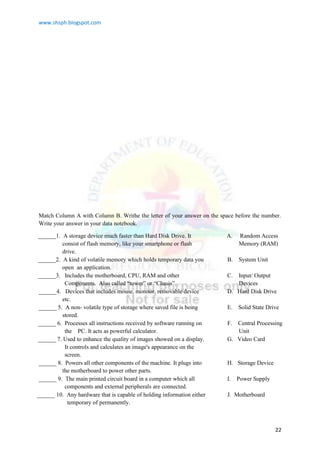
______1. A storage device much faster than Hard Disk Drive. It
consist of flash memory, like your smartphone or flash
drive.
A. Random Access
Memory (RAM)
______2. A kind of volatile memory which holds temporary data you
open an application.
B. System Unit
______3. Includes the motherboard, CPU, RAM and other
Components. Also called ―tower‖ or ―Chasis‖.
C. Input/ Output
Devices
______4. Devices that includes mouse, monitor, removable device
etc.
D. Hard Disk Drive
______ 5. A non- volatile type of storage where saved file is being
stored.
E. Solid State Drive
______ 6. Processes all instructions received by software running on
the PC. It acts as powerful calculator.
F. Central Processing
Unit
______ 7. Used to enhance the quality of images showed on a display.
It controls and calculates an image's appearance on the
screen.
G. Video Card
______ 8. Powers all other components of the machine. It plugs into
the motherboard to power other parts.
H. Storage Device
______ 9. The main printed circuit board in a computer which all
components and external peripherals are connected.
I. Power Supply
______ 10. Any hardware that is capable of holding information either
temporary of permanently.
J. Motherboard
www.shsph.blogspot.com
23
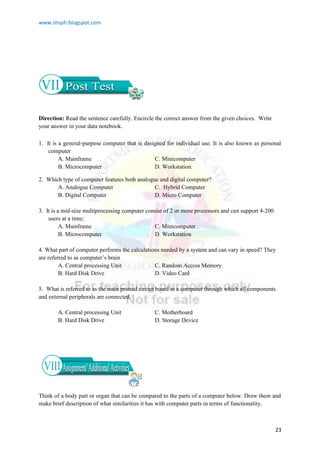
Direction: Read the sentence carefully. Encircle the correct answer from the given choices. Write
your answer in your data notebook.
1. It is a general-purpose computer that is designed for individual use. It is also known as personal
computer
A. Mainframe C. Minicomputer
B. Microcomputer D. Workstation
2. Which type of computer features both analogue and digital computer?
A. Analogue Computer C. Hybrid Computer
B. Digital Computer D. Micro Computer
3. It is a mid-size multiprocessing computer consist of 2 or more processors and can support 4-200
users at a time;
A. Mainframe C. Minicomputer
B. Microcomputer D. Workstation
4. What part of computer performs the calculations needed by a system and can vary in speed? They
are referred to as computer’s brain
A. Central processing Unit C. Random Access Memory
B. Hard Disk Drive D. Video Card
5. What is referred to as the main printed circuit board in a computer through which all components
and external peripherals are connected.
A. Central processing Unit C. Motherboard
B. Hard Disk Drive D. Storage Device
Think of a body part or organ that can be compared to the parts of a computer below. Draw them and
make brief description of what similarities it has with computer parts in terms of functionality.
www.shsph.blogspot.com
24
COMPUTER
PARTS
BODY
PARTS DESCRIPTION
1. CPU
2. Video Card
3. System Unit
4. Hard Disk Drive
5. Mother Board
Pre-Test
1. A 2. C 3. B 4. A 5. D
Parts of Computer
1 Video Card
2 Hard Drive
3 Motherboard
4 Power Supply
5
6
Types of Computer
1 Hybrid Computer
2 Analogue
3 Digital Computer
4
ACTIVITY 1
www.shsph.blogspot.com
25
ACTIVITY 2
www.shsph.blogspot.com
26
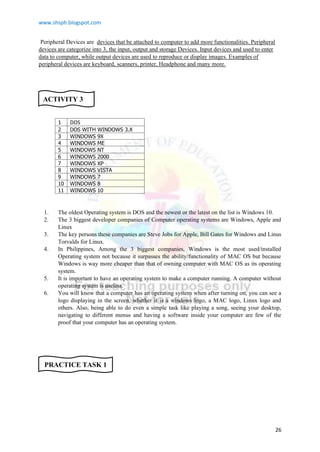
Peripheral Devices are devices that be attached to computer to add more functionalities. Peripheral
devices are categorize into 3, the input, output and storage Devices. Input devices and used to enter
data to computer, while output devices are used to reproduce or display images. Examples of
peripheral devices are keyboard, scanners, printer, Headphone and many more.
1 DOS
2 DOS WITH WINDOWS 3.X
3 WINDOWS 9X
4 WINDOWS ME
5 WINDOWS NT
6 WINDOWS 2000
7 WINDOWS XP
8 WINDOWS VISTA
9 WINDOWS 7
10 WINDOWS 8
11 WINDOWS 10
1. The oldest Operating system is DOS and the newest or the latest on the list is Windows 10.
2. The 3 biggest developer companies of Computer operating systems are Windows, Apple and
Linux
3. The key persons these companies are Steve Jobs for Apple, Bill Gates for Windows and Linus
Torvalds for Linux.
4. In Philippines, Among the 3 biggest companies, Windows is the most used/installed
Operating system not because it surpasses the ability/functionality of MAC OS but because
Windows is way more cheaper than that of owning computer with MAC OS as its operating
system.
5. It is important to have an operating system to make a computer running. A computer without
operating system is useless.
6. You will know that a computer has an operating system when after turning on, you can see a
logo displaying in the screen, whether it is a windows logo, a MAC logo, Linux logo and
others. Also, being able to do even a simple task like playing a song, seeing your desktop,
navigating to different menus and having a software inside your computer are few of the
proof that your computer has an operating system.
ACTIVITY 3
PRACTICE TASK 1
www.shsph.blogspot.com
27
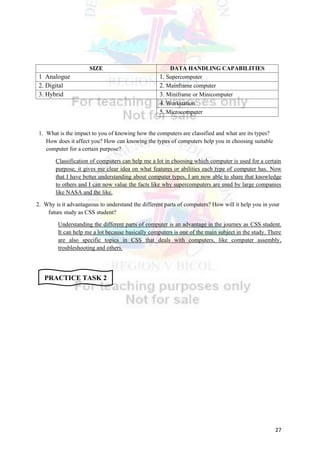
SIZE DATA HANDLING CAPABILITIES
1 Analogue 1. Supercomputer
2. Digital 2. Mainframe computer
3. Hybrid 3. Miniframe or Minicomputer
4. Workstation
5. Microcomputer
1. What is the impact to you of knowing how the computers are classified and what are its types?
How does it affect you? How can knowing the types of computers help you in choosing suitable
computer for a certain purpose?
Classification of computers can help me a lot in choosing which computer is used for a certain
purpose, it gives me clear idea on what features or abilities each type of computer has. Now
that I have better understanding about computer types, I am now able to share that knowledge
to others and I can now value the facts like why supercomputers are used by large companies
like NASA and the like.
2. Why is it advantageous to understand the different parts of computers? How will it help you in your
future study as CSS student?
Understanding the different parts of computer is an advantage in the journey as CSS student.
It can help me a lot because basically computers is one of the main subject in the study. There
are also specific topics in CSS that deals with computers, like computer assembly,
troubleshooting and others.
PRACTICE TASK 2
www.shsph.blogspot.com
28
ORPECSS E N E M N T M A A G
PROCESS MANAGEMENT
R O M E Y M E N E M N T M A A G
MEMORY MANAGEMENT
C I D E E V E N E M N T M A A G G
DEVICE MANAGEMENT
LIFE E N E M N T M A A G
FILE MANAGEMENT
T I E C U S R Y
SECURITY
O J B T C C A N I U O N G
JOB ACCOUNTING
R O R R E D T E C T I N G E S A I D
ERROR DETECTING AIDS
Memory Allocator
Allocates and deallocates processor
Input/output controller
Manages retrieval, naming sharing and
protection of files
Prevents unauthorized access
Tracks error messages and other
debugging method
www.shsph.blogspot.com
29
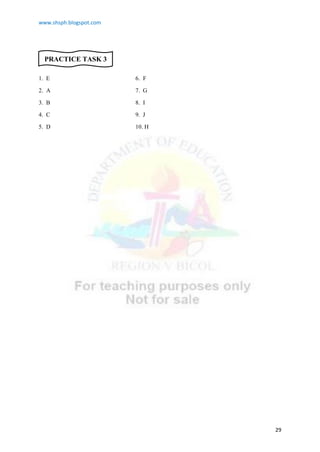
1. E 6. F
2. A 7. G
3. B 8. I
4. C 9. J
5. D 10. H
PRACTICE TASK 3
www.shsph.blogspot.com
30
References:
Computer Hardware Servicing Module Grade 7 & 8
Learning Module
Department of Education
Computer Hope. (2020, June 8). What is a Computer Mouse? Computerhope.Com.
https://www.computerhope.com/jargon/m/mouse.htm
Computer - Input Devices - Tutorialspoint. (2020). Tutorialspoint.Com.
https://www.tutorialspoint.com/computer_fundamentals/computer_input_devices.htm
Computer Basics: Understanding Operating Systems. (n.d.). GCFGlobal.Org.
https://edu.gcfglobal.org/en/computerbasics/understanding-operating-systems/1/
Computer - Operating System - Tutorialspoint. (n.d.). Tutorialspoint.Com.
https://www.tutorialspoint.com/computer_fundamentals/computer_operating_system
.htm
DOS (Disk Operating System) Definition. (n.d.). Techterms.Com.
https://techterms.com/definition/dos
What is Windows 7? Webopedia Definition. (n.d.). Webopedia.Com.
https://www.webopedia.com/TERM/W/Windows_7.html
George, A. (2020, April 10). The history of Windows: How the OS has changed over time.
Digital Trends. https://www.digitaltrends.com/computing/the-history-of-windows/
The History of Windows Operating Systems - Webopedia. (n.d.). Webopedia.Com.
https://www.webopedia.com/DidYouKnow/Hardware_Software/history_of_microsoft
_windows_operating_system.html
Marc Davis. (2019, June 25). Steve Jobs’ 10 Most Innovative Creations. Investopedia.
https://www.investopedia.com/financial-edge/1111/steve-jobs-10-most-innovative-
creations.aspx
Goodman, P. (2020, July 12). Computer Basics: 10 Examples of Storage Devices for Digital
Data. TurboFuture. https://turbofuture.com/computers/Examples-of-Data-Storage-Devices

Computer System Servicing NC II TESDA Course

  • 1.
    www.shsph.blogspot.com 1 Computer Systems Servicing NCII Quarter 1 Module 1: Types and Parts of Computers, Operating Systems, and Peripheral Devices 11 Source: Luke, HoddeBlack Computer Tower on Brown Wooden Table, Free Royalty www. https://unsplash.com/
  • 2.
    www.shsph.blogspot.com 2 Computer Systems ServicingNC II - Grade 11 Quarter 1, Module 1 Types and Parts of Computers, Operating Systems and Peripheral Devices Republic Act 8293, section 176 states that: No copyright shall subsist in any work of the Government of the Philippines. However, prior approval of the government agency or office wherein the work is created shall be necessary for exploitation of such work for profit. Such agency or office may, among other things, impose as a condition the payment of royalties. Borrowed materials (i.e., songs, stories, poems, pictures, photos, brand names, trademarks, etc.) included in this book are owned by their respective copyright holders. Every effort has been exerted to locate and seek permission to use these materials from their respective copyright owners. The publisher and authors do not represent nor claim ownership over them. Regional Director: Gilbert T. Sadsad Assistant Regional Director: Jessie L. Amin Development Team of the Module Writer: VELNORCA H. LAVIÑA Editors: JOEL A. VARGAS / TOMASA FE P. MAÑAGO Reviewers: DR. NIXON SA. OLFINDO, EPS / DARCY GUY Y. MAÑEBO, EPS Illustrator: VELNORCA H. LAVIÑA Layout Artist: VELNORCA H. LAVIÑA
  • 3.
    www.shsph.blogspot.com 3 Computer Systems ServicingNC II - Grade 11 Quarter 1 Installing and Configuring Computer Systems (ICCS) Module 1: Types and Parts of Computers, Operating Systems and Peripheral Devices To be well acquainted with computer it is important to know its basics such as the parts, its classifications, the devices that add functionalities and the set of programs that manages computer hardware resources. This module will give an explanation about the computer’s types, peripherals, parts and operating system. For your better understanding of the lesson, here is the list of words and their meanings Read and understand them carefully Peripheral Devices also known as computer peripheral, input-output device, or input/output device, any of various devices used to enter information and instructions into a computer for storage or processing and to deliver the processed data. Input/ Output Devices An input device sends information to a computer system for processing, and an output device reproduces or displays the results of that processing.  Identify the different types, parts and peripheral devices of a computer.  Define Computer Operating systems  Enumerate the types, parts, peripheral devices and operating systems of a computer.  Recognize the basic computer operating systems.  State the function of types, parts and peripheral devices of a computer.  Appreciate the importance of types, parts, peripheral ang operating system of a computer. At the end of the lesson you are expected to:
  • 4.
    www.shsph.blogspot.com 4 Operating Systems a setof programs that manage computer hardware resources and provide common services for application software. MAC The computer operating system for Apple Computer's MacIntosh line of personal computers and workstations Linux A Unix-like, open source and community-developed operating system for computers, servers, mainframes Windows A series of operating systems developed by Microsoft. GUI Stands for "Graphical User Interface" and is pronounced "gooey." It is a user interface that includes graphical elements, such as windows, icons and buttons. Solid State Drive (SSD) A solid-state drive (SSD) is a new generation of storage device used in computers. SSDs replace traditional mechanical hard disks by using flash-based memory, which is significantly faster. Storage Device The storage device usually enables a user to store large amounts of data in a relatively small physical space, and makes sharing that information with others easy. Volatile It comes from the Latin "volatilis" meaning "to fly". In computers, volatile is used to describe memory content that is lost when the power is interrupted or switched off. Software Software is a set of programs, which is designed to perform a well-defined function. Hardware Hardware represents the physical and tangible components of a computer, i.e. the components that can be seen and touched such as the system unit, mouse and others. Cortana
  • 5.
    www.shsph.blogspot.com 5 Direction: Read thesentence carefully. Encircle the letter of the correct answer from the given choices. Write your answer in your data notebook. 1. It manages the computer's memory and processes, as well as all of its software and hardware. A. Application software C. Graphical User Interface B. Computer Operating System D. Micro Computer 2. It is a type of computer that features both analogue and digital computer? A. Analogue Computer C. Hybrid Computer B. Digital Computer D. Micro Computer 3. It is a general-purpose computer that is designed for individual use. It is also known as personal computer A. Mainframe C. Minicomputer B. Microcomputer D. Workstation 4. It is a part of computer performs the calculations needed by a system and can vary in speed? They are referred to as computer’s brain A. Central processing Unit C. Random Access Memory B. Hard Disk Drive D. Video Card 5. It is a part of a computer is also called the display card, graphics card or graphics adapter? A. Central processing Unit C. Random Access Memory B. Hard Disk Drive D. Video Card In this activity, your task is to look for and encircle the words that belong to the types and parts of a computer. You Can find 4 types and 6 parts of Computer in this puzzle. After encircling the words, classify it by filling in the table entitled Parts of Computer and Types of Computer. ACTIVITY 1 Parts of Computer 1 2 3 4 5 6 Types of Computer 1 2 3 4
  • 6.
    www.shsph.blogspot.com 6 In the firstactivity, you are given the chance to identify the types and parts of computer. In this activity, your task is to complete the open-ended statement below with your perception, opinion or prior knowledge about Computer Operating systems. Peripheral Devices are _______________________________________________________________ __________________________________________________________________________________ __________________________________________________________________________________ __________________________________________________________________________________ __________________________________________________________________________________ Parts and peripheral devices are not sufficient to make a computer functioning. Operating systems are the most important software that runs in your computer. For this activity your task is to arrange the Operating systems from Past to present versions then answer the process questions below. DOS WINDOWS 8 DOS WITH WINDOWS 3.X WINDOWS 9X WINDOWS 10 WINDOWS NT WINDOWS 2000 WINDOWS VISTA WINDOWS 7 WINDOWS XP WINDOWS ME Process Questions: 1. What Operating system mentioned above is the oldest OS? Newest? 2. What are the 3 biggest developer companies of Computer Operating Systems? 3. Who are the key persons of these companies? 4. Which of the 3 is commonly used/installed Operating System? Why? 5. Why is it important to have an Operating system? 6. How will you know if your computer has an operating system? ACTIVITY 2 ACTIVITY 3 Windows vs. MacOS vs. Linux: Does your OS affect your privacy? (2019). [Image]. Https://Medium.Com/. https://medium.com/@luc_23423/windows-vs-macos- vs-linux-does-your-os-affect-your-privacy- 4bcaf2253b5d
  • 7.
    www.shsph.blogspot.com 7 Let’s Explore! Did youknow A. Types of Computer Types of Computers based on data handling capabilities: 1. Analogue Computer- Analogue computers are designed to process analogue data. Analogue data is continuous data that changes continuously and cannot have discrete values. We can say that analogue computers are used where we don't need exact values always such as speed, temperature, pressure and current. Speedometer and mercury thermometer are examples of analogue computers. 2. Digital computer - designed to perform calculations and logical operations at high speed. It accepts the raw data as input in the form of digits or binary numbers (0 and 1) and processes it with programs stored in its memory to produce the output. All modern computers like laptops, desktops including smartphones that we use at home or office are digital computers. 3. Hybrid Computer - features of both analogue and digital computer. It is fast like an analogue computer and has memory and accuracy like digital computers. It can process both continuous and discrete data. It accepts analogue signals and convert them into digital form before processing. So, it is widely used in specialized applications where both analogue and digital data is processed. Types of Computer based on its Size 1. Supercomputer - the biggest and fastest computers. They are designed to process huge amount of data. A supercomputer can process trillions of instructions in a second. It has thousands of interconnected processors. Supercomputers are particularly used in scientific and engineering There are lots of terms used to describe different types computers. Most of these words indicate the size, expected use or capability of the computer. Let’s learn the types of computers according to the basis of handling capabilities and on the basis of size. Analogue Computer. (2019). [Image]. https://www.britannica.com/technology/analog-computer Polish Hybrid computer WAT 1001. (2005). [Image]. https://en.wikipedia.org/wiki/Hybrid_computer#/media/File:WAT_1001.jpg HANSON, G. R. E. G. O. R. Y. (2020). What is a digital computer? [Image]. https://www.wisegeek.com/what-is-a-digital-computer.htm Greene, T. (2019, November 18). 0 of the world’s fastest supercomputers [Image]. https://www.networkworld.com/article/3236875/embargo-10-of-the-worlds-fastest-supercomputers.html
  • 8.
    www.shsph.blogspot.com 8 applications such asweather forecasting, scientific simulations and nuclear energy research. The first supercomputer was developed by Roger Cray in 1976. 2. Mainframe computer - designed to support hundreds or thousands of users simultaneously. They can support multiple programs at the same time. It means they can execute different processes simultaneously. These features of mainframe computers make them ideal for big organizations like banking and telecom sectors, which need to manage and process high volume of data. 3. Miniframe or Minicomputer – a midsize multiprocessing computer. It consists of two or more processors and can support 4 to 200 users at one time. Miniframe computers are used in institutes and departments for tasks such as billing, accounting and inventory management. A minicomputer lies between the mainframe and microcomputer as it is smaller than mainframe but larger than a microcomputer. 4. Workstation - refers to an individual computer, or group of computers, used by a single user to perform work. It has a faster microprocessor, a large amount of RAM and high speed graphic adapters. It generally performs a specific job with great expertise and is also intended for serious academic or professional computation. 5. Microcomputer - also known as a personal computer. It is a general-purpose computer that is designed for individual use. It has a microprocessor as a central processing unit, memory, storage area, input unit and output unit. Laptops and desktop computers are examples of microcomputers. They are suitable for personal work that may be making an assignment, watching a movie, or at office for office work. Types of Micro computers:  Desktop Computer or Personal Computer(PC) - A desktop computer is a personal computer designed for regular use at a single location on or near a desk or table due to its size and power requirements. It is not very expensive and is suited t the needs of a single user at home, small business units, and organization. B. Notebook Computer or Laptop is a small, portable computer and have all the features of a desktop computer. The advantage of the laptop is that E.R.R.S.B.A.N.G.E.R. (2020, February 19). Mainframe Computer Definition with their Example, Types, and Uses [Image]. http://digitalthinkerhelp.com/mainframe-computer-definition-with-their-example-types-and-uses/ M.A.L.C.O.L.M.T.A.T.U.M. (2020). What is a Minicomputer? [Image]. https://www.wisegeek.com/what-is-a-minicomputer.htm J.C.B. (2017, November 13). How to Set Up an Efficient Computer Workstation [Image]. https://www.firealley.net/computer-workstation/ Joel Santo Domingo, Tom Brant. (2020, May 7). The Best Desktop Computers for 2020 [Image]. https://sea.pcmag.com/desktops/7900/the-best-desktop-computers-for-2020 Notebook Computers. (2020). [Image]. https://www.computerhope.com/jargon/n/notebook.htm
  • 9.
    www.shsph.blogspot.com 9 it is smallin size, so it can be carried anywhere. Notebook computers use a variety of techniques, known as flat-panel technologies, to produce a lightweight and non-bulky display screen. Laptops Computers are higher in cost than the desktop computers C. Netbook. These are smaller notebooks optimized for low weight and low cost, and are designed for accessing web-based applications. Netbooks deliver the performance needed to enjoy popular activities like streaming videos ort music, e-mailing, web surfing or instant messaging. D. Tablet A tablet is a wireless, portable personal computer with a touchscreen interface. The tablet form factor is typically smaller than a notebook computer, but larger than a smartphone. E. Handheld Computer or Personal Digital Assistant(PDA) It is a small computer that can be held on the top of the palm. It is small in size. PDA uses a pen or a stylus for input, instead of the keyboard. They have a limited memory and are less powerful. PDAs can be connected to the internet via wireless connection. F. Smart Phones are mobile phone with highly advanced features. A typical smartphone has a high- resolution touch screen display, WiFi connectivity, Web browsing capabilities, and the ability to accept sophisticated applications. The majority of these devices run on any of these popular mobile operating systems: Android, Symbian, iOS, BlackBerry OS and Windows Mobile. B. PARTS OF COMPUTER and ITS PERIPHERALS Different types of computer has different functions too which makes each computer unique. Knowing the Types of computers gave us idea about what computer is used for a specific purpose. Les us now jump to and learn the parts and peripheral devices of a computer the different Notebook Computers. (2020). [Image]. https://www.computerhope.com/jargon/n/notebook.htm Dan Seifert. (2019, July 31). Samsung’s Galaxy Tab S6 is its latest volley against the iPad Pro [Image]. https://www.theverge.com/2019/7/31/20748387/samsung-galaxy-tab-s6-tablet-announcement-price-specs-features Personal Digital Assistants for Doctors/Medical Practitioners. (2020). [Image]. https://www.medindia.net/pda/pda_ersuite.asp PDA. (2019). [Image]. https://www.computerhope.com/jargon/p/pda.htm Sandeep Sarkar. (2018, December 26). 10 best ultra-premium smartphones of 2018 [Image]. https://www.gizbot.com/mobile/features/10-best-ultra-premium-smartphones-2018-056404.html
  • 10.
    www.shsph.blogspot.com 10 Parts of computercan be classified whether internal or external. The external parts of a computer are those that can be observed with the naked eye without having to open or disarm the device. While the internal is a term used to describe a device or part that is installed inside the computer. INTERNAL PARTS OF COMPUTER  Motherboard or Mobo is a printed circuit board and foundation of a computer that is the biggest board in a computer chassis. It allocates power and allows communication to and between the CPU, RAM, and all other computer hardware components.is the main printed circuit board in a computer.  Power Supply powers all other components of the machine. It usually plugs into the motherboard to power the other parts. The power supply connects to either an internal battery (on a laptop) or a plug for an outlet (on a desktop).  Central Processing Unit (CPU) referred to as a computer's brain. It. performs most of the processing inside a computer. It processes all instructions received by software running on the PC and by other hardware components, and acts as a powerful calculator. STORAGE DEVICE referred to as digital storage, storage media, or storage medium. It is any hardware that is capable of holding information either temporarily or permanently.  Random Access Memory is a temporary form of memory. When you open an application in our computer, the computer will place that application and all its data in the RAM.  Hard Disk Drive. Since RAM is temporary, your computer needs a place to store data permanently. That's where the hard drive comes in. The traditional hard drive consists of several spinning platters with an arm that physically writes data to the disk. However, these drives are slow and are starting to be replaced by the faster solid-state drives.  Solid State Drive is consist of flash memory, like your smartphone or flash drive. They are much faster than traditional hard disk drives, though cost more for the increased efficiency. Both types of drives come in various sizes to suit different needs.  Video Card also called a display card, graphics card, display adapter, or graphics adapter. It is used to enhance the quality of images showed on a display. It is attached to Motherboard. (2019). [Image]. Https://Www.Computerhope.Com/.https://www.computerhope.com/jargon/m/mothboar.htm Source: Igor Schubin Computer Power Supply wire accessories background, Free Royalty www. Pixbay.com Source: Kerem yucel, Computer Chip, Free Royalty www. freeimages.com Source: Brandon Blikenberg Free RAM Stock Photo, Free Royalty, www. freeimages.com Source: Orgg, DVD Drive burner , Free Royalty www. pixabay.com What is a Solid-State Drive (SSD)? (2018). [Image]. https://store.hp.com/
  • 11.
    www.shsph.blogspot.com 11 the motherboard andcontrols and calculates an image's appearance on the screen engineers.  Optical Drives. Though less common than they used to be, many machines still have an optical drive for reading CDs and DVDs. These can be used to listen to music or watch movies, place information onto a blank disc , or install software from a disc. Input and Output Devices Common input devices include mice (touchpads on laptops), keyboards, and webcams, while output devices consist of monitors, printers, and speakers. Removable media such as flash drives and SD cards can also be used to transfer data between computers. External Part of Computer  A monitor is an output device that displays video images and text. A monitor is made up of circuitry, a screen, a power supply, buttons to adjust screen settings, and casing that holds all of these components.  System Unit also known as a "tower" or "chassis," is the main part of a desktop computer. It includes the motherboard, CPU, RAM, and other components.  Keyboard A computer keyboard is one of the primary input devices used with a computer. Similar to an electric typewriter, a keyboard is composed of buttons that create letters, numbers, and symbols, as well as perform other functions.  Mouse is a handheld hardware input device that controls a cursor in a GUI (graphical user interface) and can move and select text, icons, files, and folders on your computer. PERIPHERAL DEVICES Peripherals are connected directly to a computer but it does not contribute to the computer's primary function, such as computing. It helps end users access and use the functionalities of a computer. It is commonly divided into three kinds: input devices, output devices, and storage devices. Fisher, T. (2019). What Is a Video Card? [Image]. https://www.lifewire.com/what-is-a-video-card-2618161 Source: Orgg, DVD Drive burner, Free Royalty www. pixabay.com Computer mouse. (2020). [Image]. https://www.computerhope.com/jargon/m/mouse.htm In-text citation Monitor. (2020). [Image]. https://www.computerhope.com/jargon/m/monitor.htm 6 Basic Components of System Unit | description & functions. (2019). [Image]. https://www.techchore.com/components-of-system-unit/ Keyboard. (2020). [Image]. https://www.computerhope.com/jargon/k/keyboard.htm Monitor, System unit, Keyboard and mouse are the basic external parts of computer. However, there are a lot more devices that we can attach to computer enhance its performance. Let us learn the peripheral devices that can be attached to a computer.
  • 12.
    www.shsph.blogspot.com 12 Input Devices -An input device converts incoming data and instructions into a pattern of electrical signals in binary code that are comprehensible to a digital computer. It is also used to enter data to a computer. Input Devices includes:  Scanner works more like a photocopy machine. It is used when some information is available on paper and it is to be transferred to the hard disk of the computer for further manipulation.  Digitizer is also known as Tablet or Graphics Tablet as it converts graphics and pictorial data into binary inputs. A graphic tablet as digitizer is used for fine works of drawing and image manipulation applications.  Barcode device is used for reading bar coded data (data in the form of light and dark lines). Bar coded data is generally used in labelling goods, numbering the books, etc. It may be a handheld scanner or may be embedded in a stationary scanner.  Joystick is also a pointing device, which is used to move the cursor position on a monitor screen. It is a stick having a spherical ball at its both lower and upper ends. The lower spherical ball moves in a socket. The joystick can be moved in all four directions.  The microphone is used for various applications such as adding sound to a multimedia presentation or for mixing music.  Mouse is the most popular pointing device. It is a very famous cursor-control device having a small palm size box with a round ball at its base, which senses the movement of the mouse and sends corresponding signals to the CPU when the mouse buttons are pressed.  Keyboard is the most common and very popular input device which helps to input data to the computer. The layout of the keyboard is like that of traditional typewriter, although there are some additional keys provided for performing additional functions. Computer Input Devices. (2020). [Image]. https://www.tutorialspoint.com/computer_fundamentals/computer_input_devices.htm Computer Input Devices. (2020). [Image]. https://www.tutorialspoint.com/computer_fundamentals/computer_input_devices.htm Computer Input Devices. (2020). [Image]. https://www.tutorialspoint.com/computer_fundamentals/computer_input_devices.htm Computer Input Devices. (2020). [Image]. https://www.tutorialspoint.com/computer_fundamentals/computer_input_devices.htm Computer Input Devices. (2020). [Image].https://www.tutorialspoint.com/computer_fundamentals/computer_input_devices.htm Computer Input Devices. (2020). [Image].https://www.tutorialspoint.com/computer_fundamentals/computer_input_devices.htm Keyboard. (2020). [Image]. https://www.computerhope.com/jargon/k/keyboard.htm Above devices are not the only examples of input devices. There are lots of input devices that is used along with the computer. These are only some of the input devices. Now, Lets take a look at the output devices that adds more functions to a computer.
  • 13.
    www.shsph.blogspot.com 13 Output Devices areany peripheral that receives data from a computer, usually for display, projection, or physical reproduction. For example, the image shows an inkjet printer, an output device that can make a hard copy of anything shown on the monitor. Some of the output devices are as follows:  Headphones sometimes referred to as earphones, are a hardware output device that either plugged into a computer line out or speakers. Headphones allow you to listen to audio or watch a movie without disturbing people around you.  A projector is an output device that can take images generated by a computer or Blu-ray player and reproduce them by projection onto a screen, wall, or another surface. In most cases, the surface projected onto is large, flat, and lightly colored.  A monitor is made up of circuitry, a screen, a power supply, buttons to adjust screen settings, and casing that holds all of these components.  A printer is an external hardware output device that takes the electronic data stored on a computer or other device and generates a hard copy of it. Types of printer includes 3D printer, AIO (all-in-one) printer, Dot matrix printer Inkjet printer, Laser printer, LED printer, MFP (multifunction printer) Plotter, Thermal printer  Braille reader, also called a braille display, is an electronic device that allows a blind person to read the text displayed on a computer monitor. The computer sends the text to the output device, where it's converted to Braille and "displayed" by raising rounded pins through a flat surface.  Plotter is a computer hardware device much like a printer that is used for printing vector graphics. Instead of toner, plotters use a pen, pencil, marker, or another writing tool to draw multiple , continuous lines onto paper rather than a series of dots like a traditional printer. Headphones. (2019). [Image]. https://www.computerhope.com/jargon/h/headphon.htm Projector. (2017). [Image]. https://www.computerhope.com/jargon/p/projecto.htm Monitor. (2020). [Image]. https://www.computerhope.com/jargon/m/monitor.htm Printer. (2019). [Image]. https://www.computerhope.com/jargon/p/printer.htm Braille Reader. (2020). [Image]. https://www.computerhope.com/jargon/b/braille-reader.htm GPS. (2020). [Image]. https://www.computerhope.com/jargon/p/plotter.htm Another classification of Peripheral devices is the Storage. Storage devices are pieces of computer hardware that is used for saving, carrying and pulling out data. It can keep and retain information short-term or long-term. Here are the list of storage peripheral devices.
  • 14.
    www.shsph.blogspot.com 14 Storage Devices  Ahard disk drive (also known as a hard drive, HD, or HDD) stores files for the operating system and software programs, as well as user documents, such as photographs, text files, videos, and audio. The hard drive uses magnetic storage to record and retrieve digital information to and from one or more fast-spinning disks.  Floppy Disk Also know as a diskette, floppy, or FD, the floppy disk uses magnetic storage technology to store information. Floppy disks were once a common storage device for computers and lasted from the mid-1970's through to the start of the 21st century. The earliest floppies were 8-inch (203 mm) in size, but these were replaced by 5 1⁄4-inch (13 3 mm) disk drives, and finally a 3 1⁄2 inch (90 mm) version.  The compact disc, known for short as a CD, is a form of optical storage, a technology which employs lasers and lights to read and write data. Initially com pact discs were used purely for music, but in the late 1980's they began to be also used for computer data storage.  The DVD (digital versatile disc) and Blu-ray disc (BD) are formats of digital optical disc data storage which have superseded compa ct discs, mainly because of their much greater storage capacity. A Blu-ray disc, for example, can store 25 GB (gigabytes) of data on a single-layer disc and 50 GB on a dual-layer disc. In comparison, a standard CD is the same physical size, but only holds 700 MB (megabytes) of digital data  USB Flash Drive Also known as a thumb drive, pen drive, flash-drive, memory stick, jump drive, and USB stick, the USB flash drive is a flash memory data storage device that incorporates an integrated USB interface. Flash memory is generally more efficient and reliable than optical media, being smaller, faster, and possessing much greater storage capacity, as well as being more durable due to a lack of moving parts.  Secure Digital Card (SD Card) A common type of memory card, SD cards are used in multiple electronic devices, including digital cameras and mobile phones. Although there are different sizes, classes, and capacities available, they all use a rectangular design with one side Storage Shift: The Time May Be Right for a New Form Factor. (2020). [Image]. https://www.itprotoday.com/storage/storage-shift-time-may-be-right-new-form-factor Jowitt, T. (2017, April 7). Tales In Tech History: The Floppy Disk [Image]. https://www.silicon.co.uk/data-storage/storage/tales-tech-history-floppy-disk-209049 Compact Disk (CD). (2020). [Image]. https://searchstorage.techtarget.com/definition/compact-disc DVD. (2020). [Image]. https://en.wikipedia.org/wiki/DVD Flash Drive. (2020). [Image]. https://www.philips.com.ph/c-p/FM12FD65B_97/usb-flash-drive
  • 15.
    www.shsph.blogspot.com 15 "chipped off" toprevent the card from being inserted into the camera or other device the wrong way.  Solid State Drive (SSD) A solid state drive uses flash memory to store data and is sometimes used in devices such as netbooks, laptop, and desktop computers instead of a traditional hard disk drive. The advantages of an SSD over a HDD include a faster read/write speed, noiseless operation, greater reliability, and lower power consumption. The biggest downside is cost, with an SSD offering lower capacity than an equivalently priced HDD. What is an Operating system? An operating system or OS is a software installed on a computer's hard drive that enables the computer hardware to communicate and operate with the computer software. Without a computer operating system, a computer and software programs would be useless. Character User Interface or Command-Line User Interface, CUI When computers were first introduced, the users interacted with them using a command line interface. Short for character user interface or command-line user interface, CUI is a way for users to interact with computer programs. It works by allowing the user (client) to issue commands as one or more lines of text to a program. Good examples of CUIs are MS-DOS and the Windows Command Prompt. Graphical User Interface, or GUI Modern operating systems use a graphical user interface, or GUI (pronounced gooey). It lets you use your mouse to click icons, buttons, and menus, and everything is clearly displayed on the screen using a combination of graphics and text. GUI overview Below is a picture of the Windows 7 desktop and an example of a GUI. Choudhary, S. (2019, June 27). What’s the Difference Between SD and Micro SD Memory Cards? [Image]. https://medium.com/hackernoon/whats-the-difference-between-sd-and-micro-sd-memory-cards-dba4ff23c4f1 Faulkner, C. (2020). Samsung’s new 870 QVO lineup features its first 8TB SSD for consumers [Image]. https://www.theverge.com/2020/6/30/21306860/samsung-new-870-qvo-ssd-sata-8tb-drive To make a computer fully functioning it has to have a software that can suppor a computer's basic functions, such as scheduling tasks, executing applications, and controlling peripherals. At this section, we are going to learn more about Operating system, its functions and the most common used/ installed operating system. GUI. (n.d.). [Image]. https://www.computerhope.com/jargon/g/gui.htm MS-DOS. (2019). [Image]. https://www.computerhope.com/jargon/m/msdos.htm What is Operating System? Types of OS & Features. (n.d.). [Image]. https://www.guru99.com/operating- system-tutorial.html
  • 16.
    www.shsph.blogspot.com 16 Functions of anOperating System An operating system software performs each of the function: 1. Memory Management - Keeps track of the primary memory, i.e. what part of it is in use by whom, what part is not in use, etc. and allocates the memory when a process or program requests it. 2. Processor Management − Allocates the processor (CPU) to a process and deallocates the processor when it is no longer required. 3. Device Management − Keeps track of all the devices. This is also called I/O controller that decides which process gets the device, when, and for how much time. 4. File Management − It manages all the file-related activities such as organization storage, retrieval, naming, sharing, and protection of files. 5. Security − Prevents unauthorized access to programs and data by means of passwords and other similar techniques. 6. Job Accounting − Keeping track of time & resource used by various job and users. 7. Control Over System Performance − Records delays between the request for a service and from the system. 8. Interaction with the Operators − Interaction may take place via the console of the computer in the form of instructions. The Operating System acknowledges the same, does the corresponding action, and informs the operation by a display screen. 9. Error-detecting Aids − Production of dumps, traces, error messages, and other debugging and error-detecting methods. 10. Coordination Between Other Software and Users − Coordination and assignment of compilers, interpreters, assemblers, and other software to the various users of the computer systems. 11. Networking - A distributed system is a group of processors which do not share memory, hardware devices, or a clock. The processors communicate with one another through the network. 3 Common Computer Operating Systems 1. MICROSOFT WINDOWS, also called Windows and Windows OS, computer operating system was developed by Microsoft Corporation to run personal computers. Microsoft was founded by Bill Gates and Paul Allen on April 4, 1975. Windows comes pre-loaded on most new PCs, which helps to make it the most popular operating system in the world.
  • 17.
    www.shsph.blogspot.com 17 Evolution of OperatingSystems: DOS or Disk Operating System was the first operating system used by IBM-compatible computers. It was originally available in two versions that were essentially the same, but marketed under two different names. PC-DOS was the version developed by IBM and sold to the first IBM- compatible manufacturers throughout 1980s. MS-DOS was the version that Microsoft bought the rights to, and was bundled with the first versions of Windows.  Windows 1.0 was introduced in November 20, 1985. It was initially sold for $100. The use of Windows 1.0 as a GUI meant that MS-DOS users didn’t have to manually enter text commands just to complete basic tasks. Now, they could carry out tasks and browse their own files by just pointing and clicking on icons and menus.  Just two years later, in 1987, the technology company released Windows 2.0. This version of Windows included such notable features as overlapping windows, resizable windows, keyboard shortcuts, and support for VGA graphics. The first Windows versions of Word and Excel also made their debut with Windows 2.0.  Windows 3.0 came out in 1990 and offered 256 color support. It features multitasking DOS programs which may have contributed to Windows’ flow in popularity. Another notable feature of Windows 3.0 is that it’s the version that saw the first appearance of the classic desktop game Solitaire. MS-Dos. (n.d.). [Image]. Www.Britannica.Com. https://www.britannica.com/technology/MS-DOS Anita George. (2020, April 6). The history of Windows: How the OS has changed over time [Image]. https://www.digitaltrends.com/computing/the-history-of-windows/ Anita George. (2020, April 6). The history of Windows: How the OS has changed over time [Image]. https://www.digitaltrends.com/computing/the-history-of-windows/ Anita George. (2020, April 6). The history of Windows: How the OS has changed over time [Image]. https://www.digitaltrends.com/computing/the-history-of-windows/ Windows. (n.d.). [Image]. https://www.pentagram.com/work/windows/story Windows. (n.d.). [Image]. https://www.pentagram.com/work/windows/story
  • 18.
    www.shsph.blogspot.com 18  In 1992,Windows 3.1 delivered quite a few new and essential features, such as support for TrueType fonts, the ability to drag and drop icons,  Windows 95 came out in 1995. It was the first 32-bit version of Windows (previous versions had been 16- bit) new features include the taskbar, the Start menu, long file names, and plug-and-play capabilities in which peripheral devices only needed to be connected to a PC in order to work properly. Windows 95 also saw the introduction of Microsoft’s web browser, Internet Explorer.  Windows 98 came out in 1998. It offers support for a number of new technologies. It’s most visible feature is the web browser’s and other internet-based programs and tools, such as Outlook Express, Microsoft Chat.  Windows 2000 had a real focus on accessibility and introduced several features to the OS, including Sticky Keys, a high-contrast theme, Microsoft Magnifier, an on-screen keyboard, and a screen reader known as Microsoft Narrator. It allows users to choose the language in which their display would be viewed. The users could choose from a variety of languages, including Arabic, Japanese, and Greek.  Windows ME stands for ―Millennium Edition. Some of its useful tool includes System Restore, a recovery feature that, in the event your computer starts having problems due to a poorly executed installation of a program or update, updates can be remove and restore your computer back to how it was before .  Windows XP was released in 2001 and is widely considered to be great among the versions of Windows that Microsoft had to offer. There were two main versions of the OS. Home was for personal use, and Professional was geared toward being used in work settings. Some features include plug and play and utilization of the 802.11x wireless security standard networks for connecting wireless LANS. Anita George. (2020, April 6). The history of Windows: How the OS has changed over time [Image]. https://www.digitaltrends.com/computing/the-history-of-windows/ Windows 95. (n.d.). [Image]. Microsoft.Fandom.Com. https://microsoft.fandom.com/wiki/Windows_95 Windows 98. (n.d.). [Image]. Microsoft.Fandom.Com. https://microsoft.fandom.com/wiki/Windows_95 Windows 2000. (n.d.). [Image]. Microsoft.Fandom.Com. https://microsoft.fandom.com/wiki/Windows_95 Windows ME. (n.d.). [Image]. Microsoft.Fandom.Com. https://microsoft.fandom.com/wiki/Windows_95 Windows XP. (n.d.). [Image]. Microsoft.Fandom.Com. https://microsoft.fandom.com/wiki/Windows_95
  • 19.
    www.shsph.blogspot.com 19  Vista wasreleased in 2007. It introduced some helpful features, though, like Windows Defender, DirectX 10 (for PC gaming), speech recognition, and Windows DVD Maker.  Windows 7 was launched on 2009. Enhancements and new features include multi-touch support, Internet Explorer 8, improved performance and start-up time, Aero Snap, Aero Shake, support for virtual hard disks, a new and improved Windows Media Center, and improved security.  Windows 8 was released on 2012 and is a completely redesigned operating system. User interface primarily consists of a Start screen made up of Live Tiles, which links to applications and features that are dynamic and updated in real time, the ability to log in with a Microsoft account, support for USB 3.0 and an actual lock screen.  Windows 10 came out in 2015. Some features of Windows 10 included the introduction of Cortana, a native digital personal assistant; the ability to switch between tablet and desktop mode; and a new web browser called Microsoft Edge. 2. MACOS – Macintosh OS previously called OS X, is a line of operating systems created by Apple. It comes preloaded on all Macintosh computers, or Macs. Some of the specific versions include Mojave (released in 2018), High Sierra (2017), and Sierra (2016). Steve Jobs is the co-founder and chief executive officer of Apple Company. MacOS users account for less than 10% of global operating systems—much lower than the percentage of Windows users (more than 80%). One reason for this is that Apple computers tend to be more expensive. However, many people do prefer the look and feel of macOS over Windows. Windows Vista. (n.d.). [Image]. Microsoft.Fandom.Com. https://microsoft.fandom.com/wiki/Windows_95 Windows Vista. (n.d.). [Image]. Microsoft.Fandom.Com. https://microsoft.fandom.com/wiki/Windows_95 Accessing System Commands. (n.d.). [Image]. https://news.microsoft.com/accessing-system- commands/ Anita Georger. (2020, April 6). The history of Windows: How the OS has changed over time [Image]. https://www.digitaltrends.com/computing/the-history-of- windows/
  • 20.
    www.shsph.blogspot.com 20 3. Linux- (pronouncedLINN-ux) is a family of open-source operating systems, which means they can be modified and distributed by anyone around the world. This is different from proprietary software like Windows, which can only be modified by the company that owns it. The advantages of Linux are that it is free, and there are many different distributions or versions you can choose from. Linux users account for less than 2% of global operating systems. However, most servers run Linux because it's relatively easy to customize. Linus Torvalds, a software engineer is the creator and the principal developer of the Linux. A. Direction: Write in the table below the types of computers according to its size and data handling capabilities then answer the follow up questions. Write your answer in your data notebook. Computer Basics - Understanding Operating Systems. (n.d.). [Image]. https://edu.gcfglobal.org/en/computerbasics/understanding-operating-systems/1/ Computer Basics - Understanding Operating Systems. (n.d.). [Image]. https://edu.gcfglobal.org/en/computerbasics/understanding- operating-systems/1/ S.K. (n.d.). Inxi: Find System And Hardware Information On Linux [Image]. https://www.unixmen.com/inxi-find- system-hardware-information-linux/ PRACTICE TASK 1
  • 21.
    www.shsph.blogspot.com 21 SIZE DATA HANDLINGCAPABILITIES 1. 1. 2. 2. 3. 3. 4. 5. 1. What is the impact to you of knowing how the computers are classified and what are its types? How does it affect you? How can knowing the types of computers help you in choosing suitable computer for a certain purpose? __________________________________________________________________________________ ____________________________________________________________________________ 2. Why is it advantageous to understand the different parts of computers? How will it help you in your future study as CSS student? __________________________________________________________________________________ __________________________________________________________________________________ __________________________________________________________________________________ Unscramble the functions of operating systems give a short description of it . Write your answer in your data notebook . PRACTICE TASK 2 ORPECSS E N E M N T M A A G R O M E Y M E N E M N T M A A G C I D E E V E N E M N T M A A G G LIFE E N E M N T M A A G
  • 22.
    www.shsph.blogspot.com 22 Match Column Awith Column B. Writhe the letter of your answer on the space before the number. Write your answer in your data notebook. ______1. A storage device much faster than Hard Disk Drive. It consist of flash memory, like your smartphone or flash drive. A. Random Access Memory (RAM) ______2. A kind of volatile memory which holds temporary data you open an application. B. System Unit ______3. Includes the motherboard, CPU, RAM and other Components. Also called ―tower‖ or ―Chasis‖. C. Input/ Output Devices ______4. Devices that includes mouse, monitor, removable device etc. D. Hard Disk Drive ______ 5. A non- volatile type of storage where saved file is being stored. E. Solid State Drive ______ 6. Processes all instructions received by software running on the PC. It acts as powerful calculator. F. Central Processing Unit ______ 7. Used to enhance the quality of images showed on a display. It controls and calculates an image's appearance on the screen. G. Video Card ______ 8. Powers all other components of the machine. It plugs into the motherboard to power other parts. H. Storage Device ______ 9. The main printed circuit board in a computer which all components and external peripherals are connected. I. Power Supply ______ 10. Any hardware that is capable of holding information either temporary of permanently. J. Motherboard
  • 23.
    www.shsph.blogspot.com 23 Direction: Read thesentence carefully. Encircle the correct answer from the given choices. Write your answer in your data notebook. 1. It is a general-purpose computer that is designed for individual use. It is also known as personal computer A. Mainframe C. Minicomputer B. Microcomputer D. Workstation 2. Which type of computer features both analogue and digital computer? A. Analogue Computer C. Hybrid Computer B. Digital Computer D. Micro Computer 3. It is a mid-size multiprocessing computer consist of 2 or more processors and can support 4-200 users at a time; A. Mainframe C. Minicomputer B. Microcomputer D. Workstation 4. What part of computer performs the calculations needed by a system and can vary in speed? They are referred to as computer’s brain A. Central processing Unit C. Random Access Memory B. Hard Disk Drive D. Video Card 5. What is referred to as the main printed circuit board in a computer through which all components and external peripherals are connected. A. Central processing Unit C. Motherboard B. Hard Disk Drive D. Storage Device Think of a body part or organ that can be compared to the parts of a computer below. Draw them and make brief description of what similarities it has with computer parts in terms of functionality.
  • 24.
    www.shsph.blogspot.com 24 COMPUTER PARTS BODY PARTS DESCRIPTION 1. CPU 2.Video Card 3. System Unit 4. Hard Disk Drive 5. Mother Board Pre-Test 1. A 2. C 3. B 4. A 5. D Parts of Computer 1 Video Card 2 Hard Drive 3 Motherboard 4 Power Supply 5 6 Types of Computer 1 Hybrid Computer 2 Analogue 3 Digital Computer 4 ACTIVITY 1
  • 25.
  • 26.
    www.shsph.blogspot.com 26 Peripheral Devices aredevices that be attached to computer to add more functionalities. Peripheral devices are categorize into 3, the input, output and storage Devices. Input devices and used to enter data to computer, while output devices are used to reproduce or display images. Examples of peripheral devices are keyboard, scanners, printer, Headphone and many more. 1 DOS 2 DOS WITH WINDOWS 3.X 3 WINDOWS 9X 4 WINDOWS ME 5 WINDOWS NT 6 WINDOWS 2000 7 WINDOWS XP 8 WINDOWS VISTA 9 WINDOWS 7 10 WINDOWS 8 11 WINDOWS 10 1. The oldest Operating system is DOS and the newest or the latest on the list is Windows 10. 2. The 3 biggest developer companies of Computer operating systems are Windows, Apple and Linux 3. The key persons these companies are Steve Jobs for Apple, Bill Gates for Windows and Linus Torvalds for Linux. 4. In Philippines, Among the 3 biggest companies, Windows is the most used/installed Operating system not because it surpasses the ability/functionality of MAC OS but because Windows is way more cheaper than that of owning computer with MAC OS as its operating system. 5. It is important to have an operating system to make a computer running. A computer without operating system is useless. 6. You will know that a computer has an operating system when after turning on, you can see a logo displaying in the screen, whether it is a windows logo, a MAC logo, Linux logo and others. Also, being able to do even a simple task like playing a song, seeing your desktop, navigating to different menus and having a software inside your computer are few of the proof that your computer has an operating system. ACTIVITY 3 PRACTICE TASK 1
  • 27.
    www.shsph.blogspot.com 27 SIZE DATA HANDLINGCAPABILITIES 1 Analogue 1. Supercomputer 2. Digital 2. Mainframe computer 3. Hybrid 3. Miniframe or Minicomputer 4. Workstation 5. Microcomputer 1. What is the impact to you of knowing how the computers are classified and what are its types? How does it affect you? How can knowing the types of computers help you in choosing suitable computer for a certain purpose? Classification of computers can help me a lot in choosing which computer is used for a certain purpose, it gives me clear idea on what features or abilities each type of computer has. Now that I have better understanding about computer types, I am now able to share that knowledge to others and I can now value the facts like why supercomputers are used by large companies like NASA and the like. 2. Why is it advantageous to understand the different parts of computers? How will it help you in your future study as CSS student? Understanding the different parts of computer is an advantage in the journey as CSS student. It can help me a lot because basically computers is one of the main subject in the study. There are also specific topics in CSS that deals with computers, like computer assembly, troubleshooting and others. PRACTICE TASK 2
  • 28.
    www.shsph.blogspot.com 28 ORPECSS E NE M N T M A A G PROCESS MANAGEMENT R O M E Y M E N E M N T M A A G MEMORY MANAGEMENT C I D E E V E N E M N T M A A G G DEVICE MANAGEMENT LIFE E N E M N T M A A G FILE MANAGEMENT T I E C U S R Y SECURITY O J B T C C A N I U O N G JOB ACCOUNTING R O R R E D T E C T I N G E S A I D ERROR DETECTING AIDS Memory Allocator Allocates and deallocates processor Input/output controller Manages retrieval, naming sharing and protection of files Prevents unauthorized access Prevents unauthorized access Tracks error messages and other debugging method
  • 29.
    www.shsph.blogspot.com 29 1. E 6.F 2. A 7. G 3. B 8. I 4. C 9. J 5. D 10. H PRACTICE TASK 3
  • 30.
    www.shsph.blogspot.com 30 References: Computer Hardware ServicingModule Grade 7 & 8 Learning Module Department of Education Computer Hope. (2020, June 8). What is a Computer Mouse? Computerhope.Com. https://www.computerhope.com/jargon/m/mouse.htm Computer - Input Devices - Tutorialspoint. (2020). Tutorialspoint.Com. https://www.tutorialspoint.com/computer_fundamentals/computer_input_devices.htm Computer Basics: Understanding Operating Systems. (n.d.). GCFGlobal.Org. https://edu.gcfglobal.org/en/computerbasics/understanding-operating-systems/1/ Computer - Operating System - Tutorialspoint. (n.d.). Tutorialspoint.Com. https://www.tutorialspoint.com/computer_fundamentals/computer_operating_system .htm DOS (Disk Operating System) Definition. (n.d.). Techterms.Com. https://techterms.com/definition/dos What is Windows 7? Webopedia Definition. (n.d.). Webopedia.Com. https://www.webopedia.com/TERM/W/Windows_7.html George, A. (2020, April 10). The history of Windows: How the OS has changed over time. Digital Trends. https://www.digitaltrends.com/computing/the-history-of-windows/ The History of Windows Operating Systems - Webopedia. (n.d.). Webopedia.Com. https://www.webopedia.com/DidYouKnow/Hardware_Software/history_of_microsoft _windows_operating_system.html Marc Davis. (2019, June 25). Steve Jobs’ 10 Most Innovative Creations. Investopedia. https://www.investopedia.com/financial-edge/1111/steve-jobs-10-most-innovative- creations.aspx Goodman, P. (2020, July 12). Computer Basics: 10 Examples of Storage Devices for Digital Data. TurboFuture. https://turbofuture.com/computers/Examples-of-Data-Storage-Devices